
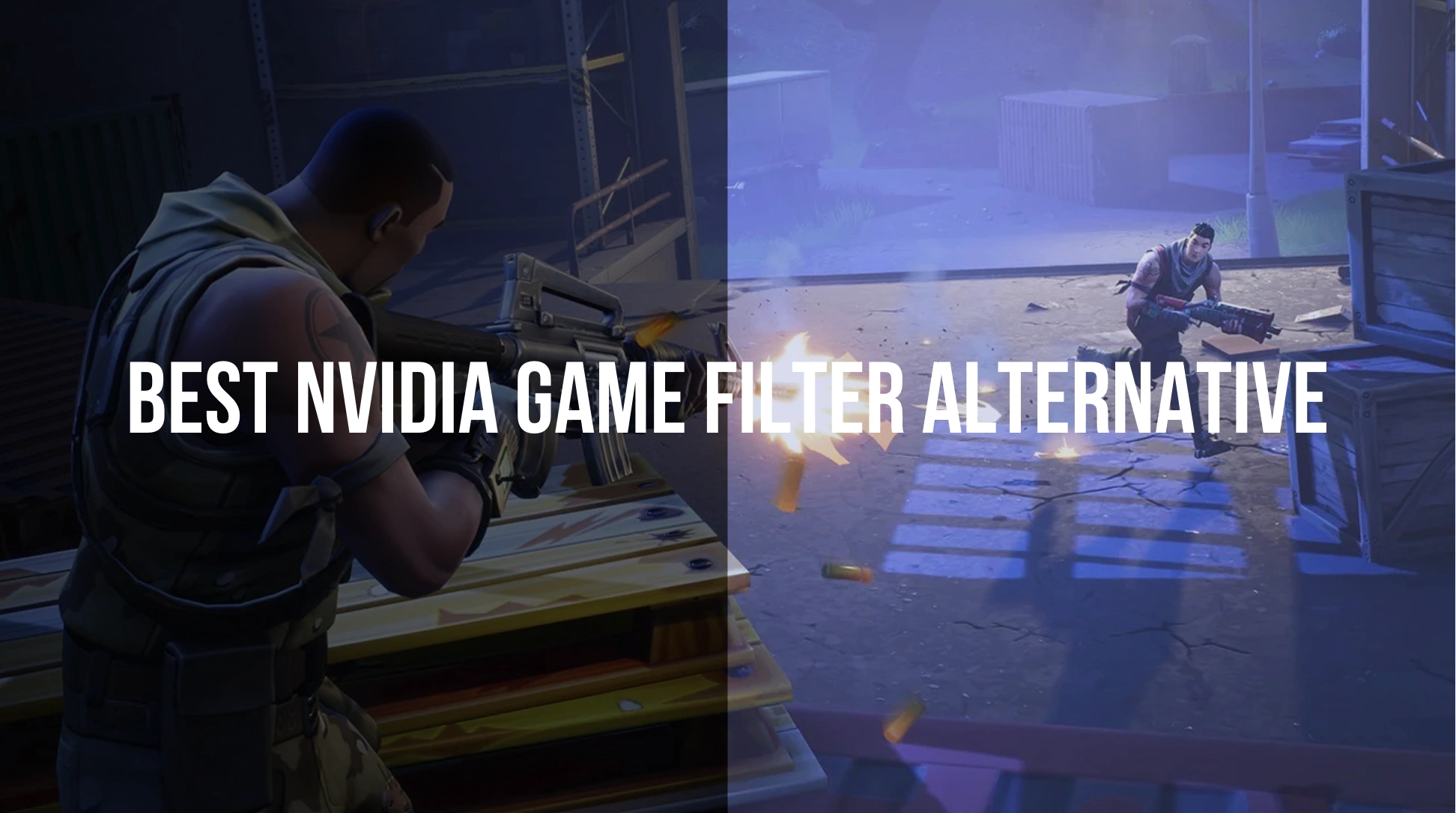
Quick Answer: What Is the Best NVIDIA Game Filter Alternative?
The best NVIDIA game filter alternative on the market is LagoFast Game Screen Filters. While traditional overlays often cause massive frame rate drops, crash during game updates, or fail to load completely, LagoFast uses specialized, lightweight overlay layers to inject clarity into your games with a single click. It provides advanced AI-driven visual enhancements, universal contrast boosters, and game-specific profiles tailored for popular competitive titles, all while running seamlessly alongside an integrated one-click FPS booster to maintain high-performance gameplay.
Introduction
Manually tweaking your monitor settings every time you switch from working on your desktop to playing a game can be an exhausting chore. Because different game engines handle lighting in unique ways, a hardware configuration that looks pristine in one game might leave Fortnite looking like a grey, muddy mess. This is exactly why competitive players rely on specialized visual management tools. If you are dealing with an unstable setup or are simply tired of blurry graphics, finding a dedicated game filter alternative is the easiest path to restoring vibrant colors and sharp details without ruining your system's performance.
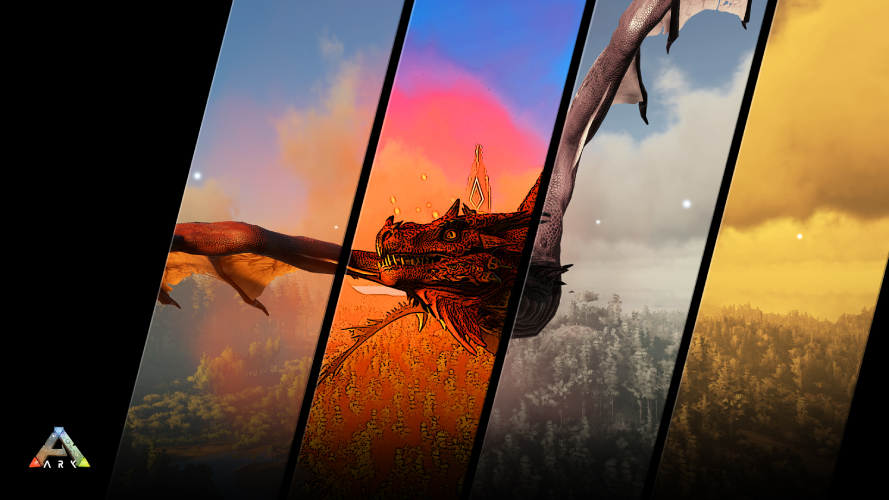
Part 1: What Is NVIDIA Game Filter?
Part 2: Common NVIDIA Game Filter Problems
Part 3: What Makes a Good NVIDIA Game Filter Alternative?
Part 4: Best NVIDIA Game Filter Alternative: LagoFast Game Filter
Part 5: LagoFast Game Filter vs NVIDIA Game Filter
Part 6: Best NVIDIA Game Filter Alternative for FPS Games
Part 7: How to Use LagoFast Game Filter as an NVIDIA Filter Alternative?
Part 8: Recommended Filter Settings for Better Visibility
Part 9: When Should You Use an NVIDIA Game Filter Alternative?
Part 10: FAQs About NVIDIA Game Filter Alternatives
Part 1: What Is NVIDIA Game Filter?
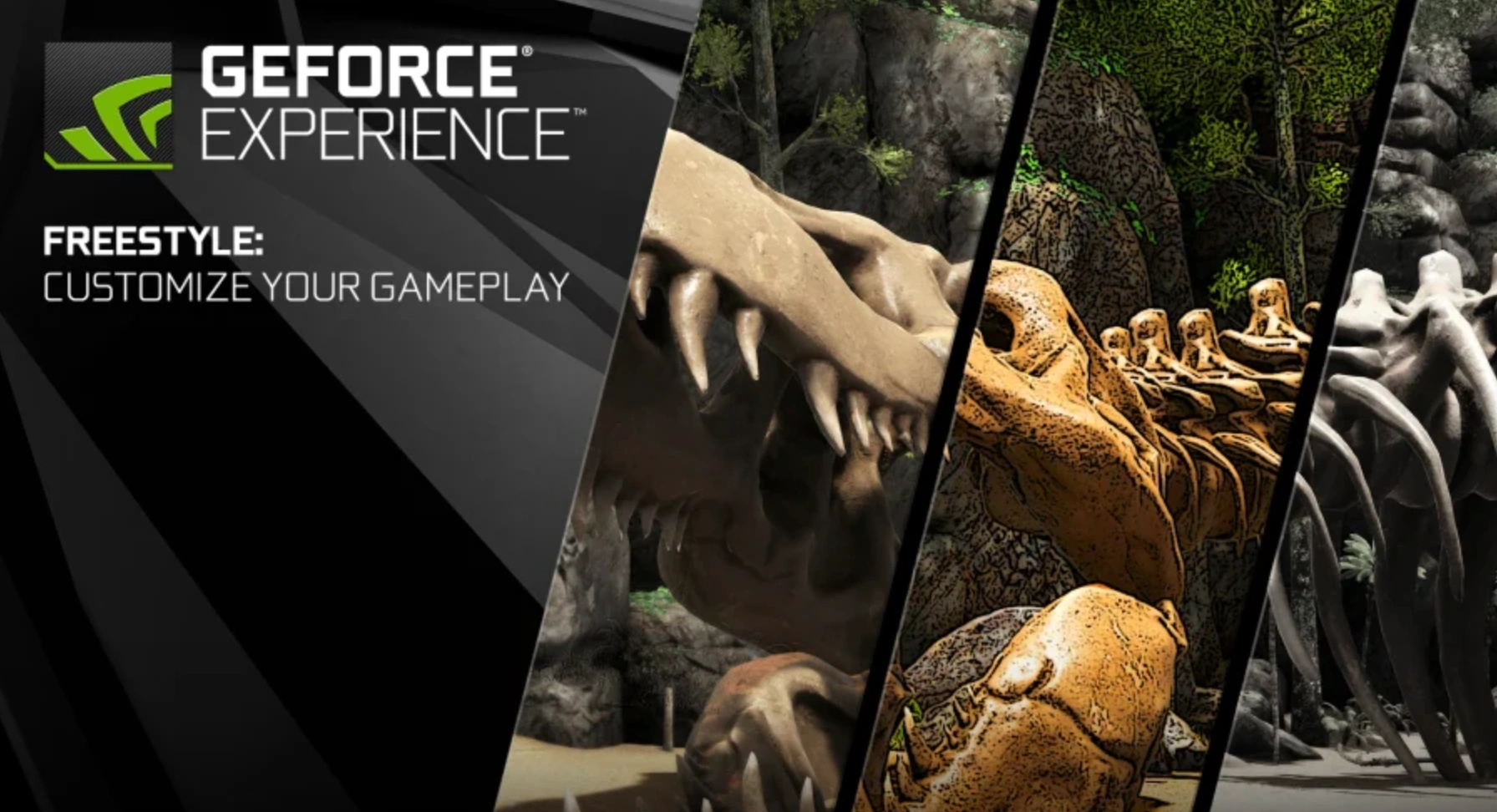
NVIDIA Game Filter, powered by GeForce Experience (and now integrated into the newer NVIDIA App overlay via FreeStyle), is a built-in feature that allows PC gamers to apply real-time post-processing filters to their favorite titles. By pressing Alt + F3 in-game, players can access an overlay containing various sliders for brightness, contrast, color temperature, sharpness, and specialized visual modes like HDR mapping or colorblind adjustments.
The underlying technology works by intercepting the frames rendered by your graphics card right before they are sent to your display monitor. It then modifies the pixel data based on the chosen presets. In competitive multiplayer scenes, players rely heavily on these custom profiles to strip away developers' artistic atmospheric choices, such as dark shadows, dense fog, or aggressive motion blur, to maximize their tactical awareness.
Part 2: Common NVIDIA Game Filter Problems
Despite its popularity, the integrated GeForce overlay is notorious for technical instability. PC players frequently run into issues where the software refuses to cooperate at critical moments. Some of the most widespread problems include:
- The "Game is Not Supported" Error: Following game updates or graphics driver patches, the overlay often fails to recognize whitelisted titles, locking you out of your custom color profiles completely.
- Severe FPS Drops and Micro-Stutters: Because it relies heavily on raw GPU processing power to alter frame data on the fly, enabling complex filters can cost you anywhere from 10% to 15% of your native frame rate.
- Overlay Crashing and Freezing: Opening the overlay menu mid-match can freeze the game client or cause an unexpected crash to the desktop, ruining your competitive rank.
- Settings Resetting Automatically: A frequent complaint in community forums is that custom configurations randomly wipe themselves after a system restart, forcing players to re-enter values from scratch.
- High Background Resource Usage: The broader companion software package consumes significant system memory and CPU cycles just running background telemetry services.
Part 3: What Makes a Good NVIDIA Game Filter Alternative?
If you decide to switch away from default GPU control panels, you should look for a dedicated tool designed with performance optimization in mind. A viable game filter alternative must excel in the following areas:
Zero-Friction Performance Impact
Post-processing shouldn't come at the cost of your competitive frame rates. A solid alternative uses efficient code pathways to modify visual outputs, ensuring that sharpening a texture or lifting dark shadows does not trigger sudden frame drops or latency spikes during intense gunfights.
Intelligent Contrast Management
Basic monitor adjustment tools simply raise the black level across the entire display, making dark areas look grey and washing out the rest of the image. A high-quality tool uses selective tone mapping to brightened dark corners where enemies hide while protecting the highlights from overexposing.
Dynamic Edge Sharpening
Instead of introducing digital artifacts or grain, an effective system isolates blurry edges caused by temporal anti-aliasing (TAA) and cleans them up cleanly. This makes distant targets instantly recognizable without requiring performance-heavy, native super-resolution rendering.
Part 4: Best NVIDIA Game Filter Alternative: LagoFast Game Filter
LagoFast Game Screen Filters stands out as the premier alternative to NVIDIA's native tools. Primarily recognized as an elite network optimizer and performance suite, LagoFast includes a sophisticated visual processing module designed specifically to eliminate washed-out colors and muddy environments. Rather than forcing you to navigate complex developer options or fiddle with clunky physical monitor buttons, LagoFast uses optimized rendering techniques to instantly deliver visual clarity across any setup.
Key Features of LagoFast Game Filters:
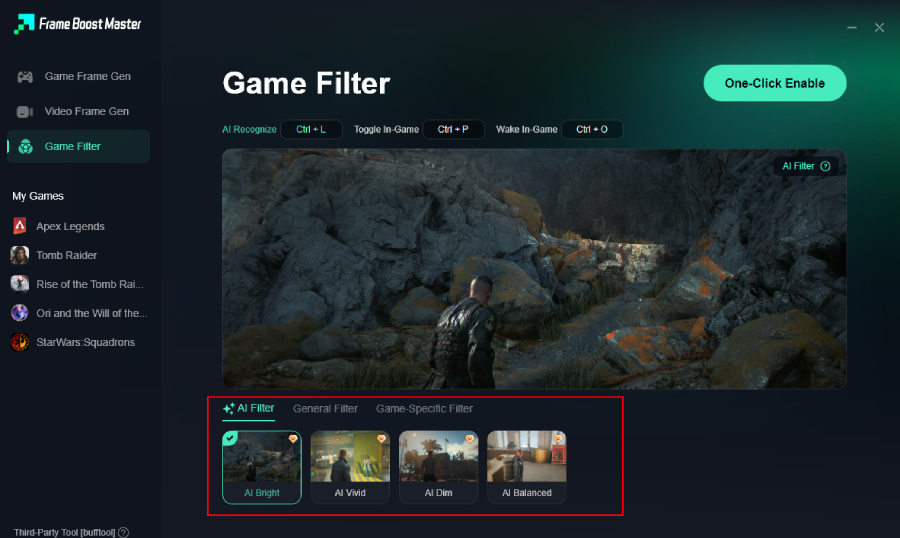
- AI Filters: Intelligent, real-time optimization layers that dynamically evaluate display data to balance exposure, fix shadows, and reveal hidden image details automatically.
- Universal Filters: Versatile visual presets engineered to instantly boost saturation, deepen contrast, and sharpen lines across any modern competitive PC title.
- Game-Specific Filters: Tailor-made, pixel-perfect visual profiles crafted specifically for high-stakes tactical shooters, ensuring optimal visibility based on individual game engine quirks.
- Hardware Efficiency: Built directly into a lightweight client that minimizes background CPU and RAM usage, protecting your system from the performance tax typical of traditional overlays.
Part 5: LagoFast Game Filter vs NVIDIA Game Filter
|
Feature / Aspect |
NVIDIA Game Filter (FreeStyle) |
LagoFast Game Screen Filters |
|
Performance Impact |
Moderate to Heavy (can drop 10-15 FPS) |
Minimal (runs on a lightweight overlay) |
|
Setup Complexity |
High (requires manual slider tweaking) |
Low (one-click preset activation) |
|
Stability |
Prone to breaking after driver updates |
Highly stable; independent of GPU drivers |
|
Visual Core Modes |
Manual exposure, contrast, and color sliders |
AI Dynamic Filters, Universal, & Game-Specific |
|
FPS Optimization |
None (purely a visual post-processing tool) |
Integrated one-click hardware performance booster |
|
Targeted Support |
Generic filters applied globally |
Pixel-perfect profiles for PUBG, CoD, and R6 |
Part 6: Best NVIDIA Game Filter Alternative for FPS Games
In fast-paced tactical shooters, a split-second delay or a missed visual cue means a trip back to the lobby. LagoFast serves as the ideal alternative for competitive titles because it can also boost FPS.
When you activate a visual profile, you can simultaneously utilize its built-in game booster mechanics. With a single click, LagoFast optimizes your operating system's background processes, reallocates CPU priorities, flushes unnecessary RAM usage, and fine-tunes your GPU clock states to actively maximize your system's frame rate output.
By combining visual filters with frame rate optimization, you eliminate the classic compromise where better game visibility costs you precious performance. Instead, you can crisp up textures and brighten dark zones while actively maintaining higher, more stable frame rates. This dual-action approach removes micro-stutters and eliminates ghosting or screen tearing, ensuring your inputs remain perfectly responsive when tracking moving targets.
Part 7: How to Use LagoFast Game Filter as an NVIDIA Filter Alternative?
Activating your custom screen adjustments via LagoFast takes less than a minute. The software bypasses confusing control loops to put visual clarity right at your fingertips. Follow these simple steps to set up your profiles:
Step-by-Step Tutorial to Use LagoFast to Filter the Screen and Optimize Gaming Experience:
Step 1: Click the Free Trial button to download and install LagoFast.
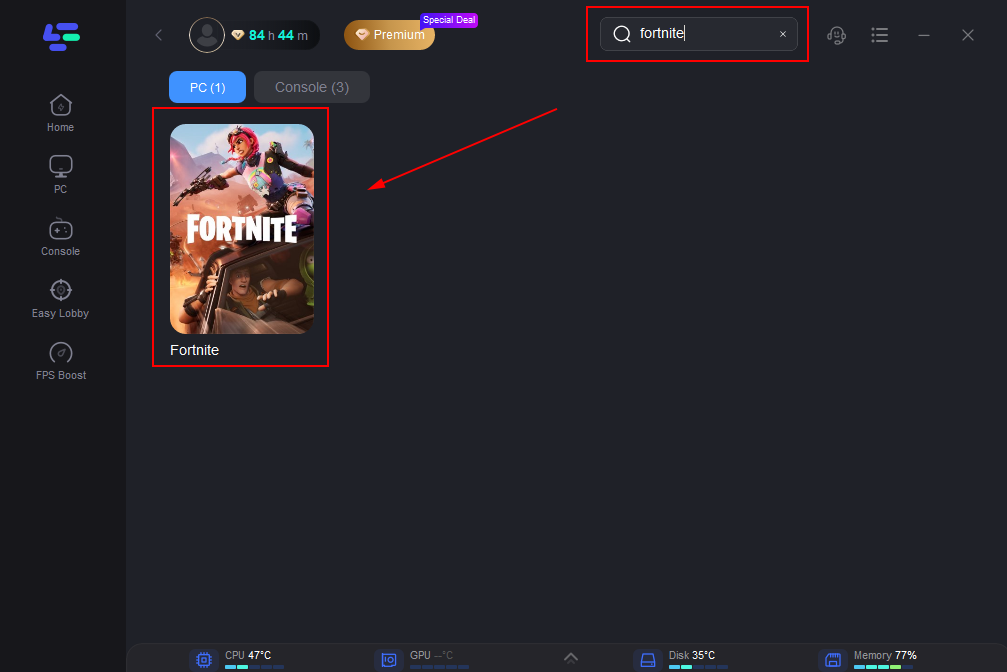
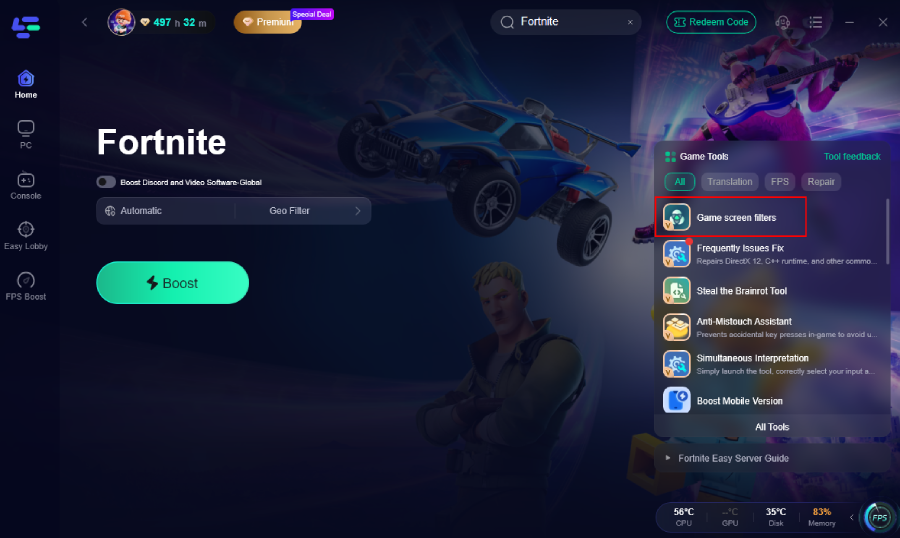
Step 2: Open LagoFast, then click the PC button on the left, search for the game name you play, like Fortnite, in the search bar, and click it after it appears.
Step 3. Click Game Screen Filters in the Game tool Section.
Step 4. Select your preferred filter like AI Bright and click the One-Click Enable button to unlock the new experience.
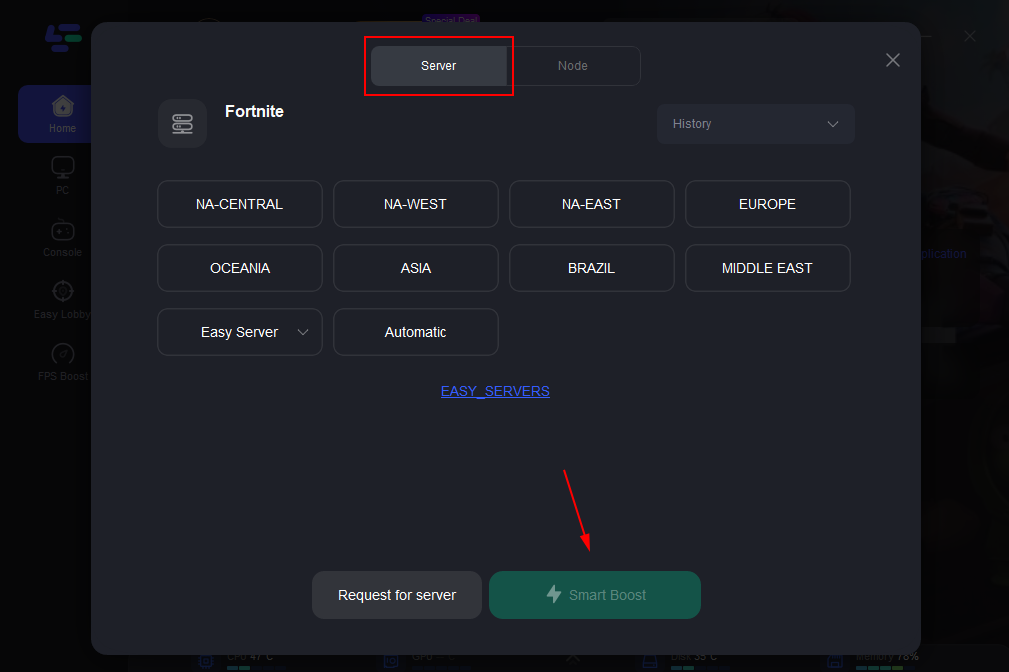
Step 5: Go back to the main interface and click on Server to change to a better server that ensures a better gaming experience, then click on Boost to fix Fortnite lag and stuttering.
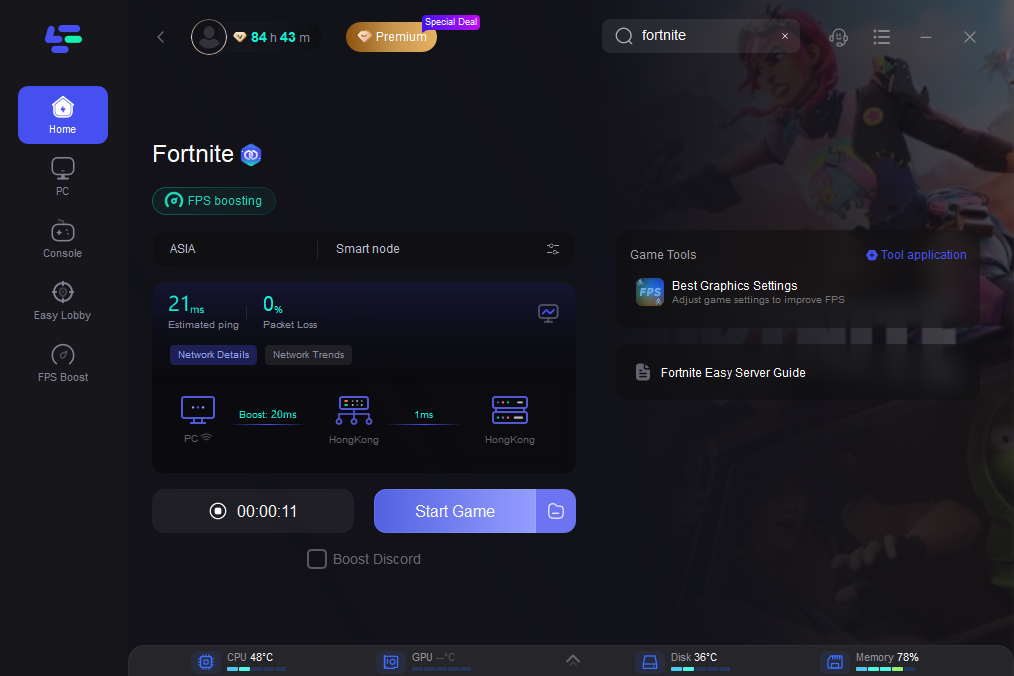
Step 6: Check the specific game ping, packet loss, and multiple path connections on the right side. Finally, click “Start Game” to play the game.
Part 8: Recommended Filter Settings for Better Visibility
If you want to construct the absolute best filter to see enemies easily across different environments, follow these targeted profile guidelines:
- For Dark, Shadow-Heavy Shooters (Escape from Tarkov, CoD): Maximize shadow recovery and step up mid-tone exposure. This lightens dark corners without completely overexposing outdoor sunlit locations.
- For High-Speed Battle Royales (Fortnite, Apex Legends): Push digital vibrance and color saturation up by roughly 20-30%. Lifting color distinction allows you to pick out enemy character models against complex landscapes much faster.
- For Foggy or Low-Contrast Maps (PUBG): Apply a dedicated sharpening layer combined with a subtle contrast lift. This helps define character silhouettes through long-distance pixel arrays and hazy particle effects.
Part 9: When Should You Use an NVIDIA Game Filter Alternative?
Switching to a third-party solution like LagoFast makes sense if you find yourself constantly battling your default graphics software. You should consider adopting an alternative tool if:
- You Own an AMD or Intel GPU: NVIDIA's overlay is naturally locked to GeForce hardware. An independent alternative lets you enjoy advanced filters regardless of your card's manufacturer.
- Your Current Overlay Keeps Breaking: If game updates regularly break your custom profiles or throw errors, an independent client provides a headache-free experience.
- You Are Straining to See Targets: When competitive maps feature dark corners, blinding sun glare, or dense shadows, a dynamic filter levels the playing field.
- Every Frame Matters on Your Rig: If your setup sits right on the edge of smooth performance, swapping a heavy GPU overlay for an optimized alternative protects your 1% low frame rates.
Part 10: FAQs About NVIDIA Game Filter Alternatives
Why is my NVIDIA game filter not working suddenly?
This usually occurs because a recent game patch or a clean installation of an NVIDIA graphics driver has broken compatibility with the overlay system. It can also happen if the background telemetry container services crash or if the game's anti-cheat engine flags the overlay module as a false positive, temporarily disabling it.
Which games currently feature dedicated game-specific filters?
While the Universal and AI filters function beautifully across any title you play, LagoFast currently features pixel-perfect, tailor-made visual profiles for high-stakes shooters, specifically supporting PUBG (PlayerUnknown's Battlegrounds), Tom Clancy's Rainbow Six Siege, Rainbow Six Extraction, and the Call of Duty franchise (including Warzone and mainline multiplayer releases).
Can an alternative to NVIDIA game filter improve my actual FPS?
Yes, depending on the tool you select. While ordinary visual tools only touch display colors, LagoFast features an integrated system tuning engine. It simultaneously applies filter profiles and disables unnecessary background tasks, clearing up hardware resources to deliver a measurable boost to your frame rate.
Is an AI filter better than a manual color filter?
Yes, because manual configurations apply a static value across every single scene, meaning a setup tailored for bright daylight might blind you when you walk inside a dark building. AI filters read changing screen values in real time, dynamically tweaking contrast and exposure to keep visibility uniform across different map regions.
Do these filters change how my recorded video or stream captures look?
It depends on your recording setup. Display overlays change what you see on your physical monitor, but stream software can be set to capture raw game video or the full filtered screen.
What is the best Nvidia game filter alternative for Fortnite specifically?
LagoFast is highly recommended for Fortnite due to its universal visibility filters that remove the washed-out gray hues common to the Unreal Engine lighting setup.
Conclusion
Finding the perfect balance of visual depth and game performance shouldn't involve fighting with your graphics software or sacrificing valuable frame rates. By switching to an advanced alternative like LagoFast Game Screen Filters, you get a reliable tool that irons out blurry visuals, clarifies hidden enemies, and stabilizes your performance with zero hassle.
Boost Your Game with LagoFast for Epic Speed
Play harder, faster. LagoFast game booster eliminates stutter and lags on PC, mobile, or Mac—win every match!
Quickly Reduce Game Lag and Ping!
Boost FPS for Smoother Gameplay!