

Is Battle.net not connecting when you try to log in, download a game, or access your Blizzard games? You may see the Battle.net Desktop App stuck on “Connecting,” fail to sign in, or show an error even though your internet connection appears to be working.
A Battle.net connection problem does not always mean that your internet is down. The issue can come from Blizzard's servers, your ISP routing, DNS settings, Windows Firewall, proxy settings, corrupted Battle.net files, or the Battle.net Agent. If Battle.net is not connecting, work through the solutions below to identify whether the problem is with Blizzard, your network, or the Battle.net Desktop App itself.

- ✅ Reduce Lag and High Ping.
- ✅ Boost FPS at the Same Time.
- ✅ Support 8000+ Popular Online Games.
- ✅ Stable Server Connection
Part 1: Why Is Battle.net Not Connecting?
Part 2: Is Battle.net Down or Is It Your Connection?
Part 3: How to Fix Battle.net Not Connecting?
Part 4: Fix Battle.net Stuck on Connecting or Logging In
Part 5: Fix Battle.net Not Connecting on Wi-Fi but Working on Hotspot
Part 6: Battle.net Not Connecting vs Battle.net Not Launching
Part 1: Why Is Battle.net Not Connecting?
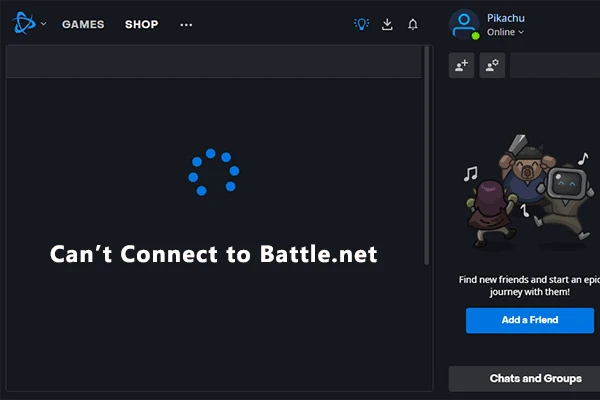
There are several possible reasons why Battle.net cannot connect.
1. Blizzard server or service problems
Sometimes the Battle.net service itself may be experiencing maintenance, outages, or regional connection problems. In this case, changing settings on your PC will not fix the problem.
2. Internet or ISP problems
Your internet may appear normal while the connection between your ISP and Blizzard's servers is unstable. Packet loss, routing problems, or high latency can prevent Battle.net from connecting properly.
3. Windows Firewall or security software
Windows Firewall or third-party antivirus software may block Battle.net or its background processes from accessing the internet.
4. Battle.net Agent problems
The Battle.net Desktop App relies on background Blizzard processes, including the Battle.net Agent. If these processes become stuck, outdated, or corrupted, the app may remain on the Connecting screen.
5. DNS or network configuration issues
Incorrect DNS resolution or a temporary problem with your Windows network configuration can prevent the Battle.net app from reaching Blizzard services.
6. Proxy or conflicting network software
A proxy, VPN, security application, or other network-management software can interfere with Battle.net's connection.
7. Corrupted Battle.net files or cache
Outdated or corrupted Battle.net files can cause login, update, and connection problems. Blizzard specifically recommends deleting certain Battle.net files when troubleshooting these types of issues.
Part 2: Is Battle.net Down or Is It Your Connection?

Before changing Windows settings, determine whether Battle.net is down or whether the problem is specific to your network.
Check Blizzard Battle.net Server Status
If other players are reporting the same Battle.net connection problem at the same time, the issue may be server-side.
You can also check Blizzard's official support site for current Battle.net issues and announcements.
Test Battle.net on Another Network or Mobile Hotspot
One of the fastest ways to determine whether your network is responsible is to test Battle.net using another connection.
You Can Try:
-
Disconnect your PC from your current Wi-Fi or Ethernet connection.
-
Connect it to a phone's mobile hotspot.
-
Open Battle.net.
-
Try signing in again.
If Battle.net connects successfully through the hotspot, your PC and Battle.net installation are probably working correctly.
Part 3: How to Fix Battle.net Not Connecting?
If Blizzard's services are working normally, try the following solutions.
Restart the Battle.net Desktop App and Battle.net Agent
A stuck Battle.net process can prevent the Desktop App from establishing a connection.
1. Close the Battle.net Desktop App.
2. Press Ctrl + Shift + Esc to open Task Manager.
3. Look for Blizzard or Battle.net processes, including Agent.exe.
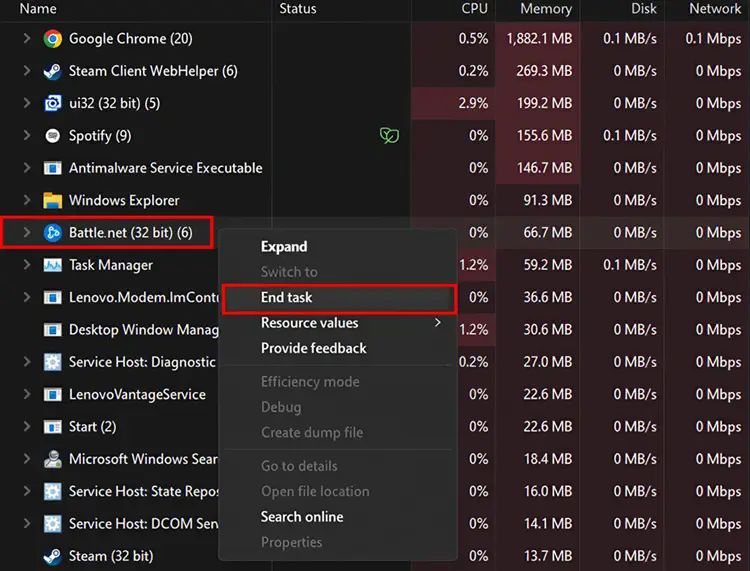
4. End the relevant Battle.net and Agent processes.
5. Wait a few seconds.
6. Open Battle.net again.
7. Try signing in.
If Agent.exe remains active after closing Battle.net, wait until the process disappears before launching the app again.
Restart Your PC and Router
Restarting both your computer and router can clear temporary software and network problems.
First, completely close Battle.net and restart your PC.
Then restart your router:
- Turn off the router.
- Wait around 30 seconds.
- Turn it back on.
- Wait until the connection is restored.
- Launch Battle.net again.
This can help if your router has temporarily lost a stable route to Blizzard's servers.
Check Your Internet and Battle.net Connection Route
A stable-looking internet connection does not necessarily mean that Battle.net has a stable route to Blizzard's servers.
You may experience:
- Packet loss
- High latency
- Unstable routing
- Regional connection problems
- Intermittent disconnections
If Battle.net works on one network but not another, the problem may be related to the connection route rather than the Battle.net app itself.
Allow Battle.net Through Windows Firewall
Windows Firewall can sometimes prevent Battle.net from communicating with Blizzard services.
To check your firewall settings:
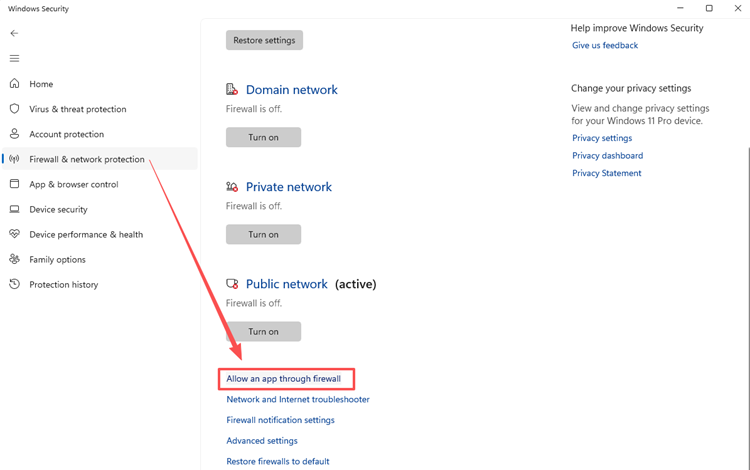
1. Open Windows Security.
2. Select Firewall & network protection.
3. Click Allow an app through firewall.
4. Click Change settings.
5. Find Battle.net and related Blizzard applications.
6. Make sure the required permissions are enabled for your network.
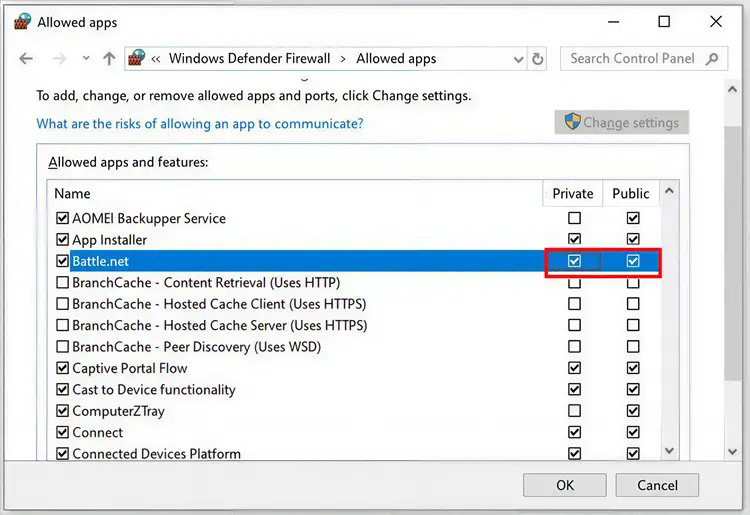
7. Save the changes.
8. Restart Battle.net.
If Battle.net was previously blocked, allowing it through the firewall may restore its connection.
Disable Proxy or Conflicting Network Software
If you are using a proxy, temporarily disable it and test Battle.net again.
You should also temporarily close software that modifies or filters network traffic, such as:
- VPN applications
- Proxy tools
- Third-party firewall software
- Some antivirus network filters
- Network monitoring applications
Flush DNS and Reset Network Settings
A temporary DNS or Windows network configuration problem can prevent Battle.net from connecting.
Open Command Prompt as Administrator and run:
ipconfig /flushdns
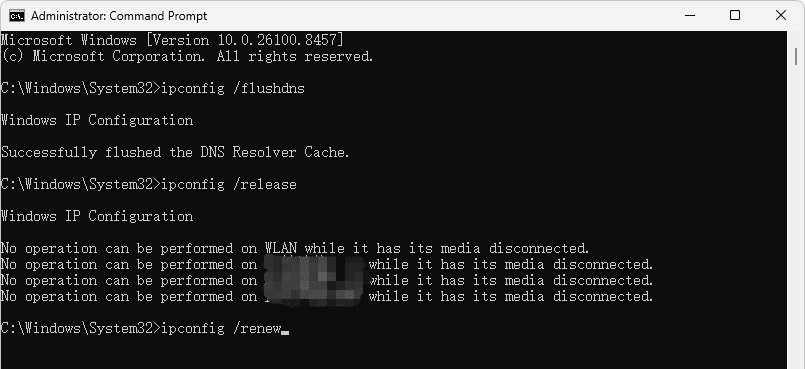
You can also reset the Windows network stack with:
netsh winsock reset
Then restart your computer and try Battle.net again.
This can help when websites work normally but the Battle.net Desktop App still cannot establish a connection.
Change Your DNS Server
If flushing DNS does not help, try another DNS provider.
Popular options include:
- Google DNS: 8.8.8.8 and 8.8.4.4
- Cloudflare DNS: 1.1.1.1 and 1.0.0.1
To change DNS in Windows:
- Open Settings.
- Go to Network & Internet.
- Open your current network connection.
- Find the DNS settings.
- Switch to manual DNS configuration.
- Enter your preferred DNS addresses.
- Save the changes.
- Restart Battle.net.
If Battle.net was having trouble resolving Blizzard services through your previous DNS server, switching DNS may resolve the problem.
Clear Battle.net Cache
Before deleting anything, completely close Battle.net and make sure its Blizzard processes are no longer running. You can then remove the relevant Battle.net data so the application can rebuild it.
After deleting the files:
- Restart your computer.
- Launch Battle.net.
- Sign in again.
- Check whether the connection problem has been resolved.
Note that deleting Battle.net files can cause the app to forget some game installation locations. You may need to use the Locate the game option if an installed game is no longer detected.
Test a Different Network
If none of the previous steps work, test Battle.net using another network.
For example:
Current Wi-Fi → Mobile Hotspot
or:
Home Wi-Fi → Ethernet
or:
Home Internet → Another Wi-Fi network
If Battle.net works immediately on another connection, your original network is likely the source of the problem.
Stabilize Connection by LagoFast
If you've tried above methods but still experience unstable connections, high ping, lag, or other network-related problems while playing Battle.net, LagoFast can help optimize your connection route.
How to Use LagoFast for Battle.net.
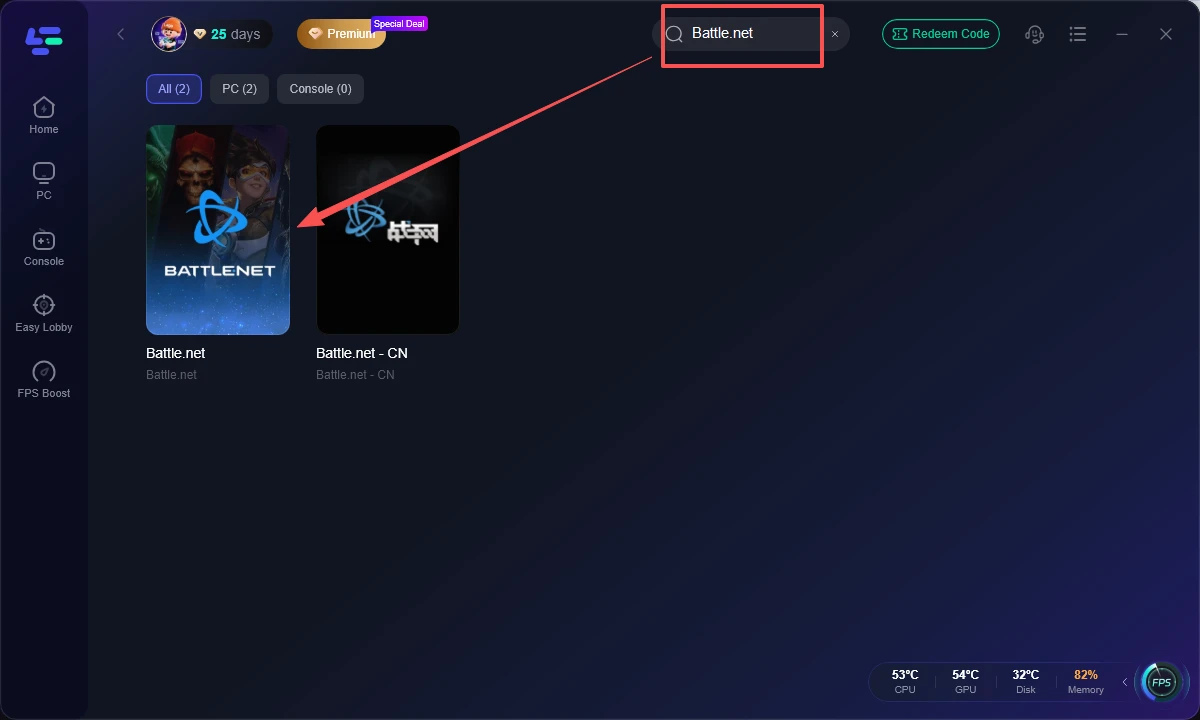
1. Open LagoFast.
2. Select Battle.net.
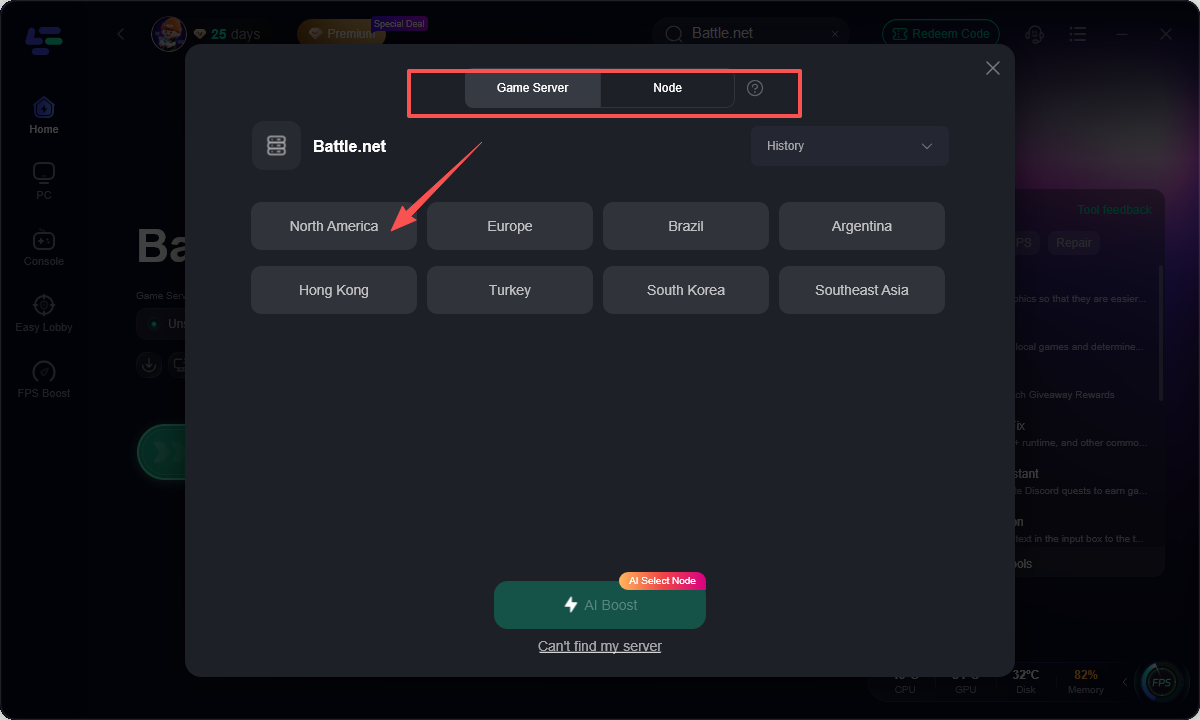
3. Choose a recommended connection server and node.
4. Click Boost. Launch the game.
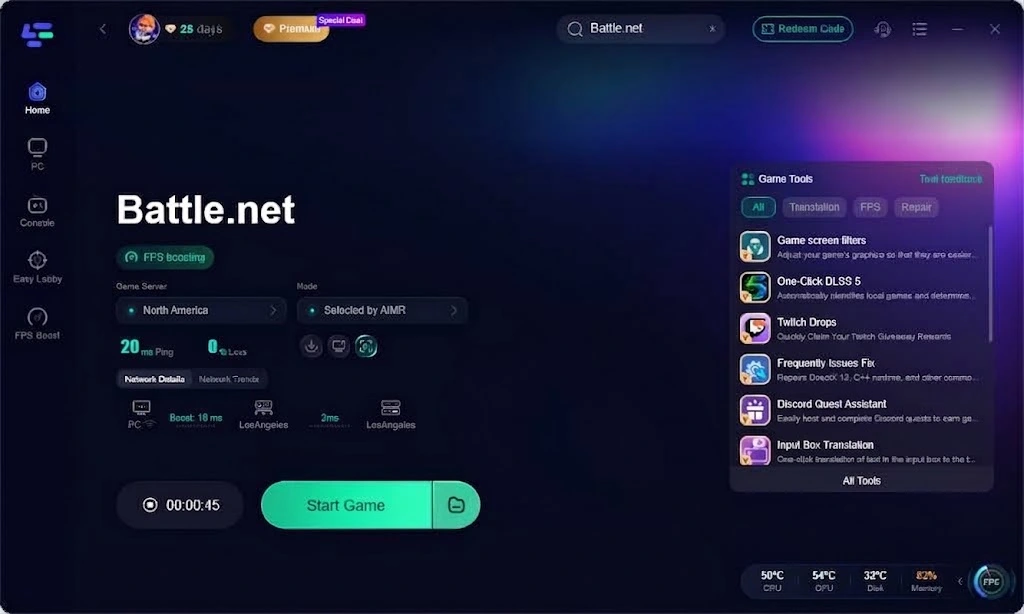
5. Check whether your connection stability improves.
Part 4: Fix Battle.net Stuck on Connecting or Logging In
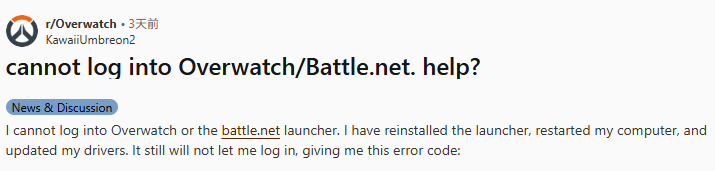
If Battle.net opens but stays on Connecting, Logging In, or a similar screen, try these steps in order:
- Completely close Battle.net.
- End Battle.net and Agent processes in Task Manager.
- Restart your PC.
- Restart your router.
- Disable any proxy or VPN.
- Check Windows Firewall permissions.
- Flush DNS.
- Test another network.
- Clear corrupted Battle.net files if necessary.
If the app works on a mobile hotspot but remains stuck on Connecting on your normal network, the problem is likely related to your network or ISP route.
Part 5: Fix Battle.net Not Connecting on Wi-Fi but Working on Hotspot
It means your Battle.net account and PC can probably connect successfully, but something about your regular network is interfering with the connection.
Check Router or Network Restrictions
Log in to your router and check whether any network restrictions are enabled.
Look for features such as:
- Parental controls
- Website filtering
- Application blocking
- Firewall restrictions
- DNS filtering
- Access-control rules
If you are using a school, workplace, public, or managed network, additional restrictions may also prevent Battle.net from connecting.
Check ISP Routing Problems
This can happen even when:
- Web browsing works normally;
- You can watch videos without buffering;
- Other applications connect normally.
Part 6: Battle.net Not Connecting vs Battle.net Not Launching
These two problems are different and should be diagnosed separately.
Battle.net Opens but Cannot Connect
If the Battle.net Desktop App opens normally but cannot sign in or remains stuck on Connecting, focus on:
- Blizzard server status
- Internet connection
- ISP routing
- Firewall
- Proxy settings
- DNS
- Battle.net Agent
- Corrupted Battle.net files
Battle.net Desktop App Does Not Open
If clicking the Battle.net icon does nothing, the app crashes immediately, or Windows displays an error before the login screen appears, you are dealing with a Battle.net launch problem.
Try:
- Restarting your PC.
- Ending any stuck Blizzard processes.
- Running Battle.net as administrator.
- Checking antivirus and firewall restrictions.
- Updating Windows.
- Deleting corrupted Battle.net files.
- Reinstalling the Battle.net Desktop App if necessary.
Blizzard has a separate troubleshooting category for cases where the Battle.net Desktop App does not launch.
Part 7: FAQ
Why can't I connect to the Battle.net server?
To fix a Battle.net server connection failure, clear your app cache files by deleting the local Battle.net folder from your system data.
Why is Battle.net not working?
Battle.net might not be working due to ongoing server outages, corrupted local cache files, or background processes stuck in your system memory
Did Battle.net get hacked?
Battle.net has not suffered a recent, large-scale company-wide data breach or hack, though individual user accounts are sometimes compromised due to phishing or weak passwords
Why won't my Battle.net go online?
To fix a Battle.net connection error, flush your computer's DNS cache and power cycle your network router
Is Blizzard getting ddosed right now?
No, Blizzard and Battle.net are not currently experiencing a DDoS attack or widespread outages.
What are the first signs of being hacked?
The earliest signs of being hacked are usually subtle, such as an unrequested password reset email, a multi-factor authentication (MFA) code you did not trigger, or contacts receiving messages you never sent.
Conclusion
If Battle.net is not connecting, the problem may come from Blizzard’s servers, your network, DNS, firewall, or corrupted Battle.net files. Start by checking the service status and testing another network, then work through the connection and app troubleshooting steps above. If Battle.net still cannot connect after these fixes, the issue may require further investigation from Blizzard Support.
Boost Your Game with LagoFast for Epic Speed
Play harder, faster. LagoFast game booster eliminates stutter and lags on PC, mobile, or Mac—win every match!
Quickly Reduce Game Lag and Ping!
Boost FPS for Smoother Gameplay!