
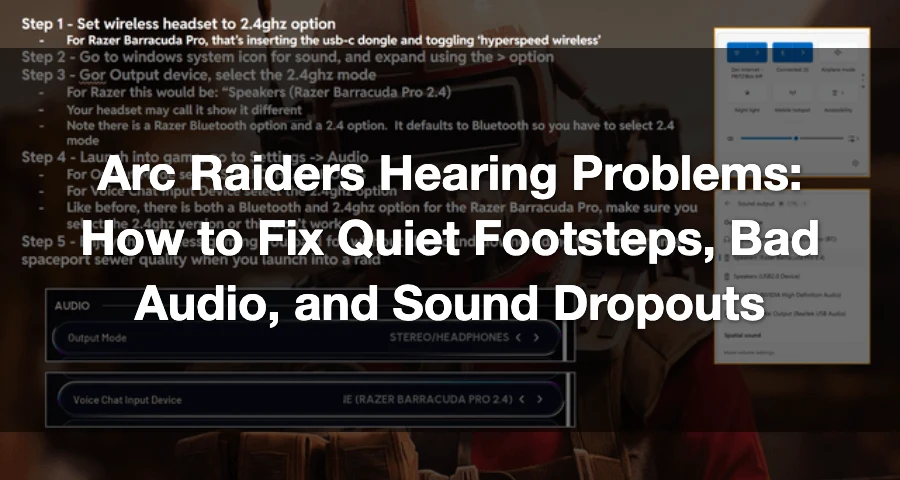
If you can’t hear footsteps properly in Arc Raiders, or your audio keeps hitching and cutting out on PC, you’re not imagining it. Players have repeatedly reported both issues.
One player on Reddit put it plainly: “The footstep sounds in ARC Raiders are very inconsistent. I keep getting blindsided by players sprinting right up behind me.” Another player on the Steam Community said, “Footstep audio is borderline nonexistent.”
The short version: this looks like two separate problems.
- Footstep and directional audio clarity can be weak or inconsistent, especially for enemy movement.
- Full audio hiccups or dropouts on PC appear to be a bug for some players.
The best fixes to try first are:
- Switch Dynamic Range to Night Mode.
- If your audio is actually cutting out on Steam PC, add
-norhithreadto launch options. - If you use a wireless headset, check whether your headset, mic, and Windows audio routing are using 2.4GHz where applicable.

- ✅ Lower ping and fewer disconnects.
- ✅ More FPS and better PC performance.
- ✅ Support for 8000+ games.
- ✅ Stable connections and region switching.
Is Arc Raiders audio actually broken?
In some cases, yes.
This does not look like a simple “bad headset” problem. Multiple players describe enemy footsteps as too quiet or inconsistent, and some PC players report the game audio getting worse over time, with hitches and dropouts during play.
That matters because sound is a big part of survival in Arc Raiders. A player on the Steam Community said, “Sound plays such a crucial part in this game that I have a hard time imagining playing without it.” Another report on Reddit said the problem “actually makes PVP borderline unplayable in defensive scenarios.”
So if your awareness feels off, especially while looting or holding angles, it may not be just your settings.
The fastest solution: Use LagoFast to bring back voice chat in ARC Raiders
If voice chat in ARC Raiders isn't working (you can't hear your teammates, they can't hear you, or proximity chat isn't working), the quickest solution many players use isLagoFastIt
helps optimize the network route used by voice traffic (VOIP) in the game. This is often the cause of chat failures after patches or with certain providers/regions.
Step-by-step instructions (PC)
Step 1: Download and install LagoFast.
Step 2: Open LagoFast and type ARC Raiders in the search bar.
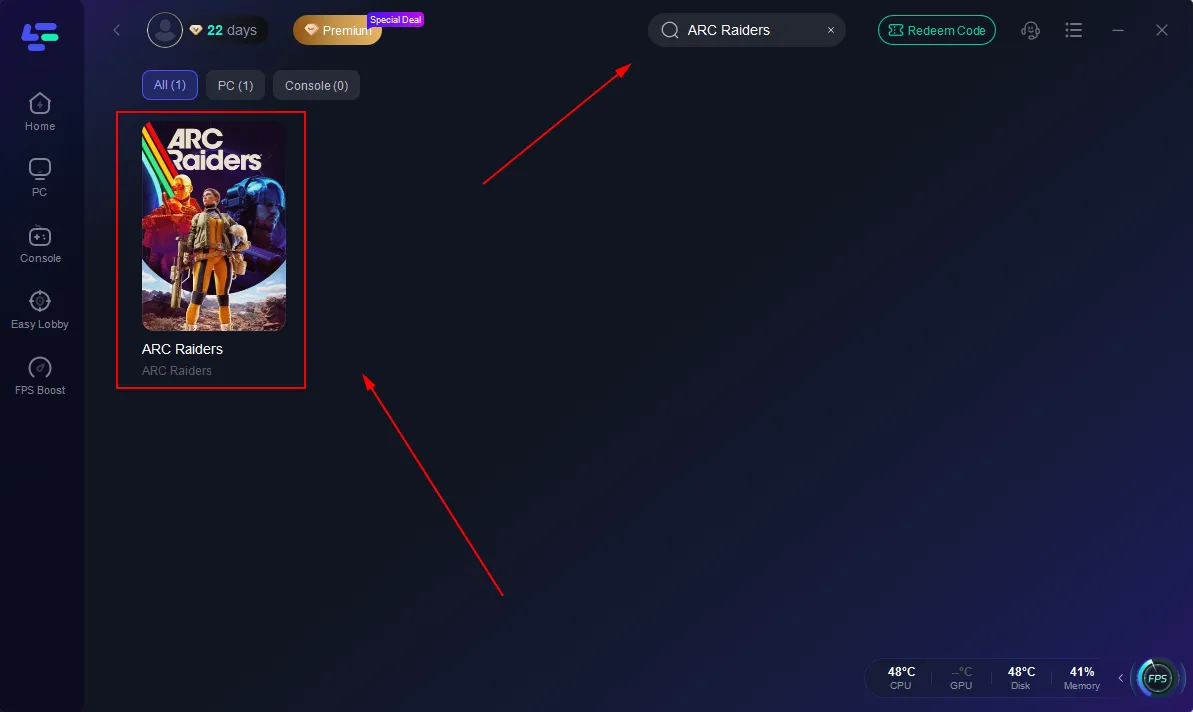
Step 3: Select ARC Raiders, then click Auto-Boost / Best Route (or nearest server/region).
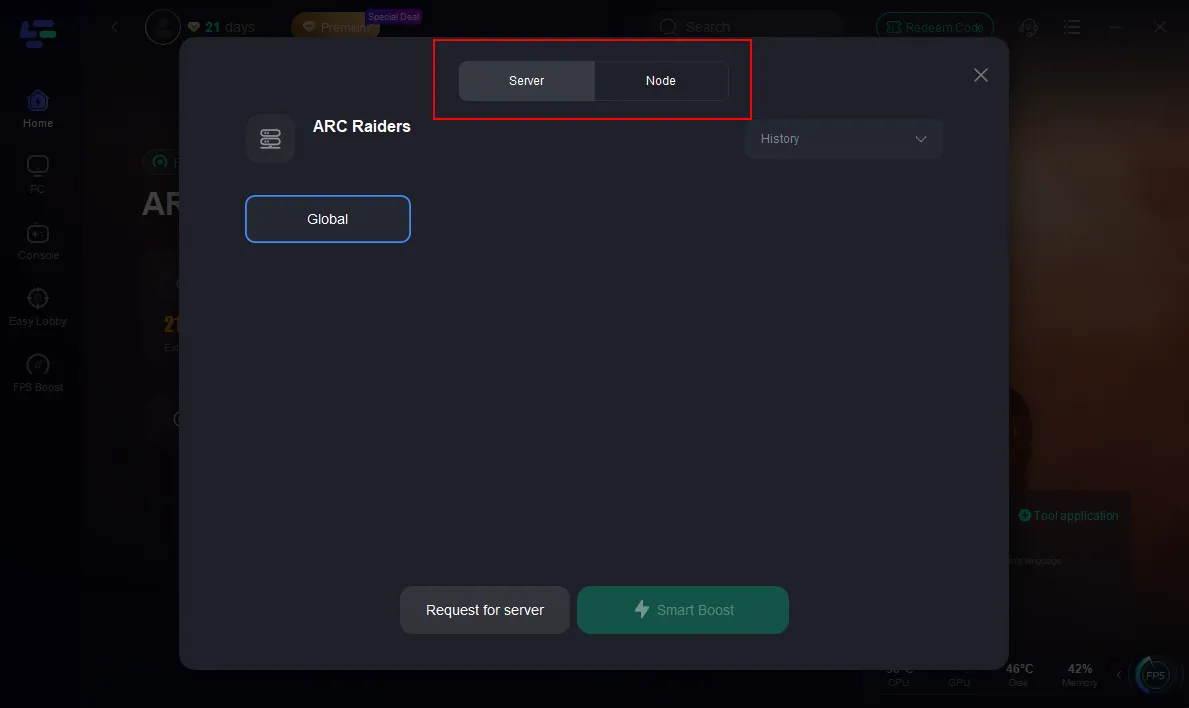
Step 4: Click Boost and wait for the connection to apply.
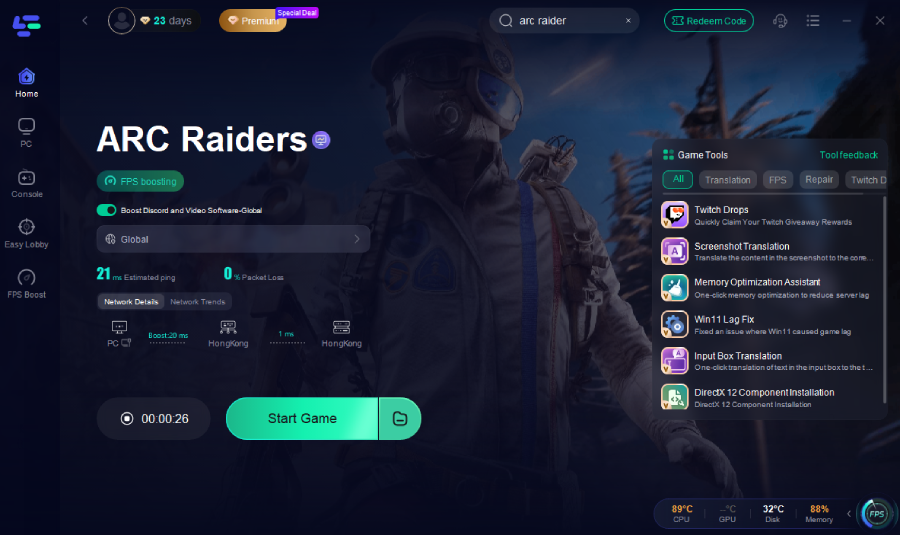
Step 5: Launch ARC Raiders through LagoFast.
How to Fix Voice Chat in ARC Raiders (Step-by-Step)
Follow the steps in order. Don't skip any.
Fix 1: Change Dynamic Range to Night Mode
If your main issue is quiet footsteps or weak player movement audio, this is the first setting to change.
Players have specifically recommended switching Dynamic Range to Night Mode. One Steam discussion summed it up like this: “Enable night mode in audio. Proceed to realize how all player action noise becomes much, much clearer.”
Why this helps: Night Mode compresses the game’s dynamic range, which pushes quieter sounds forward and tones louder sounds down. In practice, that can make footsteps and other useful intel easier to hear without your own gunfire dominating the mix.
How to do it
- Open Arc Raiders
- Go to Settings
- Open Audio
- Find Dynamic Range
- Set it to Night Mode
If footsteps are your biggest problem, do this before anything else.
Fix 2: Use -norhithread for PC audio dropouts
If your issue is different—audio hitching, stuttering, or dropping out completely on PC—Night Mode may not solve it.
For that version of the problem, the clearest workaround is on Steam: add -norhithread to the game’s launch options. This has been shared as a practical fix for players dealing with the audio-cutting-out bug.
How to add the Steam launch option
- Open Steam
- Go to your Library
- Right-click ARC Raiders
- Click Properties
- Stay on the General tab
- In Launch Options, enter
-norhithread - Close the window and launch the game again
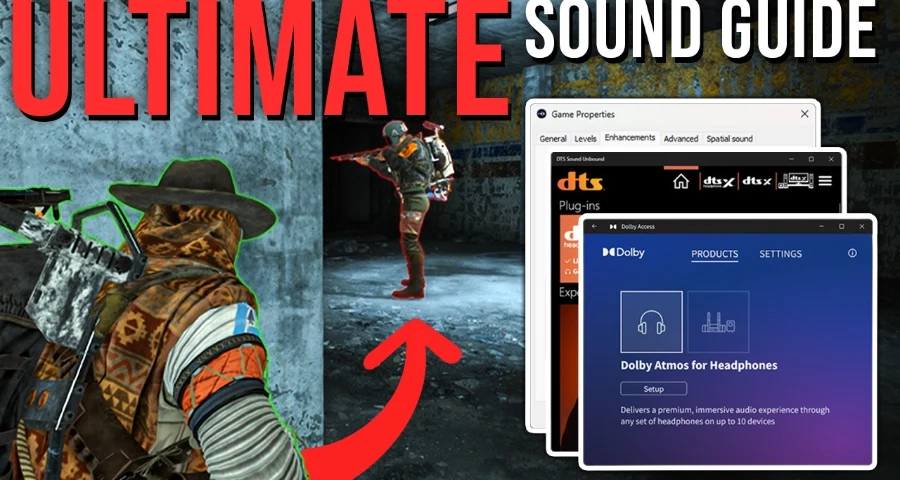
This is specifically for the dropout/hiccup bug, not for generally low footstep volume.
Fix 3: Check wireless headset routing if you play on PC
If you use a wireless headset, your problem may be partly device-specific.
One player fix that helped with Arc Raiders headset issues was making sure the headset output, microphone setting, and Windows audio routing were all designated to use 2.4GHz where relevant. That will not apply to every headset, but it is worth checking if your sound is distorted, thin, unstable, or behaving differently in this game than in others.
Because headset software varies a lot, treat this as a targeted fix for wireless setups rather than a universal Arc Raiders setting.
What settings probably won’t fully fix
Even with Night Mode enabled, some players still report that enemy footsteps remain inconsistent.
There are also repeated complaints about directional clarity, especially vertical positioning. That means you may improve the mix and still feel like enemies sound closer, farther, above, or below you in unreliable ways.
So set expectations correctly:
- Night Mode can improve clarity
-norhithreadcan help dropout cases on Steam PC- Wireless headset checks can solve some hardware-specific issues
- But some footstep inconsistency still appears to be game-side
Fast troubleshooting checklist
Before you assume the game is the only cause, run through these quick checks:
- Restart the game
- Reconnect or restart your headset or audio device
- Confirm your correct playback device is set as the Windows default
- Disable surround or spatial audio temporarily and test again
- Compare stereo output versus your headset’s alternate mix settings, if available
- Update audio drivers
- If you are on Steam PC and getting full cutouts, test
-norhithread - If you are struggling with footstep clarity, switch to Night Mode first
FAQ
Why can’t I hear footsteps in Arc Raiders?
The most likely reason is a mix of game-side footstep inconsistency and your current audio settings. Many players report that enemy footsteps are too quiet or unreliable. Start by changing Dynamic Range to Night Mode.
Does Night Mode actually help in Arc Raiders?
Yes, it helps many players hear movement sounds more clearly. It works by compressing the dynamic range so quieter sounds, like footsteps, stand out more.
How do I fix Arc Raiders audio cutting out on PC?
If you play through Steam, open the game properties and add -norhithread in Launch Options under the General tab. That workaround is aimed at the audio dropout bug, not general footstep loudness.
Is the Arc Raiders hearing issue a bug or just bad settings?
It can be both, depending on the symptom. Quiet or unclear footsteps can improve with Night Mode, but player reports suggest some of that problem is still game-side. Full sound hiccups and dropouts on PC look more like a separate bug, with -norhithread as a current workaround.
Bottom line
If Arc Raiders audio feels wrong, start with the fixes that match your exact symptom.
- Use Night Mode for quiet footsteps and weak player-action audio
- Use
-norhithreadif your sound is hitching or dropping out on Steam PC - Check 2.4GHz wireless headset routing if you use a wireless setup
Those are the most practical fixes right now. Just keep in mind that some reports around footstep inconsistency and directional audio still look like game-side issues, so settings alone may not fully solve them.

Boost Your Game with LagoFast for Epic Speed
Play harder, faster. LagoFast game booster eliminates stutter and lags on PC, mobile, or Mac—win every match!
Quickly Reduce Game Lag and Ping!
Boost FPS for Smoother Gameplay!