
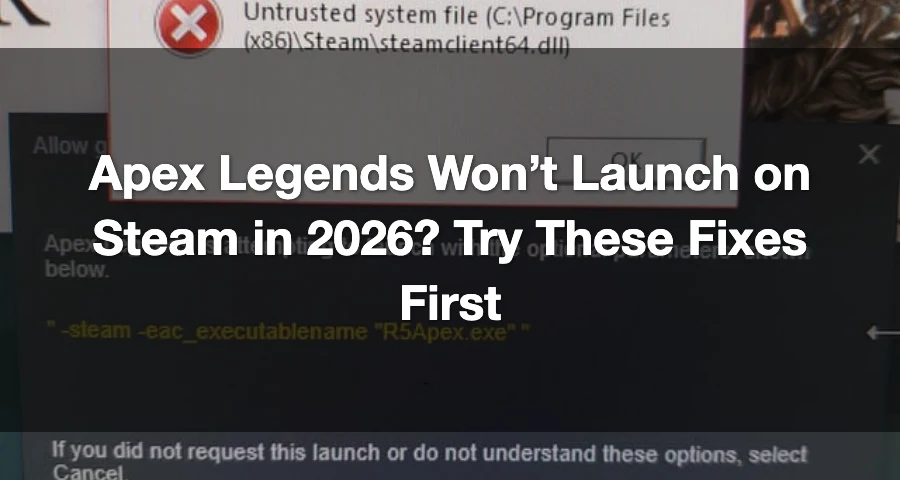
“After the recent update, I can't launch Apex Legends. The Easy Anti-Cheat (EAC) starts, but after a few seconds, it closes automatically, and the game does not open.” This is a common issue many Steam players are facing.
If Apex Legends won’t launch on Steam in 2026, the most common causes are Easy Anti-Cheat failing to start, corrupted or outdated game files after an update, damaged or outdated GPU drivers, or conflicts from overlays and background apps. The goal is to get you back to the lobby quickly, so start with the low-risk fixes before moving to advanced file changes or a reinstall.

- ✅ Lower ping and fewer disconnects.
- ✅ More FPS and better PC performance.
- ✅ Support for 8000+ games.
- ✅ Stable connections and region switching.
Why Apex Legends is Not Launching on Steam
Players report various startup failures, including:
Easy Anti-Cheat opens, then closes, and Apex never appears
The initial loading screen shows, then nothing happens
The game crashes immediately on launch
Steam indicates the game is running for a few seconds, then stops
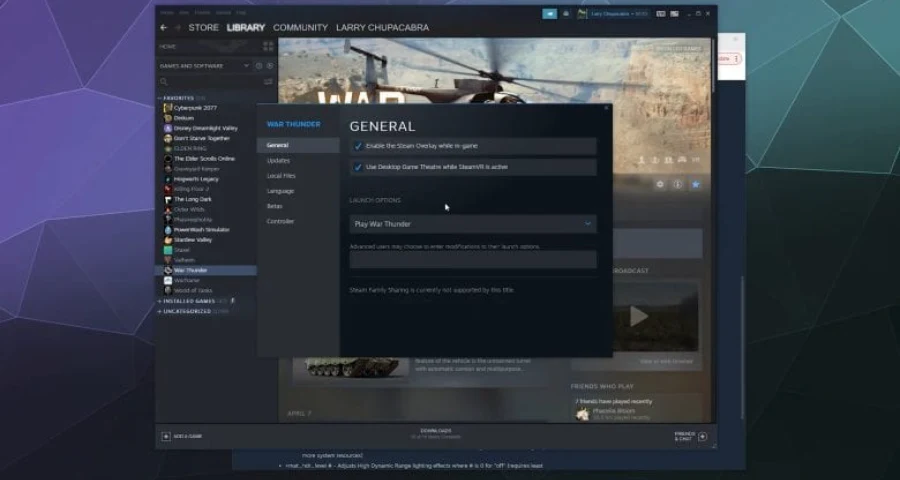
The two main trouble spots are EAC startup failures and post-update file corruption. Additionally, outdated or damaged graphics drivers can prevent the game from starting. If Apex shows the first loading screen and then crashes, a conflicting program in the background is often the culprit.
This matters because it blocks full access to the game. The best approach is to work from the safest and fastest fixes toward more invasive solutions.
Fastest Fixes to Try First
These low-risk steps are worth trying in order.
1) Restart Your PC
A full restart can clear temporary software glitches, stuck services, and failed background processes. This simple step can sometimes resolve startup issues after an update.
2) Clear Steam Download Cache
Corrupted Steam cache data can interfere with updates and game startup.
In Steam:
Steam > Settings > Downloads > Clear Download Cache
Confirm the prompt. Steam may sign you out, which is normal. Sign back in and try launching Apex again.
3) Verify Integrity of Apex Legends Game Files
If an update left missing or damaged files, Steam can repair them.
In Steam:
Library > Right-click Apex Legends > Properties > Installed Files > Verify integrity of game files
Let the scan finish completely, then relaunch the game.
4) Make Sure Steam is Fully Updated
An outdated Steam client can also cause launch problems. If there’s a pending update, install it, restart Steam, and test Apex again.
5) Run Steam and Apex as Administrator
Permission issues can prevent anti-cheat, game services, or supporting files from starting correctly. Close Steam completely, then reopen it with administrator rights. If needed, try launching Apex the same way.
Fix Easy Anti-Cheat Launch Failure
If Apex closes right after the Easy Anti-Cheat screen, this is the next fix to try.
The usual symptom is that EAC appears, loads for a few seconds, then closes, and the game never opens. This indicates EAC is not starting properly.
How to Repair Easy Anti-Cheat for Apex Legends
Open your Apex Legends install folder on PC.
Open the EasyAntiCheat folder.
Run EasyAntiCheat_Setup.exe.
Select Apex Legends.
Click Repair.
Restart your PC and launch the game again through Steam.
If the issue started right after a patch, do this before attempting a full reinstall.
Fix Update-Corrupted Files After Patches
If Apex stopped launching immediately after a new update, there is a community workaround that has helped some players.
This is an advanced fix, not a first step.
Advanced Workaround: Delete Specific UI Files, Then Verify
Some players have resolved post-update launch failures by deleting these files from the Apex installation:
ui(01).rpak
ui(01).dll
These files are located under the Apex paks/Win64 path. After deleting them, run Steam file verification again to restore any missing or corrupted files.
Important Note
This workaround is community-reported, not an official repair method. Use it only if:
The problem started after an update
Basic Steam verification did not fix it
You are comfortable changing local game files
After deleting those files:
Open Steam
Right-click Apex Legends
Open Properties
Go to Installed Files
Click Verify integrity of game files
If you are not comfortable with manual file cleanup, skip this step and move to the software conflict and driver checks below.
Remove Software Conflicts
If Apex shows its first loading screen and then stops, another program may be blocking it. Start with the usual conflict sources:
Disable the Steam overlay
Disable Discord overlay
Disable the NVIDIA in-game overlay
Close RGB tools, monitoring tools, and other unnecessary background utilities
Close anything that hooks into games or injects overlays
After that, test the game again.
Try a Clean Boot
A Clean Boot helps identify whether a background service is blocking Apex. If Apex launches normally in a Clean Boot state, the issue is likely another startup app or service rather than Apex itself.
Driver, Windows, Firewall, and Dependency Checks
If the game still will not start, move to system-level checks.
Update Your GPU Driver
A damaged or outdated graphics driver is a common reason Apex fails to launch.
Install the latest stable driver for your GPU
If you recently updated drivers and Apex stopped opening, a clean reinstall may help
If you are experiencing repeated crashes or BSODs on launch, a deeper driver cleanup may be needed
Install Windows Updates
Ensure Windows is fully updated before testing again. Missing system updates can cause compatibility issues with newer game builds, drivers, or anti-cheat components.
Check Visual C++ Dependencies
If Visual C++ dependencies are missing or outdated, Apex may fail to launch. Repair or reinstall the required Microsoft Visual C++ runtime packages, then restart your PC.
Allow Apex Through Windows Firewall
Firewall rules can interfere with startup or authentication. Ensure Apex Legends and Steam are allowed through Windows Firewall before testing again.
Quick Hardware Check
Hardware is usually not the first reason Apex suddenly stops opening after an update, but it’s worth checking the baseline.
Apex Legends requires, at minimum:
64-bit Windows 10
Intel Core i3-6300 or AMD FX-4350
6GB RAM
Around 75GB free space
If your drive is nearly full, clear space first. A lack of free storage can disrupt updates, file repair, and startup.
For a deeper spec check, see the official Apex Legends system requirements 2026.
If Apex Still Will Not Start
At this point, treat the remaining fixes as last-resort steps.
1) Reinstall Apex Legends
If EAC repair, Steam verification, overlay cleanup, Windows updates, and driver checks all failed, reinstalling can clear out stubborn local corruption.
2) Note the Exact Symptom
Before contacting support, document what happens:
Does EAC open and close?
Does Steam show the game running for a few seconds?
Did the problem begin after a specific update?
Do you receive an error code, application error, or BSOD code?
This detail is crucial for troubleshooting.
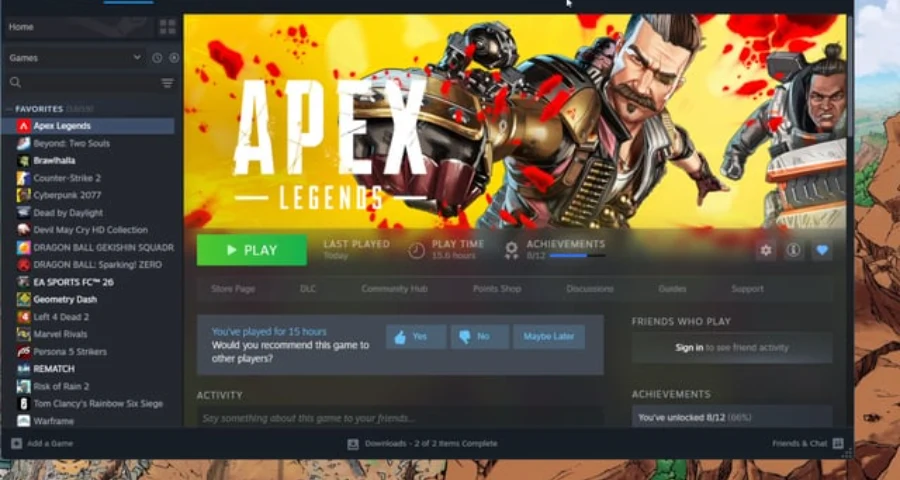
3) Contact EA Support
If the problem continues after a reinstall, contact EA Help and include your exact startup behavior, any error codes, and whether the problem began after a patch.
How to Enhance Game Experience With LagoFast Game Booster
LagoFast intelligently reroutes through gaming-optimized servers, reducing ping and packet loss, even with ISP restrictions. Works well for Apex Legends on PC—and can be setup on routers for console play.
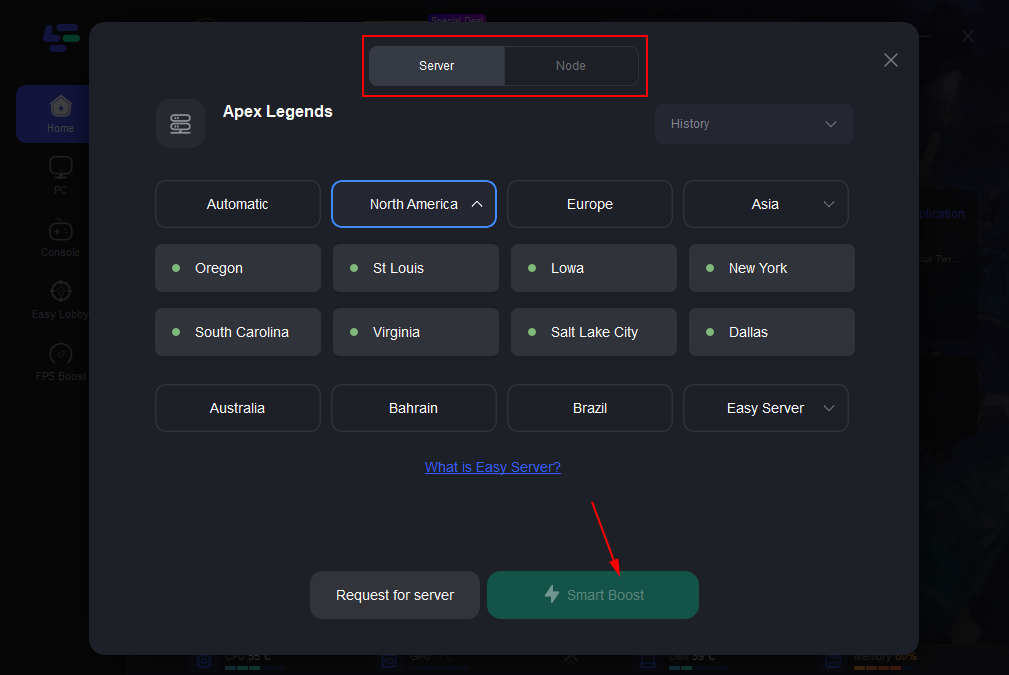
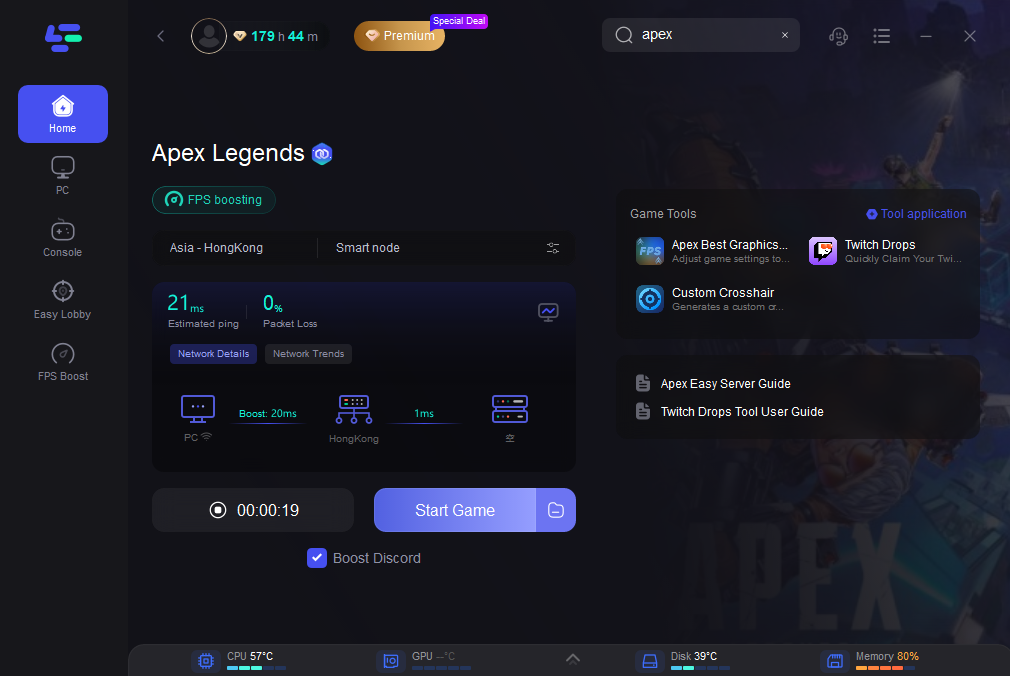
Easy setup: Download LagoFast, select your game (Apex Legends), choose an optimal server node, and click “Smart Boost” to launch the game. A dashboard will display ping and packet loss metrics.
Router-level setup: For console players, import LagoFast’s OpenVPN/L2TP/WireGuard config into the router to route all home traffic through the booster—ideal for PS5/Xbox.
Free trial available: Most users report restored connectivity where DNS tweaks and WARP alone failed.
How to Use LagoFast
Step 1: Click the Free Trial button to download and install LagoFast.
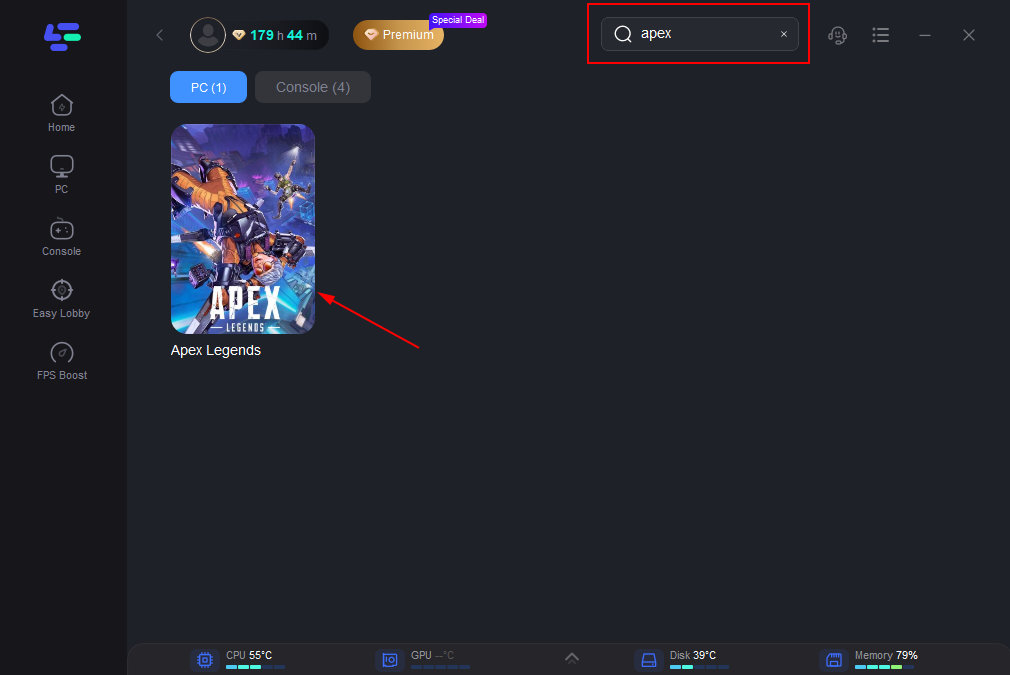
Step 2: Open LagoFast, click the PC icon on the left, and type Apex Legends in the search bar. Click on the game when it appears.
Step 3: Click “Server” to select the best server for a stable game, then click “Smart Boost”.
Step 4: On the right, check your ping, packet loss, and multi-path metrics. Then click “Start Game” to launch the game.
FAQ
Why Does Apex Legends Close Right After the Easy Anti-Cheat Screen?
This usually occurs because Easy Anti-Cheat is not starting properly. Repairing it through EasyAntiCheat_Setup.exe inside the Apex install folder is the first targeted fix.
Can Corrupted Steam Files Stop Apex Legends from Launching?
Yes. Missing or damaged game files can prevent Apex from opening, especially after updates. Use Steam's Verify integrity of game files tool to repair them.
What Should I Do If Apex Legends Still Will Not Start After Verifying Files?
Move to the next likely causes: repair EAC, disable overlays, test a Clean Boot, update or clean reinstall GPU drivers, install Windows updates, check Visual C++ dependencies, and then reinstall the game only if the rest fails.

Boost Your Game with LagoFast for Epic Speed
Play harder, faster. LagoFast game booster eliminates stutter and lags on PC, mobile, or Mac—win every match!
Quickly Reduce Game Lag and Ping!
Boost FPS for Smoother Gameplay!