Deadlock Lag Reducer & Game Booster
Deadlock Overview
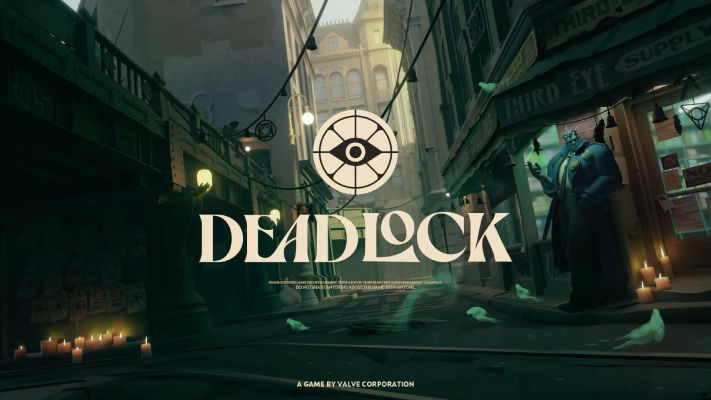
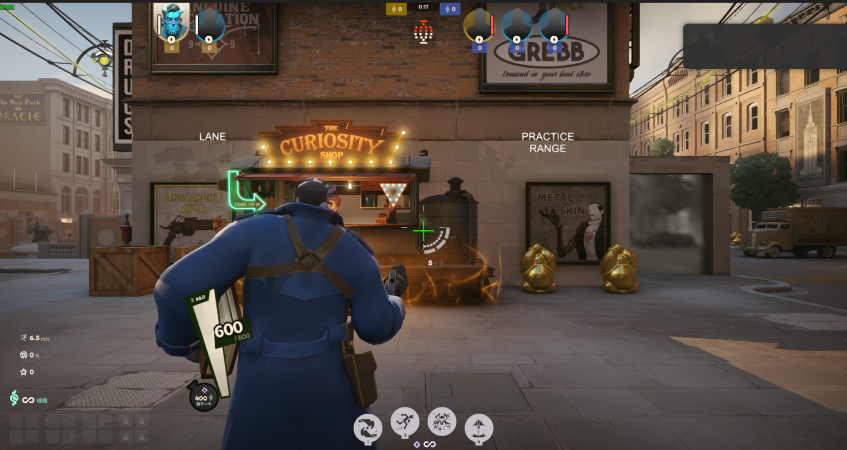
Deadlock is an upcoming multiplayer action game developed by Valve, combining hero shooter mechanics with MOBA-style gameplay. Since its announcement in August 2024, Deadlock has intrigued gamers with its unique approach to team-based combat and strategic elements, such as creeps and base management, drawing comparisons to Valorant and Dota 2. The game is still in early development, but it has garnered a large player base during its playtesting phase, reaching over 100,000 concurrent players as of August 2024.
Set in a vibrant world with tactical heroes, Deadlock promises to deliver fast-paced, action-packed gameplay. However, due to its high demand and ongoing beta testing, many players experience performance issues like lag and connection spikes. If you’re struggling with laggy gameplay, the right tools can help you optimize your experience. This guide will discuss how to reduce lag in Deadlock and improve your gameplay using the best lag reducers and game boosters.
How to Get into Deadlock's Invitation Access
Solution 1. LagoFast Invites:
One reliable way to get access is through LagoFast, which offers occasional invites to select games. Here's how you can use LagoFast to get an invite to Deadlock:
Step 1. Download the LagoFast app and sign up for a free trial.
Step 2. Once installed, search for Deadlock in the app and select the "Game Tool" option called Deadlock QuickInvite.
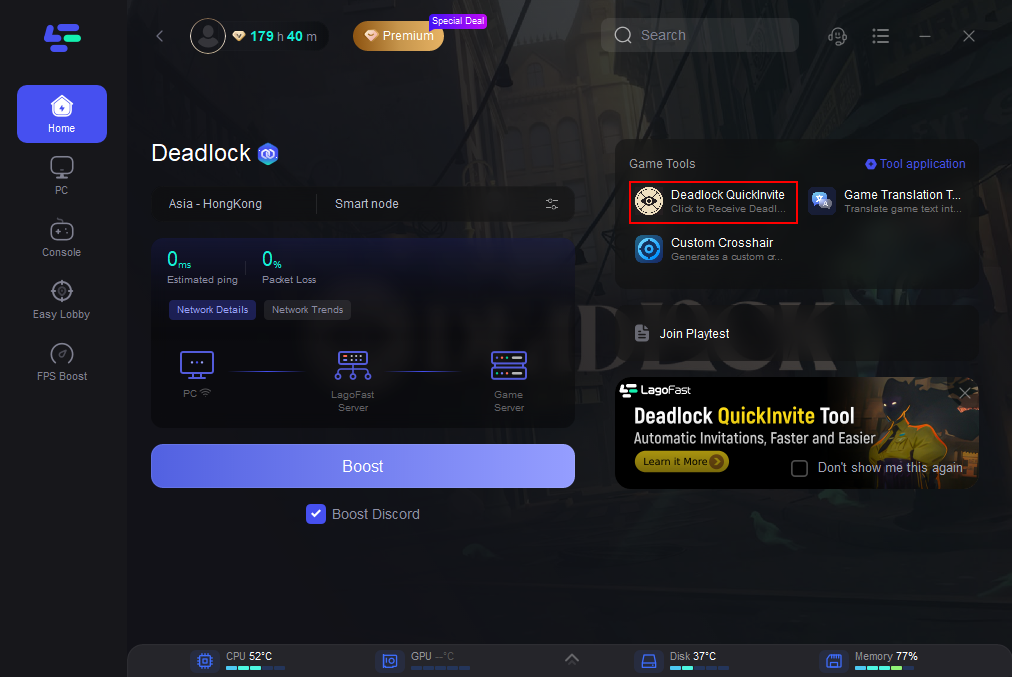
Step 3. Follow the prompts, and you’ll be guided through the invitation process.
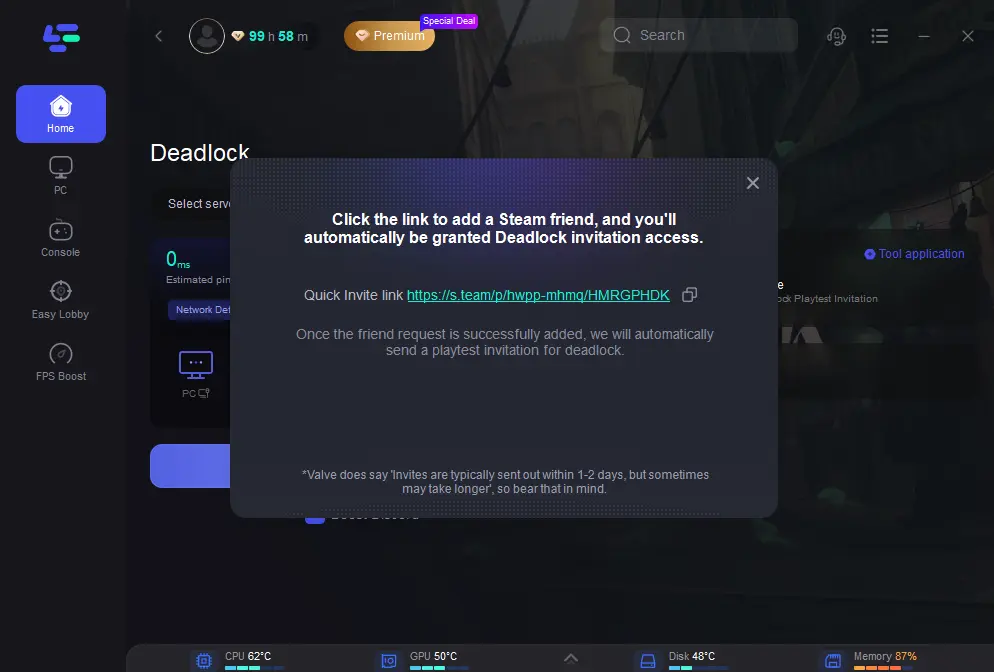
To further improve your chances, you can join Deadlock's community channels, such as their Discord group, where you can stay updated on news, guides, and other opportunities to secure an invite.
Solution 2. Be invited by Valve:
This route is quite random as Valve selects participants at their discretion and does not accept requests for access. Your best bet here is to stay active within the Steam community and keep an eye on Valve's announcements for any opportunities.
Solution 3. Be invited by someone in the alpha:
Alpha testers have the privilege to invite friends. Regularly check with your gaming friends or acquaintances who might already be part of the alpha testing.
Why Do You Need a Deadlock Lag Reducer?
Lag and connectivity issues are common in high-action multiplayer games, especially in beta stages. Since Deadlock is still in development, optimization issues often lead to lag spikes, frame drops, and other performance problems. These issues can severely impact your gameplay experience, making it difficult to compete at a high level.
A lag reducer like LagoFast can help you:
- Minimize Lag Spikes: When you experience a sudden delay or frame drop, it disrupts your ability to perform actions smoothly. By optimizing your network connection, a lag reducer minimizes these spikes, ensuring a more consistent gaming experience.
- Enhance Stability: Lag reducers can also stabilize your connection to the game servers, reducing the chance of disconnections or high ping.
- Boost FPS: Some tools also optimize your system’s performance, helping to reduce CPU and GPU bottlenecks that may be causing frame drops.
The Best Deadlock Lag Reducer - LagoFast Game Booster
When it comes to finding the best lag reducer for Deadlock, LagoFast stands out as a leading option. Known for its high-quality gaming booster services, LagoFast helps reduce latency, improve game speed, and provide a seamless experience for gamers worldwide. Let’s explore why it’s the best tool for fixing lag in Deadlock.
LagoFast is designed specifically for gamers who need to minimize ping and improve stability in online multiplayer games. By routing your connection through optimized paths, LagoFast ensures that your data travels the shortest possible distance to the game servers, reducing lag and improving response time.
Key Benefits of LagoFast:
- Real-Time Lag Reduction: LagoFast actively monitors and reduces latency in real-time, making sure you have the smoothest experience possible.
- Global Server Network: With servers worldwide, LagoFast optimizes your connection based on your geographic location, ensuring the best connection to Deadlock servers.
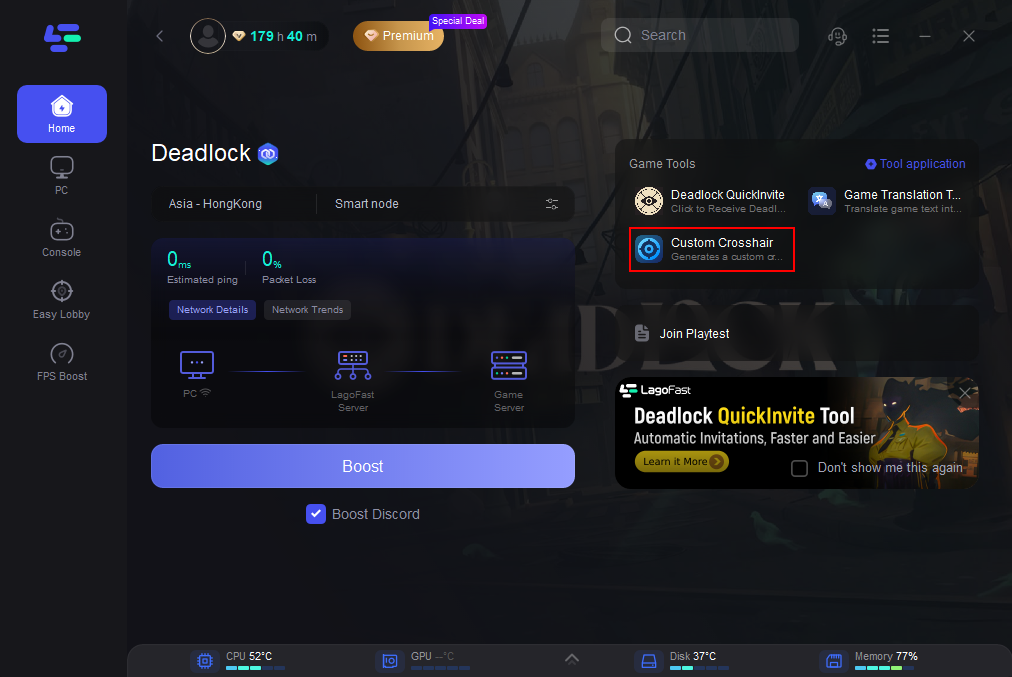
- Customizable Crosshair Settings: LagoFast's tool allows you to customize your crosshair shape, size, color, etc., so you can enjoy the most familiar settings and maximize your gaming performance.
- Easy to Use: With an intuitive interface, even less tech-savvy gamers can optimize their connection in just a few clicks.
Using LagoFast not only reduces lag but can also enhance your overall gaming experience by providing a more stable and responsive connection.
Tutorial to use LagoFast to reduce lag in Deadlock:
Step 1: Click the Free Trial button to download and install LagoFast.
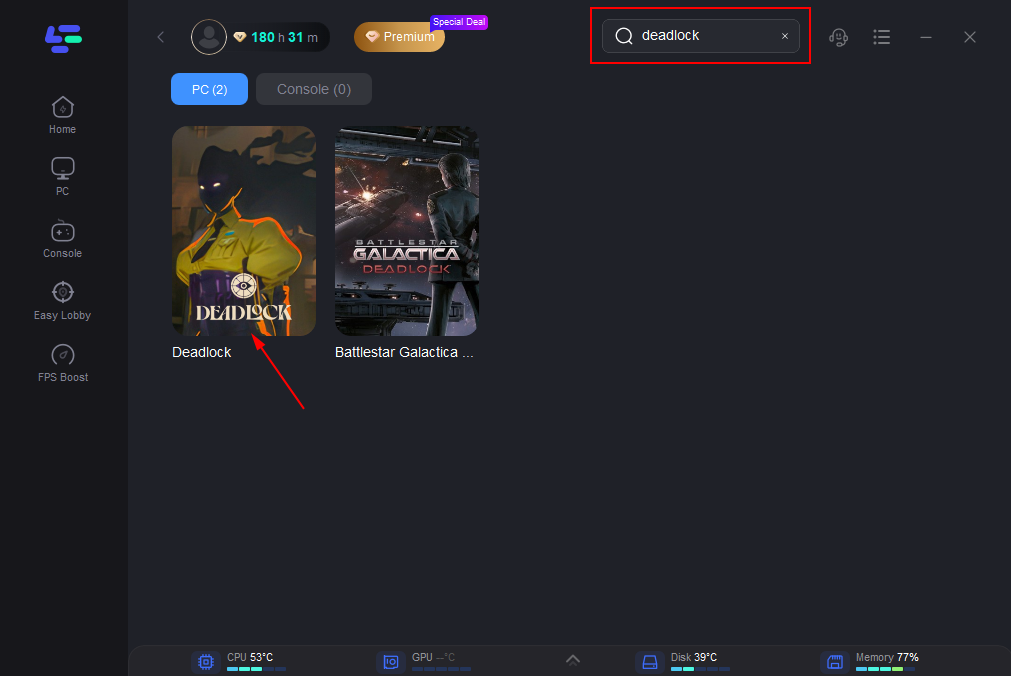
Step 2: Note that Before opening Steam, you should first launch LagoFast. Then click the PC button on the left and search Deadlock in the search bar, click it after appearing.
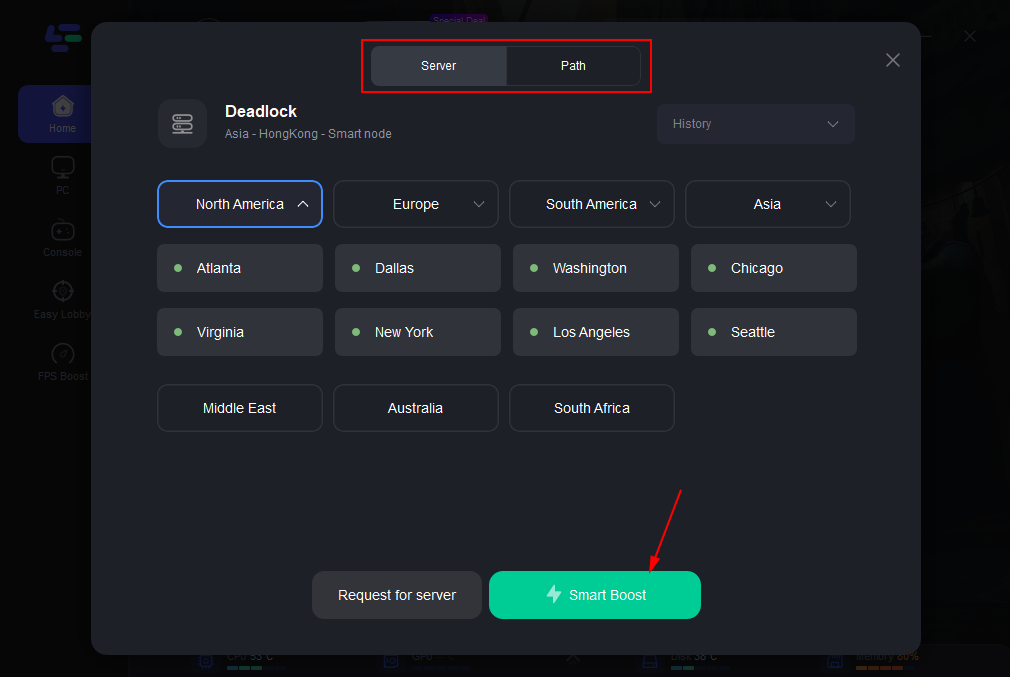
Step 3: Click on “Server” to change to a better server that reduces lag, then click on “Smart Boost”.
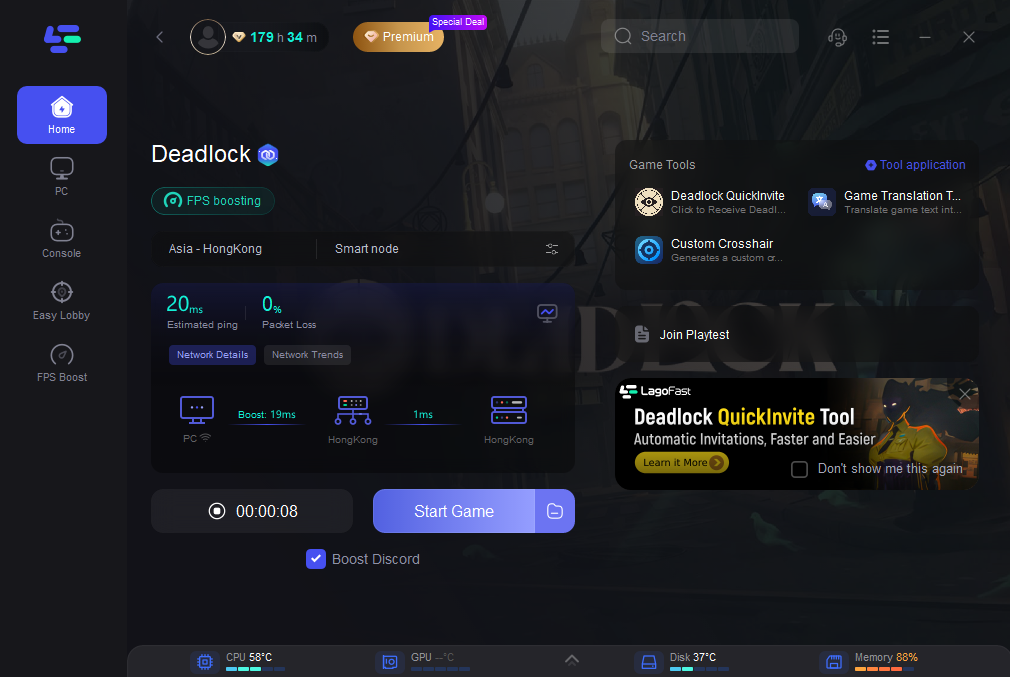
Step 4: Check the specific game ping, packet loss, and multiple path connection on the right side. Finally, click the “Start Game” to play the game.
LagoFast's Effective Server Switch Tool of Deadlock - Play Deadlock Anytime
Since Deadlock has limited opening hours for each server during the current game testing period, if the user's local server is closed during a certain period of time, players can use shortcut commands through the LagoFast Server Switch Tool to flexibly switch to other areas where the server is still open in the game.
Tutorial to Use LagoFast One-Click Server Switch Tool:
Note: Before you launch LagoFast and boost the game, you should exit the game and close Steam in the background.
Step 1. Click the "One-Click Server Switch Tool" on the right.
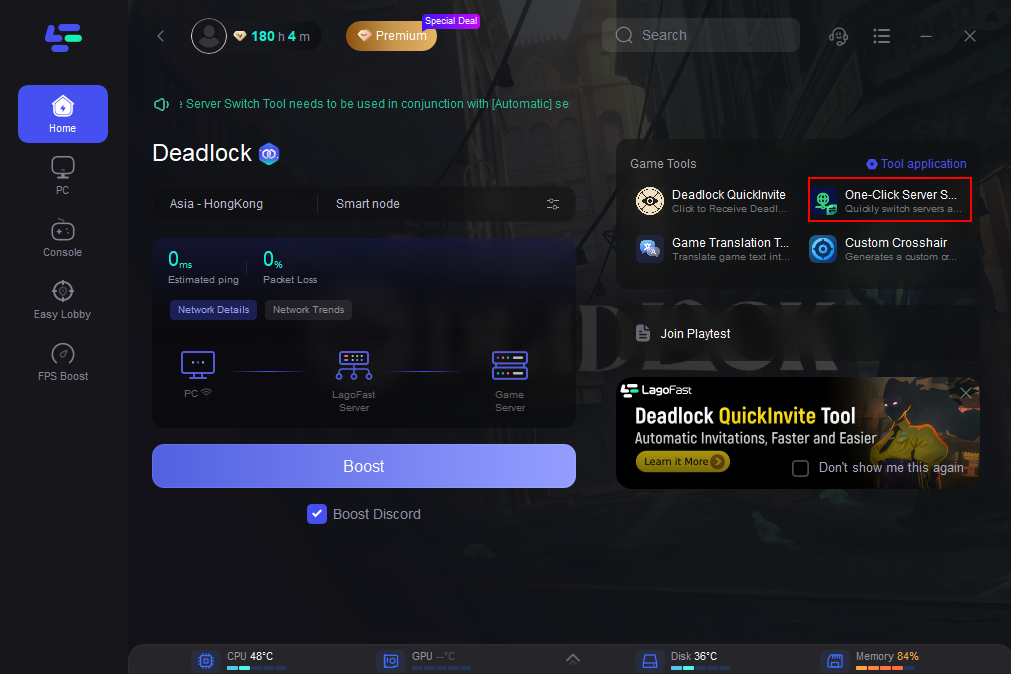
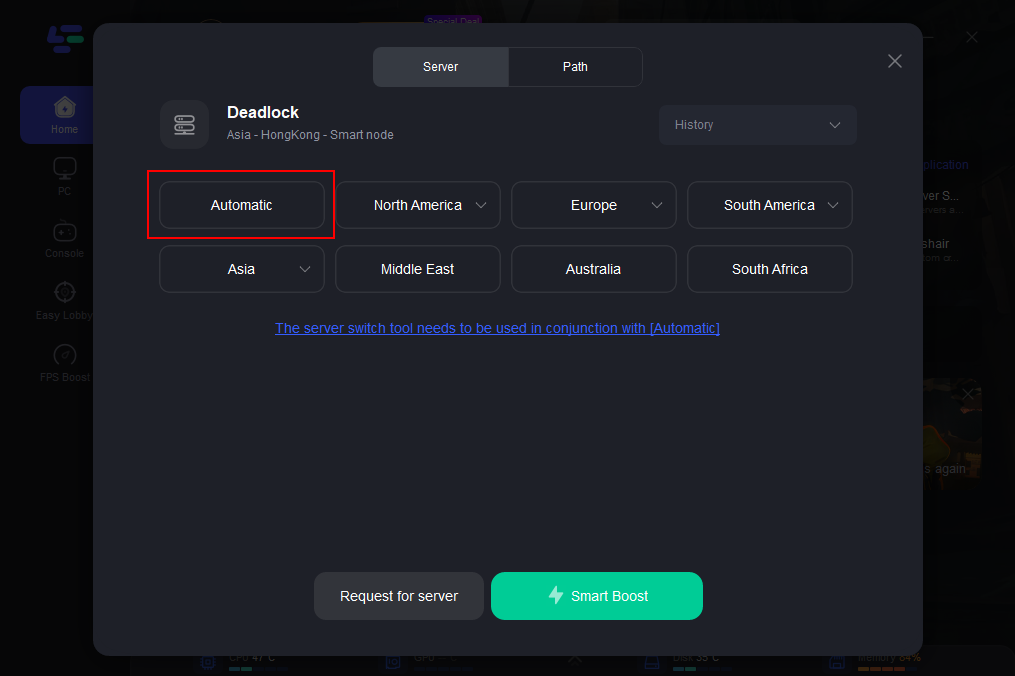
Step 2. Choose the Automatic Server and boost the game. This can avoid the problem of increased in-game delays caused by inconsistencies between the acceleration zone and the matching zone.
Step 3. Open Deadlock through Steam.
Step 4. Press Shift+F8 to switch the server in the game. After pressing the button, the server switching change will be displayed in the lower right corner of the game. If the server time is up, just press Shift+F8 to switch. There is no need to exit the LagoFast server selection. "Automatic" will automatically switch to the node that best matches the server area he is currently playing.
LagoFast Translation Tool For Deadlock
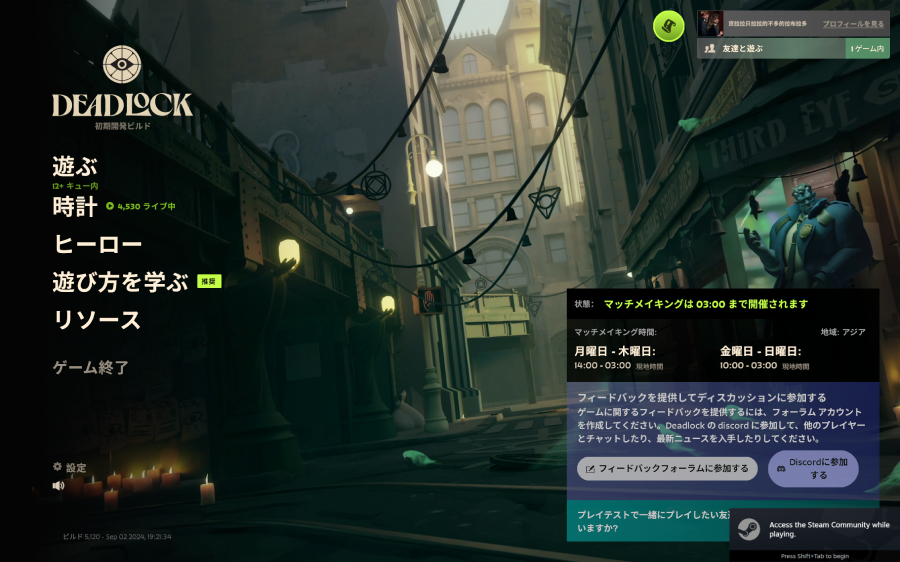
What's more worth mentioning is that LagoFast supports the translation of Deadlock into various languages, including Arabic, Japanese,Thai, Vietnamese, Indonesian and many other languages. This provides convenience for players from all over the world. If you need it, please try using LagoFast, a game language translation tool.
How to Get Deadlock In-Game Translation with LagoFast:
You just need to do the same thing you did when you got Deadlock Playtest. Open the game boost page and click on the Game Translation Tool in the right game toolbar.
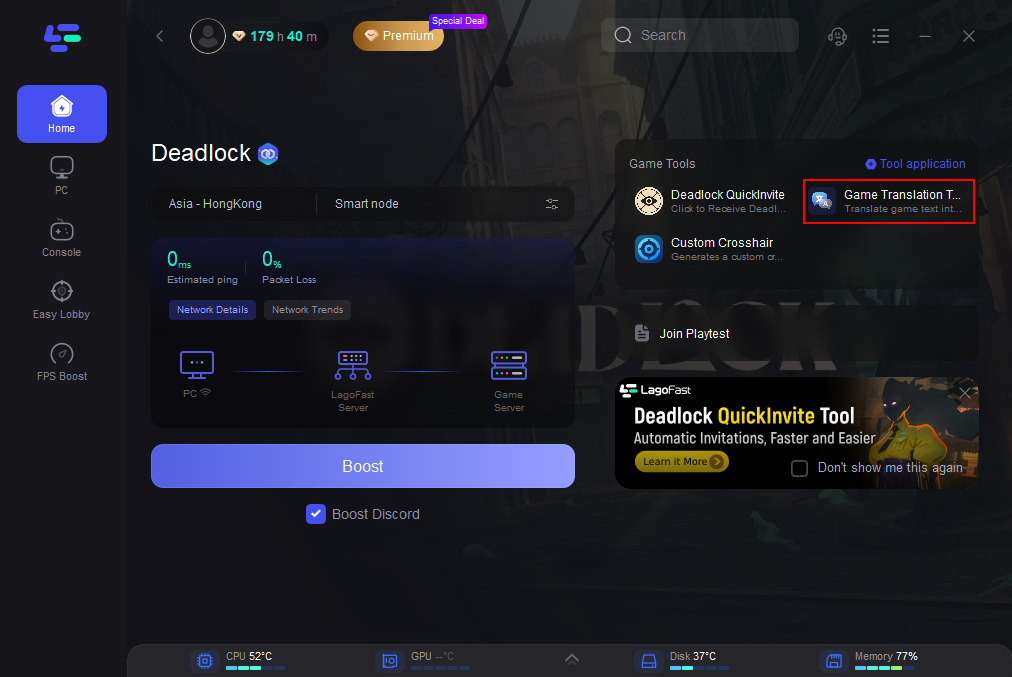
Follow the instructions and it will change your game files a little bit. Once it's done, open the game and you can enjoy the Deadlock gaming experience without the language barrier! The following is a demonstration of the translation effect (Japanese as exemple).
How to Use LagoFast to customize Deadlock's crosshair:
Step 1: Find the Custom Crosshair Tool on the right.
Step 2: Customize Your Crosshair: The tool allows you to tweak your crosshair's appearance according to your preferences, including shape, size, thickness, color, etc. Once you’re satisfied with your settings, click the Save Configuration button.
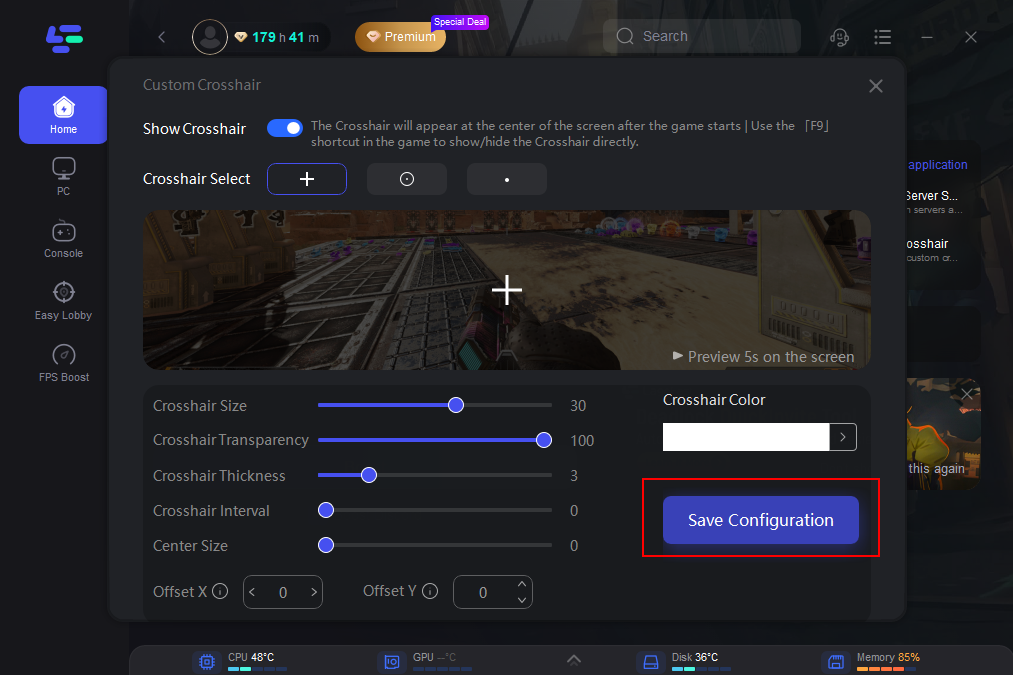
Step 3: Activate Crosshair in Deadlock: When you're ready to play, simply launch Deadlock, and press F9 to display or hide the customized crosshair you created through LagoFast. You can easily switch between different crosshairs or toggle them off if needed, providing you with flexibility during gameplay.