
Quick Answer
To access the Wuthering Waves Photo Mode, open the main menu and click the Camera icon in the bottom right corner. For the best screenshot settings, ensure your Graphics Quality is set to Super and Anti-Aliasing is enabled. To fix the "blurry" or "washed out" look often seen in the default camera mode, use the Focal Length slider to adjust zoom and increase the Contrast and Saturation in the in-game filter settings. For a more efficient workflow with professional presets like "Cinematic" or "Anime," using the LagoFast Game Filter allows you to switch styles with a single click before capturing your perfect shot.

- ✅ Reduce Lag and High Ping.
- ✅ Boost FPS at the Same Time.
- ✅ Change Server Without Latency.
- ✅ One-Click Translation Tool.
- ✅ End All Connection Issues.
- ✅ Multiplatform: PC, Mobile, Console
Part 1: Mastering Wuthering Waves Photo Mode: An Overview
Part 2: Best Wuthering Waves Screenshot Settings for High-Quality Captures
Part 3: Fixing Common Issues: Wuthering Waves Photo Mode Blurry or Washed Out
Part 4: How to Use Wuthering Waves Photo Mode Filter for Artistic Shots
Part 5: Advanced Tips: Wuthering Waves How to Take Better Screenshots
Part 6: LagoFast Game Filter: One-Click Visual Enhancement for Photographers
Part 7: Frequently Asked Questions (FAQs)
Part 1: Mastering Wuthering Waves Photo Mode: An Overview
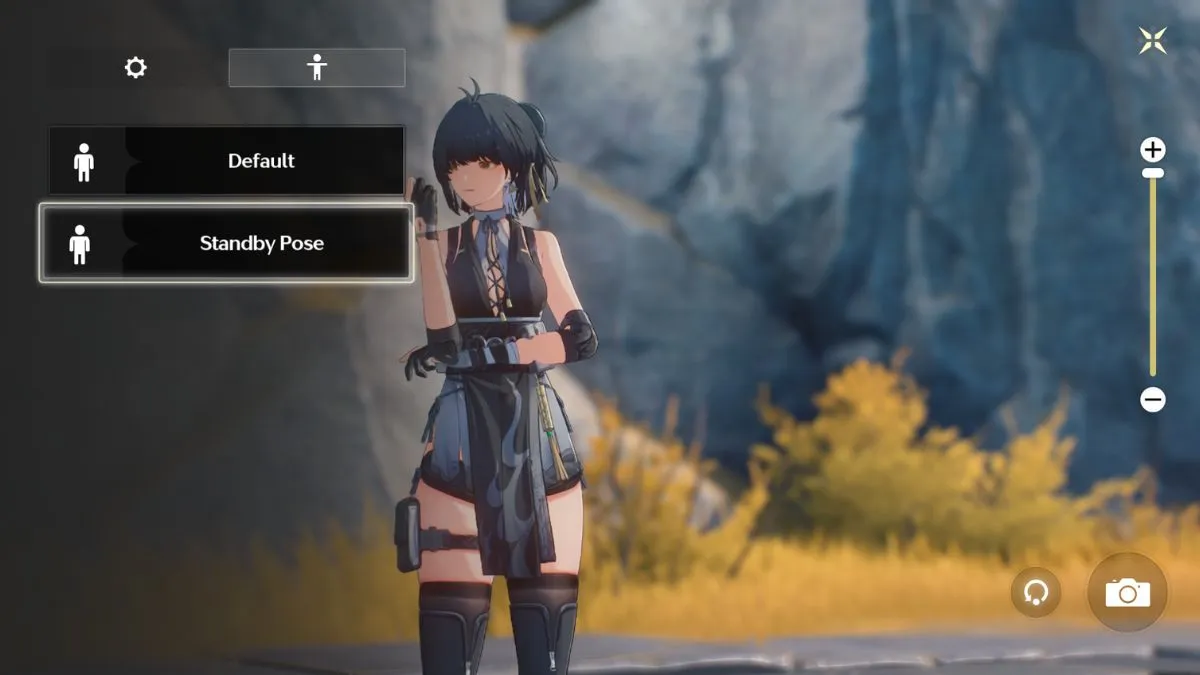
Wuthering Waves features a stunning open world filled with diverse landscapes and beautifully designed Resonators. To capture these moments, Kuro Games has provided a robust Wuthering Waves Photo Mode. This tool isn't just a simple "screenshot button"; it's a comprehensive camera suite that allows you to manipulate time, character poses, and environmental lighting to create professional-level virtual photography.
Accessing the mode is straightforward: open your main menu (Esc on PC) and look for the camera icon. Once inside, you can hide the UI, change the time of day, and even trigger specific combat animations or idle poses for your characters. Understanding the nuances of these tools is the first step toward moving beyond simple snapshots and creating truly artistic captures of your journey through Solaris-3.
Part 2: Best Wuthering Waves Screenshot Settings for High-Quality Captures
Before you even open the camera, your base graphics settings dictate the final quality of your screenshots. Many players complain about "pixelated" or "low-res" captures, which is often a result of suboptimal graphics configurations.
- Resolution Scale: Always set this to 100%. Anything lower will result in a blurry image, regardless of your other settings.
- Anti-Aliasing: Use TAA or DLAA (if you have an Nvidia GPU). This smooths out the jagged edges on character hair and armor, which is crucial for close-up portraits.
- Texture Quality: Set this to Super or High. This ensures that the fine details on Resonator outfits and environmental assets are sharp.
- Effects Quality: High settings here improve the look of elemental particles and glowing effects, which can make action shots look much more dynamic.
By ensuring these settings are maxed out before you enter photo mode, you provide the camera tool with the highest fidelity data possible, resulting in much cleaner and more professional-looking files.
Part 3: Fixing Common Issues: Wuthering Waves Photo Mode Blurry or Washed Out
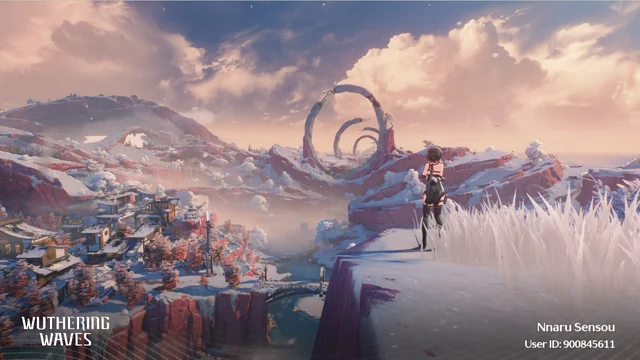
One of the most frequent complaints in the community is that the Wuthering Waves photo mode looks blurry or the colors appear washed out compared to the actual gameplay. This is often caused by the camera's default Depth of Field (DoF) and lighting settings.
To fix the blurriness, check the Depth of Field slider in the camera menu. By default, it might be focusing on the wrong plane. You can either turn it off entirely for a sharp landscape shot or manually adjust the "Focus Distance" to ensure your character's face is crisp while the background remains softly blurred. For the "washed out" look, the game's default lighting can sometimes be too flat. Try adjusting the Brightness and Contrast sliders within the photo mode's filter tab. A slight increase in contrast and a small bump in saturation can bring back the richness of the world that the default camera settings often lose.
Part 4: How to Use Wuthering Waves Photo Mode Filter for Artistic Shots
The Wuthering Waves Photo Mode Filter system offers several presets that can dramatically change the mood of your shot. From the vibrant "Sunshine" filter to the moody "Dystopian" look, these presets are your best friend for thematic photography.
- Vibrant/Sunshine: Best for bright, outdoor exploration shots. It brings out the greens of the forests and the blues of the sky.
- Soft/Anime: Ideal for character portraits. It softens the shadows and creates a more traditional "2D anime" aesthetic.
- Film/Cold: Great for ruins or combat shots in the rain, adding a cinematic, high-stakes feel to the image.
The key is to use the Intensity slider. A filter at 100% can often look artificial. Try setting it to 40-60% and then manually tweaking the saturation and brightness to find a balance that looks natural yet enhanced.
Part 5: Advanced Tips: Wuthering Waves How to Take Better Screenshots
If you want to take your virtual photography to the next level, you need to think like a real photographer. Here are some professional tips for better composition in Wuthering Waves:
- Use Focal Length: Don't just rely on moving the camera closer. Adjusting the Focal Length (zoom) can change the perspective. A longer focal length (zoomed in) is perfect for portraits as it compresses the background and makes the character stand out.
- The Rule of Thirds: Use the grid (if available) or visualize it. Don't always put your character in the dead center. Placing them to the left or right can make the composition more interesting.
- Lighting is Everything: Pay attention to the sun's position. Side-lighting can highlight the textures on a character's outfit, while back-lighting can create a beautiful "rim light" effect around their hair.
- Action Poses: Instead of idle poses, try entering photo mode during a character's skill animation. You can "freeze" the frame at the exact moment an elemental effect is at its peak for a truly epic action shot.
Part 6: LagoFast Game Filter: One-Click Visual Enhancement for Photographers
While the in-game photo mode is powerful, it can be tedious to manually adjust sliders every time you want a different style. This is where the LagoFast Game Filter comes in as a professional-grade supplement.
LagoFast offers a specialized Game Filter tool that provides high-quality, one-click visual presets. These filters go beyond the simple color shifts of the in-game system, offering more sophisticated adjustments to clarity, contrast, and color space. Whether you want a "Cute & Soft" look for your favorite Resonator or a "Dark & Gritty" atmosphere for a boss fight, you can switch these styles instantly. This is particularly useful for photographers who want to see the enhanced visuals in real-time during gameplay before even opening the photo mode menu, ensuring they never miss a fleeting moment of perfect lighting.
To capture the perfect screenshot, your game needs to run smoothly. Stutters or lag spikes can ruin the timing of an action shot or cause textures to pop in and out. Using LagoFast Game Filter ensures that your system and network are optimized for the best possible experience.
Steps to Use LagoFast Game Filter for Wuthering Waves:
Step 1: Click the Free Trial button to download and install LagoFast.
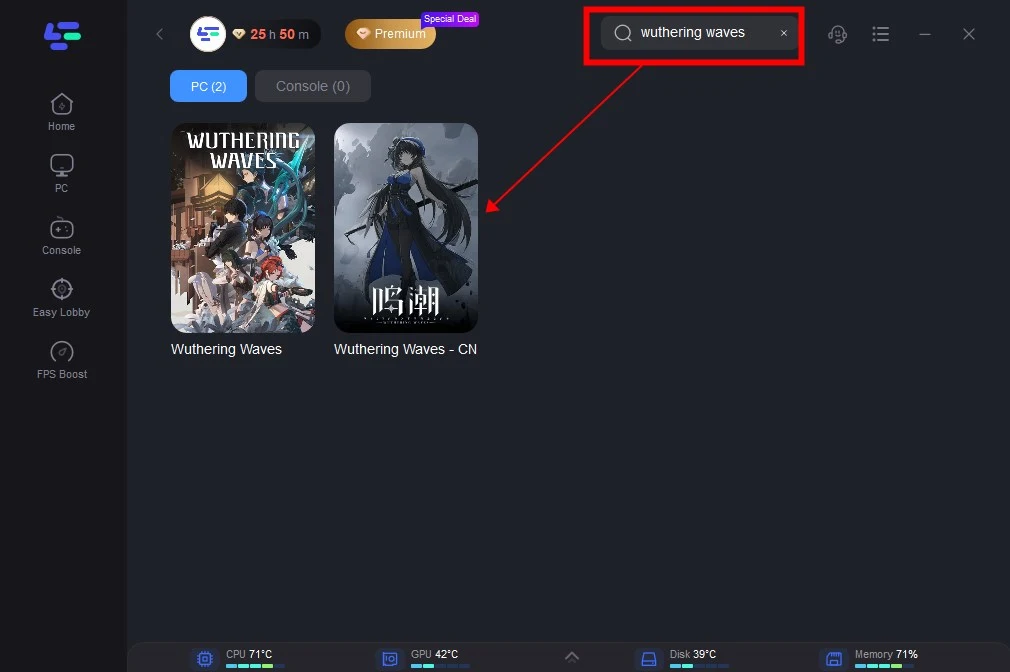
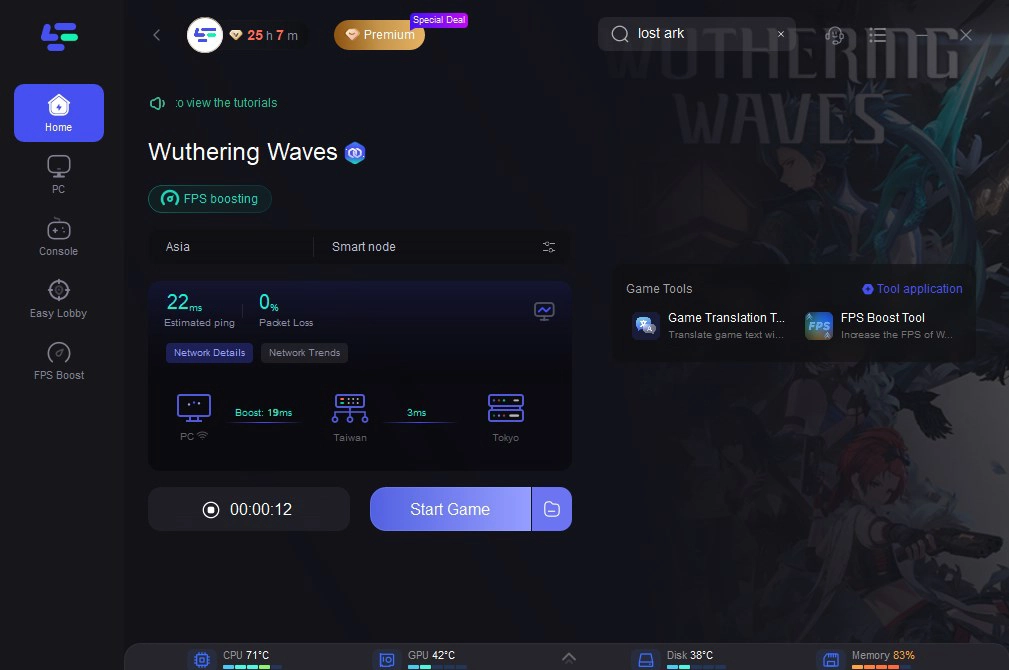
Step 2: Open LagoFast then click the PC button on the left and search Wuthering Waves in the search bar, click it after appearing.
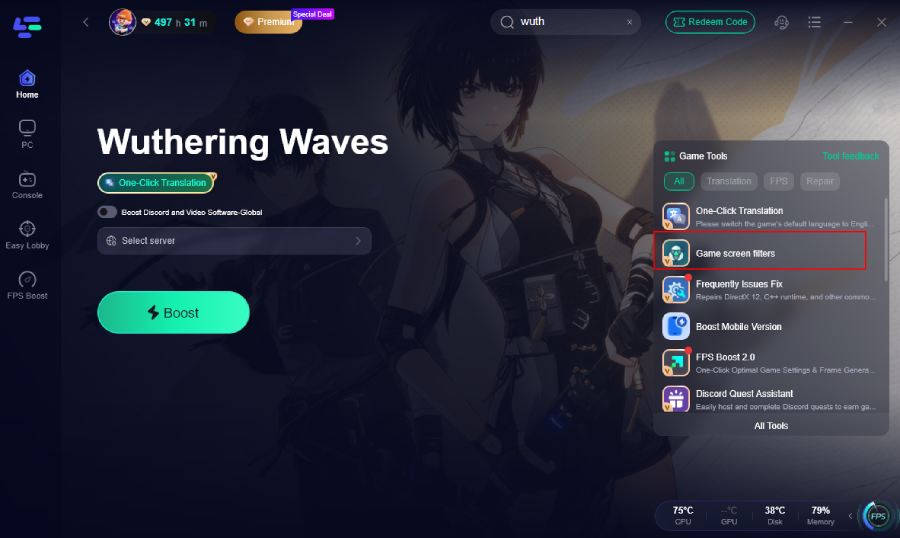
Step 3: Click the Game Screen Filter Tool on the right.
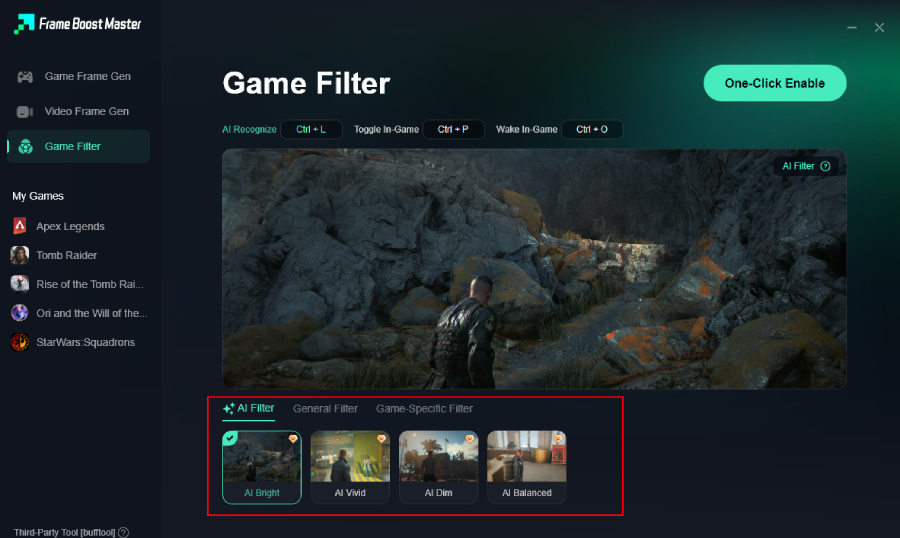
Step 4. Select your preferred filter like AI Bright and click One-Click Enable button to unlock the new experience.
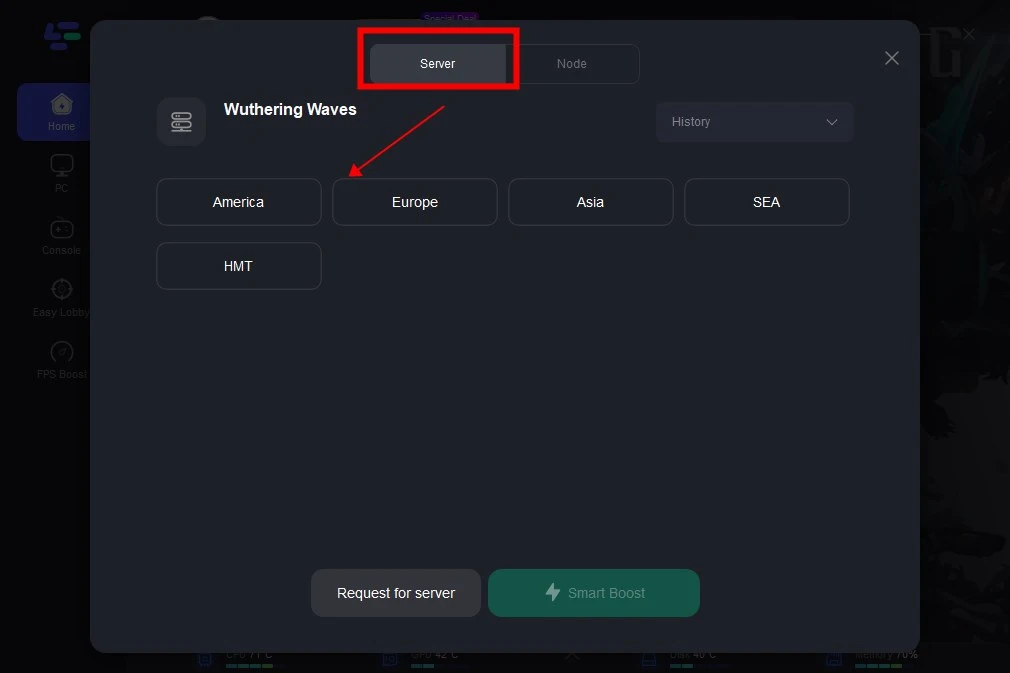
Step 5: Click on “Server” to change to a better server that ensures the gaming experience, then click on “Smart Boost”.
Step 6: Check the specific game ping, packet loss, and multiple path connection on the right side. Finally, click the “Start Game” to play the game.
Part 7: Frequently Asked Questions (FAQs)
Q1: Where are Wuthering Waves screenshots saved on PC?
A1: By default, screenshots taken through the in-game photo mode are saved in the Wuthering Waves/Wuthering Waves Game/Client/Saved/Screenshots folder within your installation directory.
Q2: Why do my screenshots look lower quality than the game?
A2: This often happens if you use the "Save" button in photo mode while your Resolution Scale is below 100%. For the best quality, hide the UI and use a third-party capture tool like Steam (F12) or Windows (Win+Shift+S) while your graphics are maxed.
Q3: How do I remove the Wuthering Waves watermark?
A3: In the Photo Mode menu, there is usually a toggle to "Hide UI" or "Hide Watermark." If you want a completely clean shot, hiding the UI before taking the screenshot is the most effective method.
Q4: Can I take photos during combat?
A4: Yes, you can open the menu and enter photo mode at any time. The game will freeze, allowing you to capture the exact moment of an attack or an elemental burst.
Q5: How do I fix the "washed out" colors in my photos?
A5: Increase the Contrast and Saturation sliders in the photo mode filter settings. Additionally, using an external tool like the LagoFast Game Filter can provide a more vivid color profile that removes the default "grey" tint.
Key Takeaway
Capturing the perfect moment in Wuthering Waves requires a blend of technical settings and artistic composition. By optimizing your base graphics, mastering the Wuthering Waves Photo Mode Filter, and addressing common issues like blurriness, you can produce stunning virtual photography. For those who want a faster, more professional workflow, the LagoFast Game Filter offers a one-click solution for elite-tier visuals. Don't just play the game—document your journey through Solaris-3 in the highest quality possible. Download LagoFast today and elevate your screenshots to a professional level!

Boost Your Game with LagoFast for Epic Speed
Play harder, faster. LagoFast game booster eliminates stutter and lags on PC, mobile, or Mac—win every match!
Quickly Reduce Game Lag and Ping!
Boost FPS for Smoother Gameplay!