
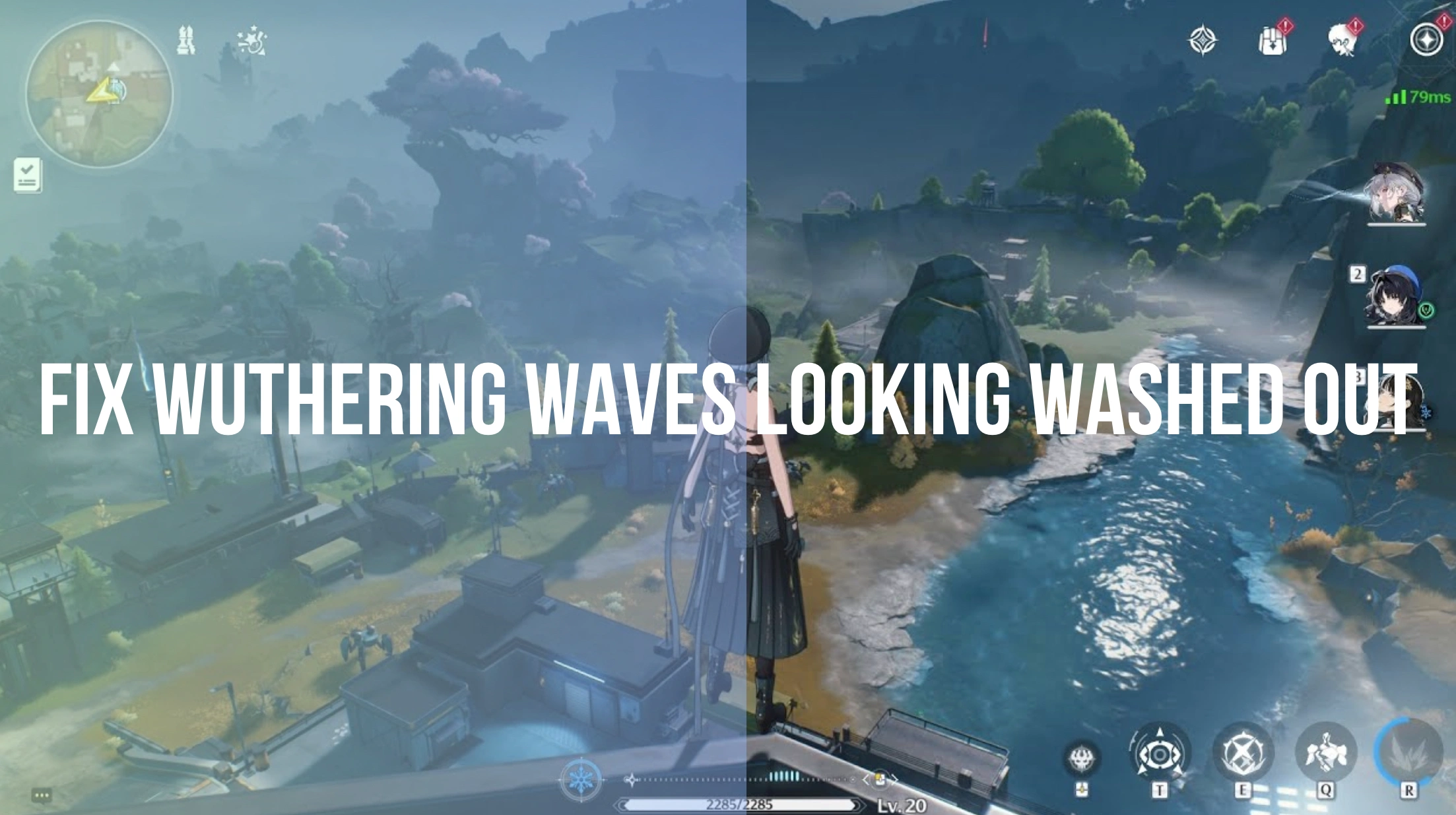
Quick Answer: How to Fix Wuthering Waves Looks Washed Out?
If your Wuthering Waves graphics look dull, excessively bright, or covered in a strange grey fog, you can quickly fix it by adjusting the in-game brightness calibration, deploying custom NVIDIA Freestyle filters, or applying a specialized gaming filter tool. For players who want a beautiful, vibrant universe without dealing with complex software configurations or massive frame drops, using LagoFast Game Screen Filters is the ultimate one-click shortcut. It instantly strips away the muddy, foggy overlay and injects vivid, high-contrast color directly into Solaris-3, completely transforming your visual experience while keeping your gameplay incredibly smooth.
Since its global launch, Kuro Games' open-world action RPG Wuthering Waves has captivated millions with its high-speed combat and expansive post-apocalyptic environment. However, a significant portion of the community has encountered an annoying visual hurdle: the game world frequently looks washed out, overly bright, and cloaked in a persistent, hazy grey fog. Wandering through beautiful landscapes shouldn't feel like navigating a bleak, desaturated wasteland. If you want to restore deep contrasts, rich color palettes, and crisp clarity to your gameplay, this comprehensive guide will explain exactly why this phenomenon occurs and walk you through the absolute best color and filter settings to fix it permanently.

- ✅ Reduce Lag and High Ping.
- ✅ Boost FPS at the Same Time.
- ✅ Change Server Without Latency.
- ✅ One-Click Translation Tool.
- ✅ End All Connection Issues.
- ✅ Multiplatform: PC, Mobile, Console
Part 1: Why Does Wuthering Waves Look Washed Out?
Part 2: How to Fix Wuthering Waves' Default Color Washed Out?
Part 3: Can NVIDIA Filter Remove Wuthering Waves' Weird Foggy Graphics?
Part 4: Why Does Wuthering Waves' Photo Mode or Cinematic Mode Make the Colors Washed Out?
Part 5: LagoFast Game Screen Filters: One-Click to Fix Wuthering Waves Looks Washed Out
Part 1: Why Does Wuthering Waves Look Washed Out?
To fix the visual issues plaguing your screen, it is essential to first understand what causes the graphics to look so grey, dull, or foggy. This issue is not necessarily a bug, but rather a combination of specific rendering choices, engine mechanics, and display configurations.
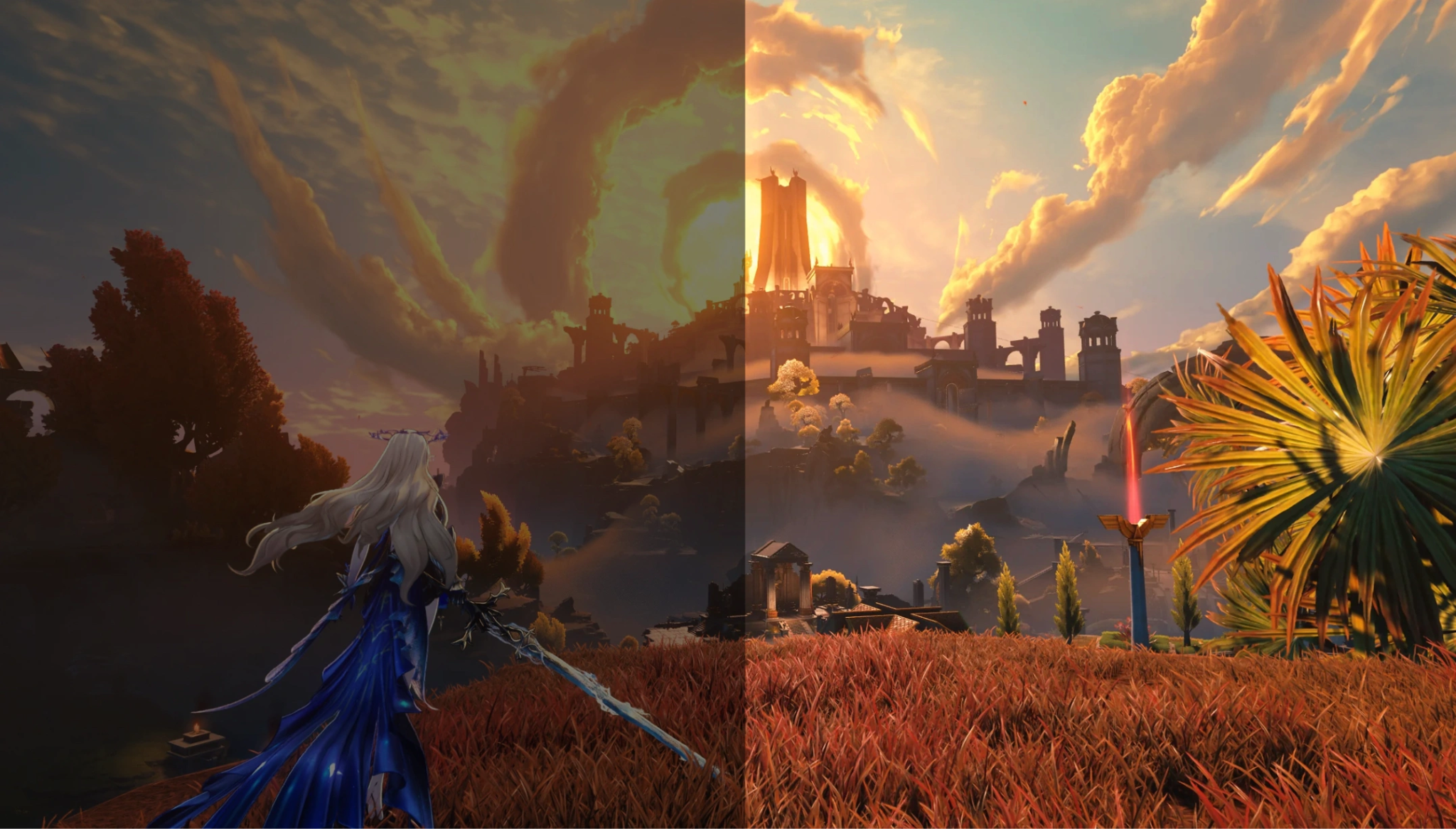
Improper In-Game Brightness and Gamma Settings
The most common culprit behind a desaturated look is a poorly calibrated in-game brightness setting. If the default brightness slider is set too high during your initial setup, it effectively raises the black levels of the game. Instead of deep, rich shadows, you get dark areas that look milky grey, which uniformly dilutes every color on your monitor.
The Post-Apocalyptic Art Direction and Atmospheric Fog
The developers intentionally designed the world of Wuthering Waves with a somber, post-apocalyptic aesthetic. To convey this atmosphere, the game utilizes heavy volumetric fog and global illumination techniques that mimic a thick, humid haze. While this creates a specific mood, it often goes too far, overlaying an aggressive, foggy white tint that smothers the underlying textures and makes the entire landscape appear dull and flat.
Suboptimal High Dynamic Range (HDR) Implementation
For players using modern HDR monitors, the game's native translation of standard colors into high dynamic range can cause severe display issues. If windows HDR is enabled but the game fails to map the peak brightness correctly, the contrast levels collapse entirely. The colors look bad, the highlights become too bright, and the mid-tones lose all their natural punch.
Temporal Anti-Aliasing (TAA) Blurring
Wuthering Waves heavily relies on Temporal Anti-Aliasing to smooth out jagged edges on 3D models. While TAA does a great job at removing pixelation, it creates a subtle, screen-wide blur effect. When combined with the game's natural atmospheric lighting, this blur blends adjacent colors together, contributing directly to that unappealing, washed-out look.
Part 2: How to Fix Wuthering Waves' Default Color Washed Out?
If you prefer to resolve these visual issues using nothing but your native hardware and basic settings menus, you can achieve a significantly cleaner look by systematically tweaking several parameters.
Step 1: Recalibrate Your In-Game Graphics Settings
Open your main menu, head over to the Graphics settings tab, and adjust these specific options:
- Brightness: Drop this slider down slightly below the middle mark. Lowering the brightness naturally restores deep black levels and instantly forces the washed-out grey tones to recede.
- Volumetric Fog / Volumetric Lighting: Set this feature to Medium or Low. Reducing this specific engine setting directly minimizes the weird foggy graphics that distort distance vistas.
- Motion Blur: Turn this completely OFF. Disabling motion blur sharpens the overall image, making the colors feel more distinct during rapid combat sequences.
Step 2: Optimize Windows Display and GPU Control Panels
Sometimes the breakdown happens before the signal even reaches your monitor.
- For NVIDIA Users: Right-click your desktop and open the NVIDIA Control Panel. Navigate to Adjust Desktop Color Settings. Locate the Digital Vibrance slider and boost it from 50% up to roughly 60%–65%. This injects hardware-level color saturation across your entire system, helping combat dull colors.
- For AMD Users: Open AMD Software: Adrenalin Edition, head to Gaming, select Wuthering Waves, and enable Custom Color. Slightly bump up the Saturation and Contrast sliders to lift the heavy veil of grey from the screen.
Part 3: Can NVIDIA Filter Remove Wuthering Waves' Weird Foggy Graphics?
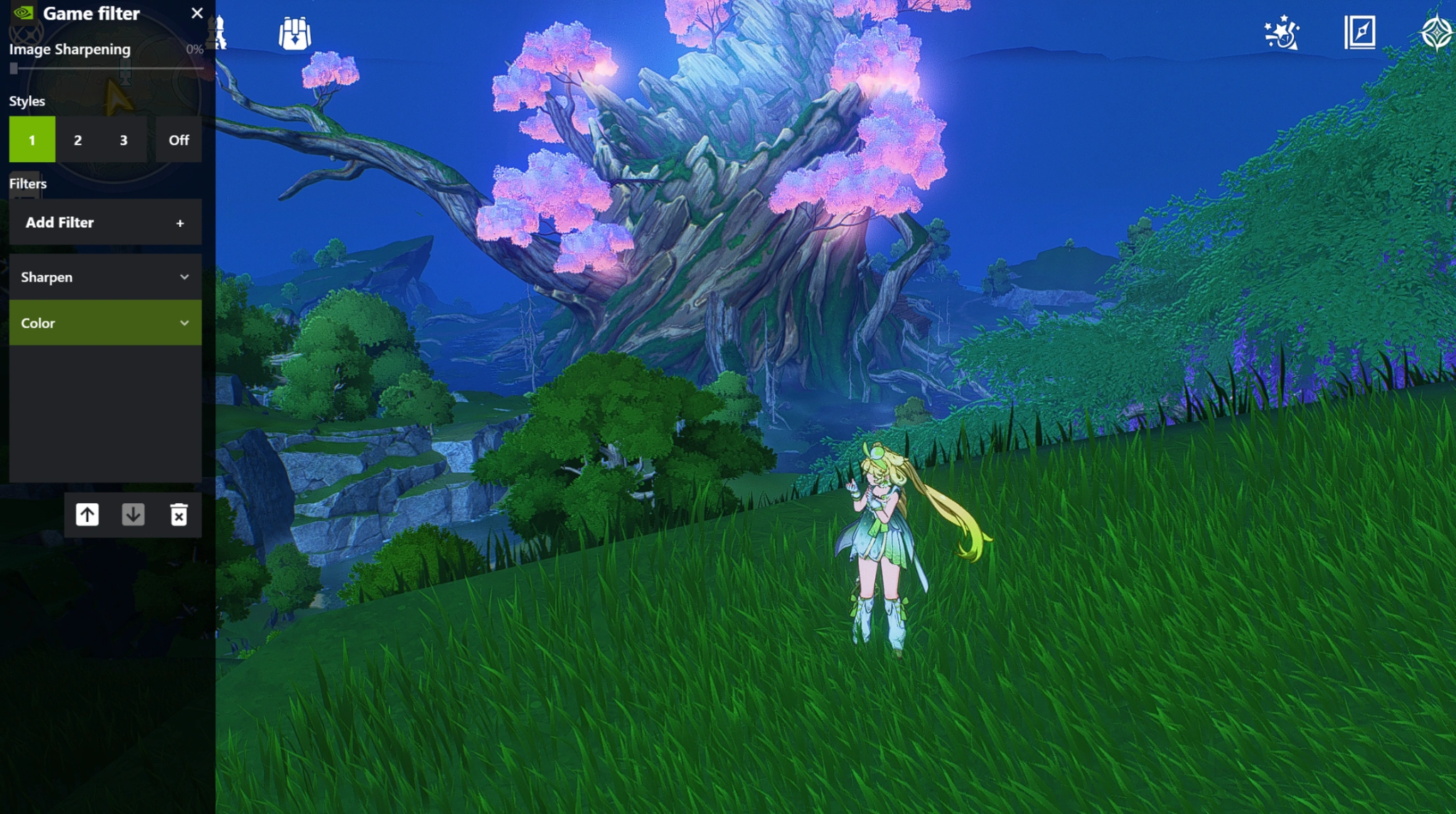
Yes, for PC players equipped with GeForce graphics cards, NVIDIA Freestyle filters are a highly popular method for bypassing the game's native desaturated rendering. By pressing Alt + Z (or Alt + F3 directly) in-game, you can bring up the GeForce Experience overlay and inject custom shaders onto your display.
To successfully cut through the foggy graphics and fix the dull appearance, try adding a custom filter stack with these precise values:
Details:
- Sharpen: 15% (Helps counteract the blurry TAA effect)
- Clarity: 35% (The single most important slider for cutting directly through the dense, milky environmental fog)
- HDR Toning: 15%
- Bloom: 0%
Color:
- Tint Color: 0%
- Tint Intensity: 0%
- Temperature: 0 (or slightly cool if you want crisp blues)
- Vibrance: 20% to 25% (Restores deep, vivid tones to the environment)
The Hidden Downside of NVIDIA Filters
While NVIDIA filters offer an excellent way to clean up the graphics, they come with a distinct hidden cost. Because these filters run as an additional processing layer directly on top of your GPU's render pipeline, they can induce noticeable performance penalties. Many players report a drop of 5 to 10 FPS when running intensive color filters. If you are already struggling to maintain a locked 60 or 120 frames per second during chaotic boss fights, relying heavily on NVIDIA filters can cause stuttering and frame drops.
Part 4: Why Does Wuthering Waves' Photo Mode or Cinematic Mode Make the Colors Washed Out?
A highly specific issue that confuses many players is why the game looks passably decent during standard traversal, but suddenly shifts to an incredibly flat, foggy, or overly bright look the exact second a story cinematic triggers or Photo Mode is opened.
This happens because Kuro Games handles real-time gameplay rendering and cutscene rendering through two entirely separate post-processing pipelines. When a cinematic sequence takes over, the game forces a highly specific cinematic look. This script drastically overrides standard user configurations to apply aggressive film grain, a heavy depth-of-field blur, and a vastly different color-grading profile intended to look artistic, but which often backfires on typical PC monitors by making everything look washed out and grey.
Similarly, when you open Photo Mode, the engine switches its lighting model to prioritize soft ambient light over high contrast, ensuring that characters don't have harsh, unflattering shadows cast across their faces. Unfortunately, this design choice strips away the vibrant depth of the background, leaving your screenshots looking incredibly washed out and dull compared to the active gameplay.
Part 5: LagoFast Game Screen Filters: One-Click to Fix Wuthering Waves Looks Washed Out
If you are tired of spending hours fiddling with complicated calibration menus, or if you simply don't want your framerate to tank from running heavy graphics software, LagoFast Game Screen Filters offer the perfect solution. Different games require custom visual adjustments based on their underlying engines; the LagoFast filter tool effortlessly swaps out flat, unappealing graphics for a visually stunning presentation tailored exactly to your personal preferences.
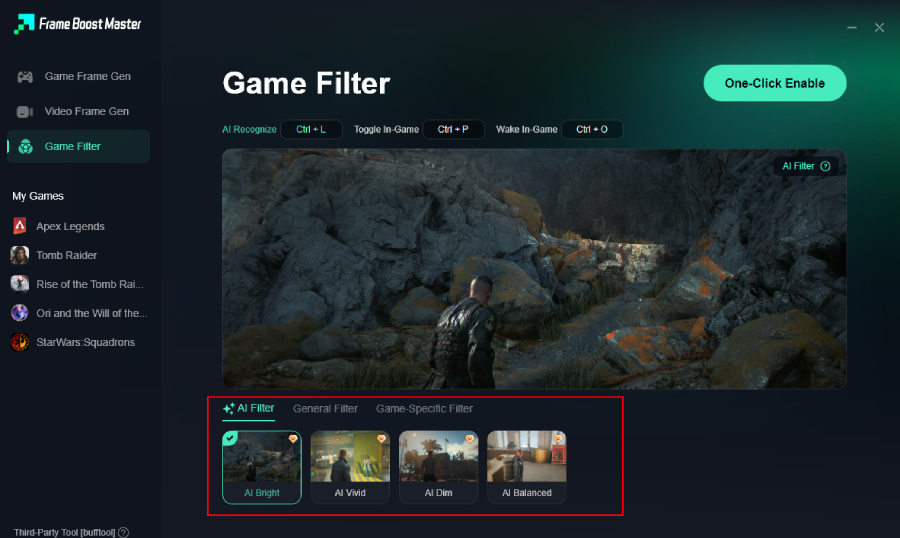
LagoFast features an array of versatile optimization options, including advanced AI filters, universal clarity profiles, and game-specific custom filters meticulously built to enhance the environment of Solaris-3.
Key Features of LagoFast Game Screen Filters:
- One-Click Color Tone Switching: Instantly eliminate the default grey, foggy aesthetic with a single click. No tedious slider adjustments or technical expertise required.
- Better Screenshots Without Complex ReShade Setup: Capture breathtaking, vivid images directly in-game without having to install third-party injector tools that trigger anti-cheat software or ruin your performance.
- Switch Between Vibrant, Cute, Soft, and Cinematic Styles: Tailor your visual environment perfectly to your mood. Instantly shift from a hyper-vibrant anime aesthetic to an immersive, moody cinematic layout whenever you please.
- Improve Visuals While Keeping Gameplay Stable: Enjoy pristine, beautiful graphics without sacrificing a single frame. LagoFast is highly optimized to run seamlessly in the background, ensuring your latency remains ultra-low and your FPS stays completely stable.
Step-by-Step Tutorial to Use LagoFast to Filter the Screen and Optimize Gaming Experience:
Step 1: Click the Free Trial button to download and install LagoFast.
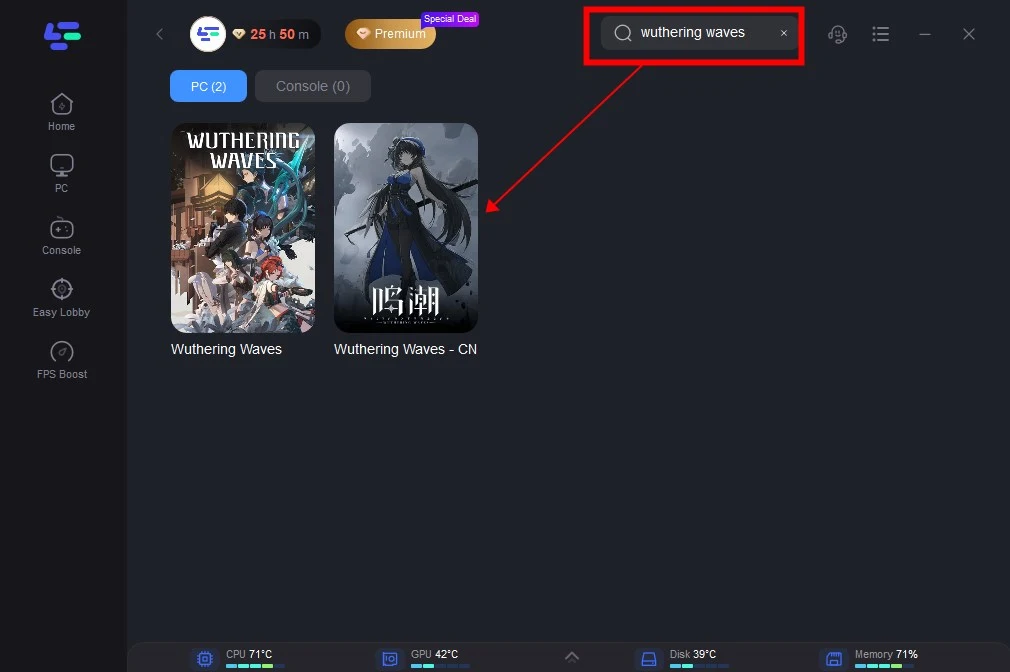
Step 2: Open LagoFast then click the PC button on the left and search Wuthering Waves in the search bar, click it after appearing.
Step 3: Click the Game Screen Filter Tool on the right.
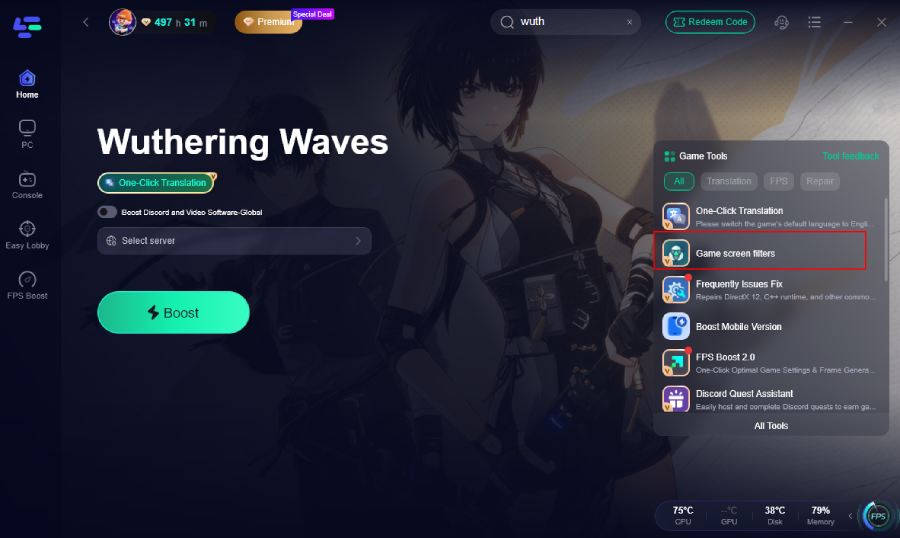
Step 4. Select your preferred filter like AI Bright and click One-Click Enable button to unlock the new experience.
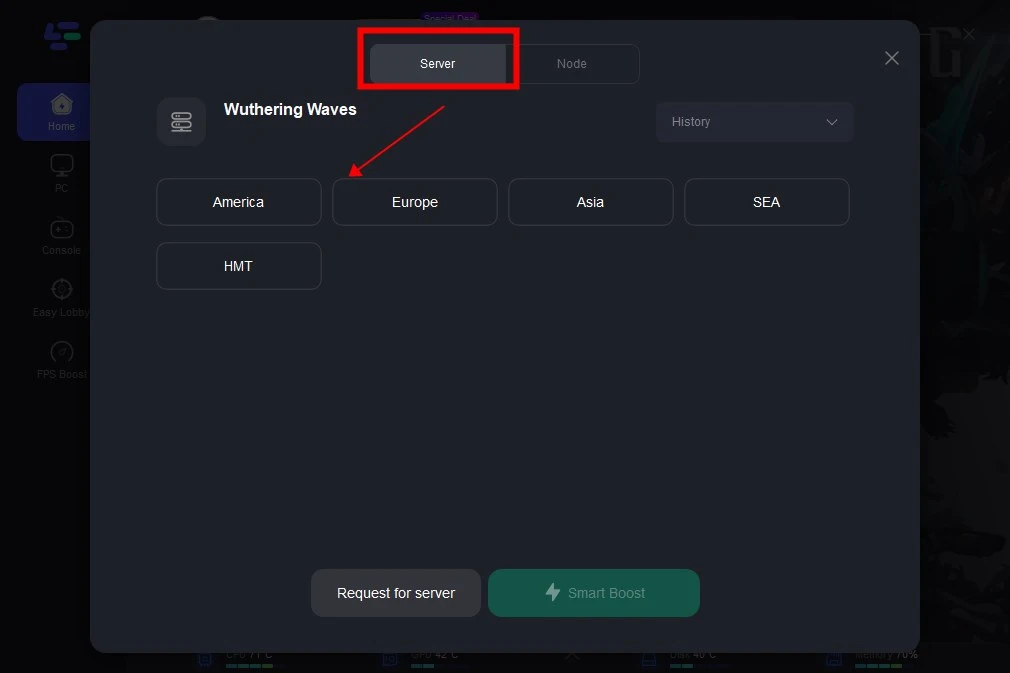
Step 5: Click on “Server” to change to a better server that ensures the gaming experience, then click on “Smart Boost”.
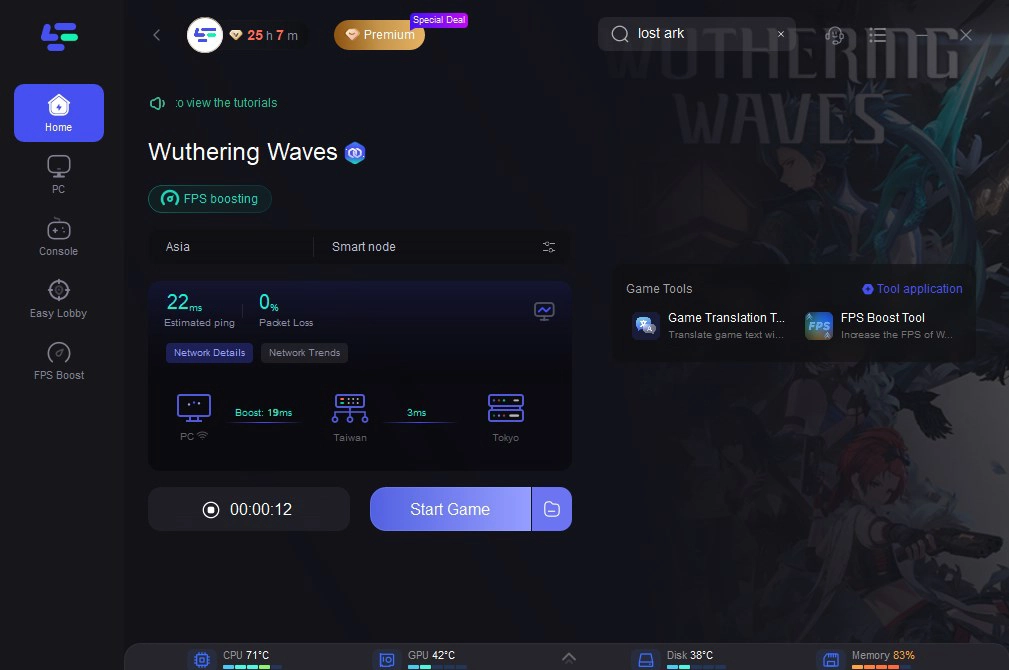
Step 6: Check the specific game ping, packet loss, and multiple path connection on the right side. Finally, click the “Start Game” to play the game.
Part 6: FAQs
Will using external color filters get me banned in Wuthering Waves?
No. Using reliable, well-optimized software like LagoFast Game Screen Filters or native hardware options like NVIDIA Freestyle does not modify the game's internal code or memory files. They only alter how the final image is drawn on your screen, making them entirely safe and compliant with anti-cheat policies.
Why does the game look so dark after I try to fix the washed-out color?
This usually happens if you overcorrect by dropping the in-game brightness slider too low while simultaneously cranking up your monitor's contrast. To fix this, reset your monitor to its default profile, set the in-game brightness exactly to the median mark, and use a dedicated filter tool to selectively enhance colors rather than crushing the blacks.
Does disabling HDR fix the grey fog issue?
For many players, yes. If your monitor's peak nit brightness isn't sufficiently high, or if Windows HDR calibration is misconfigured, turning off HDR in your Windows settings and sticking to standard SDR will immediately restore normal, punchy contrast values to the game.
Why do the colors look bad on my second monitor but fine on my primary display?
This points directly to a hardware calibration variance or mismatched color spaces (like RGB Full vs. RGB Limited) in your GPU control panel. Ensure that both monitors are set to utilize the "Full" output dynamic range within your graphics control panel.
Can I fix the dull colors on mobile devices (Android/iOS)?
Mobile optimization is much more locked down, but you can significantly improve the look by turning off "Eye Comfort Shield" or "Night Light" settings on your device, increasing your phone's screen brightness, and setting the in-game graphics preset to "High" or "Vibrant" if available.
How do LagoFast filters differ from using a traditional ReShade setup?
ReShade physically injects files directly into the game's active directory, which can sometimes crash the game client or trigger security warnings. Furthermore, ReShade requires significant manual setup and impacts performance. LagoFast provides a safe, highly stable, one-click interface that improves your graphics without causing frame drops or stuttering.
Conclusion
You shouldn't have to tolerate muted colors, poor contrast, or an annoying foggy haze while playing an otherwise visually stunning game. By adjusting your default in-game options, configuring your GPU panel, or utilizing the effortless optimization of LagoFast Game Screen Filters, you can easily clean up the graphics and experience the world exactly as it was meant to be seen. Implement these adjustments today, banish the dull grey fog, and enjoy a breathtakingly vibrant adventure!
Boost Your Game with LagoFast for Epic Speed
Play harder, faster. LagoFast game booster eliminates stutter and lags on PC, mobile, or Mac—win every match!
Quickly Reduce Game Lag and Ping!
Boost FPS for Smoother Gameplay!