
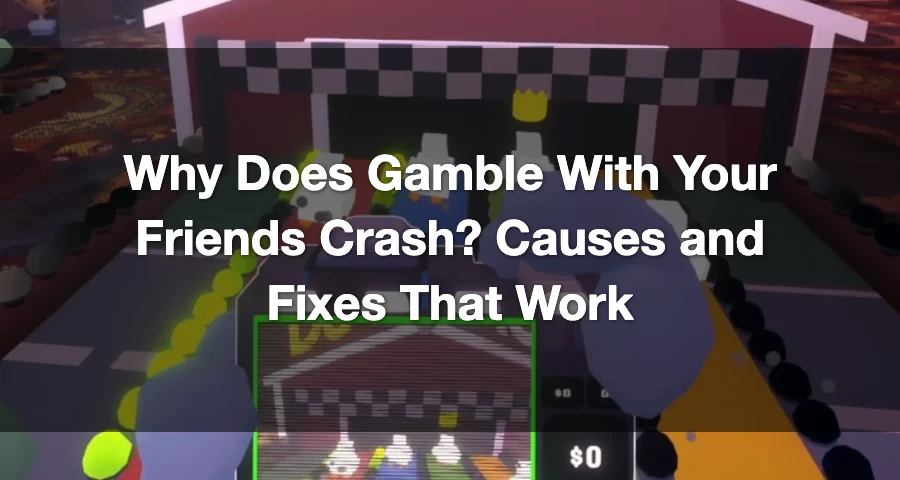
Gamble With Your Friends is currently a Steam PC game with official support focused on Windows. The developer’s FAQ says, “For now, we’re only supporting Windows PC’s for the game,” and the Steam listing shows the game on Steam with minimum specs that include 8 GB RAM and a GTX 970.
Because it’s a 1–6 player online co-op game, crashes feel like network problems sometimes, but most launch crashes and desktop crashes are still local PC issues first.

- ✅ Lower ping and fewer disconnects.
- ✅ More FPS and better PC performance.
- ✅ Support for 3000+ games.
- ✅ Stable connections and region switching.
What should you try first if Gamble With Your Friends keeps crashing?
Start with the three best fixes:
- Restart your PC
- Verify integrity of game files in Steam
- Update your GPU drivers and Windows
That order fixes a lot of launch crashes without wasting time.
“Verify the integrity of the game files through Steam to fix crashes.” That’s worth doing early because corrupted or missing files are one of the most common reasons the game suddenly starts crashing after it worked before.
Quick Fix Gamble With Your Friends Crashes With LagoFast
If Gamble With Your Friends crashes when you connect to friends, enter multiplayer, or play online, the issue may be caused by unstable routing, packet loss, or a bad connection path.
LagoFast helps optimize the game route, reduce packet loss, stabilize ping, and make multiplayer sessions smoother.
How to use it:
Download LagoFast.
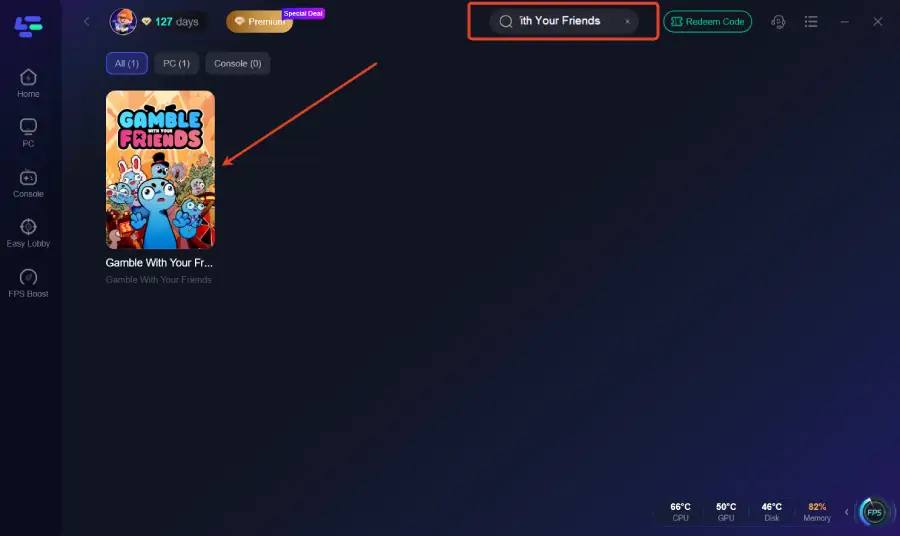
Search for Gamble With Your Friends.
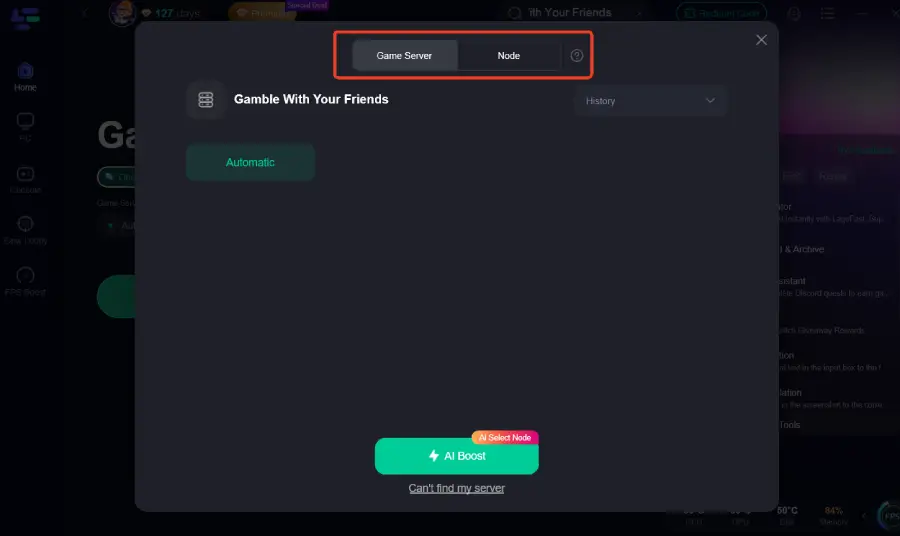
Choose a stable server route.
Click Boost.
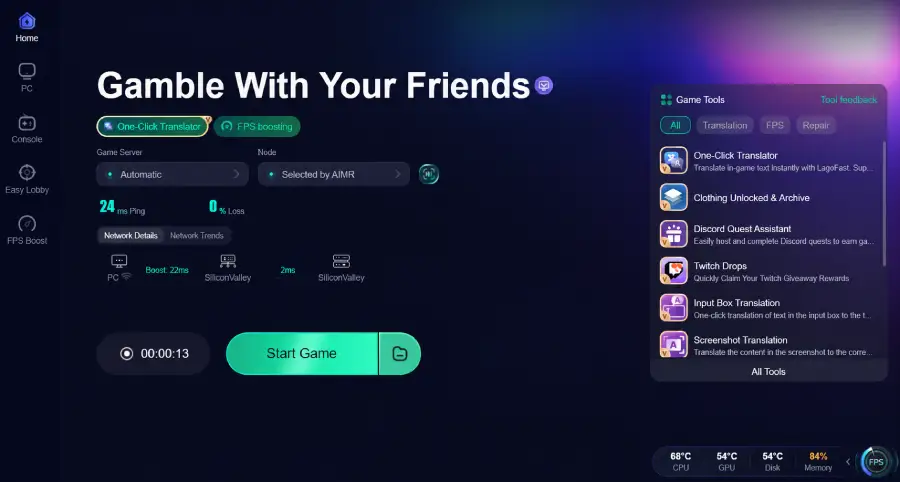
Launch the game from LagoFast.
Join your friends again.
Use LagoFast especially if
- The game crashes when joining a lobby.
- You disconnect from friends often.
- Multiplayer feels unstable.
- Your ping jumps up and down.
- The game works for others but not for you.
- The crash happens during online play, not in the menu.
Why does Gamble With Your Friends crash on PC?
1) Are your Steam game files corrupted?
This is the first thing to suspect if the game:
- crashed after an update
- crashes at launch
- freezes on a loading screen
- suddenly started failing without any hardware changes
In Steam:
- Open your Library
- Right-click Gamble With Your Friends
- Click Properties
- Open Installed Files
- Click Verify integrity of game files
Steam will check the install and replace anything missing or damaged.
2) Are your GPU drivers or Windows build outdated?
Old graphics drivers and pending Windows updates can absolutely cause crash-to-desktop, black screen, or startup failure.
Check for:
- a recent Nvidia/AMD/Intel GPU driver update
- pending Windows updates
- optional driver updates in Windows Update
If the game worked before and now crashes after a system change, driver mismatch is a strong possibility.
3) Are Visual C++ or DirectX components missing or broken?
If the game launches and instantly closes, throws DLL-type errors, or won’t fully initialize, missing runtime components are a real possibility.
The safest move is to repair or reinstall the latest supported Microsoft Visual C++ Redistributables. If you already have them installed, repairing them can still fix broken runtime files.
DirectX-related issues are less clearly documented for this specific game than Visual C++, so don’t assume DirectX is the main problem unless you’re getting explicit errors. Still, if your Windows gaming components are incomplete, updating Windows usually helps restore those dependencies.
4) Is your PC under the minimum spec?
This matters more than people expect.
The Steam store page lists a minimum of 8 GB RAM and GTX 970. If your PC is below that, or barely scraping by while other apps are open, the result may not just be low FPS. It can also be:
- freezing during loads
- hard stutter before a crash
- crash to desktop during busier scenes or co-op sessions
- startup instability on laptops using weak integrated graphics
If you’re under 8 GB RAM, running on an older GPU than GTX 970 class, or nearly out of free storage, stability problems are much more likely.
5) Are overlays or background apps causing conflicts?
Close anything that hooks into games or chews through RAM, CPU, disk, or network.
That includes:
- browser tabs with video playing
- Discord overlay
- recording software
- RGB/control software
- hardware monitoring overlays
- third-party launch helpers
- trainers or mods
Even if the app isn’t the root cause, removing background load makes it much easier to tell whether the crash is a resource problem or a broken install.
6) Should you run Gamble With Your Friends as administrator?
Only try this if you suspect a permissions issue.
That usually means:
- the game fails while creating saves or config files
- it crashes right after first launch setup
- it behaves differently depending on which Windows account launches it
Don’t treat admin mode as the default fix. It can help with save or permission errors, but it’s not the first thing to do for every crash.
Step-by-step fixes in the best order
Work through these in order instead of changing five things at once.
1. Restart the PC
This clears temporary driver hiccups, stuck background processes, and odd memory states.
2. Verify the game files in Steam
This is the fastest high-value check if the game is crashing at launch or after a patch.
3. Update GPU drivers and Windows
Do both, then reboot again.
4. Repair or reinstall Visual C++ Redistributables
Use the official Microsoft package. If you already have it, run a repair or reinstall anyway.
5. Close overlays and unnecessary background apps
Especially anything with an overlay, capture hook, or aggressive hardware polling.
6. Check your specs and free storage
Compare your PC against the Steam minimums:
- 8 GB RAM
- GTX 970
- Windows PC support
- broadband internet for online play
If you’re under spec, the crash may not be “fixable” in the usual sense.
7. Try admin mode only if permissions seem involved
Use it as a targeted test, not a permanent assumption.
When is it a network/session problem instead of a local crash problem?
If the game crashes:
- only when joining or hosting co-op
- right when a lobby connects or reconnects
- after disconnect spikes
- during unstable online sessions but not in solo/local testing
Then the issue may be session-related rather than a pure launch or file problem.
That said, don’t overblame the network. A true launch crash, black screen on startup, or instant desktop crash is still much more likely to be caused by files, drivers, runtimes, or hardware stability on your PC.
One useful developer-side note: the official troubleshooting discussion warns players having connection problems to avoid VPNs or software that tweaks the connection. So if you’re testing a co-op-specific crash, turn VPNs and network-modifying tools off first.
What about Linux or Steam Deck through Proton?
There’s an important caveat here.
The game’s official support is Windows PC, not Linux. But there was also a known Proton/Linux issue that the developers addressed: videos displayed on in-game monitors were no longer crashing the game for Proton players on Linux.
What that means in practice:
- Linux/Steam Deck crashes are not automatically universal
- some Proton-related crashes may depend on game version or Proton version
- if your crash happens on Proton, test a current Proton build and check whether the issue started after a recent game update
So if you’re on Steam Deck or Linux, don’t assume the game is completely broken. Also don’t assume it’s fully supported. It’s a version-sensitive edge case.
Should you disable mods, trainers, or extras while testing?
Yes.
If you’ve added mods, BepInEx, trainers, overlays, or anything that injects into the game, remove them for testing.
That matters even more if the game used to work and broke after an update. Version mismatches can cause crashes that look like base-game bugs.
For clean testing:
- disable mods or trainers
- turn off overlays
- verify files again
- launch the unmodified game
If the clean launch works, the crash is probably not the base install.
FAQ
Does Gamble With Your Friends crash on Linux or Steam Deck via Proton?
It can, but that doesn’t mean all Proton setups are broken. The game is officially Windows-focused, and there was a known Proton/Linux issue involving in-game monitor videos that was later fixed. If you crash on Proton now, test a different Proton version and check whether the problem started after a recent patch.
Can low system specs cause Gamble With Your Friends to crash?
Yes. The Steam minimum lists 8 GB RAM and GTX 970. If you’re below that, or you’re close to the limit with lots of background apps open, the game can freeze, stutter badly, or crash instead of just running slowly.
Should I reinstall Visual C++ Redistributables to fix Gamble With Your Friends crashing?
Yes, it’s a worthwhile fix if the game won’t launch, closes immediately, or seems to be missing runtime dependencies. Use the official Microsoft Visual C++ Redistributable packages and repair or reinstall them.
What should I send support if Gamble With Your Friends still keeps crashing?
Send the crash timing, your platform, Windows version, GPU driver version, hardware specs, steps you already tried, and any crash logs or screenshots. Also mention whether it only happens online or also in solo play.

Boost Your Game with LagoFast for Epic Speed
Play harder, faster. LagoFast game booster eliminates stutter and lags on PC, mobile, or Mac—win every match!
Quickly Reduce Game Lag and Ping!
Boost FPS for Smoother Gameplay!