

If you’ve recently seen an error like “Secure Boot not enabled” while launching games such as Battlefield 6, Call of Duty: Black Ops 7, or Valorant, you’re not alone. This message often confuses players — after all, why should a BIOS setting prevent your game from running?
In this article, we’ll explain what Secure Boot actually is, why it’s so critical for your PC’s safety and gaming experience, what happens when it’s disabled, and how to check or enable it in Windows — all while ensuring you get smoother gameplay and lower ping with tools like LagoFast Game Booster.

Part 1: What Does Secure Boot Do?
Part 2: What Happens If Secure Boot Is Disabled
Part 3: How to Check Secure Boot & TPM Status in Windows
Part 1 : What Does Secure Boot Do?
Secure Boot is a firmware-level security feature built into systems using UEFI (Unified Extensible Firmware Interface) — the modern replacement for traditional BIOS. It ensures that only digitally signed, trusted code can load during your computer’s startup sequence.
Here’s what happens behind the scenes:
1. Verification of Boot Components
When you power on your PC, Secure Boot checks the digital signatures of critical startup components — such as the Windows Boot Manager, drivers, and firmware. If any of them have been altered or tampered with, Secure Boot blocks the boot process.
2. Protection from Rootkits and Bootkits
Malware that targets the boot process (known as rootkits or bootkits) can hide deeply within your system. Secure Boot prevents these threats from loading before the operating system does, keeping your system trustworthy from the ground up.
3. Enforcement of System Integrity for Anti-Cheat Systems
In competitive gaming, cheats often attempt to inject malicious drivers or modify kernel functions to gain unfair advantages. Secure Boot prevents unsigned or modified drivers from loading, making it impossible for such cheats to run.
4. Compliance with Windows and TPM Requirements
Since Windows 11, Secure Boot has become a mandatory requirement alongside TPM 2.0 (Trusted Platform Module). Both features form part of Microsoft’s “Zero Trust” security model, ensuring PCs meet modern security standards.
In essence, Secure Boot establishes a chain of trust from your motherboard firmware all the way to your Windows desktop — protecting both everyday users and competitive gamers alike.
Part 2: What Happens If Secure Boot Is Disabled
Disabling Secure Boot may not break your PC immediately, but it can expose you to various risks and compatibility issues — especially when running newer operating systems or anti-cheat-protected games.
Here’s what could happen:
1. Game Launch Errors
Many modern titles now check Secure Boot status during startup. Games like Battlefield 6, Valorant, and Fortnite may display errors such as:
- “Secure Boot is not enabled on your system.”
- “This game requires Secure Boot and TPM 2.0 to run.”
- “Anti-cheat initialization failed.”
In some cases, the game might crash silently without explanation.
2. Failed Anti-Cheat Initialization
Kernel-level anti-cheat systems like Javelin, Vanguard, or Ricochet rely on a trusted environment. If Secure Boot is off, they can’t guarantee your system hasn’t been tampered with — causing failed verification or false cheat detections.
3. Security Vulnerabilities
Without Secure Boot, unsigned drivers and firmware modifications can load freely, giving hackers or cheat developers an open door into your system. This weakens not only your PC’s security but also the integrity of your online gameplay.
4. Windows Integrity Issues
Windows Update, BitLocker, and even system recovery tools depend on the Secure Boot environment. Disabling it can sometimes cause update failures or prevent encryption-based features from working properly.
In short, disabling Secure Boot can destabilize your gaming environment, reduce protection, and prevent certain titles from launching at all.
Part 3 : How to Check Secure Boot & TPM Status in Windows
If you’re getting the “Secure Boot not enabled” error when launching Battlefield 6 or other competitive titles, the issue often lies in your system’s firmware configuration. Both Secure Boot and TPM 2.0 are essential for games that rely on kernel-level anti-cheat systems such as EA’s Javelin Anti-Cheat. Here’s how to check your current Secure Boot and TPM status, and how to use LagoFast to automatically detect, repair, and optimize your settings — while also improving your ping and performance.
Step 1: Check Secure Boot Status in Windows
- Press Windows + R to open the Run box.
- Type msinfo32 and hit Enter to open the System Information window.
- In the list, scroll to find Secure Boot State.
- If it says “On”, Secure Boot is correctly enabled.
- If it shows “Off” or “Unsupported”, you’ll need to turn it on in BIOS.
Step 2: Check TPM 2.0 Status
- Press Windows + R, type tpm.msc, and press Enter.
- The TPM Management window will appear.
- Under Status, look for “The TPM is ready for use.”
- Under Specification Version, confirm it reads 2.0.
If TPM or Secure Boot isn’t active, switch your BIOS mode to UEFI, ensure your drive uses the GPT format, and enable both Secure Boot and TPM in the Security tab of your BIOS.
Hot Related:How to Enable Secure Boot on Your PC – Windows 10 & 11 Guides
Use LagoFast for Automatic Detection and Optimization
For players unfamiliar with BIOS settings, manually enabling Secure Boot can be confusing and time-consuming. That’s where LagoFast(LagoFast Game Booster - Get No Lag and Lower Ping) Game Booster comes in. It includes an automatic Secure Boot and TPM detection system that checks your system configuration in seconds — and helps you fix errors without digging through BIOS menus.
LagoFast runs four quick verification checks:
- UEFI Mode: Confirms your PC is in UEFI boot mode, not Legacy/CSM.
- TPM 2.0: Detects whether TPM is enabled and functioning correctly.
- GPT Format: Ensures your primary drive is using the GPT partition style.
- Secure Boot: Verifies that Secure Boot is turned on and valid.
If any step fails, LagoFast provides direct repair guidance or a one-click optimization option, letting you correct the issue safely and quickly.
How to Use the Integrated Anti-Cheat Error Fix Tool
After enabling Secure Boot, some players may still experience anti-cheat launch failures in Battlefield 6. To resolve this, LagoFast offers a built-in Anti-Cheat Error Fix Tool designed to detect and repair Javelin Anti-Cheat issues automatically.
Here’s how to use it:
1. Install and Launch LagoFast
2. Search for Battlefield 6
- In the search bar at the top, type “Battlefield 6”.
- Select the game from the search results to open its optimization page.

3. Run the Anti-Cheat Fix
- In the bottom-right corner, click the Anti-Cheat Error Fix Tool.
- Once prompted, click “Confirm Repair”.
- LagoFast will automatically detect and resolve anti-cheat initialization errors.
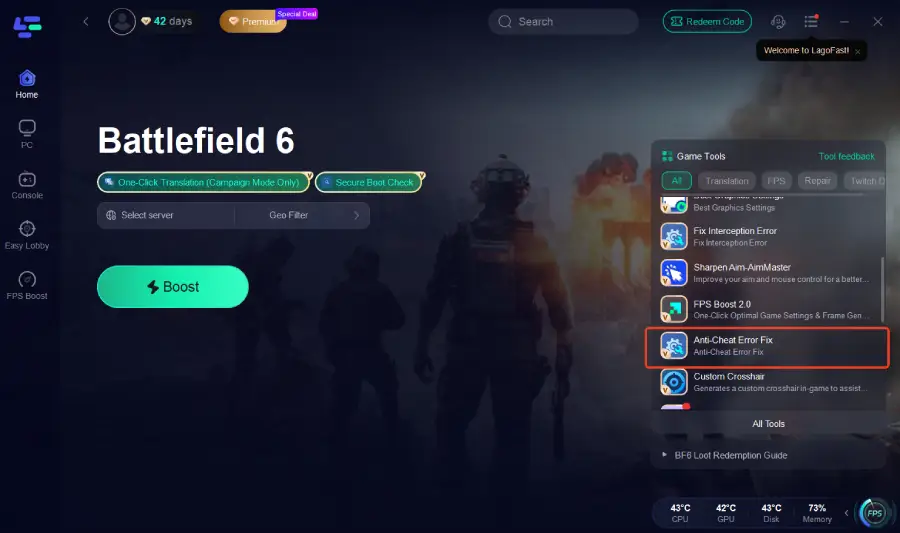
After completing the repair, Battlefield 6 should launch normally without Secure Boot or anti-cheat errors, ensuring a smooth gameplay experience.
How to Set Up LagoFast for Battlefield 6 to Reduce Ping
Beyond fixing Secure Boot and anti-cheat errors, LagoFast also enhances your network stability and FPS performance — ensuring the best possible gaming experience in Battlefield 6. Follow these simple steps:
Step 1: Download LagoFast
Step 2: Search for Battlefield 6
In LagoFast’s main interface, use the search bar to find Battlefield 6.
Step 3: Select a Stable Server
Click “Select Server” to choose the most stable and lowest-latency server available in your region.
This ensures minimal ping spikes and smoother gameplay.
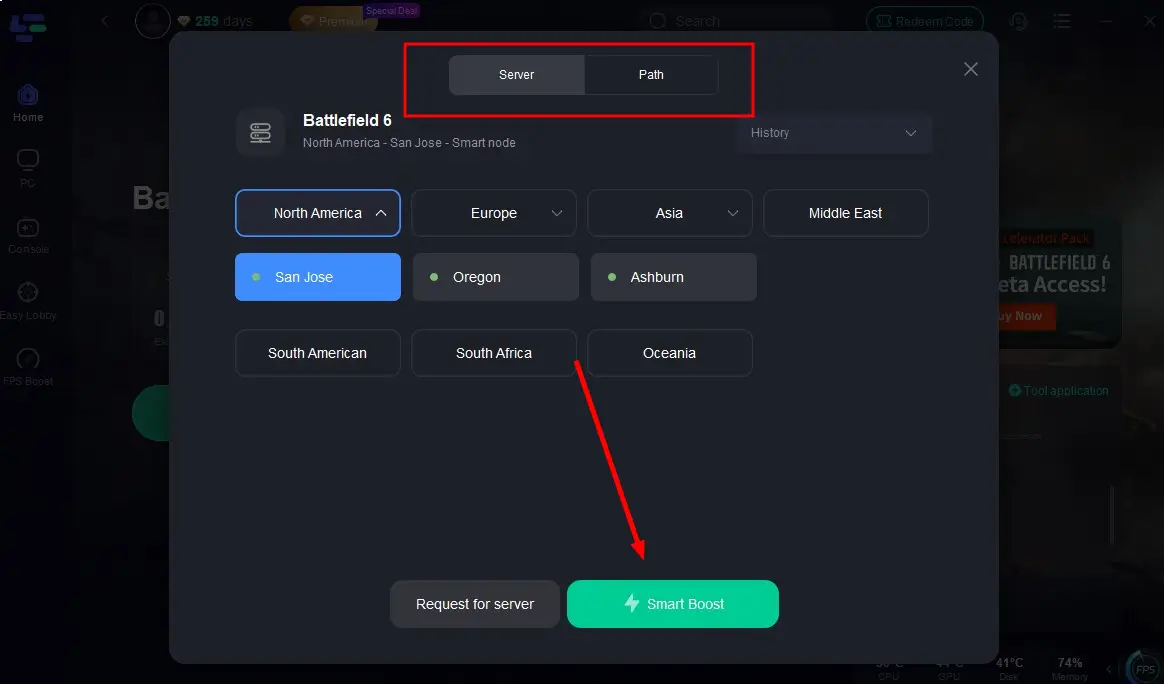
Step 4: Start Smart Boost
Once your server is selected, click “Smart Boost” to begin optimization.
LagoFast will automatically:
- Route your connection through the fastest network paths.
- Monitor your ping, packet loss, and connection stability in real-time.
- Free up system resources to improve FPS and response time.

Why Choose LagoFast?
LagoFast isn’t just a ping reducer — it’s a complete game optimization suite designed for modern titles that rely on Secure Boot and kernel-level anti-cheat systems.
With automated Secure Boot detection, anti-cheat repair tools, and real-time ping optimization, LagoFast ensures that Battlefield 6 and other competitive games launch flawlessly and perform smoothly.
- Fix Secure Boot & TPM configuration errors automatically
- Repair Javelin Anti-Cheat issues in one click
- Reduce ping and packet loss across all regions
- Boost FPS and system stability instantly
- Support over 1000+ online games, including all Call of Duty titles
With LagoFast, you can focus on gameplay — not troubleshooting, ensuring that both your system integrity and performance are at their best.
Part 4: FAQs
Q1: Is Secure Boot required for all games?
Not all titles enforce Secure Boot, but many competitive games — including Battlefield 6, Valorant, and Call of Duty: Black Ops 7 — require it to support kernel-level anti-cheat verification.
Q2: Can I play Battlefield 6 without Secure Boot?
No. Battlefield 6 uses EA’s Javelin Anti-Cheat, which depends on Secure Boot and TPM 2.0 for driver-level integrity. The game will not launch if either is disabled.
Q3: Does Secure Boot affect performance or FPS?
Secure Boot itself has no performance cost. It only affects the system’s startup validation. However, enabling it ensures anti-cheat systems run correctly, preventing crashes that could interrupt your gameplay.
Q4: Can LagoFast really fix “Secure Boot not enabled” errors?
Yes. LagoFast’s Secure Boot Detection Tool identifies configuration errors, links to easy fix guides, and provides one-click optimization to resolve startup and anti-cheat verification issues.
Q5: How does LagoFast help with ping and lag?
By optimizing network routes and connecting you to the lowest-latency servers, LagoFast can reduce ping, stabilize FPS, and fix lag spikes, improving overall gaming performance for over 1000+ online titles.
Conclusion
Secure Boot is more than just a BIOS setting — it’s the foundation of modern PC security and fair online play. It ensures your system boots cleanly, your drivers remain trusted, and your games run in a protected environment.
If you encounter errors like “Secure Boot not enabled”, use LagoFast’s Secure Boot Detection and Optimization tools to diagnose, fix, and boost your setup effortlessly. With Secure Boot protecting your system and LagoFast optimizing your network, you’ll enjoy both safer and smoother gameplay — every time you boot up.

Boost Your Game with LagoFast for Epic Speed
Play harder, faster. LagoFast game booster eliminates stutter and lags on PC, mobile, or Mac—win every match!
Quickly Reduce Game Lag and Ping!
Boost FPS for Smoother Gameplay!