
If Valorant won’t start and shows a VISUAL C++ ERROR or crashes in DX11, it can be frustrating. These errors usually happen when your system is missing critical Visual C++ libraries or DirectX files. In this guide, we’ll explain why this happens and show how to fix it so you can get back to playing without interruptions.

- ✅ Reduce Lag and High Ping.
✅ Boost FPS at the Same Time.
✅ Support 2000+ Online Games
✅ Change Server Without Latency.
✅ Multiplatform: PC, Console, Mobile.
✅ End Connection & Crashing Issues
Part 1: What Is the Valorant VISUAL C++ Error?
Part 2: Why Does VISUAL C++ Error Happen in Valorant?
Part 3: Fastest Way to Fix Valorant VISUAL C++ Error
Part 4: Manual & Alternative Ways to Fix VISUAL C++ Error
Part 1: What Is the Valorant VISUAL C++ Error?
If you try to launch Valorant and see a Visual C++ Runtime Error, or the game crashes right away, that’s the Valorant VISUAL C++ ERROR.
This usually happens because the game can’t access the Microsoft Visual C++ Redistributable (VC++), which is required for core functions. Without it, Valorant may fail to start, crash unexpectedly, or show a blank screen.
For players running DX11, you might also see Valorant DX11 and VISUAL C++ ERROR messages, which can make the problem even more confusing.
Common Valorant VISUAL C++ Error Symptoms
You might notice issues like
- Game won’t open—clicking launch does nothing
- Visual C++ Runtime Error pop-ups
- Crashes or freezes, especially in DX11 mode
- Valorant failed to launch on Windows 11 messages
- Black screens or interrupted loading, blocking access to the main menu
Part 2: Why Does VISUAL C++ Error Happen in Valorant?
Several common issues can trigger the Valorant VISUAL C++ ERROR. Even if your PC hardware is strong, missing or corrupted system files can stop the game from launching.
1. Missing or Corrupted Visual C++ Runtime Libraries
Valorant requires the full Visual C++ Redistributable to run. Missing or damaged files prevent essential modules from loading, causing runtime errors.
2. Incompatible or Missing DirectX Version
DX11 errors can cause crashes or black screens. If DirectX is outdated or certain files are missing, Valorant may fail to start.
3. Missing or Corrupted System DLL Files
Key system files like msvcp140.dll or vcruntime140.dll are needed to run the game. If these DLLs are corrupted or absent, you’ll see Visual C++ errors or crashes.
4. Outdated Drivers or Windows Updates
Old GPU drivers or missing Windows 11 updates can interfere with the game. Even a powerful PC can fail to launch Valorant if the system environment isn’t up to date.
Part 3: Fastest Way to Fix Valorant VISUAL C++ Error
If you’re tired of seeing Valorant VISUAL C++ ERROR or crashing in DX11, the fastest way to get back into the game is with LagoFast Game Crash Fix. This tool automatically repairs Visual C++ runtime errors and fixes problems with DirectX, .NET Framework, and system DLLs, all in one click. On top of that, LagoFast also helps improve your overall gaming experience—it can lower ping, stabilize your connection, optimize routing, boost FPS, and offer other practical tools that make gameplay smoother.
How to Use LagoFast Game Crash Fix
Step 1: Click the Free Trial button to download and install LagoFast.
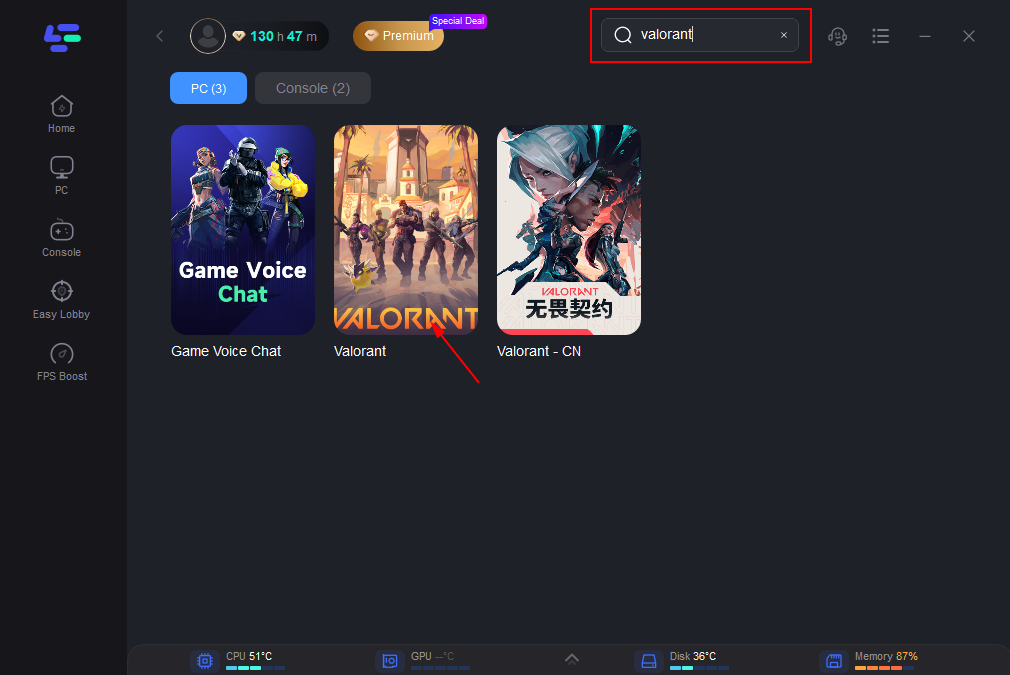
Step 2: After installation, search "Valorant" in the search bar and select the game.
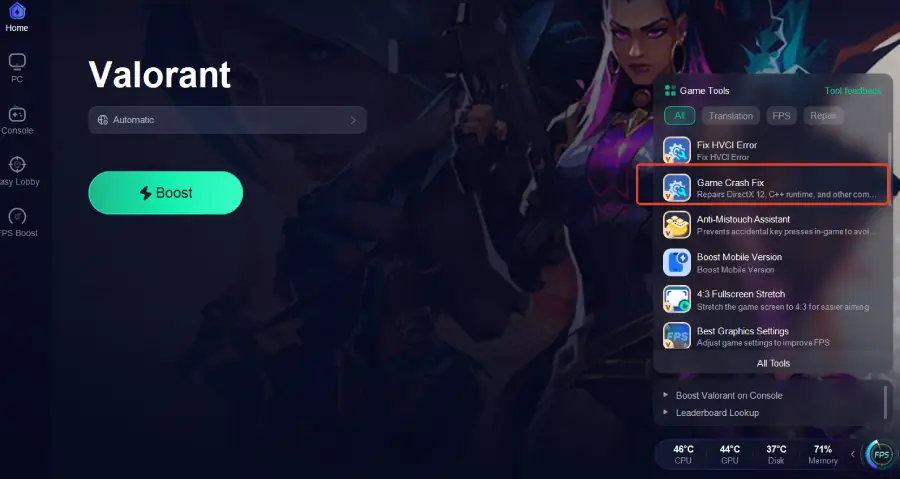
Step 3: Click the Game Crash Fix tool on the right.
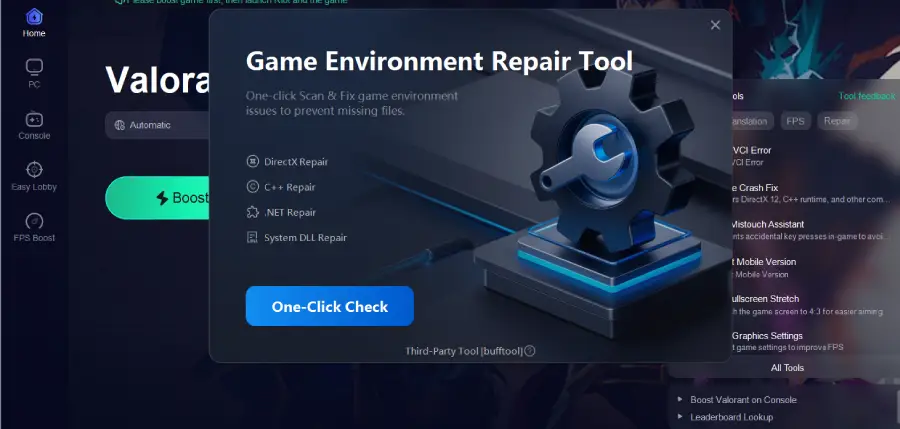
Step 4: Click One-Click Check to apply the fix.
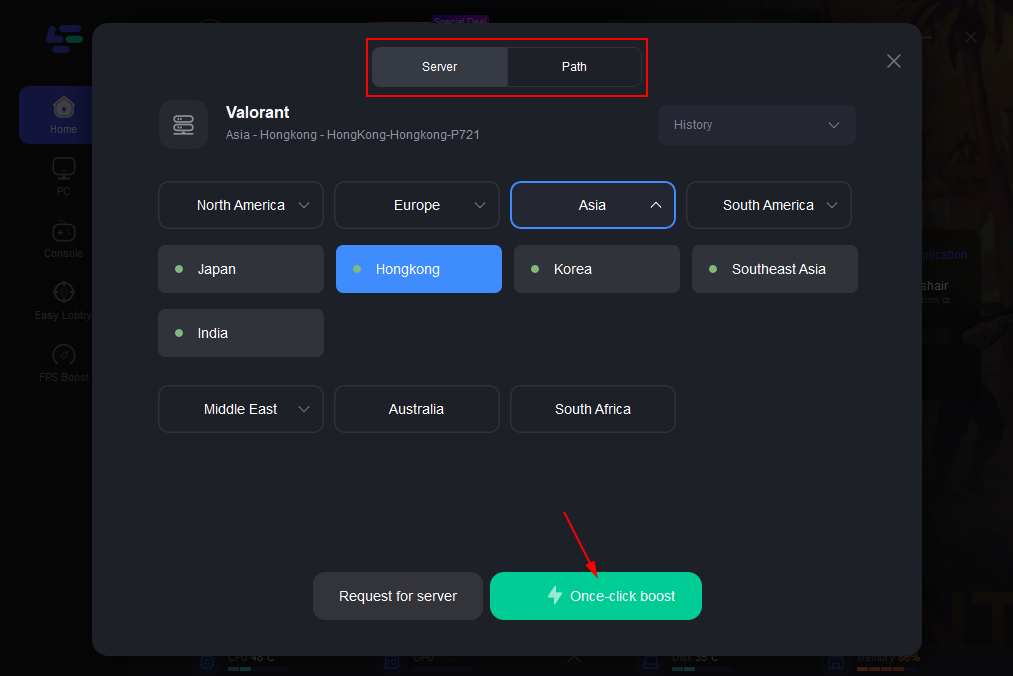
Step 5: Choose your preferred server node and click "Smart Boost" to start optimizing.
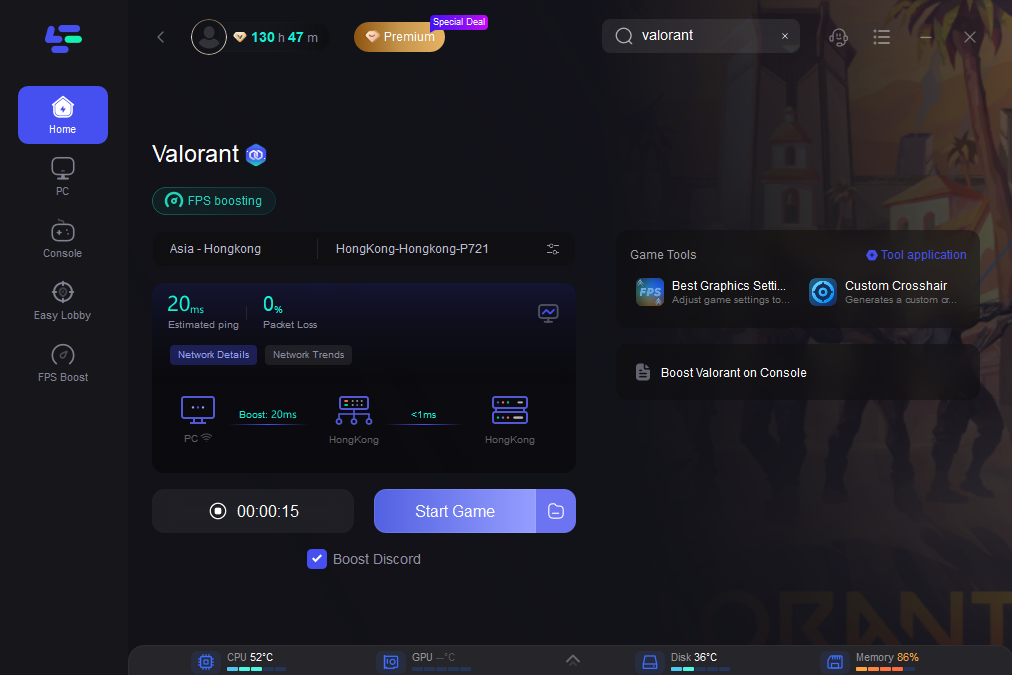
Step 6: Launch your game and enjoy smooth, optimized gameplay with lower ping and no stutter.
Part 4: Manual & Alternative Ways to Fix VISUAL C++ Error
If you prefer hands-on solutions or cannot use a one-click tool, you can follow these steps:
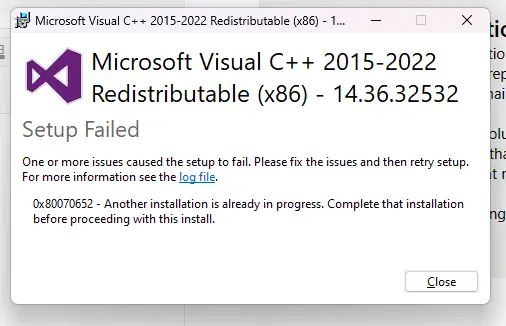
1. Check and Install Visual C++ Redistributables
- Open Control Panel > Programs and Features.
- Look for Microsoft Visual C++ Redistributable 2015–2022.
- If any version is missing or outdated, download and install the latest one from Microsoft.
- Make sure to install both x86 and x64 versions for full 32-bit and 64-bit support.
- Restart your PC and try launching Valorant again.
2. Update DirectX
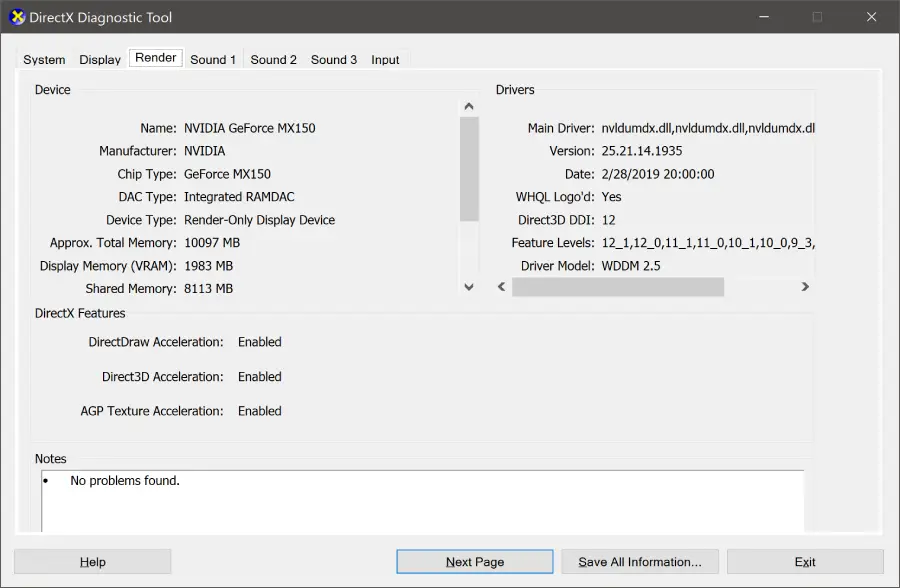
- Press Win + R, type dxdiag, and check your DirectX version.
- If it’s outdated or missing, install the latest DirectX End-User Runtime from Microsoft.
- Restart your PC and try launching Valorant.
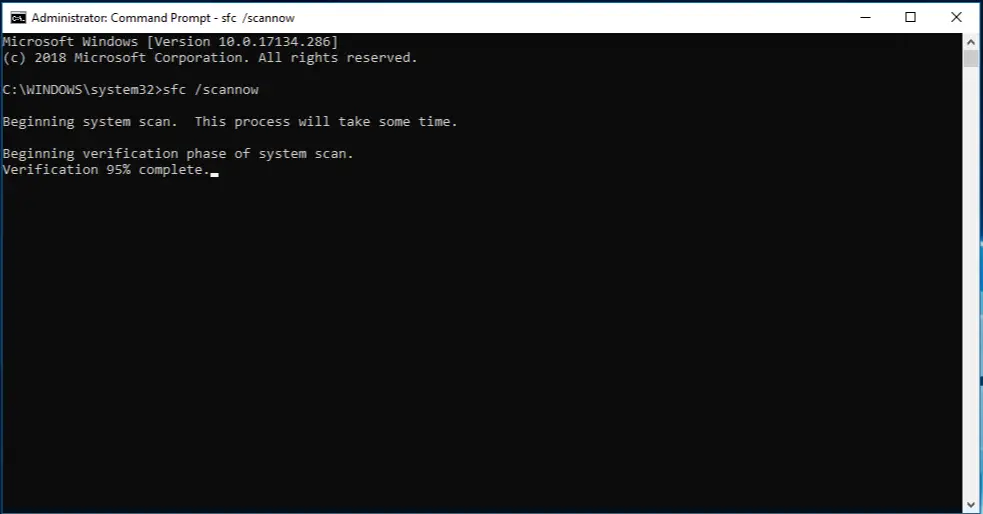
3. Repair System DLL Files
- Open Command Prompt as administrator.
- Run the command: sfc /scannow
- Windows will scan and repair missing or corrupted system files.
- Once complete, restart your PC and launch Valorant.
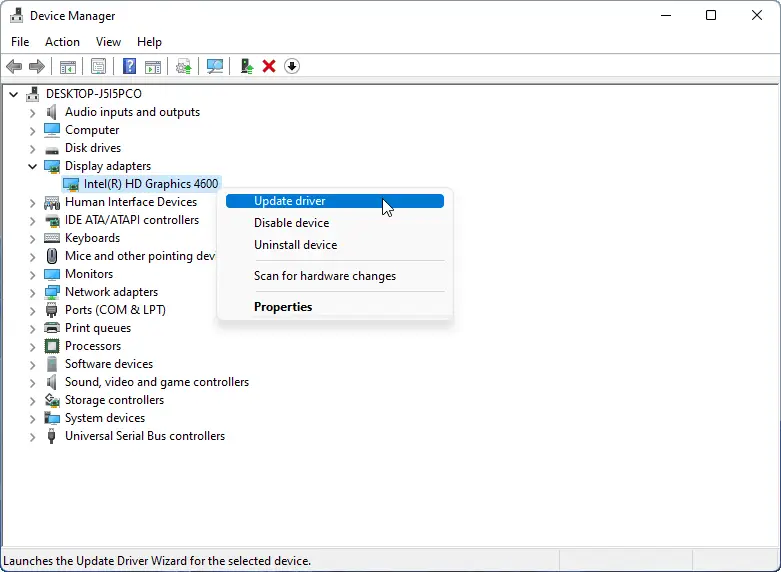
4. Update Drivers and Windows
- Make sure your GPU drivers (NVIDIA or AMD) are up to date.
- Install the latest Windows 11 updates.
- Disable any software that might conflict with Valorant, such as overlays, monitoring apps, or GPU utilities.
Following these steps usually resolves Valorant VISUAL C++ ERROR and related crashes, giving your system the proper environment to run the game smoothly.
Key Takeaways
- One-Click Fix: Use LagoFast Game Crash Fix to repair Visual C++, DirectX, and system DLLs automatically.
- Manual Fixes: Update Visual C++ Redistributables, DirectX, GPU drivers, and Windows 11.
- System Repair: Run sfc /scannow to fix missing or corrupted DLL files.
- Prevent Conflicts: Disable overlays, monitoring apps, or GPU utilities that may interfere with Valorant.
Conclusion
Valorant VISUAL C++ ERROR and DX11 crashes are usually caused by missing or outdated Visual C++ libraries, DirectX files, or system DLLs. You can quickly fix these issues using LagoFast Game Crash Fix or by following manual steps like updating system components and drivers. Taking these actions ensures Valorant launches smoothly, reduces crashes, and improves overall gameplay stability.
Boost Your Game with LagoFast for Epic Speed
Play harder, faster. LagoFast game booster eliminates stutter and lags on PC, mobile, or Mac—win every match!
Quickly Reduce Game Lag and Ping!
Boost FPS for Smoother Gameplay!