
Quick Answer: How to Fix Valorant Error Code VAL 5
To fix the VAL 5 error in Valorant, start by checking the official Riot Games server status to ensure the problem isn't on their end. If servers are up, restart your PC and the Riot Client to refresh the connection. A highly effective community-vetted fix is to log out of your Riot account on all devices through the official website's "Login Management" section and then log back in. Additionally, ensure the Vanguard service (vgc) is set to Automatic in Windows Services. For a permanent solution to connection instability, use LagoFast Game Booster to optimize your network routing and maintain a solid link to the game servers.
Few things are as disruptive as being mid-match and suddenly seeing the message: "The game has lost connection. Please relaunch the client to restore connectivity. Error Code: VAL 5." For many players, this error isn't a one-time glitch but a recurring nightmare that kicks them out of queues and results in unfair AFK penalties. On technical support forums like Reddit, users have reported getting this error non-stop, even after reinstalling the entire game. Understanding whether this is a server hiccup, a network conflict, or an account session issue is key to getting back into the action without fear of the next disconnect.

- ✅ Reduce Lag and High Ping.
✅ Boost FPS at the Same Time.
✅ Support 3000+ Popular Online Games.
✅ Change Server without Latency.
✅ Boost Game Loading Speed.
Part 1: What Causes VAL 5 Error in Valorant?
Part 2: The Game Has Lost Connection: Initial Troubleshooting
Part 3: How to Fix VAL 5 Error Problem: Account Management
Part 4: How To Fix Valorant Error Code VAL 5 Game Lost Connection: Advanced Fixes
Part 5: How to Enhance Your Game Experience with LagoFast Game Booster
What Causes VAL 5 Error in Valorant?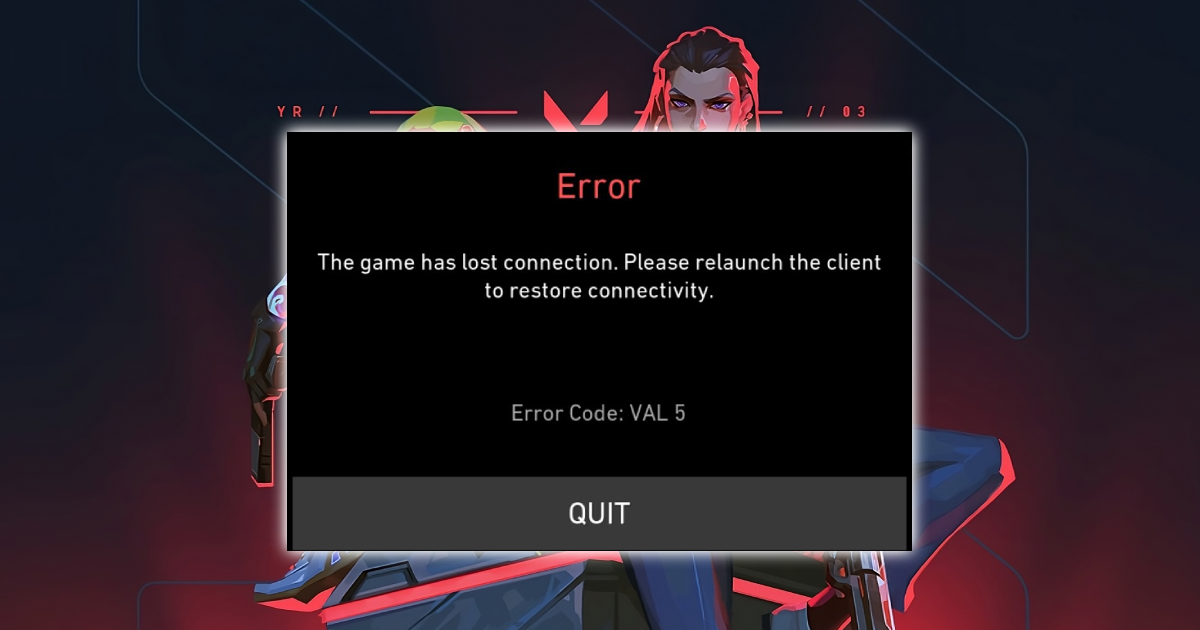
The VAL 5 error code is essentially a general "lost connection" signal, but its triggers can vary significantly depending on your specific setup.
- Server Maintenance or Outages: This is the most common cause. When Riot is patching the game or experiencing server-side instability, the client loses its handshake with the server, triggering VAL 5.
- Account Session Conflicts: Valorant only allows one active session per account. If you are logged in on another PC, or if a previous session didn't close properly, the server might kick you to prevent duplicate access.
- Network Instability: Micro-fluctuations in your internet connection, high packet loss, or DNS issues can cause the client to time out.
- Vanguard Service Failures: If Riot's anti-cheat system, Vanguard, stops running or fails to verify your game's integrity mid-match, it will immediately terminate the connection for security reasons.
- Third-Party Software Interference: Overzealous firewalls, antivirus programs, or even certain network monitoring tools can block the specific ports Valorant needs to stay connected.
The Game Has Lost Connection: Initial Troubleshooting
Before moving to complex system changes, always start with these fundamental steps that resolve the majority of "Game Lost Connection" scenarios.
Check Riot Server Status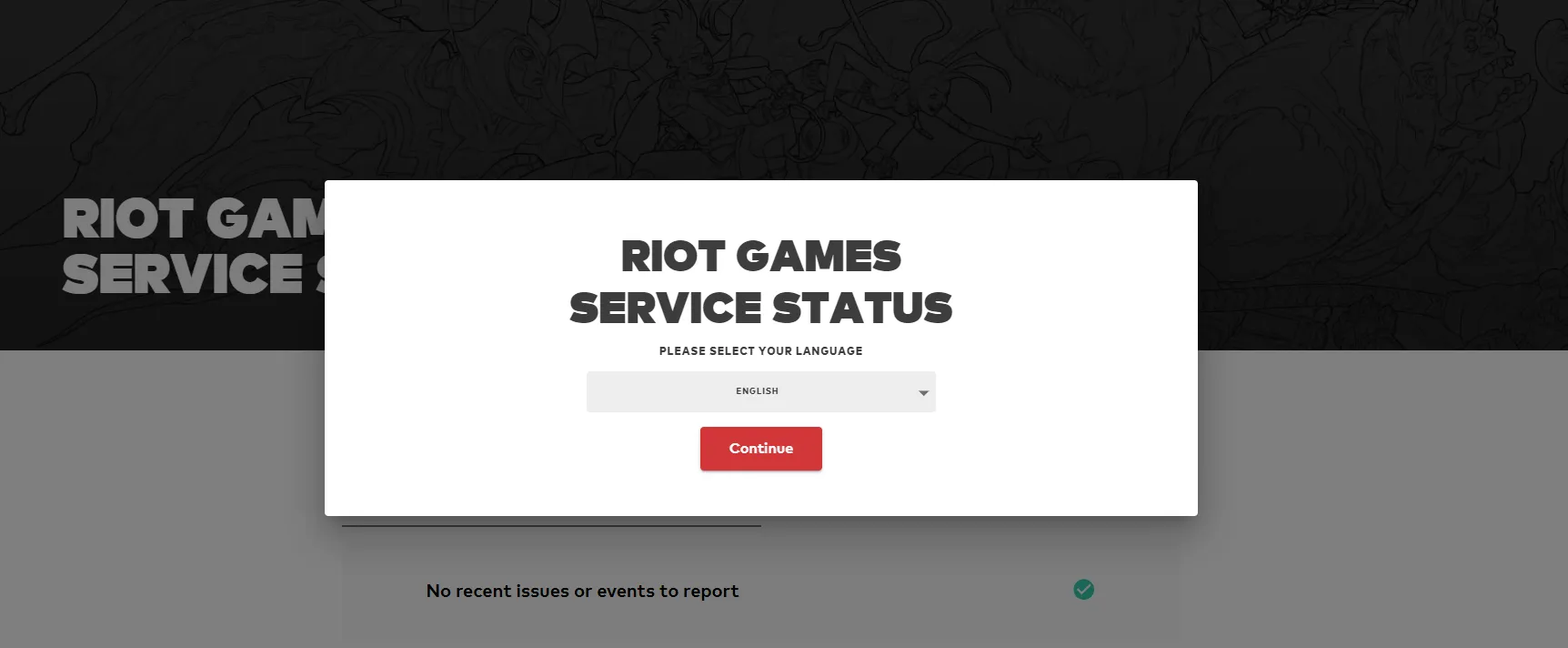
Don't waste time troubleshooting your PC if the problem is at Riot HQ. Visit the Riot Games Service Status page. If you see a red or orange icon for your region, the only fix is to wait for the developers to resolve the issue.
Power Cycle Your Network Hardware
Sometimes your router or modem can experience "cache bloat" or internal errors that cause intermittent drops. Unplug your router, wait for 30 seconds, and plug it back in. This forces a fresh IP assignment and clears out temporary network glitches.
Restart the Riot Client and PC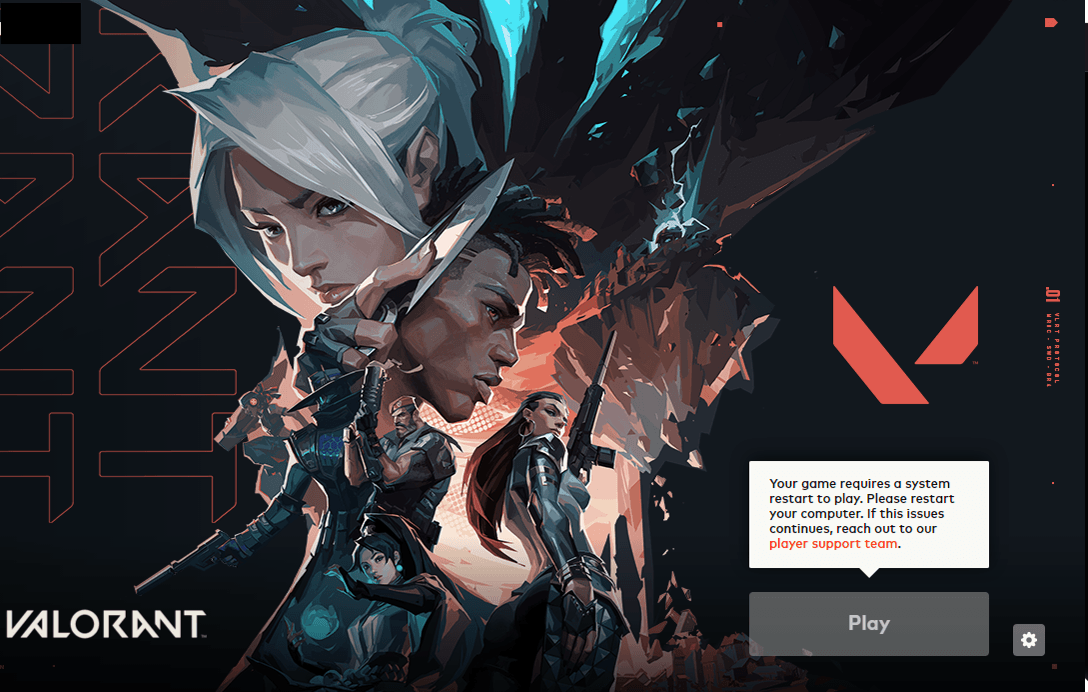
A simple restart does more than just clear RAM; it restarts the Vanguard kernel driver. If Vanguard encountered a silent error, a reboot is often the only way to get it back into a "trusted" state.
How to Fix VAL 5 Error Problem: Account Management
If the error persists despite stable servers, the issue is likely tied to your account's active sessions. This is a common "hidden" cause that many guides overlook.
The "Log Out Everywhere" Strategy
As discovered by many players on Reddit, the VAL 5 error often happens because the server thinks you are still logged in elsewhere.
- Go to the official Riot Games website and log in to your account.
- Navigate to Account Management.
- Look for the "Login Management" or "Sign out everywhere" option.
- Click it to terminate all active sessions.
- Wait a few minutes, then log back into the Riot Client on your main PC.
Change Your Riot Password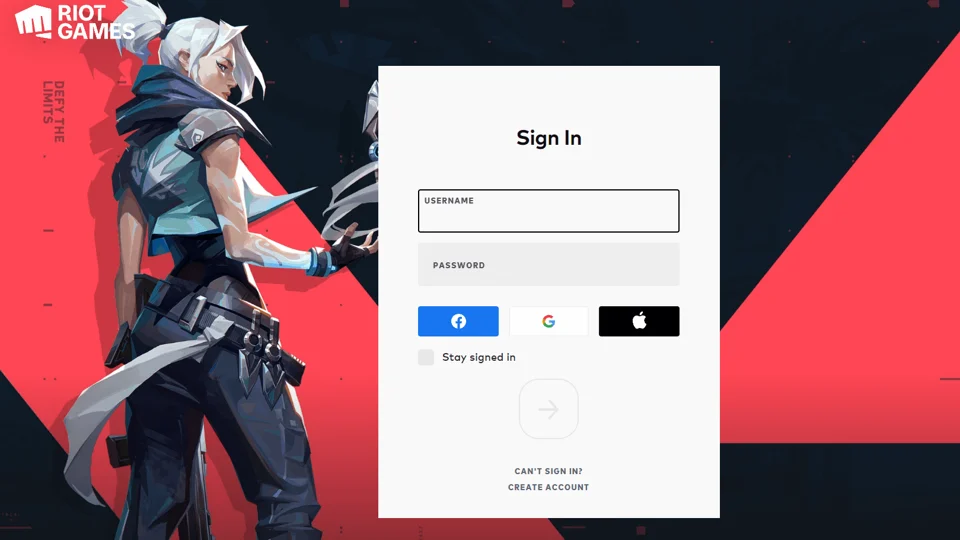
If you suspect someone else might be accessing your account (which triggers VAL 5 when they log in), changing your password will automatically force a logout on all other devices and secure your session.
How To Fix Valorant Error Code VAL 5 Game Lost Connection: Advanced Fixes
When the basic steps fail, you need to look at how Windows handles the game's background services and network traffic.
Enable the VGC Service
The "vgc" service is the heart of Vanguard. If it’s not running correctly, you will lose connection constantly.
- Press Win + R, type services.msc, and hit Enter.
- Scroll down to find "vgc".
- Right-click it and select Properties.
- Set the Startup type to Automatic.
- If it’s not running, click Start.
- Click Apply and restart your PC.
Flush DNS and Reset Winsock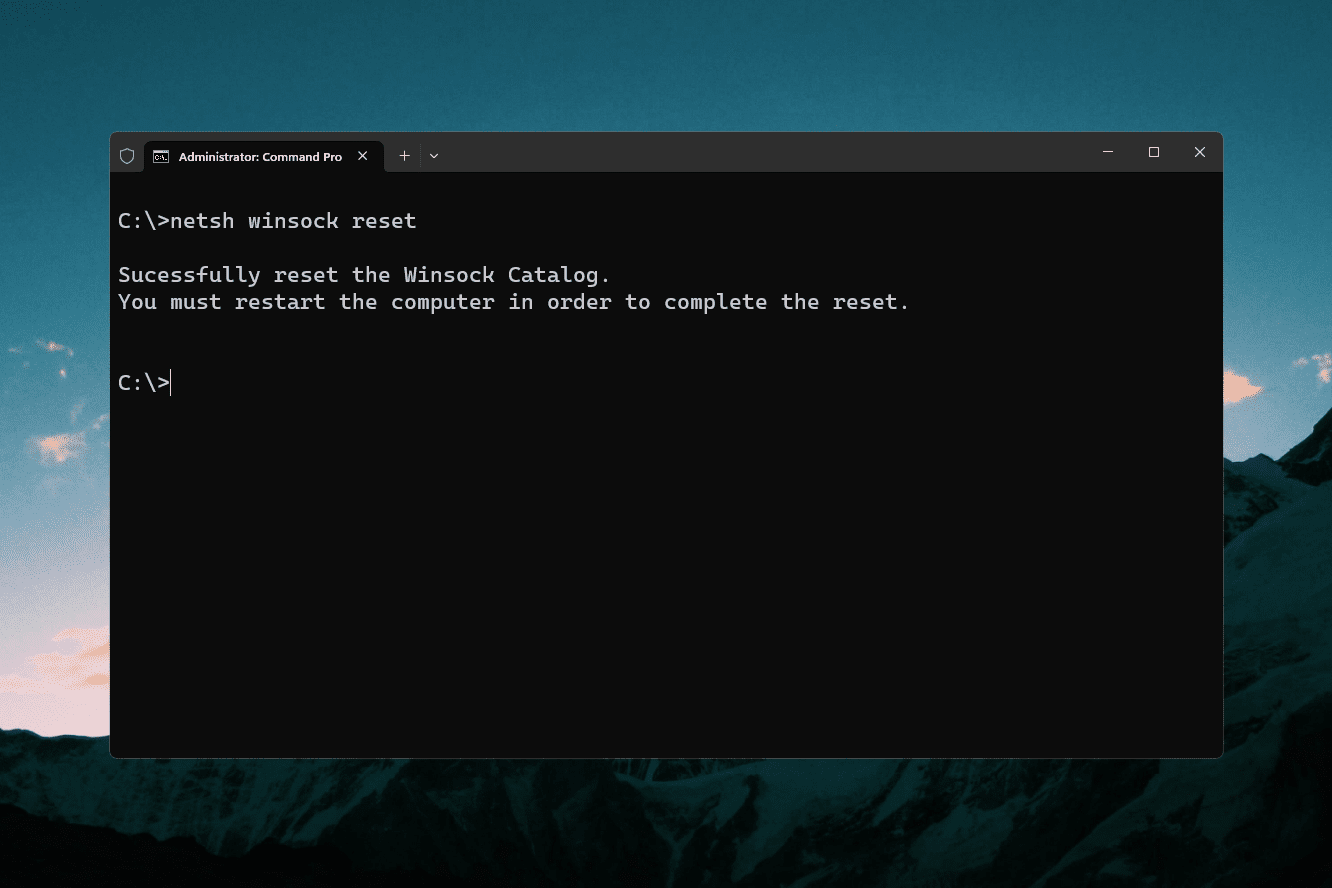
Corrupted network pathways can cause the "Lost Connection" error.
- Open the Start Menu, type cmd, and Run as Administrator.
- Type ipconfig /flushdns and press Enter.
- Type netsh winsock reset and press Enter.
- Restart your computer to apply the changes.
Run Valorant as Administrator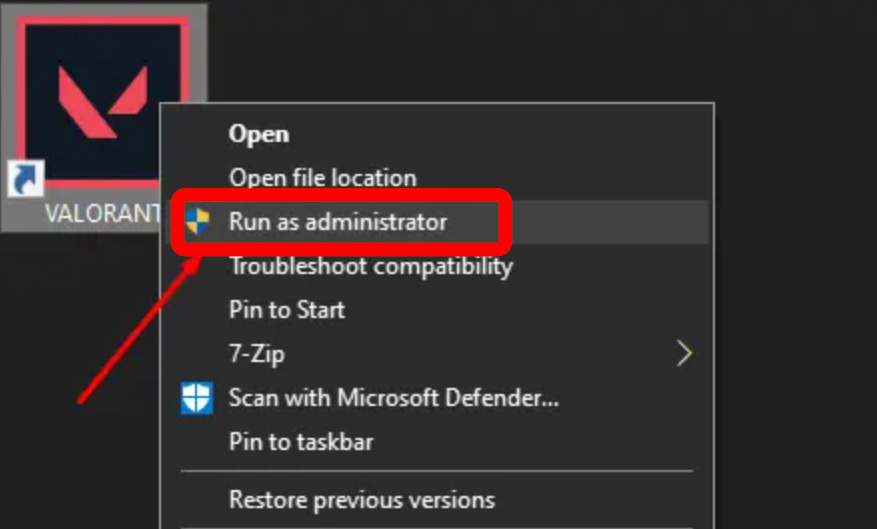
Permissions issues can prevent the game from maintaining a stable connection with its anti-cheat component. Right-click the Valorant shortcut, select Properties > Compatibility, and check "Run this program as an administrator."
How to Enhance Your Game Experience with LagoFast Game Booster
While manual fixes can address specific errors, they don't always solve the underlying network instability that causes the VAL 5 error to return. This is where LagoFast Game Booster becomes an essential tool for any serious Valorant player. LagoFast(LagoFast Game Booster - Get No Lag and Lower Ping) is designed to provide a more robust and optimized connection to game servers, effectively bypassing many of the common network hurdles that trigger "Lost Connection" errors.
Why Use LagoFast for Valorant?
LagoFast uses a global network of dedicated servers and multi-path connection technology to ensure your game data takes the fastest and most stable route possible. This significantly reduces the chances of the client-server "handshake" failing, which is the root cause of the VAL 5 error. Beyond fixing errors, it also lowers your ping and eliminates jitter, giving you a smoother competitive experience.
Detailed Steps to Optimize Valorant with LagoFast:
Click the Free Trial button to download and install LagoFast Free Trial.
Search for Valorant: Open the LagoFast application and use the search bar to find "Valorant."
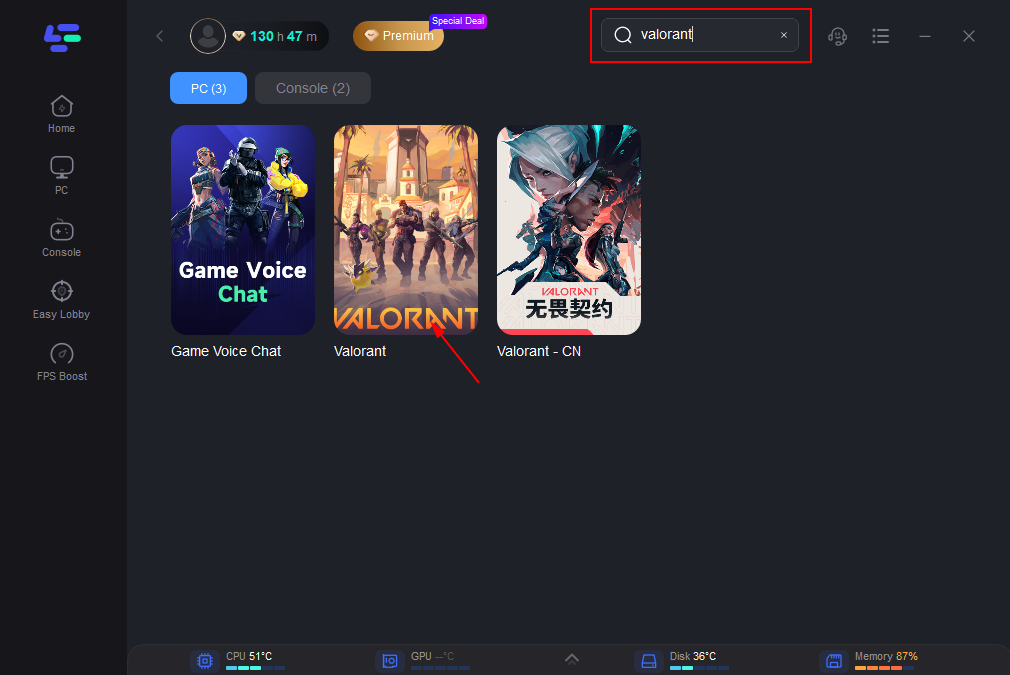
Select Your Server: Click on the Valorant icon. You will be prompted to select a server. It is usually best to choose the one closest to your actual location or the one with the lowest latency indicated by the tool.
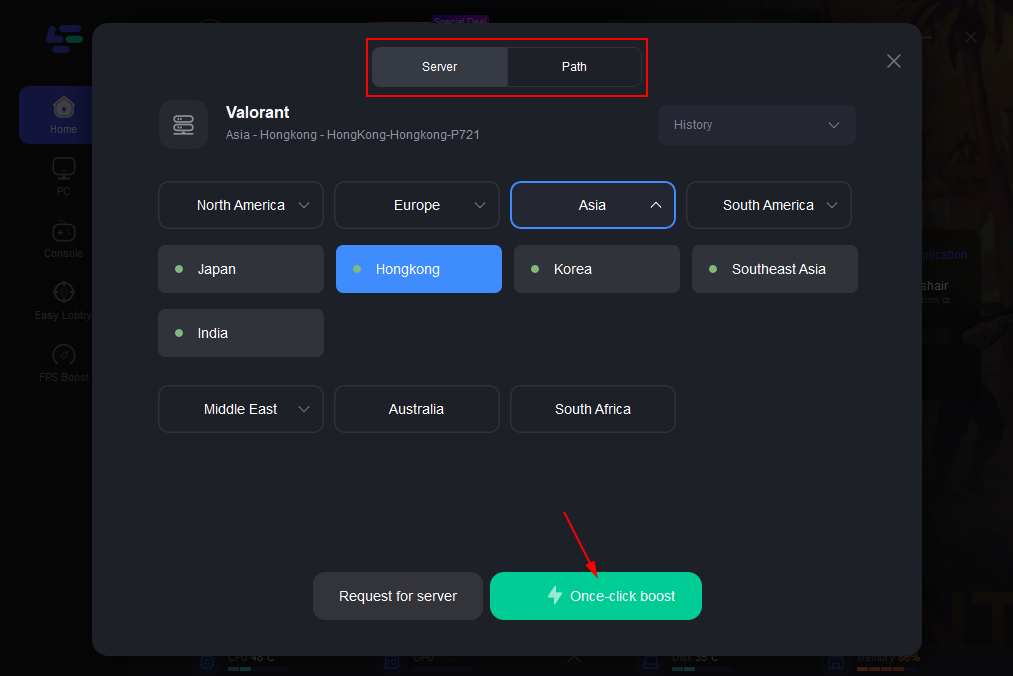
Smart Boost: Click the "Boost" button. LagoFast will automatically analyze the available routes and select the most stable path for your connection.
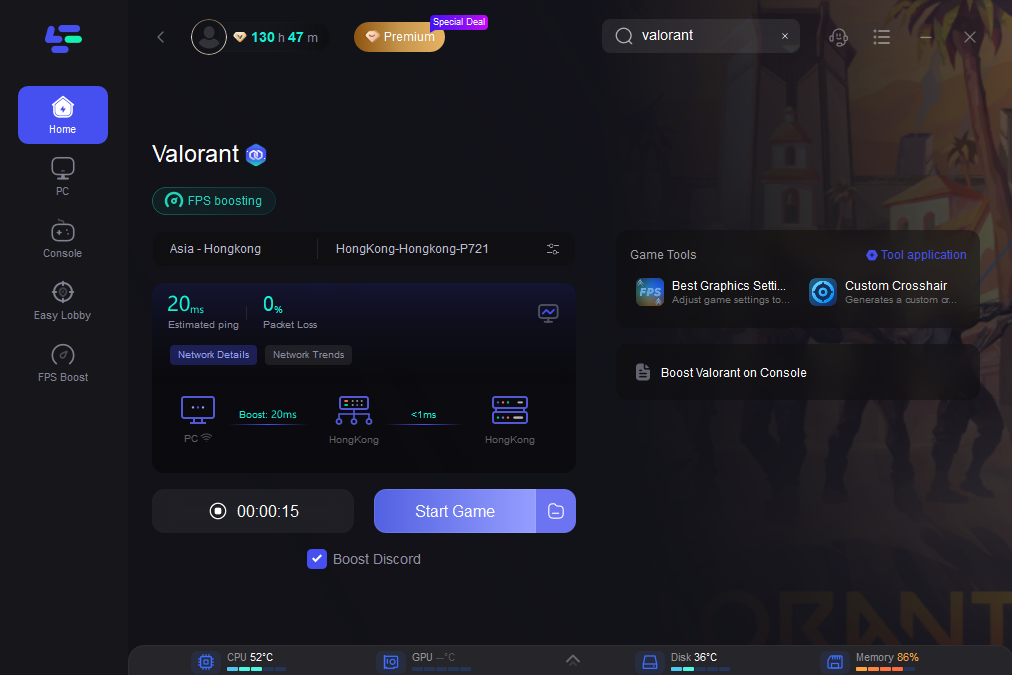
Launch the Game: Once the boost is active, launch Valorant directly from the LagoFast interface or through the Riot Client. You will notice a more stable connection and a significant reduction in "Lost Connection" messages.
Valorant VAL 5 FAQ
Q: Is VAL 5 a permanent ban?
A: No. VAL 5 is a connection or session error. However, if you are seeing this alongside a message about being banned, it might be a "Session Expired" kick due to a ban being applied. In 99% of cases, it's just a technical glitch.
Q: Why do I get VAL 5 only during specific times of the day?
A: This usually points to "ISP Throttling" or high local network congestion. During peak hours, your internet might experience micro-drops that trigger the error. Using a game booster like LagoFast can help bypass these local congestion points.
Q: Can a VPN fix the VAL 5 error?
A: A standard VPN might actually make it worse by adding more "hops" to your connection. However, a dedicated game booster like LagoFast is optimized specifically for game traffic and can often resolve the routing issues that a regular VPN cannot.
Q: Do I need to reinstall the whole game to fix VAL 5?
A: Reinstalling should be your last resort. Most VAL 5 issues are resolved by logging out of all sessions or fixing the VGC service. Only reinstall if you suspect deep file corruption.
Q: Does my Firewall cause VAL 5?
A: Yes, it's possible. If your firewall blocks the Riot Client or Vanguard from communicating with the servers, you'll get a connection error. Ensure both "Valorant" and "Riot Vanguard" are allowed through your Windows Firewall.
Key Takeaway
Valorant Error Code VAL 5 is primarily a signal that your connection to the Riot servers has been severed. Whether it's due to a duplicate login session, a stalled Vanguard service, or general network instability, the solutions are straightforward. By managing your active sessions, ensuring your background services are running, and using a specialized tool like LagoFast to stabilize your connection, you can eliminate this error and focus on your climb to Radiant.

Boost Your Game with LagoFast for Epic Speed
Play harder, faster. LagoFast game booster eliminates stutter and lags on PC, mobile, or Mac—win every match!
Quickly Reduce Game Lag and Ping!
Boost FPS for Smoother Gameplay!