
Quick Answer: How to Fix VALORANT Slow Download Speed?
To fix VALORANT slow download speed, especially when updates are stuck at 0.1 KB/s or 0%, start by pausing and resuming the download within the Riot Client. Next, close all bandwidth-intensive background applications like Discord, Steam, or streaming services. Ensure your internet connection is stable by rebooting your router and performing a speed test. If issues persist, consider flushing your DNS cache, switching to a public DNS server (like Google DNS), or temporarily disabling your firewall/antivirus. For persistent problems or to optimize your connection further, a game booster like LagoFast can often bypass network bottlenecks and improve download stability.

- ✅ Reduce Lag and High Ping.
✅ Boost FPS at the Same Time.
✅ Support 8000+ Online Games
✅ Change Server Without Latency.
✅ Multiplatform: PC, Console, Mobile.
✅ End Connection & Crashing Issue
✅ Get Valorant Easier Server
Part 1: Understanding VALORANT Slow Download Speed and Stuck Updates
Part 2: Common Causes Behind VALORANT Download Issues
Part 3: Troubleshooting VALORANT Update Stuck at 0.1 KB/s or 0%
Part 4: General Fixes for Riot Client Slow Download Speed
Part 5: Advanced Network Optimizations for Faster Downloads
Part 6: How to Enhance Your Game Experience with LagoFast Game Booster
Part 7: Frequently Asked Questions
Understanding VALORANT Slow Download Speed and Stuck Updates
VALORANT, like many online games, requires frequent updates to introduce new agents, maps, balance changes, and seasonal content. While these updates are essential, many players are plagued by agonizingly slow download speeds, often seeing their progress crawl at 0.1 KB/s or even stall completely at 0%. This isn't just an inconvenience; it prevents players from accessing the game, missing out on crucial playtime and competitive opportunities. The problem can manifest in several ways:
- VALORANT Update Stuck at 0.1 KB/s: This is a precise, almost symbolic, error state where the download appears to be active but makes virtually no progress. It's widely reported in communities and search results as an update that's nearly stopped or unable to complete.
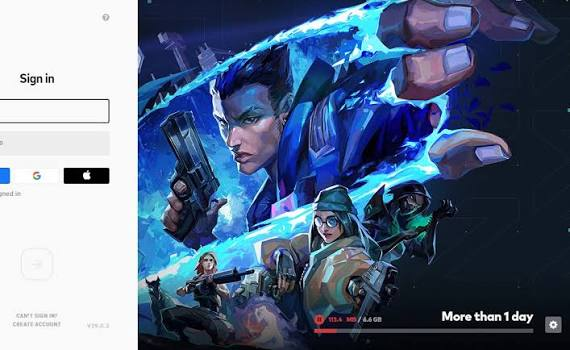
- VALORANT Update Stuck at 0%: Similar to the 0.1 KB/s issue, but with no visible progress whatsoever, indicating a complete halt in the download process.
- Riot Client Slow Download Speed: This is a more general issue where the entire Riot Client, affecting not just VALORANT but potentially League of Legends or other Riot titles, experiences consistently low download speeds.
- VALORANT Patch Taking Forever: This describes the overall experience of prolonged download times for patches, initial installations, or seasonal updates, often due to fluctuating speeds or persistent low bandwidth.
These issues can stem from a variety of sources, making troubleshooting a multi-faceted process. Understanding the root cause is the first step toward a lasting solution.
Common Causes Behind VALORANT Download Issues
Slow download speeds and stuck updates in VALORANT can be attributed to several factors, ranging from your internet service provider (ISP) to your local PC settings. Identifying the specific culprit is key to applying the correct fix.
Network Congestion and ISP Throttling
Your internet connection itself can be a major bottleneck. During peak hours, your ISP might experience network congestion, leading to slower speeds for everyone. Additionally, some ISPs practice bandwidth throttling, intentionally slowing down your connection for certain types of traffic (like large game downloads) to manage network load. This can make your VALORANT download crawl, even if your overall internet speed seems fine for browsing.
Background Applications Consuming Bandwidth
Many applications running in the background can silently consume significant amounts of your internet bandwidth. Streaming services (Netflix, YouTube), other game launchers (Steam, Epic Games Store), voice chat applications (Discord), cloud storage syncs, and even active torrent clients can all compete with the Riot Client for precious bandwidth, leading to drastically reduced download speeds for VALORANT.
DNS Server Problems
The Domain Name System (DNS) translates website names into IP addresses. If your current DNS server is slow, unstable, or experiencing issues, it can delay the Riot Client's ability to connect to Riot's download servers, resulting in slow or stuck downloads.
Firewall and Antivirus Interference
Security software, including Windows Defender Firewall and third-party antivirus programs, can sometimes mistakenly identify the Riot Client or VALORANT's download process as a threat. This can lead to the software blocking or severely restricting the client's internet access, causing downloads to stall or proceed at an extremely slow pace.
Outdated or Corrupt Network Drivers
Your PC's network adapter drivers are crucial for maintaining a stable and efficient internet connection. Outdated, corrupted, or incompatible network drivers can lead to various connectivity issues, including intermittent disconnections, packet loss, and, consequently, slow download speeds for all applications, including VALORANT.
Riot Client Bugs or Server Issues
While less common, the Riot Client itself can sometimes experience temporary bugs or issues that affect download speeds. Similarly, Riot's download servers might occasionally face high traffic or maintenance, leading to slower speeds for all users. These are usually temporary and resolve on their own, but can be frustrating when they occur.
Troubleshooting VALORANT Update Stuck at 0.1 KB/s or 0%
When your VALORANT update is stuck at that infamous 0.1 KB/s or simply won't budge from 0%, these targeted solutions often provide immediate relief:
1. Pause and Resume Download: This is often the simplest and most effective fix for a temporarily stuck download. Within the Riot Client, pause the VALORANT download, wait a few seconds, and then resume it. This can sometimes reset the connection and kickstart the download. Repeat this a few times if necessary.
2. Close Background Applications: Open your Task Manager (Ctrl + Shift + Esc) and identify any applications that are consuming significant network resources. End tasks for browsers, streaming apps, other game launchers, or any software you don't need during the download.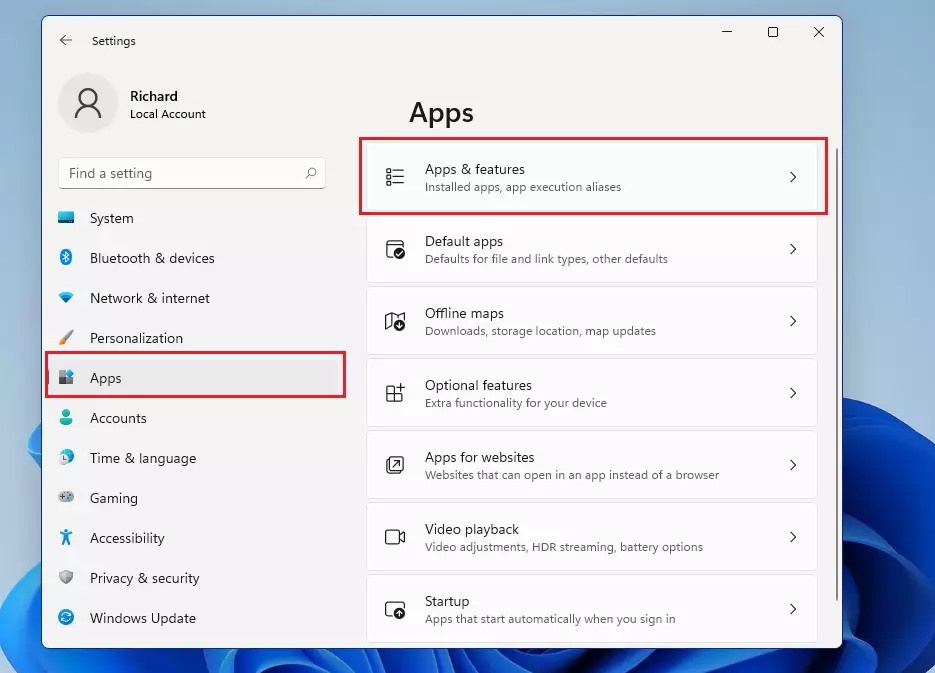
3. Restart Riot Client and PC: A full restart of both the Riot Client and your computer can clear temporary glitches, refresh network connections, and resolve software conflicts that might be hindering your download. Close the Riot Client completely, restart your PC, and then try the download again.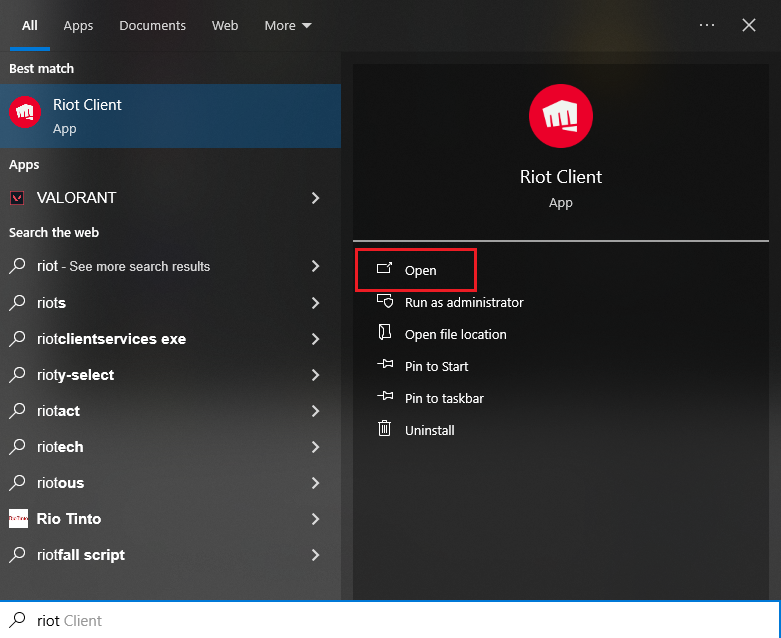
4. Run Riot Client as Administrator: Right-click on the Riot Client shortcut and select
"Run as administrator." This can grant the client necessary permissions to access network resources and write files, which might be restricted by Windows security settings.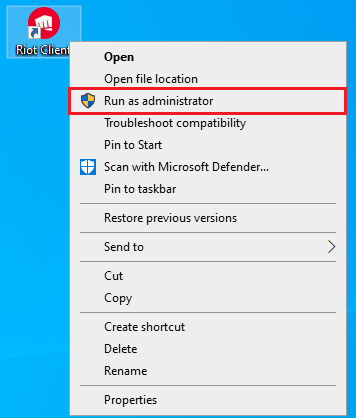
5. Check Disk Usage: Sometimes, a slow download can be accompanied by 100% disk usage, indicating that your storage drive is struggling to keep up with writing the downloaded data. While less common for 0.1 KB/s issues, it can contribute to overall slowness. Ensure you have sufficient free space and consider if your drive is performing optimally.
General Fixes for Riot Client Slow Download Speed
If the entire Riot Client is experiencing slow download speeds across multiple games, or if the above specific fixes don't resolve your VALORANT issue, these broader solutions can help:
1. Check Your Internet Connection: Perform a speed test using an online tool to verify your actual internet speed. If it's significantly lower than what you pay for, reboot your router and modem. If the problem persists, contact your Internet Service Provider (ISP).
2. Flush DNS Cache: A corrupted DNS cache can cause connectivity issues. Open Command Prompt as an administrator and type ipconfig /flushdns, then press Enter. Restart your PC afterward.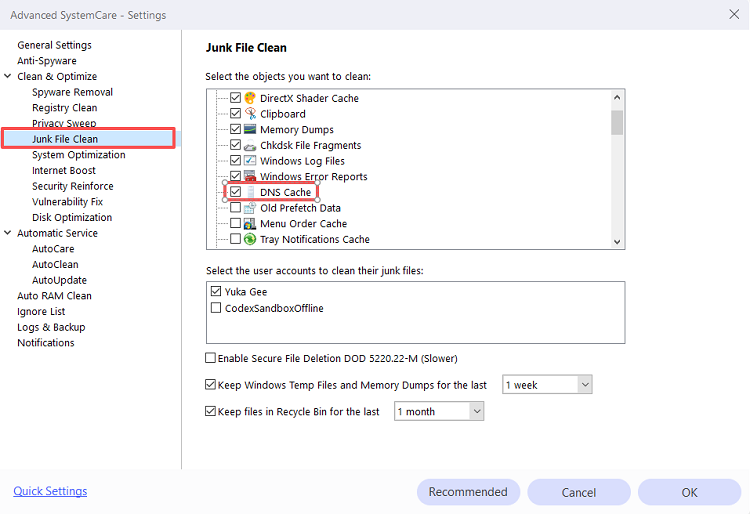
3. Switch to a Public DNS Server: Changing your DNS server to a public one, like Google DNS (8.8.8.8 and 8.8.4.4) or Cloudflare DNS (1.1.1.1 and 1.0.0.1), can often improve connection stability and speed by bypassing issues with your ISP's default DNS.
4. Temporarily Disable Firewall/Antivirus: Your security software might be interfering with the download. Temporarily disable Windows Defender Firewall or your third-party antivirus, then try the download again. Remember to re-enable them afterward for your system's security. If this resolves the issue, add the Riot Client and VALORANT game files as exceptions in your security software.
5. Update Network Drivers: Outdated network drivers can cause various connectivity problems. Go to Device Manager, expand "Network adapters," right-click your network adapter, and select "Update driver." Choose to search automatically for updated drivers.
6. Reset Network Settings: As a last resort for general network issues, you can reset your network settings in Windows. This reinstalls network adapters and resets network components to their default values. Go to Settings > Network & internet > Advanced network settings > Network reset, then click "Reset now".
Advanced Network Optimizations for Faster Downloads
For players who consistently face slow download speeds or want to ensure the fastest possible connection for VALORANT, consider these advanced optimizations:
- Use a Wired Connection: If you're currently on Wi-Fi, switch to an Ethernet cable. Wired connections are generally more stable and faster than wireless, reducing latency and packet loss.
- Prioritize Riot Client in Task Manager: Open Task Manager (Ctrl + Shift + Esc), go to the "Details" tab, find RiotClientServices.exe, right-click, hover over "Set priority," and select "High." This tells your system to allocate more CPU resources to the client.
- Check for ISP Throttling: If you suspect your ISP is throttling your connection, especially during large downloads, a Virtual Private Network (VPN) can sometimes help bypass this by encrypting your traffic and masking its nature. However, VPNs can also introduce their own latency, so choose a reputable gaming VPN.
- Optimize Router Settings: Access your router's settings (usually via a web browser) and look for Quality of Service (QoS) settings. You can prioritize traffic for your gaming PC or for the Riot Client to ensure it gets preferential bandwidth.
How to Enhance Your Game Experience with LagoFast Game Booster
Even after implementing the above fixes, network stability and optimal routing can still be a challenge, especially for competitive games like VALORANT. This is where a specialized tool like LagoFast(LagoFast Game Booster - Get No Lag and Lower Ping) Game Booster comes into play. LagoFast is designed to optimize your network connection, reduce ping, minimize packet loss, and ensure a smoother gaming experience, which can indirectly lead to more stable and faster downloads by providing a cleaner connection to game servers.
Here are the detailed steps to use LagoFast Game Booster:
Click the Free Trial button to download and install LagoFast Free Trial.
Register/Sign In: Open the LagoFast application and either create a new account or sign in with your existing credentials.
Choose Your Game: In the LagoFast interface, use the search bar to find "VALORANT" from the list of supported games.
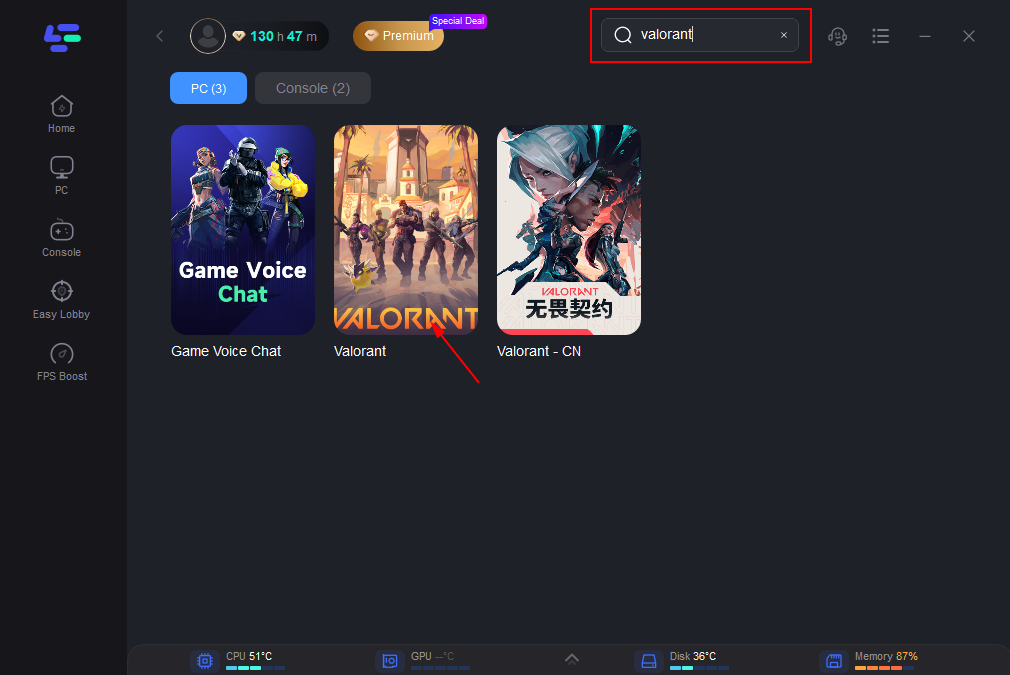
Select Your Server Region: After selecting VALORANT, choose the server and node that offers the lowest ping for your geographical location. LagoFast often provides an "Automatic Server" option that intelligently selects the best connection route for you.
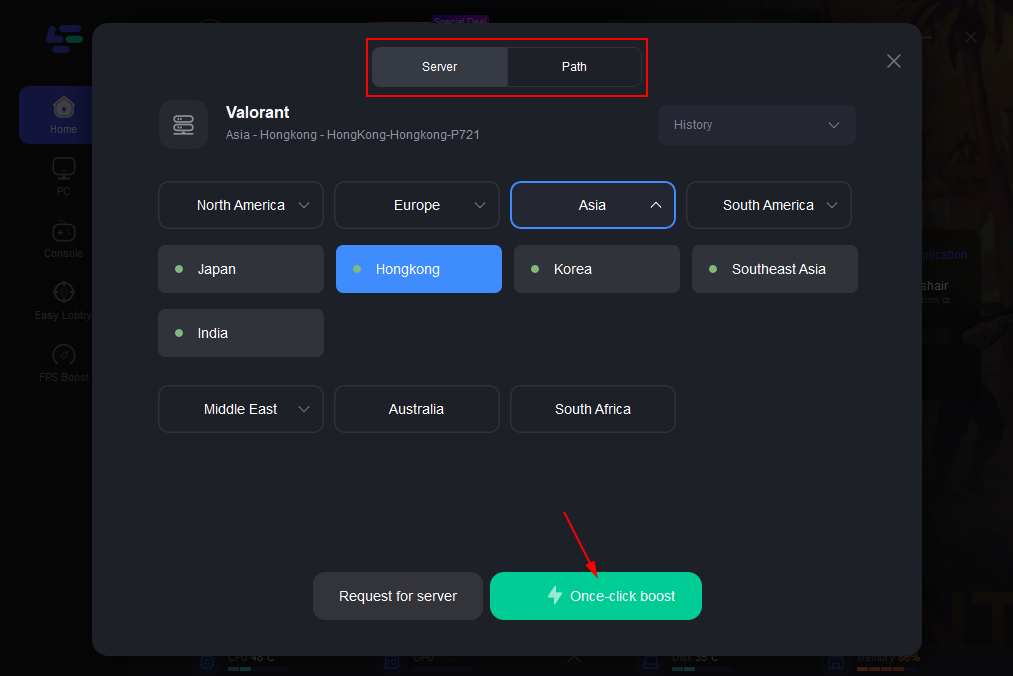
Start Boosting: Click the "Boost" button. LagoFast will then optimize your network connection, routing your game traffic through the most efficient path to reduce latency and improve stability. While primarily for in-game performance, this optimized route can also benefit downloads by providing a more direct and stable connection to Riot's content delivery networks.
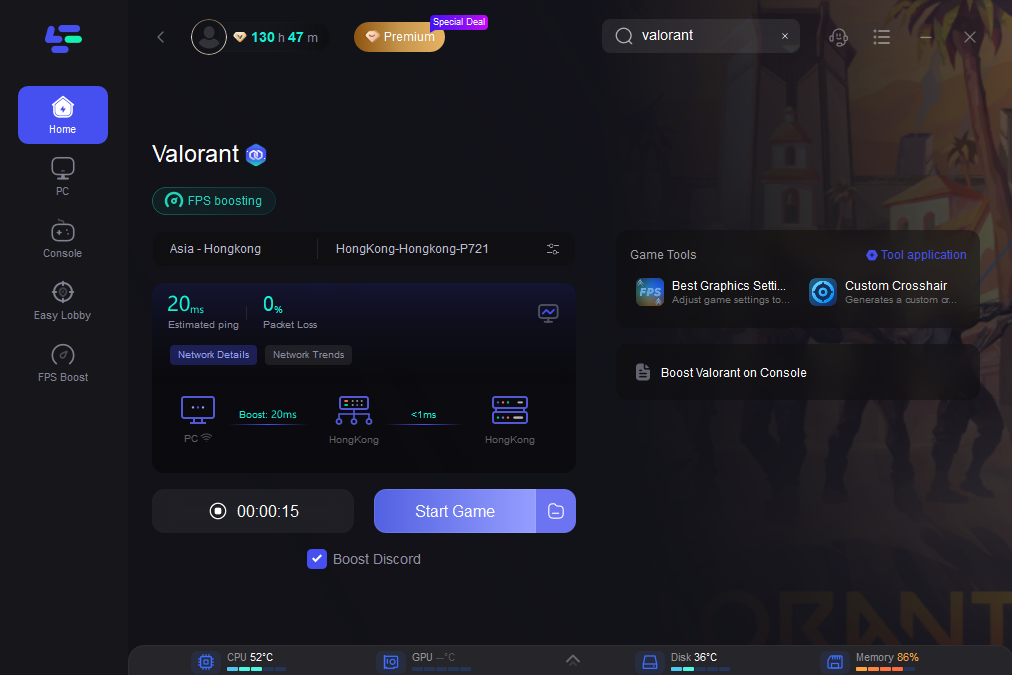
Launch Your Game/Client: With the boost active, launch the Riot Client and start your VALORANT download or update. You should experience a more consistent and potentially faster download speed, followed by a significantly improved in-game experience.
Frequently Asked Questions
Why is my VALORANT download stuck at 0.1 KB/s?
This usually indicates a severe bottleneck in your network connection or a conflict with background applications, firewall, or antivirus software that is preventing the Riot Client from fully utilizing your bandwidth.
Does restarting my router help with slow VALORANT downloads?
Yes, restarting your router and modem can often resolve temporary network glitches, clear IP conflicts, and refresh your internet connection, which can improve download speeds.
Can a VPN fix slow VALORANT download speeds?
A VPN can sometimes help if your ISP is throttling your connection for large downloads. However, a VPN can also introduce additional latency, so its effectiveness varies. Choose a reputable gaming VPN if you decide to try this.
Is it safe to disable my antivirus or firewall for VALORANT downloads?
Temporarily disabling your antivirus or firewall can help diagnose if they are causing the issue. If it resolves the problem, ensure you add exceptions for the Riot Client and VALORANT in your security software and re-enable them immediately after testing.
What is the normal download speed for VALORANT updates?
Normal download speeds for VALORANT updates depend entirely on your internet service plan. However, a healthy download should utilize a significant portion of your available bandwidth, not be stuck at extremely low rates like 0.1 KB/s.
Key Takeaway
Dealing with VALORANT slow download speeds or updates stuck at 0.1 KB/s can be incredibly frustrating, but a combination of systematic troubleshooting and network optimization tools can resolve most issues. By addressing common culprits like network congestion, background apps, and security software, and leveraging solutions like LagoFast Game Booster for a stable, high-performance connection, you can ensure your VALORANT experience is smooth from download to gameplay.

Boost Your Game with LagoFast for Epic Speed
Play harder, faster. LagoFast game booster eliminates stutter and lags on PC, mobile, or Mac—win every match!
Quickly Reduce Game Lag and Ping!
Boost FPS for Smoother Gameplay!