

Throne and Liberty is currently plagued by severe stability and launch issues across all platforms. Players report being randomly kicked with “Anti-Cheat 47,” stuck at loading screens, unable to use features like warp stones, or seeing Steam mark the game as running when it’s not.
Many of these problems started after recent patches, pointing to server-side instability, Easy Anti-Cheat bugs, and unoptimized DirectX 12 support rather than user hardware. Even reinstalling or verifying files doesn’t always help, making this a widespread, developer-side issue.

- ✅ Reduce Lag and High Ping.
- ✅ Boost FPS at the Same Time.
- ✅ Support 2000+ Online Games.
- ✅ Change Region Server Quickly.
- ✅ Multiplatform Game Support.
Part 1: Why Throne and Liberty Isn’t Working or Won’t Start
Part 2: Throne and Liberty—Step-by-Step Fix Guide (PC, PS5, Xbox)
Part 1: Why Throne and Liberty Isn’t Working or Won’t Start
1. Server-Side Instability
- Many players are experiencing random disconnects, being unable to use features (like warp stones), and “Anti-Cheat 47” errors even after playing fine the day before.
- This points to backend issues on Amazon’s servers or Easy Anti-Cheat services rather than your PC or console.
2. Easy Anti-Cheat (EAC) Bugs
- EAC frequently blocks logins or misdetects multiple game instances (“dual instance” error).
- Even reinstalling or verifying files doesn’t always fix it because the bug is tied to EAC’s integration with Steam/Epic.
3. DirectX 12 Instability
- The game has major launch problems on DX12.
- Community feedback shows forcing -dx11 in Steam launch options is the only way some players can get past the loading screen, but you lose DLSS/FSR support.
4. Launcher & Integration Conflicts
- TL sometimes calls EpicWebHelper even when launched from Steam, causing crashes or failing to open if Steam or Epic isn’t fully synced.
5. Patch-Related Client Issues
- Many launch and crash bugs started after updates.
- Settings and cache files often get corrupted post-patch, requiring cache clearing, reinstalling, or database rebuilds (on PS5).
6. Cross-Platform Impact
- Players on PC, PS5, and Xbox all report similar issues: failed logins, corrupted saves, EAC errors, or endless loading screens.
- This strongly indicates server-side instability rather than hardware-specific problems.
Part 2: Throne and Liberty—Step-by-Step Fix Guide (PC, PS5, Xbox)
Quick Fix with Connection Optimize Tool- LagoFast
Download and Install LagoFast Free Trial:
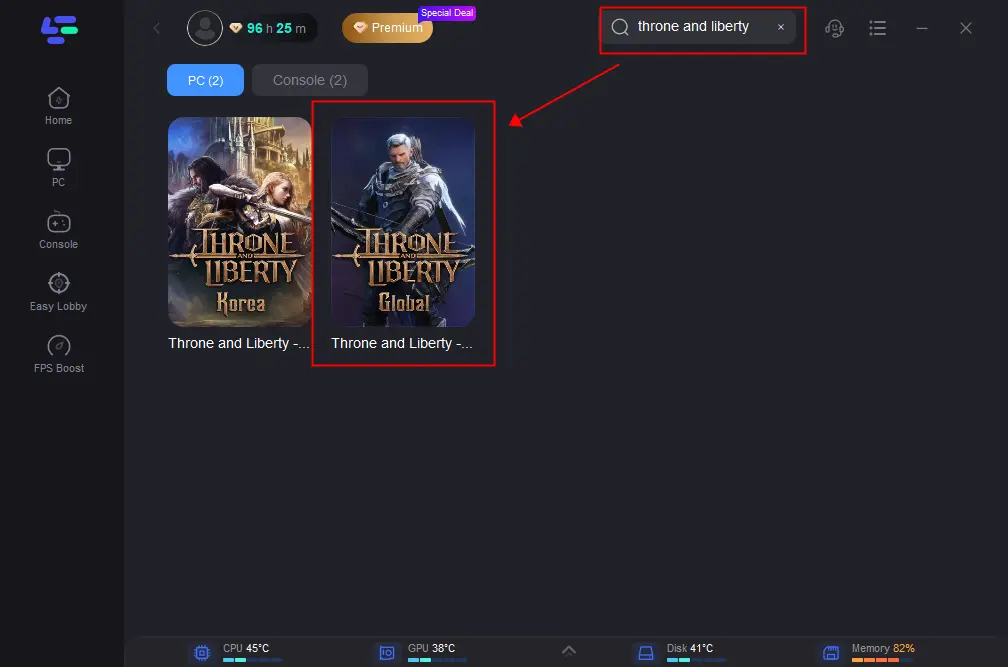
Search for Throne and Liberty: Open LagoFast and select Throne and Liberty from the list of supported games.
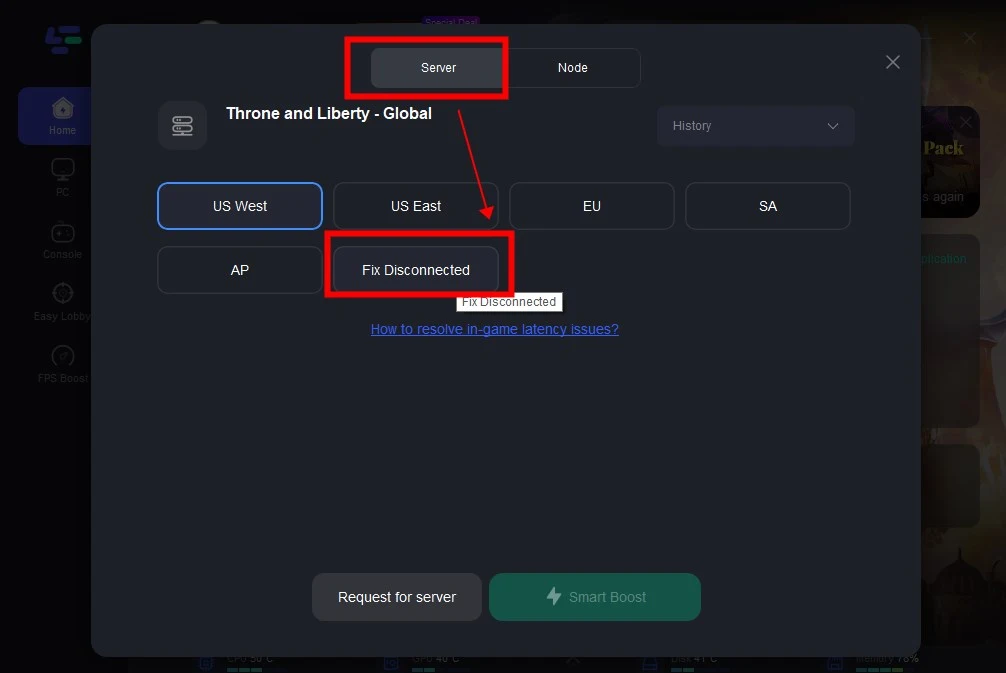
Fix Black Screen Error: Choose Server > Choose Fix Disconnected Server to end loop loading from EU Server, and quick fix the error Disconnected from Server, GateServer Connection Timeout.
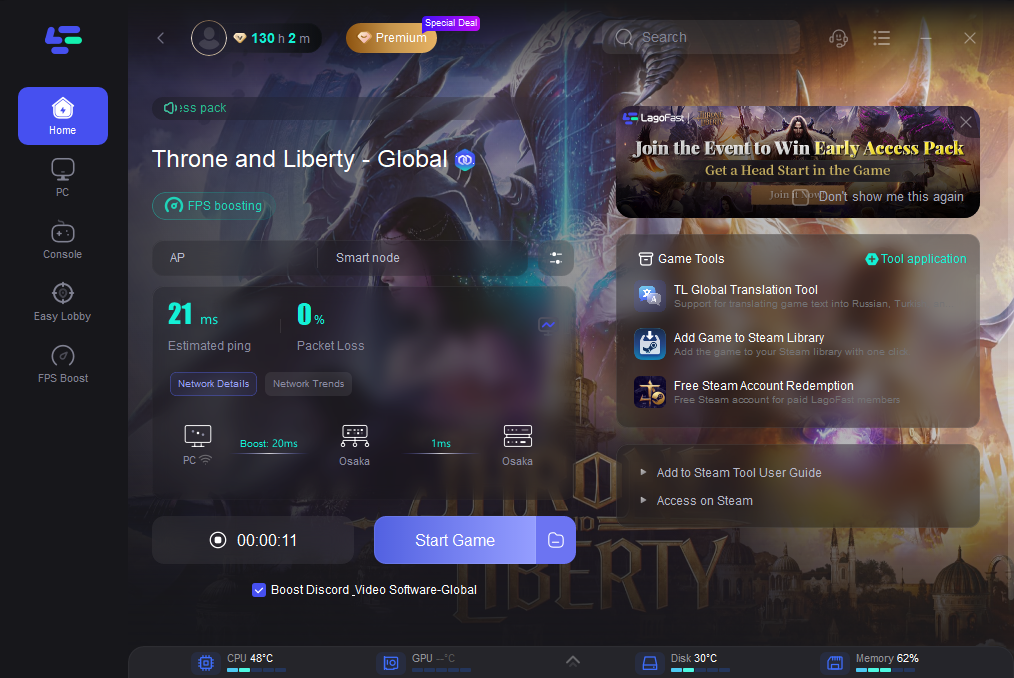
Choose Server and Node: Click on “Select Server” so you can choose stable servers, then click on the “Node” on the right to choose the best Node.
PC (Steam)
Step 1 — Force DX11 (bypasses DX12 launch hang)
- Steam → Library → Throne and Liberty → Properties → General → Launch Options → add:
-dx11 - Restart Steam and try again.
Step 2—Repair/reinstall Easy Anti-Cheat
- Steam → Throne and Liberty → Manage → Browse Local Files.
- Open the EasyAntiCheat folder.
- Shift+Right-click EasyAntiCheat_EOS_Setup.exe → Copy as path.
- Paste into Notepad and add: install 58dec5a58e8f4ce6beca223311f65b4c
Example:
"C:\Program Files (x86)\Steam\steamapps\common\Throne and Liberty\EasyAntiCheat\EasyAntiCheat_EOS_Setup.exe" install 58dec5a58e8f4ce6beca223311f65b4c - Win+R → paste the full line → Enter → confirm.
Step 3—Launch with Steam closed (fixes “dual instance”/stuck logo)
- Fully exit Steam.
- Double-click the TL desktop shortcut (this reopens Steam and starts TL clean).
- If Steam says “running” but no window appears, log out of Steam, log back in, and retry.
Step 4—Verify files with AV paused (patch file blocks)
- Temporarily pause antivirus (at your risk).
- Steam → TL → Properties → Installed Files → Verify integrity.
- Launch once while AV is still paused.
Step 5—Network sanity: power-cycle + DNS + region
- Power-cycle the modem/router (unplug for 60s) and reboot the PC.
- Change DNS to Cloudflare (often fixes 100199/handshake):
Windows → Network & Internet → Adapter options → your adapter → Properties → IPv4 → “Use the following DNS”:
Primary 1.1.1.1, Secondary 1.0.0.1 → OK → reboot. - Steam → Settings → Downloads → Change Download Region → Restart Steam.
- Quick VPN diagnostic: connect to a nearby EU/NA endpoint, attempt login once, then disconnect (helps confirm routing issue).
Step 6—Fix bad IP/DHCP (APIPA)
- Command Prompt → ipconfig.
- If IP starts with 169.254.x.x, DHCP failed. Run:
ipconfig /release → ipconfig /renew
(or reboot router) until you get 192.168.x.x or 10.x.x.x.
Step 7—EAC/overlay conflicts
- Turn off overlays: RivaTuner, EOS overlay, and GeForce Experience in-game overlay.
- Set the Windows network profile to Public, reboot, and retry (helps with VPN/booster conflicts).
Step 8—Crash variants (only if you’re crashing, not just failing to launch)
- NVIDIA “video/shader memory full” during shader optimization (RTX 3080–4090):
Close GPU-heavy apps → roll back to GeForce 556.12 → update BIOS (esp. Intel 13/14-gen) → add Launch Option -neveropenpso → clean reinstall → use Graphics Medium/High (not Epic), set all to Epic except Volumetric Clouds = High. - UE4-TL crashes:
Windows Update → run TL as admin (exe → Properties → Compatibility → Run as admin) → add -dx11 → disable XMP in BIOS → remove CPU/GPU overclocks → lower graphics.
Step 9—Last-resort client refresh
- Verify again, or delete TL.exe then Verify to force a fresh pull.
- Full reinstall only after Steps 1–8.
PS5
Step 1—Power-cycle network & console
Unplug router for 60s → plug in → restart PS5.
Step 2—Manual DNS
Settings → Network → Set Up Internet Connection → your network → Advanced Settings → DNS: Manual → Primary 1.1.1.1, Secondary 1.0.0.1 → Test Connection.
Step 3—Clear Cache & Rebuild Database (Safe Mode)
Power off → hold power until 2nd beep → connect controller → Clear the system software cache, then rebuild the database.
Step 4—Licenses, updates, reinstall
Restore licenses → ensure latest system software → delete TL and reinstall (prefer wired).
Step 5—Route test
Tether to a mobile hotspot once. If it works there but not at home, it’s your ISP/router/DNS—stick with Step 2 and contact ISP.
Xbox
Step 1—Status pages
Check Known Issues and Xbox Status.
Step 2—Restart & power-cycle
Restart game → full power-cycle the console.
Step 3—Network & profileTest network → try a different profile → remove and re-add your profile.
Step 4—Save data & resync
Clear local save → resync with cloud.
If you still can’t launch
- Intermittent server/EAC issues (e.g., “Anti-Cheat 47,” login loops, warp-stone lockouts) are server-side. If all local steps fail, it’s likely on Amazon/EAC—retry later or wait for a patch.
- If a region is unsupported, connections may fail regardless of local fixes.

Boost Your Game with LagoFast for Epic Speed
Play harder, faster. LagoFast game booster eliminates stutter and lags on PC, mobile, or Mac—win every match!
Quickly Reduce Game Lag and Ping!
Boost FPS for Smoother Gameplay!