
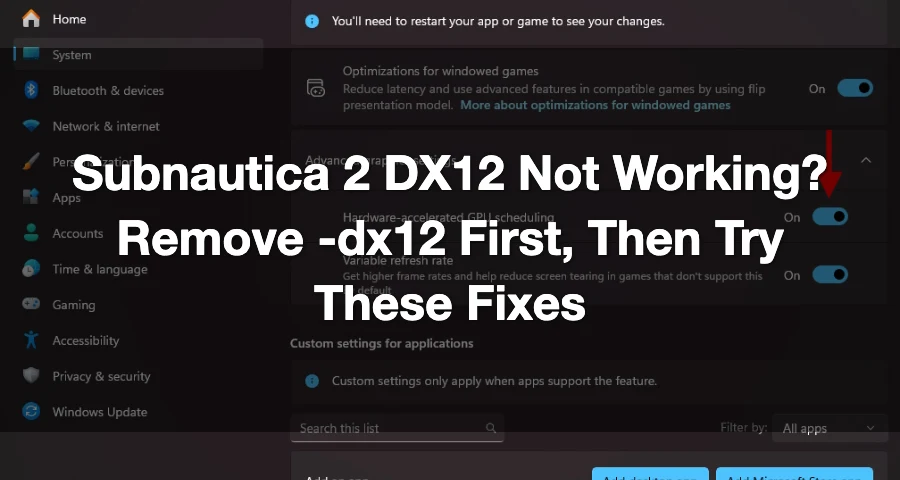
If Subnautica 2 refuses to launch and shows “DirectX 12 is not supported on your system”, don’t panic yet. This error usually means the game cannot start with the DirectX 12 graphics mode your PC is trying to use.
You may see messages like:
DirectX 12 is not supported on your system. Try running without the -dx12 or -d3d12 command line argument.
For Subnautica 2, this matters because the game lists DirectX 12 as a requirement, along with Windows 10/11 and a minimum GPU like GeForce GTX 1660 6GB or RX 5500 XT 6GB. So if your system is older, your GPU driver is broken, or the game is being forced into the wrong launch mode, the game may stop before reaching the main menu.

- ✅ Lower ping and fewer disconnects.
- ✅ More FPS and better PC performance.
- ✅ Support for 3000+ games.
- ✅ Stable connections and region switching.
Remove -dx12 or -d3d12 first
This is the fastest fix because the error itself points to it.
On Steam:
Open your Library.
Right-click Subnautica 2.
Click Properties.
In Launch Options, delete anything that says -dx12 or -d3d12.
Close the window and launch the game again.
Why Subnautica 2 Says DX12 Is Not Supported
This error does not always mean your PC has no DirectX 12 installed. A lot of players already have DirectX 12 listed in Windows, but the game still fails.
That can happen because:
your GPU does not fully support the DX12 features the game needs
your graphics driver is outdated or corrupted
Windows is missing important updates
the game is being forced to launch with -dx12 or -d3d12
integrated graphics are being used instead of your dedicated GPU
Steam or Game Pass files are damaged
Hardware-Accelerated GPU Scheduling is causing conflicts
the game is still in Early Access and may have launch compatibility issues
Fix 1: Check If Your GPU Actually Supports Subnautica 2
Start here before wasting time.
Subnautica 2’s listed minimum GPU is:
NVIDIA GeForce GTX 1660 6GB
AMD Radeon RX 5500 XT 6GB
The game also requires DirectX 12 and Windows 10/11.
If your GPU is older than this, the game may not launch properly even if Windows says you have DirectX 12 installed.
How to Check Your GPU
Press Ctrl + Shift + Esc.
Open Task Manager.
Go to Performance.
Click GPU.
Check your graphics card name.
If you see an older card, weak integrated graphics, or a laptop using Intel graphics instead of NVIDIA/AMD, that may be the reason.
Fix 2: Make Sure Subnautica 2 Uses Your Dedicated GPU
On laptops, the game may accidentally launch on integrated graphics. That can trigger DX12 errors even if your laptop has a real gaming GPU.
Windows Graphics Settings
Open Windows Settings.
Go to System.
Open Display.
Go to Graphics.
Find Subnautica 2.
Set it to High performance.
Save the setting.
Restart the game.
If you use NVIDIA, also open NVIDIA Control Panel and set Subnautica 2 to use the high-performance NVIDIA processor.
Fix 3: Update Your Graphics Driver
This is the most important fix if your GPU should support the game but DX12 still fails.
Do not rely only on Windows Update. Download the latest driver directly from:
NVIDIA GeForce Experience / NVIDIA App
AMD Adrenalin
Intel Arc & Iris Xe driver tool
After installing the driver:
Restart your PC.
Open Steam or Game Pass again.
Launch Subnautica 2.
If the problem started after a Windows update, reinstalling the graphics driver can also help. Unreal Engine users often report DX12 launch issues after major Windows or driver changes, and reinstalling the GPU driver is a common fix.
Fix 4: Remove -dx12 or -d3d12 From Launch Options
The error itself says:
Try running without the -dx12 or -d3d12 command line argument.
So check whether you or a previous guide forced the game to use DX12.
On Steam
Open Steam.
Go to Library.
Right-click Subnautica 2.
Choose Properties.
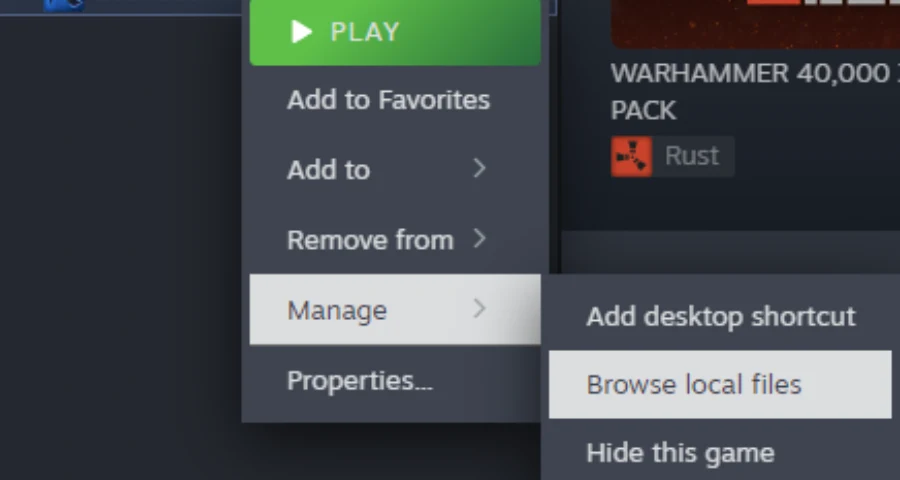
Open General.
Find Launch Options.
Delete anything like: -dx12 -d3d12 -force-d3d12
Close the window.
Launch the game again.
If the box is empty already, move to the next fix.
Fix 5: Try Forcing DX11 Only If the Game Allows It
Some games let players bypass DX12 by using a DX11 launch command. You can try:
-dx11
or:
-d3d11
Add it in Steam Launch Options, then start the game.
Important: this may not work if Subnautica 2 requires DX12 only. If the game crashes or still refuses to launch, remove the command.
Fix 6: Verify Game Files
If the game files are damaged, Subnautica 2 may fail before it even reaches the settings menu.
On Steam
Open Steam.
Right-click Subnautica 2.
Choose Properties.
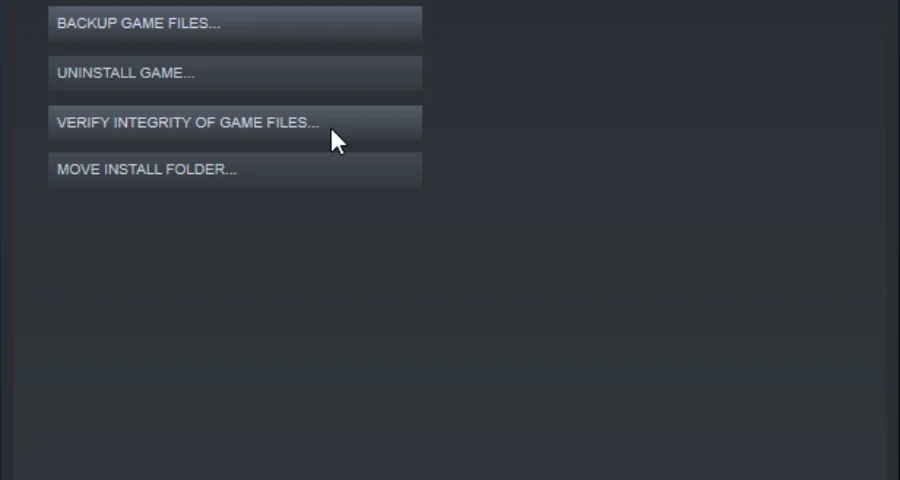
Go to Installed Files.
Click Verify integrity of game files.
Wait for Steam to repair missing or broken files.
After that, restart your PC and try again.
Fix 7: Update Windows
DirectX 12 is tied closely to Windows updates, GPU drivers, and system components.
Do this:
Open Windows Settings.
Go to Windows Update.
Install all available updates.
Restart your PC.
Check again.
Subnautica 2 lists Windows 10/11 as required, so running an old build of Windows can cause launch problems.
Fix 8: Turn Off Hardware-Accelerated GPU Scheduling
If the game launches badly, crashes, or keeps showing graphics-related errors, try turning off Hardware-Accelerated GPU Scheduling.
Some current Subnautica 2 fix guides recommend disabling this setting when the game has DX12 or crash problems.
How to Disable It
Open Windows Settings.
Go to System.
Click Display.
Open Graphics.
Click Change default graphics settings.
Turn off Hardware-Accelerated GPU Scheduling.
Restart your PC.
Then launch Subnautica 2 again.
Fix 9: Install DirectX 12 Components with LagoFast
If Subnautica 2 still shows “DirectX 12 is not supported on your system”, the problem may be related to missing or incomplete DirectX 12 components, especially if your GPU already meets the game’s requirements.
In this case, you can use LagoFast’s DirectX 12 Component Installation tool to quickly install the required DX12 components instead of searching for files manually.
How to Use LagoFast DirectX 12 Component Installation
Step 1: Open LagoFast.
Step 2: Search for Subnautica 2.
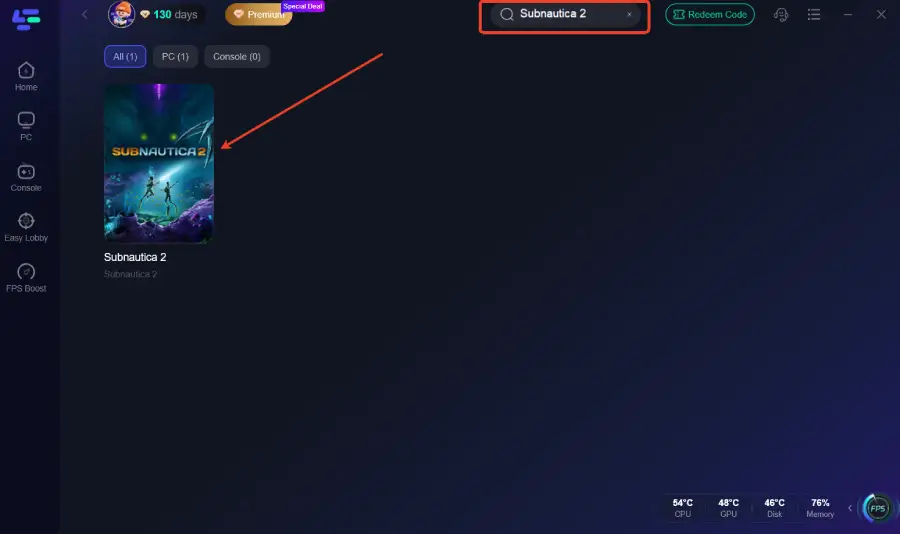
Step 3: Click the Game Tools panel on the right side.
Step 4: Find DirectX 12 Component Installation.
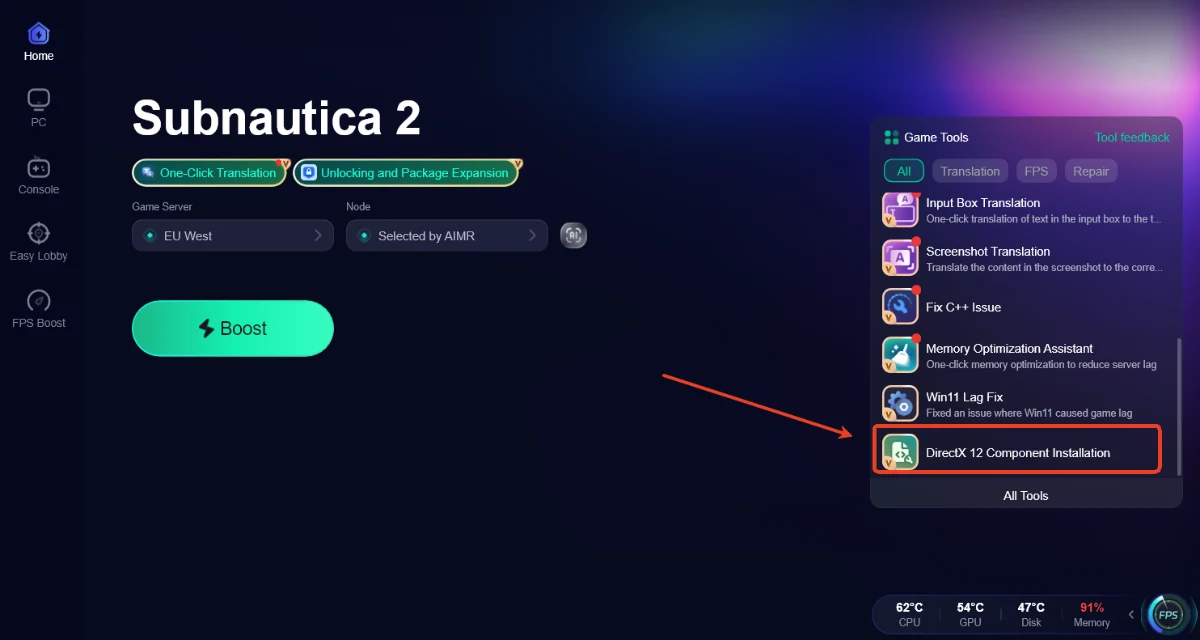
Step 5: Click it and let LagoFast install the required DirectX 12 components.
Step 6: Restart your PC after the installation finishes.
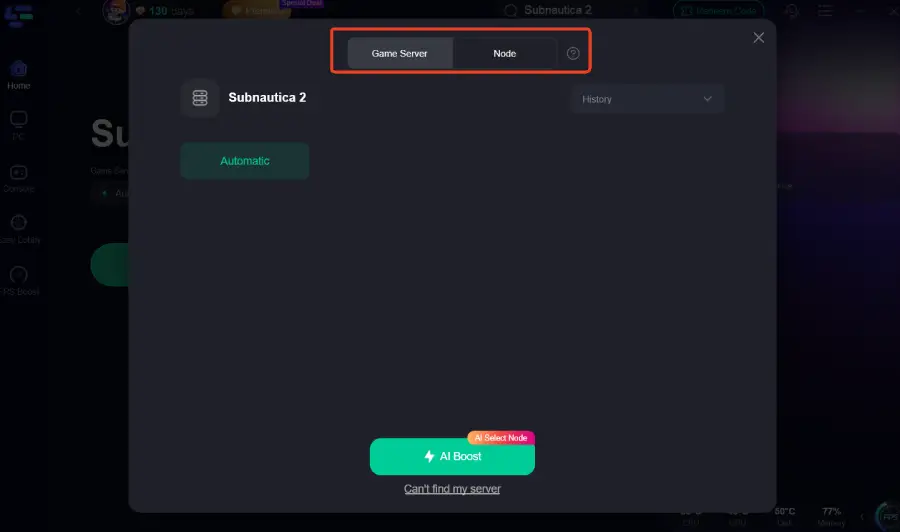
Step 7: Launch Subnautica 2 again.
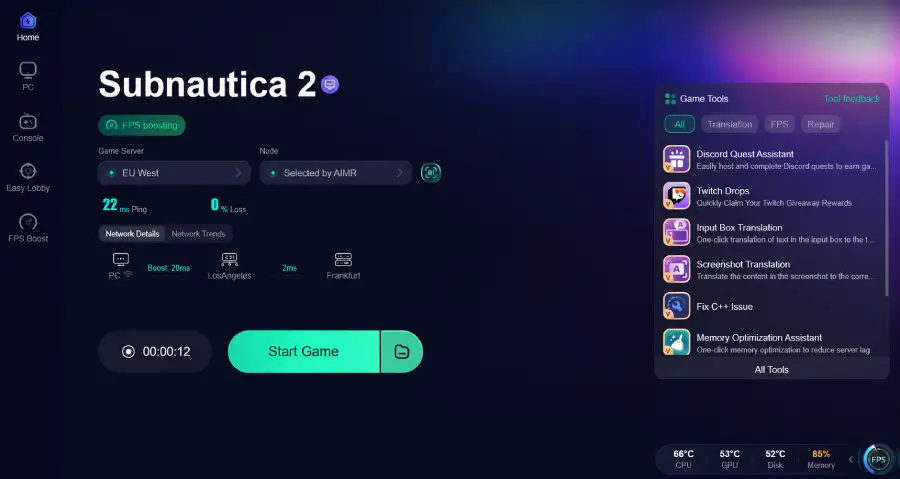
This fix is useful when the game fails to detect required DX12 components or when your system has broken/missing graphics runtime files.
However, keep one thing clear: this tool cannot make an old GPU support DirectX 12. If your graphics card does not meet Subnautica 2’s minimum requirements, installing DX12 components alone will not solve the issue.
Fix 10: Lower Graphics Before Launching If You Can Reach Settings
If the game opens but crashes after the splash screen or during loading, reduce the pressure on your GPU.
Set:
Display Mode: Windowed or Borderless
Resolution: 1080p or lower
Graphics Preset: Low
Shadows: Low
Reflections: Low
Upscaling: On, if available
Frame Limit: 30 or 60 FPS
Subnautica 2 is launching through Early Access, and the developers have said the current specs are a baseline with more optimization expected during the Early Access period.
So if your PC is close to minimum specs, start low first. Don’t try to launch on high settings immediately.
Fix 11: Delete Config Files If Settings Are Broken
If you changed graphics settings and the game no longer launches, the config file may be forcing bad settings.
Try this:
Press Win + R.
Type: %localappdata%
Look for a Subnautica 2 or game-related config folder.
Back it up first.
Delete or rename the graphics/config folder.
Restart the game.
This forces the game to rebuild settings from default values.
Only do this if you are comfortable managing local files.
Fix 12: Reinstall the Game
If nothing works and your PC meets the requirements:
Uninstall Subnautica 2.
Restart your PC.
Reinstall the game on an SSD.
Verify files after installation.
Launch again.
This is not the first fix you should try, but it can help if the installation is broken.
Final Answer
If Subnautica 2 says “DirectX 12 is not supported on your system”, first check your GPU. The game requires DirectX 12 and lists GTX 1660 / RX 5500 XT as minimum GPUs, so older cards may not work.
If your PC should support the game, update your GPU driver, remove -dx12 or -d3d12 from launch options, verify game files, update Windows, and disable Hardware-Accelerated GPU Scheduling. If the problem is caused by missing or corrupted runtime components, use Microsoft DirectX runtime repair or LagoFast’s DirectX repair tools.
The fastest path is:
Check GPU → update driver → remove DX12 launch command → verify files → repair DirectX components → restart and launch again.

Boost Your Game with LagoFast for Epic Speed
Play harder, faster. LagoFast game booster eliminates stutter and lags on PC, mobile, or Mac—win every match!
Quickly Reduce Game Lag and Ping!
Boost FPS for Smoother Gameplay!