
If Steam is not working right now, the issue may be related to Steam server outages, your local network, the Steam client, firewall settings, DNS issues, download cache corruption, or a temporary login failure.
Before reinstalling Steam, work through the fixes below in order.

- ✅ Lower ping and fewer disconnects.
✅ Higher FPS and smoother PC performance.
✅ Supports 3,000+ games.
✅ Stable connections and server region switching.
Fix 1: Use LagoFast to Stabilize Your Steam Connection
If Steam is not experiencing a complete global outage, the problem may be caused by unstable routing between your network and Steam services. This can lead to issues such as:
- Steam won't connect
- Steam Store not loading
- Steam Friends not working
- Steam login stuck
- slow download speeds
- game authentication failures
- "Could Not Connect to Steam Network" errors
- Steam Cloud sync errors
Steps
Completely close Steam.
Open LagoFast.
Search for Steam or the game you want to launch.
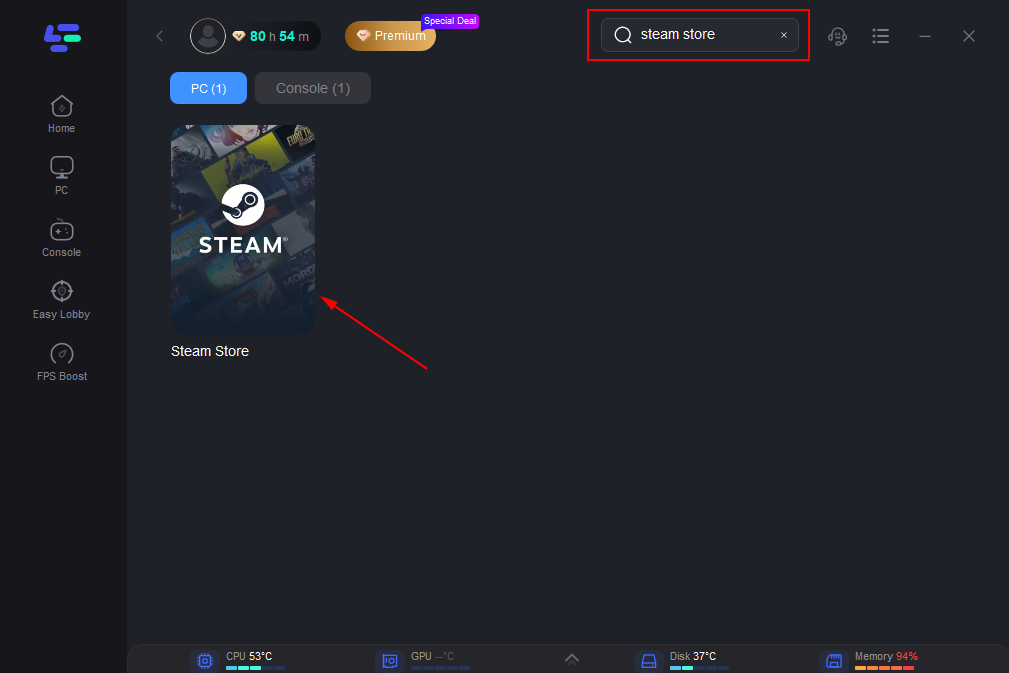
Select the recommended route.
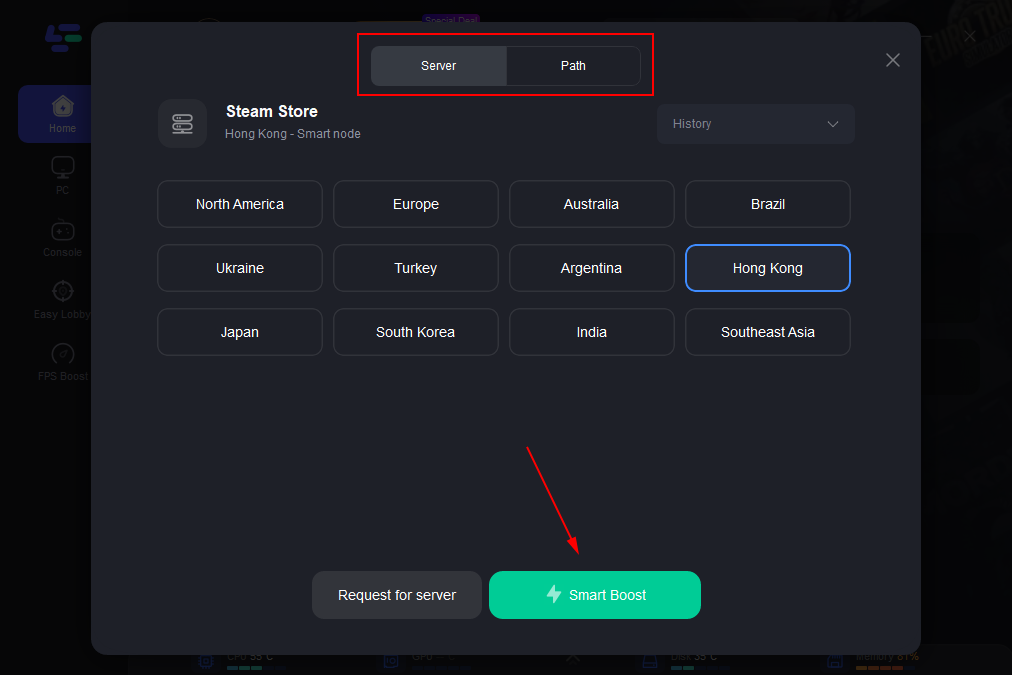
Click Boost.
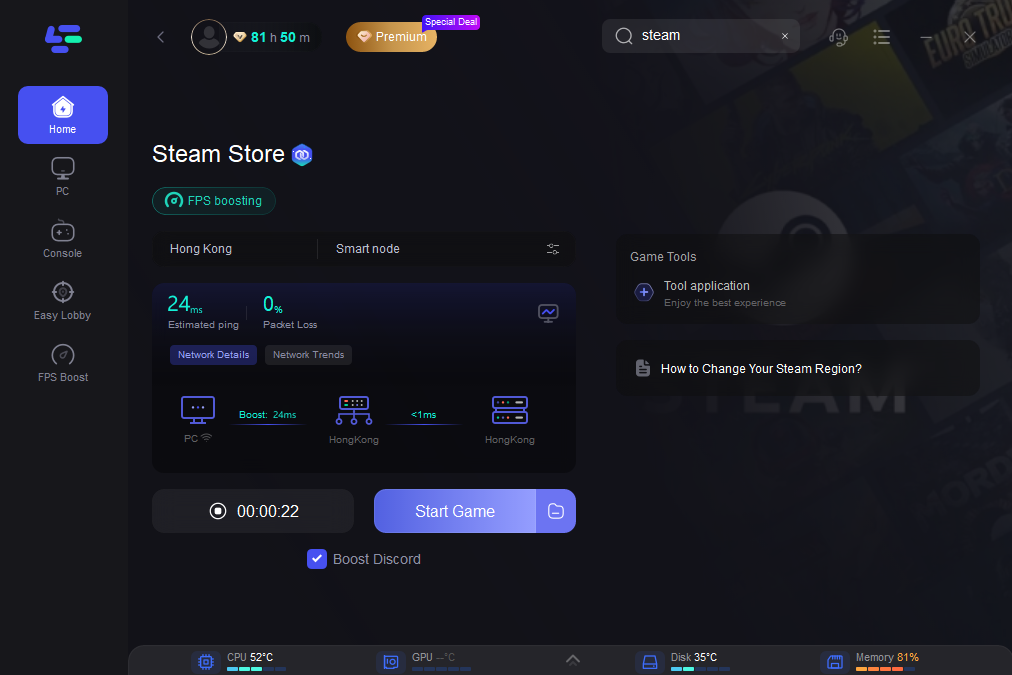
Reopen Steam.
Try logging in, opening the Store, or launching your game again.
If Steam is experiencing a global outage, LagoFast cannot bring Steam servers back online. However, if the issue is caused by routing problems, packet loss, or unstable regional connections, this should be one of the first solutions you try.
Fix 2: Check Whether Steam Is Down
If Steam Store, Community, Friends, and login services are all unavailable at the same time, the issue may be on Steam's side.
Check whether the following services are affected:
- Steam Store
- Steam Community
- Steam Web API
- Steam Connection Managers
- Steam login services
- Steam downloads
- game authentication servers
If multiple services are unavailable, wait and try again later. Do not reinstall Steam immediately.
Steam also performs routine maintenance on Tuesdays, so temporary connection issues during that period are normal.
Fix 3: Fully Restart Steam
Simply closing the Steam window is not enough. Exit Steam completely through the system tray.
Steps
- Close all running Steam games.
- Right-click the Steam icon in the system tray.
- Click Exit Steam.
- Wait 10–15 seconds.
- Launch Steam again.
- Try logging in or loading the Store.
This can fix temporary client session issues.
Fix 4: Restart Your PC and Router
If Steam still won't connect, restart both your computer and network equipment.
Steps
- Close Steam.
- Restart your PC.
- Turn off your router for 30 seconds.
- Turn the router back on.
- Wait for the network connection to stabilize.
- Open Steam again.
This helps clear corrupted network sessions and router cache issues.
Fix 5: Switch from Wi-Fi to a Wired Connection
Steam may fail to connect if your Wi-Fi connection is unstable, even when regular websites work normally.
Whenever possible, use a wired Ethernet connection.
This may help if:
- Steam disconnects randomly
- downloads are unusually slow
- the Store page won't load
- your Friends List appears offline
- game server authentication fails
- Steam Cloud sync errors occur
If you must use Wi-Fi, move closer to your router and stop other downloads or streaming applications.
Fix 6: Clear the Steam Download Cache
If Steam downloads are stuck, updates fail to install, or games won't launch after updating, clear the Steam download cache.
Steps
- Open Steam.
- Go to Settings.
- Open Downloads.
- Click Clear Download Cache.
- Confirm the action.
- Sign back into Steam.
- Try downloading or updating again.
This will not remove your installed games.
Fix 7: Change Your Steam Download Region
If Steam downloads are slow or stuck, your selected download server may be overloaded.
Steps
- Open Steam.
- Go to Settings.
- Open Downloads.
- Change the Download Region.
- Select a nearby region.
- Restart Steam.
- Try downloading again.
If one region is overloaded, test another nearby location.
Fix 8: Allow Steam Through Your Firewall
A firewall or antivirus program may block Steam after a Windows update, Steam update, or network change.
Steps
- Open Windows Security.
- Go to Firewall & Network Protection.
- Click Allow an app through firewall.
- Make sure Steam is allowed on both Private and Public networks.
- Also allow the game you are trying to launch.
- Restart Steam.
If you use third-party antivirus software, check its firewall or network protection settings as well.
Fix 9: Flush DNS and Reset Network Settings
If Steam Store or Community pages are not loading, DNS issues may be responsible.
Steps
Open Command Prompt as Administrator.
Run:
ipconfig /flushdns
Then run:
netsh winsock reset
Restart your PC.
Open Steam again.
This can resolve Steam connection errors caused by corrupted DNS records or Windows network cache issues.
Fix 10: Disable Proxy Servers or Conflicting Network Settings
Steam may not work properly if a proxy server, custom network rule, or corrupted adapter configuration is active.
Steps
- Open Windows Settings.
- Go to Network & Internet.
- Open Proxy.
- Disable manual proxy settings if you do not use them.
- Restart Steam.
Also check whether old networking utilities, traffic filtering software, or security applications are interfering with Steam.
Fix 11: Run Steam as Administrator
If Steam opens but cannot update, download, or write files correctly, run it as Administrator.
Steps
- Close Steam.
- Right-click Steam.
- Click Run as Administrator.
- Try updating or downloading again.
- This is useful for:
- disk write errors
- stuck updates
- game launch permission issues
- Steam client update failures
Fix 12: Repair the Steam Library Folder
If only one game is not working, the issue may be related to your Steam Library folder rather than Steam itself.
Steps
- Open Steam.
- Go to Settings.
- Open Storage.
- Select the drive containing your Steam Library.
- Click the three-dot menu.
- Choose Repair Library Folder.
- Restart Steam.
Then try launching or updating the game again.
Fix 13: Verify Game Files
If Steam works normally but a specific game will not launch, verify the game files.
Steps
- Open your Steam Library.
- Right-click the game.
- Click Properties.
- Go to Installed Files.
- Click Verify Integrity of Game Files.
- Wait for Steam to repair any missing or corrupted files.
This is especially useful after a failed update or unexpected crash.
Fix 14: Wait If Steam Servers Are Actually Down
If the issue is on Steam's side, local troubleshooting will not help.
You may need to wait if:
- Steam Store is down for everyone
- Steam Community is unavailable
- Steam login services are failing worldwide
- Steam Connection Managers are unstable
- Steam Web API is unavailable
- large numbers of users have offline Friends Lists
- game authentication servers are down
In this situation, the best solution is simply to wait and try again later.
Common Steam Problems and the Best Fixes
|
Problem |
Best Fix |
|
Steam Store not loading |
Check Steam status, restart Steam, flush DNS |
|
Can't log into Steam |
Restart Steam, check for outages, reset network |
|
Could Not Connect to Steam Network |
Use LagoFast, restart your router, check firewall settings |
|
Downloads stuck |
Clear download cache, change download region |
|
Game won't launch |
Verify game files, repair library folder |
|
Friends List offline |
Check Steam status, restart Steam |
|
Steam Cloud sync error |
Restart Steam, check connection, wait if servers are down |
|
Steam update stuck |
Run as Administrator, restart PC, check firewall settings |
Best Troubleshooting Order
- Use LagoFast if Steam is not experiencing a global outage.
- Check whether Steam services are down.
- Fully restart Steam.
- Restart your PC and router.
- Switch to a wired connection.
- Clear the Steam download cache.
- Change the download region.
- Allow Steam through your firewall.
- Flush DNS and reset network settings.
- Repair the Steam Library folder.
- Verify game files.
- Wait if the issue is on Steam's side.
Conclusion
If Steam is not working right now, first determine which of these situations applies:
If Steam is down for everyone, wait for Valve to restore service.
If Steam is only not working for you, start with LagoFast, then restart Steam, check your network, clear the download cache, change the download region, and make sure Steam is allowed through your firewall.
Do not reinstall Steam as your first troubleshooting step. Most Steam connection, Store, login, and download issues can be fixed without removing your games.
Boost Your Game with LagoFast for Epic Speed
Play harder, faster. LagoFast game booster eliminates stutter and lags on PC, mobile, or Mac—win every match!
Quickly Reduce Game Lag and Ping!
Boost FPS for Smoother Gameplay!