
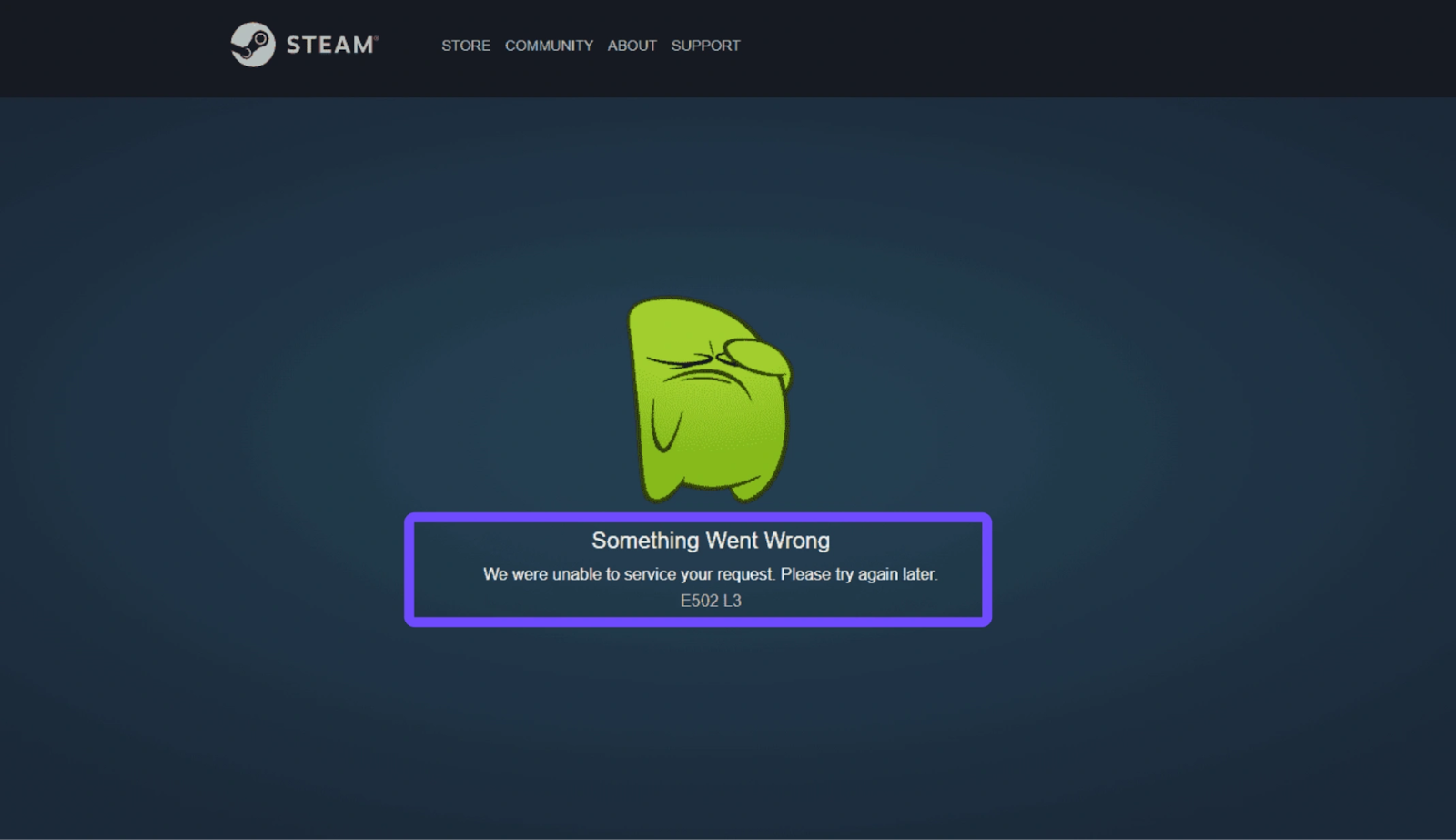
There is nothing more frustrating than sitting down for a marathon gaming session only to be blocked by a cryptic message: “Something Went Wrong. We were unable to service your request. Please try again later. E502 L3.”
This notification often appears when users try to access the Steam Store, browse community pages, or purchase games. The problem typically occurs at the worst possible moment, such as during major seasonal sales or highly anticipated game launches. When the Steam e502 l3 error code appears, players may think something is wrong with their PC or internet connection, but in most cases the issue originates on the server side.
If you are wondering what is error code E502 L3 on Steam or why the Steam Store is down with Error Code E502-L3, this guide will explain the cause and provide several reliable ways to fix it.

- ✅ Reduce Lag and High Ping.
✅ Boost FPS at the Same Time.
✅ Support 2000+ Online Games
✅ Change Server Without Latency.
✅ Multiplatform: PC, Console, Mobile.
✅ Support Easy Lobby in all Cod Series
Part 1: What Is the Steam E502 L3 Error Code and Why Does It Happen
Part 2: How to Fix the Steam E502 L3 Error Code
Part 1: What Is the Steam E502 L3 Error Code and Why Does It Happen?
The Steam E502 L3 error is essentially a Bad Gateway response that signals a communication failure between the Steam client and Valve’s backend servers. When the system cannot process a request, the platform displays the message: “Something went wrong. We were unable to service your request. Please try again later. E502 L3.”
In simple terms, this means Steam attempted to retrieve data from its servers but failed because the request could not be processed in time. This can make it look like the Steam Store is down or temporarily unavailable.
Many players assume the issue is caused by their own network connection, but the steam e502 l3 problem usually occurs when the platform’s infrastructure is overloaded or undergoing maintenance.
Below are some of the most common reasons why error code E502 L3 on Steam appears.
- Server Overload: assive traffic spikes during Steam Summer Sale, Winter Sale, or major AAA game releases can overwhelm Valve’s servers. When millions of players attempt to access the store simultaneously, requests may fail and return the steam e502 l3 error code.
- CDN Failures: Steam relies on a global Content Delivery Network to distribute store pages and downloadable content. If a CDN node becomes unstable or overloaded, it can trigger the E502-L3 gateway error.
- Server Maintenance: Sometimes the Steam Store down: Error Code E502-L3 message appears during scheduled maintenance or backend updates. During these periods, certain store features may temporarily stop working.
- Network Congestion: Even if Steam’s servers are running normally, routing issues between your ISP and Valve’s servers can interrupt communication, resulting in E502 L3 connection errors.
- Corrupted Local Cache: Outdated or corrupted temporary files stored in the Steam client can interfere with new requests and cause repeated Steam E502 L3 error code messages.
Understanding these causes is the first step toward finding a reliable solution.
Part 2: How to Fix the Steam E502 L3 Error Code
When the Steam E502 L3 error code appears, the good news is that it is usually temporary. However, instead of simply waiting for the problem to disappear, you can try several practical solutions to restore access to the Steam Store more quickly.
Below are some of the most effective ways to fix error E502 L3 on Steam.
Solution 1: Use LagoFast to Fix the Steam E502 L3 Error
One of the most effective ways to resolve the Steam e502 l3 error code is by using a dedicated game optimization tool like LagoFast.
Unlike traditional troubleshooting methods that require trial and error, LagoFast actively improves your connection to Steam’s servers. By using advanced multipath routing technology, the software automatically finds the fastest and most stable connection route. This helps bypass congested nodes that may trigger the “we were unable to service your request please try again later e502 l3” message.
Instead of waiting for server congestion to clear, LagoFast creates a more stable path between your PC and Steam’s network infrastructure. This can help resolve store loading failures, login issues, and other network-related problems.
Key Features of LagoFast
- Global Server Network: Connects you to optimized global routes that avoid crowded public network paths.
- Real-Time Optimization: Automatically switches to the most stable node to maintain consistent connectivity.
- One-Click Fix: Includes tools specifically designed to resolve issues like Steam E502 L3 and store access failures.
- FPS and Latency Boost: Improves overall gaming performance by stabilizing ping and reducing lag.
- Smart Diagnosis: Instantly identifies whether the problem originates from your local network or Steam’s servers.
Tutorial to Use LagoFast to Fix Steam E502 L3 Error
Step 1: Enter the official website of LagoFast then find and click Free Trial Download.
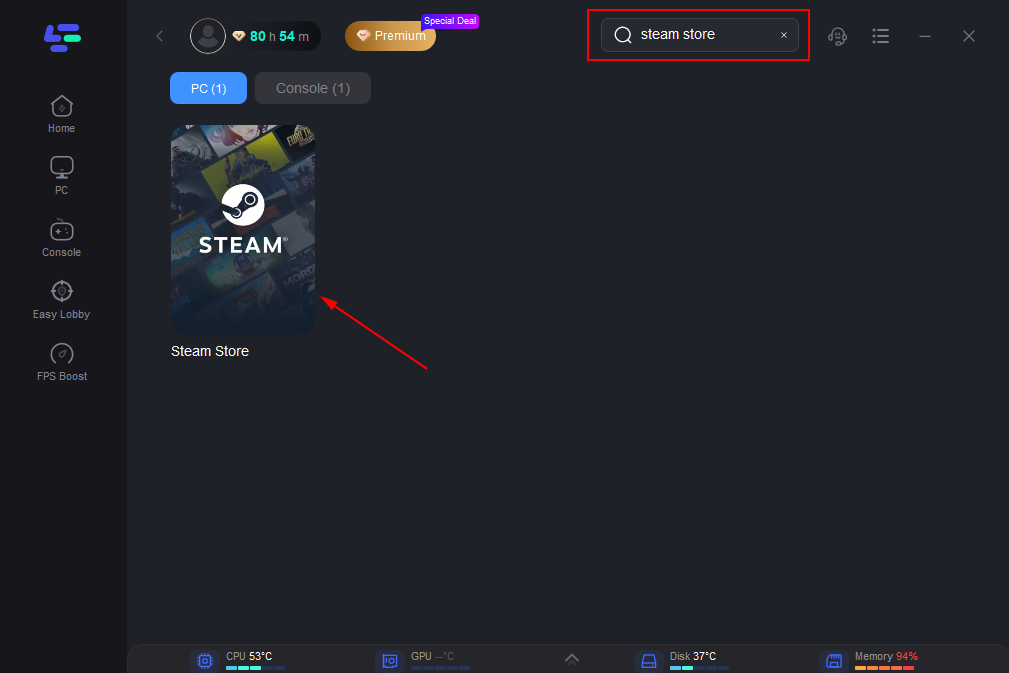
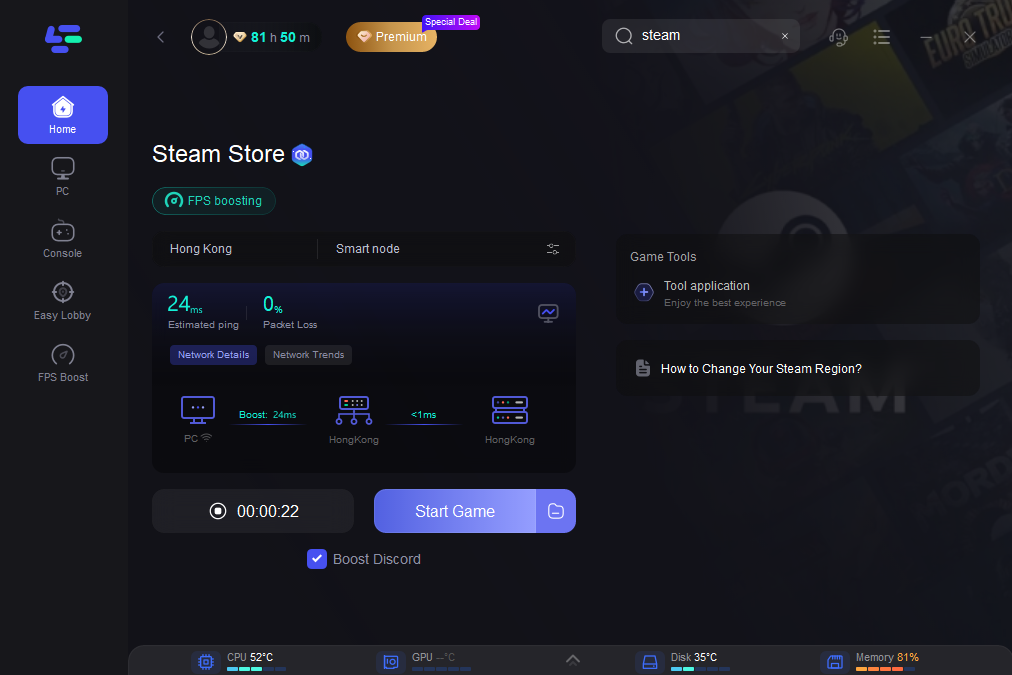
Step 2: Select the “Game Boost button”, and search for a name like Steam in LagoFast before you launch it.
Step 3: Click on “Select Server” to switch to a better server that can avoid some game issues, then click on the “Node” on the right to get a stable Node.
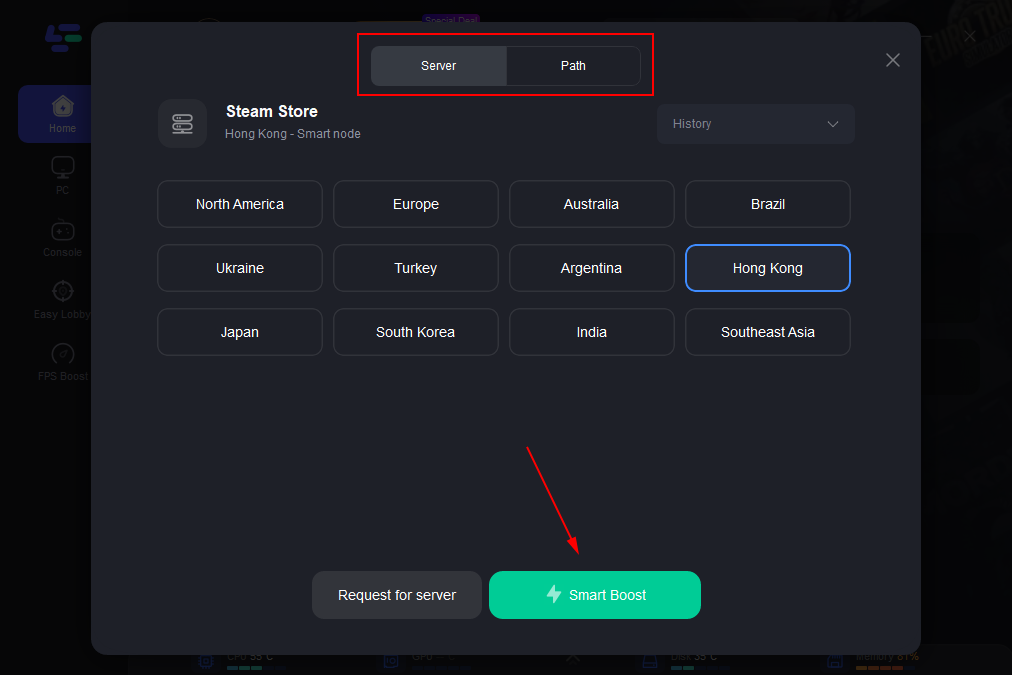
Step 4: Clicking the “Smart Boost button”, the specific game ping, packet loss, and network type will be presented on the right side. Finally, click the “Start Game button” to start the game.
If you are not using LagoFast yet, you can still try the following manual troubleshooting methods. However, these approaches may require more time and do not always work during heavy server traffic.
Solution 2: Clear the Steam Download Cache
Old or corrupted cache files can cause the Steam client to send incorrect requests to the server. Clearing the download cache can remove these files and resolve the steam e502 l3 issue.
Step 1. Open the Steam client and click Steam in the top-left corner.
Step 2. Select Settings and navigate to the Downloads tab.
Step 3. Click Clear Download Cache at the bottom of the window.
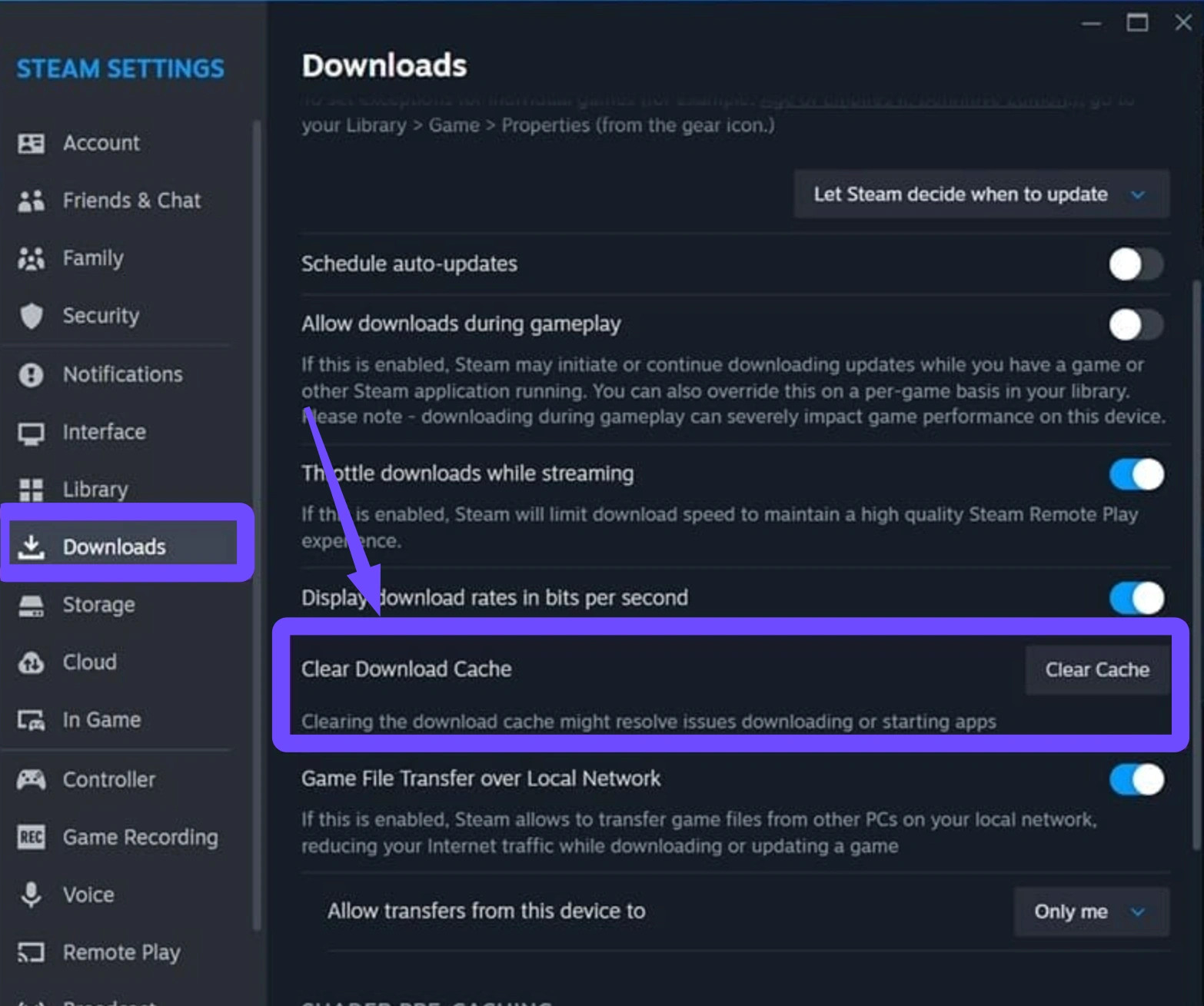
Step 4. Confirm the action and wait for Steam to restart automatically.
Step 5. Log back into your account and check if the Steam Store loads properly.
Solution 3: Change Your Steam Download Region
If the server node closest to your location is overloaded, switching to another region can help bypass the gateway issue and resolve error code E502 L3 on Steam.
Step 1. Open Steam Settings.
Step 2. Click the Downloads section.
Step 3. Under Download Region, choose a different city or country. Selecting a region in another time zone can sometimes reduce server congestion.
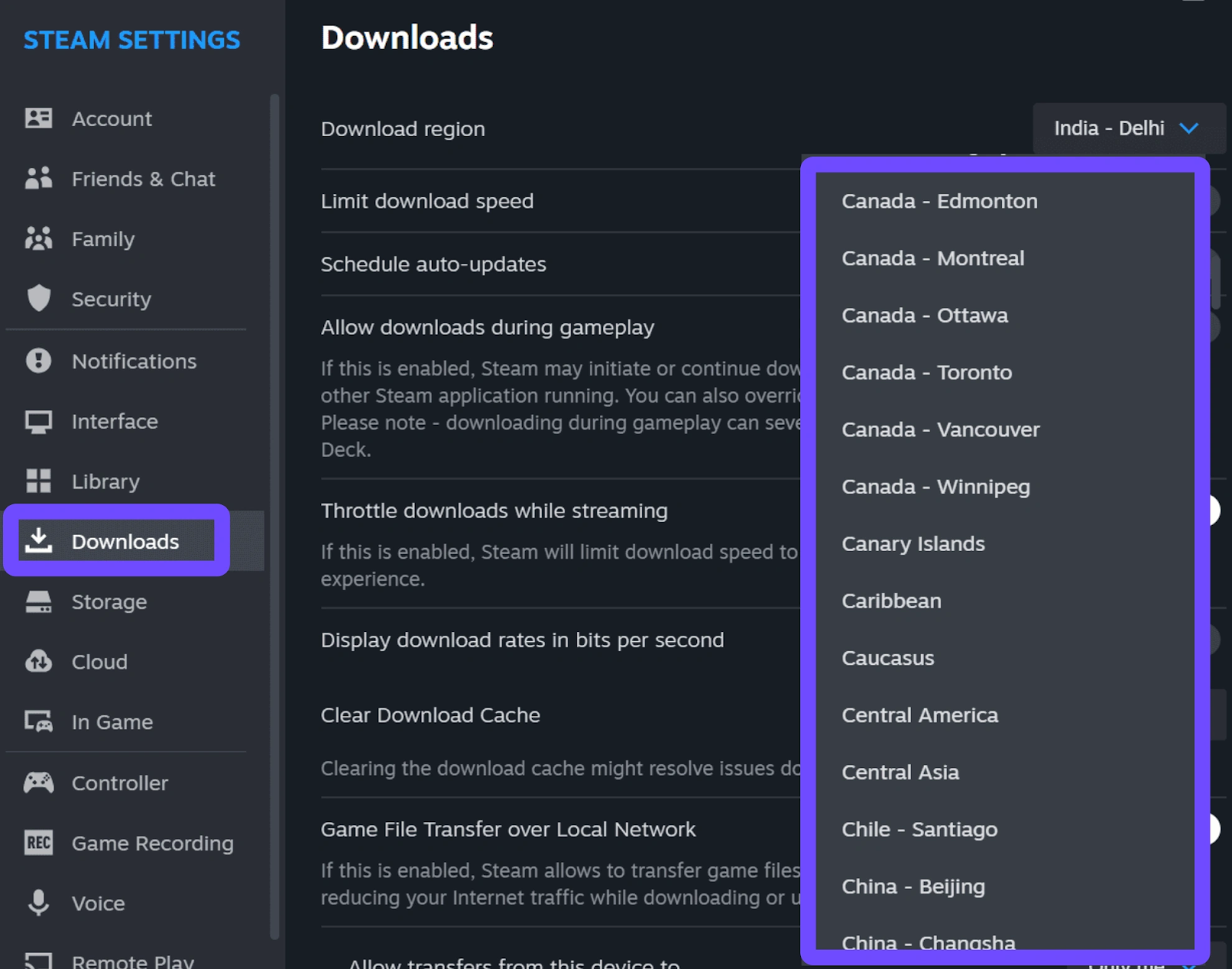
Step 4. Restart the Steam client.
Step 5. Try accessing the store again to see if the Steam Store down E502-L3 issue is resolved.
Solution 4: Flush Your DNS Cache
Sometimes your computer stores outdated DNS records that point to inactive or overloaded Steam servers. Flushing the DNS cache forces your system to retrieve fresh routing information.
Step 1. Press the Windows Key, type cmd, and run Command Prompt as Administrator.
Step 2. Type the following command and press Enter:
ipconfig /flushdns
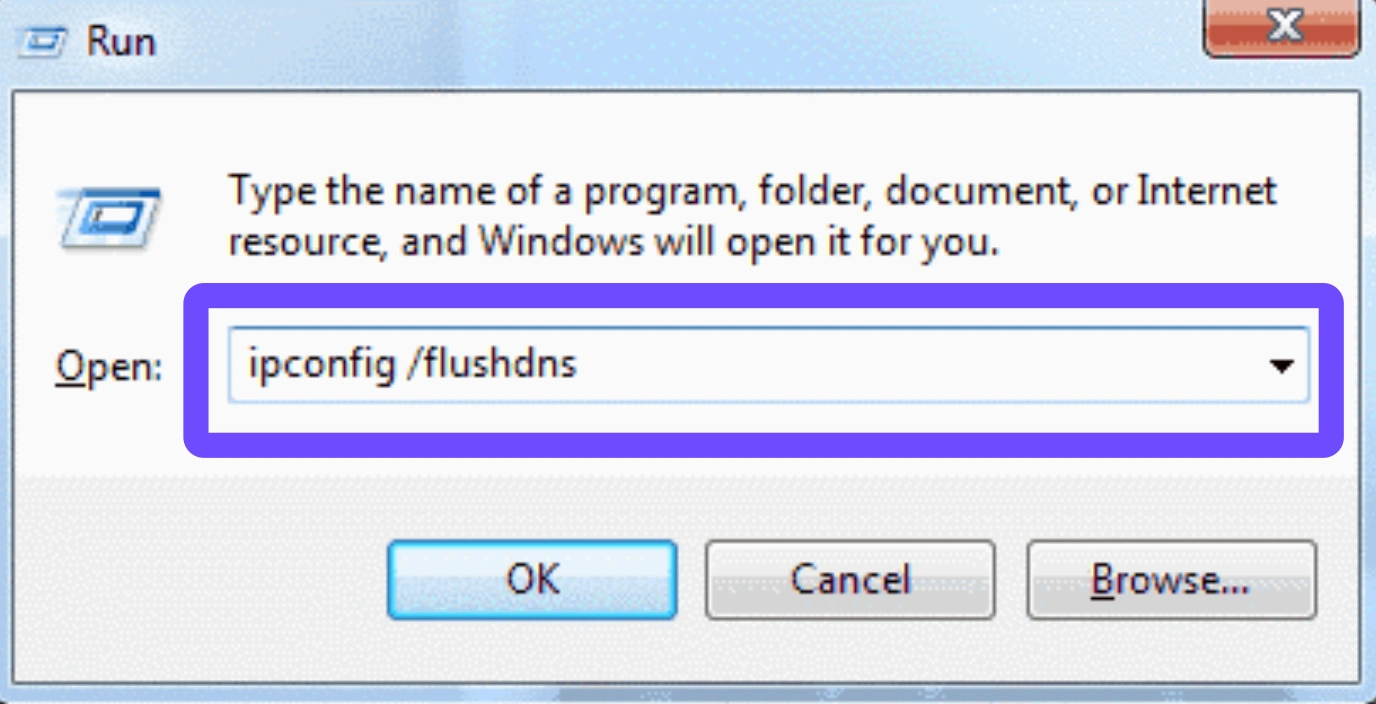
Step 3. Restart your internet router.
Step 4. Wait for the network connection to re-establish.
Step 5. Launch Steam again and check if the Steam e502 l3 error code still appears.
Solution 5: Modify Windows Firewall Settings
In some cases, strict firewall rules may block Steam connections after receiving a Bad Gateway response, which can worsen the E502 L3 issue.
Step 1. Open Control Panel and go to System and Security.
Step 2. Select Windows Defender Firewall and click Allow an app through firewall.
Step 3. Find Steam in the application list and make sure both Private and Public networks are enabled.
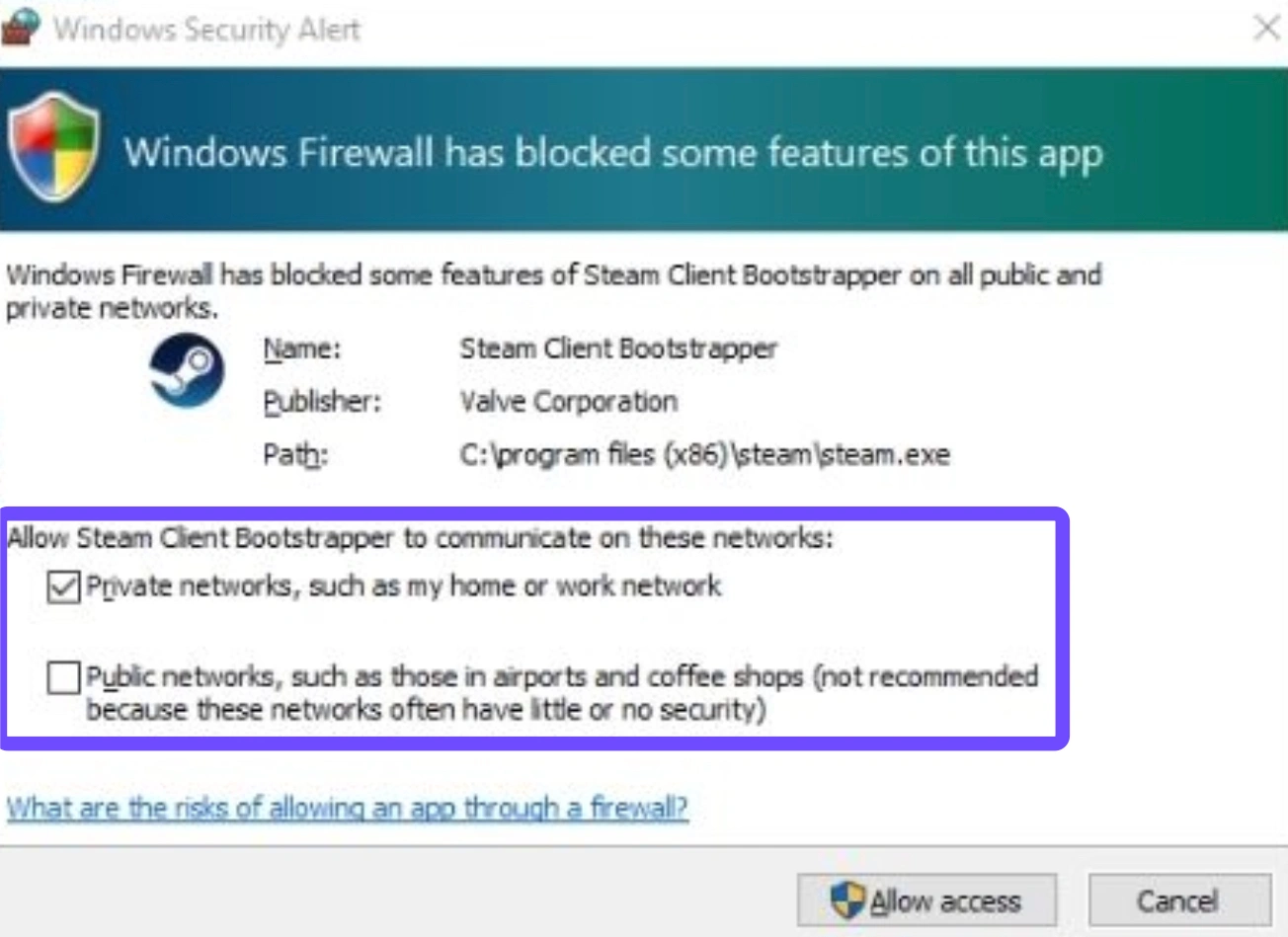
Step 4. If Steam does not appear in the list, click Change Settings and then select Allow another app to add it manually.
Step 5. Save the changes and restart your computer.
Solution 6: Reinstall the Steam Client
If the problem persists and files are severely corrupted, reinstalling the client may resolve persistent steam e502 l3 errors.
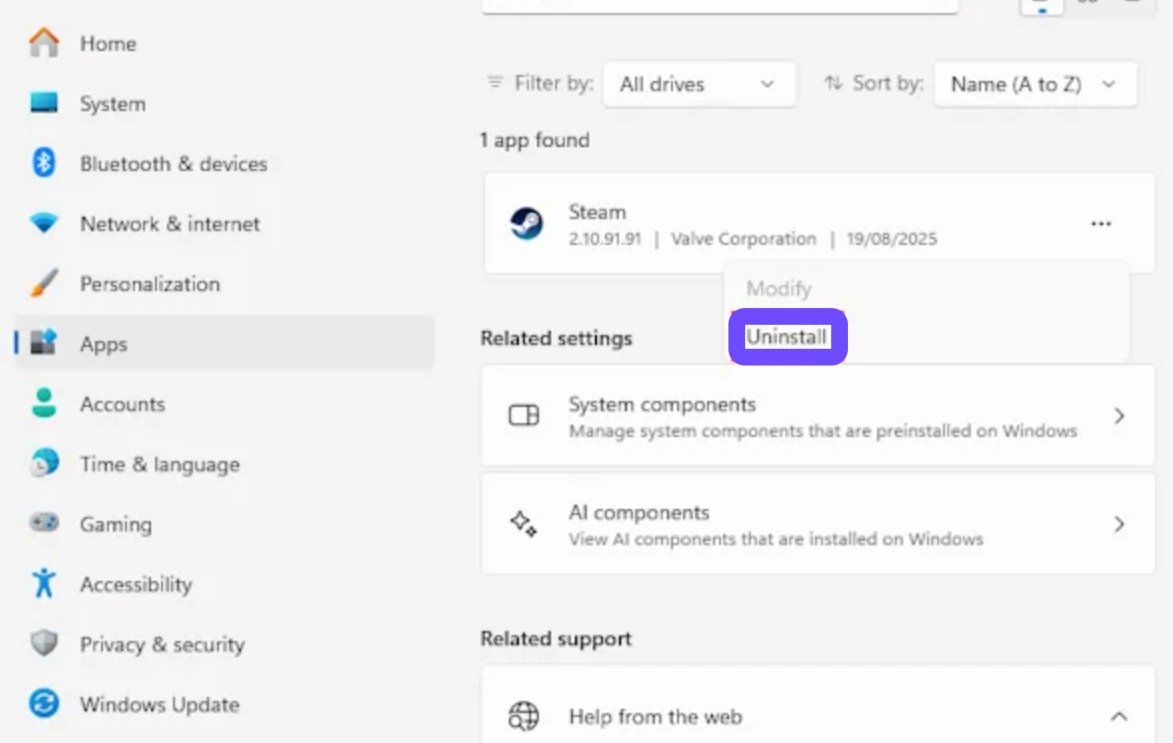
Step 1. Open Windows Settings and select Apps.
Step 2. Locate Steam in the application list and click Uninstall.
Step 3. Navigate to the Steam installation folder and remove all files except the steamapps directory to keep your games.
Step 4. Download the latest installer from the official Steam website.
Step 5. Reinstall Steam and log into your account again.
Conclusion
The Steam E502 L3 error code can be extremely frustrating, especially when it prevents you from accessing the Steam Store during important sales or game launches. Fortunately, this issue is usually temporary and can often be resolved with the right troubleshooting steps.
Methods such as clearing the Steam cache, changing download regions, flushing DNS, or adjusting firewall settings can sometimes restore connectivity. However, these solutions may not always work when the root cause is severe network congestion.
For a more consistent and professional fix, tools like LagoFast offer a smarter solution by optimizing your connection path to Steam servers. By bypassing unstable nodes and automatically selecting faster routes, it helps reduce the chances of encountering the “Something went wrong. We were unable to service your request. Please try again later. E502 L3.” message again.
With the right tools and troubleshooting methods, you can quickly overcome the Steam E502 L3 error and get back to enjoying your favorite games without interruption.

Boost Your Game with LagoFast for Epic Speed
Play harder, faster. LagoFast game booster eliminates stutter and lags on PC, mobile, or Mac—win every match!
Quickly Reduce Game Lag and Ping!
Boost FPS for Smoother Gameplay!