

Slay the Spire 2 continues the formula that made the original game so addictive—building powerful decks, planning every turn carefully, and climbing higher into the Spire with each run. With new characters, cards, and enemies, the sequel adds more depth to the familiar roguelike strategy experience. However, some players have run into crashes or freezing while playing, which can be especially frustrating when you’re in the middle of a good run.
This guide explains the most common Slay the Spire 2 crash issues players encounter, why these problems happen, and several practical fixes that may help improve game stability.

- ✅ Reduce Lag and High Ping.
✅ Boost FPS at the Same Time.
✅ Support 2000+ Popular Online Games.
✅ Change Server without Latency.
✅ Boost Game Loading Speed.
Part 1: Common Slay the Spire 2 Crash Issues Players Experience
Part 2: Why Does Slay the Spire 2 Keep Crashing?
Part 3: How to Fix Slay the Spire 2 Crash
Part 1: Common Slay the Spire 2 Crash Issues Players Experience
Before trying different fixes, it helps to first identify what kind of issue you're actually experiencing in Slay the Spire 2. While the exact cause can vary, most players report a few common crash or stability problems, such as:
- The game crashes immediately after clicking Play on Steam, closing before reaching the main menu.
- A black screen appears when the game starts and then the application suddenly exits.
- The game freezes during a run, especially in the middle of combat or when moving between map nodes.
- The game becomes unresponsive after playing for a while, forcing players to close it through Task Manager.
- Steam briefly shows the game as “Running,” but the game window never actually appears.
- The game randomly crashes during longer runs, causing players to lose progress.
These situations are among the most frequently reported Slay the Spire 2 crash problems and usually point to issues such as corrupted game files, driver conflicts, or background software interference.
Part 2: Why Does Slay the Spire 2 Keep Crashing?
Before trying different fixes, it helps to understand why crashes happen in the first place. In many cases, crashes in Slay the Spire 2 are not caused by a single issue but by a combination of software conflicts, outdated drivers, or early build instability.
Below are some of the most common reasons players experience crashes.
Corrupted or Missing Game Files
Game files can sometimes become corrupted during updates or installation. When the game tries to load a damaged or missing file, it may crash before reaching the menu or while loading a run.
This is a fairly common issue for games downloaded through Steam, especially right after a patch.
Outdated Graphics Drivers
Even though Slay the Spire 2 is not a very demanding game, outdated GPU drivers can still cause stability problems. When the graphics driver isn’t fully compatible with the game version, players may encounter:
- crashes when the game starts
- random freezing during gameplay
- visual glitches before a crash occurs
Updating drivers often resolves these types of issues.
Overlay and Background Software Conflicts
Some applications run overlays on top of games. While they usually work fine, they can sometimes interfere with the game engine and lead to crashes or freezing.
Programs that commonly cause conflicts include:
- Discord overlay
- GPU performance overlays
- recording or streaming software
Disabling these overlays can sometimes improve stability.
Mods or Leftover Mod Files
The original Slay the Spire has a large modding community, but mods from the first game are not designed for the sequel.
If old mod files, tools, or mod loaders remain on your system, they may interfere with Slay the Spire 2 and lead to crashes or startup issues.
Impact of the New Godot Engine
Another possible reason is the game’s transition to the Godot Engine. Unlike the original game, which used a different framework, the sequel is built on Godot.
While the engine offers better flexibility and performance for developers, early builds can sometimes experience stability issues on certain hardware configurations. As a result, some players may encounter crashes or freezing until further patches improve compatibility.
Limited System Resources
If your PC is running many applications at the same time, the game may not have enough available memory or processing power.
This can lead to issues such as:
- random crashes during long runs
- sudden freezing in combat
- the game closing unexpectedly
Closing unnecessary background programs can help reduce these problems.
Part 3: How to Fix Slay the Spire 2 Crash
Now let’s look at several practical solutions that can help fix crashing issues in Slay the Spire 2 and improve overall game stability.
Solution 1: Fix Slay the Spire 2 Crash with LagoFast
If crashes are related to unstable connections or network routing issues, using a game optimization tool can help. LagoFast Game Booster is a game performance platform designed to improve the gaming experience. Using a booster like LagoFast can help reduce ping, minimize packet loss, stabilize the connection, and optimize network routing, while also providing useful features such as a repair tool and other performance utilities that can help resolve certain game issues and improve overall stability while playing Slay the Spire 2.
In addition to improving performance, LagoFast also offers the One-Click Translation Tool, currently supporting Traditional Chinese and Vietnamese. This tool allows players to instantly translate in-game content—including cards, relics, and events—making it easier to understand game mechanics and enjoy a smoother, more focused gameplay experience without language barriers.

Tutorial to Use LagoFast to Fix Slay the Spire 2 Crash Quickly:
Step 1: Click the Free Trial button to download and install LagoFast.
Step 2: Open LagoFast, then click the PC button on the left and search for Slay the Spire 2 in the search bar and click it after it appears.

Step 3: Click on “Server” to change to a better server that ensures a better gaming experience, then click on “Smart Boost” to fix the common errors.
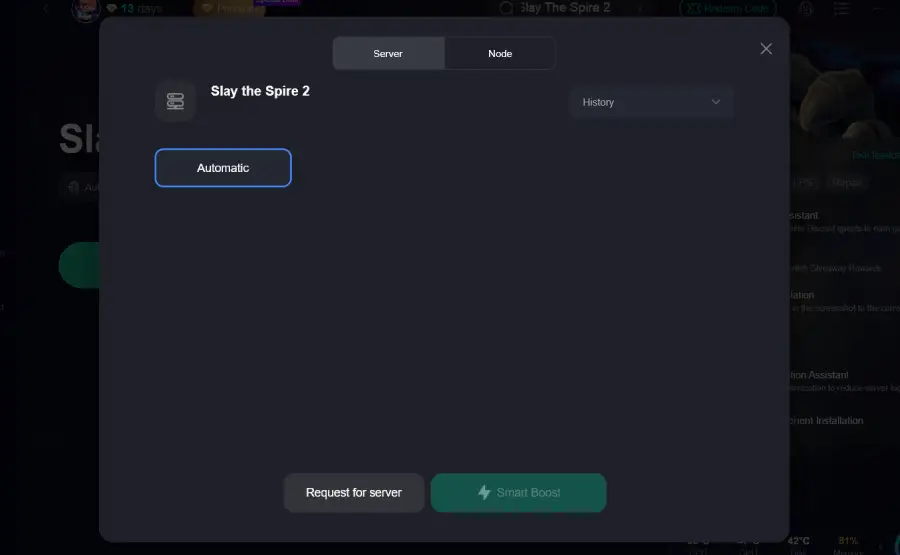
Step 4: Check the specific game ping, packet loss, and multiple path connections on the right side. Finally, click “Start Game” to play the game.

Solution 2: Verify Game Files on Steam
Corrupted or missing game files are one of the most common reasons for crashes. Steam includes a built-in verification tool that can automatically scan the game installation and repair damaged files.
Steps:
- Open your Steam Library
- Right-click Slay the Spire 2
- Select Properties
- Go to the Installed Files tab
- Click Verify integrity of game files
Steam will scan the installation and automatically re-download any missing or corrupted files. Once the process finishes, try launching the game again.
Solution 3: Update Your Graphics Drivers
Outdated graphics drivers can cause crashes, freezing, or graphical issues. Even though Slay the Spire 2 is not a highly demanding game, keeping your GPU drivers updated helps maintain stability and compatibility.
You can check for updates using:
- NVIDIA GeForce Experience
- AMD Adrenalin Software
- Intel Driver & Support Assistant
After installing the latest driver, restart your computer before launching the game again.
Solution 4: Disable Overlays
In-game overlays from various applications can sometimes conflict with the game and cause crashes or freezing.
Try disabling overlays such as:
- Steam Overlay
- Discord Overlay
- GPU monitoring or performance overlays
After turning them off, relaunch the game and see if the issue is resolved.
Solution 5: Close Background Programs
Running too many background applications can consume system resources and lead to instability while playing.
Before starting the game, consider closing programs like:
- Web browsers with many open tabs
- Recording or streaming software
- System monitoring or optimization tools
Reducing background activity can free up memory and help the game run more smoothly.
Conclusion
Crashes in Slay the Spire 2 can be frustrating, especially when they interrupt a good run, but most stability issues usually come from a few common causes such as corrupted files, outdated drivers, or software conflicts. By identifying the type of crash you're experiencing and applying the fixes above—like verifying game files, updating drivers, or disabling overlays—many players can resolve the problem quickly. If crashes still occur, optimizing your connection and system environment may also help improve stability. As the game continues to receive updates, overall performance and compatibility are also likely to improve.

Boost Your Game with LagoFast for Epic Speed
Play harder, faster. LagoFast game booster eliminates stutter and lags on PC, mobile, or Mac—win every match!
Quickly Reduce Game Lag and Ping!
Boost FPS for Smoother Gameplay!