
RuneScape Dragonwilds delivers an exciting open-world co-op survival experience in Ashenfall, but performance issues can quickly ruin your adventure. Many players report RuneScape Dragonwilds FPS drops and stuttering during dragon battles or base building. Whether you face frame rate dips or input lag, optimizing game files, system settings, and network routes with tools like LagoFast helps restore silky-smooth gameplay. This guide outlines every effective fix to boost your frame rates. Understanding the specific nature of your performance issues helps speed up troubleshooting.

- ✅ Reduce Lag and High Ping.
- ✅ Boost FPS at the Same Time.
- ✅ Support 8000+ Popular Online Games.
- ✅ Stable Server Connection
Part 1: Identify Your Dragonwilds FPS or Stuttering Problem
Part 2: Quick Fixes for Dragonwilds Low FPS and Stuttering
Part 3: Best Dragonwilds Graphics Settings for Higher FPS
Part 4: Fix Dragonwilds FPS Drops and Stuttering in Different Situations
Part 5: Reset Dragonwilds Graphics Configuration
Part 6: Reduce CPU, GPU, and Memory Bottlenecks in Dragonwilds
Part 7: Still Getting Low FPS or Stuttering in Dragonwilds?
Part 8: RuneScape Dragonwilds Performance FAQs
Part 1: Identify Your Dragonwilds FPS or Stuttering Problem
Before applying fixes, you must identify the exact performance issue affecting your game. Match your symptoms with the root cause in the breakdown table below to select the right solution.
|
Symptom |
Likely Cause |
Recommended Fix |
|
Constant Low FPS |
Hardware bottleneck or overly high graphics settings |
Lower graphics settings, update GPU drivers, or optimize background processes |
|
Sudden FPS Drops |
VRAM memory leaks or thermal throttling |
Clear system cache, lower texture quality, and monitor GPU temperature |
|
Random Stutter |
Background app interference or asset loading delay |
Disable overlays, switch to NVMe SSD, and close unused apps |
|
Large Base Stutter |
High CPU rendering load from player structures |
Lower view distance, reduce shadow quality, and limit base lighting |
|
After Update |
Corrupted game cache or driver incompatibility |
Verify game file integrity and perform a clean GPU driver reinstall |
|
Graphics Glitches |
Broken DirectX shader cache or altered config file |
Delete shader cache and reset Engine.ini to default configuration |
Once you know the primary cause of your frame loss, try these immediate solutions.
Part 2: Quick Fixes for Dragonwilds Low FPS and Stuttering
If you need immediate relief from frame drops, these general troubleshooting steps resolve most performance bugs quickly. Follow each step sequentially to stabilize your game.
- Update GPU Drivers: Download the latest graphics drivers from NVIDIA, AMD, or Intel to ensure proper optimization for new game patches.
- Restart Game and System: Clear temporary memory leaks by performing a full restart of both RuneScape Dragonwilds and your PC.
- Adjust High Impact Graphics Settings: Lower shadow quality, ambient occlusion, and volumetric fog to reduce immediate load on your GPU.
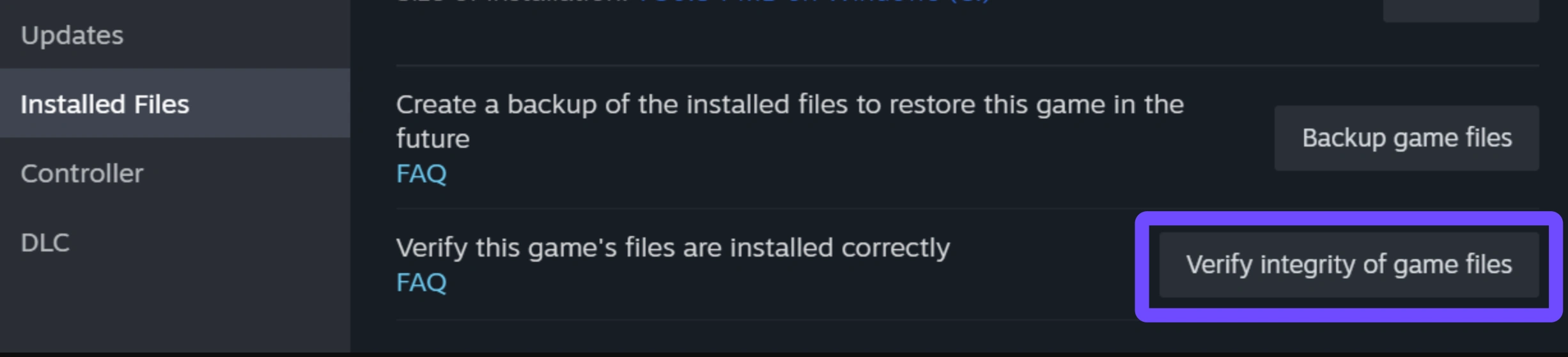
- Verify Game Files: Open Steam or your game launcher, right click Dragonwilds, select Properties, navigate to Installed Files, and click Verify integrity of game files.
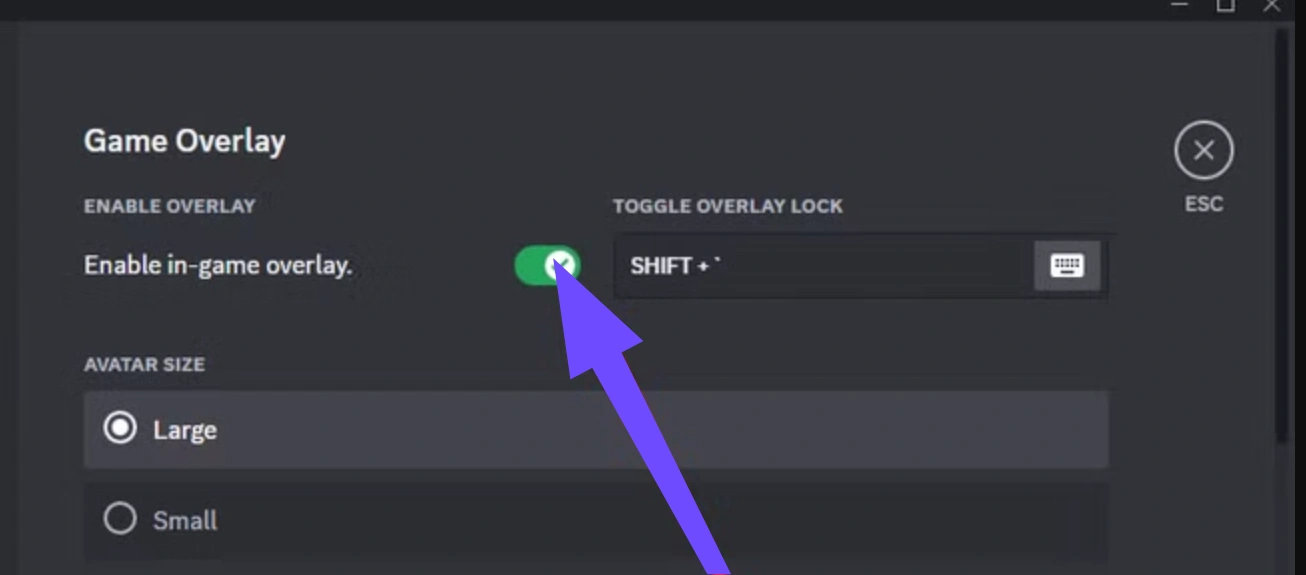
- Close Background Applications and Overlays: Turn off Discord Overlay, GeForce Experience, Steam Overlay, and web browsers to free up system RAM and CPU cycles.
- Check for Game Updates: Ensure you have installed the latest hotfixes, as developers frequently patch performance issues shortly after major updates.
Fine-tuning individual in-game options gives you better control over your frame rate.
Part 3: Best Dragonwilds Graphics Settings for Higher FPS
Finding the right balance between visual quality and performance is essential for stable frame rates. Use the recommended settings table below to gain maximum frames without degrading visual clarity.
|
Setting |
Recommended Value |
FPS Impact |
|
Display Mode |
Fullscreen |
High |
|
Resolution |
Native Monitor Resolution |
High |
|
Dynamic Resolution / DLSS / FSR |
Quality or Balanced |
High |
|
Shadow Quality |
Medium or Low |
High |
|
Volumetric Fog |
Low |
Medium |
|
Texture Quality |
Medium (or High if VRAM is 8GB or higher) |
Low to Medium |
|
Anti-Aliasing |
TAA or Low |
Low |
|
View Distance |
Medium |
High |
|
Ambient Occlusion |
Low or Off |
Medium |
|
Motion Blur |
Off |
Low |
|
Ray Tracing |
Off |
High |
Different gameplay environments can cause distinct visual glitches and performance drops.
Part 4: Fix Dragonwilds FPS Drops and Stuttering in Different Situations
Different gameplay scenarios require specific solutions. Use the targeted fixes below depending on when your RuneScape: Dragonwilds stuttering occurs.
Low FPS Even on a High-End PC
High-end rigs can still suffer from poor optimization if Windows fails to allocate proper hardware resources to the game.
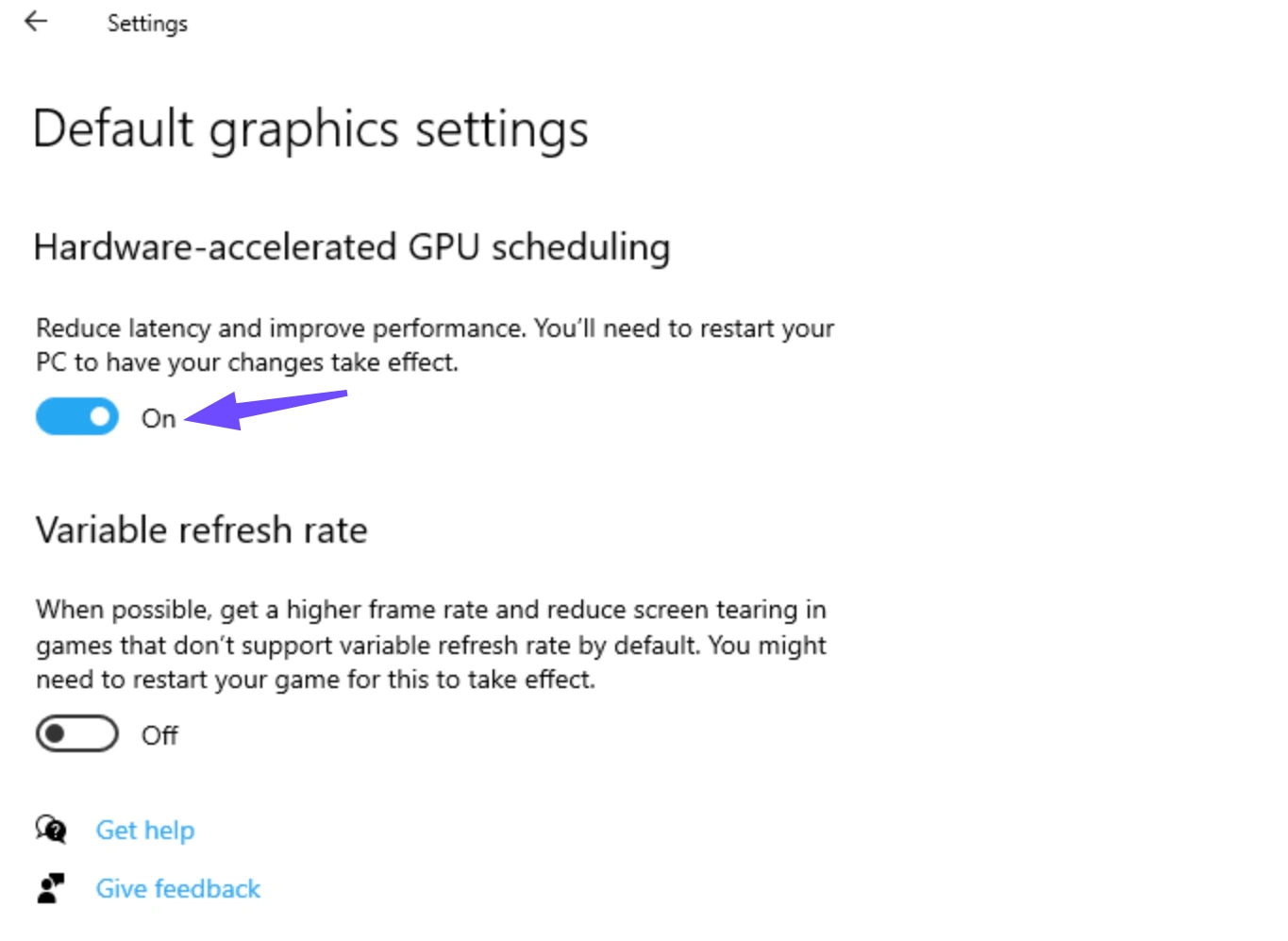
Step 1: Enable Hardware-Accelerated GPU Scheduling in Windows Graphics Settings.
Step 2: Set Windows Power Plan to High Performance or Ultimate Performance.
Step 3: Open NVIDIA Control Panel or AMD Software and force the game to use your dedicated GPU.
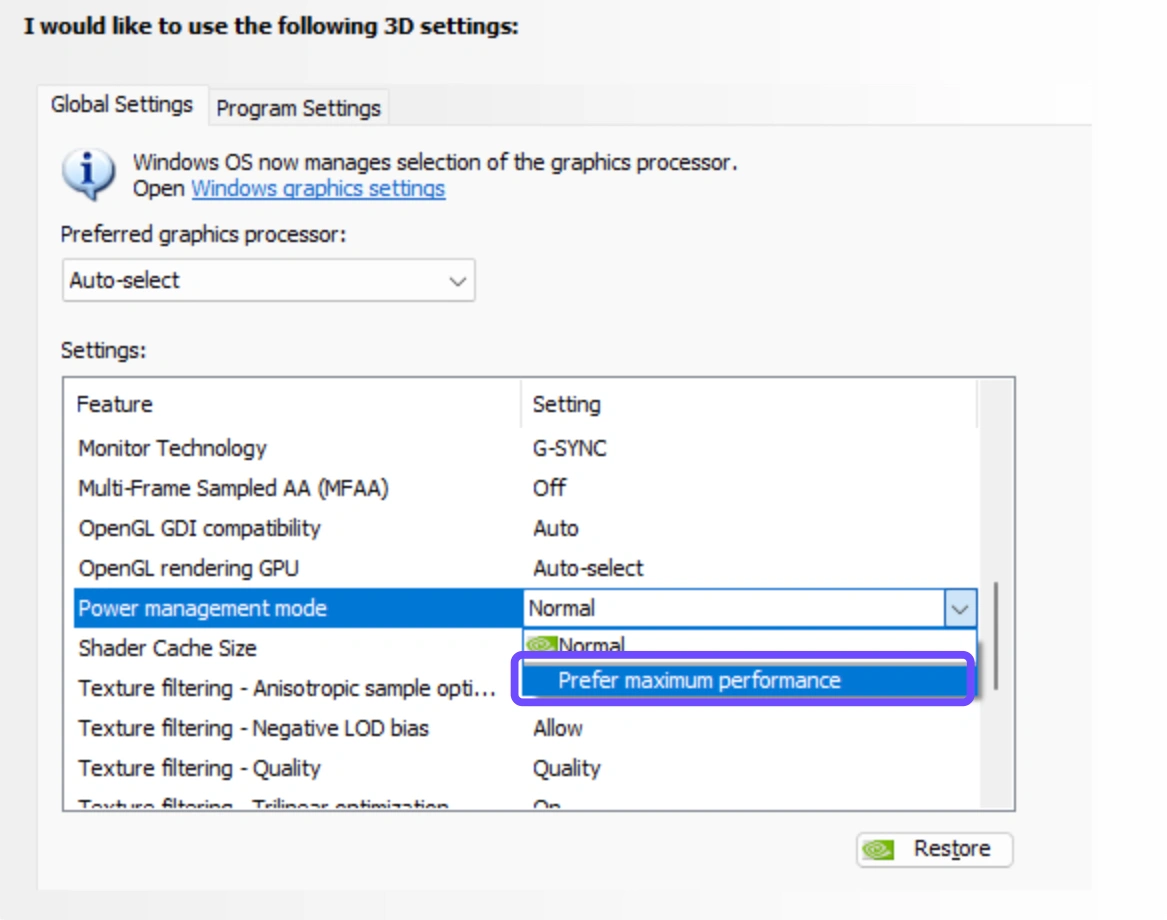
Step 4: Set Power Management Mode inside driver settings to Prefer Maximum Performance.
Sudden FPS Drops While Playing
Framerate spikes often occur when VRAM limits are reached or when background software interrupts system threads.
Step 1: Lower Texture Quality by one notch to free up dedicated VRAM.
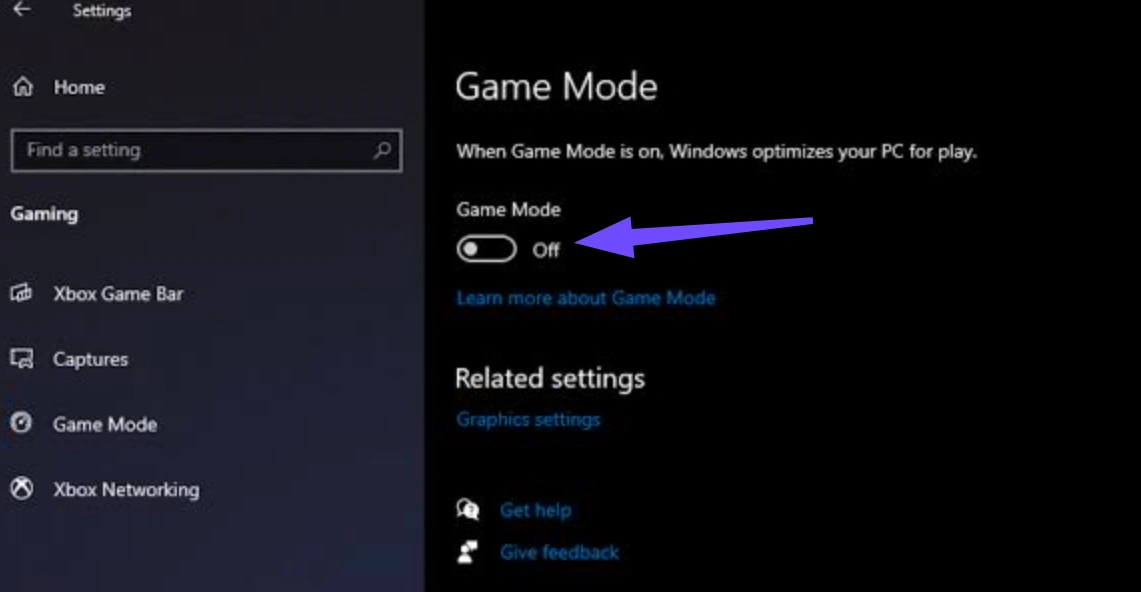
Step 2: Disable Windows Game Mode and Background Recording functions.
Step 3: Cap your maximum framerate inside the game settings to match your monitor refresh rate.
Step 4: Turn off third-party monitoring software like MSI Afterburner if frame drops persist.
Stuttering After a Dragonwilds Update
Patches can sometimes leave outdated configuration files or corrupted shader caches behind.
Step 1: Open Steam or your game client and verify game files.
Step 2: Delete DirectX Shader Cache using the Windows Disk Cleanup tool.
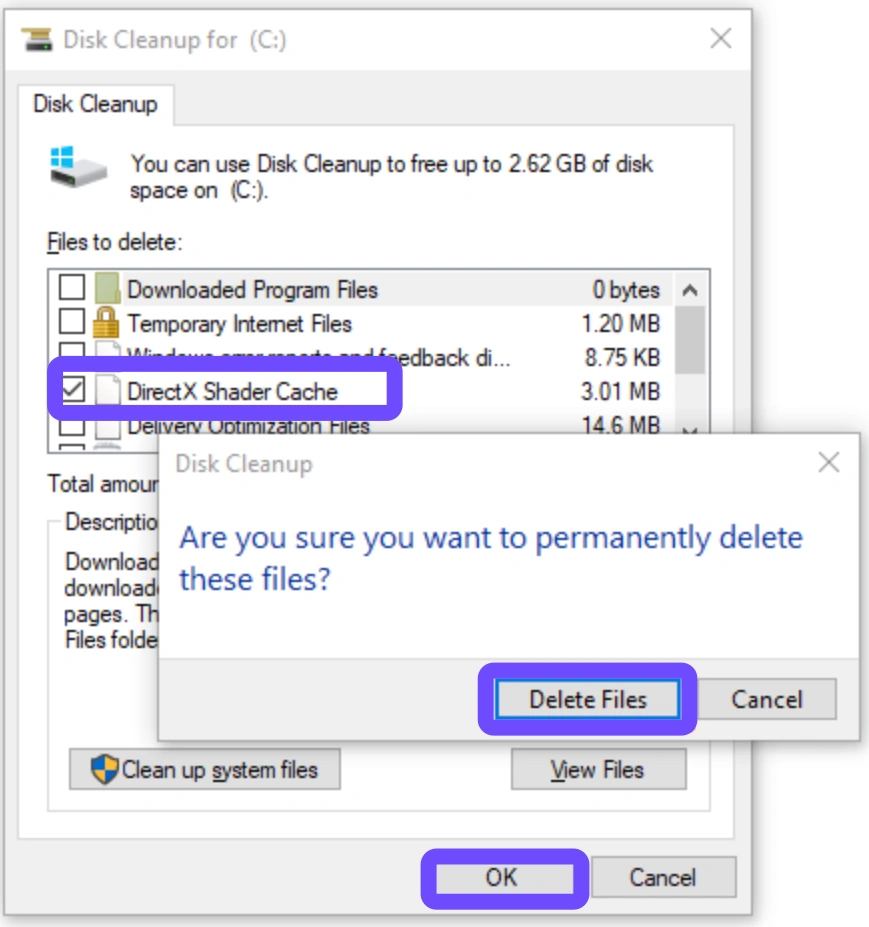
Step 3: Reset game graphics settings back to Default, then re-apply custom values.
Step 4: Check graphics driver updates to ensure compatibility with the new game patch.
Stuttering Around Large Bases or Dense Areas
Player-built structures and crowded areas push heavy draw calls onto your processor.
Step 1: Lower View Distance and Detail Distance settings.
Step 2: Reduce Dynamic Foliage and Object Draw Quality.
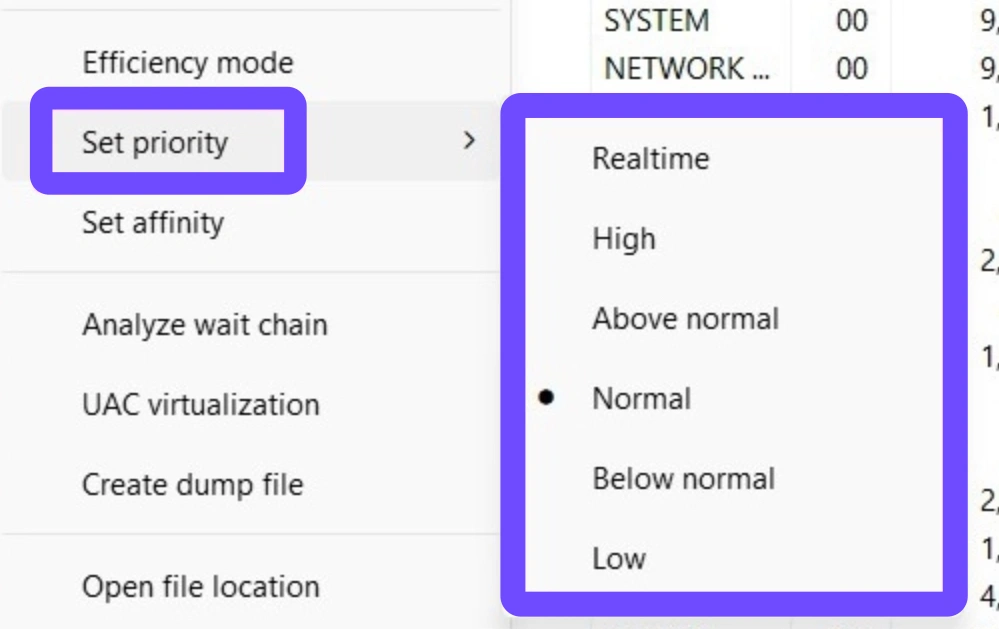
Step 3: Increase CPU priority for the game process through Windows Task Manager.
Step 4: Avoid placing excessive light sources or active mechanisms in close proximity within bases.
Stuttering During Weather or Area Transitions
Environmental changes trigger real-time asset loading, which stresses drive speed and system RAM.
Step 1: Move the game installation folder from an HDD to a high-speed NVMe SSD.
Step 2: Increase Windows Pagefile size on your fastest storage drive.
Step 3: Set Volumetric Effects and Particle Quality to Low or Medium.
Step 4: Ensure at least 16GB of system RAM is running in dual-channel mode.
Dragonwilds Freezes for Several Seconds While Playing
Complete freezing indicates severe thread blocking, memory leaks, or temporary drive timeout.
Step 1: Close all web browsers, chat applications, and cloud syncing tools before playing.
Step 2: Set process priority to High in Task Manager.
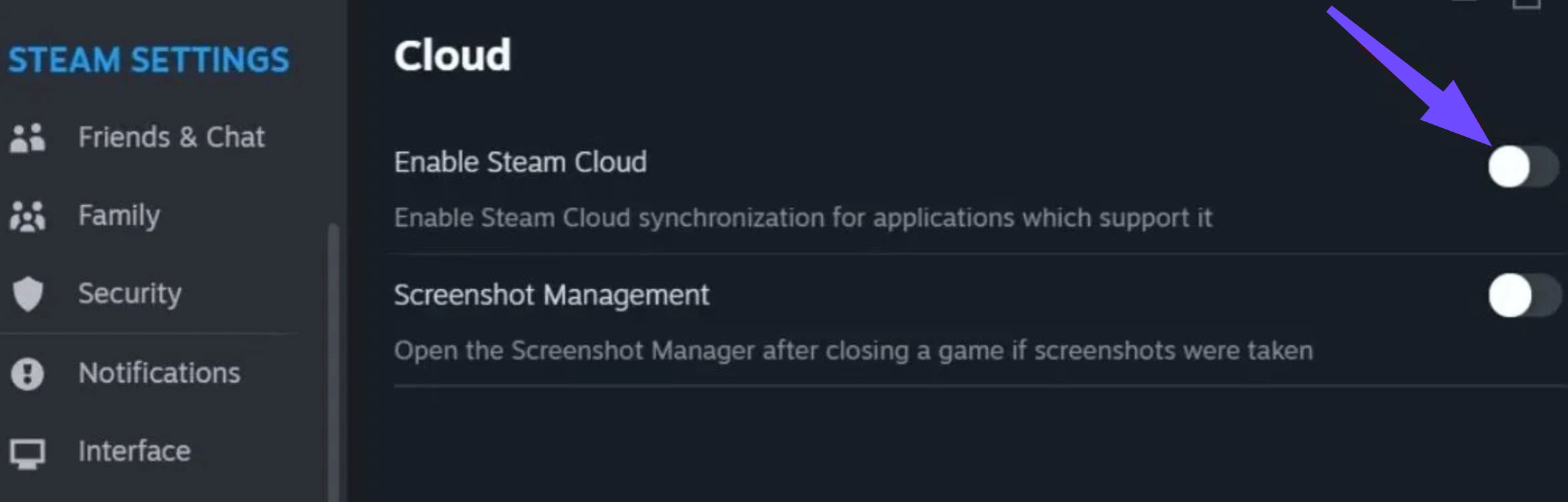
Step 3: Disable Steam Cloud Saves temporarily to prevent mid-game sync hitches.
Step 4: Monitor RAM and VRAM usage with Task Manager to confirm memory leak behavior.
Graphics Problems After Changing Engine or Config Settings
Incorrect manual edits in configuration files can cause rendering glitches or startup crashes.
Step 1: Navigate to the configuration folder located in AppData/Local.
Step 2: Backup and remove modified configuration files.
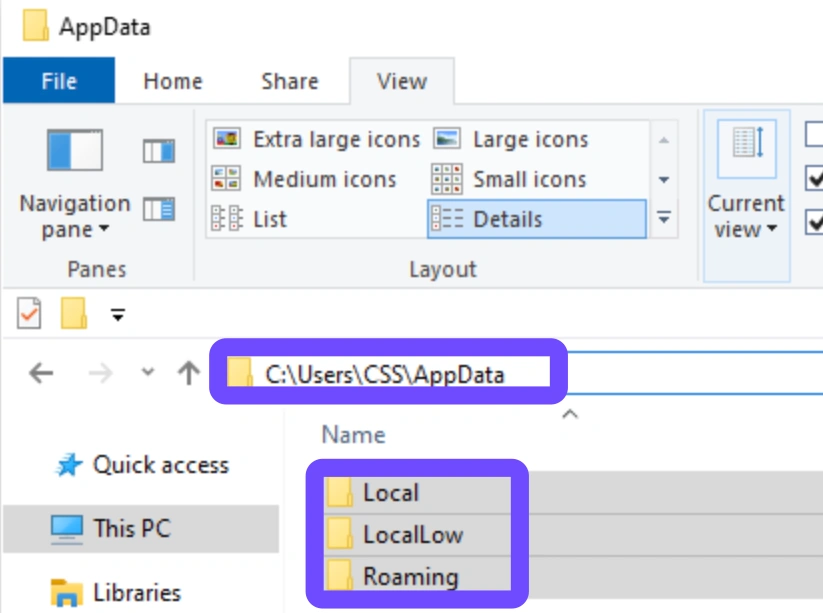
Step 3: Restart the game to allow the engine to auto-generate default config files.
Step 4: Adjust options only through the in-game menu rather than manual text file editing.
Part 5: Reset Dragonwilds Graphics Configuration
Modifying config files like Engine.ini can sometimes result in broken visual settings or persistent frame rate degradation. While editing Engine.ini can unlock advanced graphical options, it is not a universal fix for hardware limitations. Follow these steps to safely reset your graphics configuration back to the default state:
Step 1: Close RuneScape Dragonwilds completely and exit your game launcher.
Step 2: Press Windows Key + R, type %LOCALAPPDATA%, and press Enter.
Step 3: Locate the Dragonwilds folder, navigate to Saved, Config, and open WindowsNoEditor.
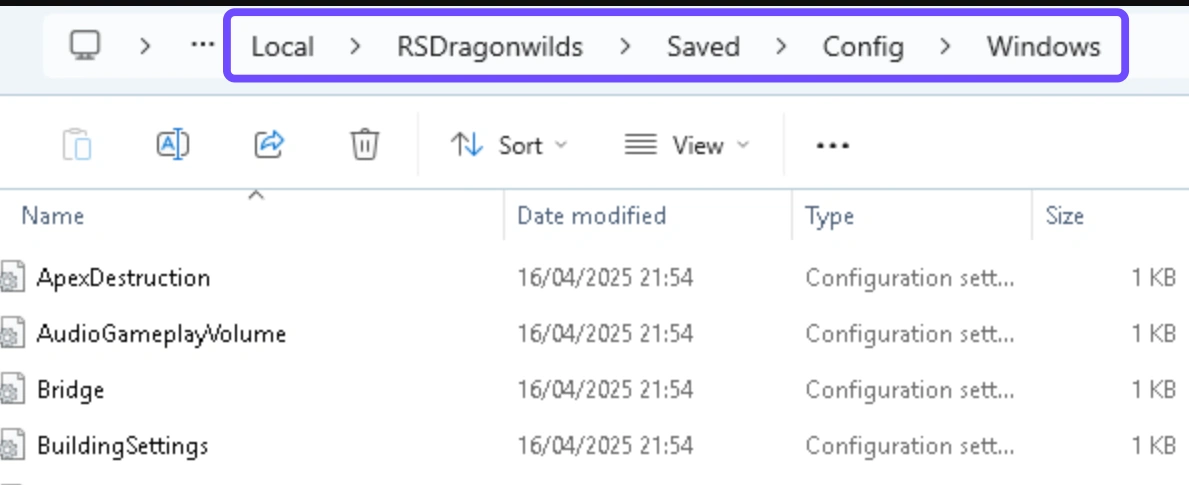
Step 4: Backup your existing Engine.ini and GameUserSettings.ini files by copying them to your desktop.
Step 5: Delete Engine.ini and GameUserSettings.ini from the game folder.
Step 6: Relaunch RuneScape Dragonwilds to allow the game engine to automatically rebuild clean, default configuration files.
System-level tweaks help remove hardware limits and unleash extra processing power.
Part 6: Reduce CPU, GPU, and Memory Bottlenecks in Dragonwilds
To extract maximum performance from your hardware and fix RuneScape Dragonwilds performance issues, eliminate system-level bottlenecks that constrain game rendering. Use the following system optimization checklist to balance your CPU, GPU, and RAM workloads:
- Enable Game Mode: Turn on Windows Game Mode in Windows Settings to prioritize system resources for Dragonwilds.
- Optimize RAM Usage: Enable XMP or EXPO profiles in your BIOS to ensure your system memory operates at its advertised frequency.
- Set GPU Power Management: Open NVIDIA Control Panel or AMD Software and set Power Management Mode to Prefer Maximum Performance.
- Clean System Dust: Ensure hardware temperatures remain under 80 degrees Celsius to prevent thermal throttling on both CPU and GPU.
- Disable Hardware Acceleration: Turn off hardware acceleration in Discord, Spotify, and web browsers running in the background.
When standard local fixes fail to eliminate lag, connection routing optimization provides a complete fix.
Part 7: Still Getting Low FPS or Stuttering in Dragonwilds?
If hardware tweaks do not fully resolve your RuneScape Dragonwilds performance issues, underlying network jitter and routing inefficiency might be causing perceived micro-stutters and input delays. Using an all-in-one gaming booster like LagoFast provides a simple yet effective answer. LagoFast serves as an optimized RuneScape Dragonwilds FPS Booster, utilizing multi-path routing to stabilize your connection, reduce high ping, and eliminate packet loss during co-op sessions. Beyond network stabilization, its built-in hardware optimization features stop background bloatware, adjust system settings with a single click, and unlock extra frames seamlessly, making it a comprehensive utility for smoother gameplay.
How to Fix Low FPS and Stuttering with LagoFast:
Step 1: Download and install LagoFast on your PC.
Step 2: Open LagoFast and search for RuneScape: Dragonwilds in the game library.
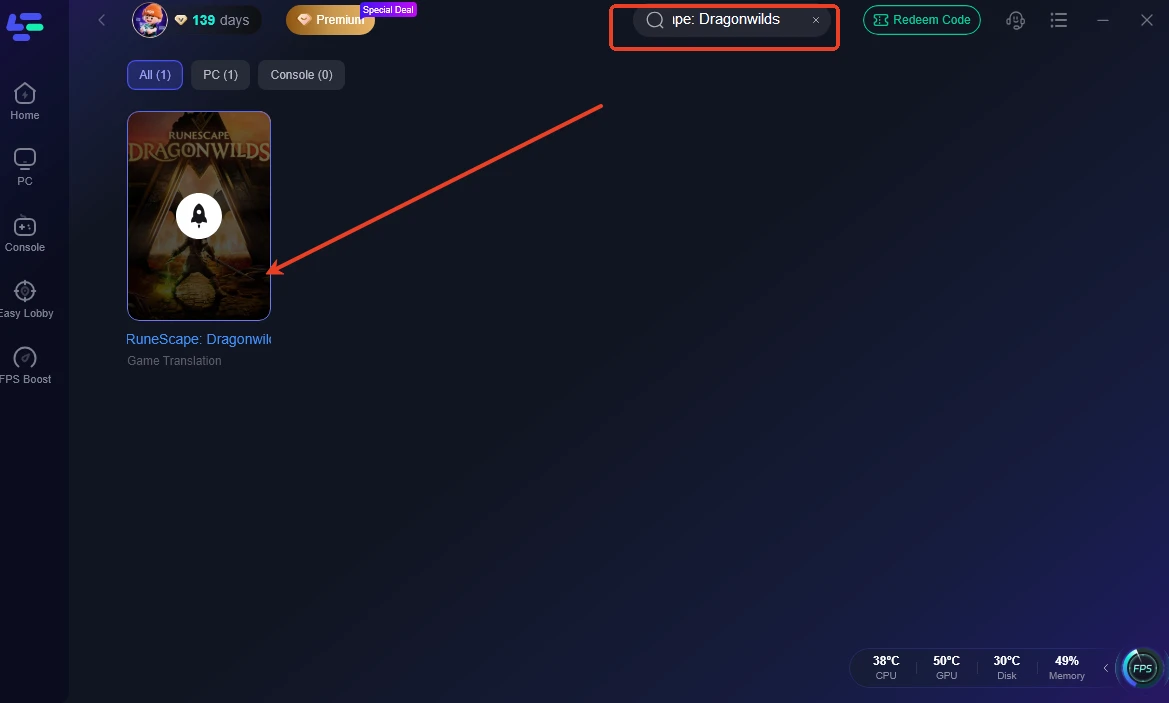
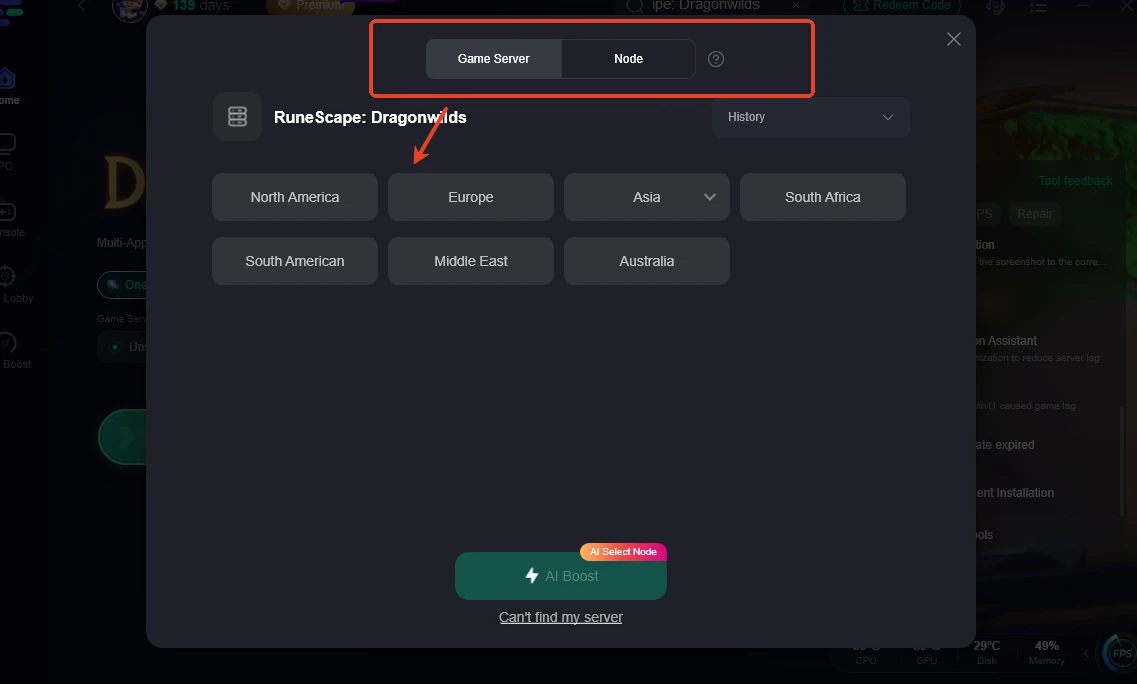
Step 3: Select your preferred server and lowest-ping route, then click the Boost button.
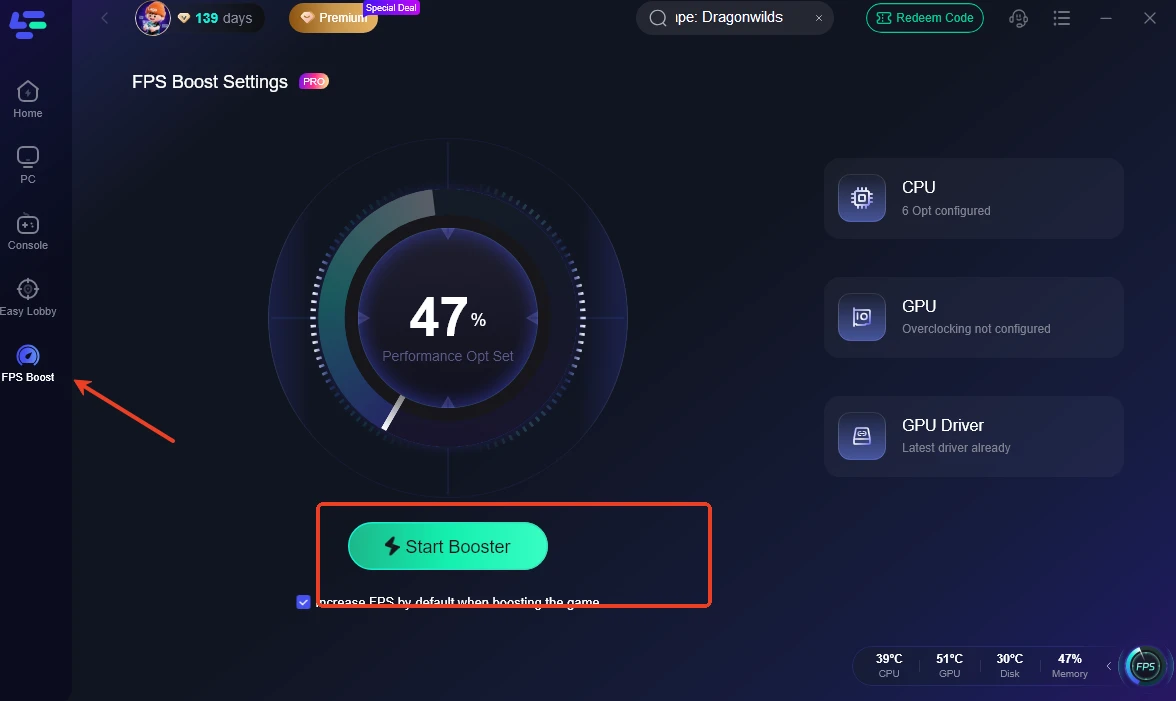
Step 4: Toggle the FPS Boost switch to automatically apply system resource optimizations, then launch the game.
Step 5. Click on Smart Boost to fix lag and stuttering. Then, launch the game to experience smooth, responsive, and stutter-free controller gameplay.
Part 8: RuneScape Dragonwilds Performance FAQs
What are the minimum system requirements for RuneScape Dragonwilds?
You need an Intel Core i5-8400 or AMD Ryzen 5 2600 CPU, 16 GB RAM, and an NVIDIA GeForce GTX 1060 or AMD Radeon RX 580 GPU with at least 6 GB VRAM installed on an SSD.
Why does RuneScape Dragonwilds stutter on high-end PCs?
Stuttering on powerful rigs usually occurs due to unoptimized shader compilation, background app overlays, or incorrect graphics power management settings in Windows.
Does installing Dragonwilds on an SSD fix micro-stuttering?
Yes, installing the game on an NVMe SSD significantly speeds up asset streaming, eliminating stuttering when moving across biomes or entering dense player bases.
How do I fix high latency and lag spikes in Dragonwilds co-op?
Use an ethernet connection, close bandwidth-heavy background tasks, and utilize LagoFast to select optimized network routes and reduce ping.
Can modifying Engine.ini cause game crashes in Dragonwilds?
Yes, incorrect values in Engine.ini can cause graphical glitches, memory leaks, or crashes, which is why resetting the file to default is recommended if issues arise.
How do I enable DLSS or FSR in RuneScape Dragonwilds?
Navigate to the in-game Settings menu, open the Display or Graphics tab, select Upscaling, and switch DLSS or FSR to Quality mode for an instant frame rate boost.
A systematic approach to hardware and network optimization guarantees the best gameplay experience.
Conclusion
Experiencing RuneScape Dragonwilds low FPS and persistent stuttering can disrupt your survival adventure in Ashenfall. By identifying the root causes, applying optimized graphics settings, and resetting corrupt configuration files, you can restore fluid performance. Additionally, utilizing LagoFast as a RuneScape Dragonwilds FPS booster stabilizes network connections and eliminates micro-stutters. Follow these troubleshooting steps today to enjoy seamless dragon battles and base building without frame rate drops.

Boost Your Game with LagoFast for Epic Speed
Play harder, faster. LagoFast game booster eliminates stutter and lags on PC, mobile, or Mac—win every match!
Quickly Reduce Game Lag and Ping!
Boost FPS for Smoother Gameplay!