
Rocket League enthusiasts frequently face a frustrating challenge known as Error 71, which occurs when the connection to the game times out. This matchmaking error can interrupt your gaming session and is often attributed to network issues, server outages, or other unforeseen problems.
This article explores why Rocket League error 71 occurs, particularly how Cloudflare outages are affecting players in Siberia, the Ural region, and southern Russia. It also offers seven actionable solutions, including a powerful tool called LagoFast, to help you get back into the game quickly.

- ✅ Reduce Lag and High Ping.
✅ Boost FPS at the Same Time.
✅ Change Server Without Latency. - ✅End Error Codes, Stuck and Crashing Issues
- ✅ Multiplatform: PC, Console, Mobile
Part 1 : Understanding Error 71 in Rocket League
Part 2 : Common Causes of Error 71 in Rocket League
Part 3 : Best Solution to Fix Rocket League Error 71
Part 4 : Other Ways to Fix Error 71 in Rocket League
Part 5: Rocket League Error 71 FAQs
Part 1 : Understanding Error 71 in Rocket League
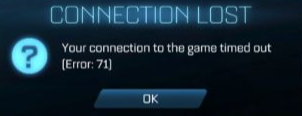
Error 71 in Rocket League typically appears with the message that your connection to the game has timed out. This issue can affect players on any platform, including those playing through Epic Games. It's a common connectivity problem that prevents players from joining matches and can be due to a variety of reasons such as unstable internet connections, server problems from the game’s end, or incorrect network settings on the player’s device.
Part 2 : Common Causes of Error 71 in Rocket League
Rocket League error 71 typically surfaces when players attempt to connect to online matches or log into their accounts and are met with a message stating they “cannot connect to Rocket League servers.” This issue is primarily related to network disruptions or server-side problems.
Cloudflare Outage Impact in Russia
One significant, recent cause of this error has been network instability due to Cloudflare outages. This has especially impacted players in Siberia, the Ural region, and southern Russia. Since Rocket League uses Epic Games servers, which rely on Cloudflare infrastructure for DNS and other routing services, an outage or regional unavailability can disrupt the entire connection process.
When the Cloudflare routing is broken or rerouted due to regional issues, even a perfectly fine local connection won't help. This leaves users stuck with Rocket League error 71, unable to log in or join matches.
Other common causes include:
- NAT type restrictions on your console or PC
- Outdated game files or corrupted cache
- Port forwarding issues on your router
- Conflicting background applications or firewalls
- ISP-level throttling
- Server downtime
- Firewall and security settings
- Network connectivity issues
By identifying the likely cause of Error 71 from these common issues, you can more effectively apply the right solution and get back to enjoying Rocket League with minimal disruptions.
Part 3 : Best Solution to Fix Rocket League Error 71
For Rocket League players facing the dreaded Error 71, using a game booster like LagoFast can be a game-changer. As we have mentioned, Rocket League Error 71 can be cuased by poor network connection. And LagoFast is designed to optimize your network connection, potentially resolving issues that lead to connection timeouts and other related errors. Here's how you can set up LagoFast to improve your gaming performance and reduce the occurrence of Error 71.
Quick Guide to Using LagoFast:
Step 1: Click on the 'Free Trial' to download the application.
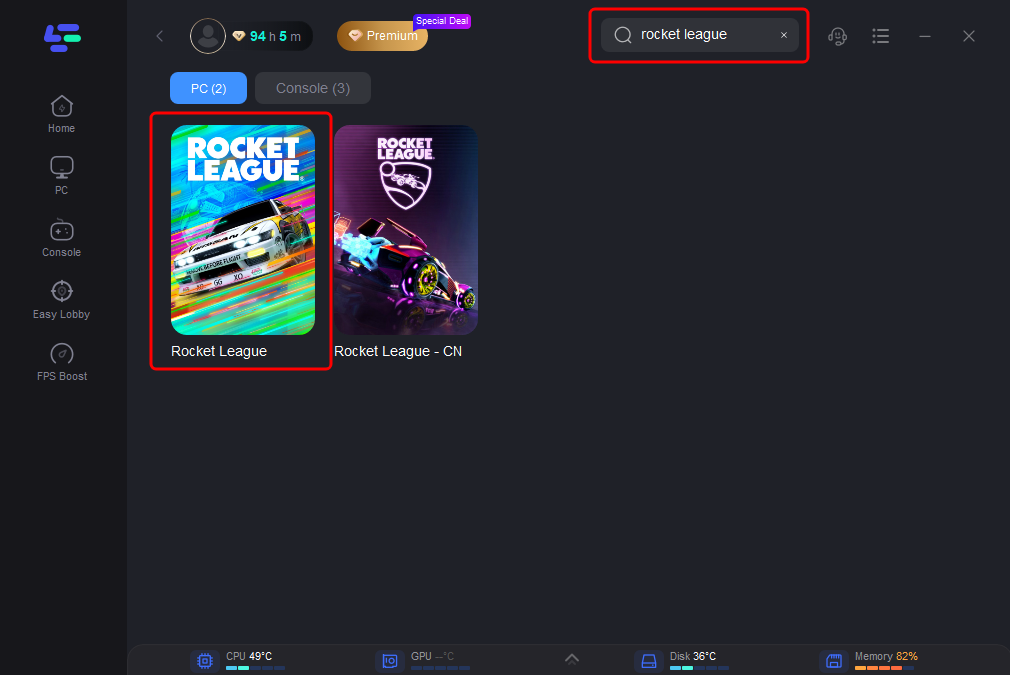
Step 2: Install and open LagoFast, then use the search function to locate Rocket League.
Step 3: Optimize your server connection by selecting 'Select Server'. Choose the most stable server and the best node available to ensure optimal connection.
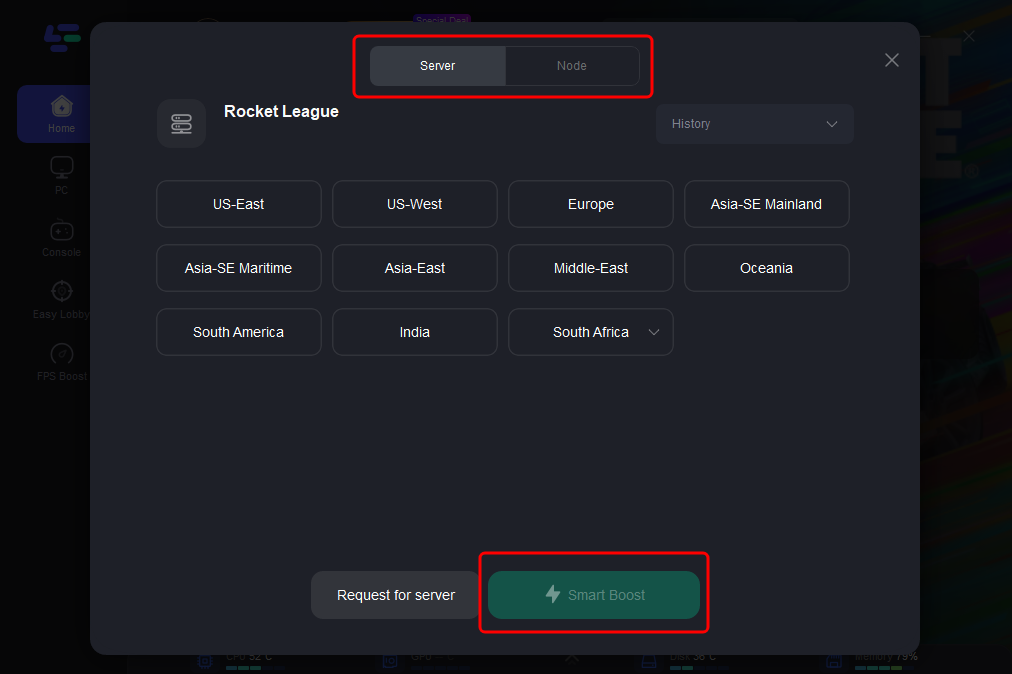
Step 4: Engage the 'Smart Boost' feature to actively monitor and optimize your game's ping, packet loss, and network type, which are displayed on the interface.
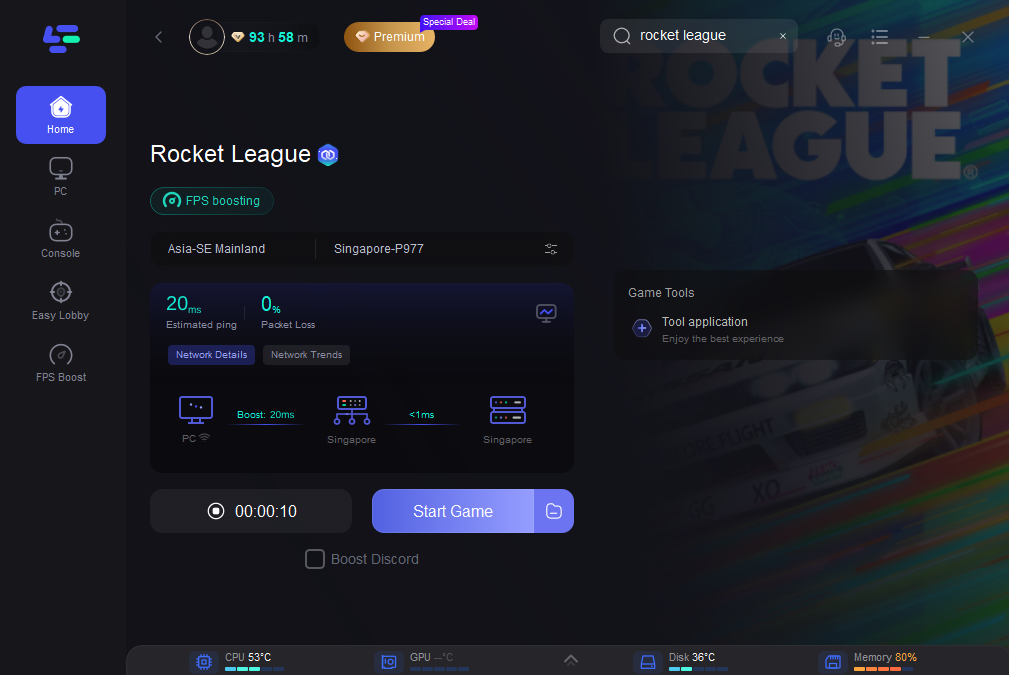
By following these steps, you can significantly improve your connection quality, which is essential for a seamless gaming experience in Rocket League.
Using LagoFast can not only help alleviate common connectivity issues like Error 71 in Rocket League but also enhance your overall gaming experience by stabilizing your network connection. Whether you're playing casually or competitively, a stable connection is key to enjoying the game to its fullest. You can take a look at what LagoFast can bring to you :
- Stable Connection
- Smooth Server Region Switch
- Lag and High Ping Reduced
- FPS Boost
- Packet Loss Avoided
- Connection, Stuck and Crashing Issues Ended
- Multiplatform Support
Part 4 : Other Ways to Fix Error 71 in Rocket League
Fixing Error 71 can seem daunting, but with the right steps, you can get back to scoring goals in no time. Here are some effective strategies to resolve this error:
Restart Your Modem and Router
Sometimes, a basic power cycle can fix network issues at home.
Steps:
- Step 1: Power off your router and modem.
- Step 2: Unplug both devices from the power source.
- Step 3: Wait for at least 2–3 minutes.
- Step 4: Plug the modem back in and wait for it to fully restart.
- Step 5: Turn the router back on.
- Step 6: Launch Rocket League and check if the error persists.
Restarting your router clears cache memory, re-establishes DNS, and resolves minor glitches in your home network.
Clear Rocket League Game Cache
Corrupted or outdated cache files can trigger Rocket League error 71.
Steps (PC):
- Step 1: Close Rocket League completely.
- Step 2: Press Windows + R, type %localappdata%, and press Enter.
- Step 3: Navigate to the Rocket League folder.
- Step 4: Delete the Cache and DxDiagCache folders.
- Step 5: Restart your PC.
- Step 6: Launch Rocket League again.
This will force the game to recreate necessary files, possibly resolving the error.
Enable Port Forwarding for Rocket League
If your router’s NAT settings are too strict, it may prevent Rocket League from establishing a server connection.
Steps:
- Step 1: Open your router’s settings via your browser (usually 192.168.1.1).
- Step 2: Log in using your router credentials.
- Step 3: Go to the Port Forwarding section.
- Step 4: Add a new rule with these ports: TCP: 80, 443 / UDP: 7000–9000
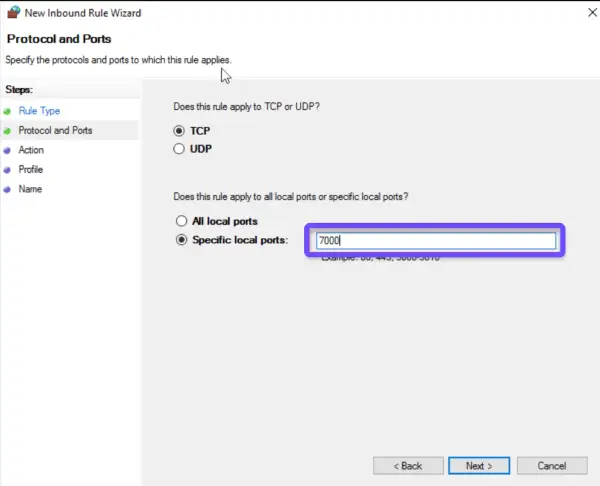
- Step 5: Enter your device’s IP address.
- Step 6: Save and reboot your router.
Port forwarding ensures Rocket League traffic is prioritized and not blocked by your network.
Check Rocket League Server Status
Sometimes the error isn’t on your end. Rocket League servers can be down for maintenance or experiencing outages.
Steps:
- Step 1: Visit the Epic Games status page.
- Step 2: Look for Rocket League under the game services.
- Step 3: Alternatively, check @RocketLeague on Twitter.
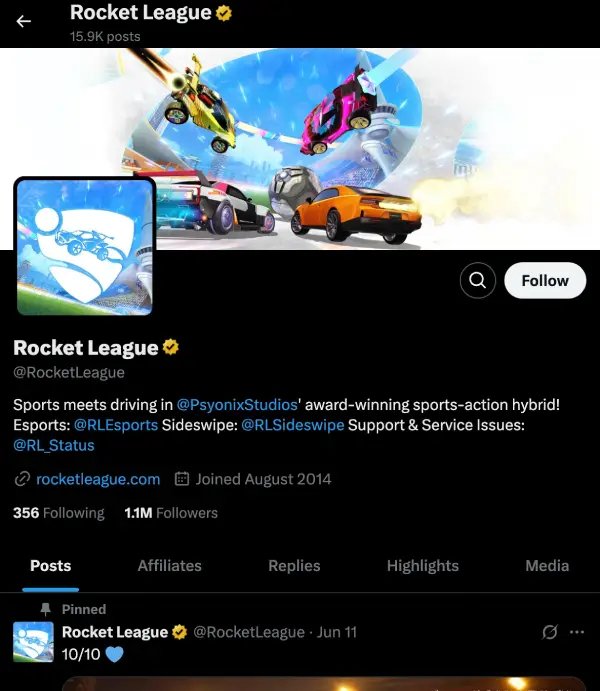
- Step 4: Use third-party tools like Downdetector.
- Step 5: Join forums like Reddit or Discord for real-time updates.
- Step 6: If servers are down, wait until the issue is officially resolved.
Disable Firewall and Antivirus Temporarily
Overprotective security software might block Rocket League's access to servers.
Steps:
- Step 1: Open your antivirus or firewall settings.
- Step 2: Temporarily disable real-time protection.
- Step 3: Add Rocket League and Epic Games Launcher to the whitelist.
- Step 4: Save your settings and close the antivirus window.
- Step 5: Restart Rocket League.
- Step 6: If it works, re-enable the antivirus with the game still whitelisted.
Always remember to re-enable protection afterward to avoid security risks.
Flush DNS and Renew IP
Incorrect DNS or IP settings can also trigger connectivity problems.
Steps:
- Step 1: Open Command Prompt as Administrator.
- Step 2: Type ipconfig /flushdns and press Enter.
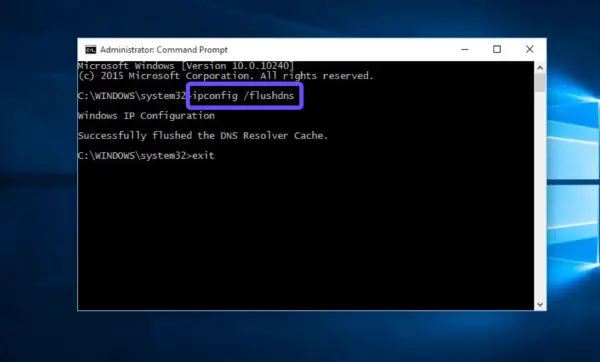
- Step 3: Then type ipconfig /release and hit Enter.
- Step 4: Now type ipconfig /renew and press Enter.
- Step 5: Restart your PC.
- Step 6: Launch Rocket League and try connecting again.
Flushing DNS removes outdated records and can resolve regional connection errors.
Part 5: Rocket League Error 71 FAQs
Q1: What is Rocket League error 71
A1: Rocket League error 71 is a connectivity error that prevents users from accessing online features or logging into their account. It often points to server outages, network misconfigurations, or regional connection issues.
Q2: Why is Rocket League not connecting in southern Russia or the Ural region
A2: Players in these areas are currently affected by Cloudflare outages, which disrupt DNS and routing. This leads to Rocket League being unable to establish a secure server connection.
Q3: Is Rocket League server-based or peer-to-peer
A3: Rocket League uses a dedicated server system, mainly hosted by Epic Games. Because of this, issues like error 71 often originate from the server or network provider side rather than the game itself.
Q4: Can changing DNS servers help with Rocket League error 71
A4: Yes, switching to public DNS servers like Google DNS (8.8.8.8, 8.8.4.4) or Cloudflare DNS (1.1.1.1) may bypass regional outages and resolve error 71.
Q5: How long does Rocket League error 71 usually last
A5: If it's a server-side issue or a Cloudflare outage, the error can persist from a few hours to a couple of days. Using tools like LagoFast can help mitigate the problem immediately by optimizing your connection path.
Conclusion
Rocket League error 71 is more than just a minor inconvenience; it blocks gameplay, interrupts competitive momentum, and frustrates players across the globe, especially those affected by recent Cloudflare outages in Siberia, the Ural region, and southern Russia. Fortunately, you don’t have to wait for server-side issues to resolve; tools like LagoFast provide an effective way to bypass regional connection problems, reduce ping, and restore stable access to Rocket League servers. By combining LagoFast with the six additional solutions outlined, from flushing DNS to adjusting router settings, you can quickly get back into the game and enjoy smooth, uninterrupted matches.
Related Rocket League Error Articles:
Rocket League Error 0 - How to Fix

Boost Your Game with LagoFast for Epic Speed
Play harder, faster. LagoFast game booster eliminates stutter and lags on PC, mobile, or Mac—win every match!
Quickly Reduce Game Lag and Ping!
Boost FPS for Smoother Gameplay!