
Rematch is a popular multiplayer game that allows players to enjoy competitive gameplay and improve their skills through rematches. However, like many online games, Rematch is not immune to errors that can disrupt the gaming experience. These errors can vary widely and can sometimes be frustrating for players trying to enjoy the game. In this article, we’ll explore the common Rematch errors, why they occur, and provide solutions on how to fix them.

1. Why Do Rematch Errors Occur?
2. Common Rematch Error Types and How to Fix Them
3. How to Use LagoFast to Fix Rematch Errors and Improve Your Gameplay
1. Why Do Rematch Errors Occur?
Rematch errors can arise for various reasons, ranging from server issues to local configurations on your computer or network. Understanding the underlying causes of these errors can help pinpoint the best way to resolve them. Here are a few common reasons why Rematch errors happen:
- Server-side issues: Sometimes, the problem can be with the Rematch servers themselves. Server maintenance, crashes, or network congestion can cause disruptions.
- Network problems: Connectivity issues like a weak or unstable internet connection can result in matchmaking errors or prevent you from launching a match.
- Software or system conflicts: Sometimes, problems with your game files or conflicts with other software, like anti-cheat programs, can cause errors.
- Hardware issues: If Rematch does not detect your gamepad or other hardware peripherals, it might be due to incorrect drivers or improper system configurations.
Now, let’s dive into the specific Rematch error types and explore their causes and how you can fix them.
2. Common Rematch Error Types and How to Fix Them
Error in Matchmaking
One of the most frustrating errors players encounter is the “Error in Matchmaking” problem. This occurs when the game fails to connect you with other players for a rematch, preventing you from enjoying the multiplayer features of the game.
Why it occurs:
- Server congestion or downtime can often cause matchmaking failures.
- An unstable internet connection can also interfere with the matchmaking process.
How to fix it:
- Check Server Status: Always check if there are ongoing server issues or maintenance on the official Rematch server status page or social media channels.
- Check your internet connection: Ensure your internet connection is stable and has sufficient bandwidth.
- Restart the Game: Try restarting the game or relaunching it to reset the matchmaking process.
Unknown Network Error
An unknown network error in Rematch typically occurs during online play, preventing the game from connecting to the server.
Why it occurs:
- It’s often related to issues with the game’s connection to the server.
- It could also happen if there’s a firewall blocking the game’s network traffic or if your internet connection is unstable.
How to fix it:
- Check your Firewall: Make sure that your firewall is not blocking Rematch’s connection to the internet.
- Restart your Router: A simple router restart can fix network connectivity issues.
- Try a Wired Connection: If you’re on Wi-Fi, switching to a wired connection can provide a more stable and reliable internet connection.
Error When Selecting Players for Rematch
This error occurs when the game fails to select players for a rematch, leaving you stuck on the matchmaking screen.
Why it occurs:
- This could be caused by server-side issues, incorrect matchmaking settings, or a bug in the game’s matchmaking algorithm.
How to fix it:
- Clear Cache: Try clearing the cache and cookies of the game if you’re playing through a browser.
- Restart the Game: Sometimes simply restarting the game can solve the issue.
- Check Server Status: Ensure that the game servers are up and running without any issues.
Easy Anti-Cheat Error in Rematch
Easy Anti-Cheat is an anti-cheat tool used to protect the integrity of the game. Sometimes, it can cause errors when it incorrectly flags valid game files as cheats.
Why it occurs:
- Corrupted or outdated game files can interfere with Easy Anti-Cheat.
- In some cases, third-party programs can cause conflicts with Easy Anti-Cheat.
How to fix it:
- Verify Game Files: Use Steam’s “Verify Integrity of Game Files” feature to ensure all files are up to date.
- Update Easy Anti-Cheat: Make sure you have the latest version of Easy Anti-Cheat installed. You can manually update it through the game’s installation folder.
- Run as Administrator: Running the game as an administrator can sometimes resolve permission issues with Easy Anti-Cheat.
Rematch Does Not Detect Gamepad
Some players may encounter issues where Rematch does not recognize their gamepad or controller, which can be frustrating for those who prefer using a controller instead of a mouse and keyboard.
Why it occurs:
- Outdated or incompatible drivers can prevent your gamepad from being detected.
- Some games might not automatically detect controllers depending on your settings or the operating system.
How to fix it:
- Update Drivers: Make sure your gamepad drivers are up to date. You can check for updates on the manufacturer’s website.
- Check Controller Settings: Ensure that your controller is correctly configured in the game settings.
- Restart the Game: Sometimes, restarting the game can help the system detect the controller.
Rematch Does Not Launch Into the Match
If Rematch fails to launch into a match after you’ve joined, it can leave you wondering what went wrong.
Why it occurs:
- It could be caused by server-side delays, corrupted game files, or issues with your connection to the game’s servers.
How to fix it:
- Wait for Server Resync: Sometimes, server synchronization issues can prevent the game from launching properly. Try waiting a few minutes and attempt to join again.
- Check for Updates: Make sure your game is up to date with the latest patches, as bug fixes for match-launching issues might have been released.
Rematch Servers Unavailable
Occasionally, you may see the “Servers Unavailable” message, preventing you from connecting to the game.
Why it occurs:
- Server downtime or maintenance is the primary reason for this error.
- High traffic volumes on the server can also cause temporary outages.
How to fix it:
- Check Server Status: Visit the game’s official server status page to check if the servers are down.
- Wait for Maintenance: If there’s scheduled maintenance, you’ll need to wait until the servers are back online.
Can’t Move in Rematch
This issue prevents players from moving their character, which is a major hindrance to gameplay.
Why it occurs:
- It can be caused by bugs or glitches in the game’s controls, network lag, or issues with input settings.
How to fix it:
- Restart the Game: Often, restarting the game can fix input or control issues.
- Check Input Devices: If using a gamepad, ensure it’s properly connected and configured.
- Adjust Control Settings: Verify the game’s control settings and make sure they are properly mapped.
Rematch Login Failed Error
Why it occurs:
- This error typically occurs when there’s a problem with the game’s server authentication, preventing you from logging into your account.
- Network issues or corrupted game files could also contribute to this problem.
How to fix it:
- Check Server Status: Verify if there’s a server outage by checking the game’s official server status page.
- Clear Cache: Clearing the game’s cache and restarting the game client can help resolve login issues.
- Re-login: Log out of your account, restart the game, and try logging in again to reset your session.
3. How to Use LagoFast to Fix Rematch Errors and Improve Your Gameplay
If you’re experiencing network issues, lag, or other connectivity problems while playing Rematch, using a game booster like LagoFast can significantly improve your experience. LagoFast helps reduce latency, minimize packet loss, and stabilize your connection, making your gameplay smoother and more responsive. Here’s how you can use LagoFast to solve these problems and get back into the game without frustration.
Benefits of Using LagoFast:
- Reduced Lag: LagoFast minimizes latency, resulting in faster response times and smoother gameplay.
- Stable Connection: By choosing the best server and Node, you ensure a more reliable and uninterrupted gaming experience.
- Real-Time Performance Data: LagoFast provides you with essential information like ping and packet loss, helping you monitor and adjust your connection as needed.
How to Use LagoFast to Solve Rematch Errors:
Step 1: Click the Free Trial button to download and install LagoFast.
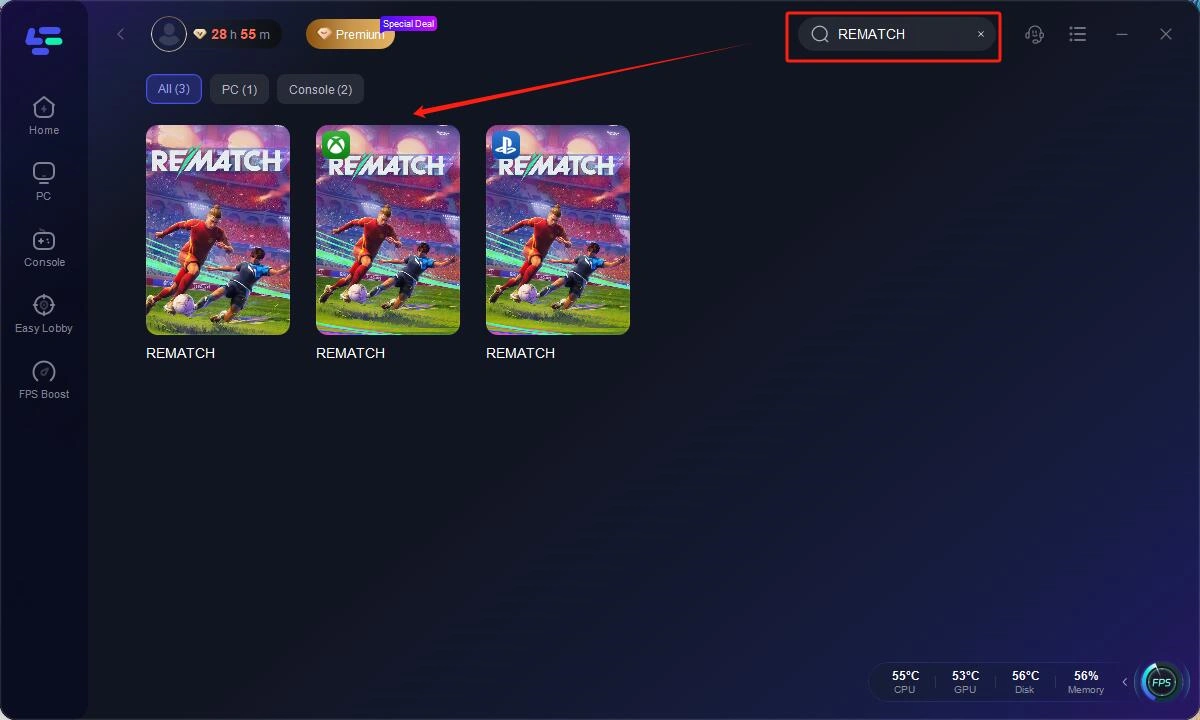
Step 2: Open LagoFast, then click the PC button on the left and search REMATCH in the search bar, click it after it appears.
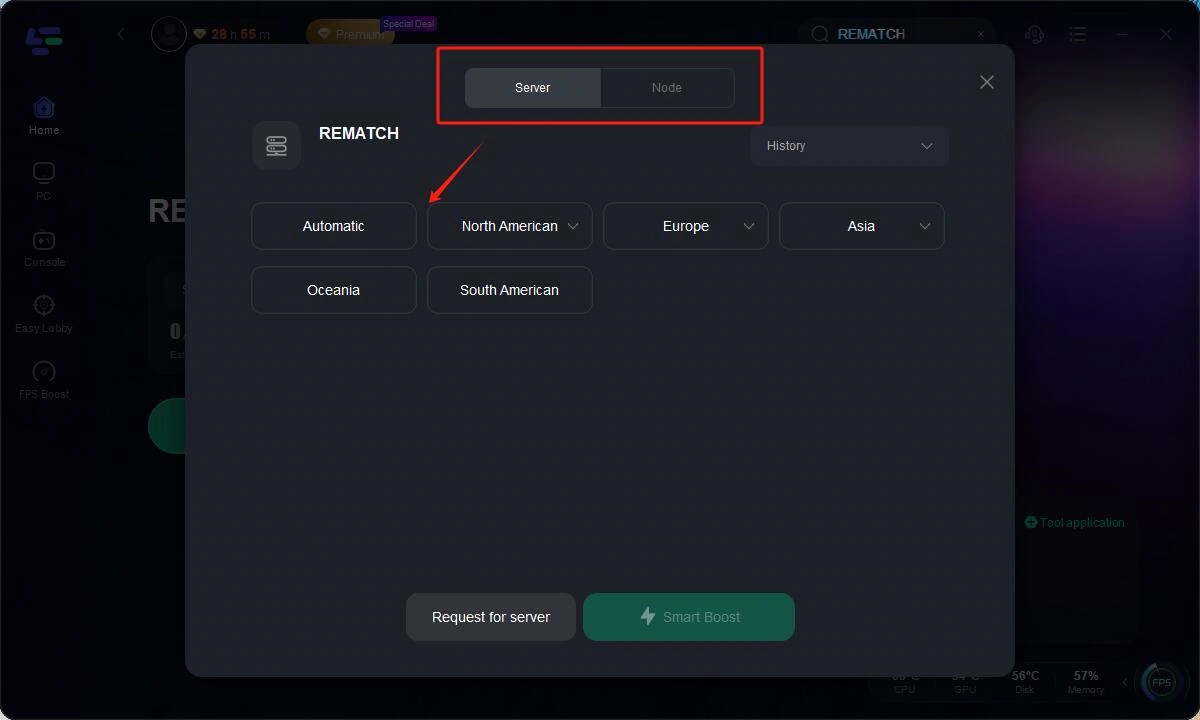
Step 3: Click on “Server” to change to a better server that ensures the gaming experience, then click on “Smart Boost”.
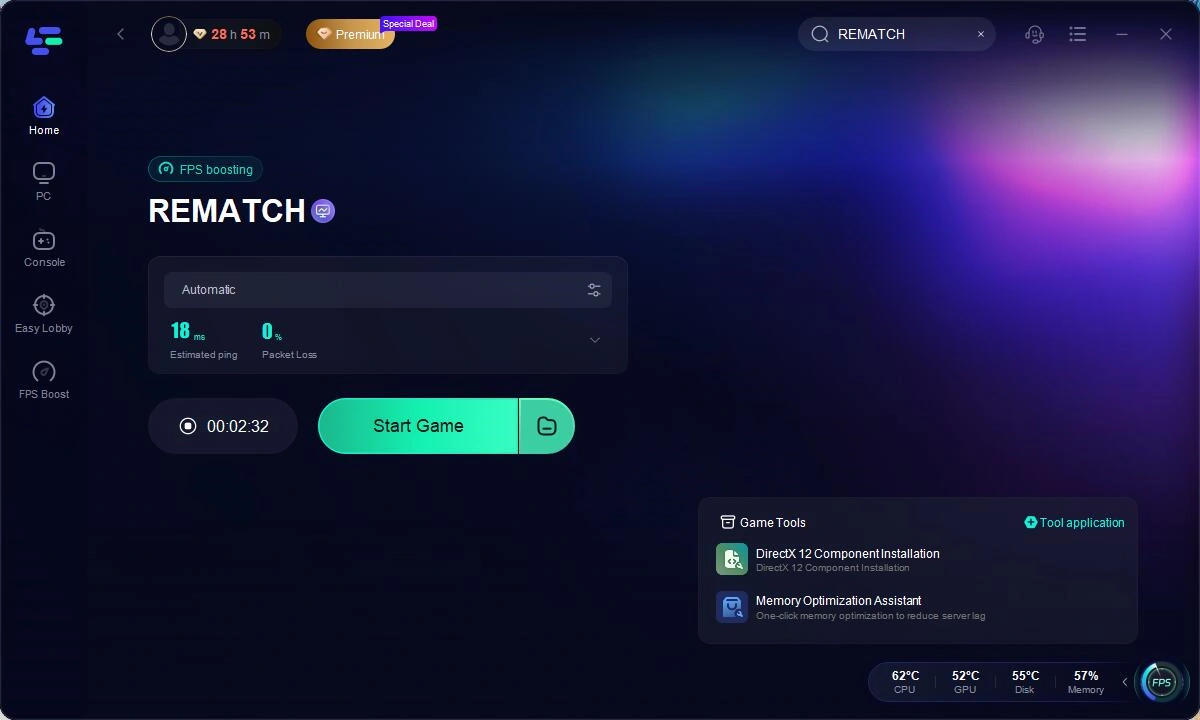
Step 4: Check the specific game ping, packet loss, and multiple path connection on the right side. Finally, click the “Start Game” to play the game.
In conclusion, LagoFast is an excellent tool to enhance your Rematch experience. By following the simple steps outlined above, you can resolve network-related issues and enjoy a smoother, more stable connection, giving you the competitive edge you need to perform at your best.
Conclusion
Rematch errors can be frustrating, but with a little patience and the right troubleshooting steps, you can usually resolve most issues quickly. Whether it’s a matchmaking error, connection issue, or controller not being detected, the solutions provided in this article should help you get back to enjoying the game. Always keep an eye on official announcements regarding server maintenance or downtime, and remember to check for game updates to avoid common bugs.
Boost Your Game with LagoFast for Epic Speed
Play harder, faster. LagoFast game booster eliminates stutter and lags on PC, mobile, or Mac—win every match!
Quickly Reduce Game Lag and Ping!
Boost FPS for Smoother Gameplay!