
Quick Answer:
If you are PUBG stuck on initializing screen, the most common cause is a network routing issue or a corrupted game cache. To fix this immediately, restart your router and flush your DNS. If the problem persists, delete the GameUserSettings.ini file in your AppData folder or use LagoFast Game Booster to optimize your connection to the PUBG servers, which bypasses the common "initializing" hang caused by server-side timeouts.
PUBG: Battlegrounds is a game that demands stability, but many players find themselves staring at the "Initializing" screen for minutes on end. This issue typically occurs when the game client fails to establish a secure handshake with the anti-cheat servers or the main lobby resources. Whether you're launching the game for the first time or getting stuck after a match, this guide provides the technical solutions you need to get back into the action.

- ✅ Reduce Lag and High Ping.
✅ Boost FPS at the Same Time.
✅ Support 8000+ Online Games
✅ Change Server Without Latency.
✅ Multiplatform: PC, Console, Mobile.
✅ End Stuck, Connection & Crashing Issues
Part 1: Why is PUBG Stuck on Initializing Screen?
Part 2: How to Fix PUBG Stuck 5 Min at Initializing
Part 3: Resolving PUBG Stuck on Initializing After Match
Part 4: PUBG Stuck on Loading Screen Windows 11 Fixes
Part 5: Technical Troubleshooting for PUBG Stuck on Initializing PC
Part 6: How to Enhance Your Game Experience with LagoFast Game Booster
Part 8: Advanced Troubleshooting: Anti-Cheat Service Conflicts
Part 9: The Impact of ISP Throttling on PUBG Startup
Part 1: Why is PUBG Stuck on Initializing Screen?
The "Initializing" phase in PUBG is more complex than it looks. During this time, the game is performing several critical tasks:
- Anti-Cheat Verification: The game launches BattlEye or Wellbia to ensure no unauthorized software is running.
- Account Authentication: Your Steam or Epic Games account is verified with the PUBG backend.
- Lobby Resource Loading: The game downloads the latest lobby assets, including your character model and current event banners.
If any of these steps fail due to a slow network, a firewall block, or corrupted local files, you'll find yourself PUBG stuck on initializing screen.
Related Article: PUBG PNC 2026 Drops Guide: How to Get Free Rewards
Part 2: How to Fix PUBG Stuck 5 Min at Initializing
If you've been waiting for more than 5 minutes, the game has likely timed out but hasn't triggered an error message.
- Flush Your DNS: Open Command Prompt as an administrator and type ipconfig /flushdns. This clears old network paths that might be leading to a dead end on the PUBG servers.
- Reset Your Router: Sometimes your ISP's routing to the PUBG data centers becomes congested. A simple power cycle of your router can assign you a fresh IP and a better route.
- Disable IPv6: Many PUBG players have reported that disabling IPv6 in their network adapter settings resolves the "Initializing" hang, as the game's backend sometimes struggles with IPv6 handshakes.
Part 3: Resolving PUBG Stuck on Initializing After Match
Getting stuck on initializing after match is a specific frustration. This usually happens when the game client fails to "re-enter" the lobby after disconnecting from the match server.
- Clear the CohCache: Navigate to your PUBG installation folder and find the CohCache directory. Deleting the contents of this folder forces the game to re-download fresh lobby data, which often fixes the post-match hang.
- Restart Steam/Epic Launcher: Sometimes the link between the game and the launcher breaks after a match. Closing the launcher via Task Manager and restarting it can refresh the authentication token.
Part 4: PUBG Stuck on Loading Screen Windows 11 Fixes
Windows 11 introduced several security features that can interfere with PUBG's anti-cheat systems.
- Disable Core Isolation: Go to Windows Security > Device Security > Core Isolation details. Try toggling "Memory Integrity" off. While this is a security feature, it is known to cause conflicts with older anti-cheat drivers used by PUBG.
- Run as Administrator: Right-click on the PUBG executable (TslGame.exe) and select "Properties." Under the "Compatibility" tab, check "Run this program as an administrator."
- Windows Firewall Exceptions: Ensure that both TslGame.exe and the anti-cheat services are allowed through the Windows Defender Firewall for both Private and Public networks.
Part 5: Technical Troubleshooting for PUBG Stuck on Initializing PC
For a deeper fix, you may need to modify your game's configuration files.
- Delete GameUserSettings: Press Win + R, type %localappdata%, and navigate to TslGame\Saved\Config\WindowsNoEditor. Delete the GameUserSettings.ini file. The game will generate a fresh one on the next launch, resetting any corrupted display or network settings.
- Verify Game Files: In Steam, right-click PUBG > Properties > Installed Files > Verify integrity of game files. This is the "Gold Standard" for fixing missing or corrupted assets.
- Move to SSD: If you are still running PUBG on an HDD, the "Initializing" phase will take significantly longer. Moving the game to an NVMe or SATA SSD can reduce loading times from minutes to seconds.
Part 6: How to Enhance Your Game Experience with LagoFast Game Booster
The most common reason for the "Initializing" hang is actually network jitter and poor routing. Even with high-speed internet, if your packets are taking a convoluted path to the PUBG servers, the authentication will fail. LagoFast(LagoFast Game Booster - Get No Lag and Lower Ping) Game Booster is designed specifically to solve this.
Detailed Steps to Use LagoFast for PUBG:
Click the Free Trial button to download and install LagoFast Free Trial.
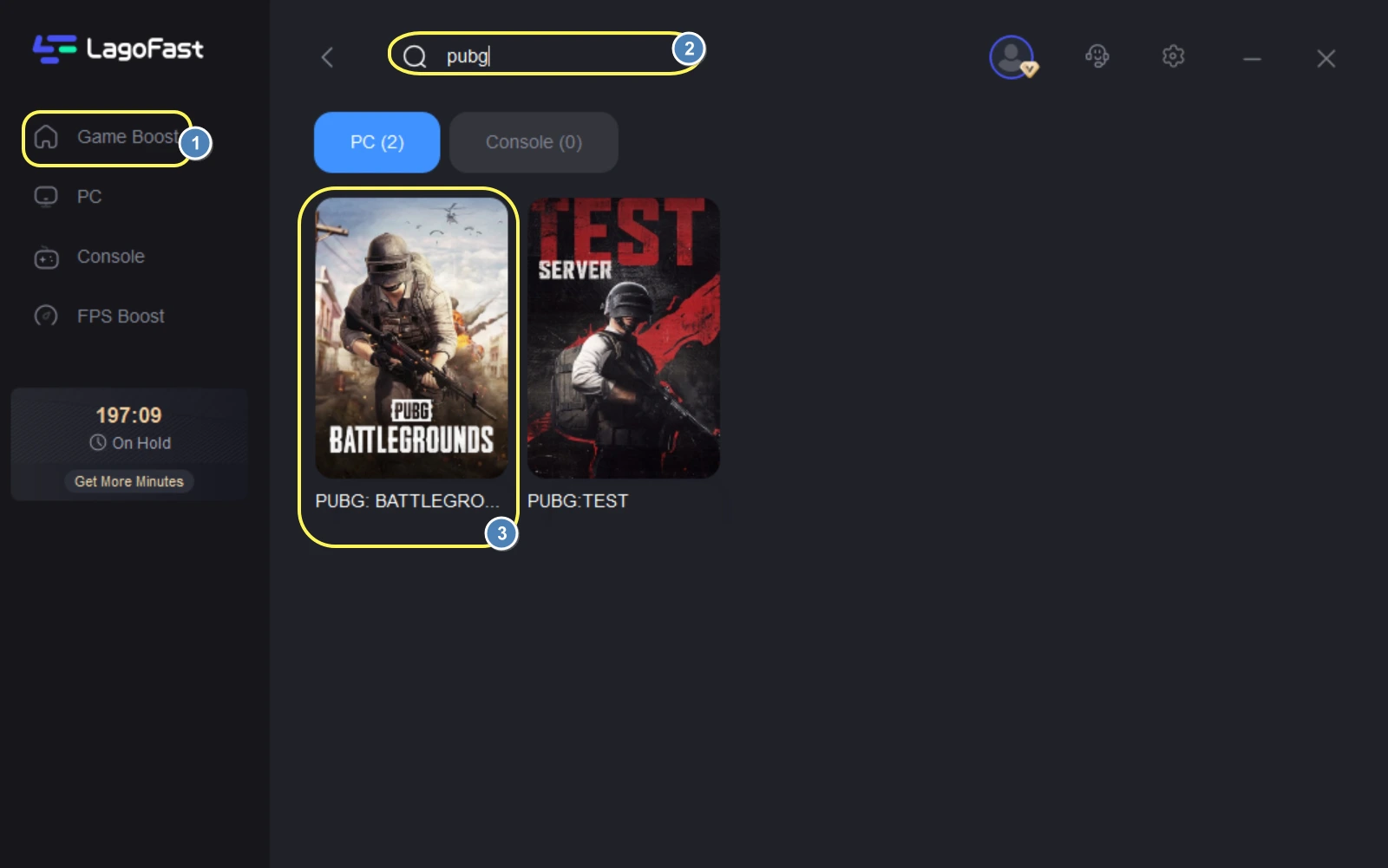
Search for PUBG: Open the app and type "PUBG" in the search bar.
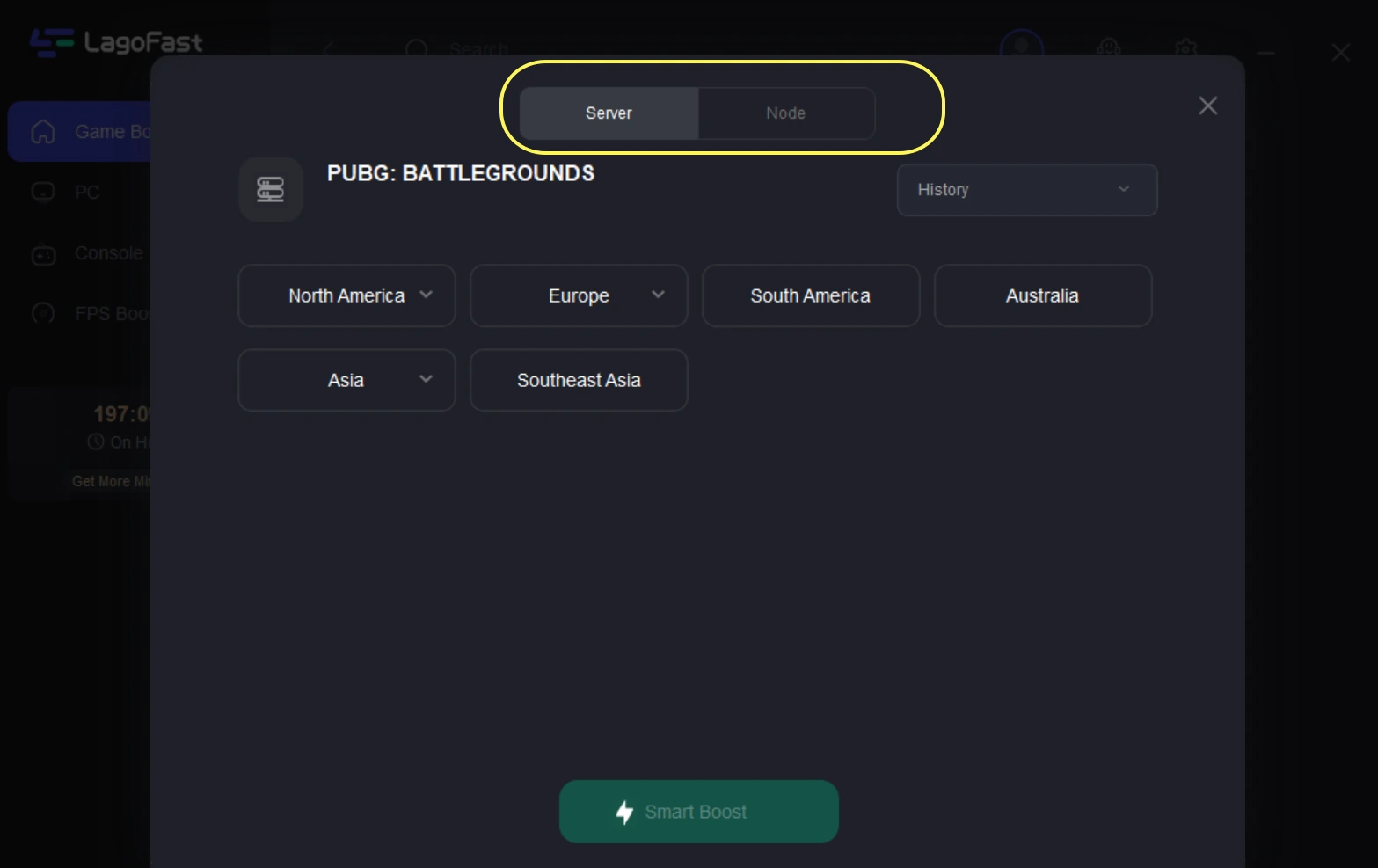
Select Your Region: Choose the server region you play on (e.g., North America, Europe, Asia). LagoFast will show you the real-time ping for each node.
Smart Boost: Click the "Boost" button. LagoFast will optimize your network route, stabilize your connection, and bypass the congested nodes that cause the "Initializing" screen to hang.
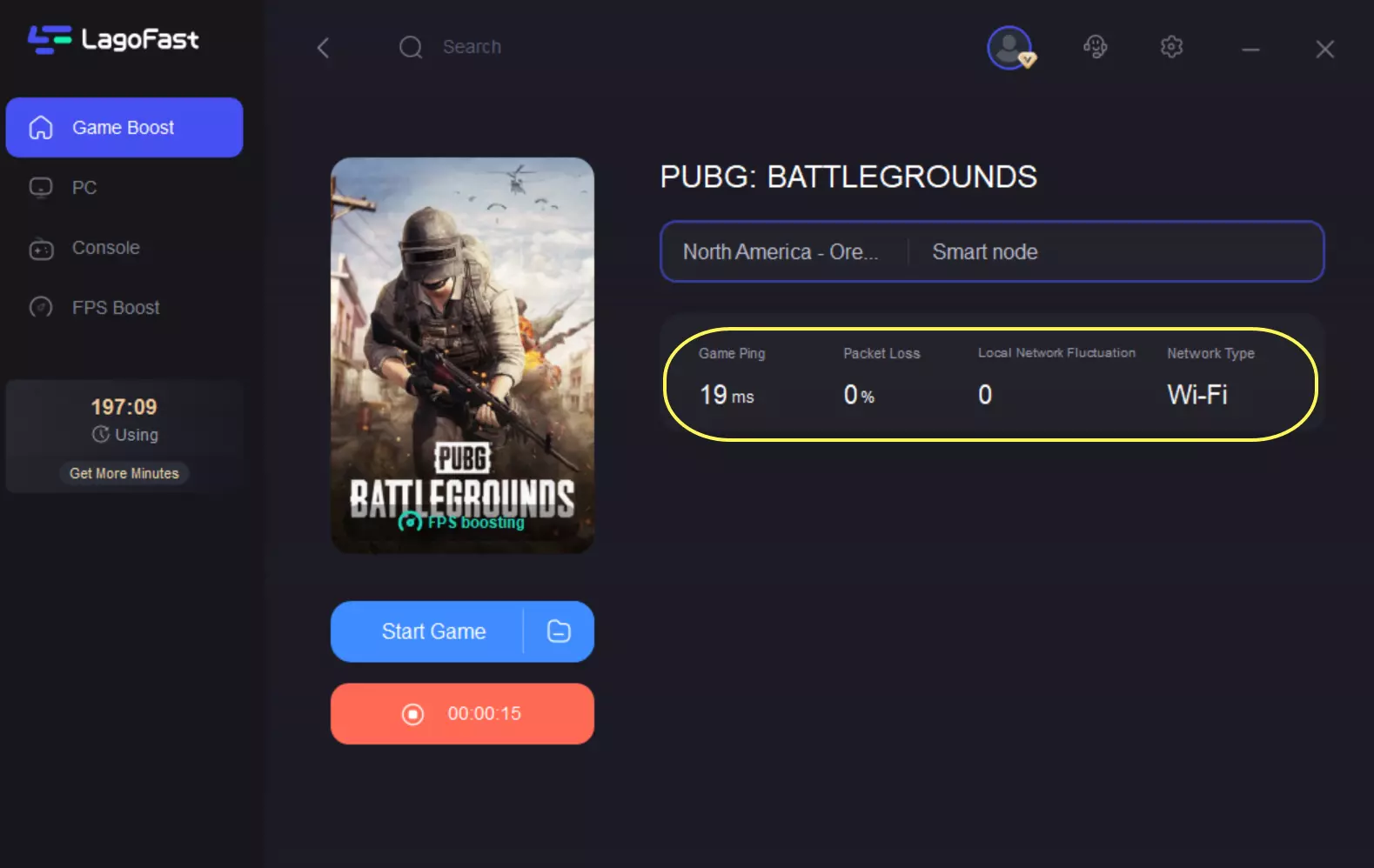
Launch PUBG: Start the game through LagoFast. You'll notice that the "Initializing" phase completes almost instantly, and your in-game ping will be significantly lower.
Part 7: PUBG Initializing FAQ
1. Why is PUBG stuck on initializing for 5 minutes?
This is usually a timeout issue. The game is waiting for a response from the server that isn't coming. It's often caused by a firewall block or a poor network route.
2. Does "Verify Integrity of Game Files" fix the initializing screen?
Yes, in many cases. If a critical file for the anti-cheat or the lobby UI is missing, the game will hang at the initializing stage.
3. Can I fix PUBG stuck on initializing on Xbox?
On console, the best fix is to perform a "Hard Reset" by holding the power button for 10 seconds, then unplugging the power cable for 30 seconds. This clears the system cache.
4. Is the initializing screen related to my GPU?
Rarely. While a GPU driver crash can cause a hang, the "Initializing" screen is primarily a network and CPU-bound process.
5. Why does it only get stuck after a match?
This is often due to a "desync" between your client and the lobby server. Clearing your local CohCache is the most effective fix for this specific scenario.
Part 8: Advanced Troubleshooting: Anti-Cheat Service Conflicts
One of the most overlooked reasons for PUBG stuck on initializing screen is a conflict between different anti-cheat services. If you play other competitive games like Valorant (Vanguard) or Apex Legends (Easy Anti-Cheat), their background services might still be running and interfering with PUBG's BattlEye or Wellbia. These services operate at the kernel level, and having multiple kernel-level drivers active can cause the "Initializing" handshake to hang indefinitely.
To resolve this, open your Task Manager and look for any background processes related to other games' anti-cheats. It is often best to set these services to "Manual" in the Windows Services menu (services.msc) so they only run when you are actually playing those specific games. By ensuring that only PUBG's required anti-cheat is active during launch, you significantly reduce the chances of a startup hang.
Part 9: The Impact of ISP Throttling on PUBG Startup
In some regions, ISPs may identify the high-frequency "heartbeat" packets sent during the PUBG initializing phase as suspicious or low-priority traffic. This can lead to "throttling," where the ISP intentionally slows down these packets, causing the game to wait for a response that arrives too late. This is particularly common during peak evening hours when residential internet usage is at its highest.
Using a dedicated tool like LagoFast helps bypass this ISP-level interference. Because LagoFast routes your traffic through its own private network, your ISP cannot easily identify or throttle the specific packets required for PUBG's initialization. This ensures that your authentication and lobby loading remain fast and consistent, regardless of your ISP's traffic management policies. If you find that you are only stuck on initializing during certain times of the day, ISP throttling is likely the culprit.
Key Takeaways
- Network is Key: Most "Initializing" hangs are caused by poor routing. Use LagoFast Game Booster to ensure a direct path to the servers.
- Refresh Your Cache: Deleting GameUserSettings.ini and clearing the CohCache can resolve persistent loading issues.
- Windows 11 Compatibility: Ensure "Memory Integrity" isn't blocking your anti-cheat drivers.
- Hardware Matters: Running PUBG on an SSD is mandatory for modern performance.
- DNS Flush: A simple ipconfig /flushdns can fix many "ghost" connection issues.
By following these steps, you can ensure that your PUBG stuck on initializing screen issues are a thing of the past, allowing you to focus on the only thing that matters: the Chicken Dinner.
Boost Your Game with LagoFast for Epic Speed
Play harder, faster. LagoFast game booster eliminates stutter and lags on PC, mobile, or Mac—win every match!
Quickly Reduce Game Lag and Ping!
Boost FPS for Smoother Gameplay!