
PUBG: BLINDSPOT is one of 2026’s most anticipated tactical shooters, offering a fresh 5v5 top-down combat experience that emphasizes positioning, teamwork, and tactical awareness. Despite its appeal, players report FPS drops, stuttering, and performance issues that impact responsiveness. This guide covers common causes of FPS instability, in-game optimizations, and practical fixes to help you enjoy smoother gameplay on both mid-range and high-end PCs.

- ✅ Reduce Lag and High Ping.
✅ Boost FPS at the Same Time.
✅ Support 2000+ Popular Online Games.
✅ Change Server without Latency.
✅ Boost Game Loading Speed.
Part 1: Common Performance Issues in PUBG: BLINDSPOT
Part 2: What Causes FPS Drops and Stuttering in PUBG: BLINDSPOT?
Part 3: Best In-Game Settings to Fix PUBG: BLINDSPOT FPS Drops
Part 4: Enhance Game Experience by Using LagoFast Game Booster
Part 5: How to Fix Lags and Stuttering in PUBG: BLINDSPOT During Matches
Part 1: Common Performance Issues in PUBG: BLINDSPOT
Unpredictable Frame Rate Drops During Action
During critical engagements, especially when multiple effects like tactical smokes, explosions, or abilities appear on screen, the frame rate can suddenly drop. This is about maintaining performance when it matters most—a typical challenge for early-access competitive shooters.
Inconsistent Frame Pacing Leading to Stutter
Even with a decent average FPS, the game may feel choppy. Uneven frame delivery disrupts smooth motion and can make aiming feel disconnected.
System Throttling Under Sustained Load
A PC may struggle mid-match due to thermal throttling or background processes, reducing CPU/GPU speed and causing responsiveness dips.
Brief Freezes from Asset Streaming and Data Spikes
Dynamic maps load assets on the fly, causing micro-freezes when entering new areas or encountering players. These momentary freezes can disrupt gunfights.
Minimum Specs Are Just the Starting Point
Meeting the listed minimum requirements (like a GTX 960) only ensures the game runs, not that it runs smoothly. Factors like outdated drivers, unoptimized Windows settings, and background software can all affect performance.
Understanding these patterns sets realistic expectations and guides proactive system tuning.
Part 2: What Causes FPS Drops and Stuttering in PUBG: BLINDSPOT?
Experiencing FPS drops in early-access shooters like PUBG: BLINDSPOT rarely has a single cause. More often, it’s the result of several factors interacting at once. Identifying which ones affect you is the first step toward a smoother game.
Your System Is Divided
Background tasks—like web browsers, streaming software, or even system utilities—compete for your CPU and GPU. This resource contention leaves less power for the game, causing inconsistent performance and stutters during matches.
Your Drivers Are Out of Date
Graphics drivers act as translators between the game and your hardware. Older drivers may lack optimizations for new game builds, leading to rendering errors, crashes, or simply lower FPS than your system should deliver.
The Game Itself Is Still Being Tuned
Early access means the game is actively being optimized. Updates may improve performance, but they can also temporarily introduce new hitches or frame pacing issues as developers adjust the engine based on player data.
Your Hardware Is Getting Too Hot
During extended sessions, heat buildup can force your CPU or GPU to slow itself down to prevent damage. This thermal throttling often results in sudden frame rate drops right when the on-screen action intensifies.
Your Graphics Settings Are Overloading Your PC
Pushing every slider to “Ultra”—especially shadows, effects, and view distance—can overwhelm even capable hardware. These settings have a disproportionate impact on performance in fast-paced titles and often need to be balanced for stability.
In practice, these issues rarely occur alone. A drop in FPS might be triggered by high graphics settings causing your GPU to overheat, which then throttles while background tasks further strain an already busy CPU. Effective troubleshooting means looking at how these factors combine on your specific system.
These factors often combine, making troubleshooting a process of isolating multiple contributing causes.
Part 3: Best In-Game Settings to Fix PUBG: BLINDSPOT FPS Drops
Tweaking your in-game settings is one of the most direct ways to reduce FPS drops and stabilize your framerate. Here are the most effective changes to prioritize.
Start with the Graphics Preset
Switch your overall preset to Medium or Low. This one change automatically optimizes multiple settings for a better balance of visuals and performance.
Reduce Shadows and Effects
Set shadows and visual effects (like explosions, smoke, and particles) to their lowest setting. These are often the most demanding on your GPU and reducing them provides a significant performance boost with minimal impact on gameplay clarity.
Manage Texture Quality
If you experience hitches when entering new areas, try lowering texture quality. This reduces the load on your GPU's memory (VRAM), helping to prevent stuttering caused by asset streaming.
Turn Off Non-Essential Features
Disable settings like motion blur, ambient occlusion, and anti-aliasing. These are visually appealing but costly in terms of performance, and they offer no real advantage in competitive play.
Use a Frame Rate Cap
If your FPS fluctuates wildly, set a cap slightly below your monitor's refresh rate or your system’s average performance. This can prevent sharp drops and create a more consistent, predictable feel.
Consider Resolution Scaling
As a last resort, lowering your render resolution or enabling resolution scaling can drastically reduce GPU load. This will make the image softer but can rescue playable framerates on weaker hardware.
Focusing on these key adjustments will smooth out performance, especially in chaotic firefights where stable FPS matters most.
Part 4: Enhance Game Experience by Using LagoFast Game Booster
While adjusting in-game settings is essential, another approach to improving PUBG: BLINDSPOT performance is using network and system optimization tools, like LagoFast Game Booster.
Although FPS is influenced by hardware and graphics autoscaling, network performance also plays a role in how your game feels — especially in tactical shooters where server updates directly affect motion fluidity. Boosters like LagoFast can:
- Optimize network routes to reduce latency and packet jitter, which reduces micro-stutter that feels like FPS drops when synchronization lags.
- Reduce network congestion to prevent mid-match pauses due to delayed server communication.
These enhancements won’t magically increase raw FPS numbers, but they improve responsiveness and perceived performance — so your game feels smoother even during intense engagements. Tools like these are especially helpful when network lag blends with frame pacing issues, which can amplify stutter sensations similar to FPS drops.
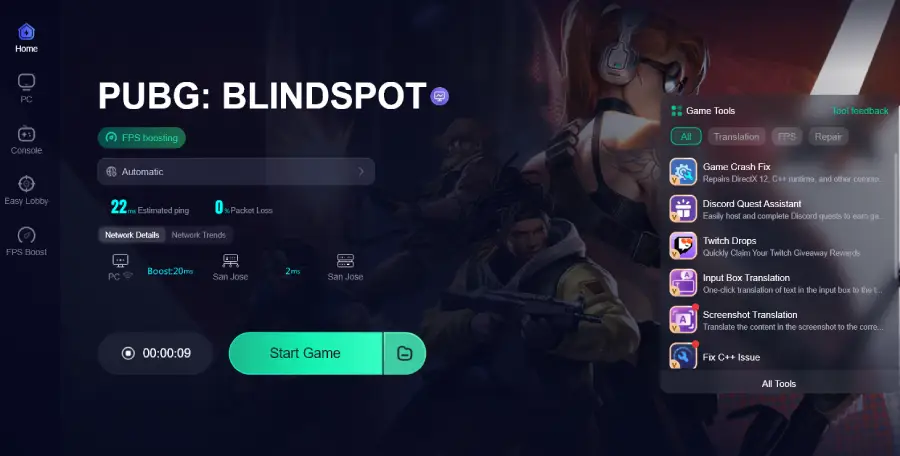
Tutorial To Use LagoFast To Fix PUBG: BLINDSPOT FPS Drops:
Step 1: Click the Free Trial button to download and install LagoFast.
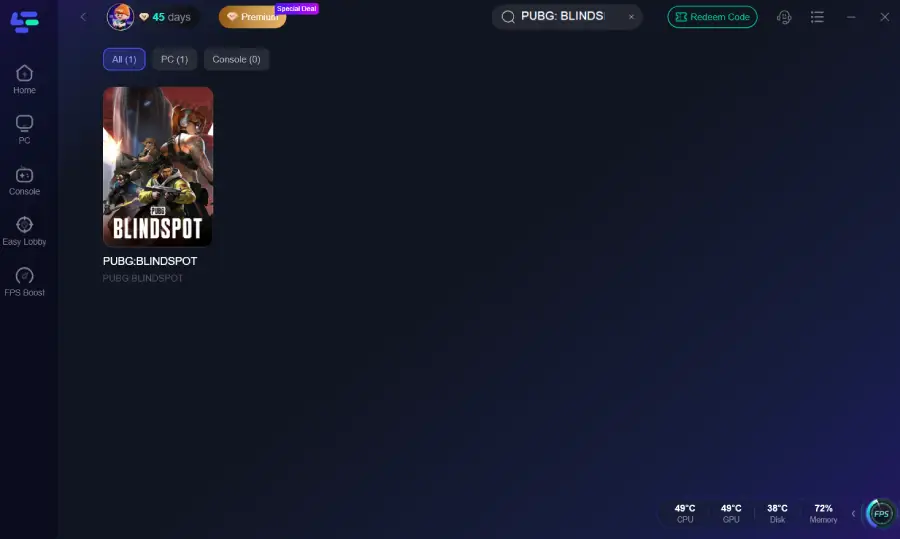
Step 2: After installation, search "PUBG: BLINDSPOT" in the search bar and select the game.
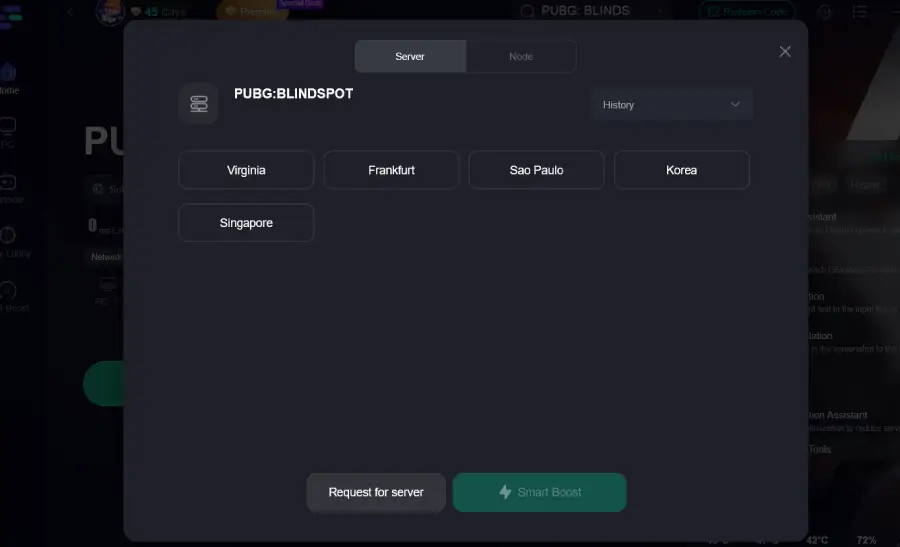
Step 3: Choose your preferred server node and click "Smart Boost" to start optimizing.
Step 4: Launch your game and enjoy smooth, optimized gameplay with lower ping and no stutter.
Part 5: How to Fix Lags and Stuttering in PUBG: BLINDSPOT During Matches
Even after adjusting your in-game settings, you may still experience stutters or lag during firefights. These deeper system tweaks can help stabilize performance when it matters most.
Update Your Graphics Drivers
Visit your GPU manufacturer's website to install the latest driver. These updates often include game-specific optimizations that can resolve stuttering and boost FPS.
Enable Windows Game Mode
Activate Game Mode in Windows settings. This tells your operating system to prioritize resources for the game, limiting background task interference.
Disable Performance Overlays
Turn off in-game overlays from Discord, Steam, Xbox Game Bar, or recording software. These can consume system resources and introduce micro-stutters.
Use High-Performance Power Mode
Set your Windows power plan to "High Performance." This prevents your CPU and GPU from downclocking to save power, keeping performance consistent.
Monitor and Manage Temperature
Overheating causes thermal throttling, leading to sudden FPS drops. Ensure your PC is well-ventilated, clean dust from fans, and consider using a cooling pad for laptops.
Check for Background Resource Spikes
Use Task Manager or a monitoring tool like MSI Afterburner to watch for background apps that spike CPU or RAM usage during gameplay. Close any unnecessary programs.
Install the Game on an SSD
Running the game from an SSD significantly improves asset loading speed. This reduces texture pop-in and helps prevent hitches caused by slow data streaming during intense scenes.
Applying these system-level adjustments alongside your optimized in-game settings will help deliver a smoother, more reliable experience during high-pressure moments.
Conclusion
PUBG: BLINDSPOT delivers tactical depth and fast-paced 5v5 combat, but FPS drops and stuttering can undermine the experience. By adjusting in-game settings, optimizing system resources, and using tools like LagoFast, you can achieve smoother, more responsive gameplay. Stay current with updates, drivers, and system optimizations to ensure consistent performance throughout your matches.

Boost Your Game with LagoFast for Epic Speed
Play harder, faster. LagoFast game booster eliminates stutter and lags on PC, mobile, or Mac—win every match!
Quickly Reduce Game Lag and Ping!
Boost FPS for Smoother Gameplay!