
Few things are more frustrating than waiting for a highly anticipated game like Pragmata, only to face launch issues the moment you try to play. Whether it’s a black screen, startup crash, or the game simply refusing to open, these problems can ruin the experience before it even begins. The good news is that most of these issues are fixable. In this guide, we’ll break down why Pragmata won’t launch on PC and PS5 and show you practical solutions, including a faster, all-in-one fix.

- ✅ Reduce Lag and High Ping.
✅ Boost FPS at the Same Time.
✅ Support 8000+ Popular Online Games.
✅ Change Server without Latency.
✅ Boost Game Loading Speed.
Part 1: Pragmata NOT LAUNCHING: Why Does It Happen?
Part 2: How to Fix Pragmata NOT LAUNCHING on PC & PS5? – Top Solutions
Part 1: Pragmata NOT LAUNCHING: Why Does It Happen?
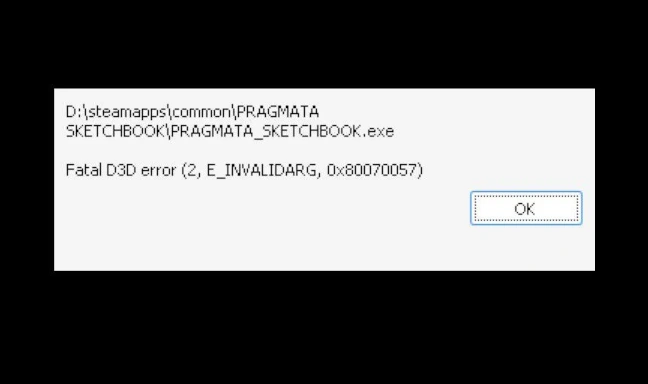
When a game as visually and technically demanding as Pragmata fails to start, the root cause is often a conflict between the software and the hardware environment. These issues can range from simple permission errors to deep-seated driver incompatibilities.
Common Causes for PC and PS5 Launching Issues:
- Outdated System Software: Running an older version of Windows 11 or PS5 firmware.
- Corrupted Game Files: Data packets that were damaged during the download or installation process.
- Incompatible Hardware: PC components that don't meet the minimum RE Engine requirements.
- Administrative Restrictions: Security software or firewalls blocking the game's executable.
- External Interference: USB drives or outdated peripheral drivers causing "startup crashes."
Pragmata NOT LAUNCHING on PC
On PC, launching issues often stem from the diversity of hardware configurations. The most frequent culprits include outdated GPU drivers (especially for NVIDIA and AMD users), background applications consuming too much RAM, or the game lacking administrator privileges. Furthermore, if your PC does not meet the minimum requirement of 16GB RAM and a DirectX 12 compatible card, the game may simply refuse to load.
Pragmata NOT LAUNCHING on PS5
For console players, the issues are usually more contained but equally annoying. A Pragmata not launching PS5 error is typically caused by a corrupted cache, an interrupted system update, or issues with the game being stored on an external M.2 SSD that isn't performing up to spec. In some cases, a "black screen" on launch can be attributed to the console's HDCP settings or a localized database error.
Part 2: How to Fix Pragmata NOT LAUNCHING on PC & PS5?
All-In-One Solution: LagoFast
While manual troubleshooting can eventually solve startup errors, it is often a time-consuming process of trial and error. The most efficient and reliable way to ensure Pragmata launches every time is by using LagoFast. As a premier game booster, LagoFast is specifically designed to tackle the underlying network and system bottlenecks that cause launching failures, freezing, and high ping. Its specialized "Game Fix" protocols can automatically optimize your system settings to bypass startup crashes on PC and stabilize connections on PS5.
Key Features of LagoFast:
- One-Click Optimization: Instantly fixes launching, crashing, and black screen issues.
- FPS Boost & Lag Reduction: Maximizes your hardware's potential for a smoother Pragmata experience.
- Global Server Support: Provides stable routes to bypass regional server outages or high latency.
- Multi-Platform Compatibility: Works seamlessly across PC and consoles to ensure your lunar journey is uninterrupted.
- Smart Troubleshooting: Automatically detects and resolves configuration conflicts that manual steps might miss.
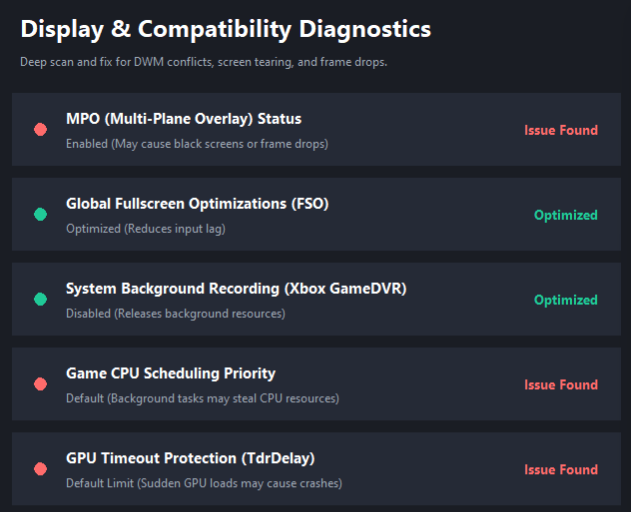
- Display & Compatibility Diagnostics: Performs a deep system scan to detect and fix DWM conflicts, screen tearing, and frame drops, ensuring stable visuals and consistent performance.
Tutorial to Use LagoFast to Fix Pragmata NOT LAUNCHING on PC:
Step 1: Click the Free Trial button to download and install LagoFast.
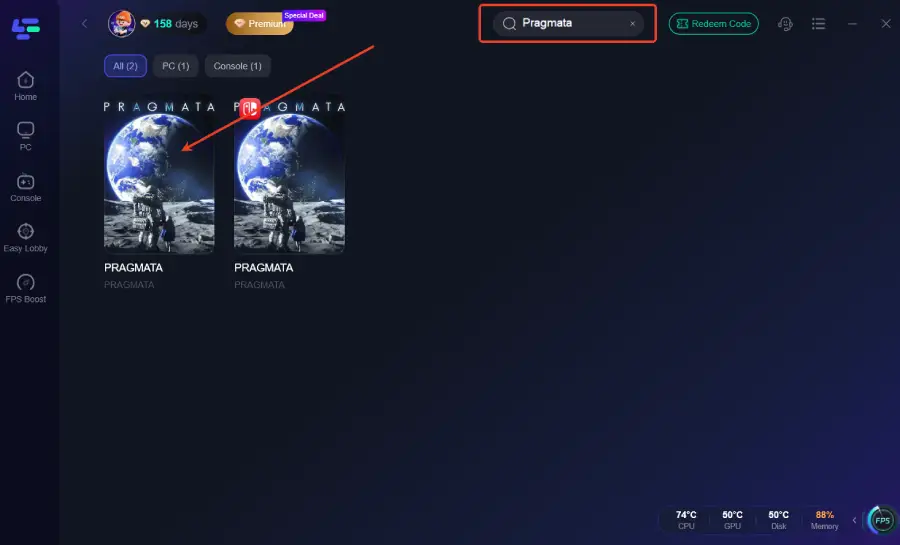
Step 2: Open LagoFast, then click the PC button on the left and search for Pragmata in the search bar and click it after it appears.
Step 3: Click the Fixed Game Crashes Tool on the right.
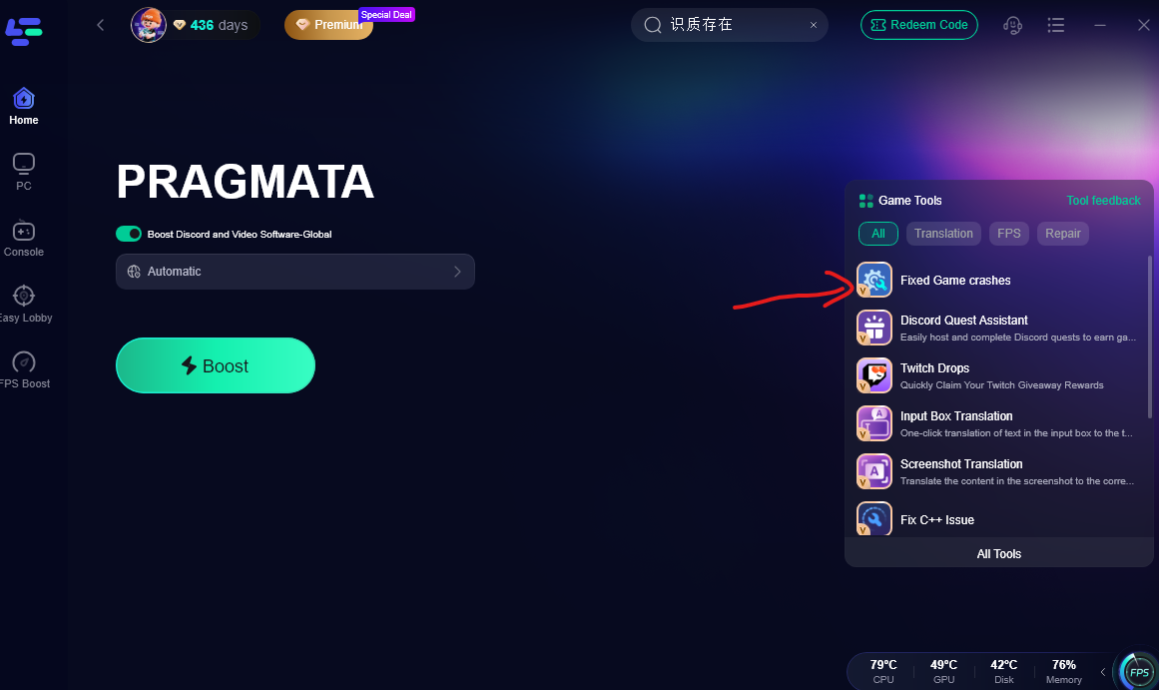
This tool can perform a deep diagnostic scan to identify and resolve display and compatibility issues, including DWM conflicts, screen tearing, and frame drops, ensuring smoother visuals and more stable performance during gameplay.
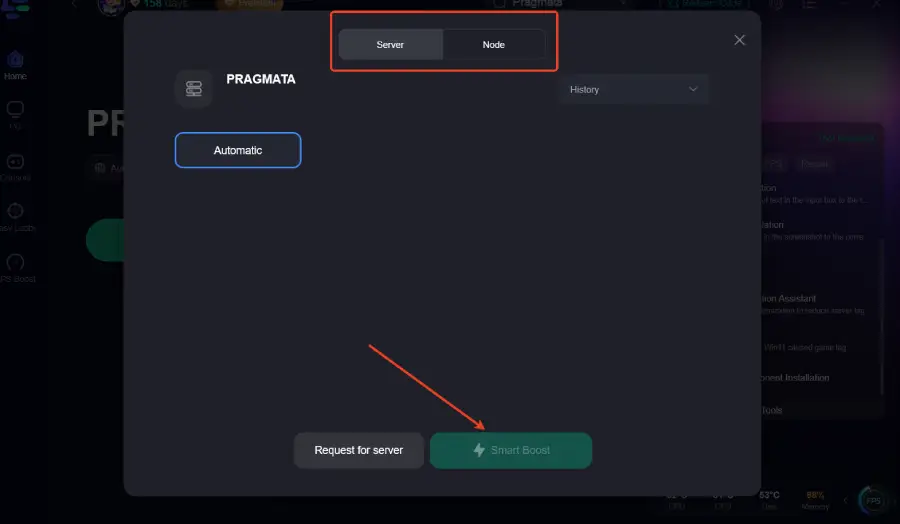
Step 4: Click on “Server” to change to a better server that ensures a better gaming experience, then click on “Smart Boost” to fix the Pragmata NOT LAUNCHING Issues.
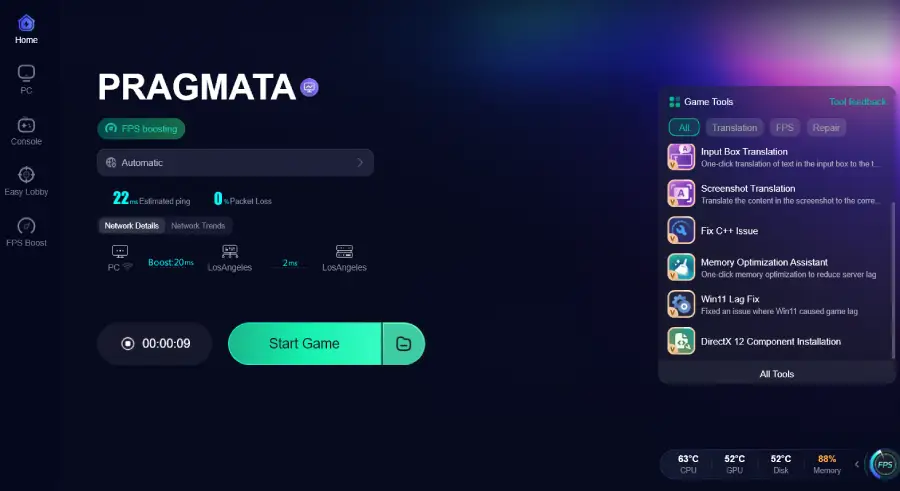
Step 5: Check the specific game ping, packet loss, and multiple path connections on the right side. Finally, click the “Start Game” to play the game.
Tutorial to Use LagoFast Box to Fix Pragmata NOT LAUNCHING on Consoles:
Step 1: Get the LagoFast Console App on your phone to manage the LagoFast Box.
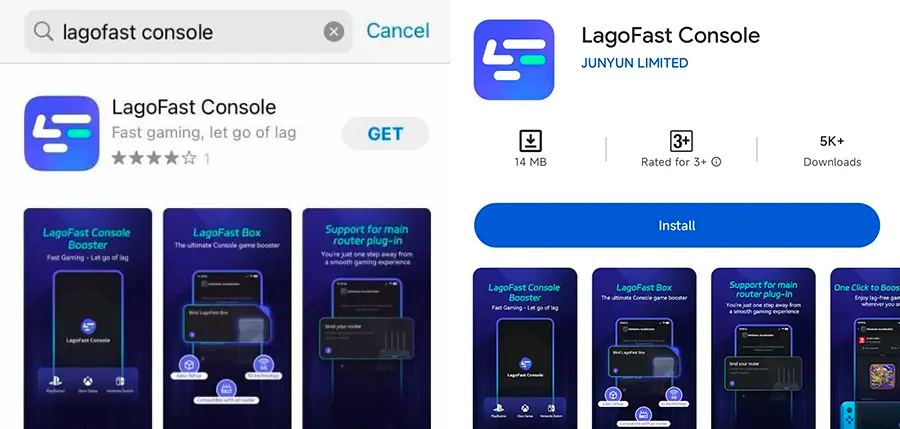
Step 2: Connect your LagoFast Box to your router and console PS5 or Xbox, selecting either a wired or wireless connection.
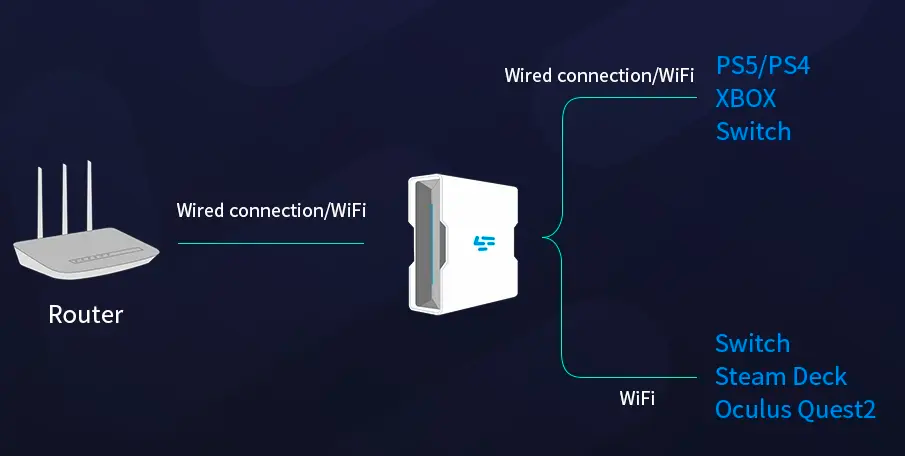
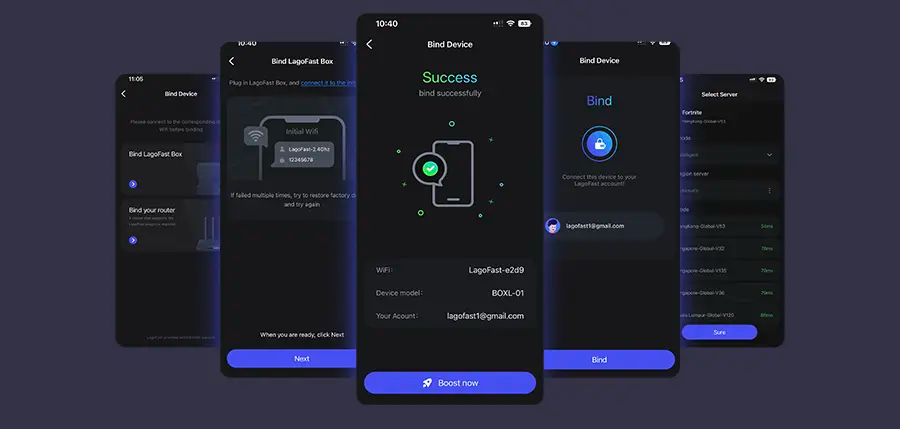
Step 3: Open the LagoFast Console App. After completing the binding process with the LagoFast Box, proceed to boost Pragmata and fix the NOT LAUNCHING issue within the app.
If you prefer to take the DIY route, here are six manual methods to address the Pragmata not starting issue. Please note that while these steps are helpful, LagoFast is a much more efficient and effective solution, as it automates these optimizations and prevents them from recurring.
PC Solution 1: Verify Integrity of Game Files (Steam)
If your installation is incomplete, Pragmata will crash before it even reaches the main menu.
Step 1: Open your Steam Library and right-click on "Pragmata."
Step 2: Select "Properties" and then navigate to the "Installed Files" tab.
Step 3: Click on "Verify integrity of game files."
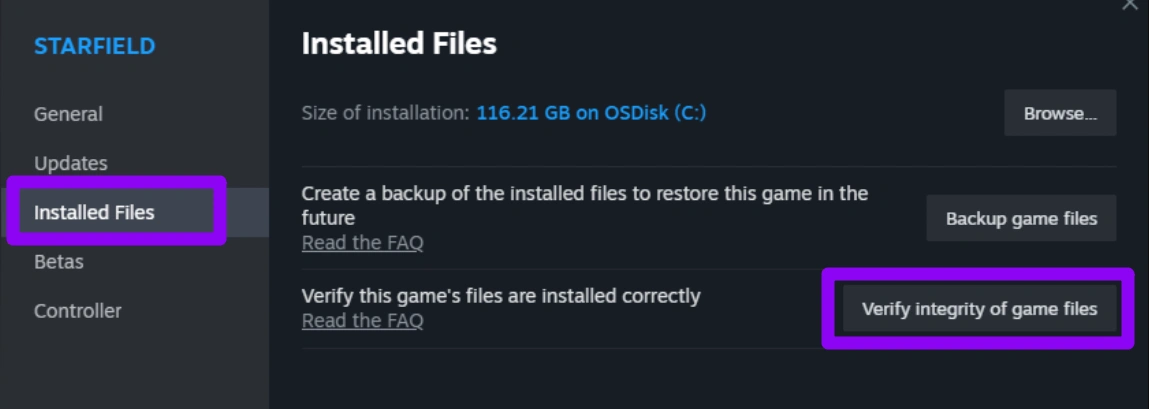
Step 4: Wait for Steam to scan and redownload any missing or corrupted data.
Step 5: Relaunch the game to see if the startup crash is resolved.
PC Solution 2: Run as Administrator and Disable Fullscreen Optimizations
Windows sometimes restricts game permissions, causing the "Pragmata won't launch" error.
Step 1: Go to the Pragmata installation folder (usually under SteamApps/common).
Step 2: Right-click the PRAGMATA.exe file and select "Properties."
Step 3: Under the "Compatibility" tab, check "Run this program as an administrator."
Step 4: Check the box for "Disable fullscreen optimizations."
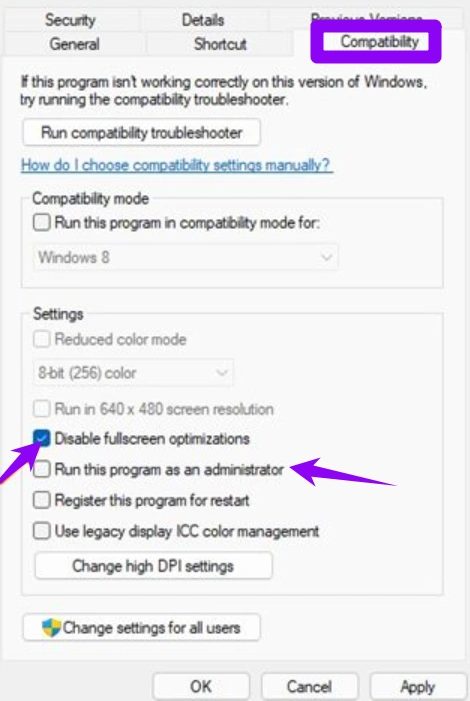
Step 5: Apply changes and try launching the game directly from the folder.
PC Solution 3: Update Graphics Drivers and Windows
Pragmata's RE Engine requires the latest architecture to function correctly.
Step 1: Open your GPU software (NVIDIA GeForce Experience or AMD Adrenaline).
Step 2: Check for the latest "Game Ready" driver updates and install them.
Step 3: Press Win + I to open Windows Settings and go to "Windows Update."
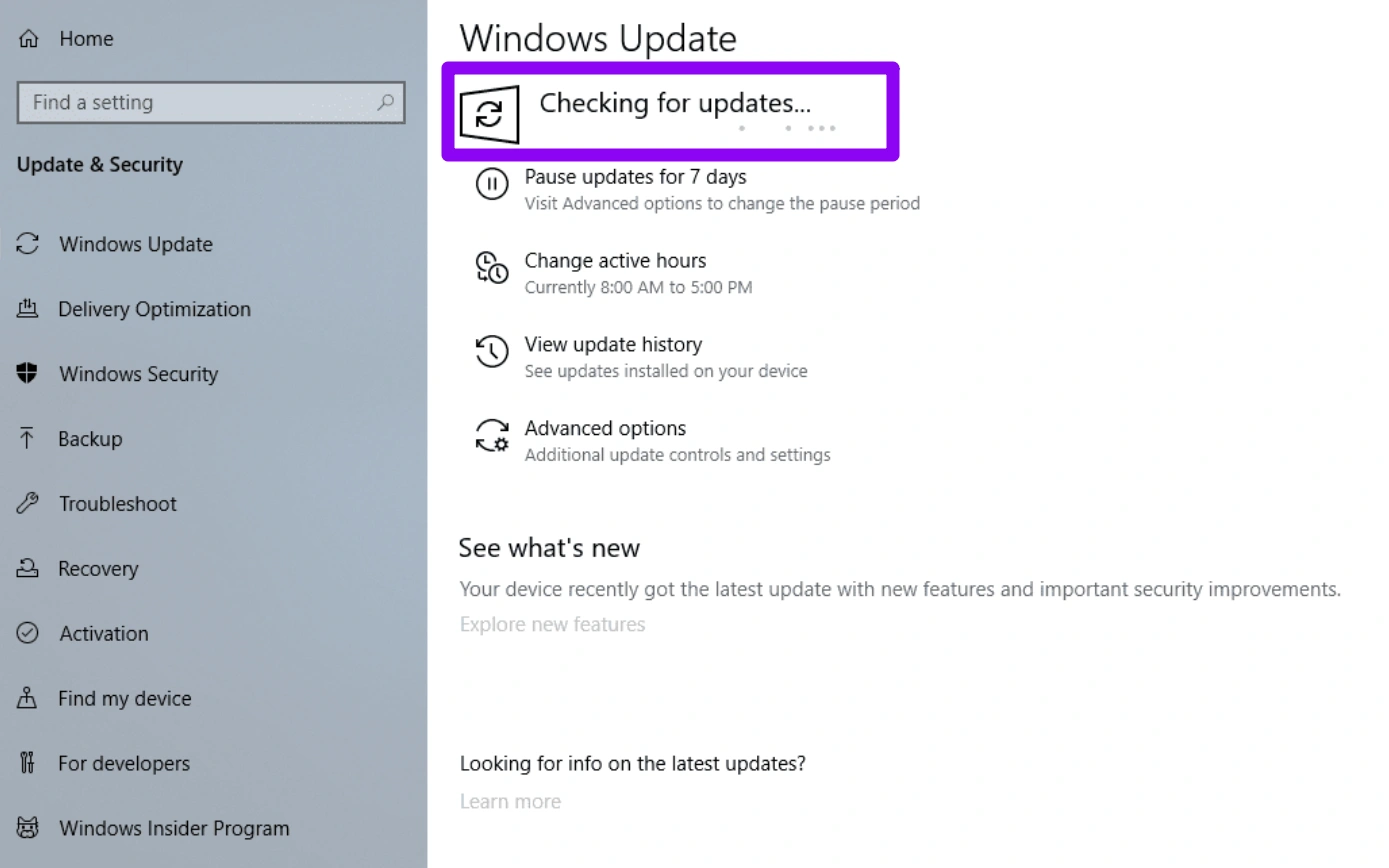
Step 4: Click "Check for updates" and install any pending system patches.
Step 5: Restart your PC and attempt to launch the game again.
PS5 Solutions 1: Rebuild PS5 Database
A cluttered system database can prevent large AAA titles like Pragmata from loading.
Step 1: Turn off your PS5 completely (do not use Rest Mode).
Step 2: Hold the power button for about 7 seconds until you hear a second beep.
Step 3: Connect your DualSense controller via USB and press the PS button to enter Safe Mode.
Step 4: Select Option 5: "Clear Cache and Rebuild Database" and click "Rebuild Database."
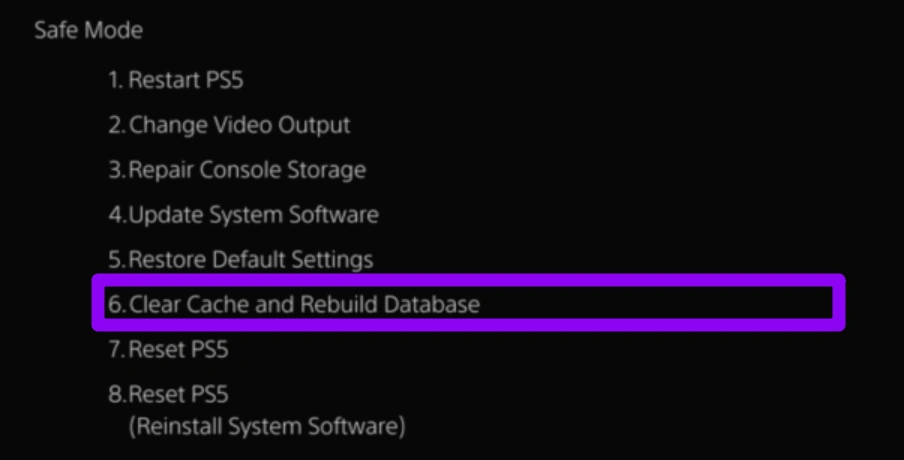
Step 5: Once the process finishes and the console restarts, try launching Pragmata.
PS5 Solutions 2: Check for Game and System Updates
Missing a day-one patch is a common reason for Pragmata not launching PS5.
Step 1: On the PS5 home screen, highlight the Pragmata icon.
Step 2: Press the "Options" button on your controller.
Step 3: Select "Check for Update" and install any available versions.
Step 4: Go to "Settings", select "System", and select "System Software Update and Settings."
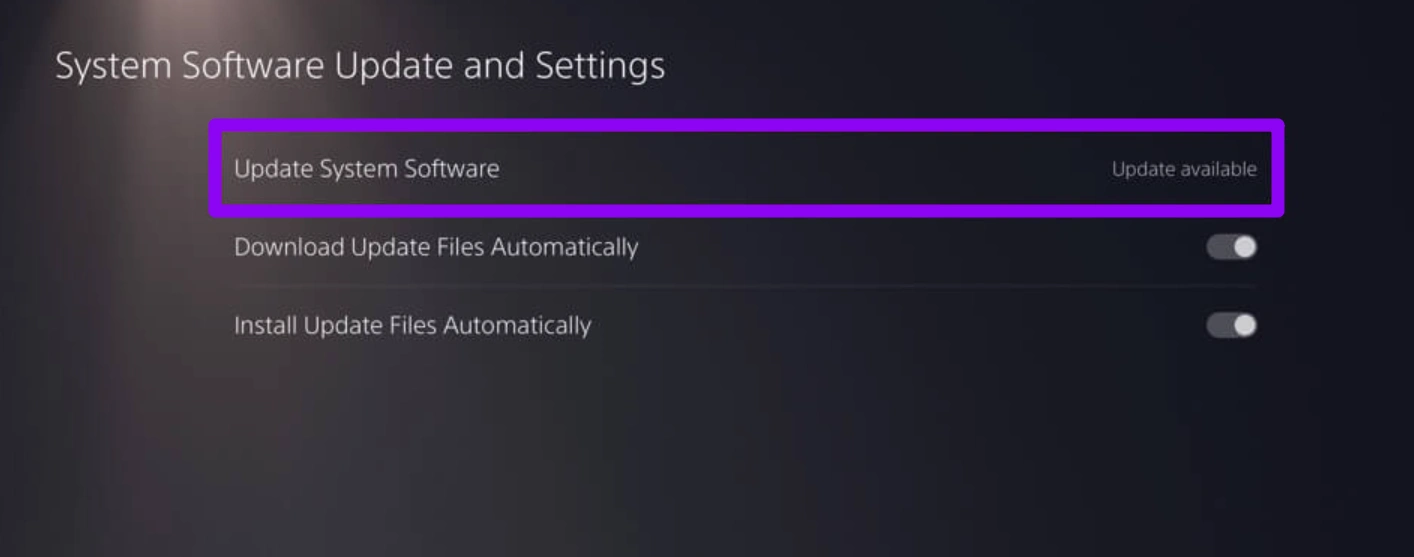
Step 5: Ensure your system software is up to date, then restart and launch.
PS5 Solutions 3: Reinstall the Game to Internal Storage
If you are using an external drive, the read speeds might be too slow for Pragmata’s assets.
Step 1: Go to "Settings" and select "Storage" and select the drive where Pragmata is installed.
Step 2: Delete the game from your console.
Step 3: Go to your Game Library and select Pragmata to redownload it.
Step 4: Ensure the installation is directed to the "Console Storage" (internal SSD).
Step 5: Wait for the download to finish completely before attempting to open the game.
Conclusion
Dealing with Pragmata not launching, crashing, or freezing can be frustrating, but it’s rarely a permanent problem. Whether the issue comes from system conflicts, outdated software, or corrupted files, there are multiple ways to fix it on both PC and PS5. While manual solutions can work, they often require time and technical effort. For a faster and more reliable fix, LagoFast provides a streamlined approach that tackles multiple issues at once, helping you get back into the game without the hassle.
Boost Your Game with LagoFast for Epic Speed
Play harder, faster. LagoFast game booster eliminates stutter and lags on PC, mobile, or Mac—win every match!
Quickly Reduce Game Lag and Ping!
Boost FPS for Smoother Gameplay!