
Phasmophobia has become one of the most iconic co-op horror games in recent years. With its chilling ghost-hunting gameplay, it’s best experienced with friends. However, many players encounter frustrating issues when trying to play online. Whether it’s being unable to connect to lobbies, timing out while loading, or encountering broken voice chat, the Phasmophobia multiplayer fix is a hot topic for gamers looking to get back into haunted houses with their team.
This guide will walk you through the game’s multiplayer features, explain how to team up with friends, detail why Phasmophobia multiplayer might stop working, and offer proven solutions, including LagoFast, a top tool for fixing online connection issues. Let’s dive in.

Part 1: Phasmophobia Co-op Features
Part 2: How to Play Phasmophobia with a Friend
Part 3: Why Phasmophobia Multiplayer Won’t Work
Part 4: How to Fix Phasmophobia Multiplayer Online Won’t Work
Part 1: Phasmophobia Co-op Features

Phasmophobia’s multiplayer mode is at the heart of its appeal. Players can join up in teams of four to explore haunted locations, identify spirits, and complete various objectives. What makes its multiplayer compelling?
- Shared ghost hunting: Each player takes on a role, from using the EMF reader to managing sanity levels.
- Voice recognition: The game uses proximity chat and ghost voice detection, increasing immersion and requiring coordination.
- Multiple maps and missions: Every session feels different thanks to randomized ghost types, map layouts, and weather.
- Cross-platform play: Whether you're on Steam VR or desktop, friends can join in with minimal hardware restrictions.
Despite all these features, sometimes the game’s network functionality doesn’t work as expected. Many players have reported getting stuck in loading screens, being unable to join lobbies, or losing connection mid-game. Fortunately, the Phasmophobia multiplayer fix isn't too complicated, if you know where to look.
Part 2: How to Play Phasmophobia with a Friend
Before exploring fixes, let’s quickly ensure you're setting up your co-op session correctly. Here's how to play with friends in Phasmophobia:
- Step 1. Launch Phasmophobia from Steam.
- Step 2. From the main menu, choose “Play”.
- Step 3. Select “Private” to host a lobby for friends.
- Step 4. You’ll receive a Room Code; share this with your friend(s).
- Step 5. Have them go to “Play,” choose “Join Private,” and enter the Room Code.
- Step 6. Once everyone’s in, you can get ready and start the ghost hunt.
This process usually works fine, but if your friends can’t connect or keep getting disconnected, something deeper may be wrong. Let’s look at why multiplayer sometimes fails to function.
Part 3: Why Phasmophobia Multiplayer Won’t Work
There are several reasons Phasmophobia’s online co-op can stop working properly. Below are the most common causes that require a Phasmophobia multiplayer fix:
- Server issues or outages (especially during CloudFlare disruptions)
- High ping or unstable internet connection
- Firewall or antivirus blocking the game
- Incompatible game versions
- Voice chat causing desync or crashes
- Steam or router NAT settings conflicting with multiplayer
Notably, players in Siberia, the Ural region, and southern Russia have reported significant problems caused by CloudFlare outages, resulting in game crashes and login issues. Thankfully, there’s a robust solution to get around these roadblocks.
Part 4: How to Fix Phasmophobia Multiplayer Online Won’t Work
When Phasmophobia’s multiplayer fails to work, it can feel like there's no clear solution. But you have options. Below are the best ways to solve Phasmophobia multiplayer not working, including a powerful tool to help you get back in-game faster.
LagoFast - The Best Phasmophobia Multiplayer Fix
One of the most effective tools to fix online multiplayer issues in Phasmophobia is LagoFast. This gamer-optimized accelerator is specifically designed to stabilize connections and reduce ping, particularly useful during server disruptions like those seen in parts of Russia affected by CloudFlare outages.
Why use LagoFast?
- Speeds up multiplayer matchmaking and lobby entry
- Bypasses regional network congestion and ISP throttling
- Minimizes lag and packet loss
- Works without requiring deep system changes
- User-friendly interface with one-click optimization
For players in Siberia, the Ural regions, and southern Russia, where connecting to Phasmophobia has been nearly impossible, LagoFast can reroute your connection to functioning routes, letting you enter lobbies and communicate with friends seamlessly.
Tutorial to use LagoFast to Fix Phasmophobia Multiplayer Issues on PC:
Step 1: Click the Free Trial button to download and install LagoFast.
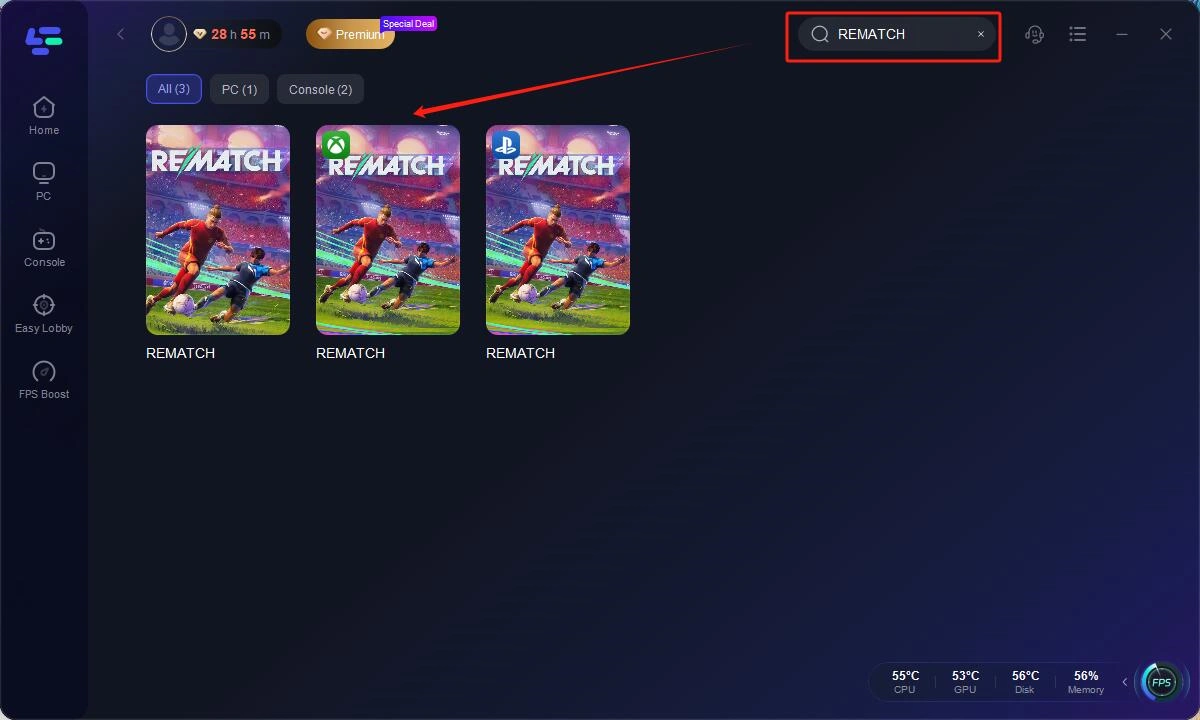
Step 2: Open LagoFast, then click the PC button on the left and search REMATCH in the search bar, click it after it appears.
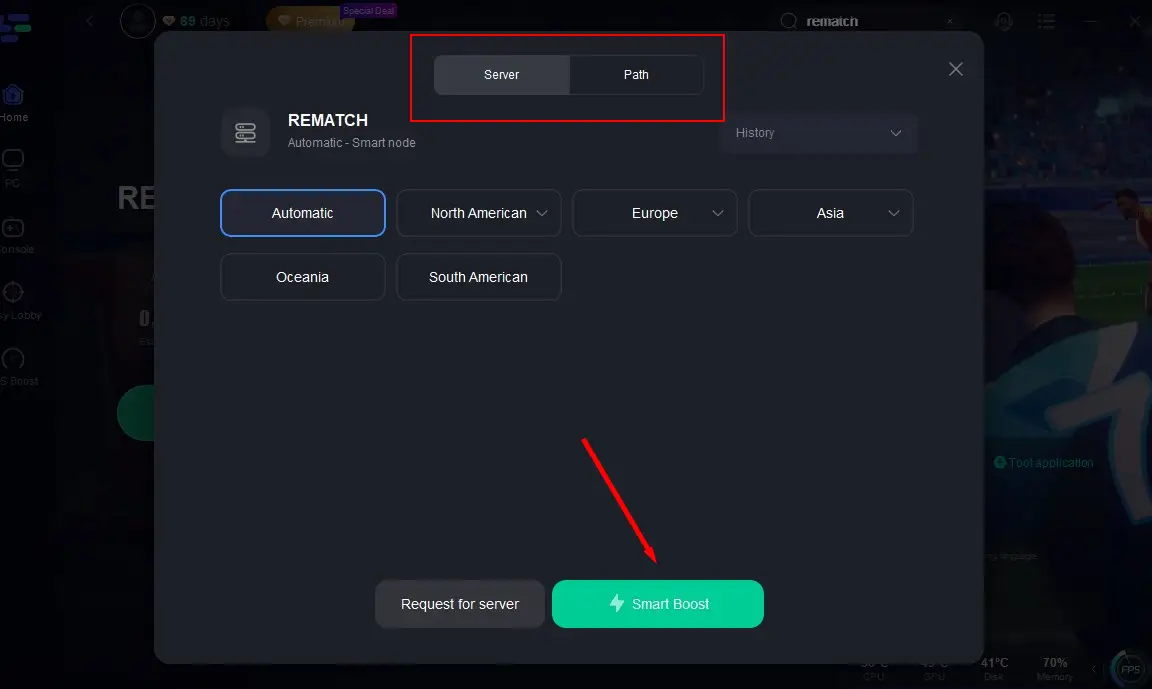
Step 3: Click on "Server" to change to a better server that ensures the gaming experience, then click on "Smart Boost".
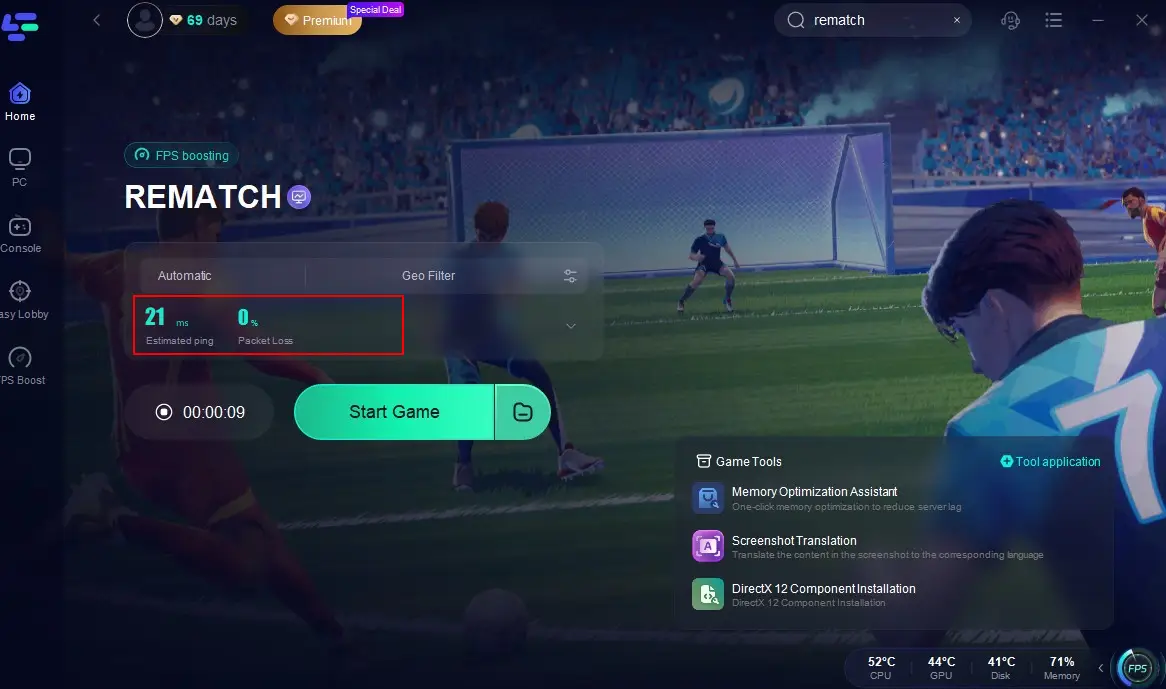
Step 4: Check the specific game ping, packet loss, and multiple path connection on the right side. Finally, click the "Start Game" to play the game.
Verify Game Files via Steam
Corrupted or missing files can prevent proper online play.
Steps:
Step 1. Open Steam and go to your Library.
Step 2. Right-click Phasmophobia, then click Properties.

Step 3. Go to the Installed Files tab.
Step 4. Click "Verify integrity of game files."

Step 5. Wait for the scan to complete; it may take a few minutes.
Step 6. Relaunch the game and try joining a lobby again.
Change NAT Type on Your Router
A strict or moderate NAT type can block multiplayer sessions.
Steps:
Step 1. Access your router’s IP via browser (usually 192.168.0.1 or 192.168.1.1).

Step 2. Log in using your admin credentials.
Step 3. Navigate to UPnP settings and enable it.

Step 4. If UPnP fails, try port forwarding for Steam: open ports 27015-27030.
Step 5. Save changes and restart your router.
Step 6. Reboot your PC and relaunch Phasmophobia.
Reset Windows Firewall and Add Exceptions
The firewall may be blocking Phasmophobia’s online communication.
Steps:
Step 1. Open Control Panel → System and Security → Windows Defender Firewall.

Step 2. Click "Allow an app through firewall."

Step 3. Find Phasmophobia and ensure both Private and Public are checked.
Step 4. Click Change settings → Allow another app if Phasmophobia is missing.
Step 5. Also allow Steam to pass through.
Step 6. Restart your PC and relaunch the game.
Disable Voice Recognition Temporarily
Voice chat bugs can interfere with online play.
Steps:
Step 1. Launch Phasmophobia.
Step 2. Go to Settings → Audio.
Step 3. Turn Push-to-Talk OFF and Voice Recognition OFF.
Step 4. Save settings and exit.
Step 5. Rejoin a multiplayer game.
Step 6. If successful, try re-enabling voice features one at a time.
Use Steam Friends Join Instead of Code
Sometimes, Room Code joining doesn’t work due to sync errors.
Steps:
Step 1. Open Steam Overlay with Shift + Tab.
Step 2. Right-click your friend’s name.
Step 3. Click “Join Game” instead of using the code.

Step 4. If it fails, have your friend invite you via the overlay.
Step 5. Accept the invite and wait for the connection to establish.
Step 6. If it works, continue using Steam friend join for future sessions.
Conclusion
Phasmophobia offers one of the most immersive co-op horror experiences, but that experience can be disrupted by multiplayer issues such as connectivity failures, voice chat bugs, and lobby errors, especially for players in regions like Siberia, the Ural area, and southern Russia, where recent CloudFlare outages have caused widespread disruptions. The most reliable solution in 2025 is LagoFast, which improves matchmaking speed, reduces lag, and bypasses regional connection problems. For those who prefer manual methods, the five step-by-step fixes provided in this guide offer effective alternatives to get you back in the game. Whether you choose LagoFast or a hands-on approach, you don’t have to let technical problems stop your ghost-hunting adventures.
Boost Your Game with LagoFast for Epic Speed
Play harder, faster. LagoFast game booster eliminates stutter and lags on PC, mobile, or Mac—win every match!
Quickly Reduce Game Lag and Ping!
Boost FPS for Smoother Gameplay!