
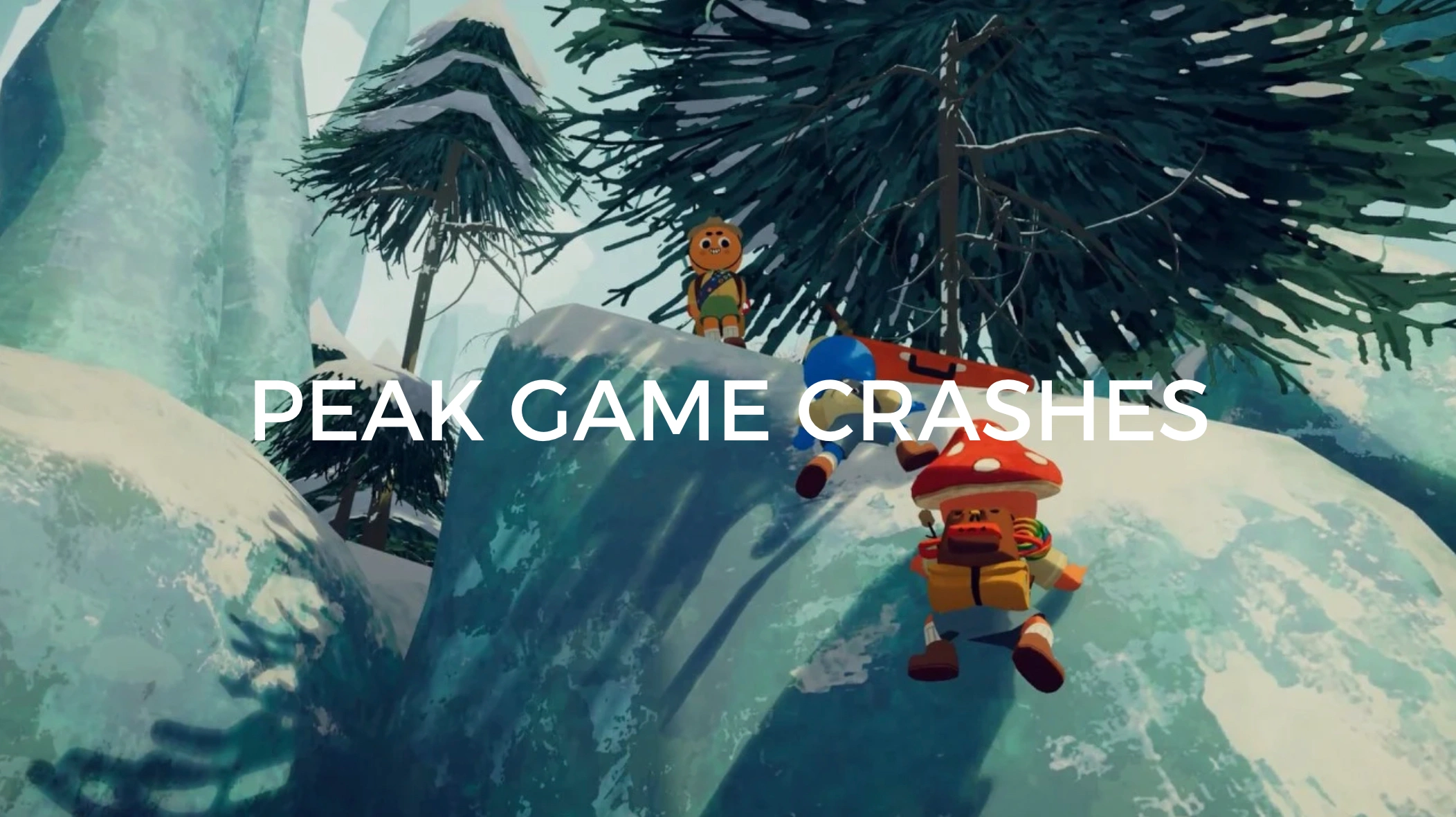
Released on June 17, 2025, PEAK has taken the co-op survival genre by storm. Developed by Landcrab and published in collaboration with Aggro Crab and Landfall, PEAK invites players into a high-stakes mountain-scaling experience on a mysterious island. With procedurally generated maps that change daily and intense physics-based gameplay, players must work together or brave it alone to reach the summit.
From proximity voice chat to ragdoll chaos, PEAK throws you into nature’s harshest trials. The gameplay merges strategy, survival instincts, and teamwork. Yet, despite the “Very Positive” Steam reviews, many players have reported a frustrating issue: frequent game crashes and errors that interrupt gameplay. If you’re facing the same issues, you're not alone, and this guide is here to help.

Part 2: Why PEAK Game Crashes on Your System
Part 3: How to Fix PEAK Game Crashes - Top 7 Solutions
Part 1: When Did PEAK Launch?

PEAK officially launched on June 17, 2025, for PC via Steam. It supports both single-player and 4-player online co-op modes and includes Steam achievements, controller support, and daily map rotations. It quickly gained attention for its creative mechanics and physics-driven multiplayer experience.
But as with many fresh indie releases, especially those built on evolving procedural systems, stability problems, crashes, and performance bugs are common in the early weeks post-launch.
Part 2: Why PEAK Game Crashes on Your System

Game crashes can stem from a mix of hardware limitations, software conflicts, or deeper engine-related bugs. Below are the most common causes behind PEAK’s crashing issues:
Outdated or Incompatible Graphics Drivers
Since PEAK relies heavily on real-time physics and dynamic rendering, outdated GPU drivers can lead to crashes, freezes, or graphical corruption.
DirectX and Visual C++ Runtime Conflicts
The game runs on DirectX 11 or 12, and missing or corrupted runtime libraries often cause the title to crash on startup.
Memory Overload or Low VRAM
PEAK requires a minimum of 8GB RAM and a GTX 1050 Ti, but systems close to these specs may run out of resources quickly, especially during multiplayer sessions.
Proximity Chat Bugs
Some players report game-breaking bugs linked to in-game voice chat, including freezes, black screens, or full crashes when voice proximity activates.
Corrupt Game Files
Whether due to interrupted downloads, improper installations, or mod conflicts, corrupted files can easily break your session.
Steam Overlay or Third-party Tools
Overlays from Discord, Steam, or even GPU tools like GeForce Experience may interfere with PEAK’s render pipeline.
Low Network Stability
Online sessions require consistent connections. If your ping is unstable, PEAK might desync and crash, especially during co-op play.
Part 3: How to Fix PEAK Game Crashes—Top 7 Solutions
Let’s go through seven detailed solutions that address every possible reason PEAK might crash. Each fix includes a short description and six actionable steps.
Top Fix: Use LagoFast—The Smartest Way to Stop Crashes
LagoFast supports mods that can enhance your gameplay experience—letting you add creative features, explore new content, and enjoy countless mods for PEAK and many other games directly within LagoFast. Beyond that, it’s a powerful game optimization tool designed to stabilize frame rates, reduce crashes, and cut ping. With its combination of real-time data routing, FPS boost technology, and system resource balancing, LagoFast ensures smoother gameplay, especially in physics-heavy environments like PEAK’s randomized mountains.
Why LagoFast Stands Out:
- Reduces game crashes caused by memory overflow and system strain
- Optimizes routing to avoid multiplayer sync failures
- Boosts FPS by reallocating CPU & GPU priorities
- One-click operation for easy setup
- Multi-game support with daily optimization updates
LagoFast is the best preventive solution for PEAK crashes and a great investment if you play multiple online games.
Tutorial to use LagoFast to Fix PEAK Game Crashes on PC:
Step 1: Click the Free Trial button to download and install LagoFast.
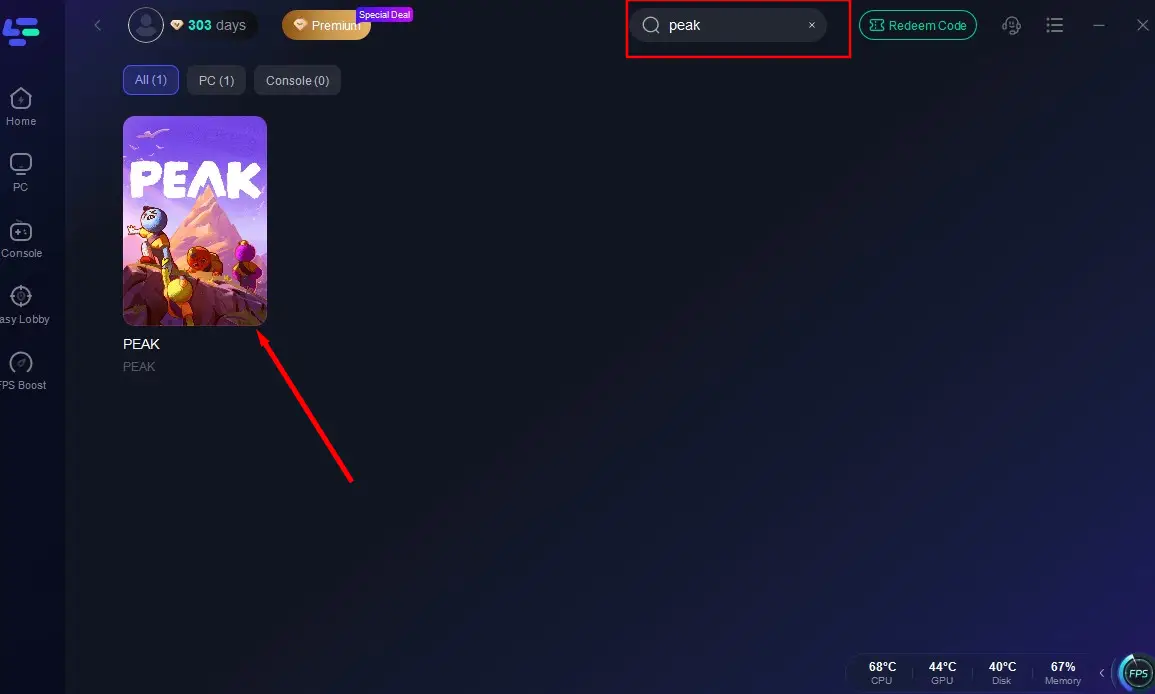
Step 2: Open LagoFast, then click the PC button on the left and search PEAK in the search bar, click it after it appears.
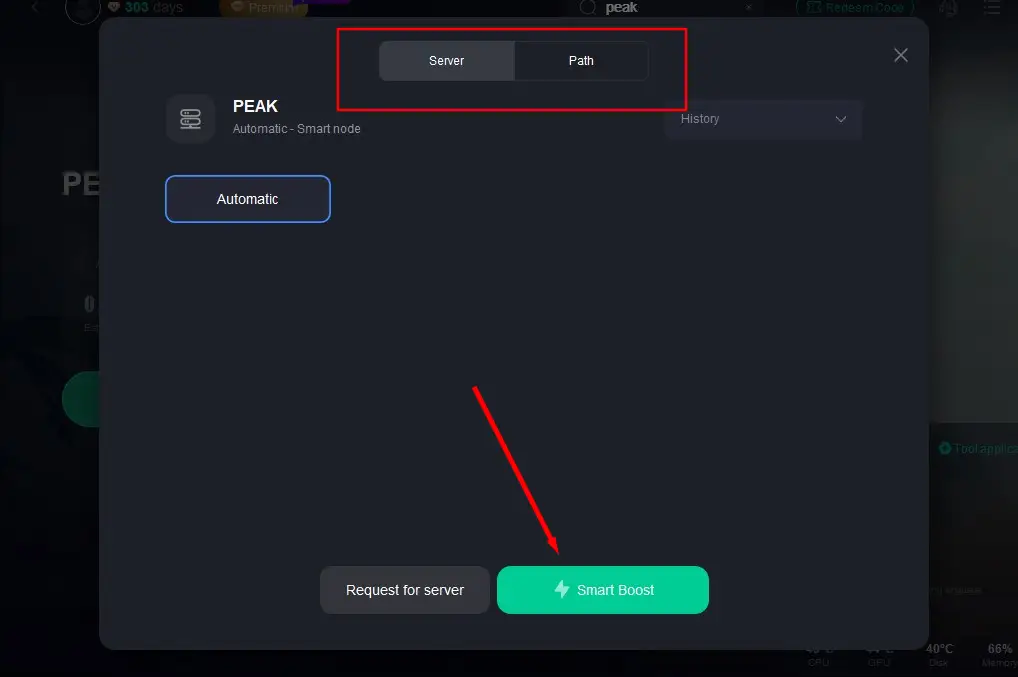
Step 3: Click on “Server” to change to a better server that fixes “PEAK Game Crashes” and ensures the gaming experience, then click on “Smart Boost”.
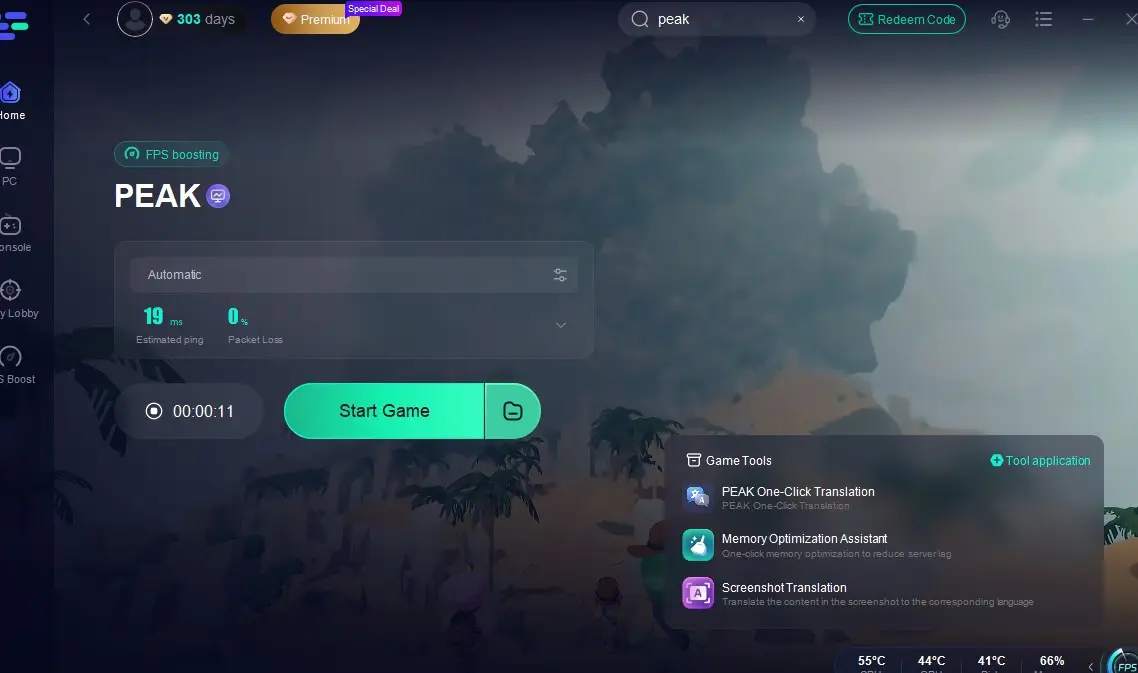
Step 4: Check the specific game ping, packet loss, and multiple path connection on the right side. Finally, click the “Start Game” to play the game.
Update Your Graphics Drivers
Outdated GPU drivers are a major culprit for crash reports.
Steps:
Step 1: Identify your GPU (NVIDIA or AMD) via Device Manager
Step 2: Visit the official driver site (e.g., NVIDIA.com or AMD.com)
Step 3: Download the latest Game-Ready Driver
Step 4: Run a clean installation using Display Driver Uninstaller (DDU)
Step 5: Restart your PC after installation
Step 6: Launch PEAK and monitor for stability
Verify Game Files via Steam
Game file corruption can lead to both soft freezes and hard crashes.
Steps:
Step 1: Open your Steam Library
Step 2: Right-click PEAK → Select Properties
Step 3: Go to the Installed Files tab
Step 4: Click Verify integrity of game files

Step 5: Wait for the process to complete
Step 6: Relaunch the game
Disable Steam, Discord, and GPU Overlays
Overlay conflicts can crash physics-heavy games like PEAK.
Steps:
Step 1: Disable Steam overlay: Steam → Settings → In-Game → Uncheck "Enable Steam Overlay"

Step 2: Open Discord → User Settings → Game Overlay → Turn it off
Step 3: Disable NVIDIA/AMD overlays in their respective control panels
Step 4: Restart your PC
Step 5: Launch PEAK without any overlays
Step 6: Check crash frequency
Install or Repair DirectX and Visual C++ Libraries
Missing runtime components often lead to black screens or crashes at launch.
Steps:
Step 1: Visit Microsoft’s official DirectX End-User Runtime page
Step 2: Download and install the latest runtime
Step 3: Do the same for Visual C++ (2015–2022 Redistributable)
Step 4: Choose both x86 and x64 versions
Step 5: Reboot your PC
Step 6: Test launch stability
Adjust In-Game Graphics and Physics Settings
Too-high graphics can overwhelm mid-tier systems.
Steps:
Step 1: Launch PEAK and go to Settings
Step 2: Lower resolution to 1080p or below
Step 3: Set Physics Quality to Medium or Low
Step 4: Reduce Shadows and disable V-Sync
Step 5: Toggle Windowed Fullscreen to reduce memory strain
Step 6: Save and relaunch
Switch to a Wired Internet Connection
Especially important for multiplayer stability.
Steps:
Step 1: Use an Ethernet cable to connect your PC
Step 2: Restart your router
Step 3: Stop all background downloads and streams
Step 4: Use Windows QoS or LagoFast to prioritize game packets
Step 5: Retry co-op climbing with friends
Perform a Clean Boot of Windows
Third-party apps might interfere with PEAK’s operation.
Steps:
Step 1: Press Win + R → Type msconfig
Step 2: Click Selective Startup and uncheck Load Startup Items
Step 3: Go to the Services tab and check Hide Microsoft Services

Step 4: Click Disable All
Step 5: Apply and reboot
Step 6: Launch PEAK cleanly
Conclusion
PEAK delivers a thrilling and chaotic co-op climbing experience that stands out in the indie survival genre, but technical crashes, whether due to outdated drivers, overloaded memory, or unstable networks, can quickly shatter the immersion. This guide has outlined seven effective solutions to help restore smooth gameplay, and among them, LagoFast emerges as the most reliable fix, offering real-time optimization, crash reduction, and frame rate stability for seamless multiplayer sessions. With intelligent routing and performance tuning, LagoFast lets you focus on surviving the mountain with your team instead of battling technical issues, so apply these fixes and start climbing toward the PEAK without the stress.

Boost Your Game with LagoFast for Epic Speed
Play harder, faster. LagoFast game booster eliminates stutter and lags on PC, mobile, or Mac—win every match!
Quickly Reduce Game Lag and Ping!
Boost FPS for Smoother Gameplay!