
The release of Onimusha: Way of the Sword brings classic samurai action back into the spotlight, but console-to-PC porting quirks have left many players struggling to get past the launch screen. Whether your game crashes immediately after clicking "Play," hangs infinitely on the shader optimization screen, or throws a crash report tool prompt right after the opening health warning, you are not alone.
Startup failures, display blackouts, and configuration conflicts are currently preventing thousands of players from starting their journey. This troubleshooting guide breaks down why these launch errors happen and provides verified fixes to resolve every startup issue.

- ✅ Reduce Lag and High Ping.
- ✅ Boost FPS at the Same Time.
- ✅ Support 8000+ Popular Online Games.
- ✅ Stable Server Connection
Part 1: Why Is Onimusha: Way of the Sword Not Launching or Working?
Part 2: Quick Diagnosis - Which Issue Are You Having?
Part 3: Update Onimusha: Way of the Sword
Part 4: Fix Onimusha: Way of the Sword Won't Launch
Part 5: Fix Onimusha: Way of the Sword Freezing on Startup or Before Main Menu
Part 6: Fix Onimusha: Way of the Sword Black Screen on Startup
Part 7: Fix Onimusha: Way of the Sword Crashing on Startup
Part 8: Check Onimusha: Way of the Sword PC System Requirements
Part 9: What If Onimusha: Way of the Sword Still Won't Launch?
Part 10: Latest Known Issues About Onimusha: Way of the Sword
Part 11: FAQs About Onimusha: Way of the Sword
Part 1: Why Is Onimusha: Way of the Sword Not Launching or Working?
When a PC game fails during boot, the issue almost always stems from a breakdown between the game engine, display settings, and local system handshakes. For Onimusha: Way of the Sword, several factors explain why the game feels broken on launch:
- Console Port Optimization Quirks: High-refresh-rate display features built into the PC port often conflict with the engine's hardcoded intro sequences.
- Uncapped Frame Rate Engine Overflows: Selecting "Uncapped" FPS in the settings prior to launching a campaign can cause the rendering pipeline to collapse right after the title warning screen.
- Shader Pre-Compilation Locks: The initial Direct3D shader cache pipeline can freeze if background applications interrupt file writing.
- Demo Save Data Migration Conflicts: The full release attempts to read leftover save directories from the Onimusha: Way of the Sword demo. If the file structure does not align, the boot sequence hangs indefinitely.
- Corrupted Steam Executable Hooks: Incomplete game installation packages or outdated runtime libraries cause Steam to cycle endlessly without launching the executable.
Part 2: Quick Diagnosis - Which Issue Are You Having?
Use this quick diagnostic table to identify your exact symptom and jump straight to the correct fix:
|
Symptom |
Likely Cause |
Try This First |
|
Won't Launch / Clicking Play Does Nothing |
Steam client process lock or background overlay conflict |
Restart Steam as Admin & disable overlays |
|
Freezes Before Main Menu / Shader Screen |
Corrupted shader cache or Demo save migration failure |
Delete shader cache & remove legacy demo saves |
|
Black Screen on Startup |
Display mode mismatch or VSync configuration error |
Force Windowed Mode via config file |
|
Crashes After Warning / Clicking "New Game" |
Uncapped FPS engine lock or graphics driver conflict |
Cap FPS to 60/120 & enable VSync |
|
Crash Report Tool / Engine Crash |
Corrupted launch parameters or missing C++ runtimes |
Run Steam file verification or use LagoFast Repair |
Part 3: Update Onimusha: Way of the Sword
Before altering your system configuration, verify that your game client is fully updated. Developers frequently publish day-one hotfixes that address immediate boot failures and memory leaks.
Step 1. Open your Steam Library.
Step 2. Right-click Onimusha: Way of the Sword and select Properties.
Step 3. Select the Updates tab.
Step 4. Set Automatic Updates to High Priority - Always automatically update this game.
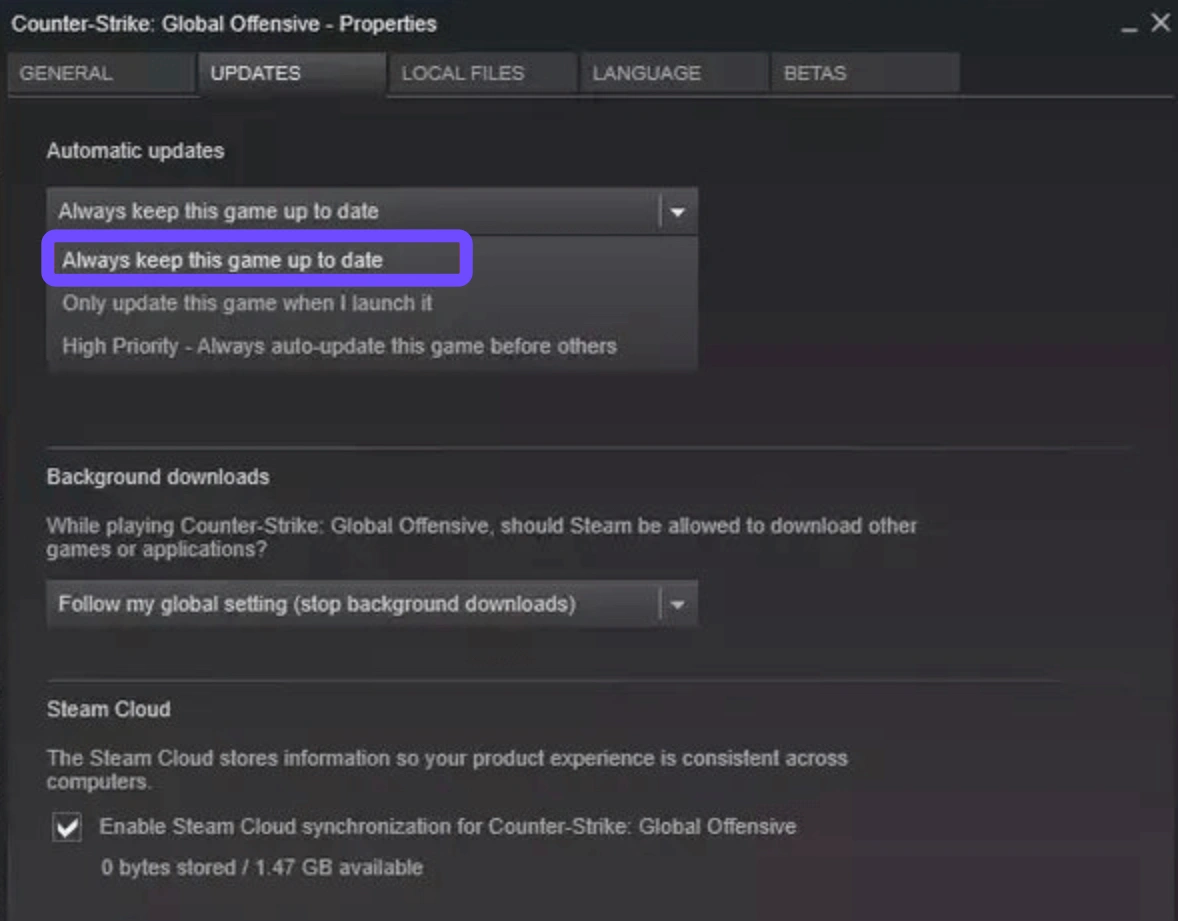
Step 5. Restart Steam to queue any pending patches.
Check the official Steam Community Hub for recent developer announcements to confirm if your specific crash is an unpatched engine issue currently undergoing maintenance.
Part 4: Fix Onimusha: Way of the Sword Won't Launch
If clicking "Play" in Steam causes the button to briefly turn green before instantly reverting to "Play" without opening a game window, background processes or overlay software are interfering with the game's executable.
Force Close Background Steam Tasks
Step 1. Press Ctrl + Shift + Esc to open the Task Manager.
Step 2. Search for any running instances of Onimusha.exe or Steam WebHelper.
Step 3. Right-click the processes and select End Task.
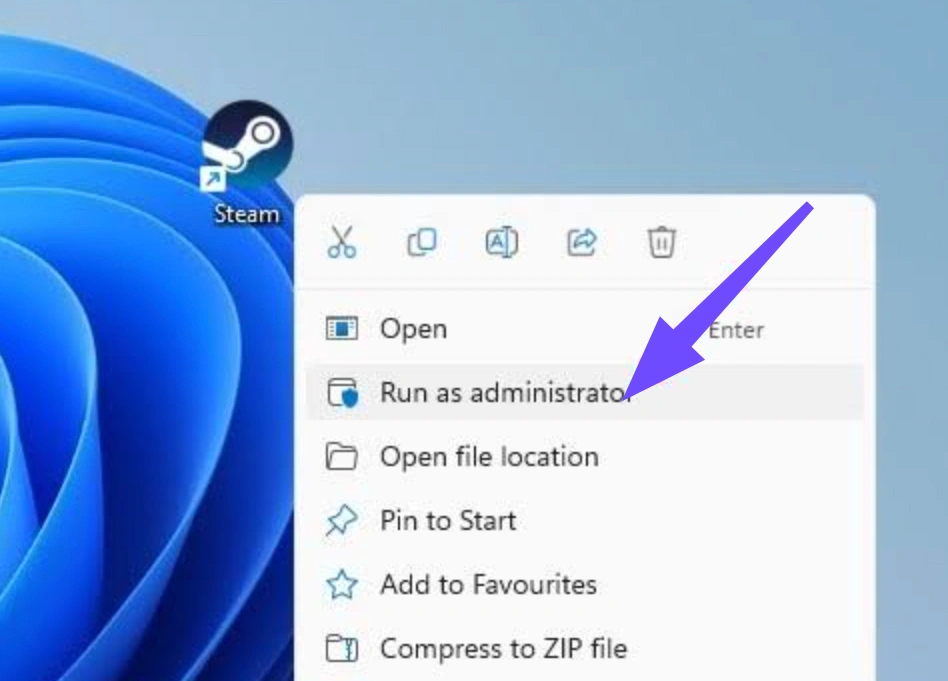
Step 4. Relaunch Steam as an Administrator by right-clicking the Steam desktop shortcut and selecting Run as administrator.
Disable Third-Party Overlays
Overlays directly inject code into the game engine upon launch, frequently causing Onimusha: Way of the Sword to crash silently.
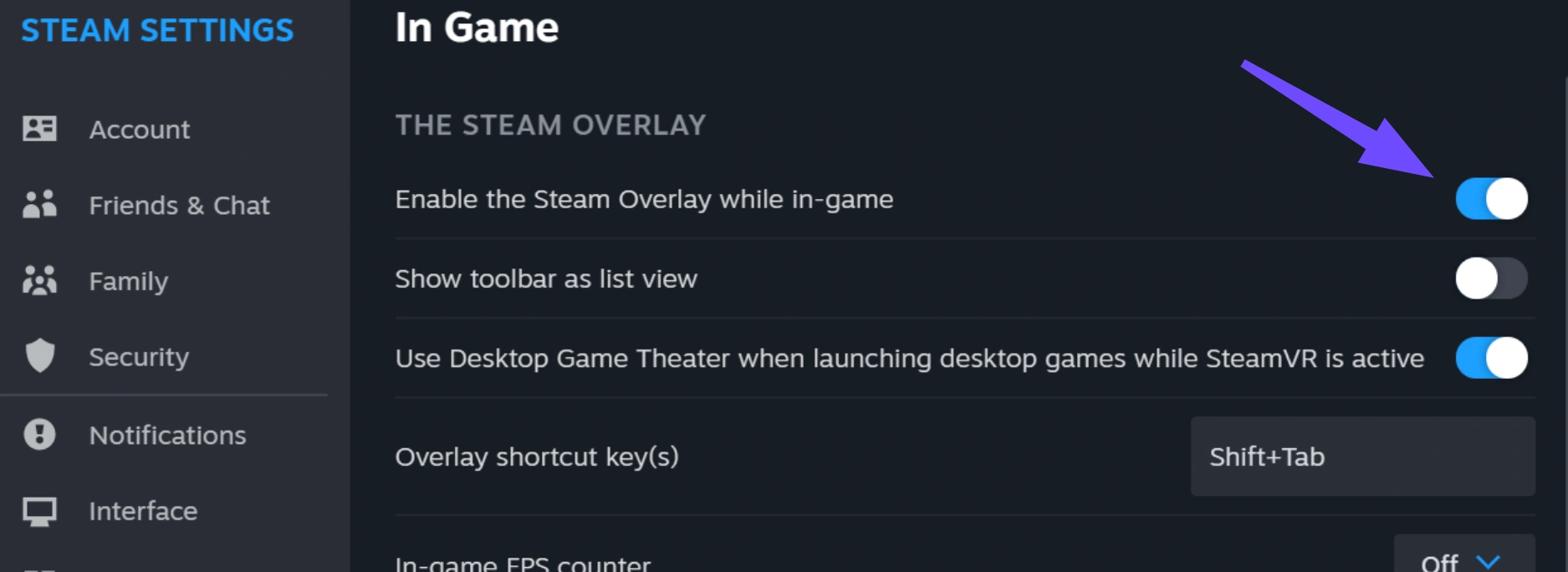
- Steam Overlay: Go to Steam; Settings; In-Game and uncheck Enable the Steam Overlay while in-game.
- Discord Overlay: Go to User Settings; Game Overlay and toggle Enable in-game overlay to OFF.
- GeForce Experience / RivaTuner: Disable in-game metrics and overlay hooks inside their respective settings panels.
Part 5: Fix Onimusha: Way of the Sword Freezing on Startup or Before Main Menu
Freezes occurring on the initial title logos or during early pre-compilation are generally caused by shader pipeline bottlenecks or corrupted save state reads.
Fix the "Stuck on Shader Optimisation Screen" Bug
When launching the game for the first time, the engine compiles DirectX 12 shaders. If this process hangs at a specific percentage:
Step 1. Close the game via Task Manager.
Step 2. Press Win + R, type %localappdata%, and press Enter.
Step 3. Open the NVIDIA or AMD folder (depending on your GPU).
Step 4. Locate the DXCache folder and delete its contents.
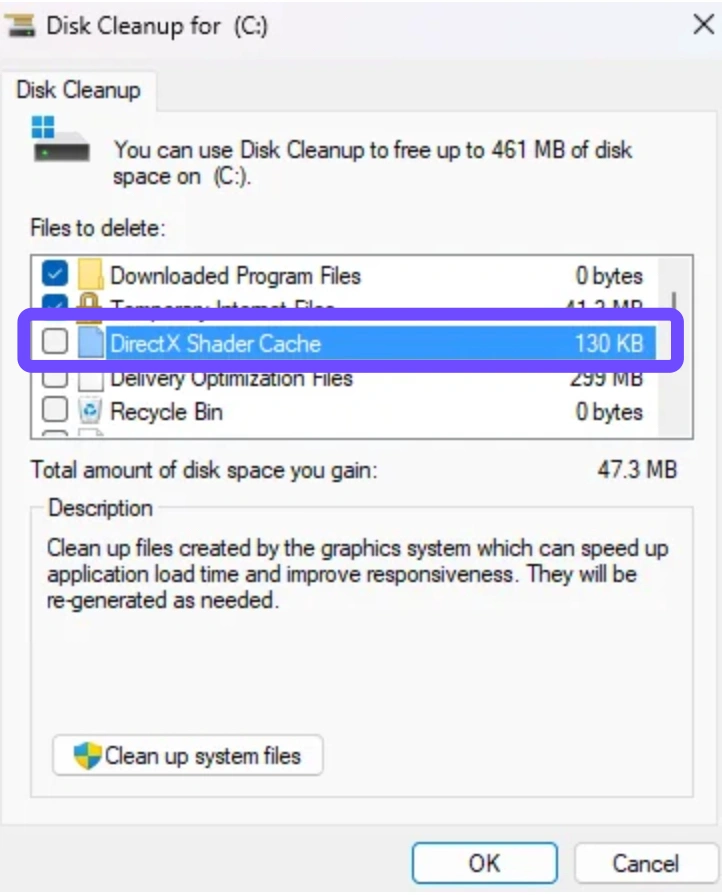
Step 5. Launch the game and allow the shader optimization bar to finish completely without Alt-Tabbing or switching windows.
Fix "Demo Save Data Not Detected" / Migration Freeze
If you played the Onimusha: Way of the Sword demo, the full game may crash or freeze on a black screen while searching for legacy save data.
Step 1. Navigate to: C:\Users\[YourUsername]\AppData\Local\Onimusha_Way_of_the_Sword\Saved\SaveGames\
Step 2. Locate the folder containing your demo saves (often labeled with a string of numbers or Demo_SavedData).
Step 3. Copy this folder to a secure location on your desktop as a backup, then delete the folder from the original game directory.
Step 4. Relaunch the full game. The client will generate a clean save directory structure, bypassing the migration freeze.
Part 6: Fix Onimusha: Way of the Sword Black Screen on Startup
A persistent black screen with ambient audio usually indicates that the game is attempting to display a resolution or refresh rate unsupported by your monitor.
Force Windowed Display Mode
Step 1. Press Win + R, type %appdata%, and press Enter.
Step 2. Navigate to your game's config directory: AppData\Local\Onimusha_Way_of_the_Sword\Saved\Config\WindowsNoEditor\
Step 3. Open GameUserSettings.ini using Notepad.
Step 4. Locate the following lines and adjust their values:
- FullscreenMode=2 (2 sets the game to Windowed mode)
- LastConfirmedFullscreenMode=2
- PreferredFullscreenMode=2
Step 5. Save the file (Ctrl + S) and relaunch the game. Once inside the main menu, adjust your resolution manually.
Part 7: Fix Onimusha: Way of the Sword Crashing on Startup
Fix the Uncapped FPS Startup Crash Workaround
A primary bug in the current PC build involves frame rate limiters. Setting your frame rate to Uncapped within the configuration menu frequently triggers a total engine collapse when clicking "New Game" or passing the opening intro text.
Step 1. Launch Onimusha: Way of the Sword.
Step 2. Access the Graphics / Display Settings menu before starting or loading a campaign.
Step 3. Locate Max Frame Rate / FPS Limit and change it from Uncapped to 60 FPS or 120 FPS.
Step 4. Toggle VSync to ON.
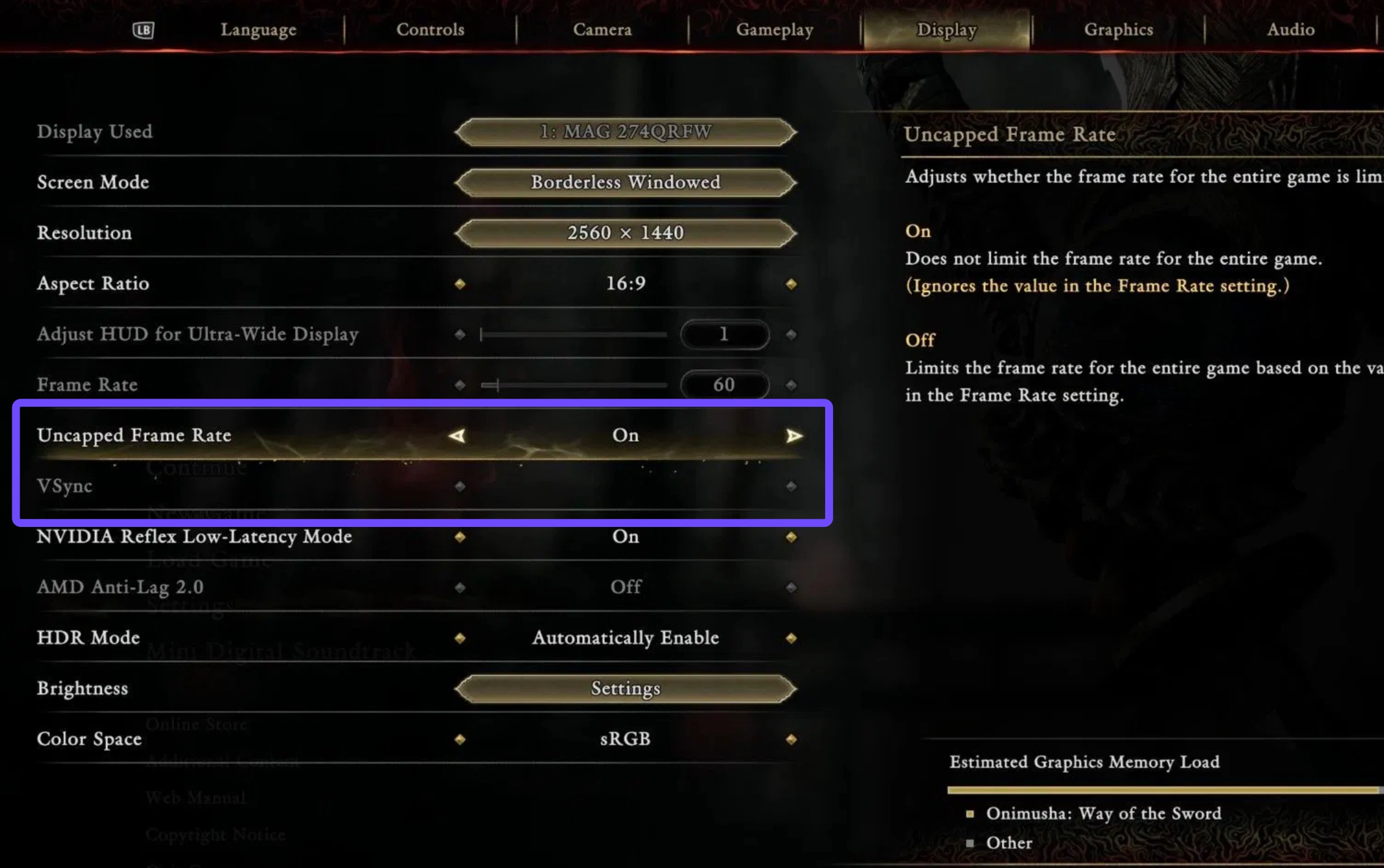
Step 5. Save your changes and restart the game.
Step 6. Once you successfully bypass the intro, enter the gameplay world, and establish an initial save point, you may adjust your frame rate limits back to high settings if desired.
Use the LagoFast One-Click Crash Repair Tool (Steam)
If manual file adjustments fail to resolve persistent startup crashes, software conflicts or missing system dependencies within your Steam installation are likely causing the engine to fail.
LagoFast includes an automated Steam Crash Repair Tool built specifically to address startup errors in complex PC ports like Onimusha: Way of the Sword.
How to Fix Onimusha: Way of the Sword Crash With LagoFast:
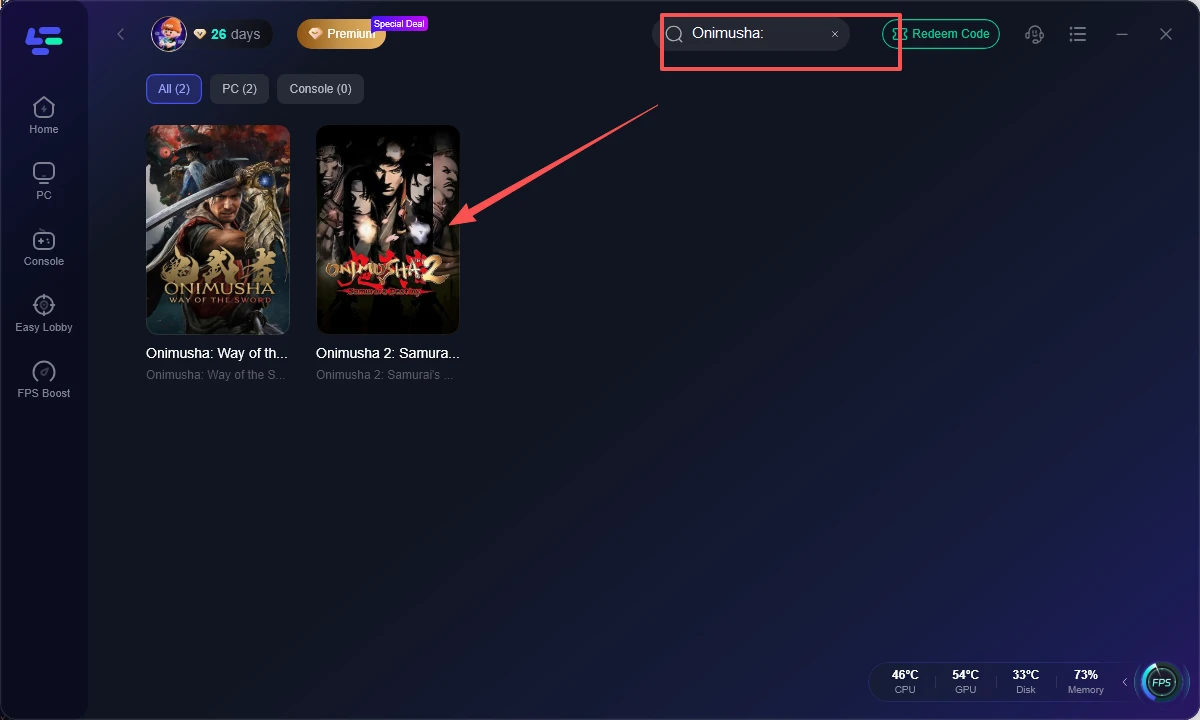
Step 1. Open LagoFast on your PC.
Step 2. Search for Onimusha: Way of the Sword in the library.
Step 3. Click on the integrated Crash Repair Tool (specifically designed for Steam client builds).
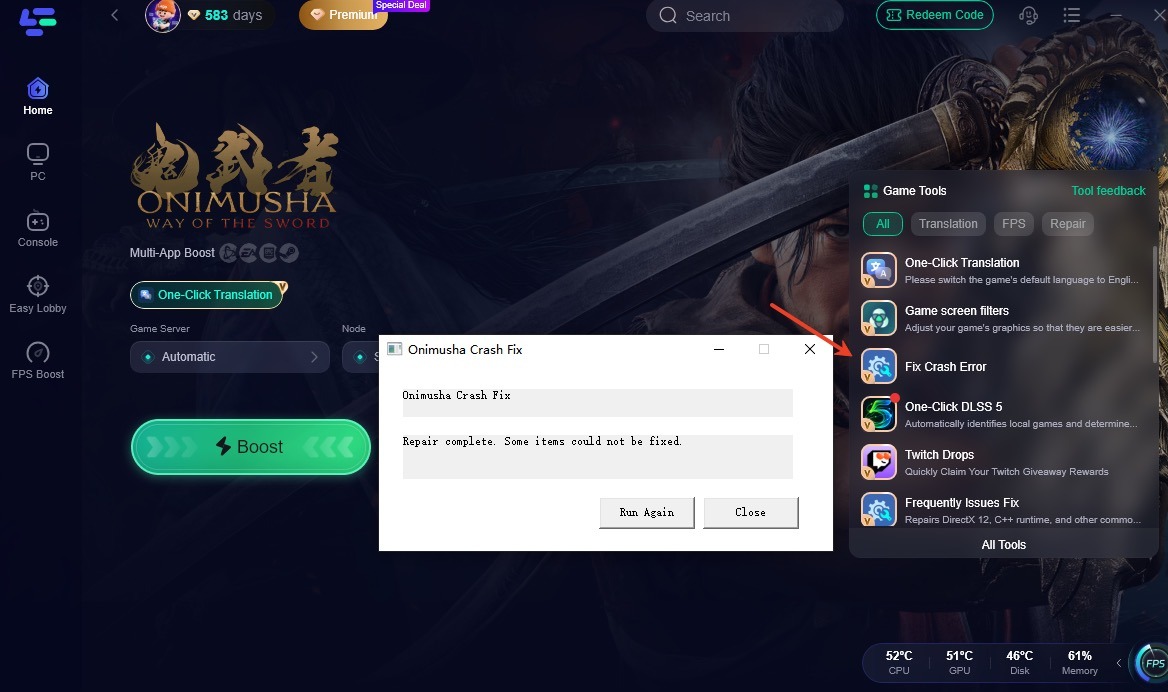
Step 4. Allow the tool to scan your local installation files, repair configuration flag anomalies, and resolve engine boot paths automatically.
Step 5. Launch the game directly through Steam once the repair process completes.
(Note: LagoFast’s Crash Repair Tool optimizes local Steam launch protocols, missing library paths, and engine boot configurations specifically for PC game ports.)
Part 8: Check Onimusha: Way of the Sword PC System Requirements
Running the game below minimum hardware requirements often causes GPU driver crashes immediately after the opening cinematic. Verify your system meets the specifications below:
|
Component |
Minimum Requirements |
Recommended Requirements |
|
OS |
Windows 10 (64-bit) |
Windows 11 (64-bit) |
|
Processor |
Intel Core i5-8400 / AMD Ryzen 5 2600 |
Intel Core i7-10700K / AMD Ryzen 7 5700X |
|
Memory |
16 GB RAM |
16 GB RAM |
|
Graphics |
NVIDIA GeForce GTX 1060 (6GB) / AMD Radeon RX 580 |
NVIDIA GeForce RTX 3070 / AMD Radeon RX 6800 XT |
|
DirectX |
Version 12 |
Version 12 |
|
Storage |
70 GB SSD Space |
70 GB SSD Space |
Installing Onimusha: Way of the Sword on a traditional Mechanical Hard Drive (HDD) is known to cause severe asset loading stalls and startup timeouts. Always install the game on a High-Speed Solid State Drive (SSD).
Part 9: What If Onimusha: Way of the Sword Still Won't Launch?
If the game continues to crash before displaying the main menu, your operating system is missing essential runtime packages that enable Direct3D rendering.
Update Visual C++ Redistributable Runtimes
Missing runtime DLL files prevent game executables from starting entirely.
Step 1. Visit the official Microsoft Visual C++ download page.
Step 2. Download both the x86 and x64 versions of the Visual Studio 2015–2022 redistributables.
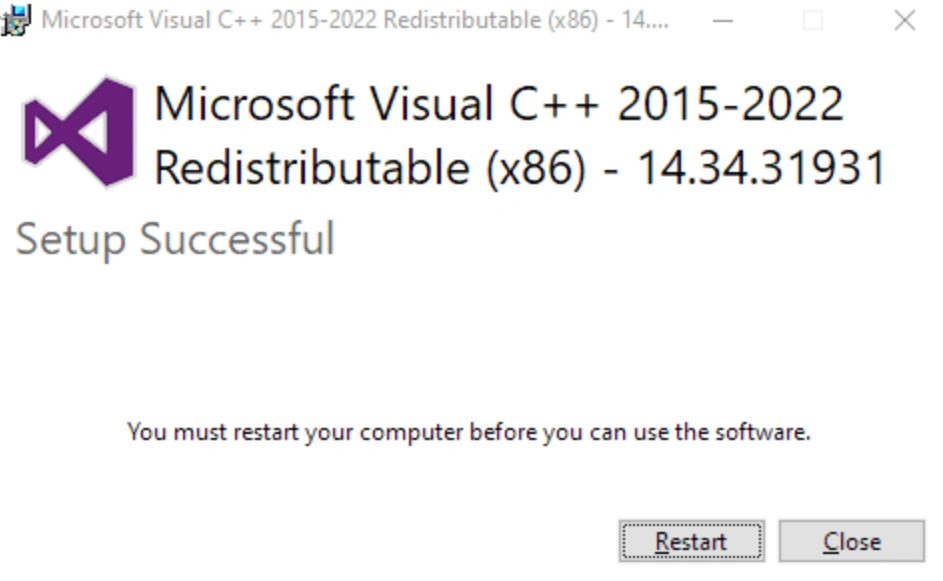
Step 3. Install both packages and restart your computer.
Perform a Clean Graphics Driver Installation
Outdated GPU drivers regularly cause engine crashes upon startup.
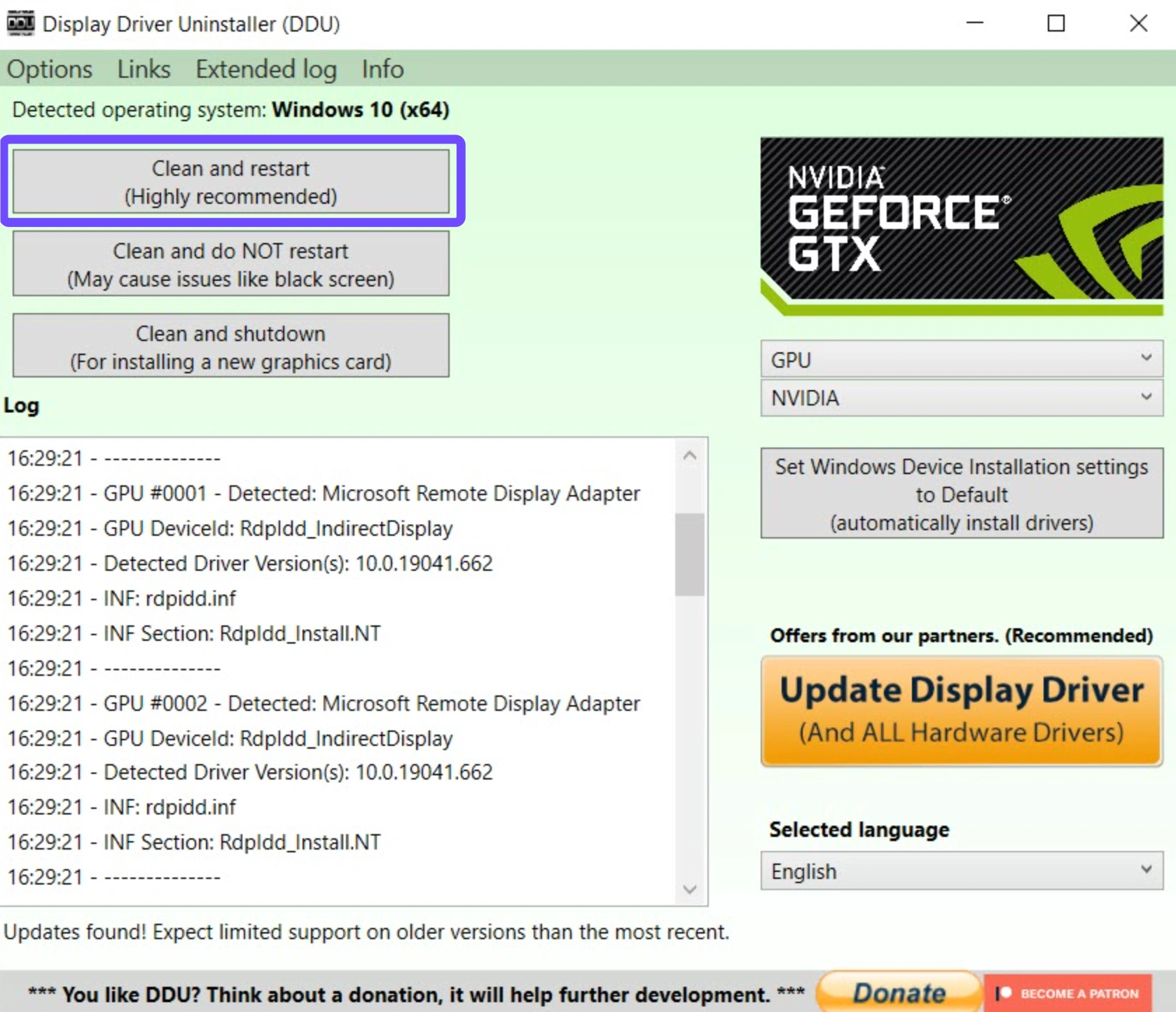
Step 1. Download Display Driver Uninstaller (DDU) and boot your PC into Safe Mode.
Step 2. Completely remove your current NVIDIA or AMD display driver entries.
Step 3. Reboot your computer normally and download the latest WHQL driver package directly from NVIDIA or AMD's official website.
Step 4. Select Perform a Clean Installation during setup.
Part 10: Latest Known Issues About Onimusha: Way of the Sword
The development team is actively monitoring community feedback for ongoing port issues. The following problems are currently identified as engine-level bugs:
- Demo Save File Migration Failure: A fix is currently in development for players whose demo save files freeze the full game during initial account syncing.
- Ultrawide Monitor Aspect Ratio Crash: Native 32:9 resolutions cause occasional UI scaling crashes during cutscenes.
- High Refresh Rate Physics Stalls: Display monitors running above 144Hz may experience physics bugs or animation hangs if VSync is disabled.
If none of the local system fixes resolve your crash, keep an eye on upcoming hotfixes distributed via Steam updates.
Part 11: FAQs About Onimusha: Way of the Sword
Why does Onimusha: Way of the Sword crash right after the warning screen?
This crash is usually caused by setting your frame rate to Uncapped or running an active overlay. Cap your frame rate to 60 FPS, enable VSync, and close background programs like Discord or RivaTuner.
How do I fix the "Demo Save Data Not Detected" error in Onimusha: Way of the Sword?
Delete or move your legacy demo save files located in %localappdata%\Onimusha_Way_of_the_Sword\Saved\SaveGames\. Removing these outdated files lets the main game construct a fresh directory without freezing.
Why is Onimusha: Way of the Sword stuck on the shader optimisation screen?
The shader compilation pipeline hangs when the Direct3D cache becomes corrupted. Clear your GPU shader cache in %localappdata%, relaunch the game, and let the process run uninterrupted.
Will setting FPS to uncapped make Onimusha: Way of the Sword crash?
Yes. Current PC builds suffer from an engine bug where selecting Uncapped FPS leads to startup crashes when loading into a new campaign. Limiting the frame rate to 60 or 120 FPS resolves this issue.
What does the Onimusha: Way of the Sword crash report tool mean?
The crash report tool appears whenever the engine encounters an unexpected termination. It is usually triggered by missing runtime files, GPU driver crashes, or improper startup resolution parameters.
Can LagoFast fix Onimusha: Way of the Sword launch and crash issues?
Yes. LagoFast features an integrated Steam Crash Repair Tool specifically tailored for Onimusha: Way of the Sword. It automatically scans local paths, resolves runtime library mismatches, and repairs corrupted configuration files to fix startup boot failures.
Conclusion
Troubleshooting game boot failures requires isolating whether the issue stems from hardware conflicts, display configurations, or broken engine settings. By capping your frame rate, clearing legacy demo files, maintaining updated graphics drivers, and utilizing game boosters like LagoFast's built-in Steam Crash Repair, you can resolve startup crashes and step back onto the battlefield smoothly.

Boost Your Game with LagoFast for Epic Speed
Play harder, faster. LagoFast game booster eliminates stutter and lags on PC, mobile, or Mac—win every match!
Quickly Reduce Game Lag and Ping!
Boost FPS for Smoother Gameplay!