
Quick Answer
To fix the Onimusha: Way of the Sword Demo not working, start by verifying the integrity of game files on Steam or the Epic Games Store. If the game is crashing on startup, ensure your GPU drivers are updated to the latest version and try disabling third-party overlays like Discord or Steam. For black screen or loading hangs, forcing the game to run in Windowed Mode (Alt + Enter) or disabling Fullscreen Optimizations in the compatibility settings often resolves the issue. Additionally, using LagoFast Game Booster can stabilize your frame times and optimize system resources to prevent resource-related crashes during intense combat.
Introduction
The return of the Onimusha franchise with Way of the Sword has sent waves of excitement through the action-RPG community. However, as with many modern PC demos, the initial launch has been met with several technical hurdles. Players are reporting that the Onimusha: Way of the Sword Demo is not launching, crashing immediately after shader compilation, or suffering from severe stuttering during the parry-heavy combat sequences. These issues are often tied to the game's high demand for VRAM and the complexities of its new rendering engine.

- ✅ Reduce Lag and High Ping.
✅ Boost FPS at the Same Time.
✅ Support 8000+ Popular Online Games.
✅ Change Server without Latency.
✅ Boost Game Loading Speed.
Part 1: Why is Onimusha: Way of the Sword Demo Not Working?
Part 2: Fix 1 — Resolve Onimusha: Way of the Sword Demo Crash on Startup
Part 3: Fix 2 — Bypass the Black Screen and Loading Screen Hangs
Part 4: Fix 3 — Onimusha: Way of the Sword Demo Low FPS and Stutter Fix
Part 5: Fix 4 — Advanced Config and Shader Compilation Fixes
Part 6: Fix 5 — Resolve Controller and Input Lag Issues
Part 7: How to Enhance Your Game Experience with LagoFast Game Booster
Part 1: Why is Onimusha: Way of the Sword Demo Not Working?
The Onimusha: Way of the Sword Demo is a technical showcase for Capcom's latest engine updates, but this comes with several potential points of failure:
- Shader Compilation Stutter: The game compiles a massive amount of shaders on the first boot. If this process is interrupted or fails, the game will crash or stutter heavily.
- DirectX 12 Conflicts: The demo relies heavily on DX12 features. Older hardware or unpatched Windows versions can cause the game to fail during the initial handshake.
- VRAM Overfill: The high-fidelity character models and particle effects can easily exceed 8GB of VRAM, leading to "Out of Memory" crashes.
- Conflicting Overlays: Software like Discord, Steam, or MSI Afterburner can interfere with the game's rendering pipeline during the initial boot sequence.
- Corrupted Game Data: Large demo downloads are prone to corruption, which can prevent the game from starting up entirely.
Part 2: Fix 1 — Resolve Onimusha: Way of the Sword Demo Crash on Startup
If the game closes immediately after you click "Play," try these steps:
- Verify Game Files: Right-click the demo in your Library > Properties > Installed Files > Verify integrity of game files. This is the most common fix for missing DLLs or corrupted assets.
- Run as Administrator: Navigate to the game's installation folder, right-click the .exe file, and select Properties > Compatibility > Run this program as an administrator.
- Disable Fullscreen Optimizations: In the same Compatibility tab, check Disable fullscreen optimizations. This can resolve issues where Windows' display management conflicts with the game's engine.
Part 3: Fix 2 — Bypass the Black Screen and Loading Screen Hangs
A black screen usually indicates that the game is failing to initialize the display or is struggling with the initial resolution handshake.
- Alt + Enter: As soon as the black screen appears, press Alt + Enter to force the game into windowed mode. If it loads, you can then adjust the resolution in the settings.
- Update GPU Drivers: Ensure you are on the latest "Game Ready" driver from NVIDIA or AMD. The Way of the Sword demo uses new rendering techniques that older drivers may not support.
- Check Power Settings: If you are on a laptop, ensure your charger is connected and your power plan is set to "High Performance."
Part 4: Fix 3 — Onimusha: Way of the Sword Demo Low FPS and Stutter Fix
The parry-heavy combat of Onimusha requires a stable frame rate. If you're experiencing drops, try these optimizations:
- Enable DLSS/FSR: Use the built-in upscaling tools. Set them to "Quality" for 1440p and "Balanced" for 4K.
- Lower Shadow Quality: Shadows are the biggest performance killer in the demo. Dropping them from "Ultra" to "Medium" can net you a 20-30% FPS boost.
- Disable Motion Blur: Not only does this improve visual clarity for parrying, but it also reduces the load on your GPU during fast-paced action.
Part 5: Fix 4 — Advanced Config and Shader Compilation Fixes
If the game stutters every time a new effect appears, it's a shader compilation issue.
- Wait at the Menu: When you first launch the demo, stay on the main menu for 5-10 minutes. This allows the game to finish background shader compilation before you start playing.
- Increase Shader Cache Size: In the NVIDIA Control Panel, go to Manage 3D Settings > Shader Cache Size and set it to 10GB or Unlimited.
- Clear Local Cache: Navigate to %LOCALAPPDATA%\OnimushaWS\Saved\Config\WindowsNoEditor\ and delete the GameUserSettings.ini file to reset any corrupted configurations.
Part 6: Fix 5 — Resolve Controller and Input Lag Issues
Onimusha is best played with a controller, but some players are reporting that their gamepads aren't being recognized.
- Enable Steam Input: Right-click the game in Steam > Properties > Controller and set "Override for Onimusha: Way of the Sword" to Enable Steam Input.
- Disable Virtual Controllers: If you have software like DS4Windows or vJoy running, try disabling them, as the game has native support for most modern controllers.
- Check Polling Rate: If you experience "input lag," ensure your controller's polling rate isn't set too high, as this can sometimes cause CPU spikes in the demo.
Part 7: How to Enhance Your Game Experience with LagoFast Game Booster
Many technical issues, including micro-stutters and "Access Violation" crashes, are caused by your PC's background environment competing for resources. This is where LagoFast Game Booster becomes an essential tool for your journey as a samurai.
LagoFast is designed to ensure that your game gets 100% of your system's attention. Its FPS Boost feature works by temporarily suspending non-essential Windows services and background processes that often spike CPU usage during gameplay. For a game as timing-sensitive as Onimusha: Way of the Sword, this can be the difference between a perfect parry and a frustrating death.
How to Use LagoFast Game Booster
Step 1: Click the Free Trial button to download and install LagoFast Free Trial.
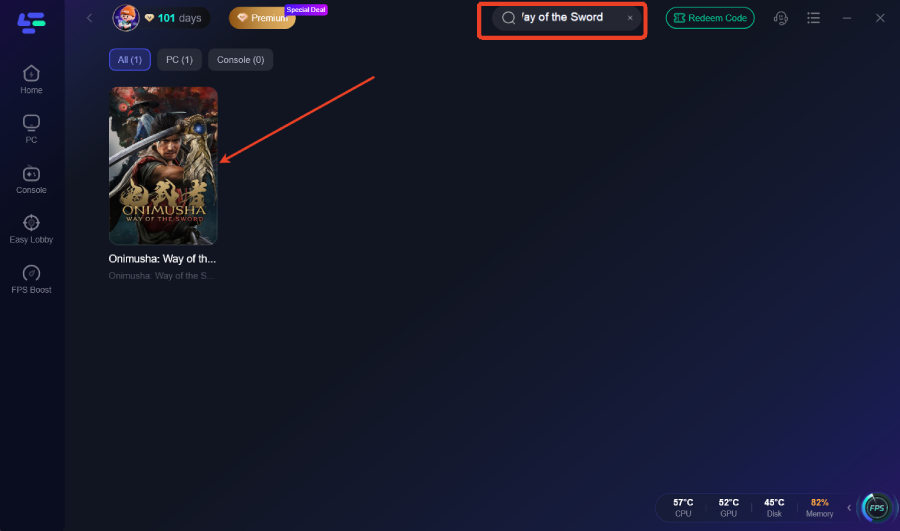
Step 2: Search for the Demo: Add "Onimusha: Way of the Sword Demo" to your library within the app.
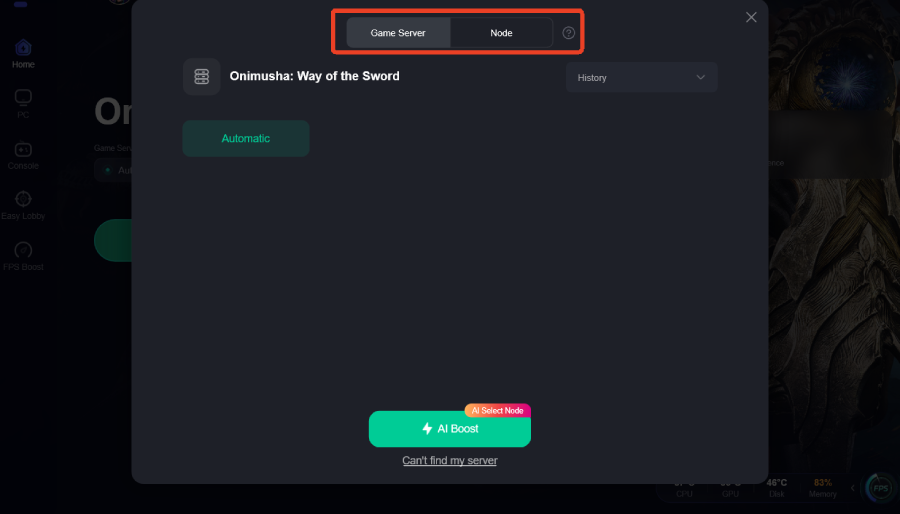
Step 3: Select Your Node: While primarily a single-player demo, LagoFast's network optimization ensures that any cloud saves or future multiplayer features are synced without causing micro-stutters.
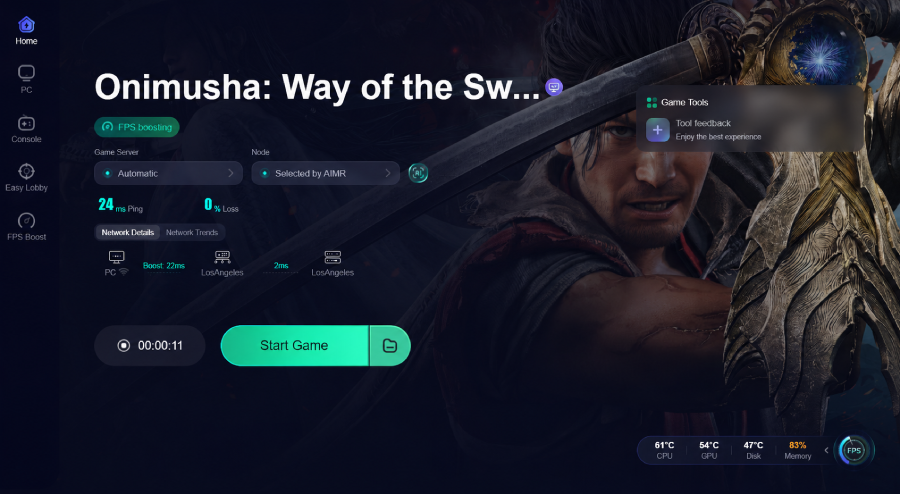
Step 4: Boost and Launch: Click the "Boost" button. LagoFast will apply all optimizations and then launch the game. You'll notice more consistent frame times and a more responsive feel to the swordplay.
Part 8: FAQs
1. Why does the Onimusha: Way of the Sword Demo keep crashing on my PC?
Crashes are often caused by outdated drivers or conflicts with background software. Try disabling overlays and ensuring your GPU drivers are up to date.
2. How do I fix the black screen on startup?
Press Alt + Enter to force the game into windowed mode. If that doesn't work, ensure your monitor's refresh rate is set to a standard value like 60Hz or 144Hz.
3. Can I run the demo on a low-end PC?
The demo is quite demanding. You will likely need to use "Low" settings and FSR "Performance" mode to hit a stable 30 FPS on older hardware.
4. Why is the loading screen taking so long?
If you are on an HDD, the loading times can be several minutes. Moving the game to an NVMe SSD is highly recommended for modern Capcom titles.
5. Does the demo support ultrawide monitors?
Yes, but you may see black bars during certain cinematic sequences as they are pre-rendered in 16:9.
Key Takeaways
- Verify Files: Corrupted assets are the #1 cause of startup crashes.
- Wait for Shaders: Let the game compile shaders at the main menu to avoid in-game stuttering.
- SSD is Mandatory: Don't expect a smooth experience on an old HDD.
- Optimize with LagoFast: Use LagoFast Game Booster to stabilize your frame times and ensure your PC is fully dedicated to the game.
By following this guide, you'll be able to bypass the technical hurdles and immerse yourself in the intense, parry-heavy action of Onimusha: Way of the Sword. Good luck, samurai!

Boost Your Game with LagoFast for Epic Speed
Play harder, faster. LagoFast game booster eliminates stutter and lags on PC, mobile, or Mac—win every match!
Quickly Reduce Game Lag and Ping!
Boost FPS for Smoother Gameplay!