
NBA 2K26 is one of the most anticipated basketball simulations of 2025, but like every online title, it comes with its share of problems. Many players report facing NBA 2K26 connection issues during launch week, from matchmaking errors to being stuck on loading screens. If you’ve ever wondered, “Why is my NBA 2K26 not connecting to server?”, this guide will break down the causes and solutions step by step.

Part 1: Why NBA 2K26 can’t connect to server?
Part 2: How to Fix NBA 2K26 Can’t Connect to Server — Top Solutions
Part 1: Why NBA 2K26 can’t connect to server?
When you see the dreaded NBA 2K26 can’t connect to server message, it doesn’t always mean the game is broken. There are several underlying reasons why players face issues such as NBA 2K26 not connecting to the server, especially across multiple platforms like PlayStation, Xbox, and PC. Common causes include:
- Server Downtime – 2K often takes servers offline for maintenance or patches.
- Network Congestion – A weak or unstable internet connection can lead to disconnects.
- High Traffic at Launch – With NBA 2K26 releasing worldwide on September 5, 2025, millions of players are logging in simultaneously.
- Platform-Specific Issues – Many Switch players report that NBA 2K26 Switch not connecting to the server due to weaker Wi-Fi stability.
- Firewall or NAT Problems – Strict NAT types can block the game from establishing stable connections.
- Corrupt Cache or Game Files – Broken installations or outdated patches may cause syncing errors.
Understanding these factors helps determine whether you need a local fix or if the problem lies with the NBA 2K26 server status itself.
Part 2: How to Fix NBA 2K26 Can’t Connect to Server — Top Solutions
When NBA 2K26 refuses to connect, don’t panic. Below are reliable methods to restore online play. We’ll begin with a premium option and then cover multiple do-it-yourself fixes.
Solution 1: Use LagoFast — The Smart Fix
One of the most efficient ways to reduce disconnections and lag in NBA 2K26 is by using LagoFast, a game booster and network optimizer. Unlike traditional VPNs, LagoFast is specifically designed for online gaming and works across devices, including PC, PlayStation, and Xbox.
Key Features of LagoFast:
- Cross-Device Support: Works seamlessly on PC, PlayStation, and Xbox, ensuring a stable connection no matter where you play NBA 2K26.
- Lag Reduction: Optimizes routing to minimize ping and packet loss.
- Automatic Server Matching: Connects you to the most stable servers available.
- One-Click Optimization: Easy to use, even for casual players.
If you keep seeing “Unable to Connect to 2K Server”, LagoFast often provides an instant improvement in connection quality.
Tutorial To Use LagoFast To Enhance Your NBA 2K26 PC Gaming Experience:
Step 1: Download LagoFast by clicking the Download button below and activate the free trial.
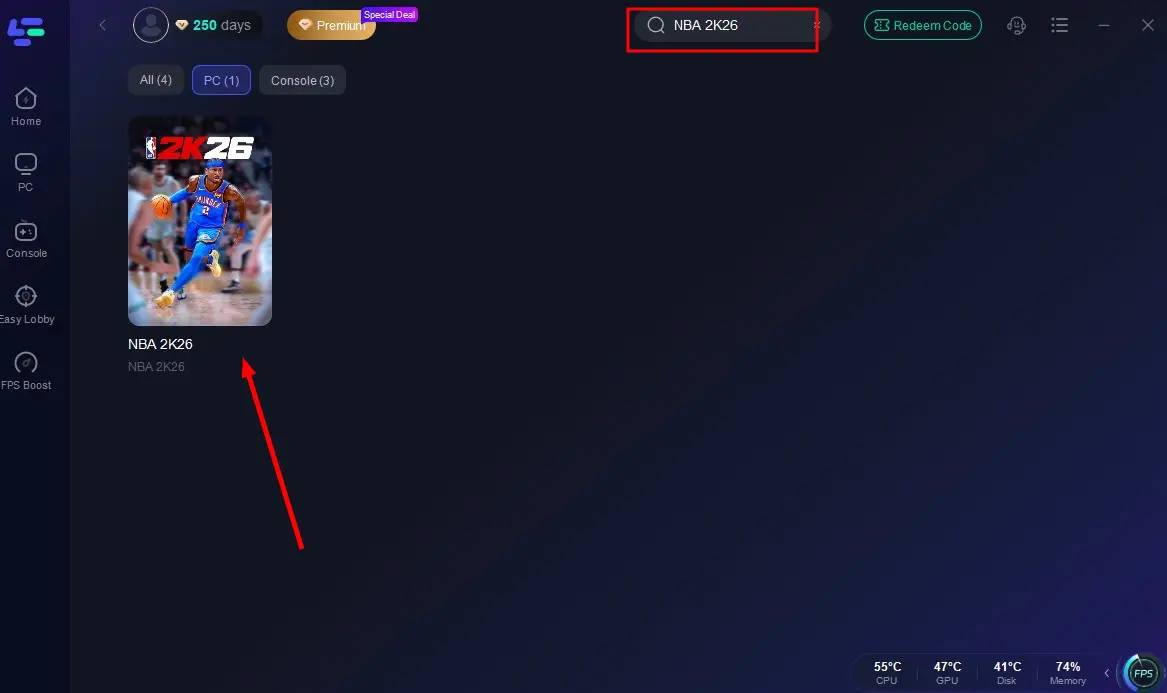
Step 2: Launch LagoFast and search for NBA 2K26 in the search bar.
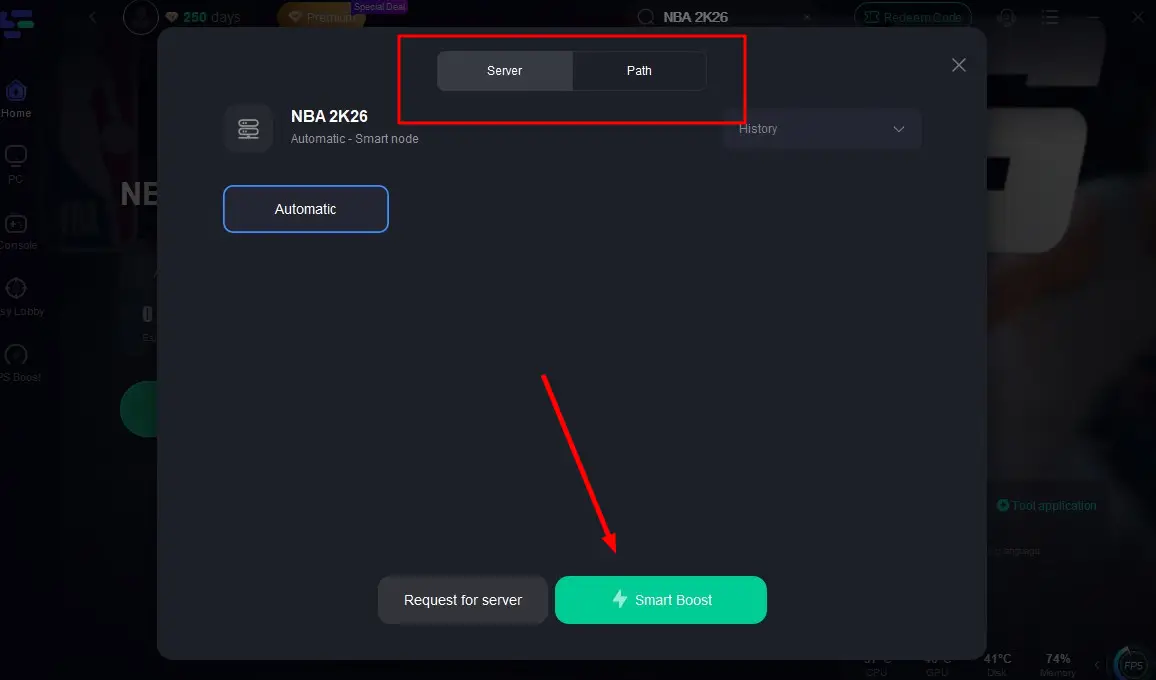
Step 3: Select the server with the best connection and choose the optimal Node. Click "Smart Boost" to start optimizing your connection.
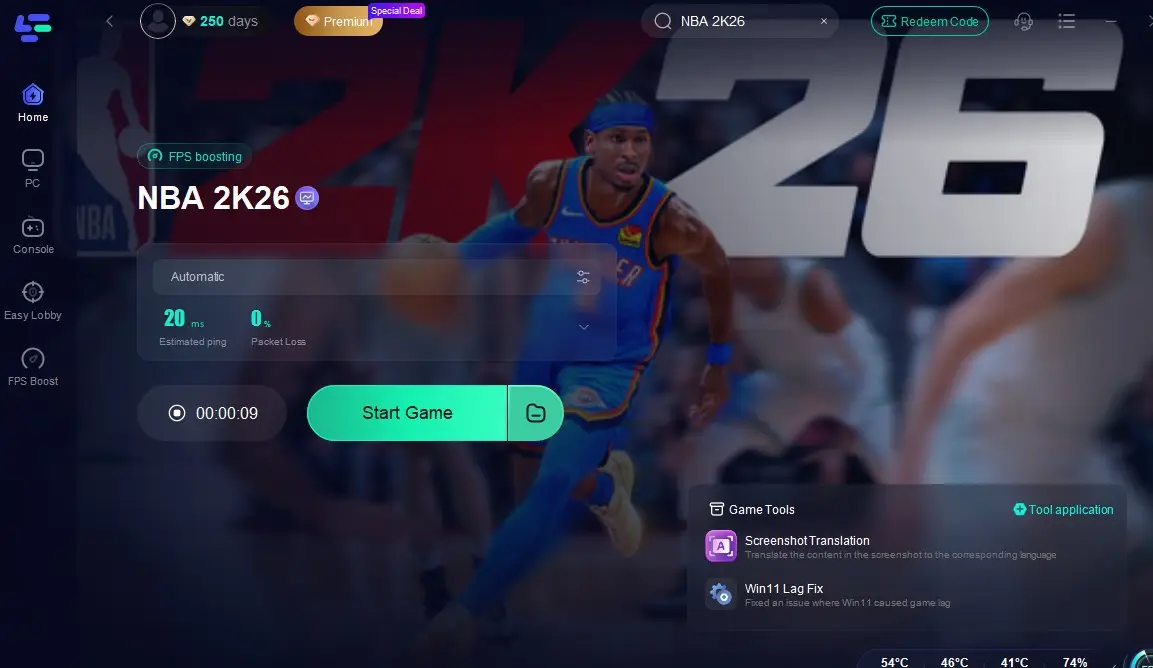
Step 4: Check real-time stats such as ping, packet loss, and network performance, then click the "Start Game" to play NBA 2K26 without any lag!
Tutorial to use LagoFast Box to Enhance Your NBA 2K26 Gaming Experience on Consoles:
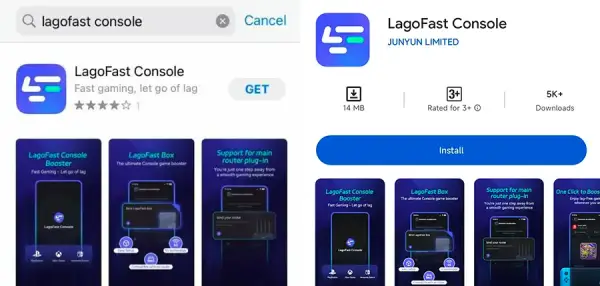
Step 1: Download the LagoFast Console App on your phone to control the LagoFast Box.
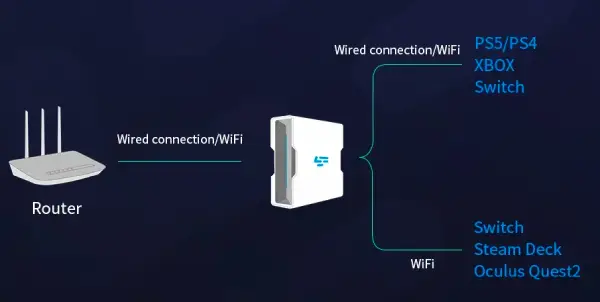
Step 2: Establish a connection between your LagoFast Box, router, and console, choosing between a wired or wireless connection.
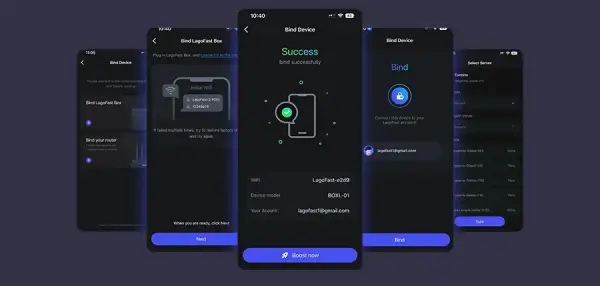
Step 3: Launch the LagoFast Console App and boost NBA 2K26. Once you have completed the binding process with the LagoFast Box, proceed to boost this game within the LagoFast Console App.
Solution 2: Check NBA 2K26 Server Status
Before changing your settings, make sure the servers themselves are up.
Step 1. Visit the official NBA 2K status page or follow @NBA2K on Twitter.
Step 2. Check if other players are reporting problems on Reddit or Downdetector.
Step 3. Restart the game and see if the issue persists.
Step 4. Test if the problem is on all modes (MyTEAM, MyCAREER, Play Now).
Step 5. If servers are down, wait until 2K finishes maintenance.
Step 6. Set alerts so you get notified when servers return.
This step saves hours of troubleshooting when NBA 2K26 servers are down right now.
Solution 2: Restart Your Network
Oftentimes, your internet connection is the culprit.
Step 1. Turn off your console or PC completely.
Step 2. Power down your router and modem.
Step 3. Wait at least 30 seconds before restarting.
Step 4. Plug everything back in and let the network stabilize.
Step 5. Reconnect your system to the internet.
Step 6. Launch NBA 2K26 and attempt to log back into the servers.
Step 7. A full network reset clears IP conflicts and restores stability.
Solution 3: Adjust NAT Type and Port Forwarding
Step 1. Strict NAT types can prevent online play.
Step 2. Log into your router’s admin panel (usually 192.168.1.1).
Step 3. Locate the NAT/Port Forwarding settings.
Step 4. Forward the following ports for NBA 2K26:
- TCP: 80, 443, 5223
- UDP: 3478–3479, 3658, 6000–7000
Step 5. Save and restart your router.
Step 6. Run a NAT test on your console/PC.
Step 7. Try reconnecting to NBA 2K26 servers.
This ensures smooth communication between your system and 2K servers.
Solution 4: Clear Cache or Reinstall the Game
Corrupt files can block your connection.
Step 1. On consoles, clear system cache from storage settings.
Step 2. On PC, verify game files via Steam or Epic Games.
Step 3. Delete temporary NBA 2K26 save data (don’t worry, cloud saves remain).
Step 4. Restart your device.
Step 5. If issues persist, uninstall NBA 2K26 completely.
Step 6. Reinstall the latest version and retry logging in.
Fresh installations often fix stubborn NBA 2K26 connection issues.
Solution 5: Use a Wired Connection
Step 1. Wi-Fi can be unreliable, especially on Xbox.
Step 2. Connect your system directly via Ethernet cable.
Step 3. If on Xbox, use an Ethernet adapter.
Step 4. Disable Wi-Fi to prevent interference.
Step 5. Run a speed test to ensure bandwidth meets requirements (minimum 5 Mbps).
Step 6. Restart NBA 2K26 and attempt matchmaking.
Step 7. Keep your router away from obstacles to reduce packet loss.
This drastically improves stability for online modes.
Solution 6: Update Firmware and System Software
Outdated software may block server access.
Step 1. Go to your console or PC system settings.
Step 2. Check for available updates.
Step 3. Download and install the latest firmware.
Step 4. Also update NBA 2K26 to the newest patch.
Step 5. Restart your device.
Step 6. Attempt to reconnect to servers.
Step 7. Keeping everything updated prevents compatibility errors.
Solution 7: Change DNS Settings
Step 1. Default DNS servers may slow down connections.
Step 2. Go to your network settings.
Step 3. Switch to manual DNS entry.
Step 4. Use Google DNS (8.8.8.8, 8.8.4.4) or Cloudflare (1.1.1.1).
Step 5. Save changes.
Step 6. Restart your console/PC.
Step 7. Relaunch NBA 2K26 and test online features.
This can reduce latency and speed up authentication.

Conclusion
Facing NBA 2K26 connection issues can be frustrating, especially if you’re excited to try new features like MyCAREER or MyTEAM on release day. Sometimes the problem lies with NBA 2K26 server status, while other times your own network needs optimization. By using LagoFast or following the step-by-step solutions above, you can fix errors like NBA 2K26 not connecting to the server across PC, PlayStation, and Xbox. With the right adjustments, you’ll spend less time troubleshooting and more time enjoying the court.
Boost Your Game with LagoFast for Epic Speed
Play harder, faster. LagoFast game booster eliminates stutter and lags on PC, mobile, or Mac—win every match!
Quickly Reduce Game Lag and Ping!
Boost FPS for Smoother Gameplay!