
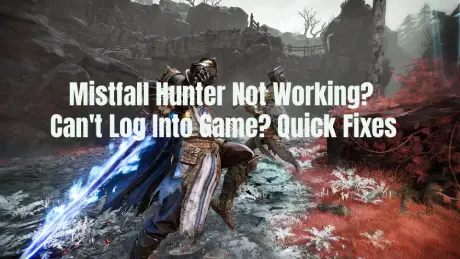
Mistfall Hunter open beta runs from June 15, 2026, 01:00 UTC+0 to June 22, 2026, 10:00 UTC+0, with battle servers deployed in China, the United States, Germany, Singapore, and Brazil.
However, during the open beta, some players report that Mistfall Hunter is not working, or that they can't log into game after launching it through Steam. This can be frustrating, especially if you want to participate in the free beta test before the official release.

- ✅ Reduce Lag and High Ping.
- ✅ Boost FPS at the Same Time.
- ✅ Support 8000+ Popular Online Games.
- ✅ Stable connection and region switching.
Method 1: Use LagoFast to Fix Mistfall Hunter Can't Log Into Game and Connection Issues
If Mistfall Hunter can't log into game, keeps disconnecting, or gets stuck while connecting to the server, the issue is often caused by unstable routing, high ping, or packet loss.
Since the beta servers are located in China, the United States, Germany, Singapore, and Brazil, players outside these regions may not always get a stable connection route automatically. LagoFast can help optimize your connection route and make it easier to access the game.
How to Use LagoFast for Mistfall Hunter
Open LagoFast on your PC.
Search for Mistfall Hunter in the game list.
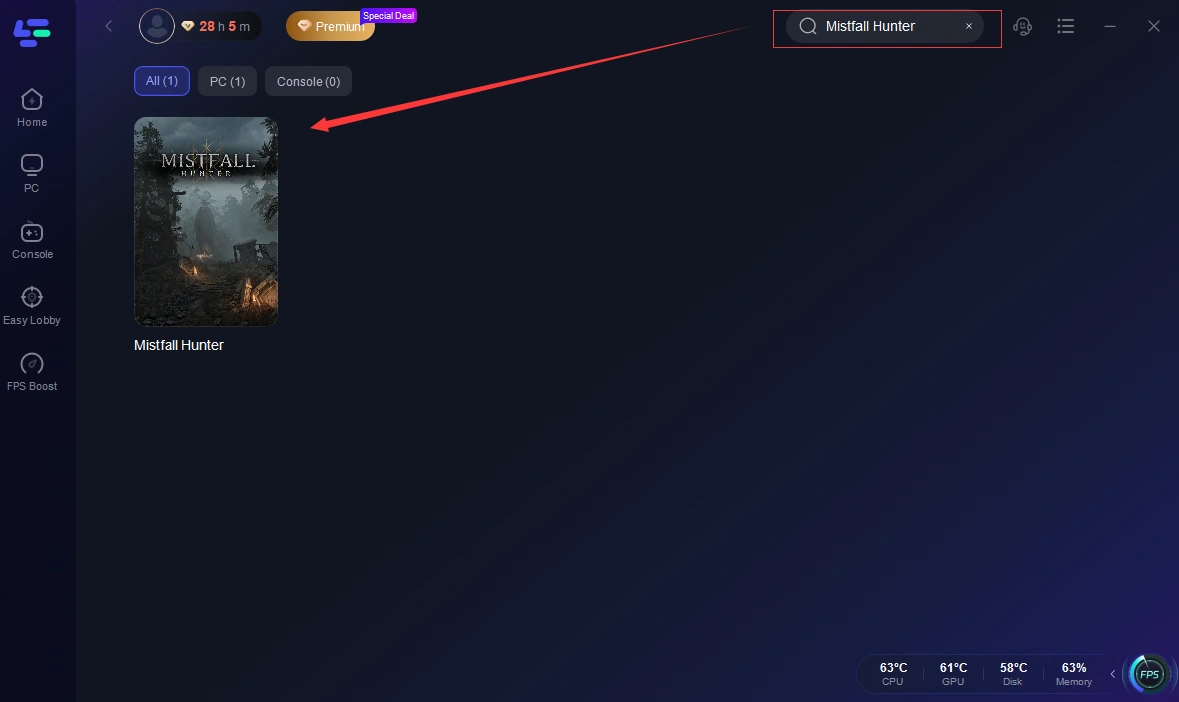
Select the game.
Choose the server region you want to connect to.
For Russia and nearby regions, try Germany first.
If Germany is unstable, try Singapore or another available region.
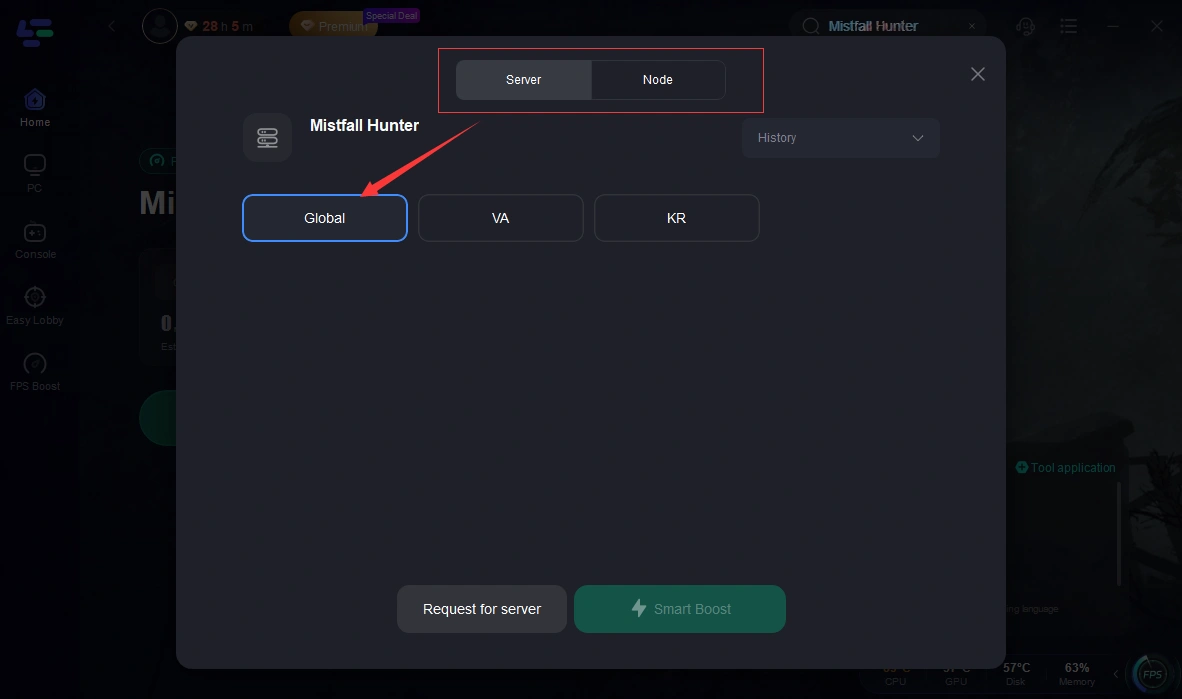
Click Boost.
Launch Mistfall Hunter through Steam.
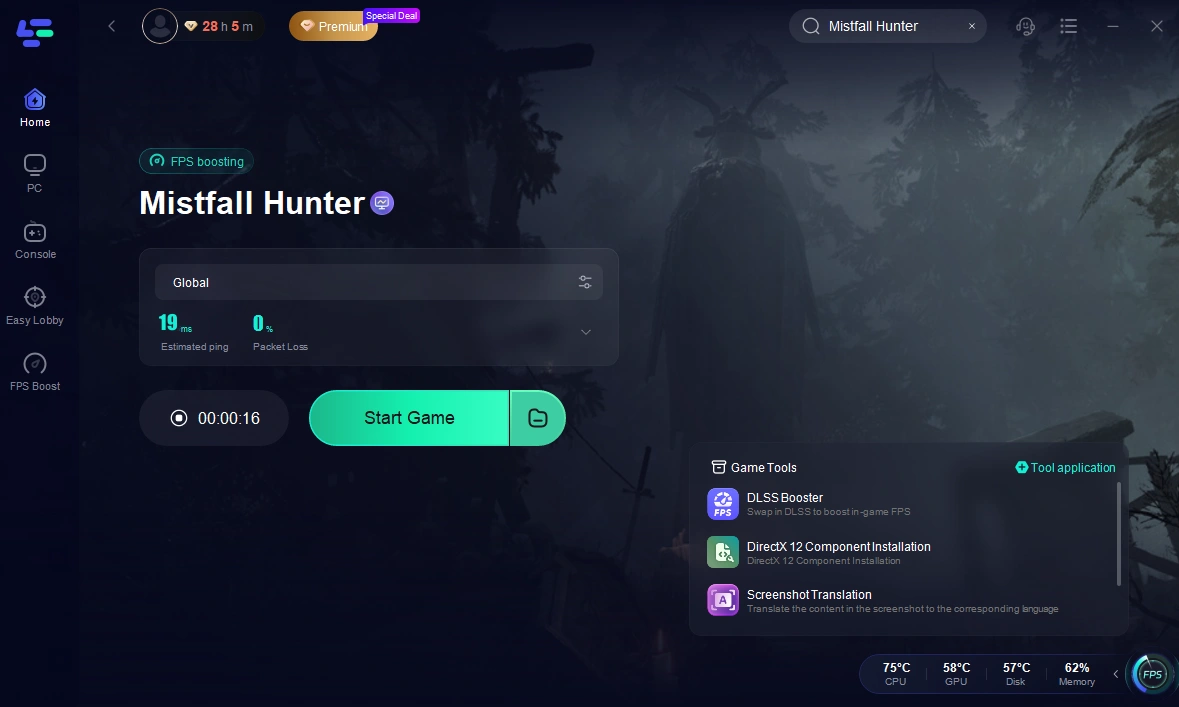
Try logging in again.
After boosting the game, restart Steam and the game client once. This helps apply the new network route correctly.
When This Method Works Best
Use LagoFast first if you see:
- Unable to log in
- Connection timeout
- Failed to connect to server
- High ping
- Stuck during connection
- Server disconnects
- Game only works occasionally
For most login and connection-related issues, this should be the first method you try.
Method 2: Restart Steam and Mistfall Hunter
Sometimes the game client or Steam may not load correctly during the first launch. A complete restart can fix simple login and startup issues.
Steps
Close Mistfall Hunter.
Fully exit Steam.
Open Task Manager.
End all remaining Steam or Mistfall Hunter processes.
Restart Steam.
Launch Mistfall Hunter again.
Do not simply close the game window. Make sure Steam is completely restarted.
Method 3: Verify Mistfall Hunter Game Files on Steam
If game files are missing, corrupted, or updated incorrectly, Mistfall Hunter may fail to launch or get stuck before reaching the login screen.
Steps
Open Steam.
Go to your Library.
Right-click Mistfall Hunter.
Select Properties.
Go to Installed Files.
Click Verify integrity of game files.
Wait for Steam to complete the verification.
Restart the game.
This is especially useful if the game crashes, freezes, or shows errors after an update.
Method 4: Allow Mistfall Hunter Through Windows Firewall
Mistfall Hunter is an online multiplayer game, so Windows Firewall or antivirus software may accidentally block the connection.
Steps
Press Windows + S.
Search for Windows Security.
Open Firewall & network protection.
Click Allow an app through firewall.
Click Change settings.
Find Mistfall Hunter and Steam.
Allow both applications on Private and Public networks.
Save the settings.
Restart your PC and launch the game again.
If you use third-party antivirus software, also add Mistfall Hunter and Steam to the allowed list.
Method 5: Run Steam and Mistfall Hunter as Administrator
Permission issues can sometimes prevent the game, anti-cheat, or network services from working properly.
Steps
Close Steam.
Right-click the Steam shortcut.
Select Run as administrator.
Launch Mistfall Hunter through Steam.
You can also do the same for the game executable:
Open your Steam Library.
Right-click Mistfall Hunter.
Select Manage.
Click Browse local files.
Right-click the game's .exe file.
Select Properties.
Go to the Compatibility tab.
Enable Run this program as an administrator.
Click Apply.
Method 6: Switch to a More Stable Server Region
During the open beta, Mistfall Hunter servers are available in the following regions:
China
United States
Germany
Singapore
Brazil
If one server region is unstable, switch to another region.
Recommended Server Selection
| Player Region | Server to Try First |
|---|---|
| Russia / Eastern Europe | Germany |
| Western Europe | Germany |
| Southeast Asia | Singapore |
| China | China |
| North America | United States |
| South America | Brazil |
If you use LagoFast, select the same region in LagoFast before launching the game.
Method 7: Change DNS to Improve Connection Stability
A slow or unstable DNS can cause login delays or connection errors.
Steps
Press Windows + R.
Enter ncpa.cpl and press Enter.
Right-click your active network connection.
Select Properties.
Double-click Internet Protocol Version 4 (TCP/IPv4).
Select Use the following DNS server addresses.
Enter:
Preferred DNS server: 8.8.8.8
Alternate DNS server: 8.8.4.4
Click OK.
Restart your PC.
Launch LagoFast, enable acceleration for Mistfall Hunter, and start the game again.
- ✅ Reduce Lag and High Ping.
- ✅ Boost FPS at the Same Time.
- ✅ Support 8000+ Popular Online Games.
- ✅ Stable connection and region switching.
Method 8: Disable Background Downloads and Network-Heavy Applications
Mistfall Hunter may not let you enter the game if your connection is being used by other applications.
Before launching the game, close:
Browser downloads
Torrent clients
Cloud sync applications
Video streaming services
Other online games
Windows update downloads
Then open LagoFast, enable acceleration for Mistfall Hunter, and launch the game again.
Method 9: Restart Your Router
If your network has been running continuously for a long time, the connection may become unstable.
Steps
Close Mistfall Hunter.
Close Steam.
Turn off your router.
Wait 30 seconds.
Turn your router back on.
Wait for the internet connection to recover.
Open LagoFast.
Enable acceleration for Mistfall Hunter.
Launch the game again.
This simple step can fix random disconnects and unstable login attempts.
Method 10: Reinstall Mistfall Hunter
If none of the methods above work, reinstalling the game can remove corrupted files or incorrect settings.
Steps
Open Steam.
Go to your Library.
Right-click Mistfall Hunter.
Select Manage.
Click Uninstall.
Restart your PC.
Install the game again.
Open LagoFast and enable acceleration for Mistfall Hunter.
Launch the game.
Use this method as a last resort, especially if the game keeps crashing or cannot reach the login screen.
Best Solution for Players in Russia
For players in Russia, the most likely cause of the issue is network routing. The open beta server list includes China, the United States, Germany, Singapore, and Brazil, but there is no server located in Russia.
This means your connection may need to travel through a longer or less stable route before reaching the game server.
The best solution:
Open LagoFast.
Search for Mistfall Hunter.
Select the Germany server first.
Click Boost.
Launch the game through Steam.
Try logging in again.
If Germany is still unstable, switch to Singapore or another available region and test again.
Boost Your Game with LagoFast for Epic Speed
Play harder, faster. LagoFast game booster eliminates stutter and lags on PC, mobile, or Mac—win every match!
Quickly Reduce Game Lag and Ping!
Boost FPS for Smoother Gameplay!