
Quick Answer: How to Quickly Switch to a Shared Outfit?
The fastest way to switch to a shared outfit or custom paint configuration in Meccha Chameleon is by utilizing the LagoFast One-Click Paint Tool. Because the game doesn't natively support an internal gallery for swapping presets mid-lobby, this specialized utility hooks safely into your configuration directory, letting you instantly map saved files to custom keyboard hotkeys for seamless, one-click outfit changes.
The viral sensation Meccha Chameleon has taken the gaming world by storm, tasking players with blending into intricate maps using precision color eye-droppers, textures, and ridiculous poses. However, the lack of an in-game saving system means your perfect camouflage disappear after every match. This guide breaks down how to manage your game files, export creations, and utilize community presets effortlessly.

- ✅Less ping and crashes.
- ✅ Higher FPS and better performance.
- ✅ Support for 2000+ games.
- ✅ Stable connection and region switching.
Part 1: What is a Meccha Chameleon Share Outfit?
Part 2: Meccha Chameleon Custom Paint Grid: Outfit VS Paint Preset?
Part 3: Meccha Chameleon Outfit File Location
Part 4: Step-by-Step: How to Export and Share Outfits Globally?
Part 5: How to Import Paint Files and Download Community Presets?
Part 6: LagoFast One-Click Paint: Instantly Save Paint & Switch Outfits
Part 1: What is a Meccha Chameleon Share Outfit?
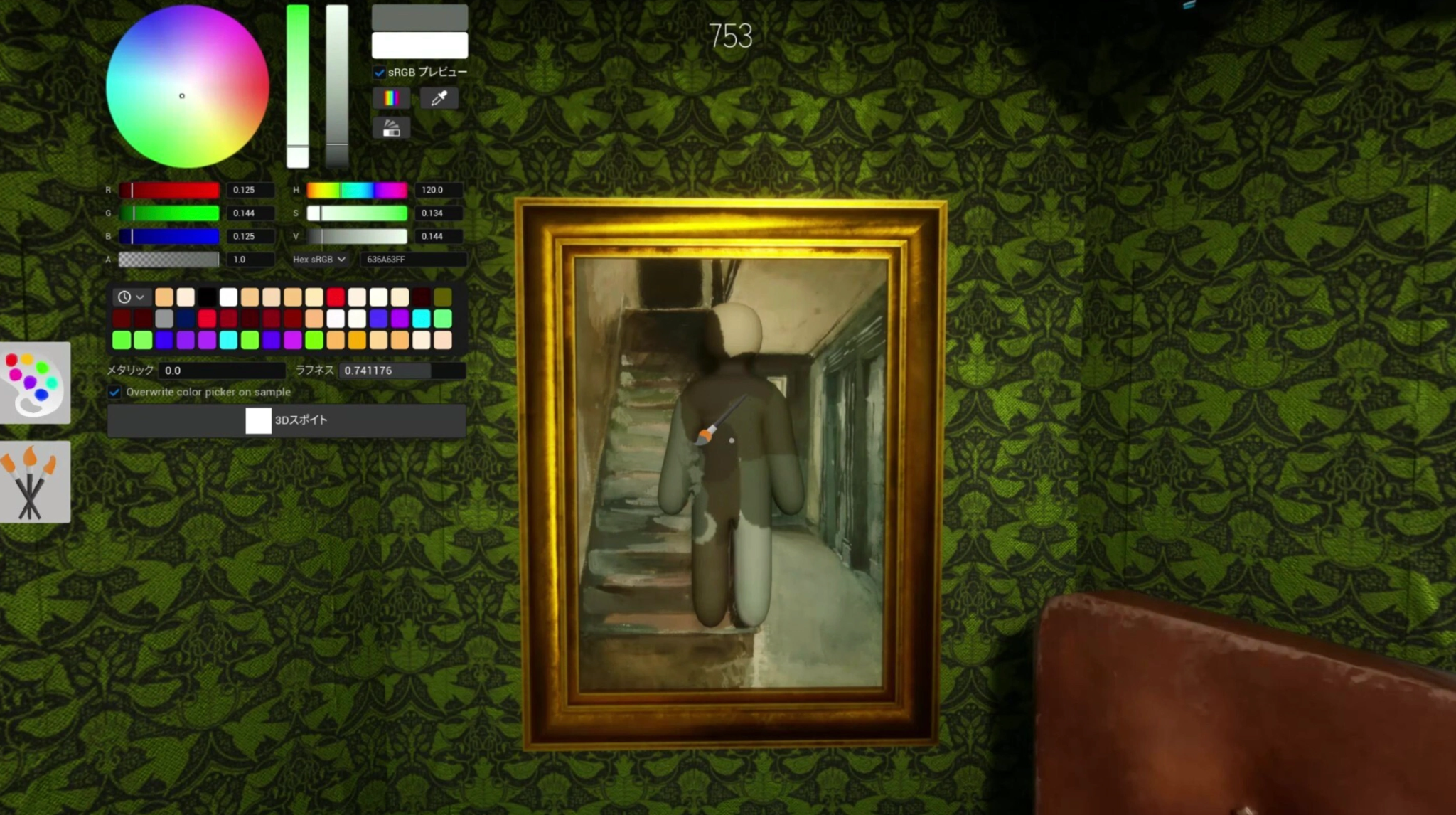
In most multiplayer games, a shared outfit refers to a cosmetic skin file downloaded from a digital marketplace or earned through a seasonal battle pass. However, due to the unique mechanics of Meccha Chameleon, a shared outfit is something entirely community-driven.
When players talk about a Meccha Chameleon share outfit, they are referring to a locally generated string of coordinates, hex codes, surface values (such as the roughness and metallic values), and brushstroke histories. Sharing an outfit means extracting this configuration file from your local game directory and sending it to another player. This allows the recipient to replicate a flawless camouflage pattern or a hilariously creative costume without spending 10 minutes manually repainting their character in the lobby.
Related Article: Meccha Chameleon Hotkey Outfit Switch: Change Paint Presets In-Game Quickly
Part 2: Meccha Chameleon Custom Paint Grid: Outfit VS Paint Preset?
Understanding how the game handles cosmetics requires differentiating between an "Outfit" and a "Paint Preset." While players frequently use these terms interchangeably, they affect the game’s custom paint grid in distinct ways.
- Paint Presets: These focus entirely on the color palette, texture depth, and shade transitions applied directly to the character’s base body. A paint preset records the exact HSL (Hue, Saturation, Lightness) profiles, custom patterns, and whether your surface is matte or glossy. These are highly map-dependent—like a "Dirty Brick" preset for the Hide-and-Seek Mansion or a "Neon Steel" preset for urban stages.
- Outfits: An outfit typically encompasses the broader identity of the character model. This includes the specific structural body shape, 3D prop geometry, and situational poses chosen during the preparation window.
When you combine a meticulously engineered paint preset with a specific model structure, you create a complete outfit file ready for deployment.
Part 3: Meccha Chameleon Outfit File Location
Before you can trade custom designs with friends or backing up your hard work, you need to know exactly where the game saves this information. Since Meccha Chameleon operates on Unreal Engine 5 and runs through Steam, your custom paint data is stored within your PC's hidden local application directories rather than the standard Steam library installation folder.
To find your Meccha Chameleon outfit file location and Meccha Chameleon paint file location, use the following default path:
C:\Users\[YourUsername]\AppData\Local\MecchaChameleon\Saved\SaveGames\
Alternatively, you can access your Meccha Chameleon preset folder quickly by following these steps:
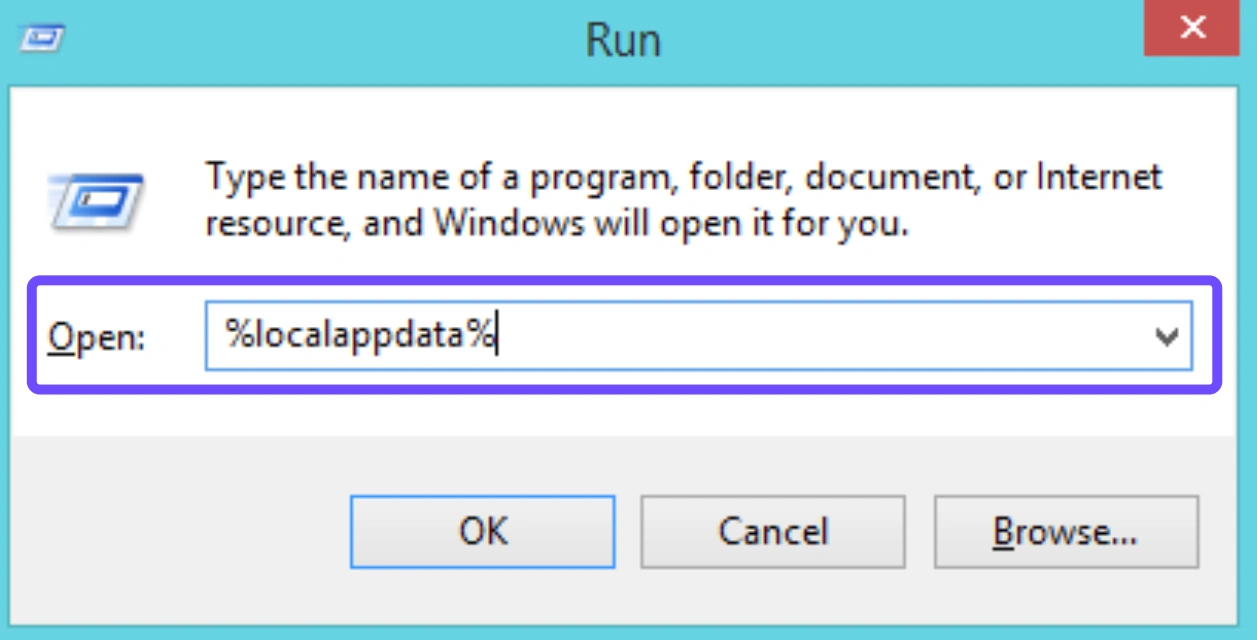
Step 1. Press the Windows Key + R on your keyboard to open the Run dialogue box.
Step 2. Type %localappdata% and press Enter.
Step 3. Scroll down to locate the MecchaChameleon folder.
Step 4. Navigate through Saved and then open the SaveGames directory.
Inside this folder, you will find files containing your local configuration maps. Backing up these specific files protects your custom presets from being accidentally overwritten during major game updates.
Part 4: Step-by-Step: How to Export and Share Outfits Globally?
Once you have located your configuration files, sharing your custom designs with the global community is incredibly simple. Follow this process to safely extract and compile your files for distribution:
Step 1. Locate the Precise Target File
Head over to your local configuration folder using the path outlined above. Identify the specific file corresponding to the look you want to share. These are usually timestamped or numbered based on your save slots.
Step 2. Export the Costume Safely
Copy the file out of the folder and paste it onto your desktop. Do not cut or drag the file directly out of the original folder, as removing it completely might cause errors the next time you boot up the lobby.
Step 3. Share Across Community Platforms
Compress the configuration file into a standard .zip or .rar folder if you are sending multiple designs. You can now distribute your custom files via Discord servers, Reddit threads, or dedicated community hubs.
Part 5: How to Import Paint Files and Download Community Presets?
If you want to use a legendary camo pattern created by a top-tier streamer or a friend, you need to know how to perform a Meccha Chameleon import outfit routine. The installation process mirrors the export system but works in reverse.
Step 1: Download the Files
Acquire the custom files from a trusted source. Ensure the file extension matches the standard format used by the game’s engine.
Step 2: Access Your Local Target Directory
Open up your Run command window, execute %localappdata%, and navigate deep into the MecchaChameleon\Saved\SaveGames\ directory path.
Step 3: Paste and Overwrite
Drop the downloaded asset directly into this directory. If you are replacing an existing save slot, make sure to rename the downloaded file to match the exact slot format expected by the system.
Once you restart your game client, your brand-new Meccha Chameleon download outfits will be fully accessible within your customization menus.
Part 6: LagoFast One-Click Paint: Instantly Save Paint & Switch Outfits
Managing raw configuration files manually can be a hassle, especially when you are trying to swap presets quickly between rapid match rotations. The LagoFast One-Click Paint Tool automates this entire background process through an intuitive user interface, ensuring your custom profiles are organized without risking file corruption.
Key Features of the LagoFast Custom Paint Engine:
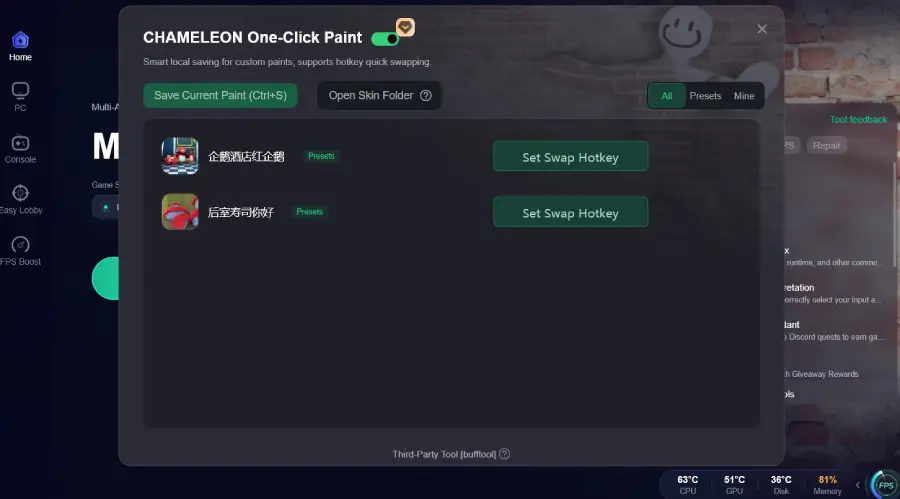
- One-Click Extraction: Instantly capture your current, meticulously prepared lobby paint design and save it directly to a secure local folder with a single click.
- Hotkey Outfit Swapping: Bind your favorite camouflage variations to custom keyboard shortcuts, enabling you to switch your look on the fly to match changing map biomes.
- Seamless Community Sharing: Open your directories directly through the client to immediately exchange files with friends, allowing them to drop files straight into their active play directory.
Step-by-Step Tutorial to Use the Best Meccha Chameleon One-Click Outfit Tool and Gaming Booster Tool:
Click the Free Trial button to download and install LagoFast Free Trial.
Search for Meccha Chameleon: Open the app and find the game in the library.
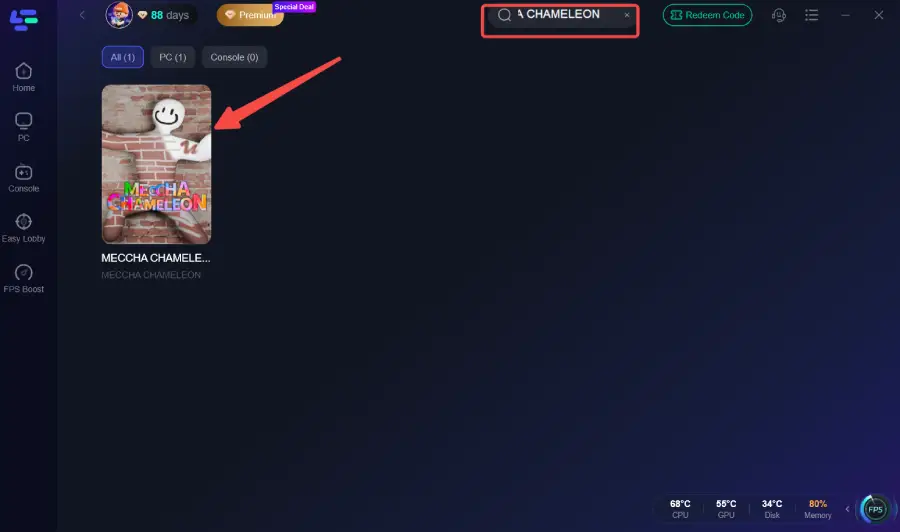
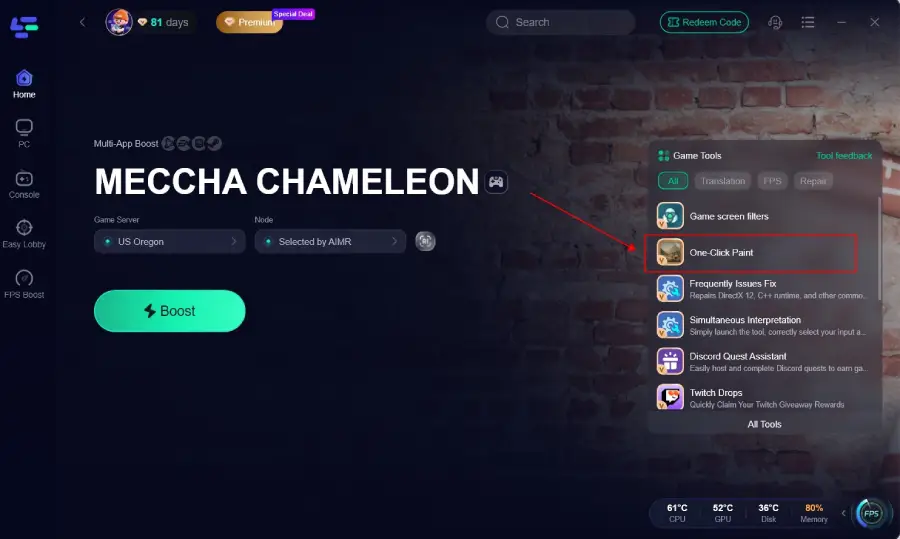
Enable the Outfit Tool: Navigate to the "Game Tools" section on the right side of the boost page to find the Meccha Chameleon One-Click Paint Tool.
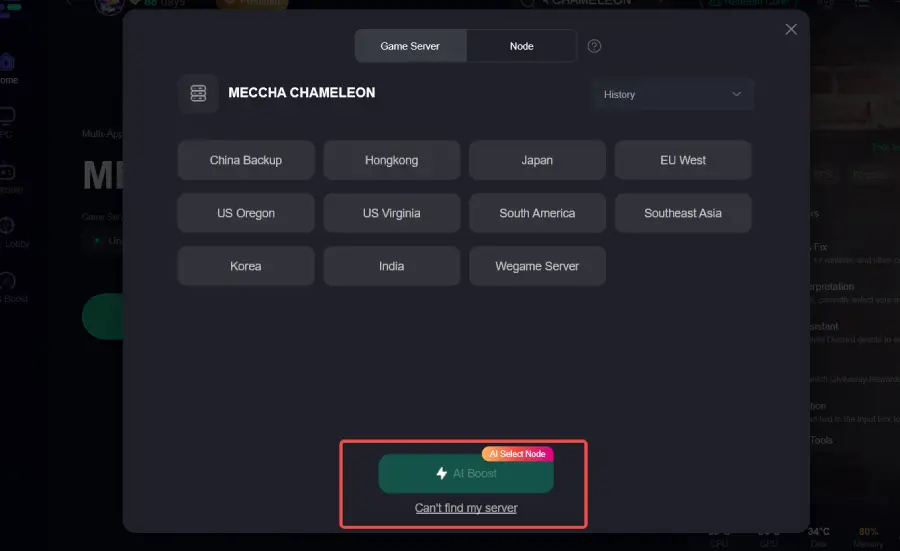
Select Your Node: Choose the most stable network node. LagoFast will show you real-time ping and packet loss stats.
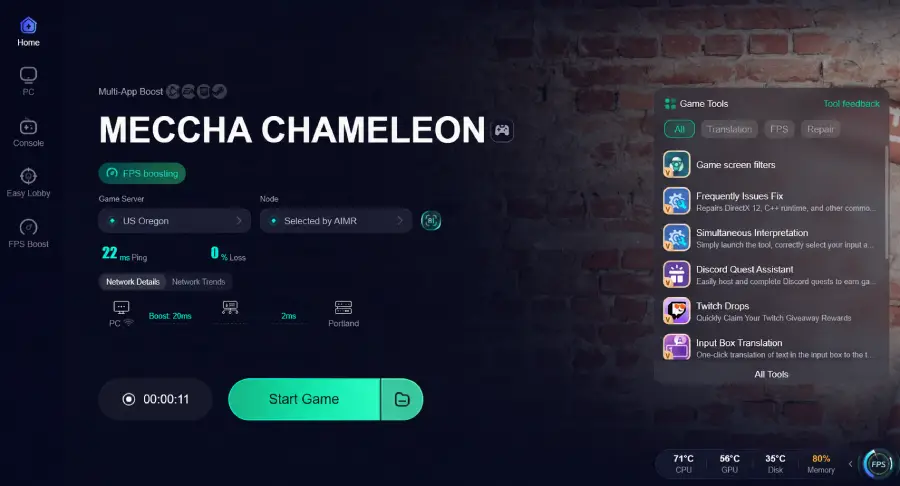
Boost and Play: Click the "Boost" button to optimize your connection and launch the game with the outfit tool active.
Part 7: FAQs
Can I share my outfits across different gaming platforms?
Currently, Meccha Chameleon is exclusively available on PC via Steam. Because of this, cross-platform file sharing for custom outfits is not supported, and files must be processed through Windows directories.
Will importing third-party community presets get my account banned?
No. Importing paint configurations modifies local cosmetic data structures rather than altering core gameplay mechanics or executable code. It does not grant competitive hacks, making it entirely safe.
Why isn't my imported outfit showing up in the game lobby?
This usually happens if the file was placed in the wrong folder or renamed incorrectly. Double-check that your files are sitting inside the SaveGames subfolder and match the required file format perfectly.
Do community presets save my character's physical map pose?
Yes, certain comprehensive outfit files save both the color array mapping and the default physical layout selected during creation, allowing you to replicate the entire disguise.
How many custom paint presets can I save simultaneously?
While the base game limits your local active slots, utilizing an external manager like LagoFast allows you to maintain an unlimited library of custom configurations archived on your hard drive.
Can I edit a community preset after importing it into my client?
Absolutely. Once a file is placed in your directory, it behaves like your own design. You can load into a lobby, tweak the color sliders, use the eye-dropper tool, and save it as a brand-new iteration.
Conclusion
Mastering the art of camouflage in Meccha Chameleon is only half the battle; knowing how to preserve, import, and share your designs elevates your gameplay to an entirely new level. By understanding your local directory structures and leveraging specialized tools like LagoFast, you can easily build a massive collection of elite community presets.
Boost Your Game with LagoFast for Epic Speed
Play harder, faster. LagoFast game booster eliminates stutter and lags on PC, mobile, or Mac—win every match!
Quickly Reduce Game Lag and Ping!
Boost FPS for Smoother Gameplay!