

There are few gaming frustrations quite like launching a highly anticipated title, only to be met with an endless, indifferent loading animation. For Marathon players, this scenario is all too familiar. Whether it's the initial "Connecting" screen that loops indefinitely or a freeze just as you're about to spawn in, a stuck loading screen can completely block your access to the game. This guide breaks down exactly why Marathon gets stuck at loading and provides a clear, step-by-step path to getting you past that screen and into the action.

- ✅ Reduce Lag and High Ping.
- ✅ Boost FPS at the Same Time.
✅ Support 2000+ Popular Online Games.
✅ Change Server without Latency.
✅ Boost Game Loading Speed.
Part 2: Common Marathon Stuck at Loading Screen Issues
Part 3: What Causes Marathon to Get Stuck at the Loading Screen?
Part 4: How to Fix Marathon Stuck at the “Connecting” Screen on PC
Part 5: Enhance Game Experience by Using LagoFast Game Booster
Part 6: Additional Fixes If Marathon Is Still Stuck at Loading Screen
Part 1: Introduction
Marathon is an always-online experience. Every menu, matchmaking request, and progression sync requires a successful handshake between your PC and Bungie's servers. When that handshake fails to complete, the game has no choice but to wait—indefinitely.
This isn't just a cosmetic glitch. It's a symptom of a breakdown somewhere in the chain connecting your client to the game world. The breakdown could be on your end, somewhere between you and the servers, or at the servers themselves.
Part 2: Common Marathon Stuck at Loading Screen Issues
Players report several distinct loading failure scenarios:
1. The Infinite "Connecting" Loop
The game reaches the network handshake stage and simply never progresses. The animation spins, but nothing changes.
2. Post-Launch Freeze
You briefly see a splash screen or "Click to Start" prompt, then the game hangs before reaching the main menu.
3. Late-Stage Hang
The game appears to load successfully, but freezes immediately before match deployment or world entry.
4. Timeout Errors
After an extended wait, you're eventually kicked back with an authentication failure or disconnect message.
Each of these patterns points to a different potential root cause—network, authentication, client configuration, or server load.
Part 3: What Causes Marathon to Get Stuck at the Loading Screen?
Understanding the root cause saves you from random troubleshooting. Here are the usual suspects:
1. Server Load and Login Throttling
During high-traffic windows—especially alpha and beta tests—developers intentionally limit concurrent logins to prevent server overload. Your "stuck" screen may actually be an invisible queue. Trying during off-peak hours often resolves this.
2. Network Handshake Failure
The game requires a clean, stable exchange of data packets to authenticate your client. Packet loss, high jitter, or inefficient routing can break this handshake, leaving the connection half-open and the loading screen spinning indefinitely.
3. Authentication and Configuration Corruption
Local files that store your login state or game settings can become corrupted. When the game reads these files during startup, it can hang if it encounters unexpected or damaged data.
4. Security Software Interference
Firewalls and antivirus tools are designed to be paranoid. They can mistake Marathon's network activity for a threat and quietly block specific ports or processes, preventing the handshake from ever completing.
5. Driver and Client Version Mismatches
An outdated GPU driver or a game client that's one patch behind the server can cause initialization failures that manifest as a frozen loading state.
6. Early Build Bugs
During technical tests, the game itself may have unresolved issues in its loading routine. These are temporary and will be addressed in patches, but knowing they exist saves you from chasing ghosts.
Part 4:How to Fix Marathon Stuck at the “Connecting” Screen on PC
Follow these steps in order. Start with the simplest fixes and escalate only if needed.
1. Full Client Restart
Close Marathon completely. Open Task Manager and ensure no background processes remain. Close Steam entirely, then relaunch. This clears temporary authentication tokens and cached network states.
2. Verify Game File Integrity
In Steam, right-click Marathon, select Properties > Installed Files > Verify Integrity of Game Files. This replaces any corrupted or missing local data that may be causing the hang.
3. Update GPU Drivers and Client
Ensure both your graphics drivers and the Marathon client are on the latest versions. Driver updates often include critical compatibility fixes for new game builds.
4. Disable Security Software Temporarily
Turn off Windows Firewall and any third-party antivirus. If the game loads successfully, add Marathon and Steam as permanent exceptions in these programs.
5. Switch to a Wired Connection
If you're on Wi-Fi, connect via Ethernet. Wired connections eliminate wireless interference and provide the consistent signal required for a clean authentication handshake.
6. Strip Down Background Processes
Use Task Manager to close unnecessary applications, especially those with network activity or hardware overlays (Discord, browser tabs, MSI Afterburner).
Part 5: Enhance Game Experience by Using LagoFast Game Booster
If you've completed the steps above and still face loading hangs, the problem is likely routing-related. Your connection to the server is taking an inefficient path, causing timeouts during the handshake.
This is where LagoFast (LagoFast Game Booster - Get No Lag and Lower Ping) Game Booster provides a targeted solution.
- Optimize network routes to reduce latency and packet jitter, which reduces micro-stutter that feels like FPS drops when synchronization lags.
- Reduce network congestion to prevent mid-match pauses due to delayed server communication.
LagoFast for PC Players
Step 1: Begin by clicking the Free Trial button to download and install the LagoFast Free Trial.
Step 2: Open the booster and add Marathon to your boost list.
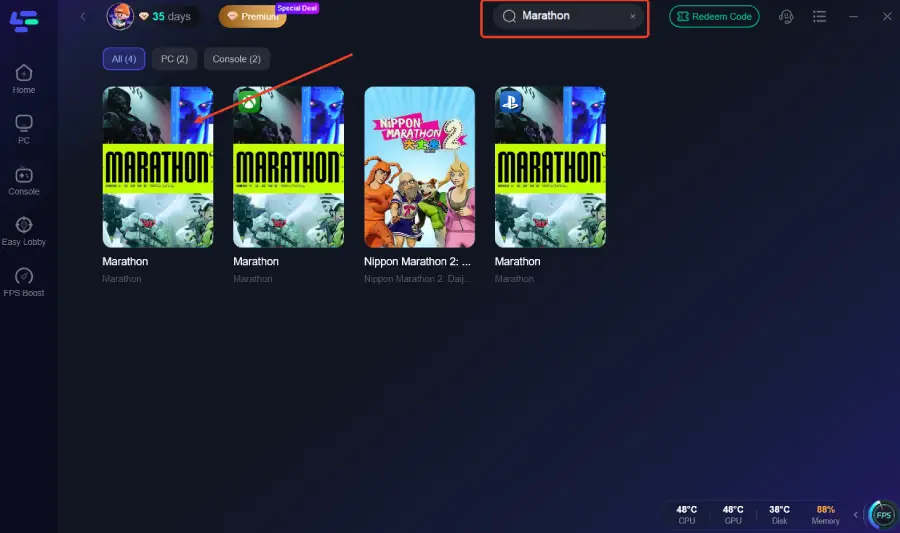
Step 3: Enable Smart Boost — LagoFast optimizes network routing and system resource use, reducing packet loss and stabilizing FPS
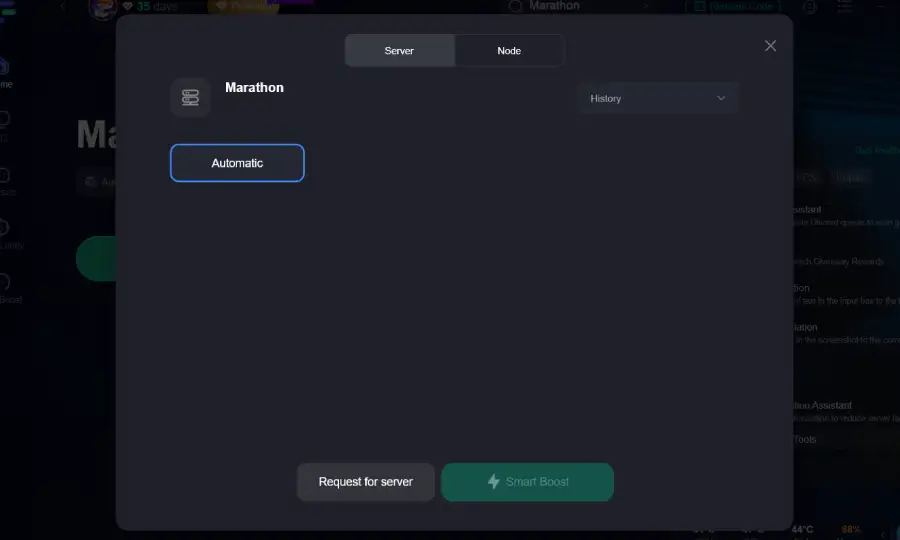
Step 4: Activate the boost and launch the game through LagoFast.
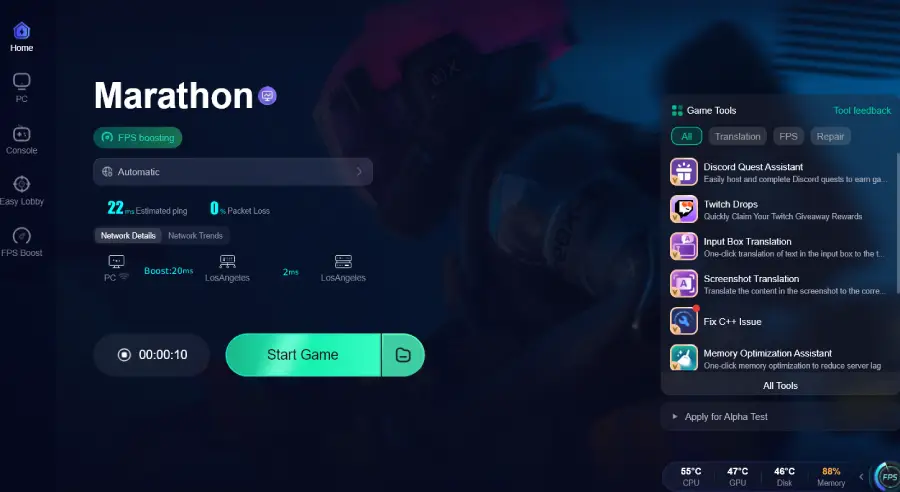
Part 6: Additional Fixes If Marathon Is Still Stuck at Loading Screen
If the game still refuses to load, these deeper interventions often succeed where standard fixes fail:
1. Clear Local Configuration Files
Navigate to Marathon's local app data folder (typically in %LOCALAPPDATA%\Marathon) and rename or delete configuration folders. The game will rebuild them on next launch, eliminating any corrupted settings.
2. Switch to Public DNS
Change your network adapter's DNS servers to Google DNS (8.8.8.8, 8.8.4.4) or Cloudflare (1.1.1.1). This can resolve slow or failing name resolution that causes verification timeouts.
3. Complete Reinstallation
Uninstall Marathon, restart your PC, and perform a clean installation. This guarantees no corrupted files remain.
4. Wait and Monitor Server Status
Sometimes, there is no local fix. If player communities are reporting widespread loading failures simultaneously, the servers themselves are likely the bottleneck. Check official channels and wait for the all-clear.
Part 7: FAQs
Q: Why does my high-end PC still get stuck on the loading screen?
A: This issue is almost never about raw processing power. It's almost always network authentication or server communication-related. Your hardware isn't the bottleneck here.
Q: Will restarting the game multiple times help?
A: If the issue is server-side congestion, repeated restarts may eventually land you in an open slot. If it's a local configuration issue, restarts alone won't fix it—you need to clear the corrupted data.
Q: Is this a sign that my account is banned or locked?
A: Unlikely. Account issues typically present as explicit error messages, not indefinite loading screens. This is almost always a connection or client issue.
Q: Will the full release fix this permanently?
A: The most severe loading bugs are typically resolved by launch. However, maintaining a clean network environment and optimized system will always benefit your online gaming experience.
Conclusion
A stuck loading screen in Marathon isn't necessarily a sign of a broken game or failing hardware. More often, it's a resolvable breakdown in the complex chain of authentication and connection that modern online games require. By methodically working through these fixes—starting with simple client restarts and escalating to advanced network optimization—the vast majority of players can break the infinite loop and finally get into the game.
Boost Your Game with LagoFast for Epic Speed
Play harder, faster. LagoFast game booster eliminates stutter and lags on PC, mobile, or Mac—win every match!
Quickly Reduce Game Lag and Ping!
Boost FPS for Smoother Gameplay!