
Marathon packet loss is the silent killer of competitive matches. You won’t always disconnect—but you’ll feel it: rubberbanding, delayed hit registration, teleporting enemies, frozen animations, or abilities triggering seconds late. If your aim feels off and fights feel “desynced,” packet loss is usually the culprit.
This guide breaks down what causes packet loss in Marathon, how to test for it properly, and the fastest ways to fix it—without wasting hours guessing.

- ✅ Reduce Lag and High Ping.
- ✅ Boost FPS at the Same Time.
✅ Support 2000+ Popular Online Games.
✅ Change Server without Latency.
✅ Boost Game Loading Speed.
Part 1: What Is Packet Loss in Marathon?
Part 2: Why You’re Getting Marathon Packet Loss
Part 3: How to Check for Packet Loss in Marathon
Part 4: Quick Fixes for Marathon Packet Loss
Part 5: Advanced Network Fixes
Part 6: Marathon Packet Loss on Console
Part 7: How to Use LagoFast to Fix Marathon Packet Loss
Part 1: What Is Packet Loss in Marathon?
Packet loss happens when data traveling between your device and the game server never reaches its destination. In a fast-paced PvP shooter like Marathon, even 1–2% packet loss can cause:
- Rubberbanding
- Shots not registering
- Delayed movement or abilities
- Random micro-freezes
- Sudden “lag spikes” without high ping
Important distinction:
- High ping = delay
- Packet loss = missing data
Ping can be 30ms and still feel terrible if packet loss is present.
Part 2: Why You’re Getting Marathon Packet Loss
Packet loss typically falls into one of four buckets:
1. Wi-Fi Instability
Wireless interference, distance from router, and crowded channels cause intermittent data drops. This is the most common cause.
2. ISP Routing Issues
Sometimes your internet is “fine,” but the route your ISP takes to Marathon’s servers is congested. This leads to:
- Stable ping but random packet drops
- Packet loss only in certain regions
- Packet loss during peak hours
3. Network Congestion at Home
If someone is:
- Streaming 4K video
- Downloading large files
- Uploading cloud backups
Your upstream bandwidth can choke—causing packet loss even if download speeds look good.
4. Faulty Hardware or Cables
- Old Ethernet cables (Cat5 era)
- Aging routers/modems
- Loose coax or fiber lines
Yes, cables matter. A damaged Ethernet cable can cause intermittent packet loss that looks like “random game issues.”
Part 3: How to Check for Packet Loss in Marathon
In-Game Network Stats
If Marathon provides a network stats overlay, enable it and monitor:
- Packet loss %
- Ping variance
- Jitter
Anything consistently above 1% packet loss is problematic.
Run a Packet Loss Test
On PC:
- Open Command Prompt
- Run: ping -n 100 google.com
- Check if any packets are lost
If you see packet loss here, the issue is outside the game.
For deeper testing, tools like WinMTR can identify routing issues between you and a server.
Part 4: Quick Fixes for Marathon Packet Loss
1. Switch to Wired Ethernet (Non-Negotiable)
If you’re on Wi-Fi, switch to Ethernet.
This alone fixes packet loss for a huge percentage of players.
2. Reboot Your Network Equipment
Power cycle:
- Modem (wait 2–3 minutes)
- Router
- Then restart your PC/console
This clears routing tables and refreshes your IP path.
3. Pause Background Uploads
Uploads hurt more than downloads in gaming. Pause:
- Cloud sync tools
- File uploads
- Torrents
- Large game downloads
4. Change DNS (Quick Optimization)
Try:
- Cloudflare: 1.1.1.1
- Google DNS: 8.8.8.8
DNS doesn’t directly reduce packet loss, but it can improve routing consistency.
Part 5: Advanced Network Fixes
If packet loss persists:
Update Router Firmware
Outdated firmware can cause stability problems under load.
Enable QoS (Quality of Service)
Set your device as priority traffic. This prevents other devices from consuming bandwidth during matches.
Replace Old Ethernet Cables
Use Cat6 or higher. Avoid damaged or bent cables.
Contact Your ISP
If packet loss appears during ping tests consistently:
- Ask for a line check
- Request signal level verification
- Mention intermittent packet loss specifically
Be precise. “Lag” won’t get you far. “Intermittent packet loss affecting real-time applications” will.
Part 6: Marathon Packet Loss on Console
For PlayStation/Xbox:
- Use wired Ethernet
- Restart modem/router
- Set console as DMZ (advanced users only)
- Enable QoS on router
- Avoid double NAT setups
If NAT type is strict, it can worsen connection instability.
When Packet Loss Isn’t Your Fault
If:
- Multiple players report the same issue
- Packet loss spikes only during certain hours
- Official server issues are acknowledged
The problem may be on the server side. In that case, local troubleshooting won’t fully fix it.
Part 7: How to Use LagoFast to Fix Marathon Packet Loss
If your connection looks fine on paper but Marathon still feels unstable, the issue is often poor routing between your ISP and the game server. LagoFast helps by automatically selecting a cleaner, more stable network path—reducing packet loss and smoothing out jitter before it ruins your match.
Why Use LagoFast?
- Reduces packet loss caused by unstable ISP routes
- Stabilizes ping and lowers jitter
- Minimizes rubberbanding and delayed hit registration
- Provides real-time visibility into connection stats
Quick Setup Guide
1. Download LagoFast using the Free Trial option and install it.
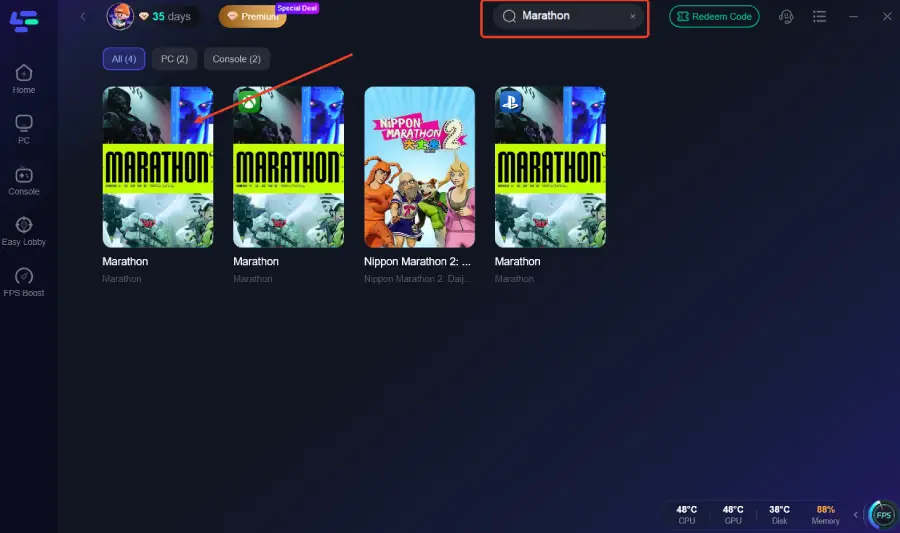
2. Open the app and search for Marathon before launching the game.
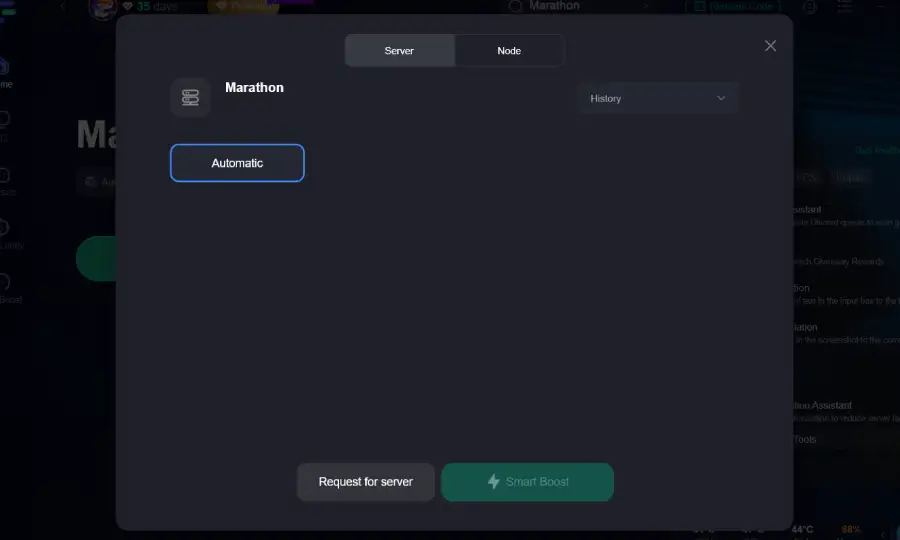
3. Choose your preferred region under Select Server, then pick the optimal Node with the best connection stats.
4. Activate Smart Boost to optimize the route and monitor your live ping, packet loss, and network type from the dashboard.
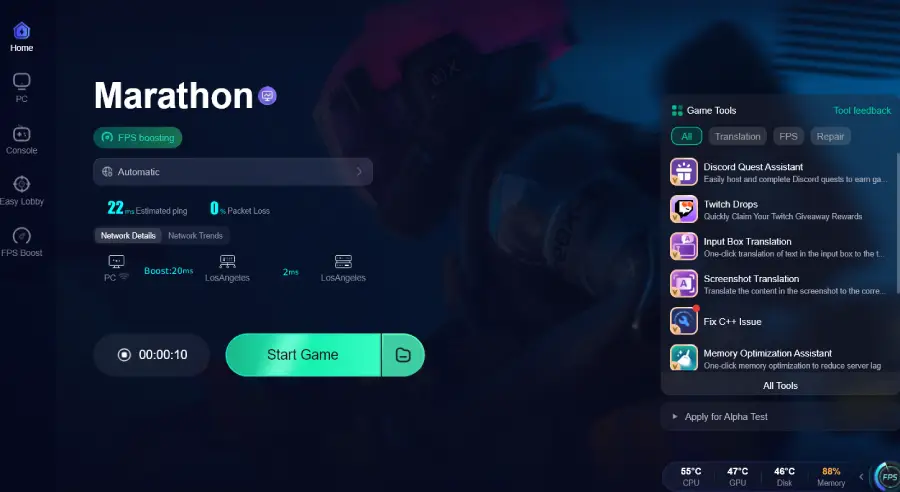
Once activated, LagoFast continuously maintains a more stable connection path while you play. If your packet loss was caused by routing instability rather than hardware issues, you should notice smoother movement, more consistent hit detection, and fewer random in-game freezes almost immediately.
FAQs About Marathon Packet Loss
Is 1% packet loss bad?
Yes. In competitive shooters, even 1% can cause noticeable issues.
Why is my ping low but I still lag?
Because packet loss and jitter affect gameplay differently than ping.
Can VPNs fix packet loss?
Usually no. In many cases, VPNs increase instability unless specifically optimized for gaming routes.
Conclusion
Marathon packet loss isn’t just “a little lag” — it directly impacts hit registration, movement accuracy, and overall competitive performance. The key is diagnosing it logically instead of guessing. Start with the fundamentals (wired connection, router reboot, background traffic control), verify whether packet loss exists outside the game, and then address routing if necessary. In most cases, the issue is either Wi-Fi instability or ISP routing inefficiency — both fixable. Once your connection is stable and packet loss is eliminated, Marathon feels dramatically smoother, more responsive, and far more consistent. And in a high-stakes extraction shooter, consistency is everything.

Boost Your Game with LagoFast for Epic Speed
Play harder, faster. LagoFast game booster eliminates stutter and lags on PC, mobile, or Mac—win every match!
Quickly Reduce Game Lag and Ping!
Boost FPS for Smoother Gameplay!