
League of Legends (LoL) is a game where reaction speed, map awareness, and smooth gameplay are key to success. While having high-end graphics can make the game look stunning, performance and clarity should always be the priority—especially in ranked play, where every frame counts. Optimizing your graphics settings can help increase FPS, reduce input lag, and improve visibility, giving you a competitive edge over your opponents.
In this guide, we’ll break down the best graphics settings for maximum performance, smooth gameplay, and clear visuals, whether you’re on a high-end PC or looking to boost FPS on a lower-end system.
Vietnamese Version: Tối ưu hóa cài đặt đồ họa trong League of Legends

- ✅ Reduce Lag and High Ping.
- ✅ Boost FPS at the Same Time.
- ✅ Support 2000+ Popular Online Games.
- ✅ Help Solve Game Crashes.
Part 1. What are the best graphics settings for League of Legends?
Part 2. League of legends graphic settings for low PC
Part 3. How to adjust League of Legends graphics?
Part 4. How to improve LoL graphics for best performance?
Part 5. How to run League of Legends smoothly - By Using LagoFast Game Booster
Part 1: What are the best graphics settings for League of Legends?
The optimal graphics settings in League of Legends depend on your system's capabilities. For players aiming for high FPS and smooth gameplay, especially on low or mid-range PCs, lowering unnecessary visual effects can significantly reduce input lag and improve responsiveness. For maximum performance, set your resolution to your native display to maintain sharp visuals without unnecessary strain on your system. Full-screen mode is recommended, as it minimizes background processes and helps stabilize FPS. Lower character, environment, and effects quality to reduce system load while keeping the game clear and readable. Shadows should be turned off or set to very low, as they have a big impact on FPS without providing a real advantage.
To ensure smooth frame rates, uncap FPS or set it to match your monitor’s refresh rate if using a high-refresh display. Turn off V-Sync to prevent input lag and disable Anti-Aliasing to improve responsiveness. Character Inking, which adds outlines around champions, can also be turned off to keep visuals clean and focused.
For further performance boosts, enable Low Spec Mode in the client settings and disable HUD animations to reduce unnecessary CPU load. Closing background applications like browsers or Discord can free up extra resources, and keeping GPU drivers updated ensures the best possible performance.
Part 2: League of Legends graphic settings for low PC
If you're playing on a low-end PC, optimizing your graphics settings is crucial for achieving playable frame rates. Here are recommended settings:
- Resolution: Set to your monitor's native resolution for clarity.
- Window Mode: Full Screen.
- Character Quality: Very Low.
- Environment Quality: Very Low.
- Effects Quality: Very Low.
- Shadows: Off.
- Anti-Aliasing: Off.
- V-Sync: Off.
- Frame Rate Cap: Uncapped or set to your monitor's refresh rate.
- Character Inking: Off.
- Low Spec Mode: Enabled.
- HUD Animations: Disabled.
These settings prioritize performance, ensuring smoother gameplay even on hardware with limited capabilities.
Part 3: How to adjust League of Legends graphics?
Adjusting graphics settings in League of Legends is straightforward:
- Launch League of Legends and enter a game or custom match.
- Press the 'Escape' key to open the Options menu.
- Navigate to the 'Video' tab to access graphics settings.
- Modify settings such as resolution, character quality, environment quality, effects quality, shadows, anti-aliasing, and more.
- Apply changes and test performance in-game.
For additional tweaks, explore the 'Interface' tab to adjust HUD scale, enable or disable HUD animations, and customize other visual elements to your preference.
Part 4: How to improve LoL graphics for best performance?
Beyond in-game settings, consider the following tips to enhance performance:
- Update Graphics Drivers: Ensure your GPU drivers are up-to-date for optimal compatibility and performance.
- Close Background Applications: Shut down unnecessary programs running in the background to free up system resources.
- Adjust Windows Settings: Set Windows to 'Best Performance' mode to reduce system overhead
- Clean Your System: Regularly clean your PC's hardware and ensure proper ventilation to prevent overheating.
- Use Performance Monitoring Tools: Utilize software to monitor system performance and identify potential bottlenecks.
Implementing these practices can lead to noticeable improvements in game performance.
Part 5: How to run League of Legends smoothly - By Using LagoFast Game Booster
For players seeking to optimize their gaming experience, especially in ranked matches where every millisecond counts, LagoFast offers a solution. LagoFast can optimize your gaming experience and address issues like lag, FPS drops, or long loading times.
How LagoFast Improves League of Legends Gameplay
- Reduces Ping and Lag: LagoFast routes your internet connection through optimized servers, minimizing latency.
- Stabilizes Connections: If disconnections are a frequent issue, LagoFast ensures a smoother and more stable connection.
How to Use LagoFast with League of Legends
Step 1: Begin by clicking the Free Trial button to download and install the LagoFast Free Trial.
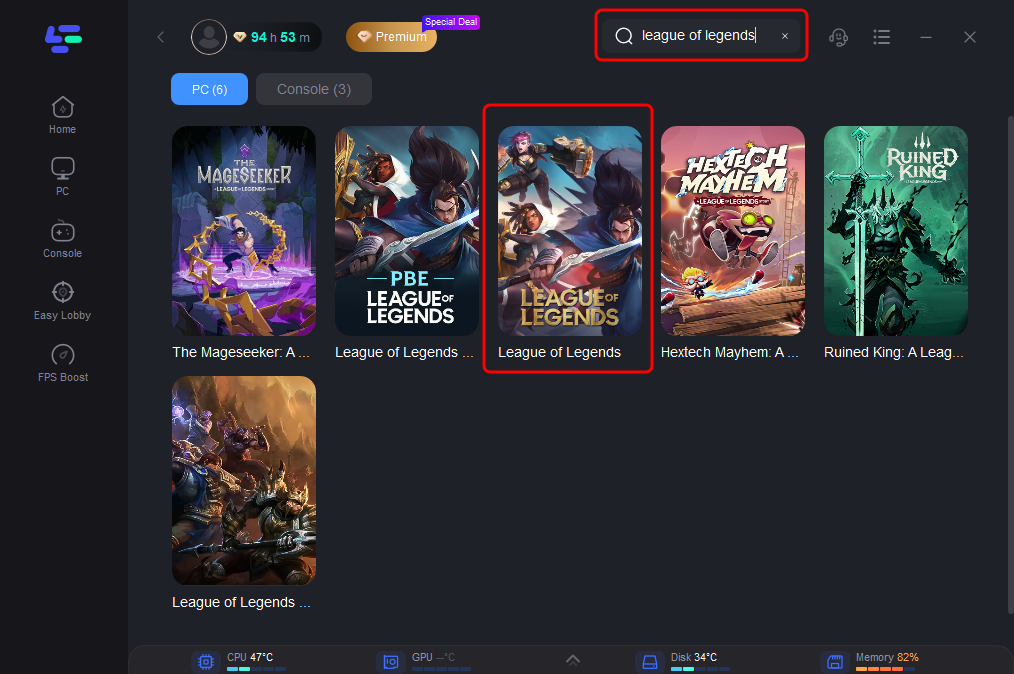
Step 2: Launch LagoFast: Select League of Legends from the supported games list.
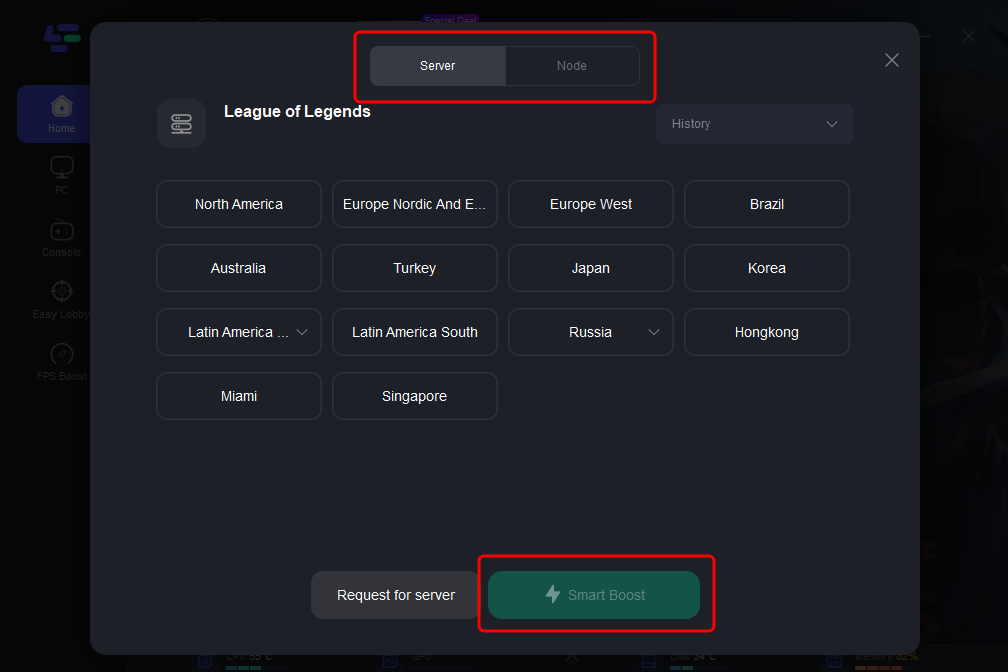
Step 3: Choose the Optimal Server: Select the best server location to minimize lag and improve connectivity.
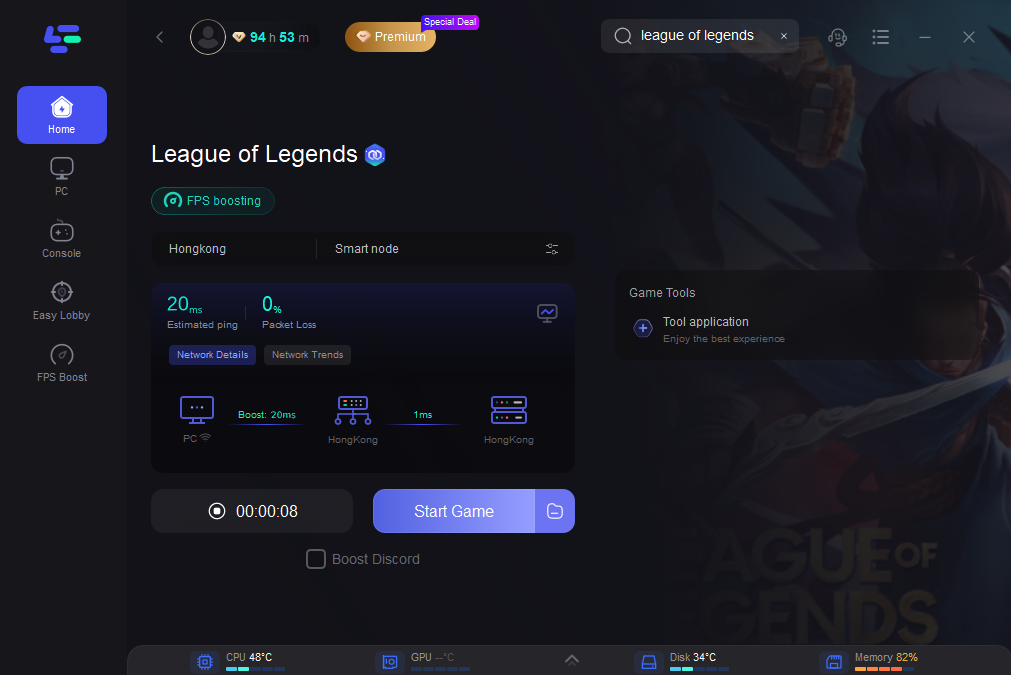
Step 4: Boost Your Game: Activate LagoFast and launch League of Legends. You should notice faster loading times and fewer connection issues.
Part 6: FAQs
1. What are the best graphics settings for low-end PCs in League of Legends?
Set resolution to native, use Full-Screen mode, lower graphics quality, and turn off shadows for optimal performance.
2. How can I improve my FPS in League of Legends?
Adjust graphics settings, close background applications, and consider using LagoFast for network optimization.
3. How do I access graphics settings in League of Legends?
Launch the game, click on the gear icon for settings, and navigate to the Video tab to adjust graphics options.
4. Should I enable V-Sync in League of Legends?
It’s generally recommended to disable V-Sync to prevent input lag unless you experience screen tearing.
5. Can LagoFast help with connection issues in League of Legends?
Yes, LagoFast optimizes your internet connection, reducing lag and improving overall performance during gameplay.
Conclusion
Optimizing your graphics settings in League of Legends is essential for achieving maximum performance and smooth gameplay, whether you are using a high-end PC or a lower-end system. By following the recommended settings and utilizing tools like LagoFast, players can enhance their gaming experience, ensuring that they remain competitive and focused on winning matches. With the right approach to graphics optimization, you can dive into the action with confidence, knowing that your setup is fine-tuned for success.
Boost Your Game with LagoFast for Epic Speed
Play harder, faster. LagoFast game booster eliminates stutter and lags on PC, mobile, or Mac—win every match!
Quickly Reduce Game Lag and Ping!
Boost FPS for Smoother Gameplay!