
Quick Answer: How to Fix League of Legends Game Not Launching
To fix League of Legends not launching after Champion Select, first open Task Manager (Ctrl+Shift+Esc) and end all "League of Legends" and "Riot Client" processes, then try to reconnect. If the game still won't open, ensure your graphics drivers are updated and disable third-party overlays like Discord or NVIDIA. For persistent black screens or "Game Still in Progress" errors, use the Riot Repair Tool in the client settings to verify your 26.14 patch files. If your connection is causing the transition to fail, using LagoFast Game Booster can stabilize your network route and force the game client to initialize properly.
The transition from the draft phase to the actual Rift is the most delicate part of the League of Legends experience. With the arrival of Patch 26.14, a significant number of players are finding themselves stuck in limbo: the music stops, the client disappears, but the loading screen never arrives. This isn't just a minor inconvenience; it often leads to AFK penalties, lost LP, and frustrated teammates. Understanding that the "Reconnect" button is often a symptom of a failed launch rather than the cause is the first step toward getting back into the game.

- ✅ Reduce Lag and High Ping.
✅ Boost FPS at the Same Time.
✅ Support 8000+ Popular Online Games.
✅ Change Server without Latency.
✅ Boost Game Loading Speed.
Part 1: Why Does League of Legends Fail to Launch After Champion Select?
Part 2: Common Symptoms: Black Screens, Reconnect Loops, and Stuck Processes
Part 3: How to Fix League of Legends Game Not Launching (Step-by-Step)
Part 4: Solving the "Game Still in Progress" and Reconnect Button Issues
Part 5: How to Enhance Your Game Experience with LagoFast Game Booster
Part 6: League of Legends Launch Issues FAQ
Why Does League of Legends Fail to Launch After Champion Select?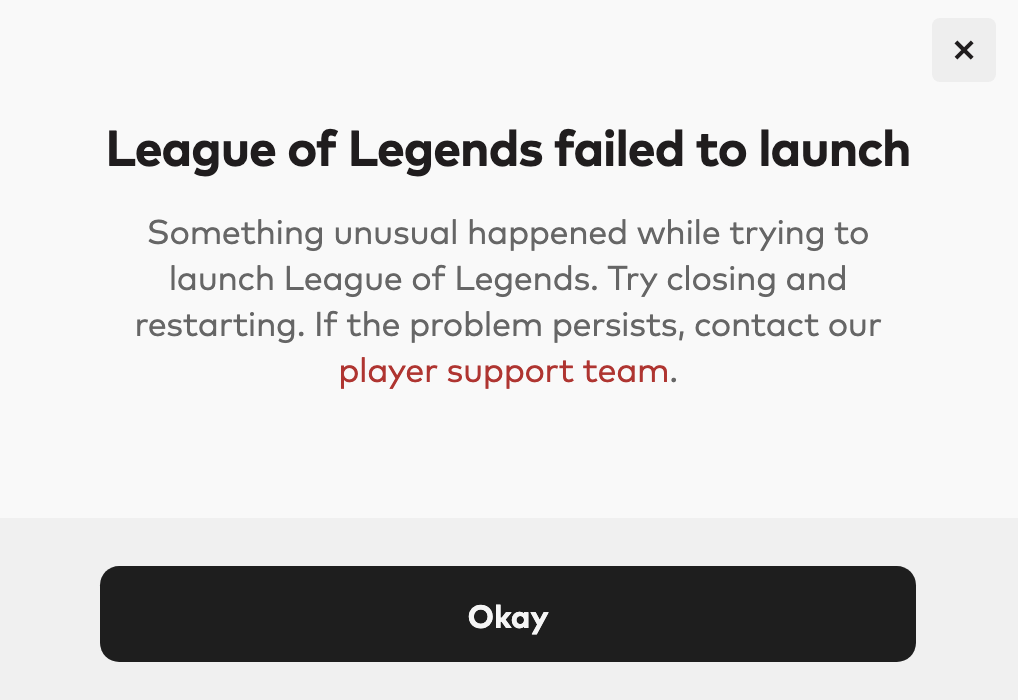
When Champion Select ends, the Riot Client is supposed to hand off the "session" to the actual game executable (League of Legends.exe). Patch 26.14 seems to have made this hand-off more prone to failure.
- Vanguard Handshake Failure: Riot’s anti-cheat, Vanguard, must verify your system state the moment the game starts. If there’s a delay or a "VAN" error during this split-second transition, the game window will never appear.
- Stale Ghost Processes: Sometimes, a previous game session didn't close properly in the background. The Riot Client sees this "ghost" process and thinks you are already in a game, preventing a new window from opening.
- Overlay Interference: Tools that try to "inject" themselves into the game window (like Discord's overlay or screen recorders) can cause the game to crash during the initial rendering phase.
- Network Desync: If your internet "blips" during the transition, the server might think you've connected while your client is still waiting for a response, leading to the "Game Still in Progress" loop.
- Corrupted Patch 26.14 Files: A partial download of the latest update can leave the game executable unable to load specific assets, causing an instant crash to desktop.
Common Symptoms: Black Screens, Reconnect Loops, and Stuck Processes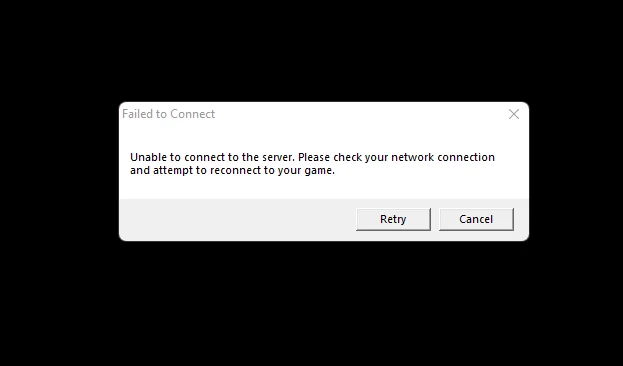
The "Not Launching" issue manifests in several frustrating ways, and identifying your specific symptom can help narrow down the fix.
Loading screen never appears
You finish picking your champion, the countdown hits zero, and... nothing. You’re left staring at your desktop or the Riot Client home screen. In this state, the game is usually "running" in the background but has no window.
Black screen or game instantly closes
The game window opens for a fraction of a second, shows a black screen, and then vanishes. This is typically a graphics driver or resolution conflict introduced by the new patch.
Riot Client says “Game Still in Progress”
The client thinks you’re in the match, but there is no game window. Clicking "Reconnect" results in a brief flash, but the game still doesn't open. This is a classic "secondary symptom" of a failed initialization.
League process stuck in Task Manager
If you check your Task Manager, you might see multiple instances of League of Legends (32 bit) or Riot Client consuming CPU but doing nothing. These processes are "stuck" and must be cleared manually.
How to Fix League of Legends Game Not Launching (Step-by-Step)
Before you panic and reinstall the entire 50GB game, work through these targeted fixes for Patch 26.14.
Step 1: Force Close Background Processes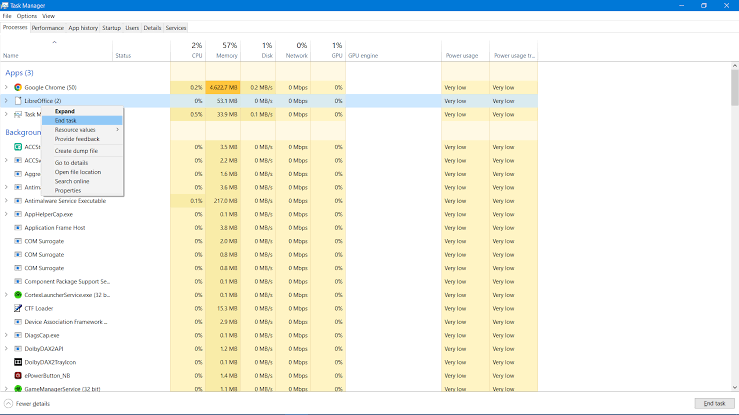
This is the most effective fix for 90% of launch issues.
- Press Ctrl + Shift + Esc to open Task Manager.
- Look for any process named "League of Legends," "Riot Client," or "Vanguard User Mode Service."
- Right-click each one and select "End Task."
- Relaunch the Riot Client and try to reconnect.
Step 2: Disable Fullscreen Optimizations
Windows sometimes interferes with how League handles its windowed mode.
- Go to your League installation folder (usually C:\Riot Games\League of Legends\Game).
- Right-click League of Legends.exe and select Properties.
- Go to the Compatibility tab.
- Check "Disable fullscreen optimizations" and click Apply.
Step 3: Update Graphics Drivers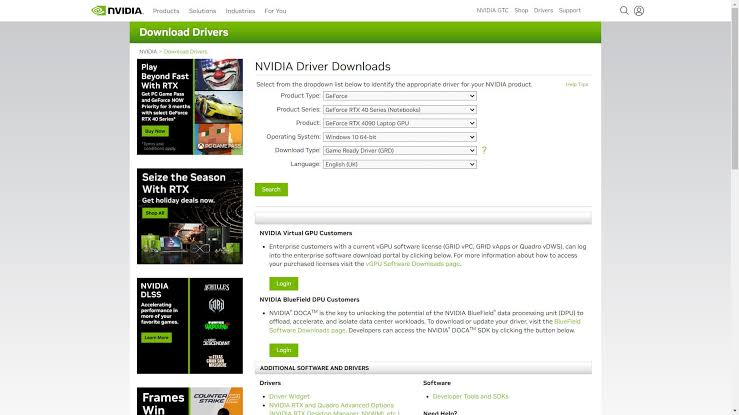
Patch 26.14 includes subtle changes to the game's engine. If your NVIDIA or AMD drivers are even a few months old, they might struggle to render the new loading screen assets. Use the official GeForce Experience or AMD Adrenalin software to ensure you are on the latest version.
Solving the "Game Still in Progress" and Reconnect Button Issues
If you are stuck at the "Reconnect" screen and the button does nothing, the client is essentially "desynced" from the game server.
The "Custom Game" Test
Interestingly, some players find that their client works perfectly for Custom Games but fails for Ranked or Swiftplay. This indicates that the issue might be tied to the matchmaking server's "handshake." If you can enter a custom game but not a ranked one, the problem is likely your network's stability or a Vanguard conflict.
AFK and Leaver Penalties
One of the biggest risks of the "Not Launching" bug is the LeaverBuster system. If you cannot reconnect within the first 3 minutes, your team might vote for a remake, resulting in a loss of LP and a potential queue penalty. This is why having a fast, reliable way to "force" the connection—like using a game booster—is vital.
How to Enhance Your Game Experience with LagoFast Game Booster
When the "Reconnect" button fails, it's often because your local network is struggling to establish a stable route to the specific game server assigned to your match. LagoFast(LagoFast Game Booster - Get No Lag and Lower Ping) Game Booster is designed to solve exactly this type of "handshake" failure.
Stabilizing the Transition from Champ Select
LagoFast uses a unique multi-path connection technology that ensures your data takes the most direct and stable route to Riot's servers. By optimizing your connection before you enter Champion Select, you can prevent the network "hiccups" that cause the game to fail during the transition to the loading screen. If your game is stuck on a black screen or the reconnect button is unresponsive, LagoFast can help "force" the data through by providing a cleaner network path.
Detailed Steps to Use LagoFast for League of Legends:
Click the Free Trial button to download and install LagoFast Free Trial.
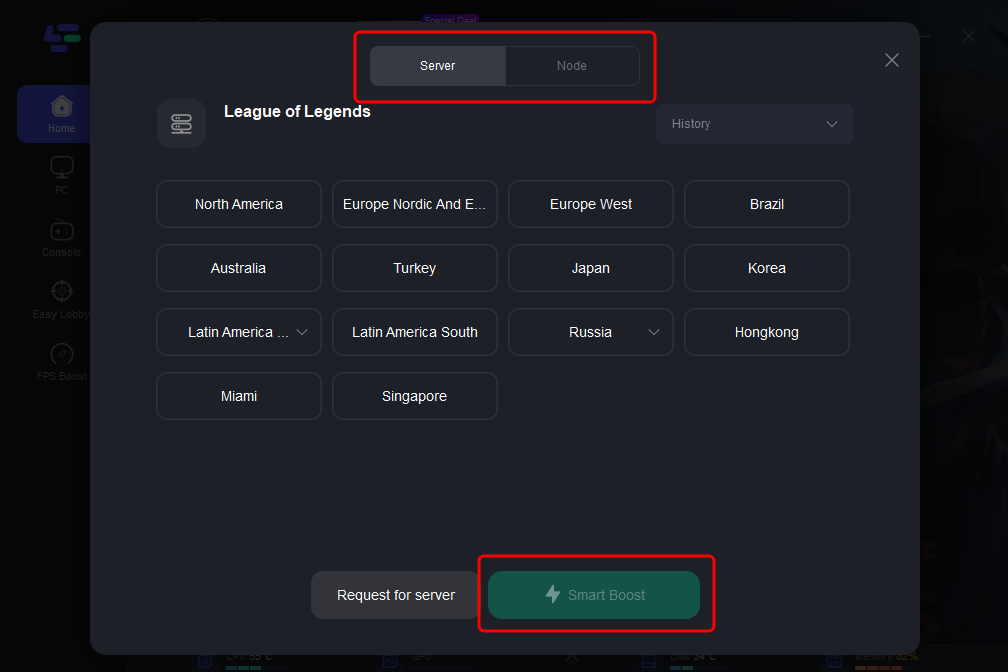
Search for League of Legends: In the app, search for "League of Legends" and select your specific server region.
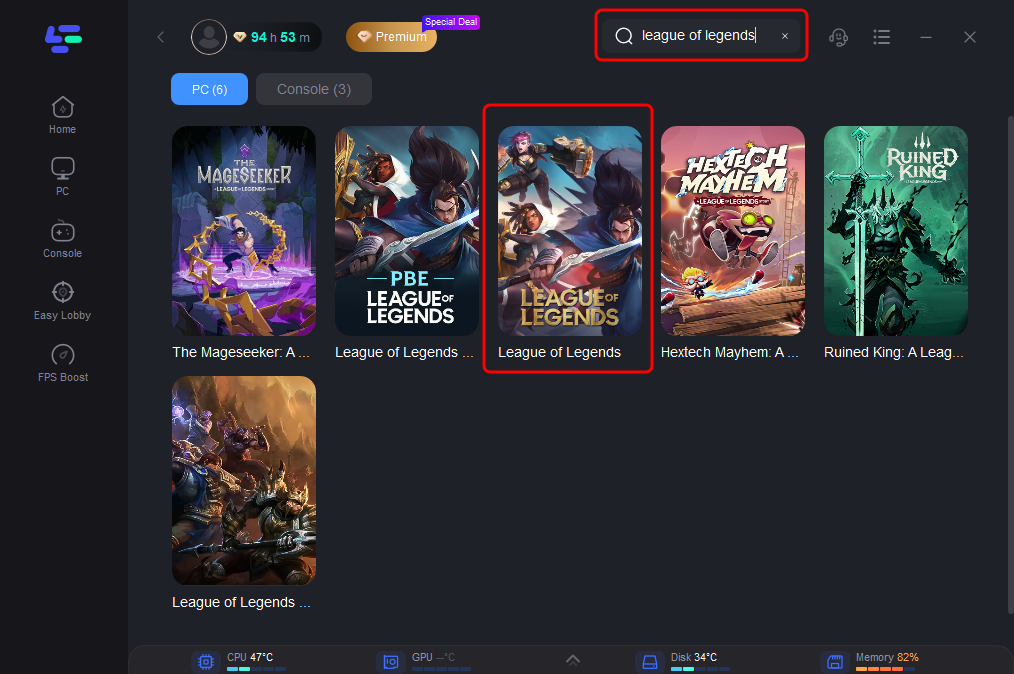
Boost Your Game: Click the "Boost" button. LagoFast will optimize your PC's network settings and find the best route to the game servers.
Launch the Game: Start the Riot Client through the LagoFast interface. This ensures the booster is active the moment you enter the queue.
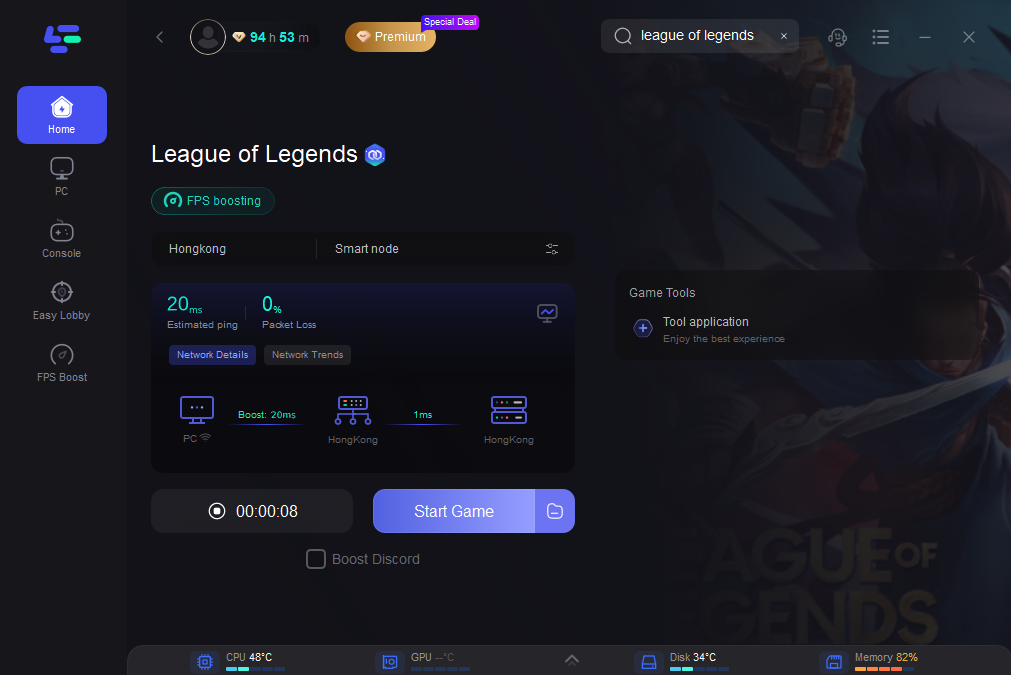
Enjoy a Seamless Launch: With LagoFast active, the transition from Champion Select to the loading screen will be much smoother, significantly reducing the chance of a "Game Not Launching" error.
League of Legends Launch Issues FAQ
Q: Why does my game work in Custom matches but not in Ranked?
A: Ranked matches use different server clusters and have stricter Vanguard verification. If your Vanguard service is lagging or your network route to the ranked servers is unstable, you might only experience launch failures in competitive modes.
Q: Will I get my LP back if the game didn't launch because of a bug?
A: Unfortunately, Riot rarely reverses LP losses for individual technical issues. This is why it's crucial to fix the launch bug before queuing for ranked.
Q: Is the "Black Screen" a hardware problem?
A: Usually not. It's almost always a software conflict between the game's display settings and your graphics drivers. Try switching to "Borderless Windowed" mode if you can access the settings.
Q: Does the "Reconnect" button ever work?
A: It works if the initial failure was a temporary network glitch. However, if the failure was caused by a stuck process in Task Manager, the button will do nothing until you manually end that process.
Q: Can Vanguard cause the game to not launch?
A: Yes. Vanguard must be running from the moment your PC boots. If Vanguard encounters an error or is disabled, the game will instantly close or fail to open after Champion Select.
Key Takeaway
League of Legends failing to launch after Champion Select is a complex issue often tied to background processes, Vanguard conflicts, or network instability in Patch 26.14. By proactively managing your Task Manager, disabling overlays, and using a dedicated stabilizer like LagoFast, you can minimize the risk of being left behind on the loading screen. Don't let a "Reconnect" loop ruin your climb—take control of your technical setup and ensure every match starts on time.

Boost Your Game with LagoFast for Epic Speed
Play harder, faster. LagoFast game booster eliminates stutter and lags on PC, mobile, or Mac—win every match!
Quickly Reduce Game Lag and Ping!
Boost FPS for Smoother Gameplay!