
Hytale’s Early Access launch in January 2026 has thrilled millions of players worldwide. However, as with many large sandbox games during early rollout, a wave of technical problems — including crashing, freezing, stuttering, and launch failures — has been widely reported by the community. These issues can significantly interrupt gameplay and quickly ruin immersion if left unresolved.
In this detailed guide, we break down the most common causes behind Hytale crashes and freezes, walk you through effective fixes, and help you optimize your system for smoother gameplay. Whether you’re encountering crashes at startup, freezes during gameplay, or instability when connecting to servers, this article provides actionable solutions tailored for PC players.

- ✅ Reduce Lag and High Ping.
✅ Boost FPS at the Same Time.
✅ Support 2000+ Popular Online Games.
✅ Change Server without Latency.
✅ Boost Game Loading Speed.
Part 1: Introduction to Hytale Crashing Issues
Part 2: Common Causes of Hytale Freezing and Crashing
Part 3: Effective Fixes for Hytale Stuttering and Lag
Part 4: How to Resolve Hytale Crashing on Startup
Part 5: Boosting Your Hytale Experience with LagoFast Game Booster
Part 1: Introduction to Hytale Crashing Issues
Hytale is a sandbox RPG that blends creative building, exploration, and online multiplayer within procedurally generated worlds. With so many systems running simultaneously — world generation, AI behavior, physics simulation, and networking — stability issues are expected during the Early Access phase.
Since launch, developers have already released hotfixes addressing critical problems such as crashes during character creation, unexpected shutdowns, and launcher-related failures on certain system configurations.
Hytale crashes can typically occur in the following scenarios:
- At startup or while launching the game launcher
- During gameplay, including sudden freezes or forced exits
- When joining or hosting multiplayer servers
- While downloading updates or applying patches
Each crash type usually has a different root cause, which is why applying the right fix matters.
Related Article: How to Download Hytale on PC & Fix Launcher Issues?
Part 2: Common Causes of Hytale Freezing and Crashing
Before applying fixes, it’s helpful to understand why Hytale crashes or freezes in the first place.
Early Access Stability Bugs
Because Hytale is still in Early Access, unresolved bugs are common. Issues such as crashes during character creation or specific in-game interactions have already been acknowledged and patched, but new bugs may still surface.
Launcher and Authentication Failures
The Hytale launcher can sometimes crash or fail to initialize due to corrupted local files, missing permissions, or authentication server hiccups.
System Resource Strain
Hytale can place heavy demands on CPU, GPU, and memory. If your system runs low on available RAM or VRAM, or if background programs consume too many resources, freezing and crashes may occur.
Driver and Software Conflicts
Outdated graphics drivers, overlays, or antivirus software can interfere with Hytale’s processes, leading to instability or sudden shutdowns.
Connection and Multiplayer Glitches
When playing online, unstable internet connections, strict firewall rules, or mismatched authentication data can cause freezes or disconnections that feel like crashes.
Part 3: Effective Fixes for Hytale Stuttering and Lag
While stuttering and lag aren’t always full crashes, they often precede freezes or unexpected exits. Improving performance can greatly enhance stability.
Lower In-Game Graphics Settings
Reducing texture quality, view distance, shadows, and effects can significantly lower system strain. Start with Low or Medium settings and adjust gradually.
Update Graphics Drivers
Always keep your GPU drivers up to date. Outdated drivers are one of the most common causes of rendering-related crashes.
Close Background Applications
Programs like browsers, streaming software, or recording tools consume CPU and memory. Closing them before launching Hytale gives the game priority access to system resources.
Optimize Windows Performance Settings
Switch your Windows power plan to High Performance and enable Game Mode to reduce CPU throttling and background interference.
Part 4: How to Resolve Hytale Crashing on Startup
If Hytale crashes immediately on launch or the launcher closes unexpectedly, try the following fixes:
Restart Your PC
A system restart clears temporary cache files and resets background processes that may interfere with the launcher.
Run the Launcher as Administrator
Right-click the Hytale launcher and select Run as administrator to ensure proper permissions.
Reset Launcher Cache
Navigate to %AppData%/Hytale/cache and delete temporary files. Relaunch the game to trigger file re-verification.
Reinstall the Launcher
Uninstall the existing launcher and download the latest version. A clean install often resolves corrupted startup sequences.
Check Firewall and Antivirus Settings
Security software can block authentication or file verification. Temporarily disable it and add Hytale as an exception if the game launches successfully.
System Language and Locale Settings
Some players report improved stability after setting their system language to English (United States), reducing locale-related conflicts.
Part 5: Boosting Your Hytale Experience with LagoFast Game Booster
For players seeking improved stability and smoother performance, LagoFast Game Booster can help optimize both network routing and system behavior.
LagoFast prioritizes game traffic, reduces packet loss, and selects optimal server routes — which can help minimize freezes, disconnects, and lag-related crashes.
How to Use LagoFast on PC:
Step 1: Click the Free Trial button to download and install LagoFast.
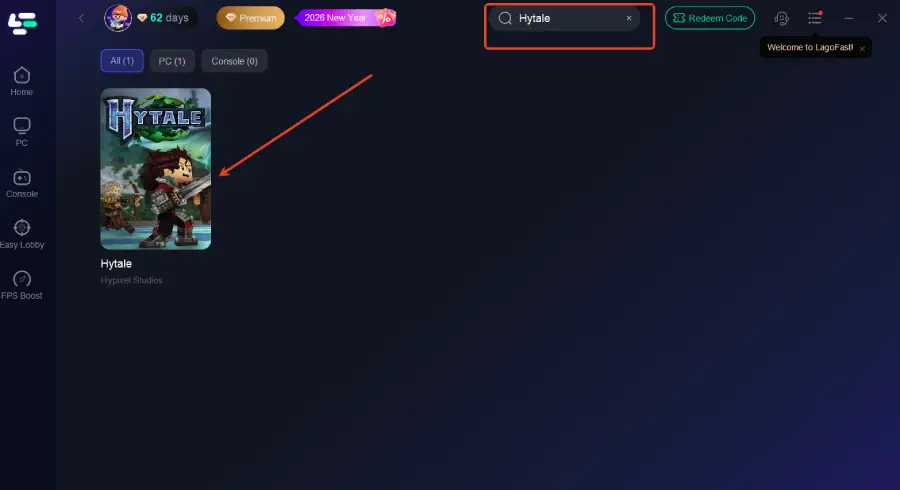
Step 2: After installation, search "Hytale" in the search bar and select the game.
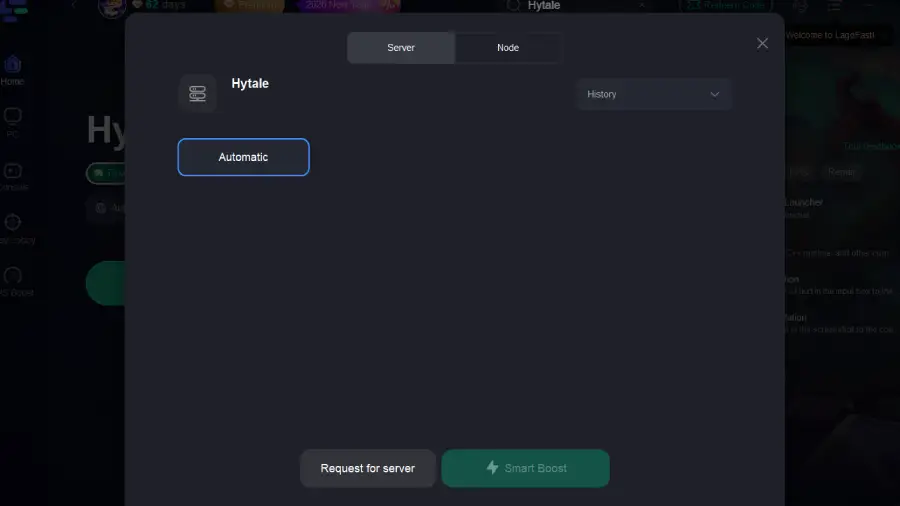
Step 3: Choose your preferred server node and click "Smart Boost" to start optimizing.
Step 4: Launch your game and enjoy smooth, optimized gameplay with lower ping and no stutter.
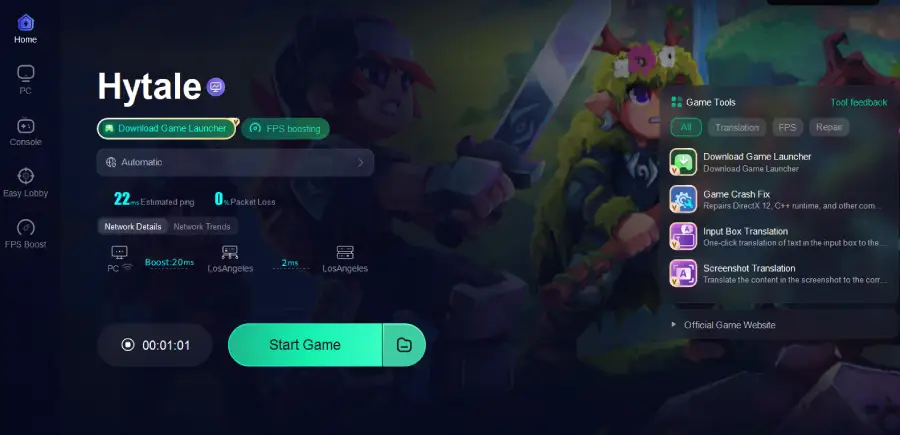
With optimized routing and reduced network instability, many players report fewer freezes and more consistent frame rates.
Part 6: FAQs
Q1: Why does Hytale crash after long play sessions?
Memory buildup and server-side load are common causes. Restarting the game periodically can help until further patches improve memory handling.
Q2: Can multiplayer servers cause crashes?
Yes. Version mismatches, unstable hosts, or poor connections can appear as crashes. Make sure both the server and client are updated.
Q3: Does reinstalling Hytale fix crashes?
Reinstalling can resolve corrupted files or launcher issues, especially when cache resets don’t help.
Q4: Do I need a high-end GPU to avoid crashes?
Not necessarily. Crashes are often related to CPU load, memory usage, or driver stability rather than raw GPU power.
Q5: Are crashes temporary due to Early Access?
Yes. Developers are actively releasing patches to address crashes related to character creation, GPU conflicts, and authentication problems.
Conclusion
Fixing Hytale crashing and freezing issues requires a combination of basic troubleshooting, system optimization, and patience — especially during the Early Access phase. Start with simple steps like restarting your PC, updating drivers, and lowering graphics settings.
If problems persist, deeper fixes such as resetting cache, reinstalling the launcher, or using optimization tools like LagoFast can make a noticeable difference. As Hytale continues to receive updates, maintaining an optimized system setup will help ensure a smoother and more stable gameplay experience.
Boost Your Game with LagoFast for Epic Speed
Play harder, faster. LagoFast game booster eliminates stutter and lags on PC, mobile, or Mac—win every match!
Quickly Reduce Game Lag and Ping!
Boost FPS for Smoother Gameplay!