
Every new Teamfight Tactics expansion brings massive gameplay overhauls, new traits, and game-changing Augments. If you want to theorycraft comps before the official set launch, testing TFT Set 18 mobile PBE is the best way to get ahead of the meta. However, setting up the Public Beta Environment on iOS or Android isn't as straightforward as downloading a standard app from the store. Between capped TestFlight slots, delayed mobile patches, and frustrating connection errors, getting into a match takes a few extra steps.
This guide breaks down how to play TFT Set 18 PBE on mobile, step-by-step. You will learn how to get your download links, link your Riot account, fix updating glitches, and optimize your connection for smooth, lag-free matches.

- ✅ Reduce Lag and High Ping.
- ✅ Boost FPS at the Same Time.
- ✅ No more PBE Queue Issues.
- ✅ Full Guides For Novice Players.
- ✅ Support 8000+ Online Games.
Part 1: TFT Set 18 Mobile PBE Access Qualifications & Account Linking
Part 2: Why Can't TFT Set 18 Mobile PBE Be Found in the App Store?
Part 3: How to Download & Play the TFT Mobile PBE
Part 4: Is iOS TestFlight Full?
Part 5: Is the Mobile Patch Later Than the PC Patch?
Part 6: Troubleshooting Common Mobile PBE Issues
Part 7: Enhance Your Mobile PBE Experience with LagoFast Mobile
Part 8: TFT Set 18 Mobile PBE FAQs
Part 1: TFT Set 18 Mobile PBE Access Qualifications & Account Linking
Before downloading any files, you need to verify that your Riot account is eligible to access the PBE servers.
Can My PC PBE Account Be Used for Mobile?

Yes, absolutely. TFT Mobile PBE shares the exact same server architecture as the League of Legends PC PBE. You do not need to register a second account specifically for your phone. If you already test new sets on your PC, simply log in with those existing PBE credentials on your iOS or Android device.
If you do not have a PBE account yet, your main Riot account must meet basic standing criteria:
- Honor Level 3+ on your main live server account (with no active bans or restrictions).
- A verified Riot account registered in an eligible region.
Qualification Checklist
|
Requirement |
PC PBE |
Mobile PBE (Android / iOS) |
|
Riot Account Type |
PBE-enabled Account |
PBE-enabled Account (Same as PC) |
|
Honor Level Requirement |
Level 3 or higher |
Level 3 or higher |
|
Separate Mobile Registration |
Not required |
Not required |
|
Platform Distribution |
Direct Riot Client Download |
TestFlight (iOS) / Google Play & APK (Android) |
|
Server Location |
North America (NA) |
North America (NA) |
Part 2: Why Can't TFT Set 18 Mobile PBE Be Found in the App Store?
Searching "TFT PBE" on the standard Apple App Store or Google Play Store usually yields no relevant results or only brings up the live version of Teamfight Tactics.
Why is it hidden?
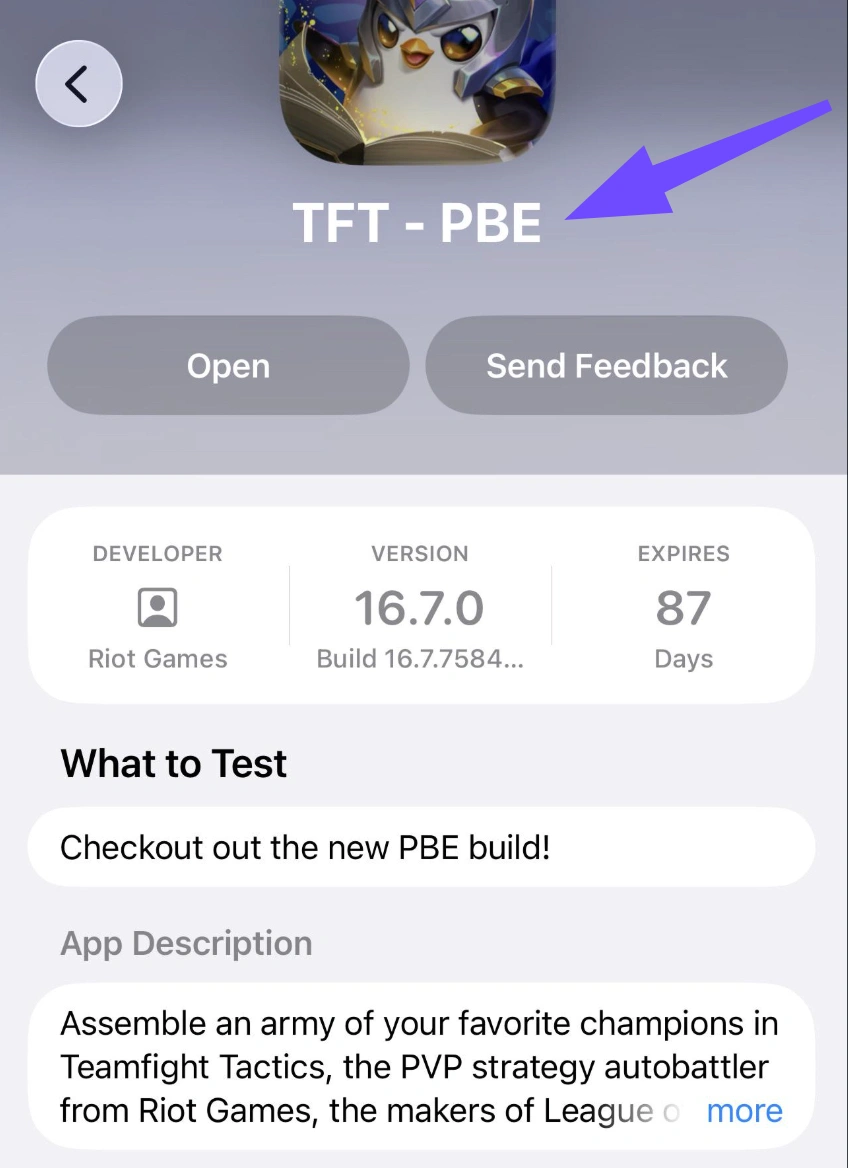
The Public Beta Environment is an unreleased testing branch. App store platforms require public apps to meet strict stability guidelines. Because PBE builds are updated almost daily with experimental assets, balance tweaks, and occasional game-breaking bugs, Riot Games distributes the mobile PBE through closed testing channels rather than open store listings.
To install it, you must use designated beta testing channels: Apple TestFlight for iPhone/iPad users, or Google Play Beta testing links/direct APKs for Android users.
Part 3: How to Download & Play the TFT Mobile PBE
Here is the exact step-by-step process to download the game depending on your mobile operating system.
How to Download TFT PBE on Android
Android offers the most flexible download path because you can either join the official Google Play testing track or install the build via an APK package.
Step 1. Open your mobile browser and log in to the Google account tied to your Play Store.
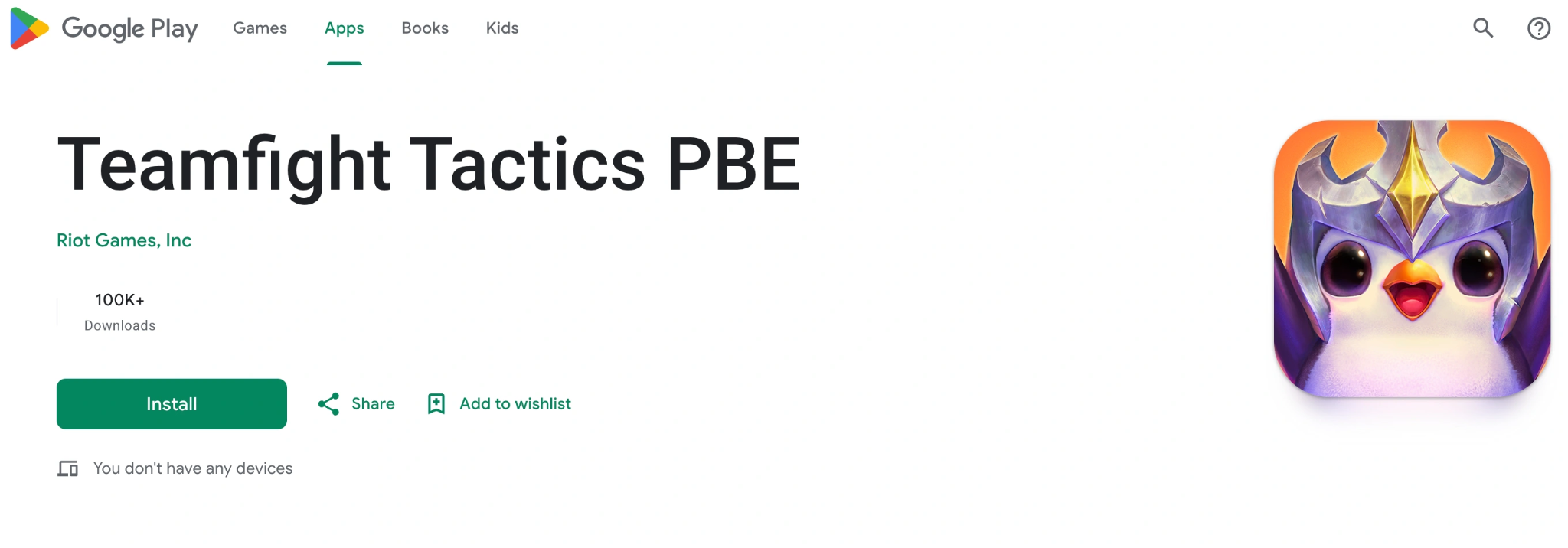
Step 2. Visit the official Teamfight Tactics PBE Google Play opt-in page.
Step 3. Tap Become a Tester.
Step 4. Follow the link to download the Teamfight Tactics PBE app directly from Google Play.
How to Get TFT PBE on iOS
Step 1. Installing beta apps on Apple devices requires Apple's official testing hub, TestFlight.
Step 2. Download and install TestFlight from the official Apple App Store.
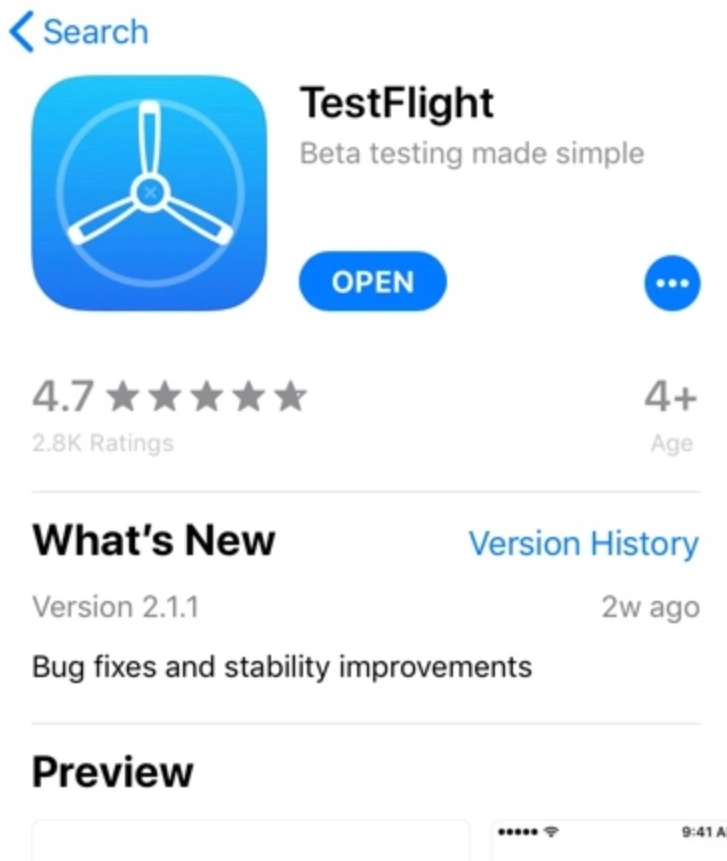
Step 3. Open the official Riot Games TFT Mobile PBE TestFlight invitation link on your iPhone or iPad.
Step 4. Tap Accept to redeem the testing slot.
Step 5. Tap Install inside TestFlight to download the TFT Set 18 mobile PBE client onto your device.
Step 6. Launch the game, grant the required storage permissions, and log in with your PBE account.
Part 4: Is iOS TestFlight Full?
One of the most common hurdles iOS players face is encountering a message that reads: "This beta is full."
Apple enforces a strict limit of 10,000 active testers for public TestFlight links. When a major release like TFT Set 18 lands on PBE, thousands of players rush to join, instantly filling every available slot.
How to get in when TestFlight is full
Step 1. Check right after maintenance: Riot regularly purges inactive TestFlight accounts when deploying major PBE patches. Slots open up within 30–60 minutes following server maintenance.
Step 2. Turn on automatic TestFlight updates: If you already secured a slot in a previous set, keep the app on your phone. You will retain your testing slot for Set 18 without needing a new link.
Step 3. Use Android or PC as a backup: If you are locked out of iOS TestFlight, using an Android device or an Android emulator on PC with LagoFast Mobile ensures you don't miss out on early Set 18 testing.
Part 5: Is the Mobile Patch Later Than the PC Patch?
Yes, mobile PBE patches almost always release later than PC patches.
While PC PBE receives updates directly pushed through the Riot Client (usually around 12:00 PM – 1:00 PM PT on weekdays), mobile builds must pass through app verification and package bundling pipelines before reaching TestFlight or Google Play servers.
|
Platform |
Typical Patch Time |
Update Delay |
Deployment Method |
|
PC PBE |
12:00 PM – 1:00 PM PT |
None (Immediate) |
Riot Client Direct Push |
|
Android PBE |
2:00 PM – 4:00 PM PT |
1 to 3 Hours |
Play Store / APK Package Update |
|
iOS PBE |
3:00 PM – 6:00 PM PT |
2 to 5 Hours |
TestFlight Build Release |
Because of this delay, you may occasionally see version mismatch errors if you try playing on mobile while the PBE server is running a brand-new PC build that your phone hasn't received yet.
Part 6: Troubleshooting Common Mobile PBE Issues
Testing pre-release software means running into bugs. Below are fixes for the most frequent errors encountered on mobile PBE.
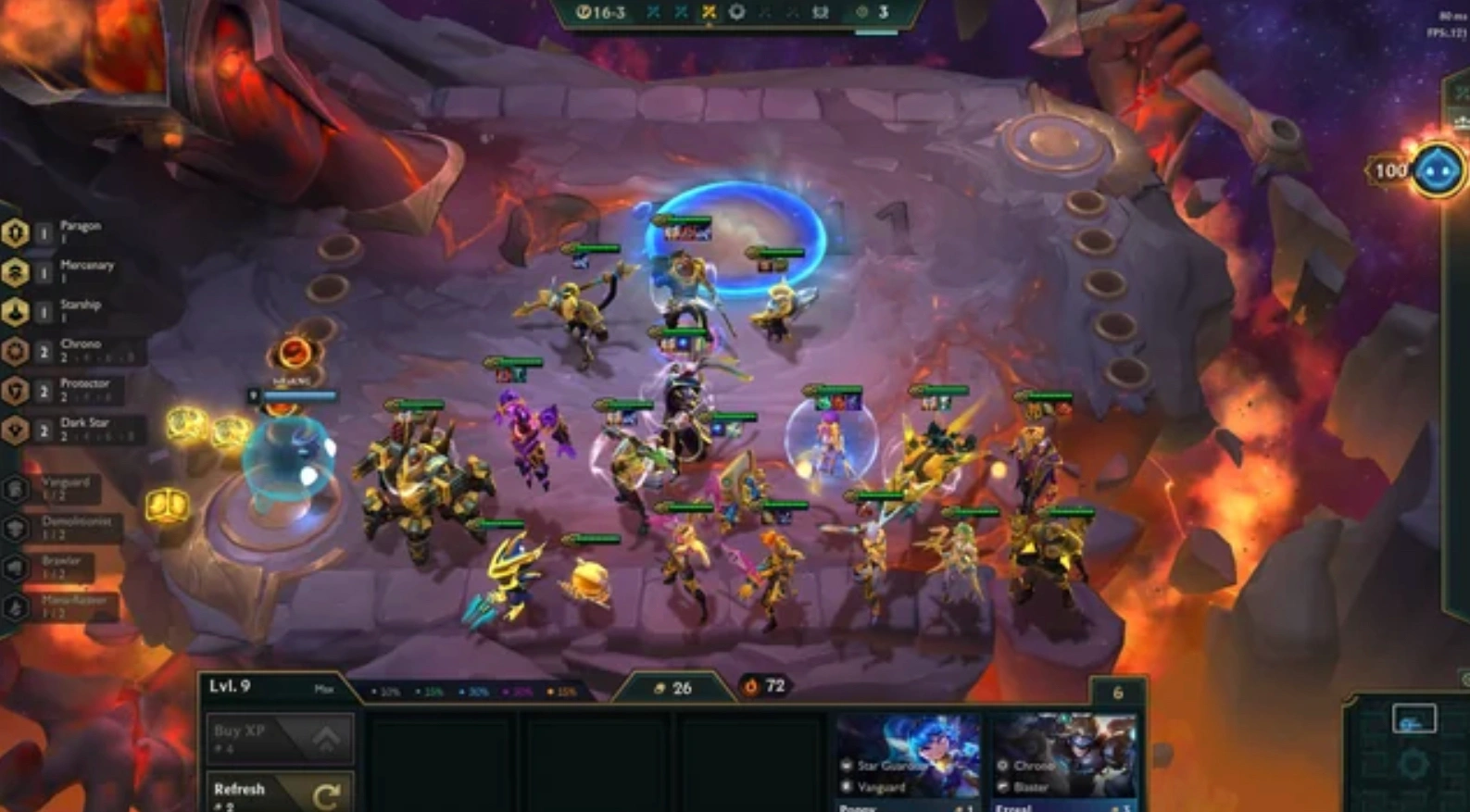
TFT Set 18 Mobile PBE Update Not Working / Not Updating / Out of Date
If your game displays "TFT Set 18 Mobile PBE Out of Date" or "TFT Set 18 Mobile PBE Update Not Working", your client version is behind the active server build.
- For Android: Force stop the app in Settings, Apps, TFT PBE. Clear the app cache. Open Google Play to check for an update button.
- For iOS: Open the TestFlight app directly rather than launching TFT from your home screen. TestFlight will show an Update button next to Teamfight Tactics if a new build has processed.
Crashing After Update or Unclickable UI
If you experience TFT Mobile PBE crashing during the loading screen or find that in-game shop buttons and unit bench slots are unclickable:
- Clear App Data & Assets: Outdated asset caches from previous sets frequently collide with Set 18 files. Delete the app data folder or reinstall the client to force a clean full asset download.
- Adjust Screen Resolution / Display Cutout: Some modern smartphones with notch displays misalign the mobile UI. Change your system display aspect ratio settings to standard 16:9 or turn off display cutout hiding for TFT PBE.
- Lower Graphic Settings: Set 18 introduces heavy visual effects for new traits and Tacticians. Lower shadows and frame rates in the in-game settings to prevent memory crashes on older phones.
High Ping, Disconnections & Lag Spikes
All global PBE traffic routes directly to Riot's centralized servers in North America (NA). If you are playing from Europe, Asia, South America, or Oceania, your physical distance guarantees native ping rates of 180ms to 350ms, leading to severe roll delays during carousel rounds. LagoFast is the quick solution for these lagging issues.
"TFT Mobile PBE Not Available" or Region Lock Errors
If the game displays "TFT Mobile PBE not available" upon startup, your network IP is likely hitting an unroutable node or your account regional flag is misaligned with the NA PBE gateway. Routing your connection through LagoFast resolves this barrier instantly.
Part 7: Enhance Your Mobile PBE Experience with LagoFast Mobile
Playing TFT Set 18 on a phone requires constant adaptation to high ping, server queues, and frequent updates. LagoFast Mobile game booster provides a targeted network optimization tool built specifically for mobile gamers playing on overseas test servers.
Why Use LagoFast Mobile Booster for TFT PBE?
- Drastic Ping Reduction on NA Servers: LagoFast utilizes smart multi-path technology to route your mobile traffic through dedicated, low-latency game channels, cutting cross-region ping and eliminating rubber-banding during carousel drafts.
- One-Tap Boost & Connection Stability: Prevents sudden Wi-Fi/4G/5G disconnects when queuing up during peak PBE traffic hours.
- Built-in Game Resources & Easy Updates: Bypasses region locks and missing store listings by providing quick, reliable access to game packages and updates.
- FPS Booster & System Hardware Optimization: Beyond network routing, LagoFast includes a performance optimizer that clears background memory drain and stabilizes frame rates to prevent hardware stuttering during chaotic Set 18 late-game fights.
- Real-Time Game Translation Tool: If you test games or region-locked servers in different languages, LagoFast offers an integrated, localized translation overlay that translates foreign in-game text, UI elements, and item traits on the fly.
Tutorial: How to Boost TFT Mobile PBE with LagoFast
Step 1. Download and install LagoFast Mobile Booster from the App Store or Google Play.
Step 2. Open LagoFast and search for TFT Mobile PBE (or Teamfight Tactics PBE).
Step 3. Select the PBE Server Node closest to your current location.
Step 4. Tap Smart Boost. Once active, launch your game through LagoFast to enjoy optimized ping and stable connectivity.
Part 8: TFT Set 18 Mobile PBE FAQs
Do I need a separate Riot account to play TFT Set 18 mobile PBE?
No. You can log in using your existing PC PBE credentials. Your progression, Little Legends, and unlocked content sync seamlessly across both PC and mobile PBE clients.
What should I do if TFT Mobile PBE crashing occurs right after loading into a match?
This usually stems from corrupt asset downloads or device RAM overfill. Clear the game cache, restart your phone, close background apps, and ensure your device has at least 4 GB of available storage space for Set 18 visual assets.
How do I know if TFT PBE TestFlight is full or open?
Open the official Riot TestFlight link on your iOS device. If it says "This beta is full," all 10,000 slots are taken. Check back immediately following scheduled PBE maintenance windows, as Riot regularly removes inactive testers.
Can I buy RP or Tactical Realm cosmetics on Mobile PBE?
In-app purchases with real currency are disabled on PBE clients. Instead, Riot provides free daily PBE missions that grant RP so you can unlock and test Set 18 Little Legends, Arenas, and Chibi Champions for free.
Why does it say "TFT Set 18 Mobile PBE Out of Date" when no store update is available?
Mobile PBE updates roll out 2 to 5 hours later than PC updates. If the server has already updated to the latest PC patch, your mobile client will trigger an "Out of Date" message until Apple TestFlight or Google Play finishes processing the mobile build package.
Can TFT Mobile PBE players cross-play with friends on PC?
Yes, TFT Mobile PBE supports full cross-platform play with PC PBE players, provided both devices are on the exact same client build version. However, because mobile PBE updates roll out a few hours later than PC patches, version mismatch errors may temporarily block cross-play during patch windows until the mobile client update goes live.
Conclusion
Playing TFT Set 18 mobile PBE is the ultimate way to master new mechanics, units, and trait synergies before the expansion hits live servers. While mobile beta testing comes with minor hurdles like TestFlight caps, delayed patches, and high server latency, following the steps above will get you into the Convergence quickly. Pair your setup with LagoFast Mobile Game Booster to lower your ping, fix connection errors, and roll down smoothly on mobile.
Boost Your Game with LagoFast for Epic Speed
Play harder, faster. LagoFast game booster eliminates stutter and lags on PC, mobile, or Mac—win every match!
Quickly Reduce Game Lag and Ping!
Boost FPS for Smoother Gameplay!