
Valorant, Riot Games' ultra-competitive FPS, demands pixel-perfect precision and razor-sharp reaction times. But if you've noticed a delay between your mouse movement and your in-game aim, you're likely battling a frustrating issue: input delay in Valorant. Whether it's from system-level configurations or in-game settings, Valorant's mouse input latency can severely impact performance.
In this guide, we’ll cover the root causes of input lag, step-by-step solutions to eliminate it, and how to use tools like LagoFast AimMaster to optimize your mouse input response, giving you that competitive edge with nearly ZERO input delay.

Part 1: Why Input Delay Happens in Valorant
Part 2: How to Fix Valorant Input Lag on PC
Part 1: Why Input Delay Happens in Valorant
Input delay in Valorant refers to the time it takes for your mouse or keyboard action to register in-game. Even milliseconds of lag can result in missed shots or delayed reactions. This delay can be caused by a wide variety of factors, including:
1. Operating System Bottlenecks
Windows often processes mouse input through multiple layers - registry settings, background services, display rendering - which can add milliseconds of unwanted latency.
2. Display Settings and Refresh Rate
If your monitor is set to a lower refresh rate or you have V-Sync enabled, this introduces a delay between your input and on-screen output.
3. Driver and Firmware Issues
Outdated or incorrect drivers for your GPU, mouse, or keyboard can cause inefficient communication with your hardware.
4. Game-Specific Settings
Some in-game options like raw input, smoothing, or aim assist mechanics can negatively impact how quickly your aim responds to movement.
5. Windows Game Mode or Fullscreen Optimizations
These features are designed to improve gaming performance, but often introduce latency instead, especially in games like Valorant.
6. Background Applications
Running Discord overlays, screen recorders, browser tabs, or RGB control software can eat up precious CPU cycles and interfere with mouse inputs.
Part 2: How to Fix Valorant Input Lag on PC
1. Use the LagoFast AimMaster Tool for Enhanced Mouse Response
If you're aiming to eliminate Valorant input delay entirely, LagoFast’s AimMaster is one of the most effective tools available. It works by tweaking low-level Windows registry values to reduce interference and delay in mouse input.
AimMaster is a performance optimization utility built into LagoFast. It doesn't inject or alter game files but instead modifies Windows registry values related to mouse precision and smoothing.
AimMaster Modes:
- Tracking Mode: For long-range tracking, reducing drift and overshoot.
- Accuracy Mode: Ideal for standard duels and precise cursor response.
- Scope Mode: Optimized for ADS (Aim Down Sights) when holding corners or tight angles.
Safety Guarantee:
- No macros or injections
- No interaction with Valorant’s game client
- No risk of ban or cheat detection
Currently, AimMaster mainly supports FPS games, the scope of which is as follows:
- Valorant
- PlayerUnknown's Battlegrounds
- Delta Force
- Arena Breakout: Infinite
- Escape from Tarkov
- Apex Legends
- Call of Duty
- CS2
- Arena Breakout
- Overwatch 2
- Crossfire Classic
- Valorant
- The Finals
- The First Descendants
- Marvel Rivals
- Warframe
How to Use AimMaster in Valorant: Step-by-Step:
Step 1. Download and Install LagoFast: Click the Free Trial to download and install LagoFast.
Step 2. Launch AimMaster Tool: Open LagoFast, go to “Tools,” and launch AimMaster.
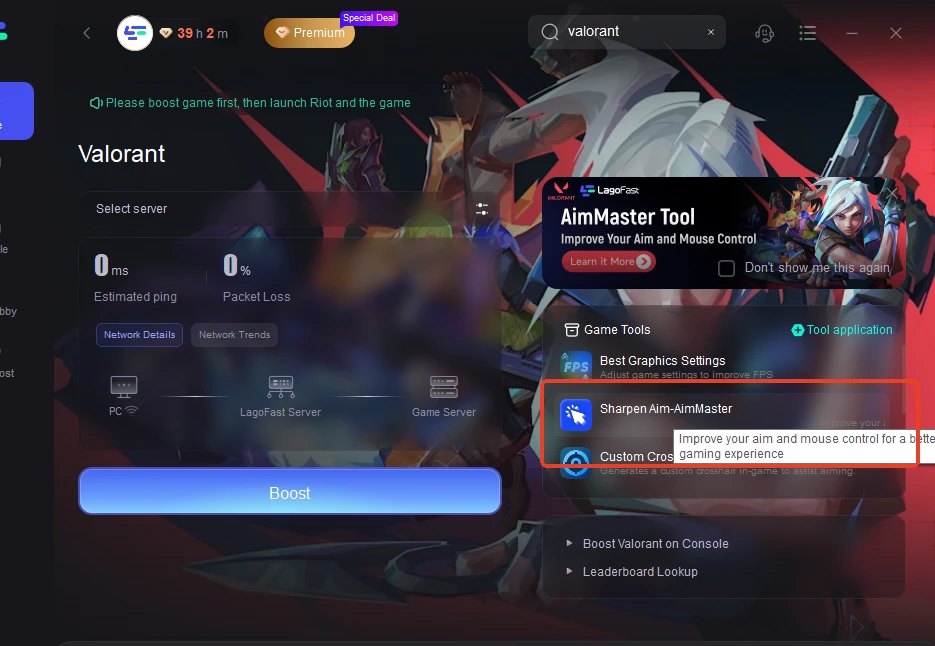
Step 3. Choose the Right Mode: Select from Tracking, Accuracy, or Scope mode depending on your gameplay focus.
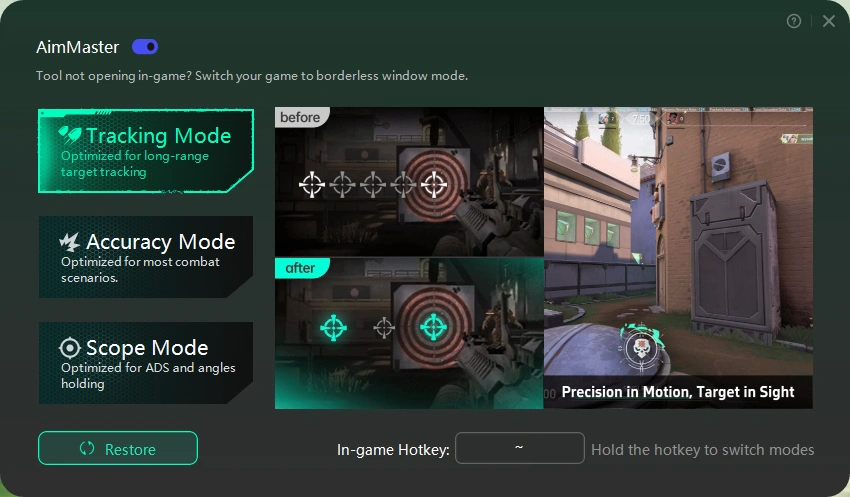
Step 4. Apply Settings: Apply the mode, and your system settings will be instantly adjusted.
Step 5. Restart Your System: A quick restart helps lock in the changes for optimal performance.
Once applied, your mouse inputs will feel significantly more direct and snappy.
LagoFast currently supports a wide range of popular FPS titles, including Valorant, PUBG: Battlegrounds, Delta Force: Hawk Ops, Arena Breakout: Infinite, Escape from Tarkov, Apex Legends, Call of Duty, CS2 (Global), Overwatch 2, Crossfire HD, The Finals, The First Descendant, Marvel Rivals, and Warframe, ensuring low latency and enhanced stability across your favorite competitive shooters.
By combining AimMaster's registry-level precision enhancements with LagoFast's server acceleration technology, players can achieve smoother, more responsive aim across virtually every major shooter title.
2. Install All Windows Updates
Step 1. Press Win + I to open Settings.
Step 2. Click on "Windows Update" from the left sidebar.
Step 3. Select “Check for updates.”

Step 4. Download and install any updates available.
Step 5. Restart your PC to complete the installation.
Updated system files often include performance optimizations for gaming responsiveness.
3. Delete Temporary Files
Step 1. Press Win + R, type %temp%, and hit Enter.
Step 2. Press Ctrl + A to select all temporary files.

Step 3. Press Delete on your keyboard.
Step 4. If prompted, choose “Do this for all items” and skip those that can’t be deleted.
Step 5. Empty your Recycle Bin after cleanup.
Clearing these files can free up system resources that would otherwise cause sluggish performance.
4. Disable Windows Game Mode
Step 1. Open Settings with Win + I.
Step 2. Go to Gaming and select Game Mode.
Step 3. Toggle Game Mode to Off.

Step 4. Navigate to Graphics settings and disable hardware-accelerated GPU scheduling if enabled.
Step 5. Restart your system.
Contrary to what its name implies, Game Mode often causes lag spikes and added latency in competitive games.
5. Update Device Drivers
Step 1. Open Device Manager (Win + X to open Device Manager).
Step 2. Expand Mice and other pointing devices, right-click your mouse, and select Update driver.
Step 3. Do the same for Display adapters to update your GPU.
Step 4. Alternatively, use dedicated tools like Driver Easy to auto-update all drivers.
Step 5. Restart your PC after updates.
Having the latest drivers ensures that your hardware communicates efficiently with the operating system and games.
6. Disable Fullscreen Optimizations
Step 1. Navigate to your Valorant install directory: C:\Riot Games\VALORANT\live\ShooterGame\Binaries\Win64
Step 2. Right-click VALORANT-Win64-Shipping.exe and select Properties.
Step 3. Go to the Compatibility tab.
Step 4. Check “Disable fullscreen optimizations.”
Step 5. Click Apply and OK.
This step is especially important, as full-screen optimization can introduce render lag and input buffering in Valorant.
Conclusion
If you've been wondering how to fix input delay on Valorant, the good news is that there are clear, effective methods to reduce or even eliminate input lag for a smoother, more competitive experience. From disabling Game Mode and adjusting process priorities to fine-tuning in-game settings, each tweak plays a role, but the most impactful change comes from using LagoFast’s AimMaster tool, which enhances mouse responsiveness at the registry level without modifying any game files. In a precision shooter like Valorant, these optimizations aren't just technical upgrades, they're strategic advantages that can sharpen your aim and tighten your reaction time.

Boost Your Game with LagoFast for Epic Speed
Play harder, faster. LagoFast game booster eliminates stutter and lags on PC, mobile, or Mac—win every match!
Quickly Reduce Game Lag and Ping!
Boost FPS for Smoother Gameplay!