

Few things are more frustrating in the gaming world than being moments away from completing a high-level mission in Fortnite Save the World (STW), only to be greeted by the dreaded "Network Connection Lost" screen. Unlike the fast-paced, short-lived matches of Battle Royale, Save the World requires a persistent, stable handshake with the servers to track complex AI pathfinding, base building, and loot progression. When this connection drops, you don't just lose your spot in a match; you lose your time, your resources, and your sanity. If you find that Fortnite Save the World keeps disconnecting you from games at the worst possible moments, you aren't alone, but there are definitive ways to stabilize your experience and get back to defending your ATLAS.

- ✅ Reduce Lag and High Ping
- ✅ Boost FPS in Real Time
- ✅ Get the Easiest Server in Fortnite
- ✅ End All Connection Login Issues.
- ✅ Support 2000+ Online Games.
- ✅ Multiplatform: PC, Mobile, Console
Part 1: What Is the Fortnite Save the World Disconnecting Bug & Why Does It Occur?
Part 2: How To Fix Fortnite Save the World Keeps Disconnecting - Top Working Solutions
Part 1: What Is the Fortnite Save the World Disconnecting Bug & Why Does It Occur?
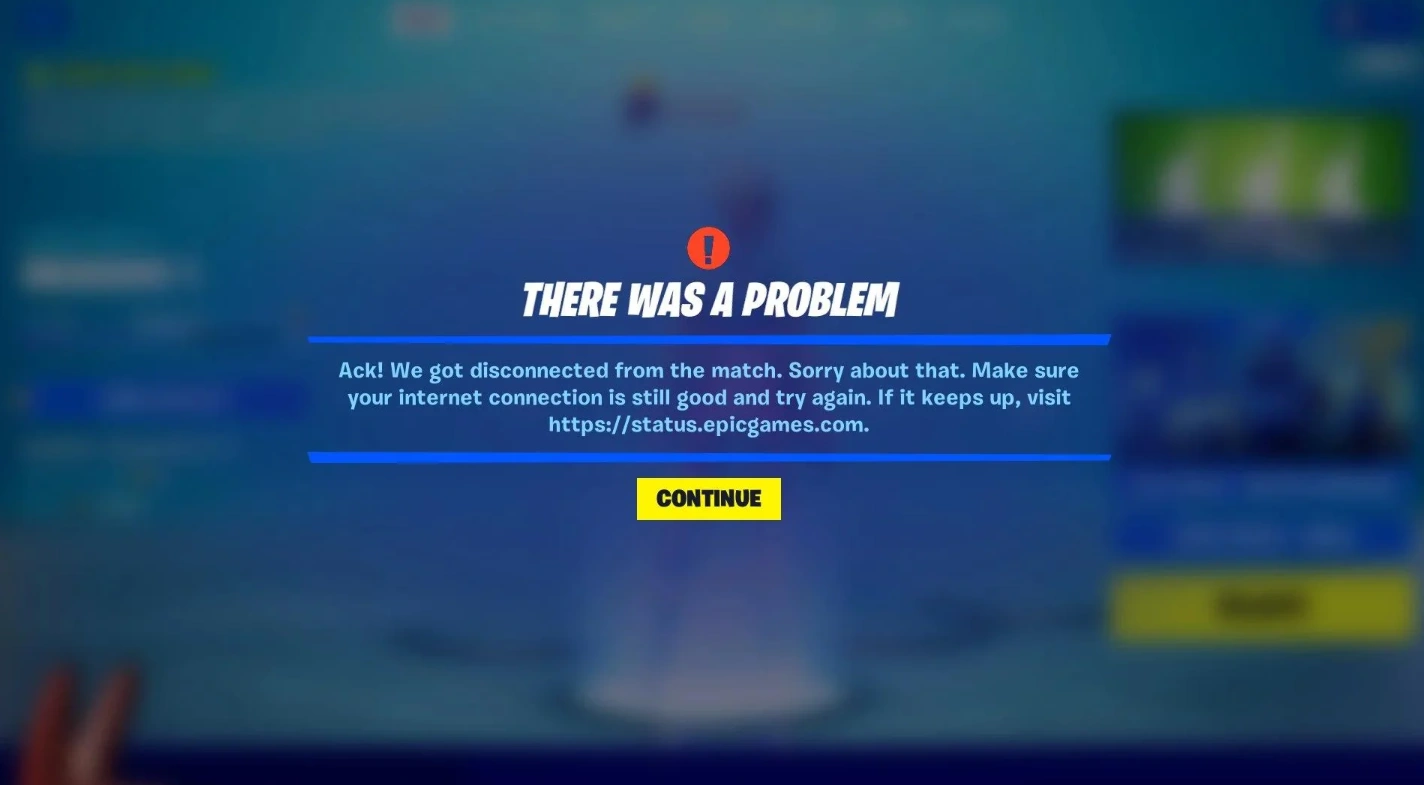
The "Fortnite Save the World Keeps Disconnecting" issue is a communication failure between your local gaming hardware and the dedicated Epic Games servers. Because STW is an older, more resource-heavy expansion compared to the optimized Battle Royale mode, it is significantly more sensitive to minor network fluctuations.
Several key factors typically trigger these disconnections:
- Server-Side Instability: With the rollout of Chapter 7 in 2026, Epic’s back-end servers often face heavy loads. Even minor maintenance spikes can cause the STW client to drop its connection.
- High Packet Loss: Even a 1% loss of data packets can cause the game to "time out," especially during intensive husk waves where the server is processing hundreds of AI entities at once.
- Corrupted Game Files: Since STW is an optional download within the Fortnite ecosystem, its files can easily become desynced or corrupted during updates, leading to random crashes.
- The "Full Backpack" Glitch: A unique quirk of Save the World is that a congested inventory or overfilled Storm Shield storage can trigger a data sync error that the game misinterprets as a network failure.
- ISP Throttling & Poor Routing: Sometimes, your Internet Service Provider routes your data through congested nodes, creating artificial lag that the STW client cannot recover from.
Part 2: How To Fix Fortnite Save the World Keeps Disconnecting - Top Working Solutions
H3: The All-in-One Solution: LagoFast Game Booster
When manual troubleshooting fails to address the root cause of deep-seated network issues, LagoFast stands out as the premier solution for dedicated gamers. LagoFast is an elite-tier game booster designed specifically to bypass the inefficient routing provided by standard ISPs, offering a dedicated pathway for your gaming data. It acts as a comprehensive "fix-all" for the most common Save the World connection bugs, providing a stable, low-latency environment that ensures your mission rewards are never lost to a server hiccup again.
Key Features of LagoFast:
- Multipath Connection: Automatically switches between the best available data paths to eliminate packet loss in real-time.
- Smart Server Selection: Connects you to the most stable STW-specific server nodes, regardless of your geographic location.
- One-Click FPS & Lag Fix: Optimizes your PC's system resources to ensure the CPU isn't bottlenecked during heavy AI waves.
- Global Support: Specialized nodes for players in the Middle East, Europe, and North America to resolve regional connectivity gaps.
- Console Compatibility: Works seamlessly with the LagoFast Box to protect PlayStation and Xbox users from disconnections.
While LagoFast provides an automated fix, you can also attempt these manual steps to harden your connection against the STW disconnection bug. But they aren’t as fast as LagoFast.
Tutorial to Use LagoFast to Fix Fortnite Save the World Keeps Disconnecting:
Step 1: Click the Free Trial button to download and install LagoFast.
Step 2: Open LagoFast, then click the PC button on the left and search for Fortnite Save the World in the search bar, and click it after it appears.
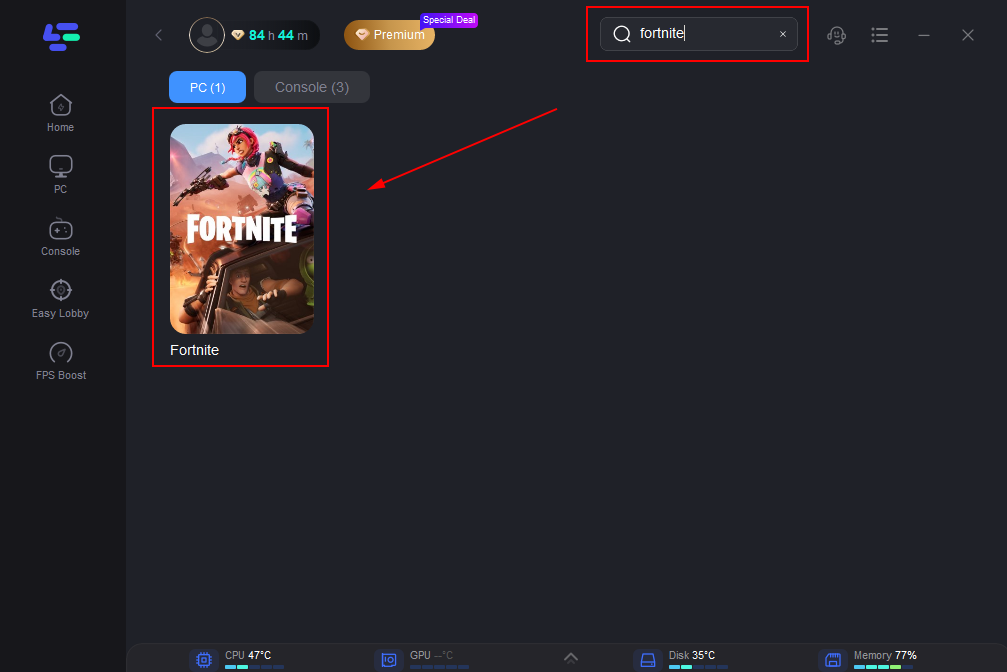
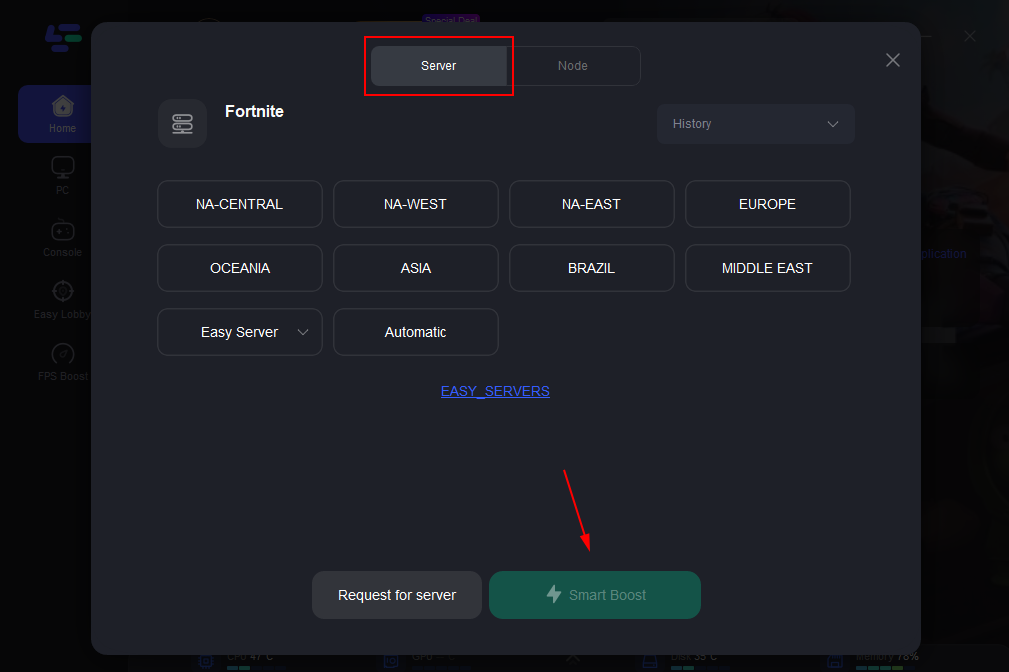
Step 3: Click “Server” to switch to a better server, such as EU or NA, which can ensure a stable gaming experience. Then click “Smart Boost” to fix the connection issues.
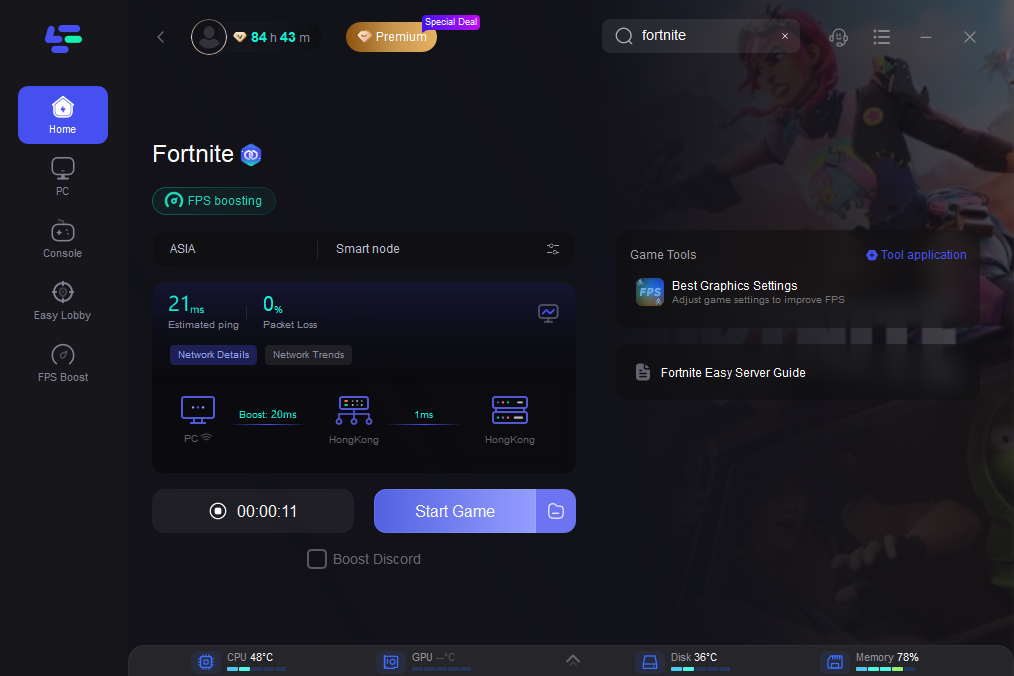
Step 4: Check the specific game ping, packet loss, and multiple path connections on the right side. Finally, click the “Start Game” to play the game.
Tutorial to Use LagoFast Box to Enhance Your Fortnite Save the World Gaming Experience on Consoles:
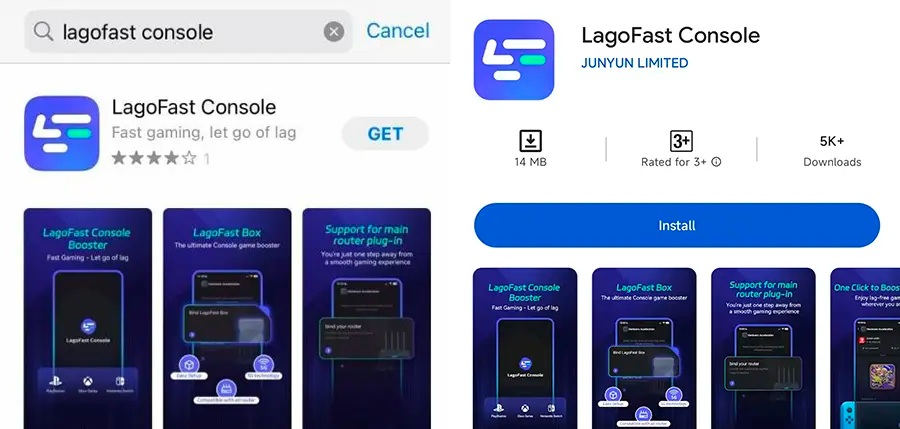
Step 1: Get the LagoFast Console App on your phone to manage the LagoFast Box.
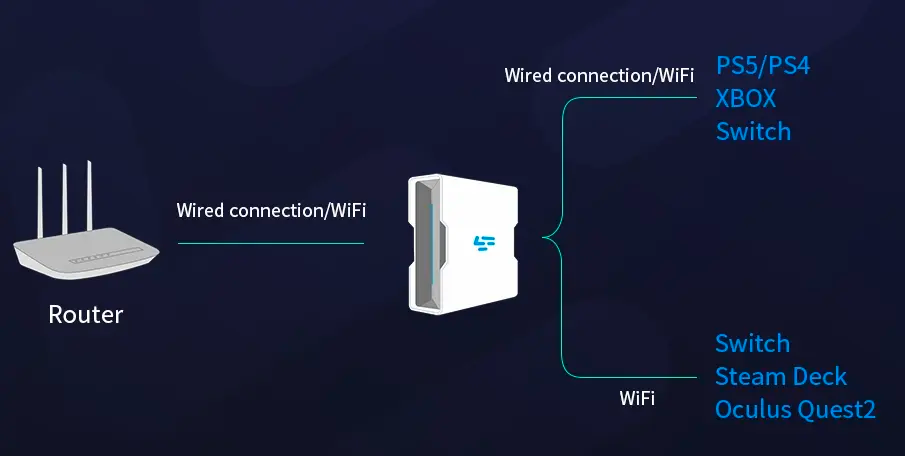
Step 2: Connect your LagoFast Box to your router and console, selecting either a wired or wireless connection.
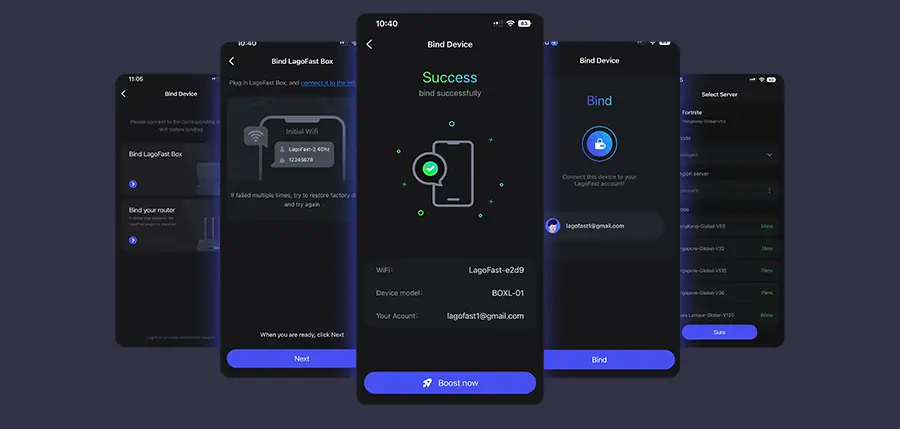
Step 3: Open the LagoFast Console App. After completing the binding process with the LagoFast Box, proceed to boost Fortnite Save the World within the app.
Solution 1: Verify the Save the World Installation (PC)
Sometimes the game thinks it's fully installed when, in reality, the STW expansion files are missing a critical update.
Step 1. Completely exit Fortnite and the Epic Games Launcher.
Step 2. Open the Epic Games Launcher and navigate to your Library.
Step 3. Click the three dots (...) next to Fortnite and select Options.
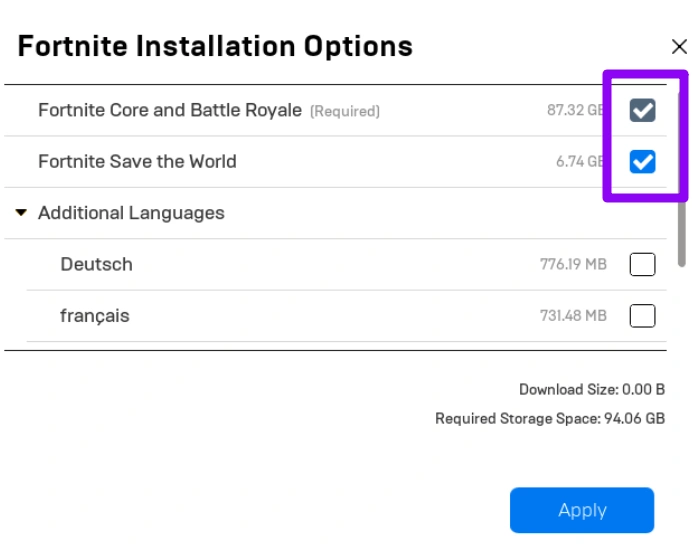
Step 4. Ensure the box next to Fortnite Save the World is checked. If it is already checked, uncheck it, click Apply, and then re-check it to force a fresh download of the STW files.
Step 5. Wait for the 6-8 GB update to complete before relaunching the game.
Solution 2: Flush Your DNS and Reset IP
Old network cache data can cause "zombie" connections that prevent you from reaching Epic's matchmaking services.
Step 1. Press the Windows Key, type cmd, right-click it, and select Run as Administrator.
Step 2. Type ipconfig /flushdns and press Enter.
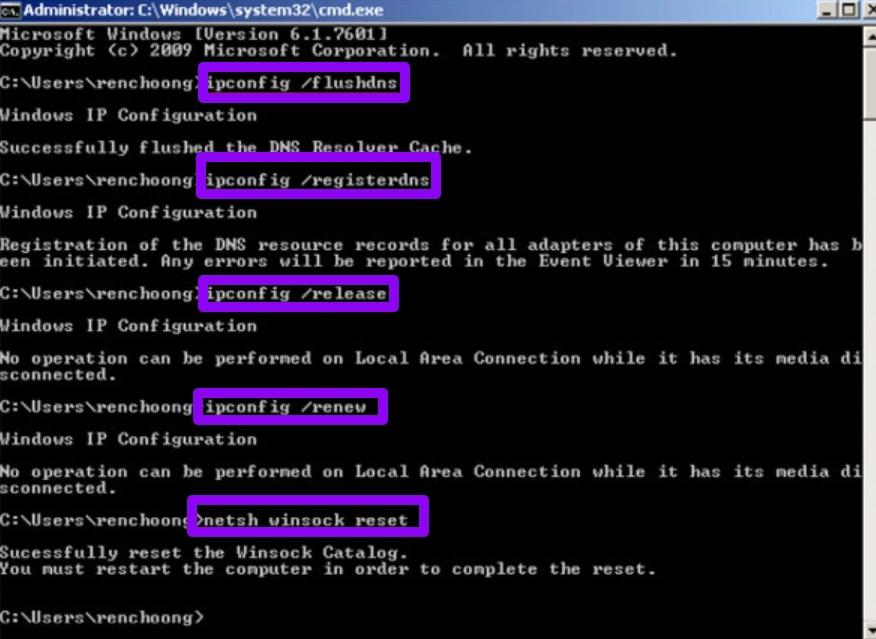
Step 3. Type ipconfig /release and press Enter.
Step 4. Type ipconfig /renew and press Enter.
Step 5. Finally, type netsh winsock reset and press Enter, then restart your PC.
Solution 3: Perform a Full Network Power Cycle
Modern routers can suffer from "hardware fatigue," where internal buffers become overloaded, causing micro-drops in service.
Step 1. Turn off your PC or Console and unplug it from the power source.
Step 2. Unplug both your modem and your router from the wall outlet.
Step 3. Wait at least 60 seconds to allow all residual electricity to drain.
Step 4. Plug the modem back in first and wait for the "Internet" light to turn solid.
Step 5. Plug the router back in, wait for the Wi-Fi to stabilize, and then restart your game.
Solution 4: Manage In-Game Inventory and Storage
As mentioned earlier, a full backpack is a known trigger for the "Network Connection Lost" error during mission loading.
Step 1. Launch Fortnite and enter the Save the World menu.
Step 2. Go to the Command tab and select Backpack.
Step 3. Recycle or discard unwanted gray/green items or excess low-tier crafting materials (like Wood or Rough Ore).
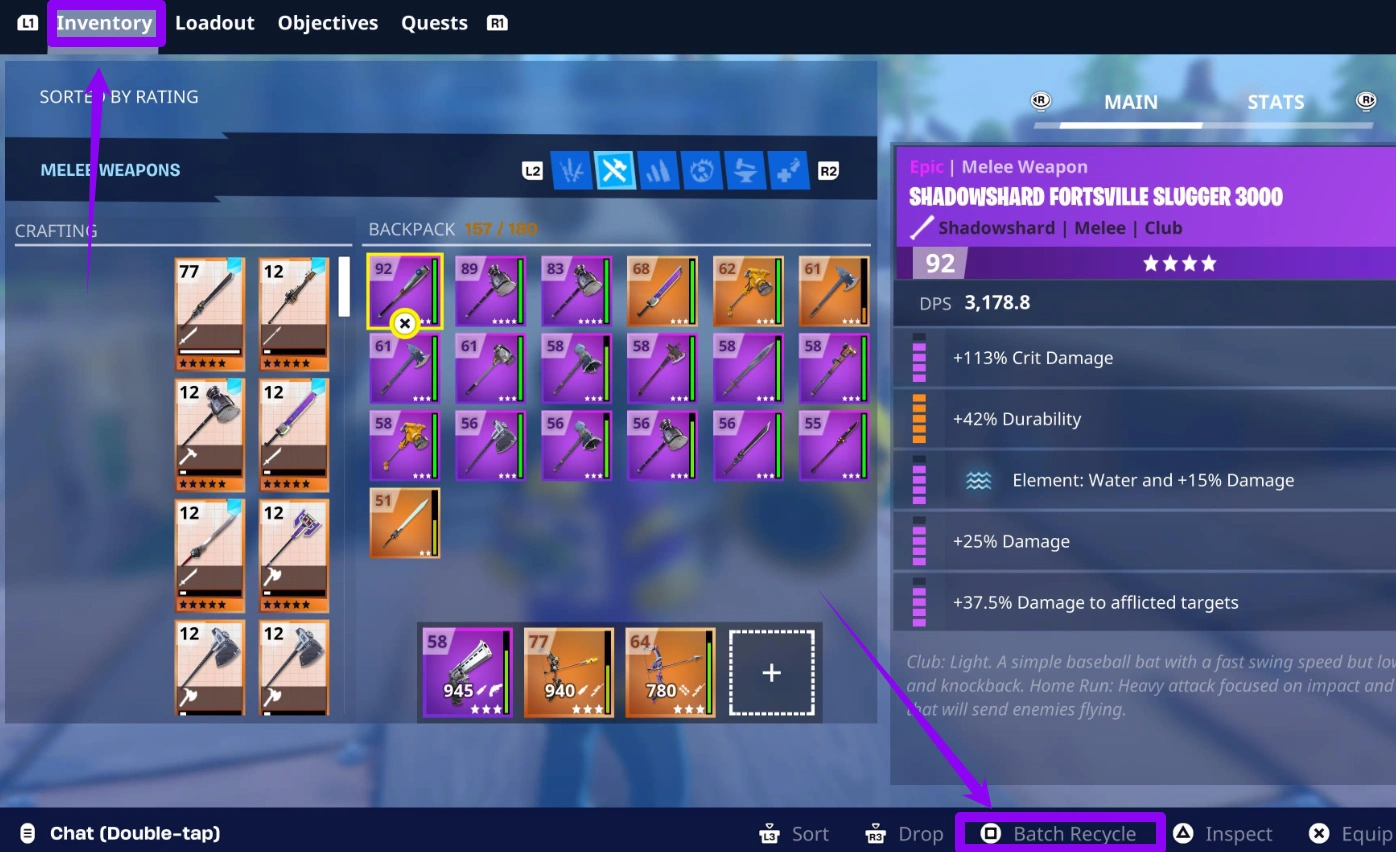
Step 4. Check your Storm Shield Storage; if it is over capacity, clear it out. Ensure your backpack is at least 5-10 slots below the maximum limit before starting a mission.
Solution 5: Switch to Public DNS (Google or Cloudflare)
Your ISP's default DNS servers might be slow or unstable, causing the game to lose its "handshake" with the server.
Step 1. Open Control Panel, select Network and Internet, and click Network and Sharing Center.
Step 2. Click Change adapter settings, right-click your connection, and select Properties.
Step 3. Select Internet Protocol Version 4 (TCP/IPv4) and click Properties.
Step 4. Select "Use the following DNS server addresses" and enter 8.8.8.8 as the Preferred and 8.8.4.4 as the Alternate DNS.
Step 5. Click OK and restart your game client.
Solution 6: Enable Performance Mode and Disable Background Apps
Step 1. Save the World is more CPU-intensive than Battle Royale. If your CPU spikes to 100%, it can cause the network thread to hang, leading to a disconnect.
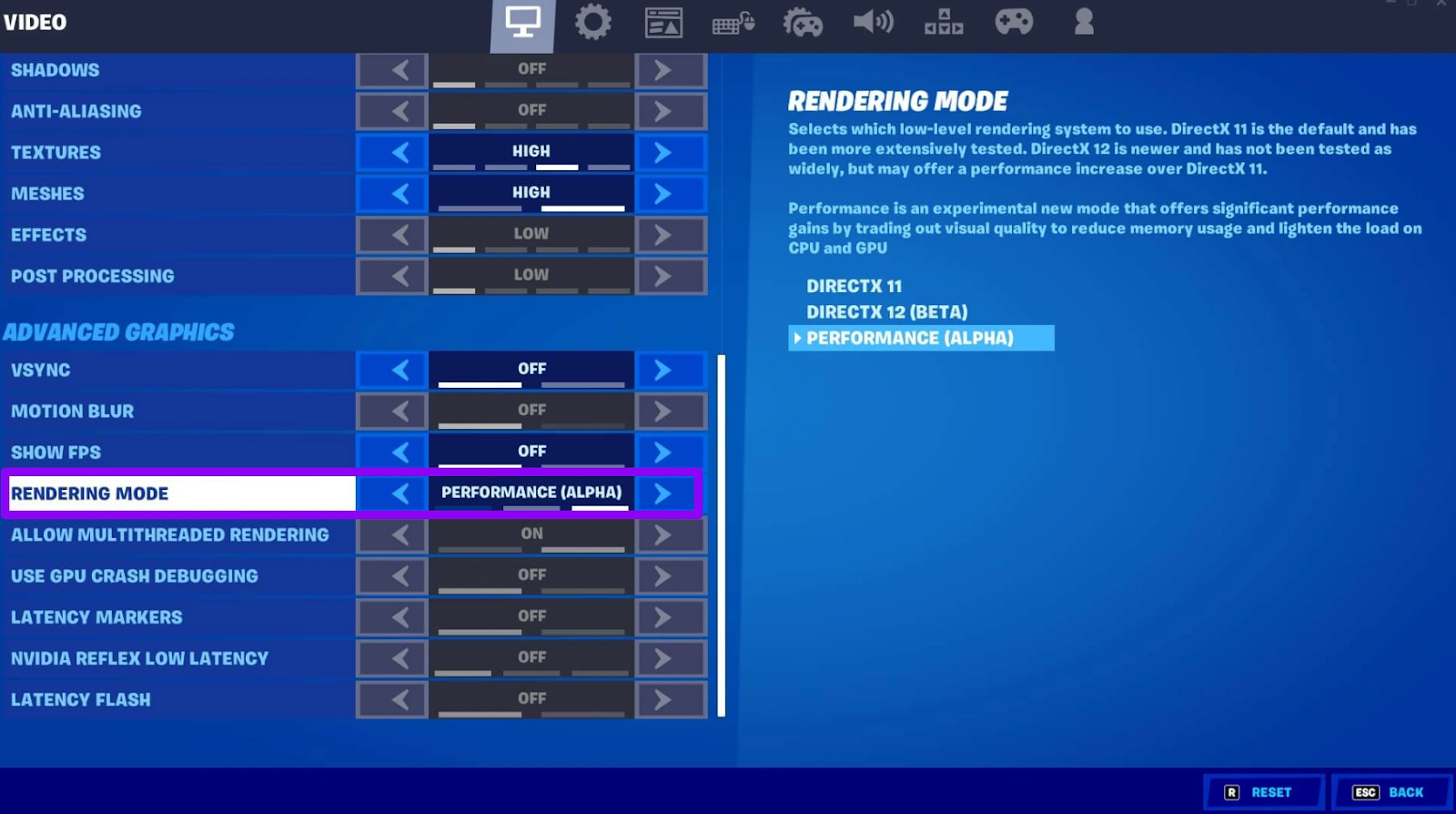
Step 2. In Fortnite Settings, change the Rendering Mode to Performance - Lower Graphical Fidelity.
Step 3. Open Task Manager (Ctrl+Shift+Esc) and close any heavy background applications like Chrome, Discord (if not needed), or screen recording software.
Step 4. Ensure Windows Game Mode is turned ON in your system settings to prioritize Fortnite’s data packets.
Conclusion
Fixing the "Fortnite Save the World Keeps Disconnecting" issue often requires a mix of local hardware optimization and better network routing. Whether the culprit is a bloated inventory, a corrupted installation, or poor ISP routing, the steps outlined above provide a comprehensive roadmap to stability. For players who want to skip the trial-and-error and dive straight into a lag-free experience, a professional tool like LagoFast is the ultimate shortcut. By stabilizing your connection today, you ensure that your next Storm Shield Defense is remembered for your victory, not for a server crash.

Boost Your Game with LagoFast for Epic Speed
Play harder, faster. LagoFast game booster eliminates stutter and lags on PC, mobile, or Mac—win every match!
Quickly Reduce Game Lag and Ping!
Boost FPS for Smoother Gameplay!