
Few things are as demoralizing as your screen freezing just as the buy phase ends, replaced by a cold, grey dialogue box: Fatal Error. In Counter-Strike 2, these aren't just minor glitches; they represent a total collapse of the Source 2 engine’s communication with your hardware. Whether you’re dealing with memory leaks, shader failures, or Steamworks SDK synchronization issues, these crashes usually strike at the most critical moments, during map loading or mid-round execution. This guide breaks down the technical roots of these disruptions and provides actionable, manual steps to get you back into the server without the constant fear of a desktop crash.

- ✅ Reduce Lag and High Ping.
- ✅ Boost FPS at the Same Time.
- ✅ Add CSGO to Steam Library.
- ✅ Change Server Without Latency.
- ✅ End All Connection crash Issues.
- ✅ Multiplatform: PC, Mobile, Console.
Part 1: Fatal Errors in CS2 Overview
Part 2: Fatal Errors in CS2: Causes and Solutions
Part 1: Fatal Errors in CS2 Overview
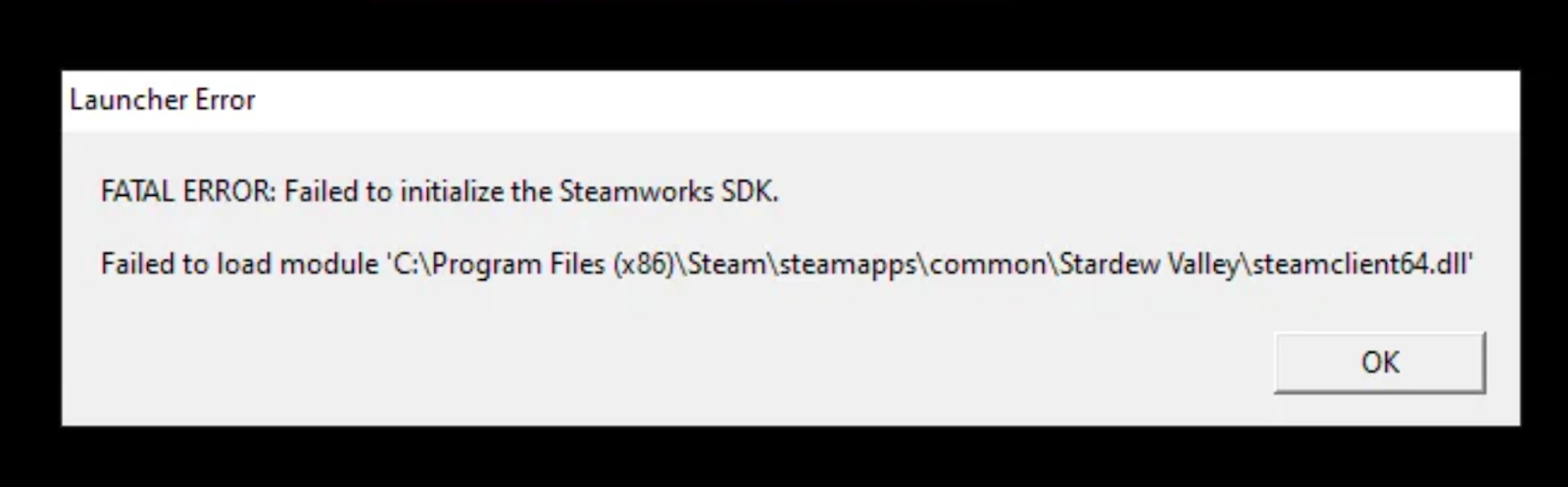
In Counter-Strike 2, the “Fatal Error” message is not a single issue but a category of crash errors triggered by the Source 2 engine. These errors typically occur during specific moments in gameplay:
- When launching the game
- While compiling shaders
- During map loading
- When connecting to a server
- After a graphics driver crash
Typical symptoms include:
- Game instantly closing to desktop
- Black screen followed by a crash
- Stuck loading screens
- Error windows mentioning memory, Vulkan, Steam, or engine failures
Because these problems can stem from different parts of the system, solutions may involve graphics drivers, system memory, Steam services, or corrupted game data.
Part 2: Fatal Errors in CS2: Causes and Solutions
The All-in-One Solution to Fix Fatal Error CS2 – LagoFast
If you want a quicker and more automated way to resolve crashes, LagoFast offers an all-in-one solution designed for online games like CS2. Instead of troubleshooting every system setting manually, LagoFast optimizes network routes, stabilizes the game environment, and includes built-in tools to reduce crashes.
Key Features of LagoFast:
- One-Click Crash Fix Tool: Specifically designed for CS2, this scans for common engine conflict points and resolves them instantly.
- Integrated FPS Booster: Maximizes hardware output by prioritizing CPU/GPU resources for the game, reducing the stuttering that leads to crashes.
- Lag Reducer: Uses multipath redundant connections to ensure your heartbeat to the server never drops, preventing "connection lost" fatal errors.
- Real-time Optimization: Monitors system heat and RAM usage to prevent "Out of Memory" errors before they occur.
Tutorial to Use LagoFast to Fix All Fatal Errors CS2:
Click the "Free Trial" button below to download and install LagoFast for free.
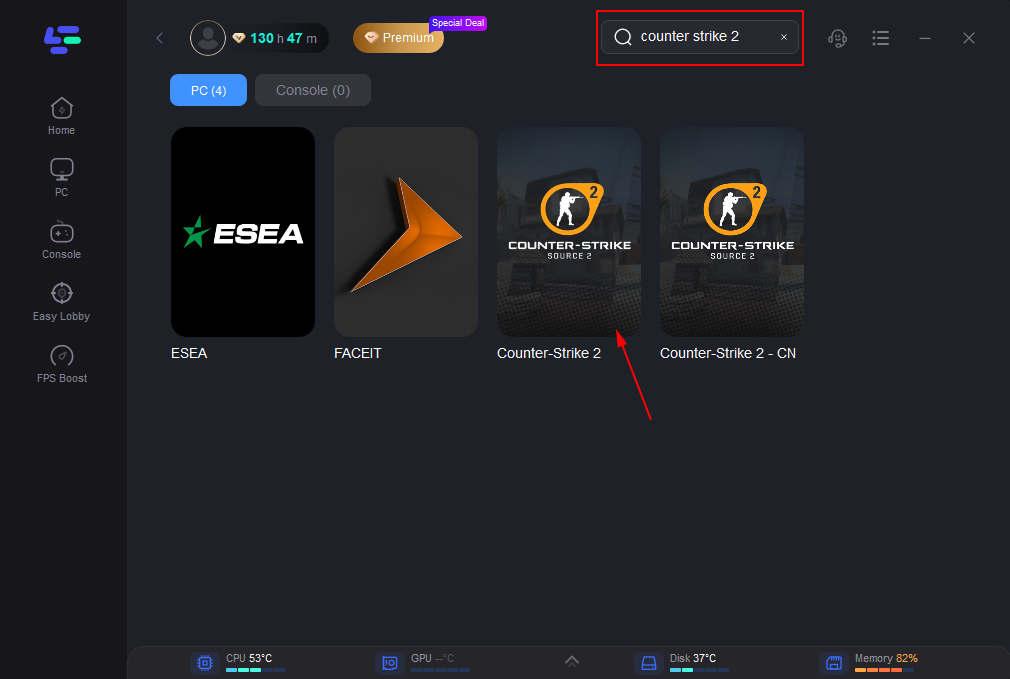
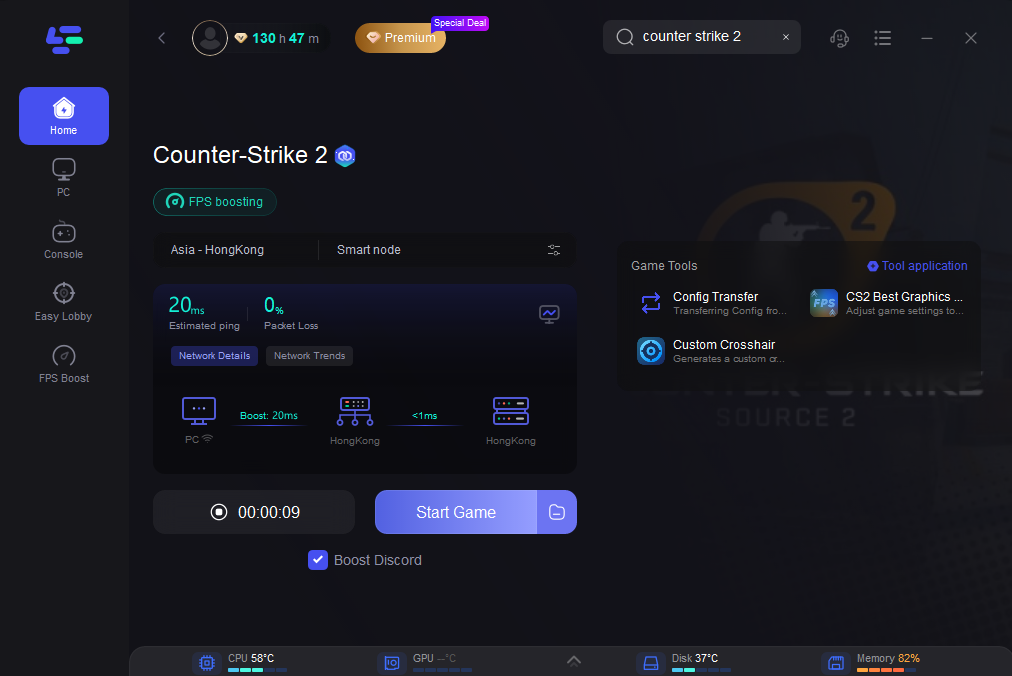
Use the search bar in LagoFast to find Counter-Strike 2.
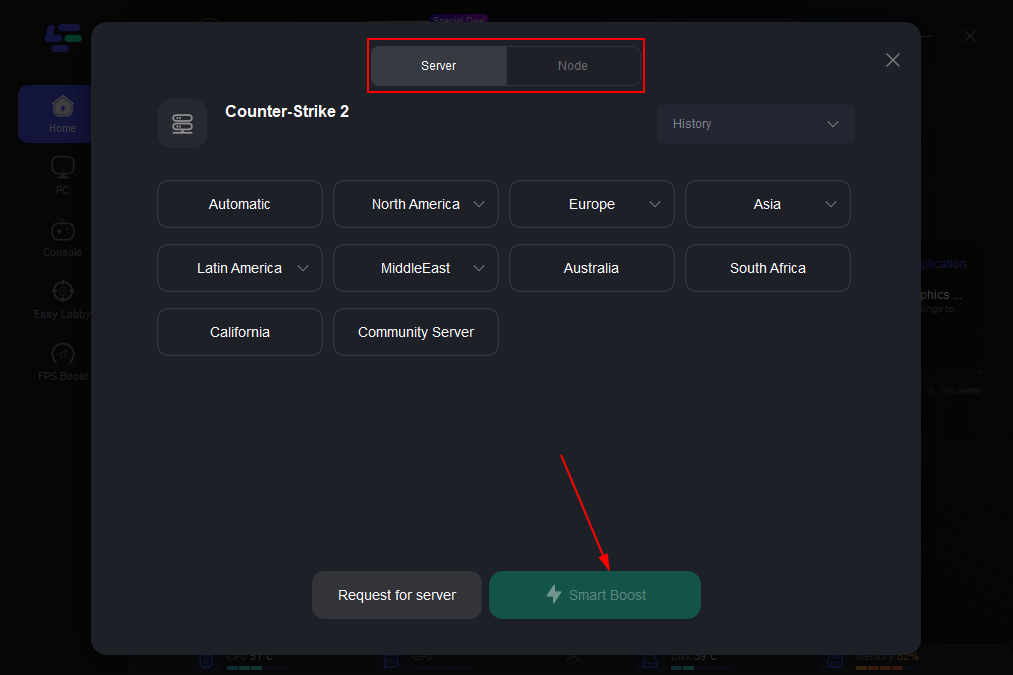
Click on “Server” to change to a better server that ensures smooth gameplay, then click on “Smart Boost”.
Check the specific game ping, packet loss, and multiple path connection on the right side. Finally, click the “Start Game” to play the game.
Below are the most frequently reported crash errors in Counter-Strike 2, along with their causes and practical solutions.
CS2 Fatal Error: Out of Memory
This error usually appears during map loading or when entering a match, especially on systems with limited RAM. The Source 2 engine requires a large amount of memory, and if the system cannot allocate enough resources, the game crashes.
Typical symptoms include long loading screens followed by an “Out of Memory” message.
How to Fix Fatal Error CS2 – Out of Memory
Step 1: Close unnecessary background programs such as browsers or streaming apps.
Step 2: Restart your PC to clear memory usage.
Step 3: Increase your Windows virtual memory settings.
Step 4: Lower in-game graphics settings to reduce memory load.
Step 5: Verify game files through Steam to ensure no corrupted assets exist.
CS2 Fatal Error Failed To Connect With Local Steam Client Process
This error usually appears during game startup when CS2 cannot communicate with the Steam client running in the background.
Players may see the message immediately after clicking Play.
Solution:
Step 1: Fully close Steam from the system tray.
Step 2: Restart Steam with administrator privileges.
Step 3: Restart your computer.
Step 4: Ensure Steam is updated to the latest version.
Step 5: Launch CS2 again from the Steam library.
CS2 Fatal Error: Failed to Create D3D Device
This error typically occurs during launch or while initializing graphics settings. It is usually related to outdated GPU drivers or incompatible graphics settings.
Symptoms include instant crashes or a black screen before the game loads.
Solution:
Step 1: Update your graphics card drivers.
Step 2: Restart your computer after installing drivers.
Step 3: Disable GPU overclocking software.
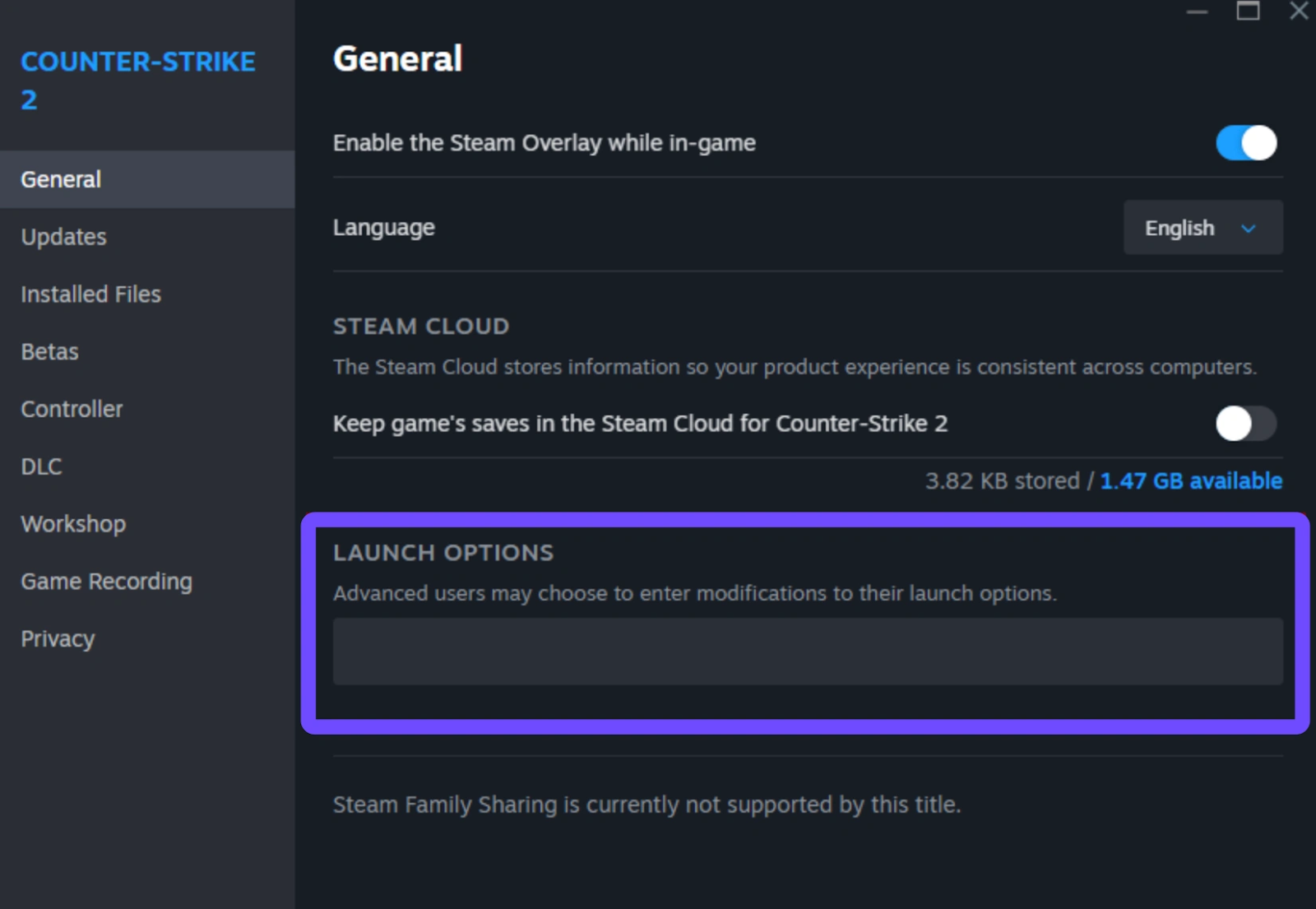
Step 4: Run CS2 in windowed mode through launch options.
Step 5: Verify game files in Steam.
CS2 Fatal Error: Shader Compilation Failed
Shader compilation errors usually occur during the first launch after updates or when loading maps. The engine fails to compile the required graphical shaders.
Players often see stuttering before the crash.
Solution:
Step 1: Update your GPU drivers.
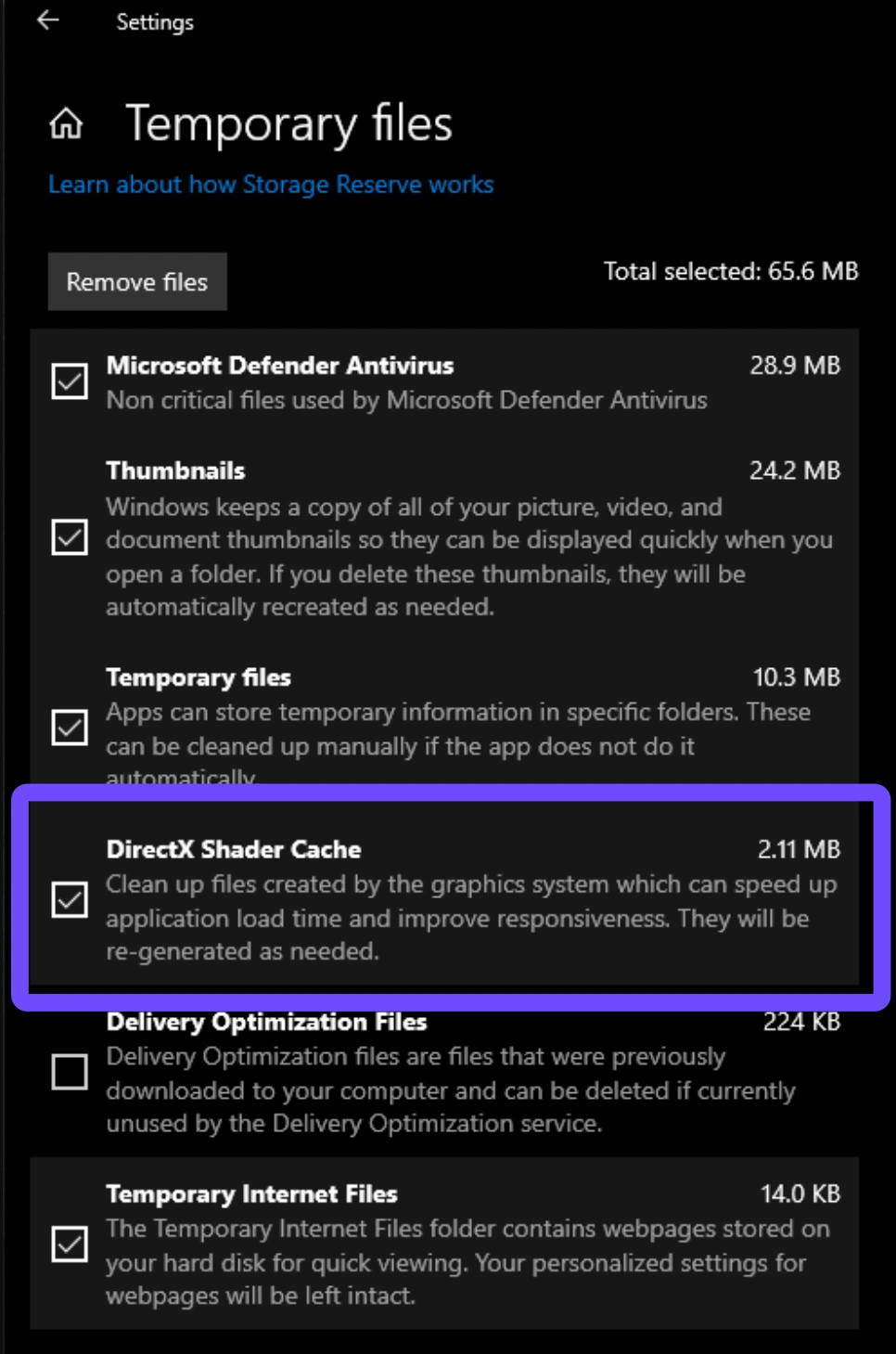
Step 2: Delete the CS2 shader cache folder.
Step 3: Restart Steam.
Step 4: Launch the game again to rebuild shaders.
Step 5: Lower graphics settings if the problem persists.
CS2 Fatal Error: Vulkan Error
This error happens when CS2 fails to initialize the Vulkan graphics API, which the Source 2 engine uses for rendering.
The crash usually occurs right after launching the game.
Solution:
Step 1: Update graphics drivers.
Step 2: Check that your GPU supports Vulkan.
Step 3: Remove outdated driver remnants.
Step 4: Verify game files in Steam.
Step 5: Restart the system and relaunch the game.
CS2 Fatal Error: Map Loading Failed
This crash appears when joining servers or loading competitive maps. It often results from corrupted map files or incomplete downloads.
Players may get stuck on the loading screen before the crash occurs.
Solution:
Step 1: Open Steam and navigate to the CS2 properties.
Step 2: Select “Verify integrity of game files.”
Step 3: Delete any custom map folders.
Step 4: Restart Steam.
Step 5: Join the server again.
CS2 Fatal Error: Engine Error
Engine errors are broad crashes related to the Source 2 engine itself. These errors often appear randomly during gameplay or loading sequences.
Typical symptoms include sudden crashes with an engine message.
Solution:
Step 1: Update Windows to the latest version.
Step 2: Update graphics drivers.
Step 3: Verify CS2 game files in Steam.
Step 4: Disable overlays such as Discord or GeForce Experience.
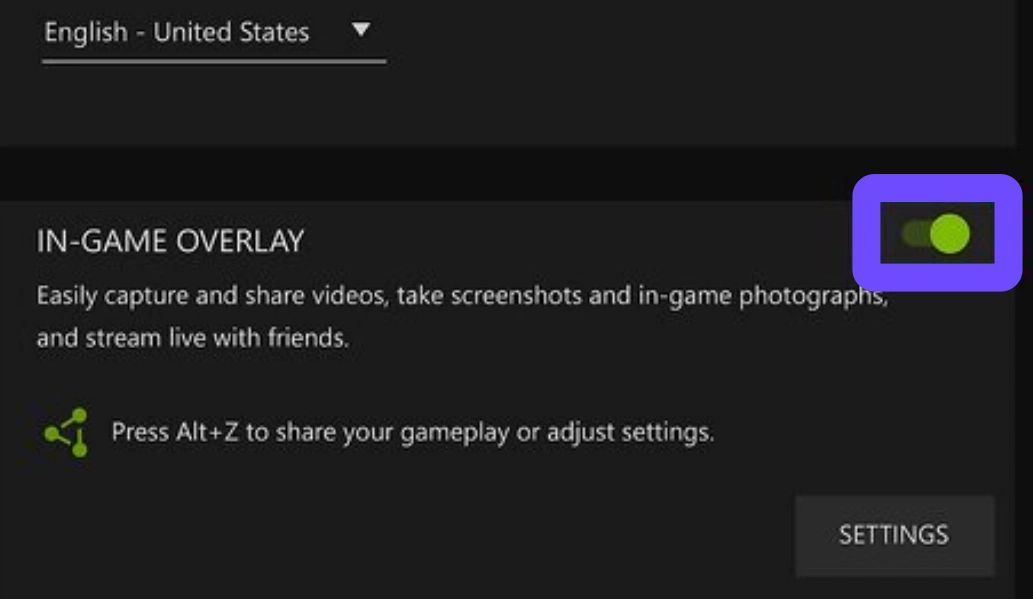
Step 5: Restart the game.
Fatal Error: Failed to Initialize the Steamworks SDK in CS2
This issue occurs during game launch, when the game cannot initialize Steam services.
The error usually prevents the game from starting entirely.
Solution:
Step 1: Restart Steam.
Step 2: Log out and log back into your Steam account.
Step 3: Disable antivirus temporarily.
Step 4: Verify game files.
Step 5: Restart the computer and relaunch the game.
Fix for CS2 “Fatal Error – .vpk is Corrupted” / Loading Content Stuck at 0%
This error happens during content loading when game package files (.vpk files) are corrupted or incomplete.
Players may notice the game stuck at 0% loading before crashing.
Solution:
Step 1: Open Steam Library.
Step 2: Right-click Counter-Strike 2 and select Properties.
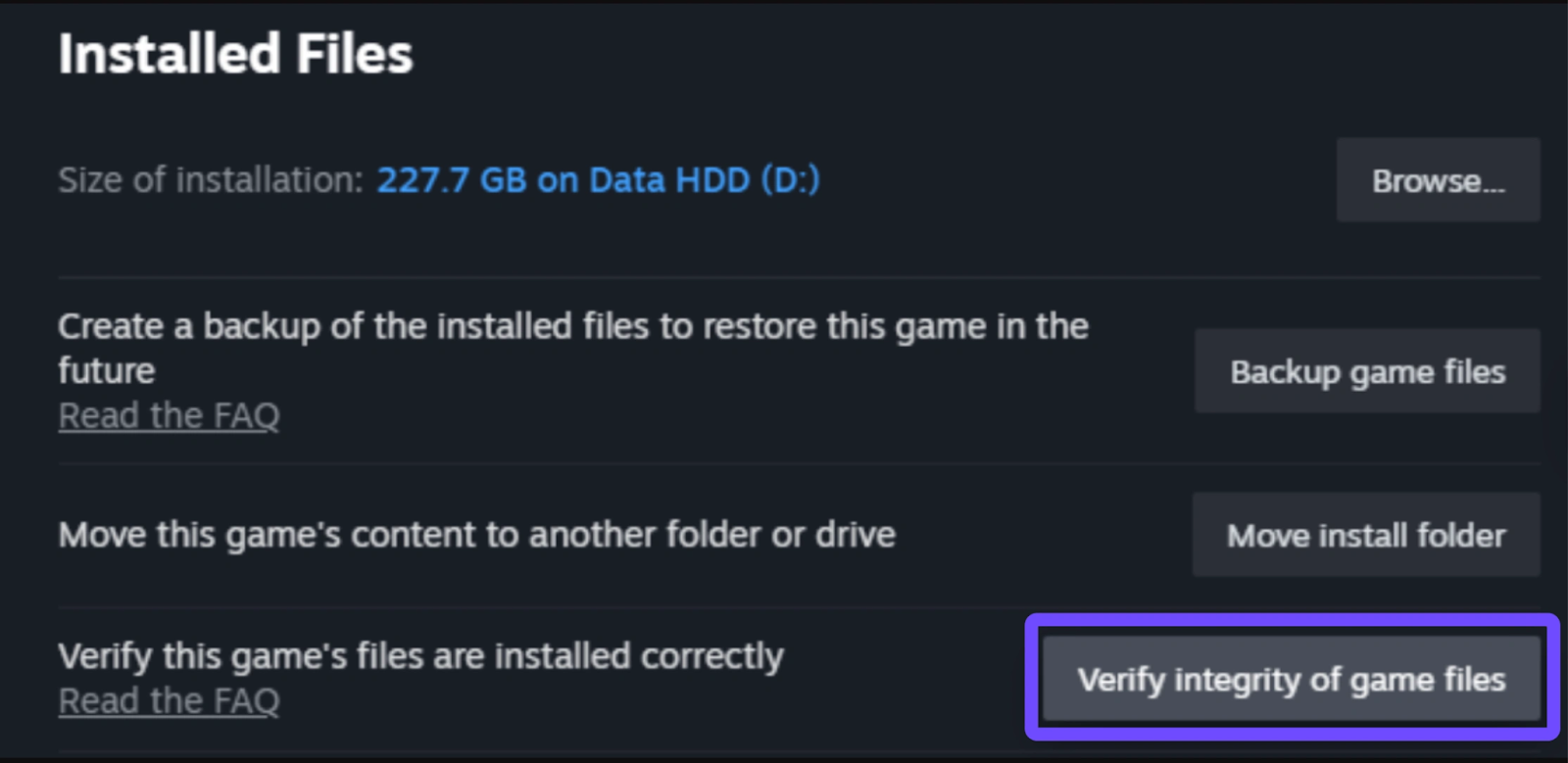
Step 3: Go to Installed Files.
Step 4: Click “Verify Integrity of Game Files.”
Step 5: Restart Steam after the repair completes.
Conclusion
Fatal errors in Counter-Strike 2 can be a massive hurdle, but they are rarely unsolvable. By understanding that these issues usually stem from file corruption or hardware resource limits, you can systematically address them. While manual fixes like verifying files and updating drivers are essential, utilizing a specialized tool like LagoFast can significantly reduce the technical headache. With its one-click crash fix and FPS optimization, you can spend less time in the Windows Event Viewer and more time clicking heads on the server. Stay updated, keep your files clean, and enjoy a crash-free CS2 experience.

Boost Your Game with LagoFast for Epic Speed
Play harder, faster. LagoFast game booster eliminates stutter and lags on PC, mobile, or Mac—win every match!
Quickly Reduce Game Lag and Ping!
Boost FPS for Smoother Gameplay!