

If you've been diving into Highguard in 2026 and find yourself grappling with low FPS, stuttering, or sudden performance drops—despite having powerful hardware—you’re certainly not alone. The game's dynamic battles, expansive worlds, and frequent live updates require more than just solid specifications; they demand finely tuned performance. Many players overlook the importance of software optimization, but it’s just as essential as the hardware in achieving smooth gameplay.
In this guide, we will delve into the factors that contribute to a sluggish experience in Highguard and provide you with practical optimization tips you can implement immediately. We’ll also highlight the best FPS booster tools available in 2026. Additionally, we'll explore advanced tweaks you can apply to enhance your PC's performance and address your most pressing FAQs. By the end, you'll be equipped with the knowledge needed to boost your frame rate and enjoy a more fluid and responsive experience in Highguard.

- ✅ Reduce Lag and High Ping.
✅ Boost FPS at the Same Time.
✅ Support 2000+ Popular Online Games.
✅ Change Server without Latency.
✅ Boost Game Loading Speed.
Part 1: Why Highguard Feels Slow and Low FPS Happens
Part 2: Essential Highguard Optimization Tips You Can Try Now
Part 3: Best Highguard FPS Booster Tools in 2026
Part 4: Advanced PC Settings to Increase Stability & FPS
Part 1: Why Highguard Feels Slow and Low FPS Happens
Highguard is designed to be immersive and competitive, but that very complexity can strain your system. Here’s why many players feel slow performance or low FPS:
1. Heavy Graphical and System Load
Highguard’s large maps, dense visuals, and fast-paced combat mean your GPU and CPU are pushed hard. If you’re running ultra settings without tuning anything else, your hardware might be working harder than necessary — resulting in frame drops during intense moments.
2. Background Processes and System Bottlenecks
Windows and other apps constantly run background tasks (like updates, sync services, or messenger apps). These consume CPU cycles, memory, and I/O bandwidth that could otherwise be dedicated to Highguard. Unless you manage those, your game can suffer throttling and stutters.
3. Network Performance Impacts Gameplay Fluidity
Lag, packet loss, and suboptimal routing don’t just affect online responsiveness — they can feel like stuttered gameplay or delayed FPS. Game boosters like LagoFast are designed to optimize network paths so that your packets travel on faster, more stable routes, reducing lag spikes and delivering a smoother experience.
4. Out-of-Date Drivers and Software
Outdated GPU drivers — or even outdated game builds — frequently lead to poor optimization for current performance demands. Keeping these updated is essential before expecting peak FPS.
In short, low performance in Highguard isn’t usually due to a single cause but a mix of system strain, background interference, and network issues.
Part 2: Essential Highguard Optimization Tips You Can Try Now
Before jumping into the installation of any third-party tools, there are several practical steps you can take right now to enhance your performance in Highguard:
Update Your GPU Drivers
Regardless of whether you're using NVIDIA, AMD, or Intel, keeping your graphics drivers up to date is crucial. Updating ensures that you benefit from the latest game-specific enhancements and bug fixes, which can lead to significant improvements in both FPS and system stability.
Adjust In-Game Graphics Settings
Not all visual settings affect performance equally. Lowering settings for shadows, reflections, anti-aliasing, and post-processing can provide immediate FPS boosts without sacrificing much in terms of visual fidelity. Additionally, adjusting resolution scaling can free up system resources for smoother gameplay.
Enable Game Mode in Windows
If you’re running Windows 10 or 11, make sure to activate the built-in Game Mode. This feature prioritizes gaming resources and minimizes background interruptions, making it a simple switch that can enhance FPS stability.
Close Background Applications
Before launching Highguard, shut down unnecessary applications like web browsers, chat clients, and cloud syncing tools. These can consume valuable memory and CPU resources that would be better utilized by the game itself.
Optimize Power Plan & Manage Thermal Performance
Switching your Windows power plan to “High Performance” ensures that your system allocates its resources effectively. Additionally, keeping your system temperatures within optimal ranges can prevent thermal throttling, which is a common cause of FPS drops during intense gameplay.
Check Your Network Stability
Whenever possible, use a wired Ethernet connection. Wi-Fi can introduce latency and packet loss, creating a lag that feels like performance issues, even if your hardware is capable.
Implementing these straightforward optimizations can lead to noticeable improvements without the need for additional software. They’ll also set up your system for even better results when you decide to use performance boosters.
Part 3: Best Highguard FPS Booster Tools in 2026
If you're looking to enhance your FPS while playing Highguard, there are several effective methods available, starting with dedicated booster tools and followed by manual optimizations you can implement on your own.
Best FPS Booster for Highguard – LagoFast
While Highguard is accessible on a variety of PC setups, its fast-paced gameplay, expansive maps, and frequent updates can challenge even the most powerful systems. Just having a capable PC doesn't ensure a smooth gaming experience. This is where a dedicated game booster can make a significant difference.
LagoFast(LagoFast Game Booster - Get No Lag and Lower Ping) emerges as one of the leading solutions for optimizing Highguard in 2026. Unlike many generic tools, LagoFast is specifically designed for online gaming, focusing on enhancing network performance, system tuning, and delivering real-time optimizations for a smoother and faster gameplay experience.
- Boost FPS automatically
- Lower ping and reduce lag
- Improve connection stability
- Fix network-related crashes
- Optimize game performance
- Custom Crosshair
How to Boost FPS in Highguard
For players struggling with FPS drops or stuttering issues in Highguard, LagoFast offers an FPS Boost feature to improve system performance and enhance graphics quality.
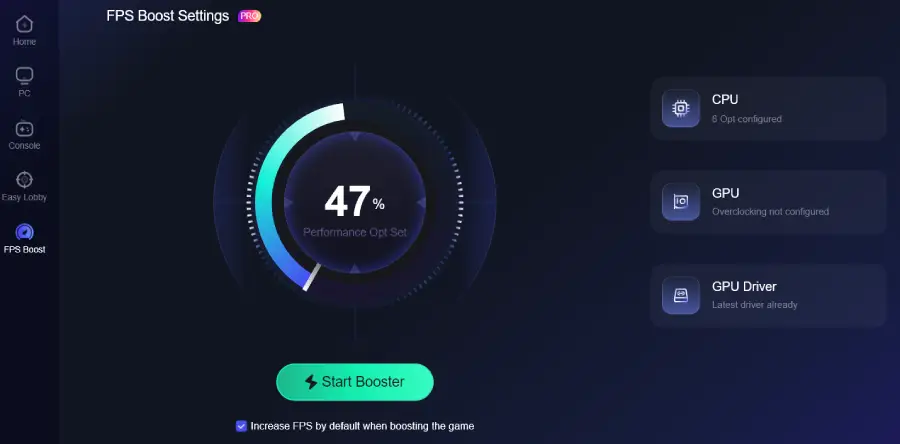
1. Open LagoFast and select the FPS Boost feature.
2. Launch LagoFast and select Highguard from the game list
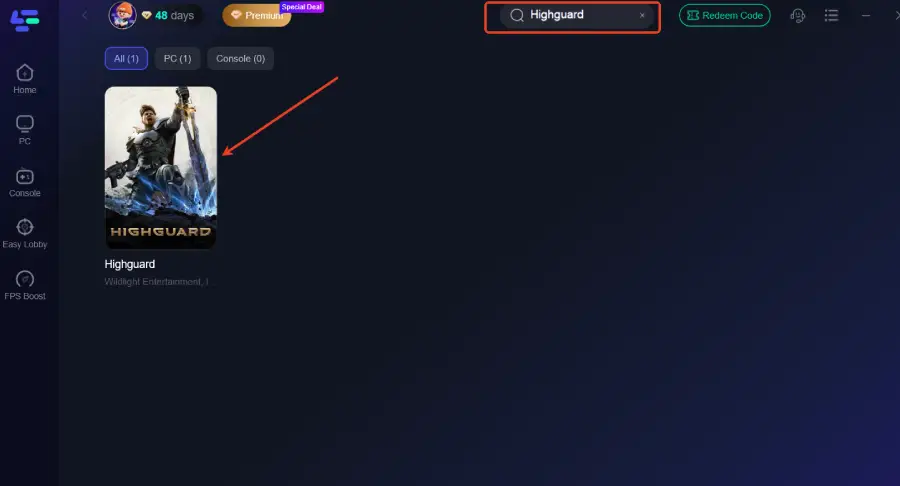
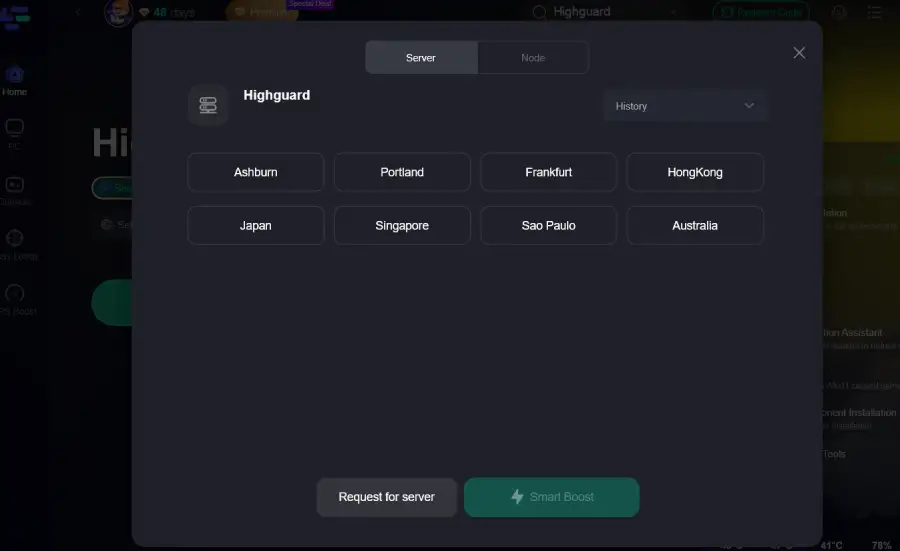
3. Choose the optimization/ping-reduction mode to improve network routing and reduce latency.
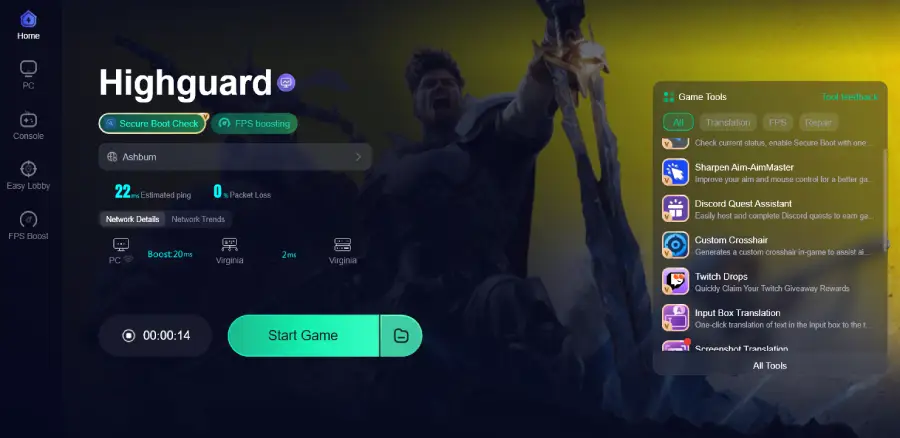
4. Launch Highguard — you should notice improved stability: higher average FPS, fewer stutters, smoother builds and fights, and lower input lag.
5. You can also click on FPS Boost to customize the settings.
With just a few simple steps, LagoFast can greatly enhance the stability, responsiveness, and overall performance of Highguard, making it particularly helpful for those who have faced lag, FPS decline, or inconsistent performance—even on capable hardware.
Part 4: Advanced PC Settings to Increase Stability & FPS
Once you’ve tackled the basics and installed your booster, here are advanced tweaks to squeeze even more performance out of your system:
GPU Control Panel Optimization
Visit your graphics control panel (NVIDIA/AMD) to adjust power settings, texture filtering, and vertical sync. Turning off VSync can prevent artificial FPS caps and reduce perceived latency.
Unlock Higher Frame Rates
Some games, including Highguard, may cap FPS by default. Community users report that editing in-game config files can unlock or remove frame limits. Just be careful — back up any file before editing.
Use Upscaling Technologies
Modern GPU features (such as NVIDIA DLSS or AMD FSR) can dramatically increase effective FPS by rendering at a lower internal resolution and upscaling with quality algorithms.
Set High Priority for Highguard
In Task Manager, setting Highguard’s process priority to “High” ensures Windows favors your game when allocating CPU time — useful on systems with lots of background tasks.
Install on an SSD
Although not a direct FPS booster, installing Highguard on an SSD reduces texture streaming hitches and loading pauses, contributing to a smoother play experience overall.
With these settings combined with an FPS booster like LagoFast, you’re better positioned to enjoy Highguard at its competitive best.
Part 5: FAQs
Q1: Why does Highguard feel sluggish or slow even on powerful PCs?
Many players are reporting inconsistent performance and stutters, even with high-end hardware. Early feedback shows that Highguard’s optimization at launch isn’t yet refined — causing lower than expected FPS, blurry visuals, and occasional hitching in intense moments. This seems to stem from the way Unreal Engine handles graphical processing and resource management in the current build.
Q2: My FPS is capped at 60 and won’t go higher. What should I do?
Some users have discovered that Highguard can lock the frame rate to 60 FPS by default — even with V-Sync disabled. Community reports suggest editing the game’s configuration file can remove this cap by setting certain frame limit values to -1.000000. This workaround lets your system deliver higher FPS if hardware and drivers support it.
Q3: Is the blurry visual quality part of Highguard’s design?
Many players describe the visuals as overly blurred, which appears tied to the game’s current anti-aliasing implementation (likely an older or aggressive TAA method). This isn’t intentional for competitive visibility but rather a side effect of how the default graphics settings and resolution scaling are configured. Adjusting render resolution and post-processing settings can help, but a proper DLSS/FSR upgrade from the developers would be the ideal fix.
Q4: Sometimes the game crashes or won’t launch — why?
Highguard currently requires Secure Boot and TPM 2.0 enabled in BIOS to launch, partly due to its anti-cheat system [Easy Anti-Cheat]. If these aren’t enabled, or if your CPU lacks certain instruction set support, the game may fail to start. Checking BIOS settings and verifying system requirements typically resolves this problem.
Q5: Does network lag look like performance issues?
Absolutely. Highguard’s online nature means unstable connections — like high ping spikes, packet loss, or Wi-Fi interference — can feel like frame stutters or delayed inputs. A stable connection (preferably wired Ethernet) significantly improves responsiveness and perception of smoothness during play.
Conclusion
Highguard remains one of the most exciting shooters of 2026, but without proper optimization, even great hardware can feel underwhelming. By combining smart in-game tweaks, system optimizations, advanced PC settings, and a robust performance booster like LagoFast Game Booster, you’ll unlock smoother FPS, crisper responsiveness, and far fewer frustrating stutters — even in peak combat moments.

Boost Your Game with LagoFast for Epic Speed
Play harder, faster. LagoFast game booster eliminates stutter and lags on PC, mobile, or Mac—win every match!
Quickly Reduce Game Lag and Ping!
Boost FPS for Smoother Gameplay!