

Quick Answer
To experience Halo Campaign Evolved optimally, a PC with an AMD Ryzen 5 3600 or Intel Core i7-10700K, 16GB RAM, and an NVIDIA GeForce RTX 2060 Super or AMD Radeon RX 6600 is sufficient for 1080p at 60 FPS. For higher resolutions like 4K at 60 FPS, more robust hardware such as an AMD Ryzen 7 7700 or Intel Core i7-12700K, 32GB RAM, and an NVIDIA GeForce RTX 3080 Ti or AMD Radeon RX 9070 is recommended. Optimizing in-game settings and utilizing performance-enhancing tools can significantly improve your experience.

- ✅ Reduce Lag and High Ping.
✅ Boost FPS at the Same Time.
✅ Support 3000+ Popular Online Games.
✅ Change Server without Latency.
✅ Boost Game Loading Speed.
Part 1: Halo Campaign Evolved PC System Requirements
Part 2: Halo Campaign Evolved Requirements Table
Part 3: Can You Play Halo Campaign Evolved on Windows 10?
Part 4: Can My PC Run Halo Campaign Evolved?
Part 5: Halo Campaign Evolved Best PC Settings
Part 6: Should You Enable Frame Generation?
Part 7: Best Frame Rate and Latency Settings
Part 8: Halo Campaign Evolved Steam Deck and Handheld Settings
Part 9: How to Get More FPS in Halo Campaign Evolved
Part 10: Halo Campaign Evolved PC Settings FAQ
Halo Campaign Evolved PC System Requirements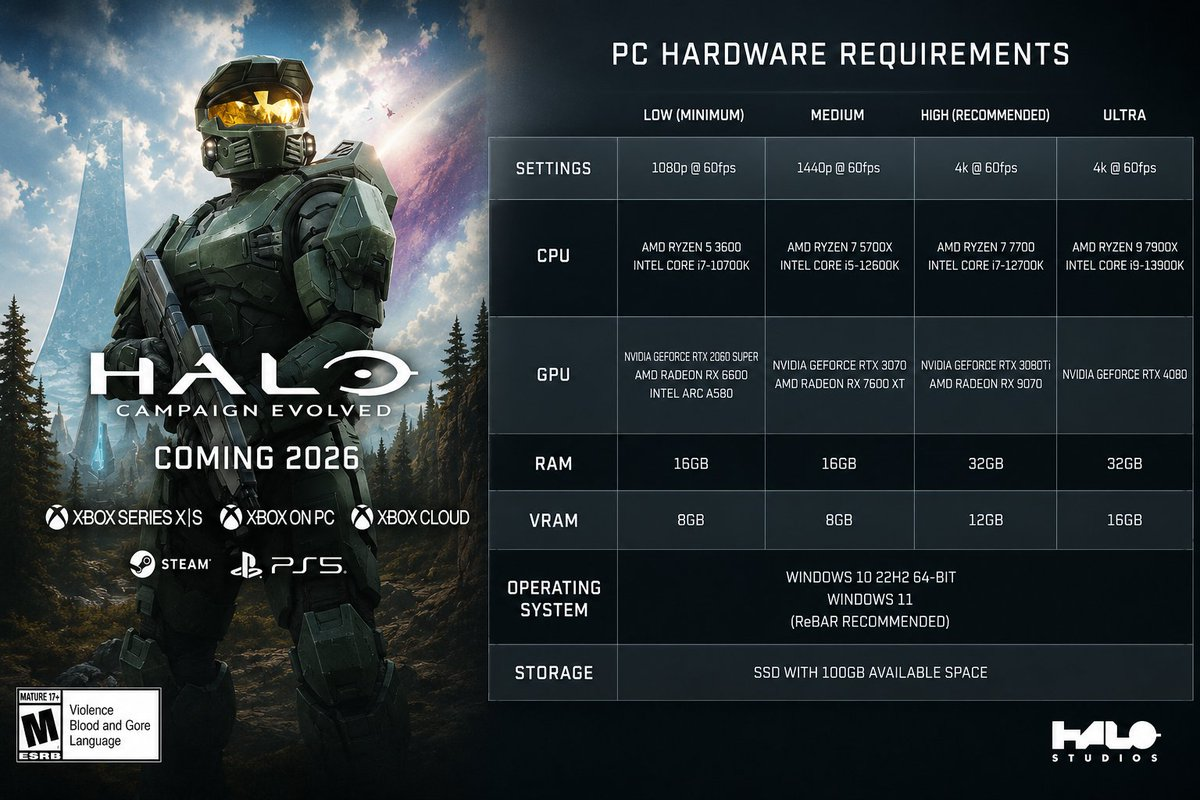
Understanding the hardware demands of Halo Campaign Evolved is crucial for a smooth and engaging gameplay experience. The game offers a range of graphical fidelity, from competitive 1080p performance to stunning 4K visuals, each requiring specific PC configurations. Developers have provided clear guidelines to help players configure their systems for the best possible outcome.
Low Requirements for 1080p 60 FPS
For players aiming for a consistent 60 frames per second (FPS) at 1080p resolution, the entry-level specifications are quite accessible. A capable quad-core CPU, coupled with a mid-range graphics card and a reasonable amount of RAM, forms the foundation for this experience. This setup ensures that the game runs without significant hitches, allowing for fluid combat and exploration.
Medium Requirements for 1440p 60 FPS
Stepping up to 1440p resolution at 60 FPS demands a more powerful system. This tier typically involves a stronger processor and a higher-tier graphics card to render the increased pixel count without sacrificing frame rates. Players will notice a significant improvement in visual clarity and detail, making the game world more immersive.
High Requirements for 4K 60 FPS
Achieving 4K resolution at 60 FPS represents a substantial leap in hardware requirements. This level of visual fidelity requires top-tier components, including high-end CPUs and GPUs, along with ample system memory. The game's intricate environments and detailed character models truly shine at this resolution, offering a cinematic quality.
Ultra Requirements for 4K 60 FPS
For those seeking the absolute pinnacle of visual quality at 4K 60 FPS, often with ray tracing enabled, the
hardware demands are at their peak. This often necessitates the latest generation of graphics cards and processors, ensuring every visual setting can be maximized without compromising performance.
Halo Campaign Evolved Requirements Table
To provide a clear overview, here’s a breakdown of the core hardware components and their respective requirements for Halo Campaign Evolved across different performance targets.
|
Component |
Minimum (1080p 60 FPS) |
Recommended (1440p 60 FPS) |
Ultra (4K 60 FPS) |
|
CPU |
AMD Ryzen 5 3600 / Intel Core i7-10700K |
AMD Ryzen 7 7700 / Intel Core i7-12700K |
Intel Core i9-13900K / AMD Ryzen 9 7950X3D |
|
GPU |
NVIDIA GeForce RTX 2060 Super / AMD Radeon RX 6600 |
NVIDIA GeForce RTX 3080 Ti / AMD Radeon RX 9070 |
NVIDIA GeForce RTX 4090 / AMD Radeon RX 9900XT |
|
RAM |
16 GB |
32 GB |
32 GB |
|
VRAM |
8 GB |
12 GB |
24 GB |
|
Storage |
SSD, 100 GB available |
SSD, 100 GB available |
SSD, 100 GB available |
CPU Requirements
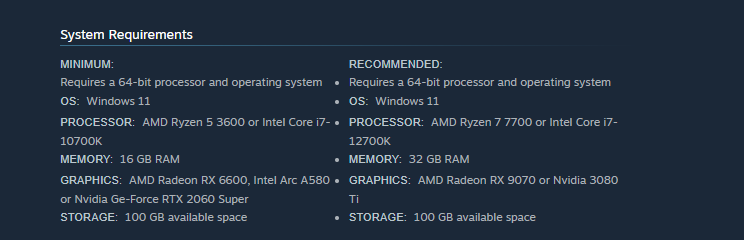
The central processing unit (CPU) plays a vital role in handling game logic, AI, and physics. For Halo Campaign Evolved, a multi-core processor is essential. Minimum specifications point to a Ryzen 5 3600 or i7-10700K, which are solid performers for their generation. As you scale up to higher resolutions and frame rates, the game benefits significantly from more powerful CPUs like the Ryzen 7 7700 or i7-12700K, which offer superior single-core and multi-core performance, reducing potential bottlenecks.
GPU and VRAM Requirements
The graphics processing unit (GPU) is arguably the most critical component for gaming performance. Halo Campaign Evolved, with its detailed environments and intense action, demands a capable GPU. An RTX 2060 Super or RX 6600 provides a good baseline for 1080p. For 1440p, an RTX 3080 Ti or RX 9070 is recommended, offering the necessary horsepower for smoother visuals. For 4K gaming, especially with advanced graphical settings, an RTX 4090 or RX 9900XT is the preferred choice, ensuring high frame rates and visual fidelity. Video RAM (VRAM) is equally important, particularly at higher resolutions where more texture data needs to be stored. 8GB of VRAM is a good starting point, but 12GB or even 24GB becomes beneficial for 4K gaming.
RAM Requirements
System Random Access Memory (RAM) is crucial for loading game assets quickly and efficiently. While 16GB of RAM is sufficient for minimum requirements, 32GB is recommended for a more stable experience, especially when running the game at higher settings or alongside other applications. Sufficient RAM helps prevent stuttering and ensures smooth transitions between game areas.
SSD and Available Storage
An Solid State Drive (SSD) is a non-negotiable requirement for modern gaming, and Halo Campaign Evolved is no exception. Installing the game on an SSD drastically reduces loading times, allowing you to jump into the action faster. A minimum of 100 GB of available storage is needed, so ensure you have enough space for the initial installation and future updates.
Operating System Requirements
Officially, Halo Campaign Evolved targets Windows 11 (64-bit) for optimal performance and feature support. While some games may still run on Windows 10, adhering to the recommended operating system ensures compatibility with the latest drivers and game optimizations. It is always advisable to keep your operating system updated for the best gaming experience.
Can You Play Halo Campaign Evolved on Windows 10?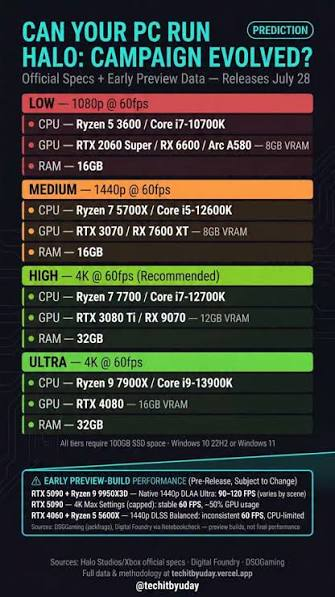
Many players still operate on Windows 10 and naturally wonder about compatibility. While Windows 11 is often cited as the preferred OS for newer titles, the reality for Halo Campaign Evolved can be nuanced.
Official Halo Support Windows 10 Requirement
Despite the push towards Windows 11, official communications often indicate that Windows 10 (64-bit) remains supported for Halo Campaign Evolved, particularly for minimum specifications. This allows a broader player base to access the game without an immediate OS upgrade. However, it is important to note that future updates or specific features might eventually become exclusive to Windows 11.
Why Steam May Show Windows 11 Only
Sometimes, platforms like Steam might prominently display Windows 11 as the sole operating system requirement. This can be a strategic move by developers or publishers to encourage adoption of the newer OS, or it might reflect the optimal environment for the game. It doesn't always mean the game is entirely unplayable on Windows 10, but rather that the best experience is anticipated on Windows 11.
How to Check Your Windows Version and Build
To verify your current Windows version, simply type "winver" into the Windows search bar and press Enter. This will display a small window with your operating system version and build number. Keeping this information handy can be useful for troubleshooting or checking against game requirements.
Can My PC Run Halo Campaign Evolved?
Determining if your PC can run Halo Campaign Evolved involves comparing your system's specifications against the game's requirements. The easiest way is to identify your CPU, GPU, and RAM, then cross-reference them with the minimum and recommended specs provided earlier. If your hardware meets or exceeds the minimum, you should be able to play the game, albeit potentially at lower settings. Meeting the recommended specifications ensures a much smoother and visually appealing experience.
Halo Campaign Evolved Best PC Settings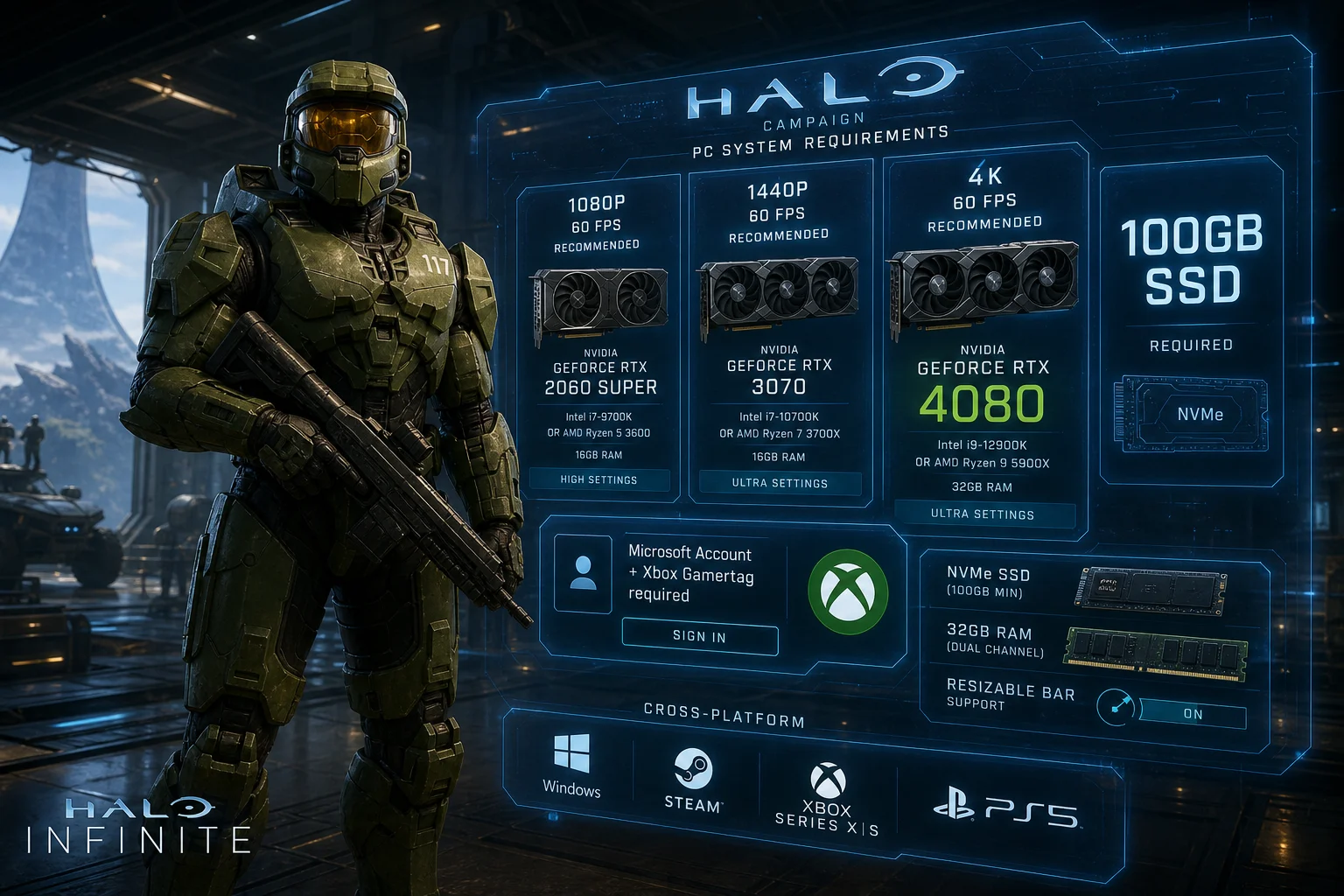
Optimizing in-game settings is key to balancing visual quality and performance. Different hardware configurations and player preferences will dictate the ideal settings.
Best Settings for 1080p 60 FPS
For 1080p at 60 FPS, a good strategy is to prioritize texture quality, anti-aliasing, and view distance, while moderating settings like shadows, volumetric lighting, and reflections. These settings often have a significant impact on performance without drastically reducing visual fidelity at this resolution. Experiment with a mix of medium to high settings to find your sweet spot.
Best Settings for 1440p 60 FPS
At 1440p, you can generally push more settings to high or even ultra. Focus on maintaining a stable 60 FPS by carefully adjusting demanding options like global illumination, ambient occlusion, and particle effects. High-resolution textures will shine at this resolution, so keep those as high as your VRAM allows.
Best Settings for 4K 60 FPS
Achieving 4K 60 FPS often requires a more aggressive approach to optimization. While top-tier GPUs can handle many settings at ultra, you might need to make some compromises. Prioritize core visual elements like texture quality and model detail, and consider lowering shadow quality, volumetric fog, and certain post-processing effects. Frame generation technologies can also play a significant role here.
Best Settings for Low-End PCs
For systems barely meeting the minimum requirements, every setting adjustment counts. Start by setting all graphics options to their lowest presets. Reduce resolution scaling, disable demanding features like ambient occlusion and reflections, and consider lowering the resolution itself if necessary. The goal is to achieve a playable frame rate, even if it means sacrificing visual grandeur.
Best Settings for Visual Quality
If your hardware is robust enough, maximizing visual quality involves pushing all settings to their highest. This includes ultra textures, high-fidelity shadows, complex volumetric effects, and advanced anti-aliasing. Ray tracing, if supported and enabled, will further enhance lighting and reflections, creating a truly stunning visual experience.
Best Settings for Low Input Latency
Competitive players often prioritize low input latency over raw visual fidelity. To minimize input lag, ensure VSync is off (unless you experience severe screen tearing and have no other option), enable any available low-latency modes (like NVIDIA Reflex or AMD Anti-Lag), and reduce graphics settings to achieve the highest possible frame rate. A higher frame rate inherently reduces input latency.
Should You Enable Frame Generation?
Frame generation technologies, such as NVIDIA DLSS 3 and AMD FSR 3, are designed to boost frame rates by intelligently creating new frames. This can be a game-changer for performance, especially at higher resolutions.
Supported GPUs
NVIDIA DLSS 3 is exclusive to RTX 40-series GPUs, while AMD FSR 3 is more broadly compatible with a wider range of AMD Radeon and NVIDIA GeForce graphics cards, including older generations. Intel XeSS also offers a similar upscaling and frame generation solution for Intel Arc GPUs and other vendors.
FPS Benefits
When enabled, frame generation can significantly increase your reported FPS, often by 50% or more. This can transform a barely playable experience into a smooth one, particularly in graphically demanding scenarios or at high resolutions. It effectively allows your GPU to render fewer frames natively while still presenting a high frame rate to your display.
Input Latency and Visual Artifact Tradeoffs
While frame generation boosts FPS, it can introduce a slight increase in input latency because you are interacting with frames that haven't been natively rendered. Modern implementations, especially with accompanying latency reduction technologies, mitigate this effect. Additionally, in fast-paced scenes or with certain visual elements, minor visual artifacts might occasionally appear, though these are often imperceptible during gameplay.
When to Disable Frame Generation
Consider disabling frame generation if you are already achieving very high frame rates (e.g., 120+ FPS) and prioritize the absolute lowest input latency for competitive play. Also, if you notice distracting visual artifacts or experience an uncomfortable feeling of input delay, turning it off might provide a more responsive experience.
Best Frame Rate and Latency Settings
Fine-tuning frame rate and latency settings can significantly impact your gameplay feel, especially in a fast-paced title like Halo Campaign Evolved.
Minimum Frame Rate
Setting a minimum frame rate target can help maintain a consistent experience. While the game might dynamically adjust settings to meet this, it's generally better to aim for a frame rate your system can consistently achieve rather than constantly fluctuating. A stable 60 FPS is often preferred over an unstable higher FPS.
Frame Rate Limit
Limiting your frame rate to your monitor's refresh rate (e.g., 60 FPS for a 60Hz monitor, 144 FPS for a 144Hz monitor) can prevent unnecessary GPU strain and reduce screen tearing, especially if VSync is disabled. This also helps maintain consistent frame pacing.
NVIDIA Reflex, AMD Anti-Lag, and Intel XeLL
These technologies are designed to reduce system latency. NVIDIA Reflex, available on GeForce GPUs, optimizes the rendering pipeline to minimize the time between your input and the on-screen action. AMD Anti-Lag offers a similar benefit for Radeon users. Intel XeLL is Intel's equivalent for their integrated and discrete graphics. Enabling these features can provide a noticeable improvement in responsiveness, particularly in competitive scenarios.
VSync On or Off
VSync (Vertical Synchronization) synchronizes your game's frame rate with your monitor's refresh rate to eliminate screen tearing. However, it can introduce input lag. For competitive play, it's generally recommended to keep VSync off. If screen tearing is bothersome and you don't have a G-Sync or FreeSync monitor, consider using an in-game frame rate limiter slightly below your monitor's refresh rate instead.
Mouse Smoothing On or Off
Mouse smoothing attempts to make mouse movements appear smoother by averaging input over several frames. While this might seem beneficial, it often introduces a subtle delay and inconsistency in aiming, which can be detrimental in precision-based games. For optimal responsiveness, always disable mouse smoothing.
Async Compute On or Off
Asynchronous Compute allows the GPU to handle multiple tasks simultaneously, potentially improving performance by better utilizing hardware resources. While generally beneficial, some older GPUs or specific game engines might not fully optimize for it, leading to negligible gains or even slight performance dips. It's worth experimenting with this setting to see its impact on your specific system.
Halo Campaign Evolved Steam Deck and Handheld Settings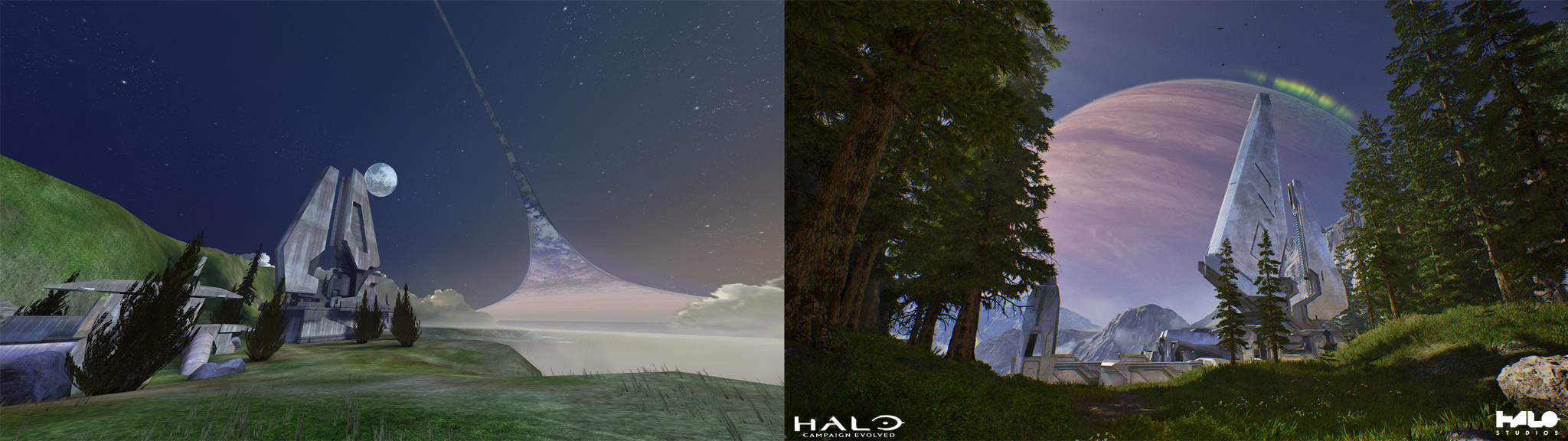
Playing Halo Campaign Evolved on portable devices like the Steam Deck or other Windows handhelds offers a unique experience, though it requires careful optimization to achieve playable frame rates.
Steam Deck Verification Status
While Halo Campaign Evolved might not have an official "Verified" status on Steam Deck, many community reports indicate it is playable with adjustments. The key is to manage expectations regarding visual fidelity and target frame rates.
Very Low Graphics Preset
On handheld devices, the "Very Low" graphics preset is often the starting point. This significantly reduces the rendering burden on the integrated GPU, allowing for higher frame rates. Further tweaks to individual settings may still be necessary.
Recommended Resolution and FPS Target
For Steam Deck, targeting 720p or 800p resolution is generally recommended, as it aligns with the device's native screen and reduces rendering demands. A stable 30 FPS is often a more realistic and achievable target than 60 FPS, providing a consistent gameplay experience on the go.
ROG Ally and Windows Handheld Settings
Other Windows handhelds like the ROG Ally, with their more powerful hardware, can often push slightly higher settings or achieve closer to 60 FPS at 1080p. However, the same principles apply: prioritize lower graphics presets, manage resolution, and utilize any available performance modes specific to the device.
How to Get More FPS in Halo Campaign Evolved
Boosting your frame rate in Halo Campaign Evolved can significantly enhance your gameplay. Here are several strategies to achieve higher FPS.
Use LagoFast FPS Booster to Optimize Game Performance
LagoFast(LagoFast Game Booster - Get No Lag and Lower Ping) is a game booster designed to optimize network conditions and system performance, which can directly translate to higher FPS and reduced latency. It works by intelligently routing your game traffic, reducing ping, and often includes features to optimize system resources for gaming. By ensuring a stable and fast connection, LagoFast minimizes network-related performance drops, allowing your PC to render frames more efficiently. This can be particularly beneficial in online multiplayer scenarios where network stability is paramount. To use LagoFast:
Click the Free Trial button to download and install LagoFast Free Trial.
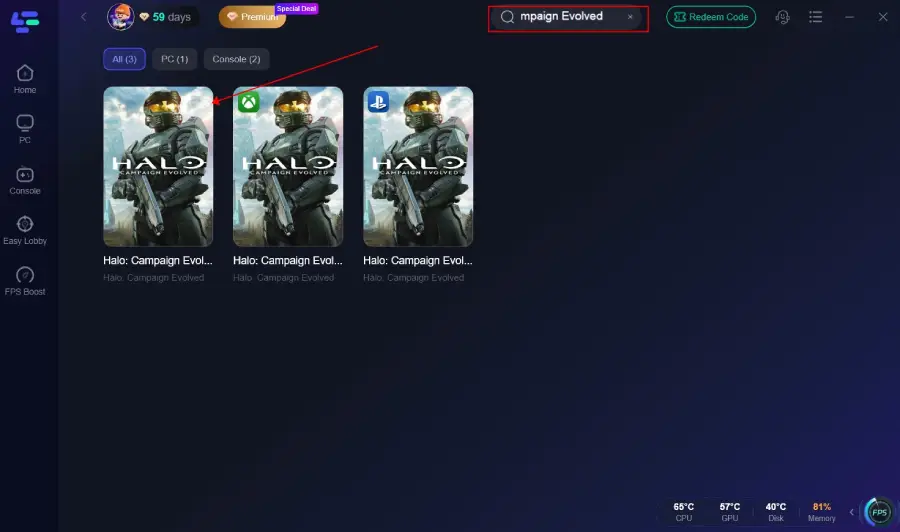
Launch LagoFast and Search for Halo Campaign Evolved: Open the LagoFast application. In the search bar, type "Halo Campaign Evolved" and select the game from the results.
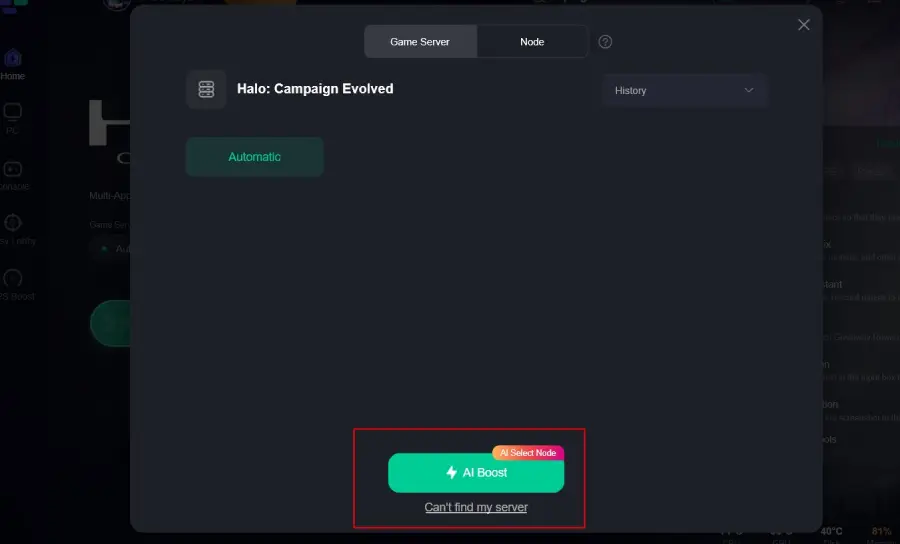
Select Server and Node: LagoFast will recommend the optimal server and node for your location. Choose the recommended option for the best performance.
Start Boosting: Click the "Start Boosting" button. LagoFast will then optimize your network and system settings for the game.
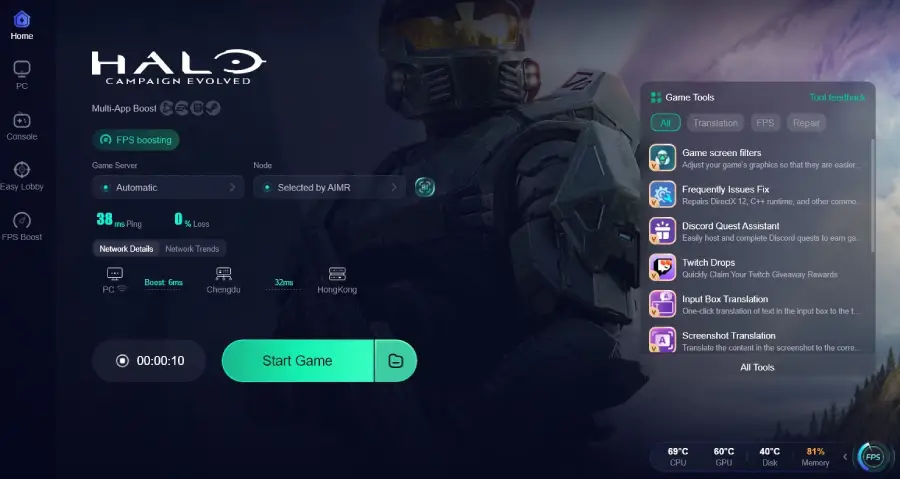
Launch Halo Campaign Evolved: Once boosting is active, launch Halo Campaign Evolved through your preferred platform (e.g., Steam, Xbox App) and experience improved FPS and reduced latency.
Update the Recommended Graphics Driver
Keeping your graphics drivers updated is fundamental for optimal gaming performance. NVIDIA, AMD, and Intel frequently release new drivers that include game-specific optimizations and bug fixes. Always download the latest recommended drivers directly from your GPU manufacturer's website.
Close Browsers, Launchers, and Background Applications
Before launching Halo Campaign Evolved, close any unnecessary applications running in the background. Web browsers, other game launchers, streaming services, and background utilities can consume significant CPU, RAM, and even GPU resources, impacting your game's performance. A clean system ensures maximum resources are dedicated to the game.
Lower Global Illumination and Lighting First
Global illumination and complex lighting effects are often among the most demanding graphical settings. If you are seeking to improve FPS, these are excellent candidates for reduction. Lowering their quality can yield substantial performance gains with a less noticeable impact on overall visual quality compared to reducing texture quality.
Set an Achievable Minimum Frame Rate
While aiming for the highest possible FPS is tempting, setting a realistic and achievable minimum frame rate can lead to a more consistent and enjoyable experience. If your system struggles to maintain a high frame rate, capping it at a stable, lower number (e.g., 60 FPS) can prevent jarring fluctuations and stuttering.
Disable Unused Secondary Displays
If you have multiple monitors connected, disabling any unused secondary displays while gaming can free up GPU resources. Even if they are not actively displaying game content, secondary monitors still consume a small amount of GPU power, which can be redirected to your primary gaming display.
Halo Campaign Evolved PC Settings FAQ
What is the most important setting for FPS?
Generally, lowering resolution scaling or overall resolution has the most significant impact on FPS. After that, settings like shadows, volumetric lighting, and global illumination are major performance hogs.
Does VSync cause input lag?
Yes, VSync can introduce input lag because it forces the GPU to wait for the monitor's refresh cycle before displaying a new frame. Disabling it often results in lower input latency, though it may cause screen tearing.
How much RAM do I need for Halo Campaign Evolved?
While 16GB is the minimum, 32GB of RAM is recommended for a smoother experience, especially at higher resolutions and settings, or if you run other applications in the background.
Is an SSD required for Halo Campaign Evolved?
Yes, an SSD is highly recommended and often a minimum requirement. It drastically reduces loading times and improves overall game responsiveness compared to a traditional HDD.
Can I play Halo Campaign Evolved with an older GPU?
If your GPU meets the minimum requirements (e.g., NVIDIA GeForce RTX 2060 Super or AMD Radeon RX 6600), you can play the game, but you may need to adjust settings to lower presets and resolutions to achieve a playable frame rate.
Key Takeaway
Optimizing your PC for Halo Campaign Evolved involves understanding system requirements, fine-tuning in-game settings, and considering performance-enhancing tools. By matching your hardware to the desired resolution and frame rate, adjusting graphical options strategically, and utilizing solutions like LagoFast Game Booster, you can achieve a fluid and responsive gaming experience. Regular driver updates and managing background applications further contribute to peak performance, ensuring you get the most out of your time in the game.

Boost Your Game with LagoFast for Epic Speed
Play harder, faster. LagoFast game booster eliminates stutter and lags on PC, mobile, or Mac—win every match!
Quickly Reduce Game Lag and Ping!
Boost FPS for Smoother Gameplay!