
Guild Wars 2 is beloved for its immersive world, dynamic events, and a dedicated player base that spans the globe. However, even the most stable MMO experiences connection problems. From the dreaded “Connection error(s) detected. Retrying…” message to complete crashes or login issues, technical setbacks can sour the gaming experience in no time.
If you've found yourself googling phrases like “Why can’t I connect to Guild Wars 2” or wondering “Are Guild Wars 2 servers down?”, you’re not alone. These issues are more common than you might expect, but the good news is that there are effective ways to fix them.
In this guide, we’ll explore what causes these frustrating errors, how to troubleshoot them, and why tools like LagoFast can make a huge difference. Whether you’re stuck at the login screen, seeing frequent disconnects, or suffering from in-game lag and crashes, you’ll find real solutions here.

Part 1: Why Do Guild Wars 2 Connection Errors Happen?
Part 2: How to Fix Guild Wars 2 Connection Errors
Part 1: Why Do Guild Wars 2 Connection Errors Happen?
Connection errors in Guild Wars 2 can happen for a variety of reasons. Some may be server-related and entirely out of your hands, while others stem from your local network, system configurations, or even outdated game files.
Here are the most common culprits:
1. Server-Side Downtime
Occasionally, ArenaNet brings servers down for maintenance or updates. During these times, even the best internet connection won’t get you in-game.
2. ISP or Network Instability
An unstable connection on your end can trigger the “Guild Wars 2 stuck on connection error(s) detected. Retrying…” issue or random disconnects during gameplay.
3. Firewall and Antivirus Interference
Overprotective firewall or antivirus settings may block Guild Wars 2 from accessing the internet or maintaining a stable connection.
4. Outdated Network Drivers
Old or incompatible network drivers can create packet loss, high ping, and ultimately lead to disconnection or crashes.
5. Corrupt Game Files
If the game client is missing essential files or has corrupt data, it may crash repeatedly or struggle to connect.
6. Background Programs and Network Congestion
Other programs or devices on your network may hog bandwidth, making it difficult for Guild Wars 2 to maintain a smooth connection.
Part 2: How to Fix Guild Wars 2 Connection Errors
Fixing Guild Wars 2 connection issues takes a combination of checking your network, tweaking game settings, and possibly using advanced optimization tools. Below are proven solutions, starting with the most efficient one.
LagoFast: The Best Solution to Fix “Guild Wars 2 Connection Errors”
When facing persistent disconnections or the “Connection error detected retrying” loop, the quickest and most reliable way to resolve them is by using a performance and network booster like LagoFast.
LagoFast specializes in optimizing game performance and stabilizing internet connections for titles like Guild Wars 2. With its intelligent routing technology and real-time optimization engine, it can drastically reduce lag, eliminate packet loss, and prevent sudden crashes.
Unlike traditional VPNs or game boosters, LagoFast focuses on dynamic data transmission, ensuring your client always connects through the fastest route to ArenaNet’s servers. This is particularly helpful if you're experiencing regional instability or ISP throttling.
Key Features of LagoFast:
- Real-Time Route Optimization: Automatically picks the best path to reduce ping and avoid congested nodes.
- FPS Boosting Tools: Optimizes your system performance by managing background processes and memory usage.
- Game-Specific Modes: Custom profiles for Guild Wars 2 ensure precise tuning.
- One-Click Acceleration: Easy to use even for non-technical players.
- Change Servers: Optimized nodes in North America, Europe, Asia, and more.
- Crash Prevention: Helps reduce random crashes by stabilizing resource allocation.
If you’re tired of repeated retries and constant disconnects, LagoFast is the best tool in your arsenal to get back into Tyria without frustration.
Tutorial to use LagoFast to ensure the Guild Wars 2 Download Speed:
Step 1. Download LagoFast via the Free Trial button.
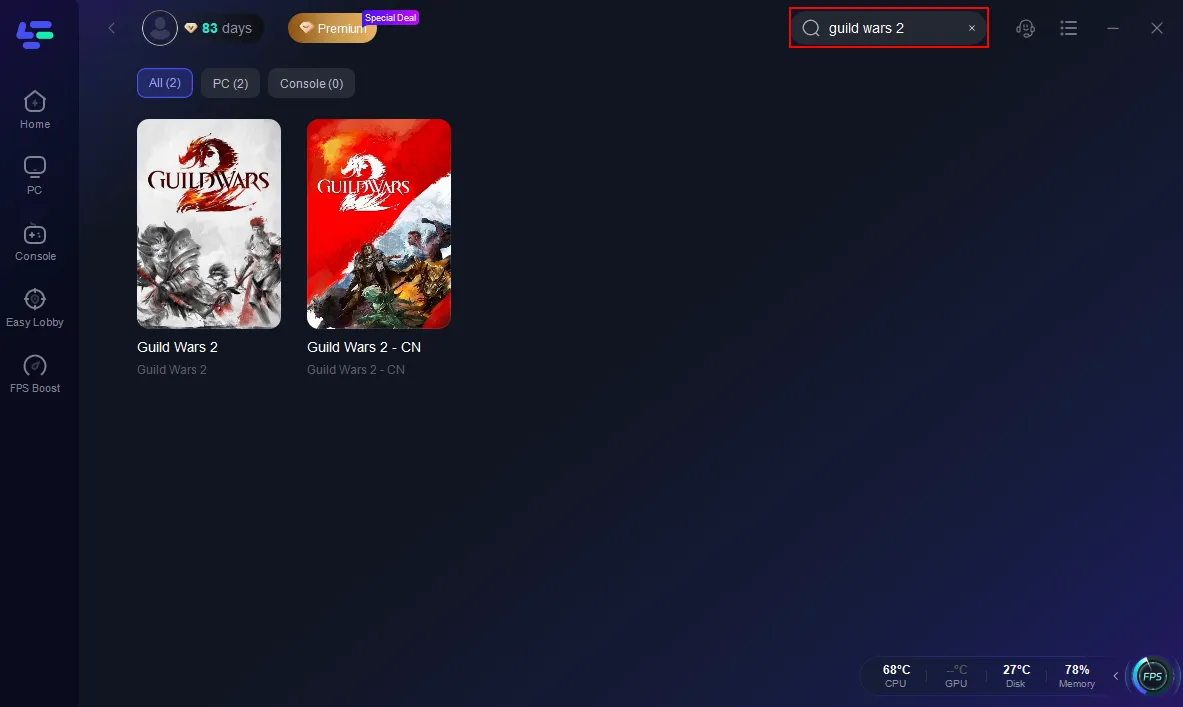
Step 2. Search for Guild Wars 2 inside the app.
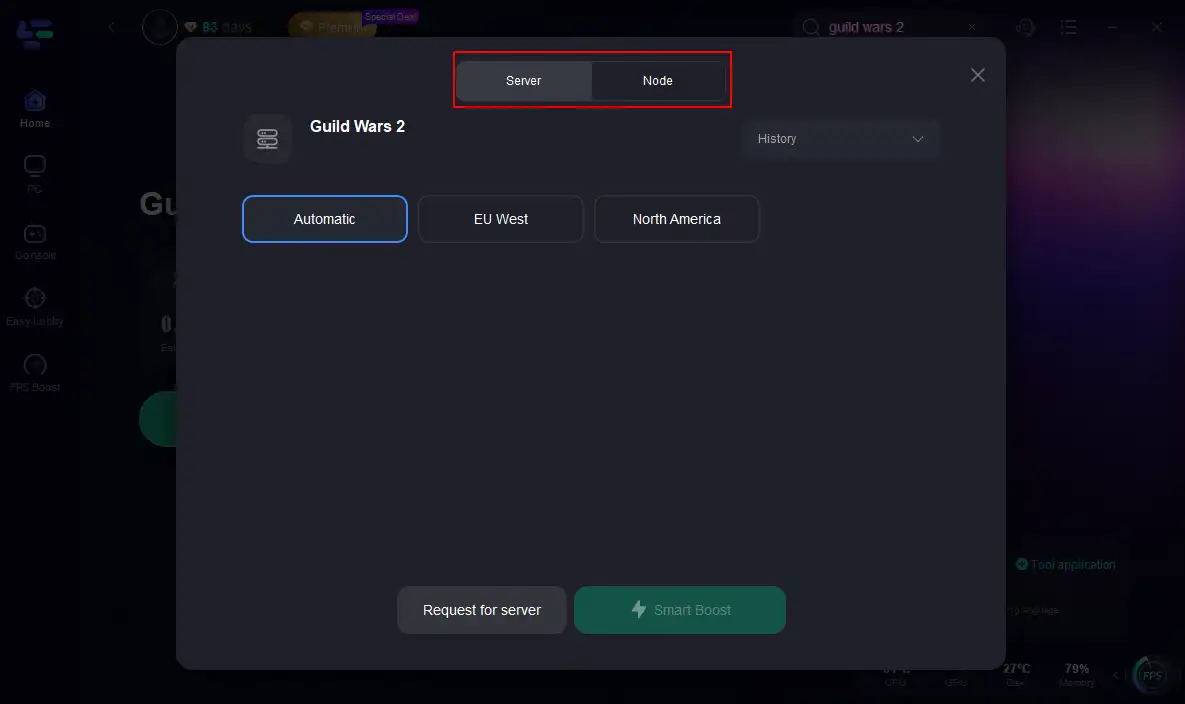
Step 3. Select your preferred server and optimal node.
Step 4. Hit Smart Boost to check and enhance your real-time ping, packet loss, and network quality.
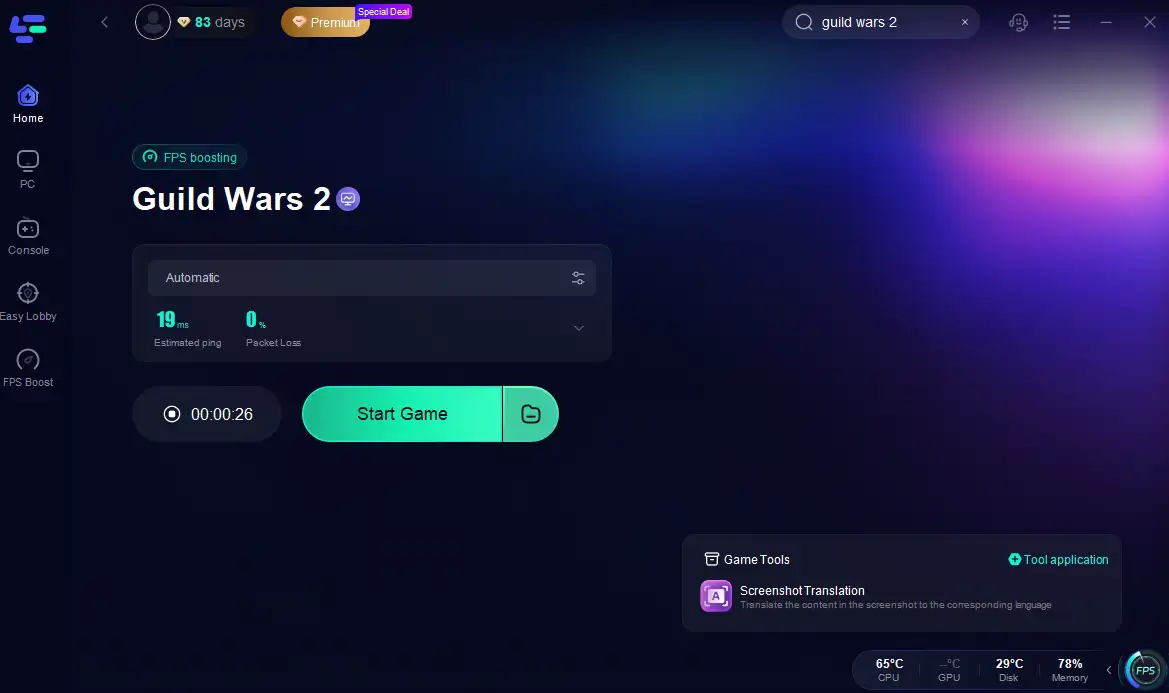
With just a few clicks, LagoFast helps you achieve better performance across regions, ensuring your server switch doesn’t come at the cost of gameplay quality.
Check Server Status
Sometimes the issue is on ArenaNet's side, not yours.
Steps:
Step 1. Visit the official Guild Wars 2 Twitter (@GuildWars2) for maintenance announcements.
Step 2. Go to third-party server trackers like DownDetector to check community reports.

Step 3. Check the official Guild Wars 2 forums for updates and developer responses.
Step 4. Try connecting at a different time to see if it's a regional server overload.
Step 5. Attempt to switch to a different region using a game accelerator if supported.
Step 6. Restart the game client after confirming the servers are back online.
Restart Network and Game
Basic but often effective.
Steps:
Step 1. Close Guild Wars 2 completely.
Step 2. Unplug your router and modem for at least 60 seconds.
Step 3. Restart your PC.
Step 4. Reconnect the modem and router, waiting for full signal.
Step 5. Launch Guild Wars 2 again and try logging in.
Step 6. Monitor connection stability for any improvements.
Configure Firewall and Antivirus Settings
Firewalls often block critical ports used by the game.
Steps:
Step 1. Open your firewall or antivirus software.
Step 2. Add Guild Wars 2 to the list of allowed programs.
Step 3. Ensure ports 80 and 443 are open, as the game uses these.

Step 4. Disable antivirus temporarily and check if the game connects.
Step 5. Re-enable protection but with exceptions for GW2.
Step 6. Restart your computer and try again.
Update Network Drivers
Outdated drivers are a hidden cause of disconnects.
Steps:
Step 1. Open Device Manager (Windows + X, then click Device Manager).
Step 2. Expand Network adapters.
Step 3. Right-click your Ethernet or Wi-Fi adapter and choose “Update Driver.”

Step 4. Select “Search automatically for drivers.”
Step 5. Install any available updates.
Step 6. Restart your system before relaunching the game.
Use DNS Settings to Improve Stability
Changing to public DNS can fix latency and retry errors.
Steps:
Step1. Open Control Panel and click Network and Sharing Center.
Step 2. Click on your current network, then go to Properties.
Step 3. Select Internet Protocol Version 4 (TCP/IPv4).
Step 4. Check “Use the following DNS server addresses.”
Step 5. Input: 8.8.8.8 (Preferred) and 8.8.4.4 (Alternate) - Google’s DNS.

Step 6. Save and restart your network before relaunching the game.
Perform a Clean Game Reinstallation
Corrupted files can cause both crashes and connection loops.
Steps:
Step 1. Open Control Panel, select Programs, and click Uninstall a Program.
Step 2. Find Guild Wars 2, right-click, and select Uninstall.
Step 3. After uninstalling, delete the remaining folders in the install directory.
Step 4. Restart your computer.
Step 5. Download the official installer from GuildWars2.com.
Step 6. Reinstall the game and allow it to patch fully before launching.
Part 3: Guild Wars 2 FAQs
Are Guild Wars 2 servers down right now?
Check the official Twitter (@GuildWars2), server status websites, or the in-game login screen for announcements. Downtime is usually short and often tied to patches or hotfixes.
Why can’t I connect to Guild Wars 2 today?
It could be server maintenance, internet issues, or software conflicts on your PC. Try restarting your router and PC, or check if your firewall is blocking the game.
How do I fix “Connection error(s) detected. Retrying…” in Guild Wars 2?
This message means your game is struggling to maintain a stable connection. Use tools like LagoFast, update your network drivers, and double-check firewall settings.
Why does my Guild Wars 2 keep crashing on startup or mid-game?
Common causes include outdated GPU drivers, corrupted game files, or overheating hardware. Consider reinstalling the game or running it with lower graphics settings.
Can I improve Guild Wars 2 connection with a VPN?
A VPN can help if your ISP is throttling connections, but using an optimized game accelerator like LagoFast provides more stable and gaming-specific enhancements.
Conclusion
Guild Wars 2 is a game worth your time, but connection problems and crashes can ruin the experience. Whether you're stuck in the “Connection error detected, retrying” loop, facing login issues, or dealing with random crashes, there’s no need to keep suffering in silence. Start by checking the server status and your basic network setup, then move on to more targeted fixes like updating drivers, adjusting firewall settings, or reinstalling the game if necessary. For a faster and more reliable solution, LagoFast stands out as the top recommendation, offering optimized routing and performance boosts that not only resolve connection issues but also enhance your overall gameplay. With all the right tools and knowledge at your disposal, you’re now ready to return to Tyria with lag-free and crash-free experience.

Boost Your Game with LagoFast for Epic Speed
Play harder, faster. LagoFast game booster eliminates stutter and lags on PC, mobile, or Mac—win every match!
Quickly Reduce Game Lag and Ping!
Boost FPS for Smoother Gameplay!