
Quick Answer
To fix the Gothic 1 Remake crash error, start by verifying the integrity of game files on Steam or GOG. If the game is crashing on startup or showing a black screen, try forcing DirectX 11 (add -dx11 to launch options) or disabling Fullscreen Optimizations in the compatibility settings. For low FPS, navigate to your Engine.ini file and disable Virtual Shadow Maps and Lumen if your hardware is struggling. Additionally, using LagoFast Game Booster can stabilize your frame times and optimize system resources to prevent resource-related crashes.
Introduction
The return to the Colony in the Gothic 1 Remake is a dream come true for fans of the cult classic RPG. However, the transition to Unreal Engine 5 has brought some modern technical hurdles. Many players are reporting that the game won't launch, crashes immediately after the splash screen, or suffers from severe stuttering even on high-end hardware. These issues are often tied to the game's heavy use of Nanite and Lumen, which can push even the latest GPUs to their limits.

- ✅ Reduce Lag and High Ping.
✅ Boost FPS at the Same Time.
✅ Support 8000+ Popular Online Games.
✅ Change Server without Latency.
✅ Boost Game Loading Speed.
Part 1: Why is Gothic 1 Remake Crashing or Not Launching?
Part 2: Fix 1 — Resolve Gothic 1 Remake Crash on Startup
Part 3: Fix 2 — Bypass the Gothic 1 Remake Black Screen Issue
Part 4: Fix 3 — Gothic 1 Remake Low FPS Fix and Stuttering
Part 5: Fix 4 — Advanced Engine.ini Tweaks for Performance
Part 6: Fix 5 — Resolve DX12 and Driver Conflicts
Part 7: How to Enhance Your Game Experience with LagoFast Game Booster
Part 1: Why is Gothic 1 Remake Crashing or Not Launching?
The Gothic 1 Remake is built on Unreal Engine 5, which is a massive leap from the original ZenGin. While it looks stunning, it introduces several potential points of failure:
- Shader Compilation: UE5 games often compile shaders on the fly, which can cause the game to hang or crash if the process is interrupted.
- DirectX 12 Overhead: While DX12 is the modern standard, it can be unstable on older drivers or specific hardware configurations.
- VRAM Starvation: The high-fidelity textures and lighting systems can easily exceed 8GB of VRAM, leading to "Access Violation" errors.
- Conflicting Overlays: Software like Discord, Steam, or MSI Afterburner can interfere with the game's initial boot sequence.
- Corrupted Config Files: Sometimes the game's local settings files can become corrupted, preventing a clean launch.
Part 2: Fix 1 — Resolve Gothic 1 Remake Crash on Startup
If the game closes immediately after you click "Play," try these steps:
- Verify Game Files: Right-click the game in your Library > Properties > Installed Files > Verify integrity of game files. This is the most common fix for missing DLLs or corrupted assets.
- Run as Administrator: Navigate to the game's installation folder, right-click the .exe file, and select Properties > Compatibility > Run this program as an administrator.
- Disable Fullscreen Optimizations: In the same Compatibility tab, check Disable fullscreen optimizations. This can resolve issues where Windows' display management conflicts with the game's engine.
Part 3: Fix 2 — Bypass the Gothic 1 Remake Black Screen Issue
A black screen usually indicates that the game is failing to play the intro cinematics or is struggling with the initial resolution handshake.
- Alt + Enter: As soon as the black screen appears, press Alt + Enter to force the game into windowed mode. If it loads, you can then adjust the resolution in the settings.
- Skip Intro Videos: Navigate to the game's Movies folder and temporarily rename the intro files. This can bypass crashes caused by codec conflicts.
- Force DX11: Some GPUs handle the game better in DX11 mode. In Steam, right-click the game > Properties > General > Launch Options and type -dx11.
Part 4: Fix 3 — Gothic 1 Remake Low FPS Fix and Stuttering
If you're getting low FPS even on a decent rig, the culprit is likely the game's aggressive lighting and shadow settings.
- Lower Shadow Quality: Shadows are the biggest performance killer in the remake. Dropping them from "Ultra" to "Medium" can net you a 20-30% FPS boost.
- Enable DLSS/FSR: Use the built-in upscaling tools. Set them to "Quality" for 1440p and "Balanced" for 4K.
- Disable Ray Tracing: Unless you have an RTX 40-series card, the performance cost of Ray Tracing is often too high for a stable experience in the dense forest areas.
Part 5: Fix 4 — Advanced Engine.ini Tweaks for Performance
For those who want to squeeze every bit of performance out of the game, manual edits to the Engine.ini file are the way to go.
Location: %LOCALAPPDATA%\Gothic\Saved\Config\WindowsNoEditor\Engine.ini
Add the following lines to the bottom of the file to reduce stuttering and improve FPS:
Plain Text
[/Script/Engine.RendererSettings]
r.SceneRenderTargetResizeMethod=2
r.GTSyncType=1
r.OneFrameThreadLag=1
r.CreateShadersOnLoad=1
r.VirtualShadowMaps.MaxResolution=1024
These tweaks help the engine manage shader compilation and shadow resolution more efficiently, reducing the "micro-stutters" that plague many UE5 titles.
Part 6: Fix 5 — Resolve DX12 and Driver Conflicts
Gothic 1 Remake relies heavily on the latest DirectX 12 features.
- Update Drivers: Ensure you are on the latest "Game Ready" driver from NVIDIA or AMD.
- Install DirectX End-User Runtimes: Sometimes the game requires older DX components that aren't included in a fresh Windows install.
- Check VRAM Usage: If you have less than 10GB of VRAM, avoid using "Ultra" textures, as this is a frequent cause of "Out of Memory" crashes.
Part 7: How to Enhance Your Game Experience with LagoFast Game Booster
Many technical issues, including stuttering and "Access Violation" crashes, are caused by your PC's background environment competing for resources. This is where LagoFast Game Booster becomes an essential tool for your journey through the Colony.
LagoFast is designed to ensure that your game gets 100% of your system's attention. Its FPS Boost feature works by temporarily suspending non-essential Windows services and background processes that often spike CPU usage during gameplay. For a game as resource-intensive as Gothic 1 Remake, this can be the difference between a stuttery mess and a buttery-smooth experience.
How to Use LagoFast Game Booster
Step 1: Click the Free Trial button to download and install LagoFast.
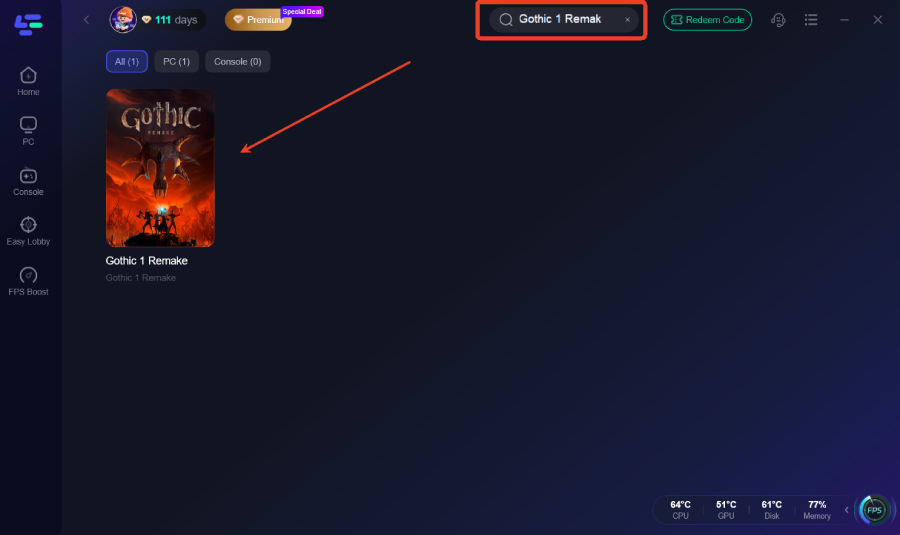
Step 2: After installation, search "Gothic 1 Remake" in the search bar and select the game.
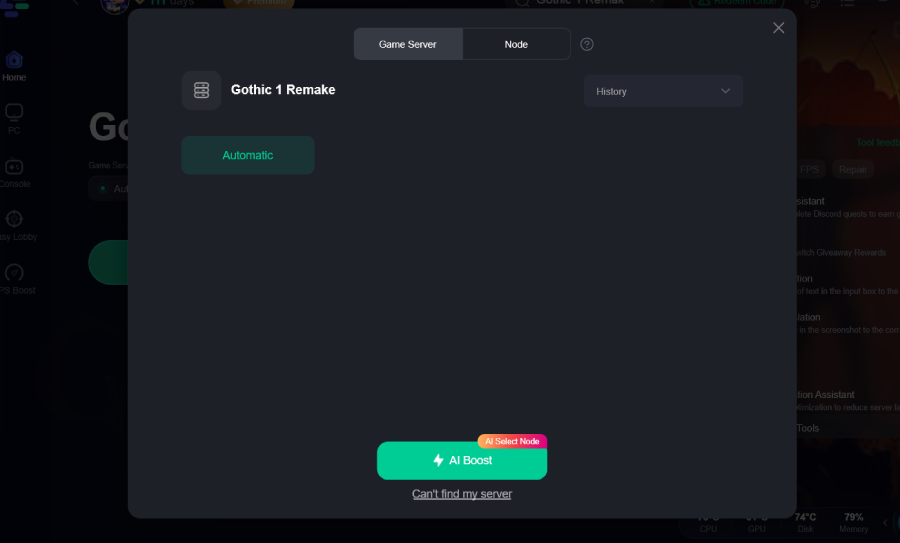
Step 3: Choose your preferred server node and click "Smart Boost" to start optimizing.
Step 4: Launch your game and enjoy smooth, optimized gameplay with lower ping and no stutter.
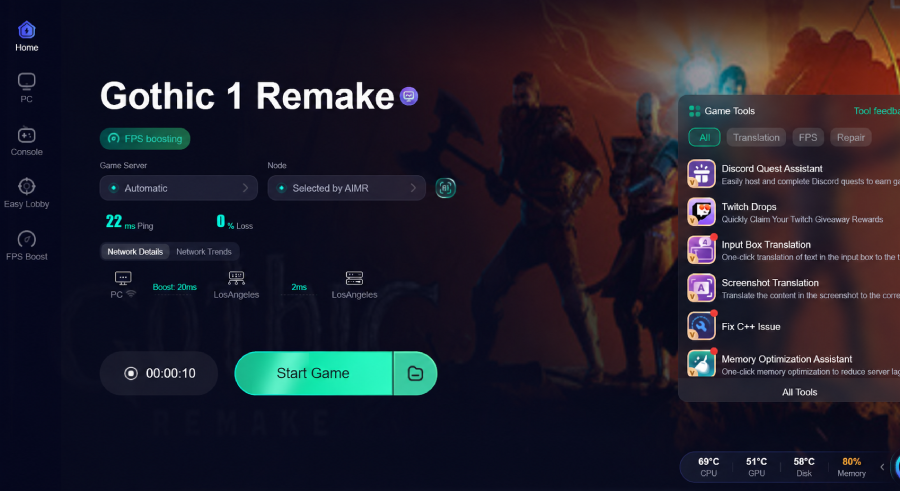
A boosted network environment won’t fix server-wide outages or backend load delays, but it helps ensure your local setup isn’t contributing to extra matchmaking time or failed handshakes.
Part 8: FAQs
1. Why does Gothic 1 Remake crash every 15 minutes?
This is often a sign of VRAM overheating or an "Access Violation" error. Try lowering your texture settings and ensuring your GPU fans are working correctly.
2. How do I fix the "Access Violation" error?
This is a classic Gothic series error. In the remake, it's usually tied to corrupted shaders. Try clearing your shader cache in your GPU control panel.
3. Can I run Gothic 1 Remake on a GTX 1060?
It will be very difficult. The game's Unreal Engine 5 foundation is built for modern hardware. You will likely need to use "Low" settings and FSR "Performance" mode to hit 30 FPS.
4. Why is the game stuck on the loading screen?
If you are on an HDD, the loading times can be extremely long. Moving the game to an NVMe SSD is highly recommended for UE5 titles.
5. Does the game support ultrawide monitors?
Yes, but you may need to adjust the FOV in the Engine.ini file if the default setting feels too zoomed in.
Key Takeaways
- Verify Files: Corrupted assets are the #1 cause of startup crashes.
- Optimize Shadows: Lowering shadow quality is the fastest way to gain FPS.
- Use Engine.ini Tweaks: Manual edits can significantly reduce stuttering.
- SSD is Mandatory: Don't expect a smooth experience on an old HDD.
- Boost with LagoFast: Use LagoFast Game Booster to stabilize your frame times and ensure your PC is fully dedicated to the game.
By following this guide, you'll be able to bypass the technical hurdles and immerse yourself in the dark, atmospheric world of the Valley of Mines. Good luck, and don't let the Scavengers get you!
Boost Your Game with LagoFast for Epic Speed
Play harder, faster. LagoFast game booster eliminates stutter and lags on PC, mobile, or Mac—win every match!
Quickly Reduce Game Lag and Ping!
Boost FPS for Smoother Gameplay!