

Vietnamese version: Hướng dẫn kiểm tra ping trong Valorant
Valorant is a tactical first-person shooter developed by Riot Games, released in 2020, featuring competitive 5v5 matches where players control unique agents with distinct abilities. The game focuses on strategy, precise aiming, and team coordination in a near-future setting that blends gunplay with supernatural elements. However, many players experience high ping issues that can impact gameplay performance, raising common questions such as how to perform a ping test in Valorant, what ping means, why ping becomes high, and how to improve it. This article will help answer these questions and explore ways to achieve a more stable connection, including using tools like LagoFast.

- ✅ Reduce Lag and High Ping
- ✅ Boost FPS at the Same Time
- ✅ Support 8000+ Online Games
- ✅Reduce latency and packet loss in Valorant
- ✅Multiplatform: PC, Console, Mobile.
Part 1: What Is Valorant Ping Test and How to Get?
Part 2: Why Is My Ping So High In Valorant ?
Part 3: How to Optimize Ping in Valorant By Using LagoFast?
Part 4: Other Solutions to Boost Ping in Valorant
Part 1: What Is Valorant Ping Test and How to Get?
The Valorant ping test is essential for achieving a seamless gaming experience. It is a specialized tool that evaluates your connection quality to various Valorant servers. By precisely measuring the latency between your device and the game's servers, the test offers valuable insights into your potential gaming performance. This tool is crucial for players who need to diagnose connectivity problems or ensure their internet connection is optimized for Valorant's fast-paced action.
To get a Valorant ping test, follow these steps:
In-Game Method:
- Launch Valorant and log in.
- Go to the main menu.
- Click on the gear icon in the upper right corner to access the settings.
- Navigate to the "Video" tab.
- Scroll down to the "Stats" section and enable the "Network Round Trip Time" option. This will display your ping during gameplay.
Command Prompt (for advanced users):
- Open Command Prompt on your computer.
- Type ping -t [server IP] and press Enter. Replace [server IP] with the IP address of a Valorant server. You can find these IP addresses from online sources or forums where players share server information.
- This will continuously ping the server and display the latency.
Part 2: Why Is My Ping So High In Valorant ?
High ping in Valorant can be caused by several factors, including a slow or unstable internet connection, network congestion, or too many devices connected to the same network. Additionally, playing on servers that are geographically distant, outdated network drivers, background applications consuming bandwidth, and ISP-related issues can also contribute to high ping. Sometimes, hardware limitations or improper router configurations may affect your latency. Ensuring a wired connection instead of Wi-Fi and reducing network traffic can help improve your ping and overall gaming experience.
Part 3: How to Optimize Ping in Valorant By Using LagoFast?
There are several steps to reduce ping and lag in Valorant, but a quick and easy solution is to use the expert ping reducer LagoFast. This tool accelerates the data transfer process using a proprietary transmission protocol. LagoFast also features international nodes and exclusive routes to improve network connectivity and significantly reduce transmission time. You can select nodes based on your geographical location before starting the game.
Do not know how to check and enable ping in Valorant? Just four steps! Follow to Get Free Trial!
Step 1: Install LagoFast
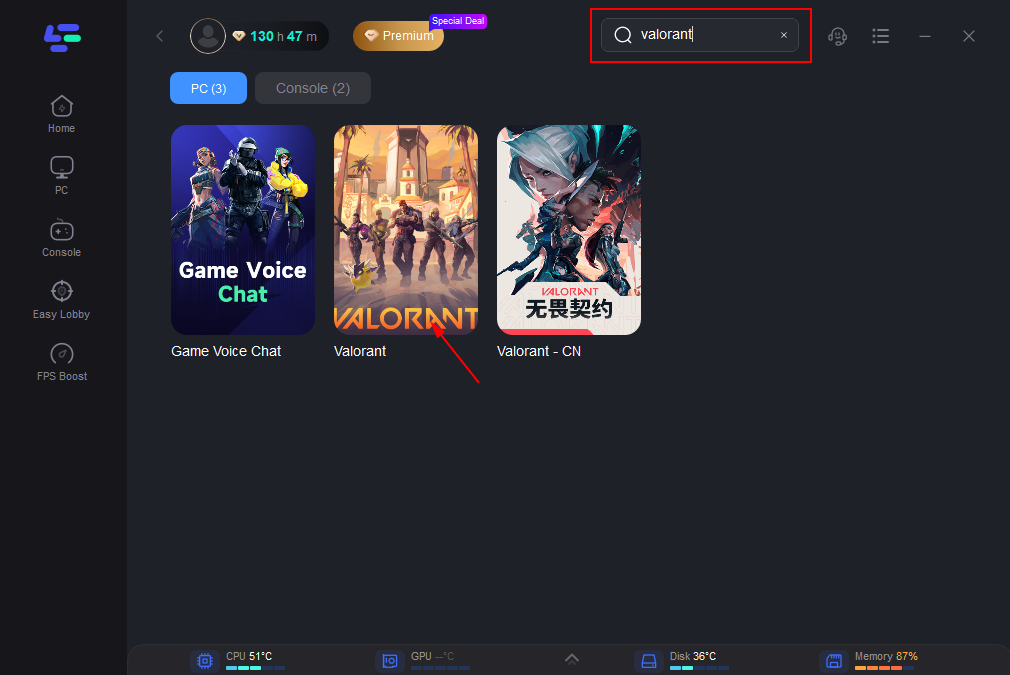
Step 2: Input “Valorant” and click the result.
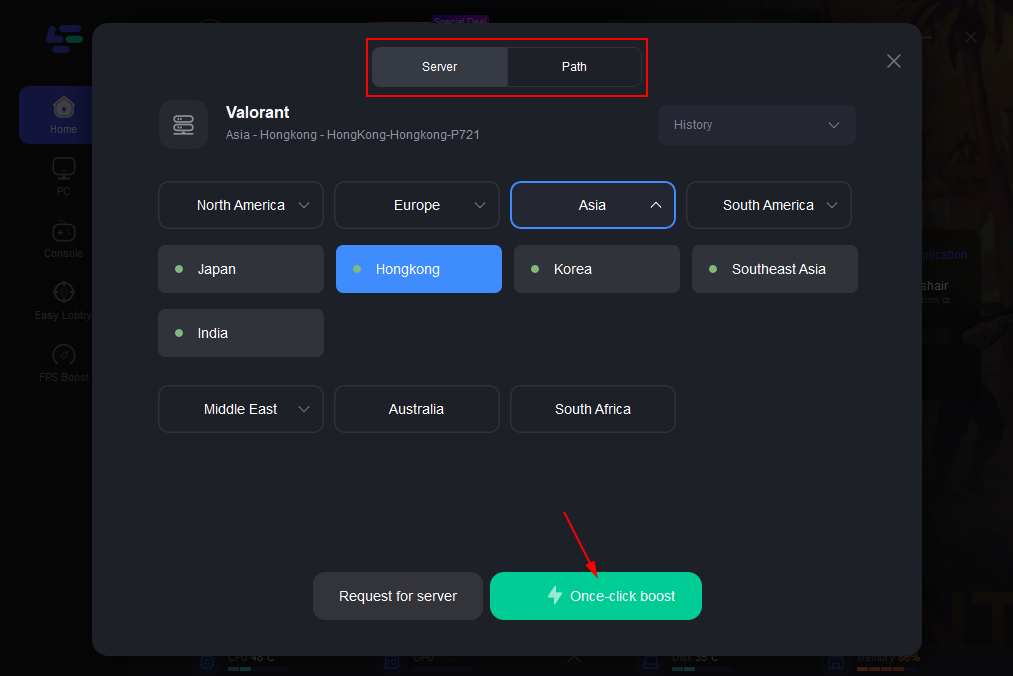
Step 3: Choose the server you need.
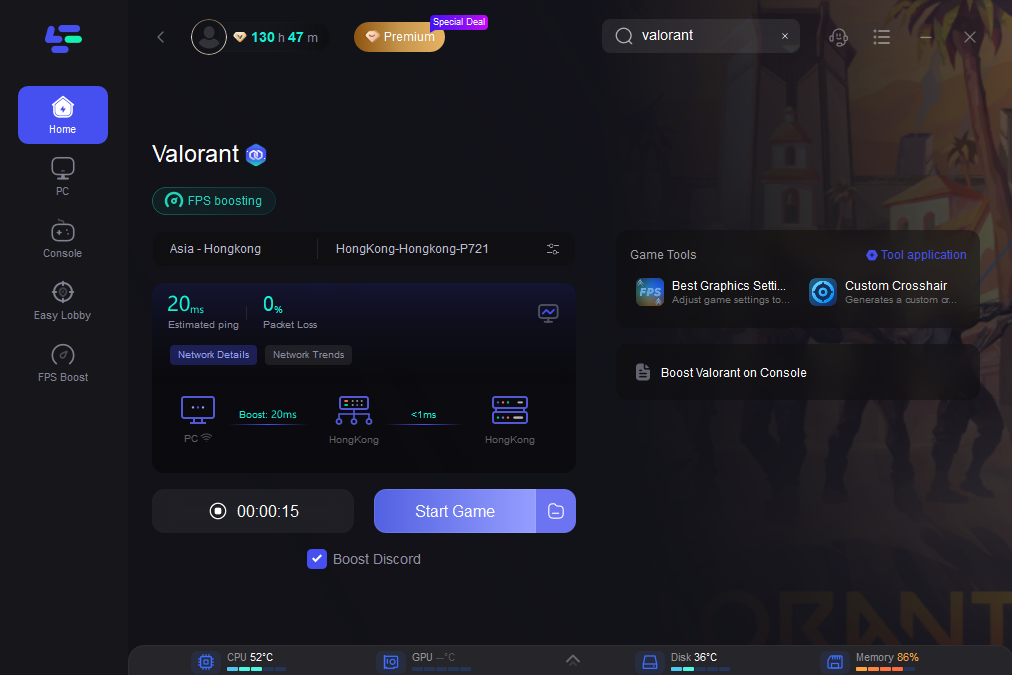
Step 4: After that, you'll be all set for the match. The boosted page will show your packet loss rate, network status, and ping rate. You can monitor your ping in real time on this page. Using LagoFast significantly reduces the ping rate during the game.
Part 4: Other Solutions to Boost Ping in Valorant
Ensuring a stable internet connection and reducing ping is crucial for a seamless gaming experience. Here are steps to boost ping in Valorant:
Update Network Driver
An outdated or faulty network driver can cause high ping issues. Keep your network drivers updated to the latest version for optimal performance and better connectivity.
- Open Windows Settings or use the Windows Search bar, type "Device Manager," and press Enter.
- Go to Network Adapters to expand the list, then right-click your network adapter.
- Select Update Drivers and choose the Automatically Scan for Drivers option.
Improve DNS Configuration
Switching from your default DNS server to a reliable alternative can reduce ping and improve internet connectivity. Consider using the following DNS servers:
- Google: 8.8.8.8 and 8.8.4.4
- Cloudflare: 1.1.1.1 and 1.0.0.1
To change your DNS settings:
- Go to Control Panel, then Network and Sharing Center.
- Locate your network adapter, right-click on it, and select Properties.
- In the Properties window, select Internet Protocol Version 4 (TCP/IPv4), then click Properties.
- Choose "Use the following DNS server addresses" and enter the preferred DNS server addresses.
- Click OK to save the changes.
- Next, clear the DNS cache to apply the changes: 6. In the taskbar search box, type cmd and select "Run as administrator." 7. Type ipconfig /flushdns in the command prompt. 8. Press Enter to flush the DNS cache.
The system will check if you have the latest version of your network driver and will download and install it if necessary.
Summary
In conclusion, mitigating high ping issues in Valorant is essential for every player. LagoFast VPN provides effective solutions to optimize your gaming experience. Download it now and start your free trial today!
Boost Your Game with LagoFast for Epic Speed
Play harder, faster. LagoFast game booster eliminates stutter and lags on PC, mobile, or Mac—win every match!
Quickly Reduce Game Lag and Ping!
Boost FPS for Smoother Gameplay!