
“Teredo is unable to qualify for the Xbox app on pc.”
"I can't play the game if it's still using teredo." "I won't pre-order it if it still has that crap."
If Forza Horizon 6 keeps failing to connect online on PC, the problem may be related to Teredo. Many Xbox PC multiplayer issues happen when Windows cannot qualify Teredo, your NAT type is blocked, or Xbox network services cannot reach multiplayer servers properly.
When this happens, you may still be able to launch the game, drive solo, or open menus, but online features may fail.
Common symptoms include:
Teredo is unable to qualify
Server Connectivity: Blocked
NAT Type: Unavailable
Server Connection Error
Can’t join friends
Can’t join convoy
Stuck joining online session
Multiplayer not available
Disconnected from Horizon Life
The good news is that most Teredo-related problems can be fixed from Windows, Xbox networking services, your firewall, or your router settings.

- ✅ Lower ping and fewer disconnects.
- ✅ More FPS and better PC performance.
- ✅ Support for 3000+ games.
- ✅ Stable connections and region switching.
What Is Teredo in Forza Horizon 6?
Teredo is a Microsoft networking technology used to help devices connect through certain NAT and IPv4/IPv6 network environments. In simple terms, it helps your PC communicate properly with Xbox multiplayer services when your network is not directly open.
For Forza Horizon 6, Teredo problems can block online multiplayer features such as:
Horizon Life
Convoy
Online racing
Co-op sessions
Friend sessions
Cross-platform multiplayer
So if FH6 works offline but multiplayer keeps failing, Teredo and NAT should be one of the first things you check.
Why Forza Horizon 6 Shows Teredo Errors
Forza Horizon 6 may show Teredo or connection errors when:
Xbox networking services are disabled
IP Helper service is not running
Windows Firewall is blocking Xbox services
Your router NAT type is strict
UPnP is disabled
A VPN or proxy is interfering
Teredo is disabled in Windows
Your DNS/network cache is broken
Your ISP route to Xbox services is unstable
This is why reinstalling the game usually does not fix the problem. The issue is often outside the game files.
What should you try first for Forza Horizon 6 Teredo errors?
Start with the fixes most likely to work:
Turn off any VPN on PC
Reboot your PC or Xbox, then reboot your modem and router
Switch from Wi-Fi to wired Ethernet if you can
Check Xbox Network status on your device and see whether NAT is Open and whether Teredo is failing
On Windows, make sure IP Helper is running and set to Automatic
That order matters because Teredo problems are often caused by VPN adapters, disabled Windows services, or router/NAT issues, not by the game itself.
If you are on PC and also dealing with broader online join issues, this can overlap with a Forza Horizon 6 server connection failed fix workflow too.
Why does Teredo stop Forza Horizon 6 multiplayer from working?
Teredo is part of the Xbox network stack used to help multiplayer and chat work when you are behind a NAT router. If it cannot get a working tunnel or a Teredo IP address, online features can fail.
As Xbox support explains, Teredo is used to help devices behind NAT communicate. Without a working Teredo IP address, you may be unable to use multiplayer in Xbox network games.
That is why errors like “Teredo is unable to qualify” matter. If you see that error, you probably will not be able to join or host multiplayer games or use live chat.
If Horizon Life, convoys, or other online features refuse to connect, Teredo or NAT is one of the first things to check.
How do you check if Teredo is actually the problem?
On Xbox or Windows, open your Xbox network settings and look for NAT type and Teredo status.
You are looking for signs like:
Teredo is unable to qualify
Unable to get a Teredo IP address
NAT type: Strict or another non-open result
Multiplayer blocked in Xbox networking tests
On Windows, you can also check Teredo directly.
Open Command Prompt as administrator.
Run:
netsh interface teredo show state
If the output shows Teredo is disabled, not qualified, or otherwise not functioning correctly, that is a strong sign your Forza Horizon 6 connection problem is tied to Xbox network services rather than the game client alone.
How do you fix the easiest Teredo causes on PC and Xbox?
These are the first fixes worth doing before you touch router settings.
Turn off VPNs first
This is the easy win. VPN software and virtual network adapters regularly interfere with Teredo.
If you have a VPN installed:
Fully disconnect it
Exit the VPN app
If needed, temporarily disable or remove the VPN network adapter
Retry the Xbox network test
If the error disappears after that, you found the cause.
Reboot your hardware
Do a full restart, not just a quick sleep/wake.
Restart the PC or Xbox
Power cycle the modem and router
Wait for the network to come back fully
Test multiplayer again
This helps if your router got stuck with bad NAT or port mappings.
Use Ethernet instead of Wi-Fi
If you can, plug directly into the router or modem with Ethernet.
Wired does not magically fix a disabled Teredo stack, but it does remove one common source of instability and makes NAT testing more consistent.
Check the IP Helper service on Windows
On PC, Teredo depends on the IP Helper service.
To verify it:
Press Win + R
Type services.msc
Find IP Helper
Set Startup type to Automatic
Make sure the service is Running
Reboot and test again
If IP Helper is off, Teredo usually will not work correctly.
Watch for firewall or security software conflicts
If you use a third-party firewall or aggressive antivirus network filtering, it may block Teredo traffic.
For testing, temporarily disable the extra firewall layer and rerun the Xbox network check. If that fixes it, re-enable protection and create proper exceptions instead of leaving it off.
What Command Prompt fixes should you use for Teredo on Windows?
If basic checks did not fix it, reset Teredo from an elevated Command Prompt.
Run these one at a time:
netsh interface teredo set state disabled
Then:
netsh interface teredo set state type=default
You can also try:
netsh interface teredo reset
After that, reboot the PC and test again in Xbox networking.
If Windows or another tool has disabled Teredo more deeply, you may need to re-enable it in the system configuration. That is a valid advanced check, but be careful here—only change system values if you know what was altered.
If you are comfortable with admin commands, you can re-enable the related IPv6 components through Command Prompt. That can help if Teredo was disabled by a previous tweak or utility, but it is best treated as an advanced fix, not step one.
What router settings fix Teredo and NAT problems?
If your PC/Xbox looks fine but Teredo still will not qualify, the next likely problem is the router.
A lot of Teredo failures are router-side, not game-side.
Start with these:
Enable UPnP
UPnP is often the easiest router fix for Xbox network NAT problems.
Log into your router
Find UPnP
Turn it on
Save changes
Reboot the router
Test again
Check Xbox Live related ports
If UPnP is already on or does nothing, check whether the router is blocking the ports Xbox networking expects.
The most commonly mentioned Teredo-related ports here are:
3074 TCP/UDP
3544 TCP/UDP
If needed, forward those ports from your router to the PC or console you are using.
Do port forwarding only after easier fixes, because manual forwarding can create conflicts if UPnP is already handling things.
Look for router limitations or double NAT
If you are behind:
ISP-managed equipment
carrier-grade NAT
a dorm, campus, hotel, or office network
a second router behind the main router
then Teredo may fail even if your local device settings are fine.
That is partly outside your control. In those cases, the issue is not really Forza Horizon 6—it is the network environment blocking the Xbox stack from opening properly.
What if Teredo is fixed but Forza Horizon 6 still feels unstable?
Use LagoFast If Teredo Works but FH6 Still Disconnects
This part is important:
LagoFast is not a Windows Teredo repair tool. If Teredo is fully disabled or Xbox services are blocked, fix those first.
But if Teredo is already qualified and Forza Horizon 6 still has:
high ping
packet loss
unstable online sessions
failed convoy joins
desync
frequent disconnects
cross-region connection issues
then the problem may be your route to FH6 online services.
That is where LagoFast can help.
LagoFast can optimize your game route, reduce packet loss, lower jitter, and make FH6 multiplayer more stable when your ISP path is poor.
How to Use LagoFast for Forza Horizon 6
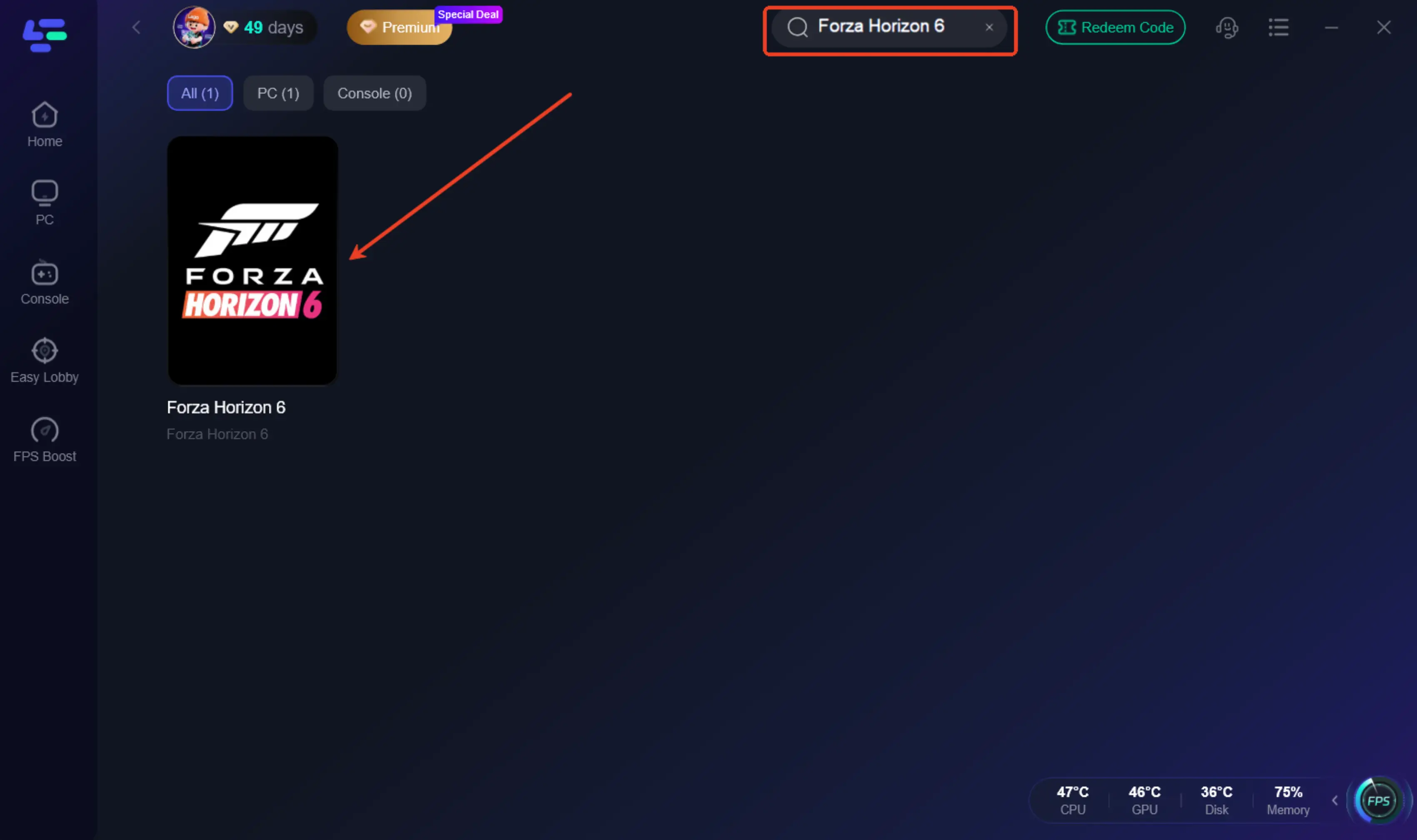
Step 1: Download and open LagoFast.
Step 2: Search for Forza Horizon 6.
Step 3: Choose the best route with low ping and low packet loss.
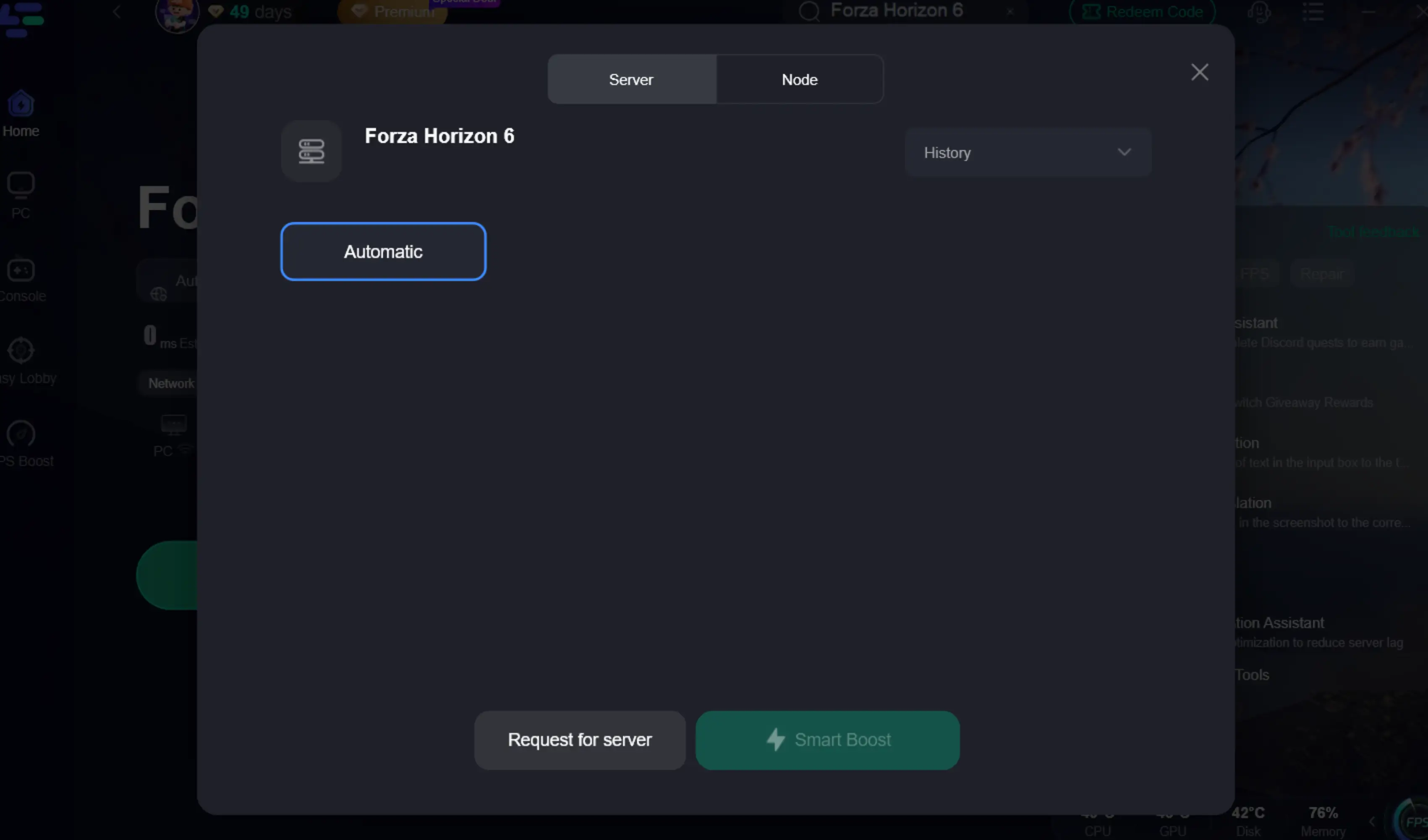
Step 4: Click Smart Boost.
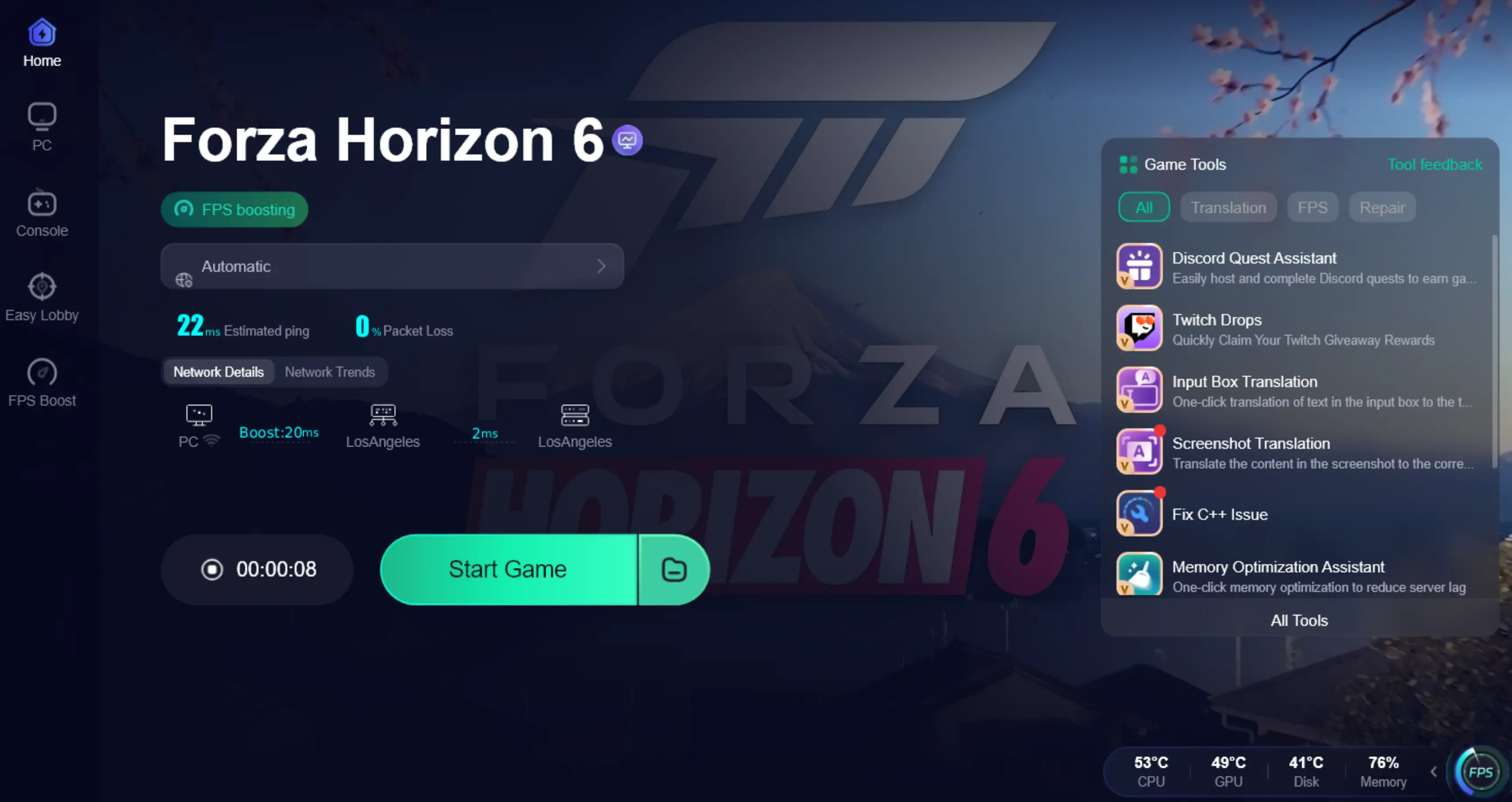
Step 5: Launch Forza Horizon 6.
Step 6: Try joining Horizon Life, convoy, or online race again.
Use LagoFast especially when your game can connect sometimes, but online sessions are unstable or you keep getting kicked.
What should you try if the basic and router fixes still do not work?
At this point, focus on deeper Windows or network cleanup.
Reset network settings
A full network reset can clear bad adapter state and old network bindings.
On Windows, use the built-in network reset, restart the PC, then test Xbox networking again.
Check whether Teredo was disabled by registry or policy
Xbox support specifically points to cases where Teredo is disabled in the registry by software or by a manual change. If you previously used privacy tools, old networking tweaks, or debloat scripts, this is worth checking.
If you are not comfortable editing registry values, skip this and move to official support.
Consider Teredo adapter corruption or conflicts
Some players note that the Teredo adapter itself can become corrupted or conflict with the system. That is less common than VPN or router problems, but it does happen.
This is one of the later things to try, not the first.
Be cautious with community scripts
You may find community tools such as teredoFix discussed online. These scripts are meant to repair Teredo for Xbox multiplayer on Windows, but they are still third-party scripts.
Use them only if:
basic fixes failed
you understand what the script changes
you are comfortable reversing those changes if needed
For most players, official Xbox troubleshooting, IP Helper checks, and router fixes should come first.
What is outside your control?
Some Teredo issues are not fixable from your side alone.
That includes cases like:
a managed network blocking required traffic
ISP/router restrictions
double NAT you cannot remove
a platform-side networking issue after a system update
Players have reported cases where Teredo IP problems started after an Xbox console update. That does not prove every current error is update-related, but it does mean you should not assume the game alone is broken.
If your setup was working before and failed right after a console or system update, document that timing when you contact support.
Final Answer
If Forza Horizon 6 shows Teredo is unable to qualify, NAT Type unavailable, or Server Connectivity blocked, the issue is usually connected to Windows Xbox networking, IP Helper, firewall, VPN, or router NAT settings.
Start by restarting Xbox services, resetting Teredo, flushing DNS, and checking your router. Once Teredo is qualified, use LagoFast if you still have high ping, packet loss, failed convoy joins, or unstable online sessions.
For FH6 players, the best solution is usually:
Fix Teredo first, then use LagoFast to stabilize the multiplayer route.
Boost Your Game with LagoFast for Epic Speed
Play harder, faster. LagoFast game booster eliminates stutter and lags on PC, mobile, or Mac—win every match!
Quickly Reduce Game Lag and Ping!
Boost FPS for Smoother Gameplay!