
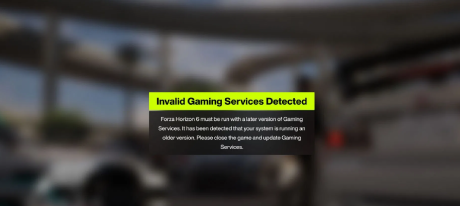
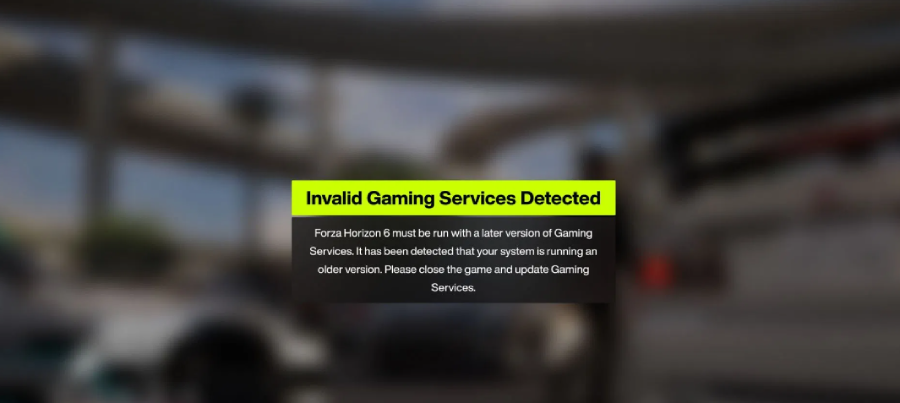
If Forza Horizon 6 shows the “Invalid Gaming Services Detected” error when you try to launch the game on PC, the issue is usually not your GPU, Steam installation, or internet connection. In most cases, it means your Windows Gaming Services component is outdated, missing, or not working correctly.
According to Forza Support, PC players, including those on Steam, need an important Gaming Services update before playing Forza Horizon 6. The minimum supported Gaming Services version is 36.113.2002.0 or higher.
For players who want a faster way to check this issue, LagoFast is a dedicated Forza Horizon 6 fix feature to help detect whether Gaming Services is missing, outdated, or needs repair. Instead of switching between Microsoft Store, Windows Settings, Xbox app, and Steam manually, you can use LagoFast as a quick first step to check the PC launch environment and follow the recommended update path.
Step 1: Click the Free Trial button to download and install LagoFast.
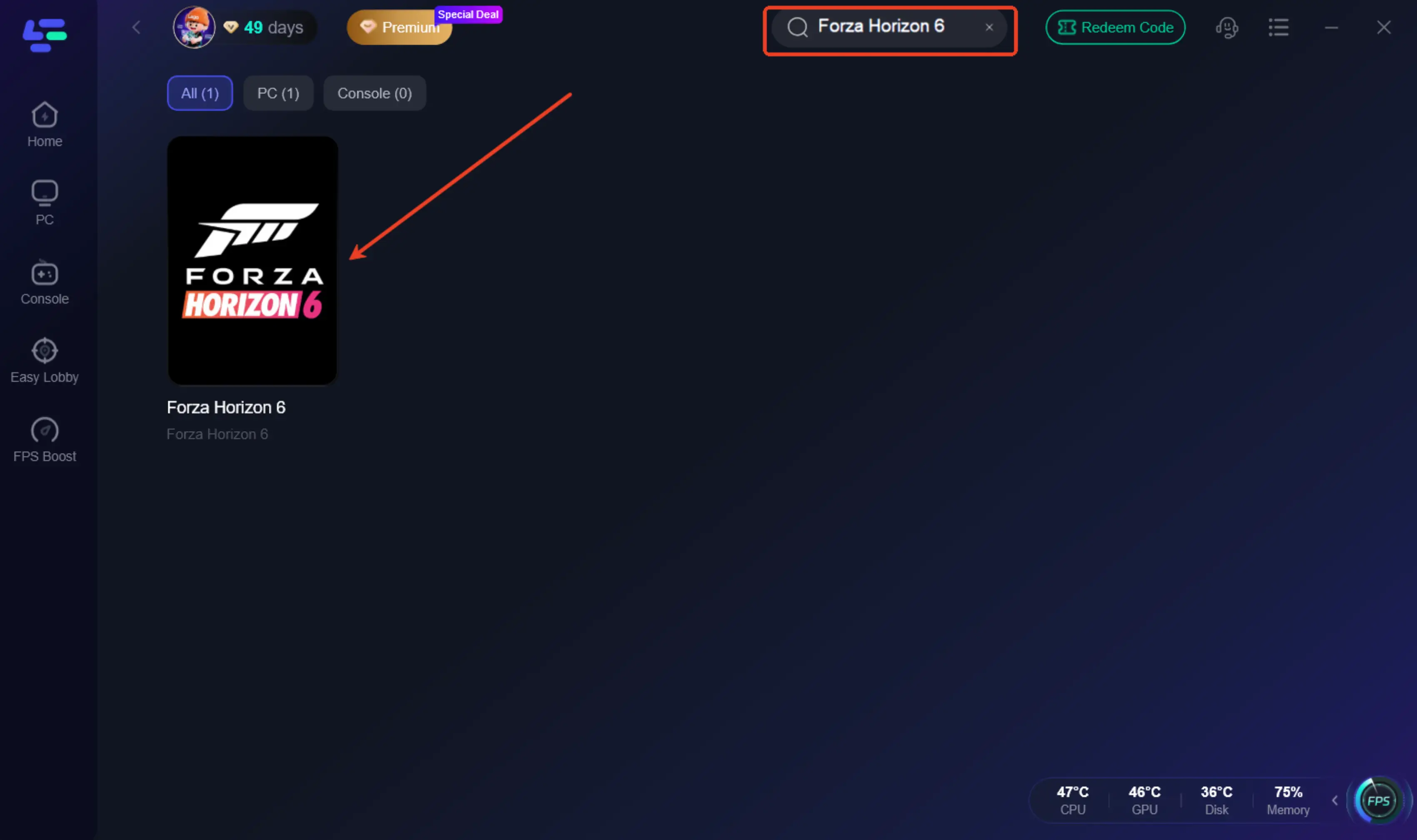
Step 2: Open LagoFast, then click the PC button on the left and search for FH6 in the search bar, and click it after it appears.
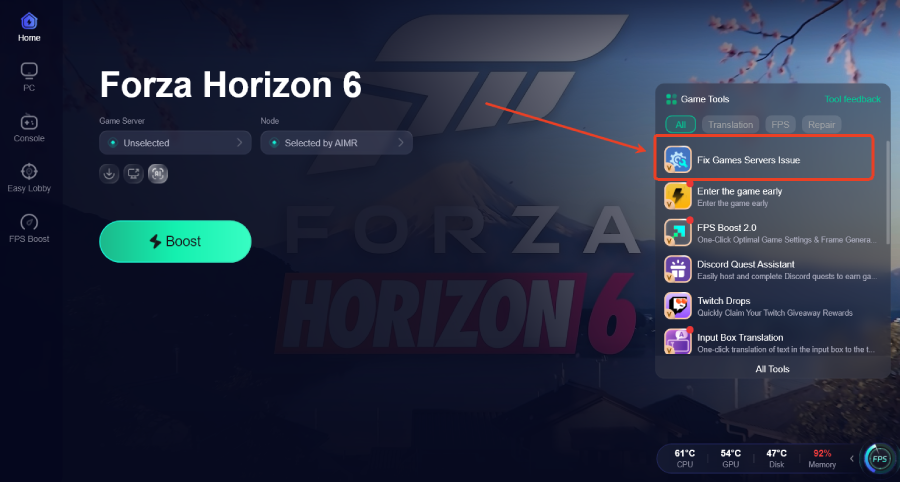
Step 3: Click the Fix Games Servers Issue Tool on the right.
If you prefer to fix it manually, or if you want to understand exactly what causes the error, follow the steps below. The first thing you should check is whether Gaming Services is updated through Microsoft Store.
What Does the “Invalid Gaming Services Detected” Error Mean?
The full error message usually says something like:
“Forza Horizon 6 must be run with a later version of Gaming Services. It has been detected that your system is running an older version. Please close the game and update Gaming Services.”
This message means Forza Horizon 6 has detected that the Gaming Services version installed on your PC is too old. Gaming Services is a Microsoft component used by many PC games for launching, entitlement checks, Xbox app integration, and related Windows gaming features.
The important part is that this issue can affect both Xbox app users and Steam users. Even if you bought Forza Horizon 6 on Steam, the game may still require the updated Microsoft Gaming Services component to launch correctly. Forza’s official Steam announcement also states that PC players on Steam need to download the Gaming Services update before playing.
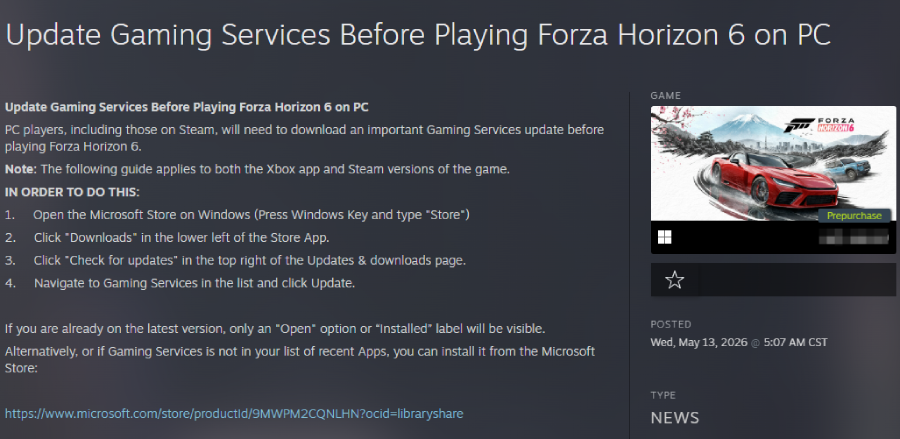
Quick Fix: Update Gaming Services from Microsoft Store
The fastest way to fix the "Invalid Gaming Services Detected" error is to update Gaming Services through the Microsoft Store.
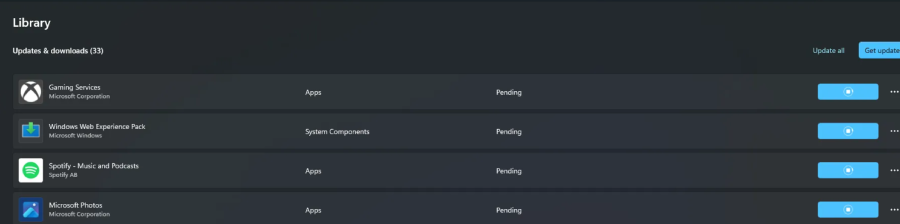
Follow these steps:
- Close Forza Horizon 6.
- Open the Microsoft Store app.
- Click Downloads in the bottom-left corner.
- Click Check for updates in the top-right corner.
- Find Gaming Services in the list.
- Click Update.
- Wait for the update to finish.
- Restart Forza Horizon 6.
This is also the main fix recommended by Forza Support. The official support page says players should open Microsoft Store, go to Downloads, check for updates, and update Gaming Services if available.
What If Gaming Services Does Not Appear in the Update List?
If Gaming Services does not appear in the Microsoft Store update list, you can open the Gaming Services page directly in Microsoft Store and install or update it from there.
Forza Support notes that if Gaming Services is already up to date, the page may only show "Open" or "Installed" instead of an update button
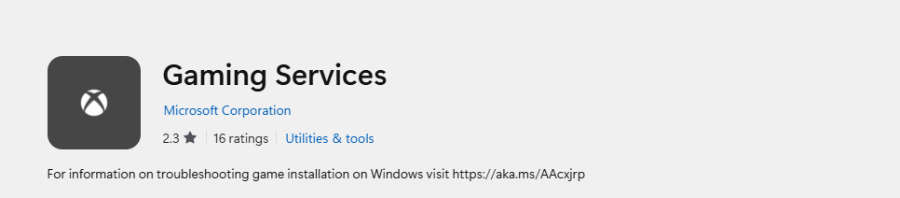
Try this method:
- Open Microsoft Store.
- Search for Gaming Services.
- Open the Gaming Services app page.
- Click Install or Update if the option appears.
- Restart your PC after the installation or update finishes.
- Launch Forza Horizon 6 again.
How to Check Your Gaming Services Version
36.113.2002.0 or higher
- Windows Settings
- Apps
- Installed apps
- Gaming Services
- Advanced options
36.113.2002.0
Use the Gaming Services Repair Tool If Updating Does Not Work
Microsoft’s Gaming Services Repair Tool for PC
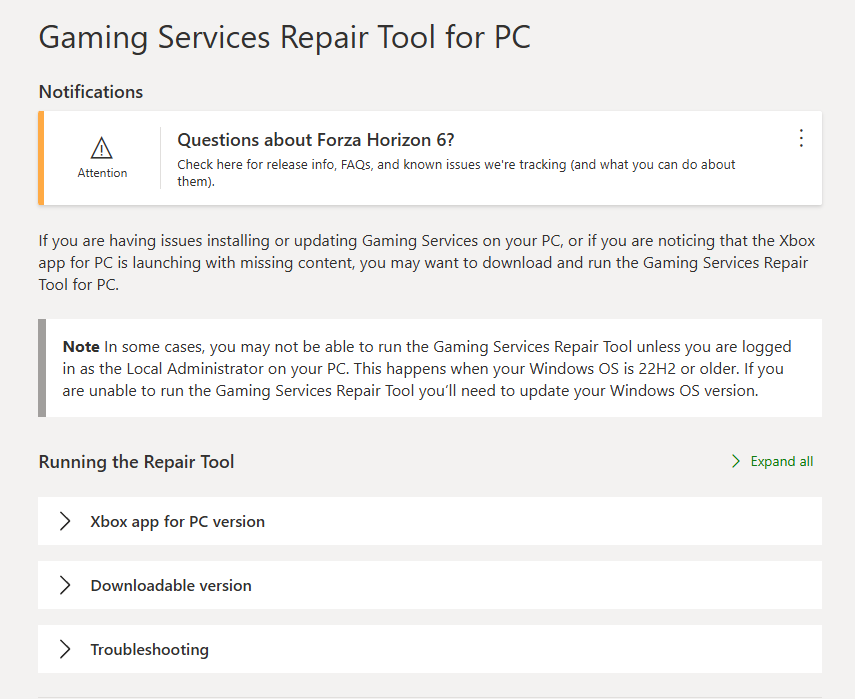
Does This Error Affect the Steam Version of Forza Horizon 6?
Yes. This is one of the most confusing parts of the issue.
Many players assume that the Steam version of Forza Horizon 6 should not depend on Microsoft Store or Gaming Services. However, Forza Support and the official Steam news post both say that PC players, including Steam players, need to update Gaming Services before playing Forza Horizon 6.
So if you are seeing this error on Steam, do not start by reinstalling the entire game. First, update Gaming Services.
After that, if Forza Horizon 6 still does not launch, you can try Steam-specific troubleshooting steps such as verifying game files. But for this specific error message, Gaming Services should be the first thing you check.
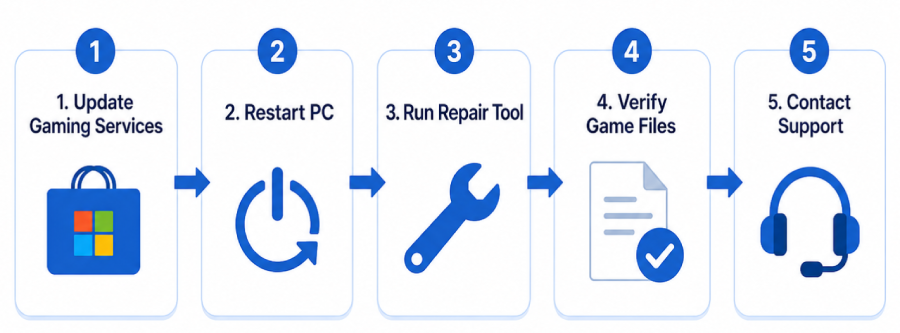
Recommended Fix Order
To avoid wasting time, try the fixes in this order:
1. Update Gaming Services
Use Microsoft Store → Downloads → Check for updates → Gaming Services.
2. Open the Gaming Services Store Page Directly
If Gaming Services does not appear in Downloads, search for it manually in Microsoft Store and install or update it there.
3. Restart Your PC
After updating, restart Windows before launching Forza Horizon 6 again.
4. Run the Gaming Services Repair Tool
If the error still appears, use Microsoft’s repair tool to fix broken Gaming Services components.
5. Verify Game Files on Steam
If you are playing on Steam and Gaming Services is already updated, verify the integrity of your game files.
6. Repair or Reinstall the Xbox App
If the Xbox app or Microsoft Store is not working correctly, repair or reinstall the Xbox app from Windows Settings.
7. Contact Forza or Xbox Support
If none of the above works, submit a ticket to Forza Support or use Xbox Support for Gaming Services repair help.
Common Mistakes to Avoid
Do not immediately reinstall Forza Horizon 6. The error message specifically points to Gaming Services, so reinstalling the game may not fix anything.
Do not assume Steam players are unaffected. The official Forza support and Steam posts both state that Steam players also need the Gaming Services update.
Do not skip the restart. Windows service updates often need a reboot before the new version works properly.
Do not rely only on generic launch fixes. Updating GPU drivers, disabling overlays, or changing firewall settings may help with other launch issues, but they are not the most direct fix for this specific error.
Final Thoughts
The Forza Horizon 6 “Invalid Gaming Services Detected” error is usually caused by an outdated or broken Gaming Services installation on Windows. The best fix is to update Gaming Services through Microsoft Store, confirm that your version is 36.113.2002.0 or higher, and restart your PC.
If the error still appears, use the Gaming Services Repair Tool before trying more general fixes like verifying Steam files or reinstalling the game. Since this requirement also applies to Steam players, checking Gaming Services should always be your first step.
FAQ
Why does Forza Horizon 6 say “Invalid Gaming Services Detected”?
It means your PC is running an older or invalid version of Microsoft Gaming Services. Forza Horizon 6 requires a newer Gaming Services version to launch properly.
What Gaming Services version does Forza Horizon 6 require?
Forza Support says Forza Horizon 6 requires Gaming Services version 36.113.2002.0 or higher on PC.
Does the Steam version need Gaming Services?
Yes. Forza’s official support page and Steam announcement both say PC players, including Steam players, need the Gaming Services update before playing Forza Horizon 6.
How do I update Gaming Services?
Open Microsoft Store, go to Downloads, click Check for updates, and update Gaming Services. If it does not appear, open the Gaming Services page directly in Microsoft Store.
What should I do if updating Gaming Services does not fix the error?
Restart your PC first. If the error continues, use the Xbox Gaming Services Repair Tool for PC to repair Gaming Services installation or update issues.
Boost Your Game with LagoFast for Epic Speed
Play harder, faster. LagoFast game booster eliminates stutter and lags on PC, mobile, or Mac—win every match!
Quickly Reduce Game Lag and Ping!
Boost FPS for Smoother Gameplay!