
Forza Horizon 6 errors and problems usually come from one of five things: damaged game files, broken Xbox Gaming Services, corrupted save data, outdated drivers, or unstable connection to Microsoft/Xbox services.
If Forza Horizon 6 shows errors like E:0-0, E:0-E9, E:0-17, E:0-19, FHE01, FH205, FH291, loading error, startup crash, unpacking error, or “Forza Horizon 6 is currently experiencing problems,” don’t reinstall the whole game first. Start with the fixes below in order.
Forza Horizon 6 is available through Xbox on PC, Steam, Xbox Series X|S, and Game Pass, with the official Xbox page listing May 19, 2026 as the main release date. Some PC players already started seeing errors during early access and preload/unlock periods, so a few problems may also be caused by launch traffic, account verification, or unstable Xbox service access.

- ✅ Lower ping and fewer disconnects.
- ✅ More FPS and better PC performance.
- ✅ Support for 3000+ games.
- ✅ Stable connections and region switching.
What To Do First Before Fixing Any Forza Horizon 6 Error
Before you touch advanced settings, do these quick checks first:
Restart your PC.
Update Forza Horizon 6.
Restart Steam or the Xbox app.
Check that your Microsoft/Xbox account is logged in correctly.
Make sure Windows date and time are set automatically.
Disable VPNs if they make Xbox login worse.
Use a stable game route optimizer if Xbox services or Forza servers are unstable in your region.
Verify or repair the game files.
Update your GPU driver.
Install the latest Windows updates.
If the error still appears after this, find your specific problem below.
How LagoFast Can Help With Forza Horizon 6 Problems
LagoFast cannot fix corrupted files, missing drivers, or unsupported hardware. But it can help when Forza Horizon 6 problems are caused by unstable routing, Xbox service connection issues, high ping, packet loss, or regional access problems.
Use LagoFast when you see problems like:
Forza Horizon 6 loading error caused by unstable online sync.
Forza Horizon 6 is currently experiencing problems.
Xbox login keeps failing.
Online mode disconnects.
Multiplayer cannot connect.
The game loads slowly when connecting to services.
Cloud sync keeps failing.
How to use it:
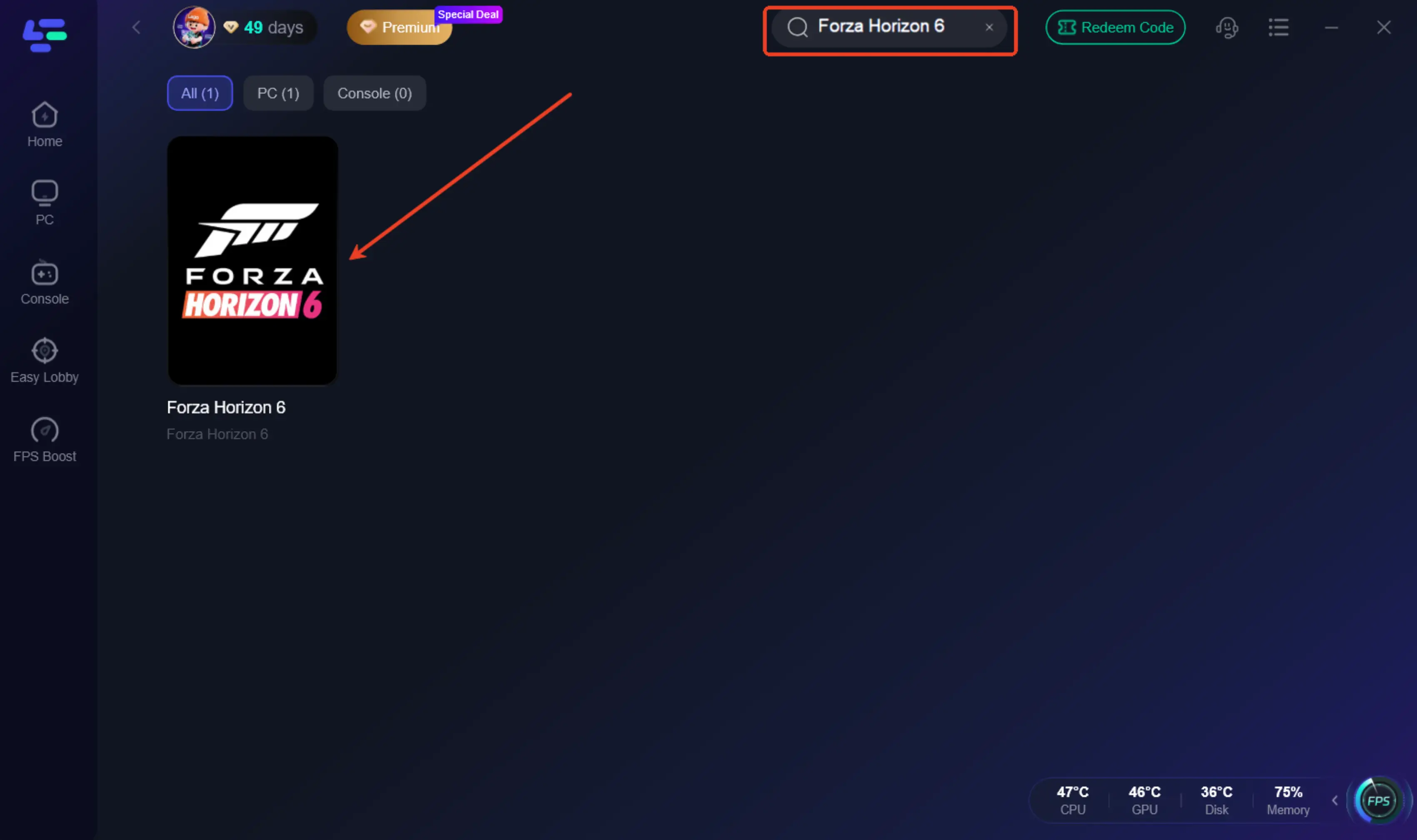
Download and open LagoFast.
Search for Forza Horizon 6.
Choose the best server route.
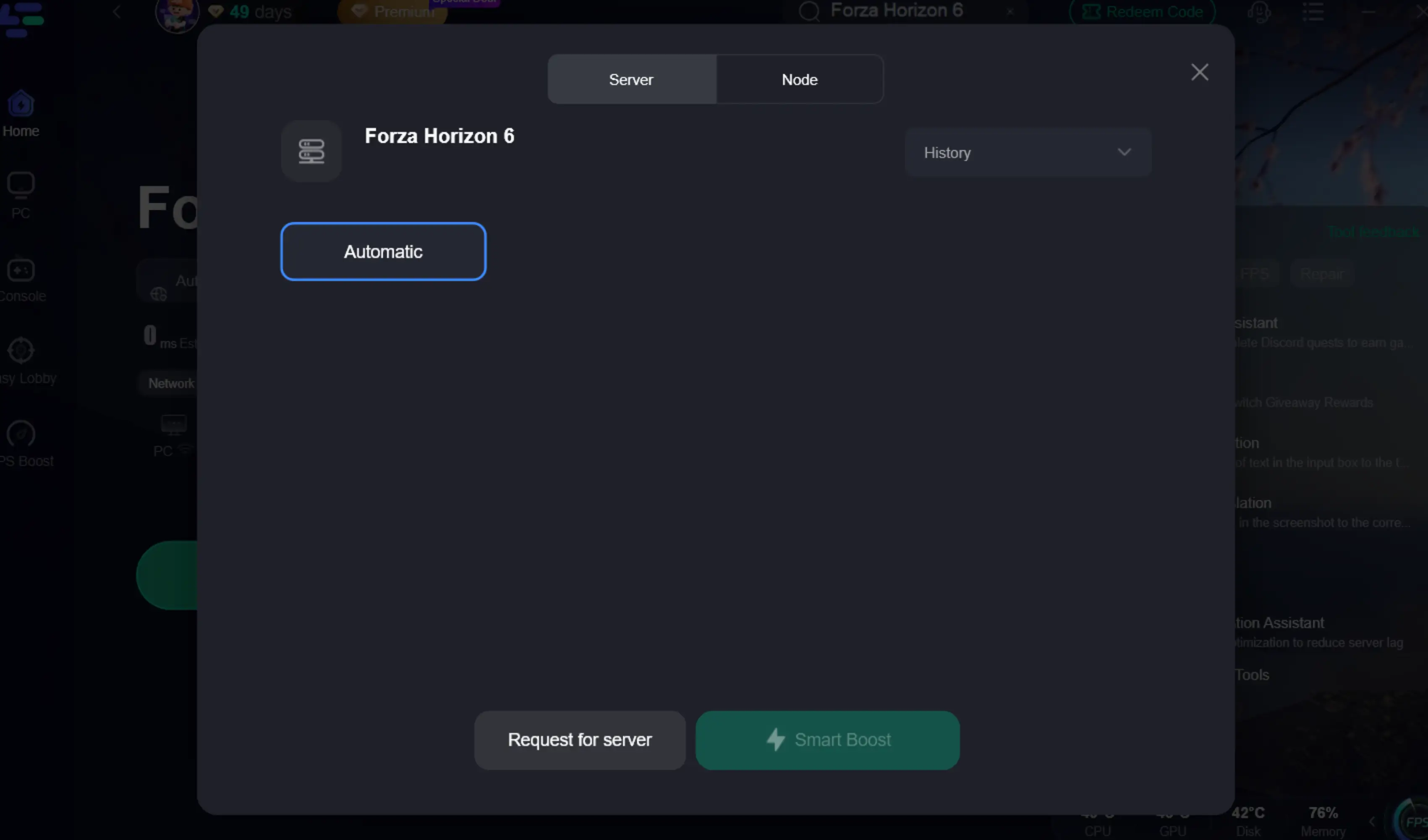
Click boost.
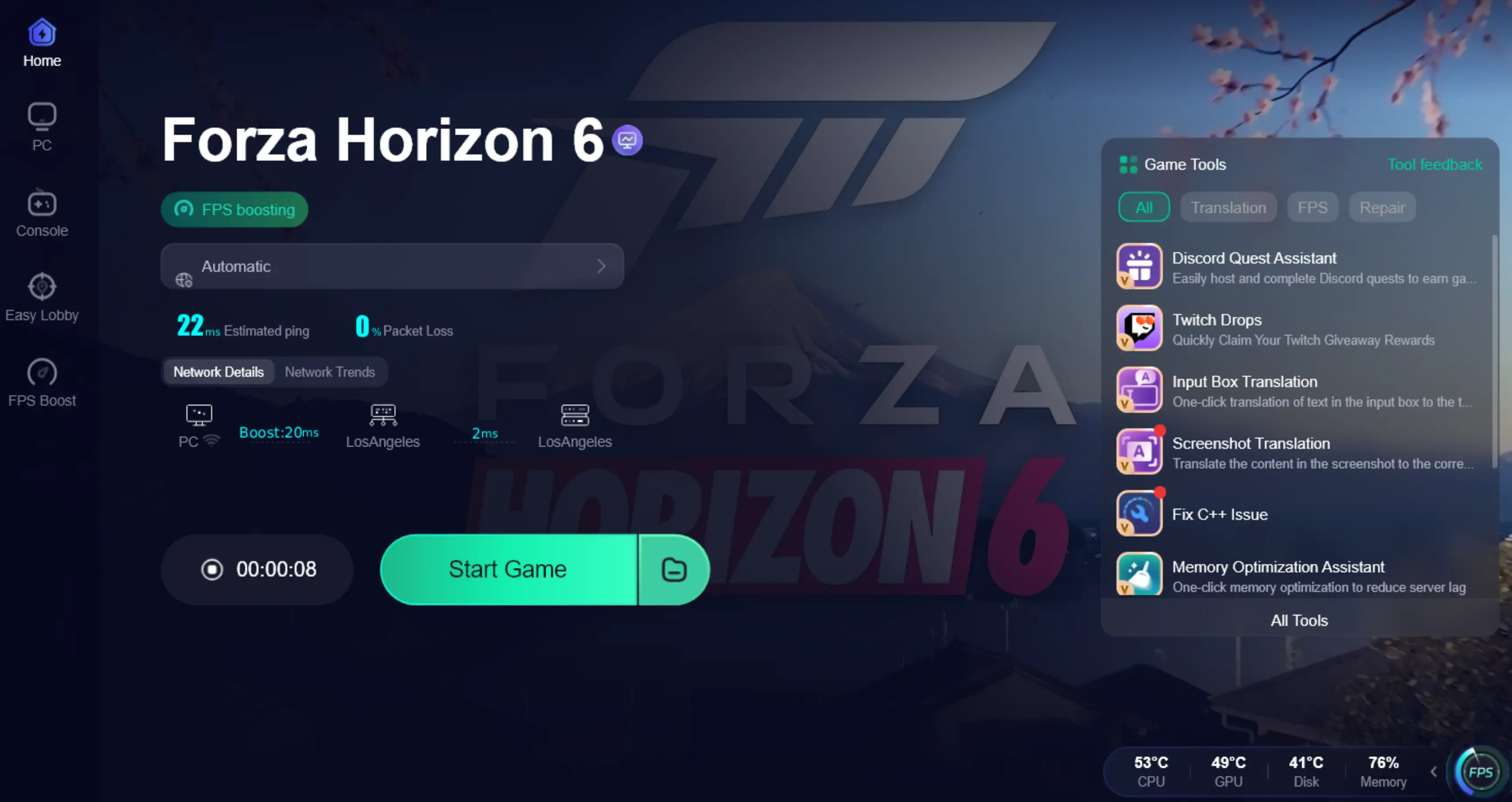
Launch the game from your normal launcher.
This is especially useful if your game files are fine but Forza Horizon 6 still cannot connect smoothly to Xbox or online services.
How To Fix Forza Horizon 6 Error E:0-0
Error E:0-0 in Forza Horizon 6 is usually connected to save loading, cloud sync, Xbox services, or damaged local profile data. Players often see it when the game says it failed to load save data or gets stuck before entering the main menu.
Try these fixes:
Close Forza Horizon 6 completely.
Restart Steam or the Xbox app.
Sign out of your Xbox account, then sign back in.
Open Windows Settings.
Go to Apps.
Find Forza Horizon 6.
Choose Advanced options.
Click Repair first.
If Repair does not work, click Reset.
Then restart your PC and launch the game again.
If you use the Xbox app or Game Pass version, also repair Gaming Services:
Open Microsoft Store.
Search for Gaming Services.
Update it if an update is available.
Open Xbox app.
Go to Settings.
Check if any required gaming components need repair.
Restart your PC.
If E:0-0 still appears, your cloud save may be failing to sync. In that case, do not delete random save folders immediately. First try launching the game after a full PC restart, with a stable connection, and let Xbox Cloud Sync finish. If the game asks whether to use local or cloud save, choose the newer save carefully.
How To Fix Error E:0-E9, E:0-17, And E:0-19 In Forza Horizon 6
Errors like E:0-E9, E:0-17, and E:0-19 are often related to profile loading, corrupted cache, failed service connection, or failed game initialization. They can look different, but the fix path is similar.
Use this order:
Restart the game and launcher.
Check your internet connection.
Disable unstable VPN connections.
Restart your router.
Log out and back into your Xbox account.
Repair Forza Horizon 6 from Windows Apps settings.
Verify game files on Steam or Xbox app.
Update Gaming Services.
Update Windows.
Restart your PC.
If you are in a region where Xbox services often load slowly or fail, a normal VPN may make the problem worse because it changes all traffic and can add extra latency. For game connection problems, a game route optimizer like LagoFast is a better option because it focuses on game traffic and can help stabilize the route to Xbox or Forza servers.
How To Fix Forza Horizon 6 Loading Error
If Forza Horizon 6 is stuck on the loading screen, crashes while loading, or shows a loading error, the cause is usually one of these:
Cloud save is not syncing.
Game files are damaged.
Shader cache is broken.
Xbox Gaming Services is not working.
The game is blocked by antivirus.
Your disk is too slow or almost full.
Fix it like this:
Restart your PC.
Close unnecessary apps in Task Manager.
Make sure the game is installed on an SSD.
Free up at least 20–30 GB of extra disk space.
Verify game files.
Update GPU drivers.
Clear temporary files.
Disable overlays from Discord, Steam, Xbox Game Bar, MSI Afterburner, or GeForce Experience.
Add Forza Horizon 6 to your antivirus allowlist.
Launch the game again.
If the game loads forever after an update, verifying files is usually better than reinstalling. On Steam, right-click the game, open Properties, go to Installed Files, then select Verify integrity of game files. On Xbox app, open the game page, choose Manage, then use the repair or verify option if available.
How To Fix Forza Horizon 6 Error On Startup
If Forza Horizon 6 shows an error on startup, does not open, or closes before the splash screen, start with system compatibility and software conflicts.
Try this:
Update Windows 10 or Windows 11.
Install the newest GPU driver from NVIDIA, AMD, or Intel.
Install Microsoft Visual C++ Redistributables.
Install the latest DirectX runtime.
Run the game as administrator.
Disable fullscreen optimizations.
Close overclocking tools.
Turn off RTSS, MSI Afterburner, ReShade, and FPS injectors.
Disable antivirus temporarily to test.
Verify game files.
Restart your PC.
For startup errors, don’t ignore background tools. Racing games are sensitive to overlays, input tools, wheel software, FPS counters, and tuning apps. If the game opens after disabling them, turn them back on one by one until you find the conflict.
How To Fix Forza Horizon 6 FHE01 Error
Forza Horizon 6 error FHE01 usually appears when the game terminates unexpectedly. In simple words, the game is crashing, and Windows or the game client is reporting the crash as a specific error code.
Fix FHE01 with these steps:
Update your GPU driver.
Remove old GPU driver files with a clean installation.
Disable GPU overclocking.
Disable CPU overclocking.
Close MSI Afterburner and RTSS.
Turn off Discord overlay.
Turn off Steam overlay.
Turn off Xbox Game Bar recording.
Verify game files.
Install Visual C++ Redistributables.
Restart your PC.
If FHE01 happens after a few minutes of gameplay, lower graphics settings first. Reduce ray tracing, shadows, texture quality, and environment detail. If the crash stops, your issue is probably VRAM, driver instability, or overheating.
If FHE01 happens instantly on launch, it is more likely a missing dependency, broken driver, blocked executable, or corrupted file.
How To Fix Forza Horizon 6 Game Service Error
Forza Horizon 6 Game Service error usually points to Microsoft Gaming Services on Windows. This is common with Xbox app and Game Pass games. If Gaming Services is broken, the game may not launch, may fail license checks, or may say the game is not available even when you own it.
Fast way to Fix "Invalid Gaming Services Detected" Error
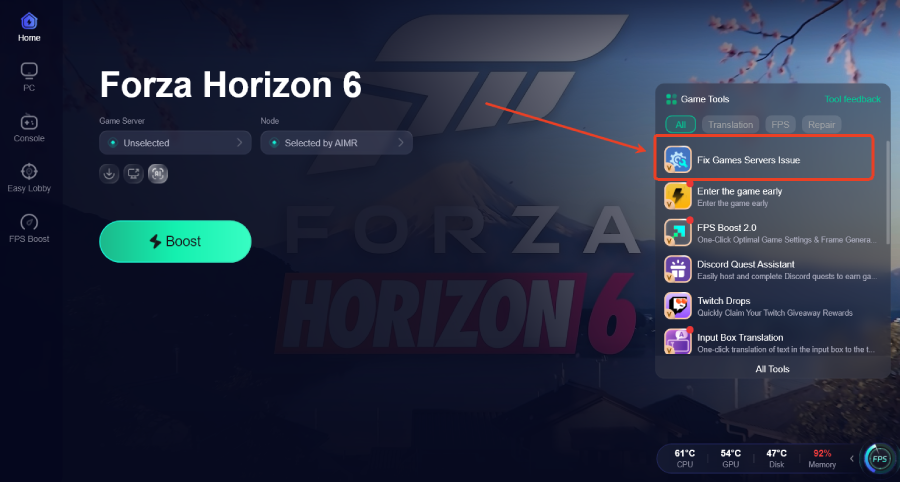
For players who want a faster way to check this issue, LagoFast is a dedicated Forza Horizon 6 fix feature to help detect whether Gaming Services is missing, outdated, or needs repair.
Instead of switching between Microsoft Store, Windows Settings, Xbox app, and Steam manually, you can use LagoFast as a quick first step to check the PC launch environment and follow the recommended update path.
Step 1: Click the Free Trial button to download and install LagoFast.
Step 2: Open LagoFast, then click the PC button on the left and search for FH6 in the search bar, and click it after it appears.
Step 3: Click the Fix Games Servers Issue Tool on the right.
If you prefer to fix it manually, or if you want to understand exactly what causes the error, follow the steps below. The first thing you should check is whether Gaming Services is updated through Microsoft Store.
How To Fix Forza Horizon 6 Error FH205
Forza Horizon 6 error FH205 is usually treated as a PC compatibility or driver-related Forza error. It may appear when the game detects a system problem, outdated graphics driver, unsupported hardware, or a required PC feature that is not working correctly.
Fix it like this:
Update your graphics driver.
Make sure your GPU supports the required DirectX feature level.
Update Windows.
Restart your PC.
Disable integrated graphics if the game is using the wrong GPU.
On laptops, force Forza Horizon 6 to use the dedicated GPU.
Close GPU tuning tools.
Verify game files.
Check that your PC meets the minimum requirements.
If you see FH205 together with FH291, treat it as a system or graphics compatibility issue first. Don’t waste time changing network settings for this one unless the game also fails to connect after launch.
How To Fix Forza Horizon 6 Error Code FH291 FH205
If Forza Horizon 6 shows error code FH291 FH205 together, the game is likely failing a system check. This can happen because of outdated drivers, unsupported graphics hardware, missing Windows updates, or a broken DirectX environment.
Try this:
Install the newest GPU driver.
Restart your PC.
Run Windows Update.
Install optional driver updates only if needed.
Open Graphics Settings in Windows.
Set Forza Horizon 6 to High performance.
Disable overlays.
Verify game files.
Reinstall Visual C++ Redistributables.
Launch the game again.
If your GPU is old, check the official PC requirements before spending hours troubleshooting. Some FH codes are not normal crashes; they are the game telling you your hardware or driver environment is not passing its startup checks.
How To Fix Forza Horizon 6 Installation Error At 100
If Forza Horizon 6 gets stuck at 100% installation, the download is probably complete but the game is still unpacking, verifying, or writing files to disk. This can look frozen, especially if the game is huge and installed on a slower drive.
Do this:
Wait a few more minutes if disk usage is still active.
Check Task Manager.
Look at disk usage under Performance.
If disk usage is high, the game is still unpacking.
Do not restart immediately.
If there is no disk activity for a long time, restart the launcher.
Make sure your drive has enough free space.
Disable antivirus temporarily.
Run Steam or Xbox app as administrator.
Verify or repair the installation.
A 100% installation error is often not a download problem. It is a file writing, unpacking, permission, or antivirus problem.
How To Fix Forza Horizon 6 Unpacking Error
Forza Horizon 6 unpacking error usually happens when the launcher cannot extract or write the downloaded files correctly.
Common causes include:
Not enough free disk space.
Slow HDD.
Broken preload files.
Antivirus blocking files.
No admin permission.
Damaged Steam download cache.
Xbox app installation bug.
Fix it this way:
Free up extra disk space.
Restart your PC.
Run the launcher as administrator.
Pause antivirus protection temporarily.
Clear Steam download cache if you use Steam.
Repair the game if you use Xbox app.
Move the game to an SSD if possible.
Start the unpacking process again.
For Steam, clearing download cache can help, but it may log you out. After clearing it, sign in again and resume the installation.
How To Fix Forza Horizon 6 Hieroglyphics Error
The Forza Horizon 6 hieroglyphics error usually means text is showing as broken symbols, unreadable characters, or corrupted language output. This is normally caused by damaged language files, wrong system locale, broken font rendering, or corrupted game files.
Try these fixes:
Verify game files.
Restart the game.
Change the in-game language to English.
Restart the game again.
Change back to your preferred language.
Update Windows language packs.
Make sure your Windows region and language settings are normal.
Disable unofficial translation patches.
Remove mods or file edits.
Reinstall only if verification does not fix it.
If the text became broken after changing language files manually, undo those changes first. Forza Horizon 6 may fail to read modified or mismatched language files correctly.
How To Fix Forza Horizon 6 Crashes Without An Error
If Forza Horizon 6 crashes without an error, Windows is closing the game before it can show a proper message. This is usually harder to diagnose, but the most common causes are overlays, driver crashes, unstable overclocking, antivirus blocks, or memory issues.
Try this:
Update your GPU driver.
Disable all overlays.
Turn off overclocking.
Close unnecessary background apps.
Lower graphics settings.
Cap FPS to 60 for testing.
Run the game as administrator.
Verify files.
Add the game to antivirus allowlist.
Check Windows Event Viewer for crash details.
If the crash mentions nvlddmkm, amdkmdag, or display driver failure, it is likely a GPU driver crash. Clean-install the driver and remove overclocking.
If the crash mentions memory, check RAM stability and close heavy apps like browsers, recording tools, and launchers.
How To Fix Forza Horizon 6 Error 0.12
Forza Horizon 6 error 0.12 can be caused by a failed startup process, missing game component, broken launcher state, or account/service issue.
Do this:
Restart your PC.
Update the game.
Update the launcher.
Repair Xbox app or Steam installation.
Verify game files.
Update Gaming Services.
Sign out and sign back into your Xbox account.
Update Windows.
Disable overlays.
Launch again.
If error 0.12 appears after a patch, wait for the launcher to fully finish updating. Some players open the game too early while the platform is still finalizing files in the background.
How To Fix “Forza Horizon 6 Is Currently Experiencing Problems”
If Forza Horizon 6 says it is currently experiencing problems, the issue may not be your PC. It can happen when Xbox services, Forza servers, login services, cloud save, or matchmaking systems are unstable.
Try this:
Restart the game.
Restart your launcher.
Check your Xbox account login.
Switch from Wi-Fi to Ethernet if possible.
Restart your router.
Disable unstable VPNs.
Try a game route optimizer.
Wait and retry if the issue is server-side.
This message is common around launch periods, updates, free weekends, and server maintenance. If the game opens but online features fail, your local files are probably fine.
Boost Your Game with LagoFast for Epic Speed
Play harder, faster. LagoFast game booster eliminates stutter and lags on PC, mobile, or Mac—win every match!
Quickly Reduce Game Lag and Ping!
Boost FPS for Smoother Gameplay!