
If Forza Horizon 6 shows the E:0-0 error, the game is usually failing to connect properly to Xbox / Forza online services. This type of error can appear when the game cannot verify your session, sync online data, connect to multiplayer, or communicate with Microsoft Gaming Services correctly.
Players see the following errors:
Forza Horizon 6 E 0 0
error E 0 0 Forza Horizon 6
Forza Horizon 6 E 0 E9
Forza Horizon 6 E 0 17
Forza Horizon 6 error E 0 E9
Forza Horizon 6 error E 0 17
error E 0 19 Forza Horizon 6
The exact code may look slightly different, but the cause is usually similar: your game is having trouble with Xbox services, network connection, NAT, account sync, or corrupted local service data.

- ✅ Lower ping and fewer disconnects.
- ✅ More FPS and better PC performance.
- ✅ Support for 3000+ games.
- ✅ Stable connections and region switching.
What does E:0-e9 mean in Forza Horizon 6?
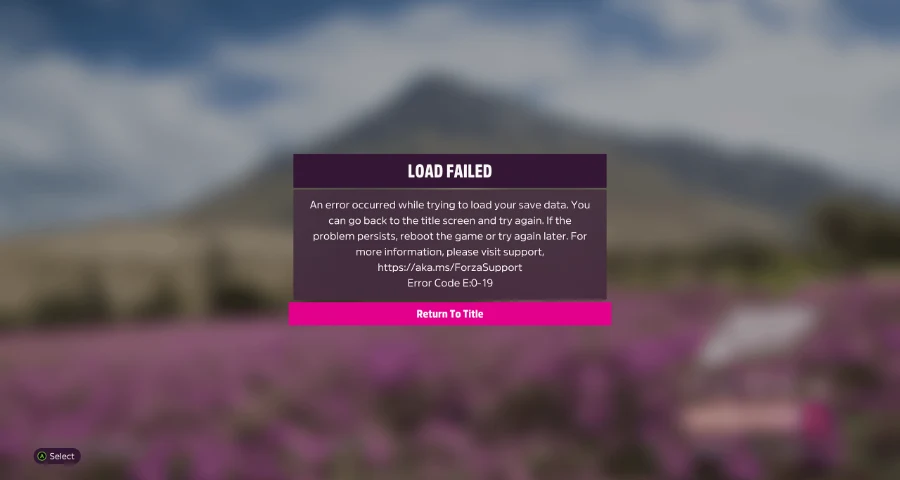
E:0-e9 points to a save-load failure. It means the game launches or starts loading, then fails when it tries to read local or cloud-linked save data.
On PC, the usual triggers are:
Gaming Services missing, outdated, or not registered properly
Xbox app not installed on Steam setups
Xbox sign-in issues
Corrupted game files
Corrupted Windows system files
Outdated or incompatible GPU drivers
What to check first:
Restart the game and PC
Open the Xbox app and sign out, then sign back in
Make sure the Xbox app is installed even if you play on Steam
Verify or repair the game files
Check Gaming Services
If the error appears after the game starts syncing or reading a save, that points more toward services/sync/save access than raw hardware failure.
Which error codes are similar to E:0-e9?
Here’s the short map so you don’t waste time on the wrong fix:
E:0-e9 — save/load failed error, often tied to Gaming Services or save access
E:0-17 — save-data or cloud-sync loading issue
E:0-19 — save-data/cloud-sync issue, commonly reported on Xbox app or Microsoft Store versions
FHC00 — video card crash
FH401 — insufficient system memory
FH201 — GPU does not support required DX12 features
FH113 — BIOS update prompt
If you’re getting FHC00, FH401, FH201, or FH113, stop treating it like a save-sync issue. Those are more likely hardware, driver, memory, or firmware problems.
What should I try first for E:0-e9 on PC?
Do these in order. This is the fastest route for most players.
1. Restart the game and let sync finish
Close the game fully. Reboot the PC. Launch it again and do not interrupt cloud sync if it appears.
This is basic, but it matters. E:0-e9, E:0-17, and E:0-19 can all show up when sync gets interrupted or the Xbox side doesn’t finish talking to the game cleanly.
2. Sign out and back into the Xbox app
Open the Xbox app on Windows.
Sign out
Close the app
Reopen it
Sign back in with the account tied to your save
Launch the game again
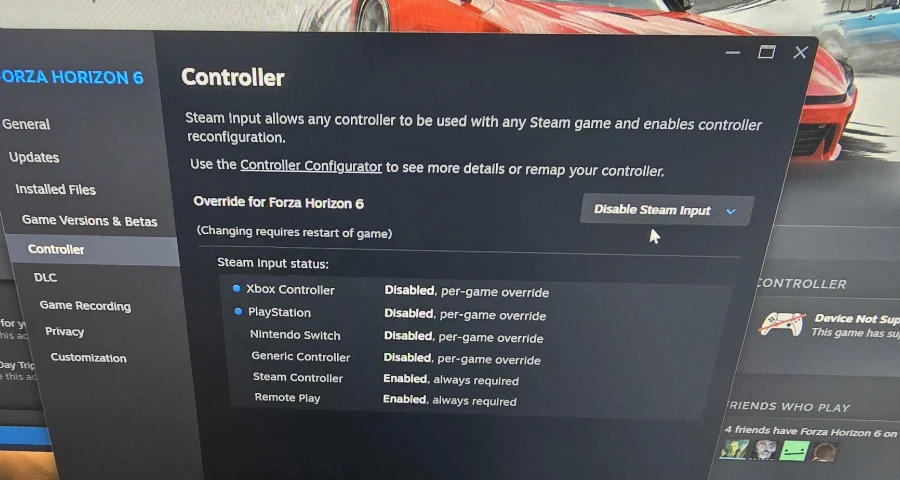
“Reset PC, log out and log in to xbox app account...” That’s worth trying early because it’s quick and directly connected to save ownership and sync.
3. Make sure the Xbox app is installed if you play on Steam
This catches a lot of people.
If you own the game on Steam, you should still make sure the Xbox app is installed on Windows and updated through the Microsoft Store. Player reports specifically point to missing Xbox-side dependencies causing E:0-e9-style load failures.
4. Verify or repair the game files
If files are damaged, the save-load process can fail even if Xbox services are fine.
Steam: use the game’s Installed Files menu and run Verify integrity of game files in Steam
Xbox app/Microsoft Store: use the app settings for the game and run Repair, then Reset only if Repair does not help
This is one of the best next steps if the error started after a crash, update, or forced shutdown.
5. Run System File Checker
Open Command Prompt as admin and run:
sfc /scannow
This checks Windows system files, not just the game. It’s worth doing because corrupted Windows components can break Gaming Services, Xbox sign-in, or save access.
Again, this is not theoretical. A player report said: “Ran sfc /scannow. It found corrupted files and repaired them.”
6. Update Windows and your GPU driver
If your driver is old or broken, the game can fail during loading even when the save itself is fine.
Install pending Windows updates
Update your NVIDIA, AMD, or Intel graphics driver
Reboot after updating
If you also see crash-type behavior, compare your PC against the official Forza Horizon 6 system requirements.
How do I check Xbox services that affect saves?
On Windows, E:0-e9 can show up when Xbox-related services needed for save and networking are disabled.
Check these in Services:
Xbox Live Game Save
Xbox Live Networking Service
Set them to run if they’re disabled, then reboot the PC.
This matters because the game’s save and sync flow can depend on those background services being available. One player specifically reported they manually turned on “Xbox Live Game Save” and “Xbox Live Networking Service” on Windows 11 while troubleshooting E:0-e9.
How do I reinstall Gaming Services on Windows for Forza Horizon 6?
If E:0-e9 keeps showing up, Gaming Services is one of the first real suspects on PC.
Open PowerShell as Administrator and run:
Get-AppxPackage *GamingServices* | Remove-AppxPackage -AllUsers -Force
Then:
Restart the PC
Open the Microsoft Store
Reinstall Gaming Services
Update the Xbox app if needed
Launch the game again
Why this helps: E:0-e9 has been repeatedly linked by player reports to missing or improperly registered Gaming Services, especially when the game throws a load-failed message instead of a straight crash.
If Gaming Services reinstall fails or immediately breaks again, that’s when it starts looking more like a Windows/Xbox app layer problem than a game-file-only problem.
Fast way to Fix "Invalid Gaming Services Detected" Error
For players who want a faster way to check this issue, LagoFast is a dedicated Forza Horizon 6 fix feature to help detect whether Gaming Services is missing, outdated, or needs repair. Instead of switching between Microsoft Store, Windows Settings, Xbox app, and Steam manually, you can use LagoFast as a quick first step to check the PC launch environment and follow the recommended update path.
Step 1: Click the Free Trial button to download and install LagoFast.
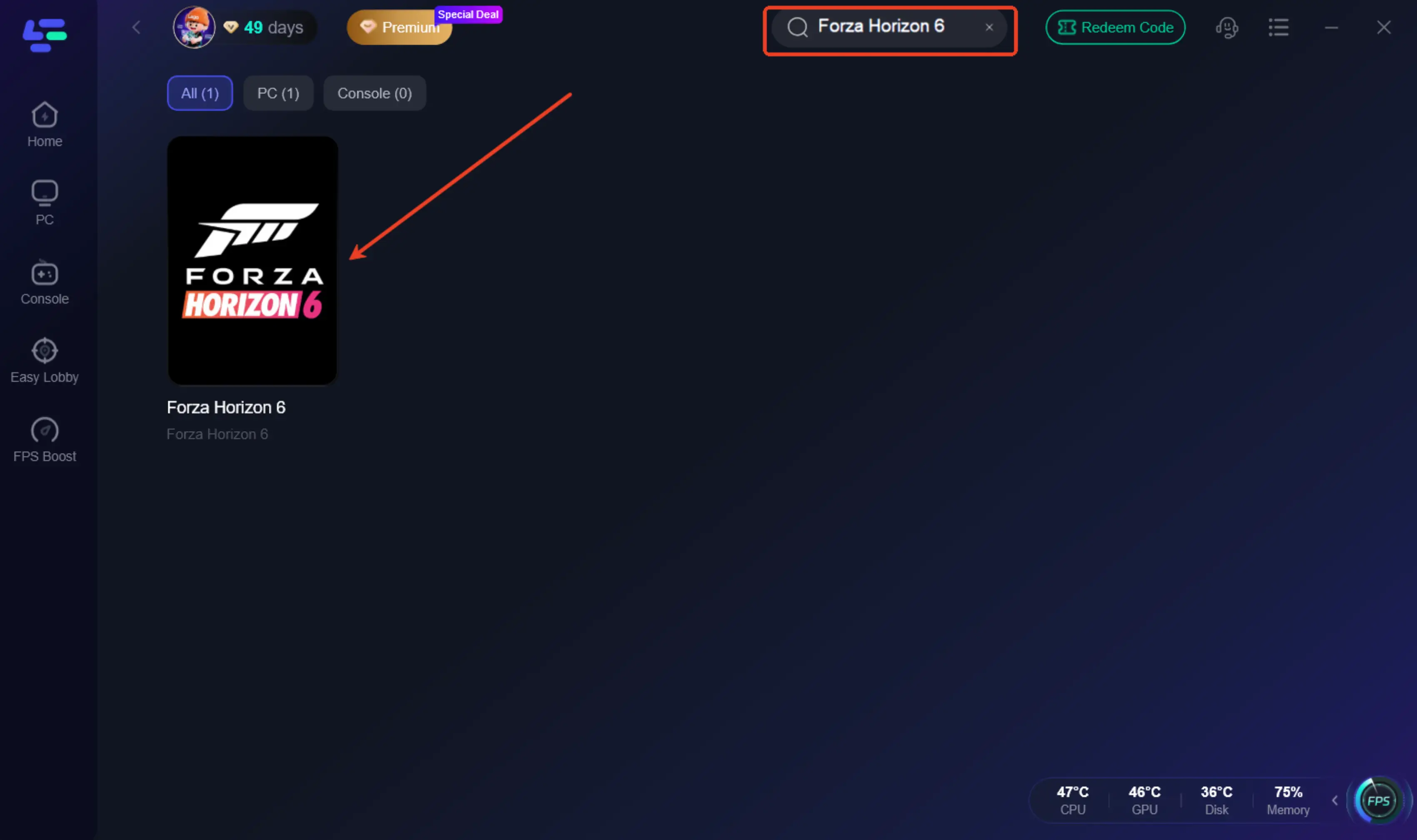
Step 2: Open LagoFast, then click the PC button on the left and search for FH6 in the search bar, and click it after it appears.
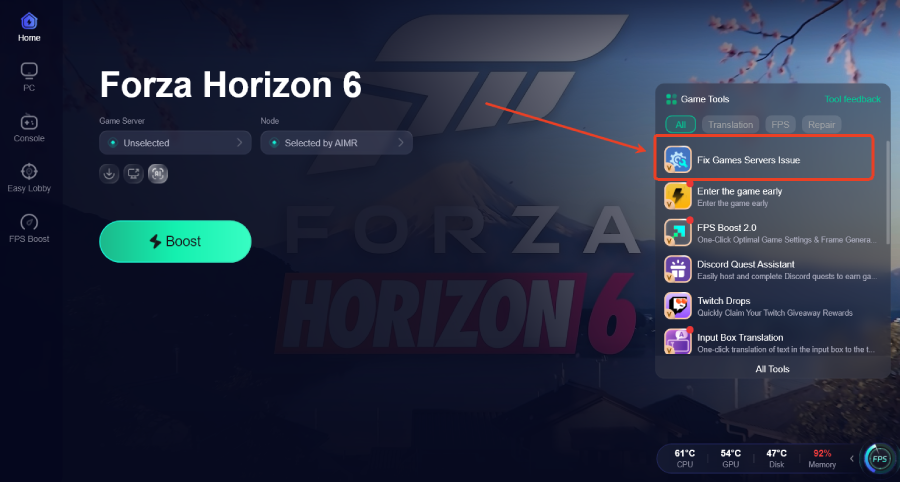
Step 3: Click the Fix Games Servers Issue Tool on the right.
If you prefer to fix it manually, or if you want to understand exactly what causes the error, follow the steps below. The first thing you should check is whether Gaming Services is updated through Microsoft Store.
What should Steam players do differently?
If you’re on Steam, check these first:
Install the Xbox app from the Microsoft Store if it isn’t already there
Sign into the correct Xbox account in that app
Let any first-time Xbox dependency setup finish
Verify game files in Steam
Reinstall Gaming Services if E:0-e9 keeps coming back
This is the biggest platform-specific gotcha for Steam players: the game can still depend on Xbox-side components for sign-in and save handling.
What should Xbox app or Microsoft Store players do differently?
If you’re on the Xbox app or Microsoft Store version, focus on sync and app health:
Make sure the game is fully updated
Make sure the Xbox app is updated
Use Repair on the game first
Sign out/in of the Xbox app
Reinstall Gaming Services if repair doesn’t fix it
Relaunch and let cloud sync finish fully
If you’re specifically seeing E:0-19, that points more directly to save data/cloud sync trouble than the broader E:0-e9 bucket.
What about Xbox console players?
On console, your main move is to force a clean retry of cloud sync.
Fully close the game
Restart the console
Launch the game again
Let cloud sync complete without canceling it
If the issue is E:0-17 or another save-load error, interrupted sync is one of the first things to rule out.
If the save still won’t load after a full restart and retry, the problem may be on the save/account side rather than anything you can fix locally.
Final Answer
The Forza Horizon 6 E:0-0 error usually means the game cannot connect properly to Xbox / Forza online services. Similar errors like E:0-E9, E:0-17, and E:0-19 are often related to Xbox services, NAT, Teredo, DNS, firewall, account sync, or unstable network routing.
Start by fixing the platform side first: repair Xbox App, reset Microsoft Store, reinstall Gaming Services, check your Microsoft account, and reset network settings. If the game launches but online connection is still unstable, use LagoFast to optimize your route, reduce packet loss, and make Forza Horizon 6 multiplayer more stable.
Boost Your Game with LagoFast for Epic Speed
Play harder, faster. LagoFast game booster eliminates stutter and lags on PC, mobile, or Mac—win every match!
Quickly Reduce Game Lag and Ping!
Boost FPS for Smoother Gameplay!