
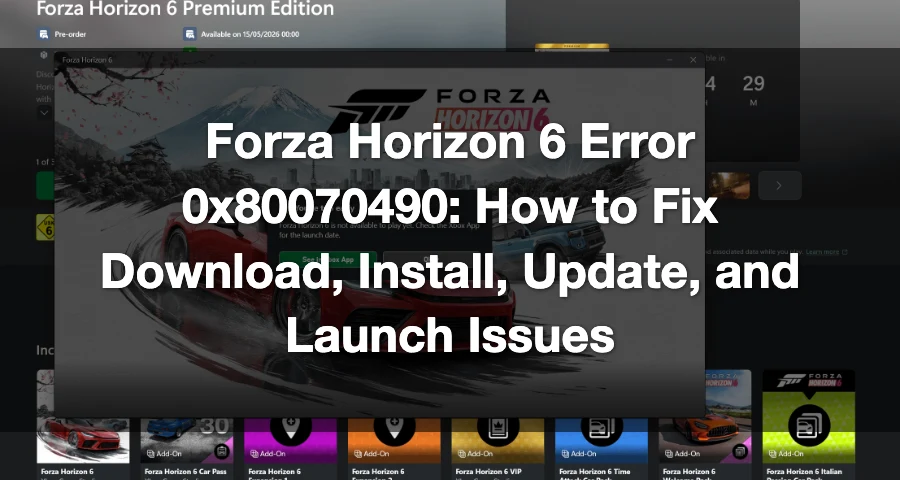
If Forza Horizon 6 shows error 0x80070490, the problem is usually not the game itself. This error normally points to a Microsoft Store, Xbox app, Windows Update, Gaming Services, or system component issue.
For players, it usually appears when you are trying to:
download Forza Horizon 6
pre-load the game
install through Xbox app or Microsoft Store
update the game
launch the game from Game Pass
sync Microsoft account services
Microsoft’s Xbox support lists 0x80070490 / 80070490 as an error that can happen on Xbox or Windows devices, and Microsoft’s Windows troubleshooting docs also connect this code with broken or blocked Windows update/system components.
Your PC is trying to install or launch Forza Horizon 6, but Windows/Xbox services cannot find or process something required.

- ✅ Lower ping and fewer disconnects.
- ✅ More FPS and better PC performance.
- ✅ Support for 3000+ games.
- ✅ Stable connections and region switching.
What Causes Forza Horizon 6 Error 0x80070490?
For Forza Horizon 6, error 0x80070490 can be triggered by:
Xbox app cache problems
Microsoft Store cache corruption
broken Gaming Services
Windows Update issues
account mismatch between Xbox app and Microsoft Store
wrong time, region, or system date
corrupted install files
installation drive problems
blocked Microsoft Store services
damaged system files
If you see this while downloading or pre-loading FH6, treat it as a platform/install issue first, not a graphics or network issue.
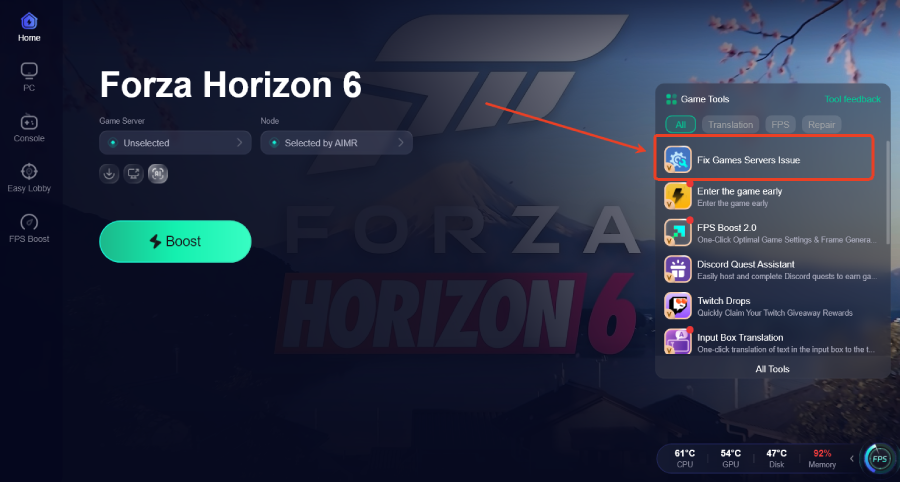
Best Fix: Use LagoFast If the Game Installs but Still Has Connection Problems
Be clear here:
LagoFast does not directly fix Microsoft Store error 0x80070490.
That error is usually caused by Xbox app, Microsoft Store, Gaming Services, or Windows components.
But after Forza Horizon 6 installs successfully, LagoFast can help if you still run into online problems like:
high ping
packet loss
unstable multiplayer
failed convoy joins
random disconnects
server connection errors
poor routing to Forza online services
How to Use LagoFast for Forza Horizon 6
Step 1: Open LagoFast.
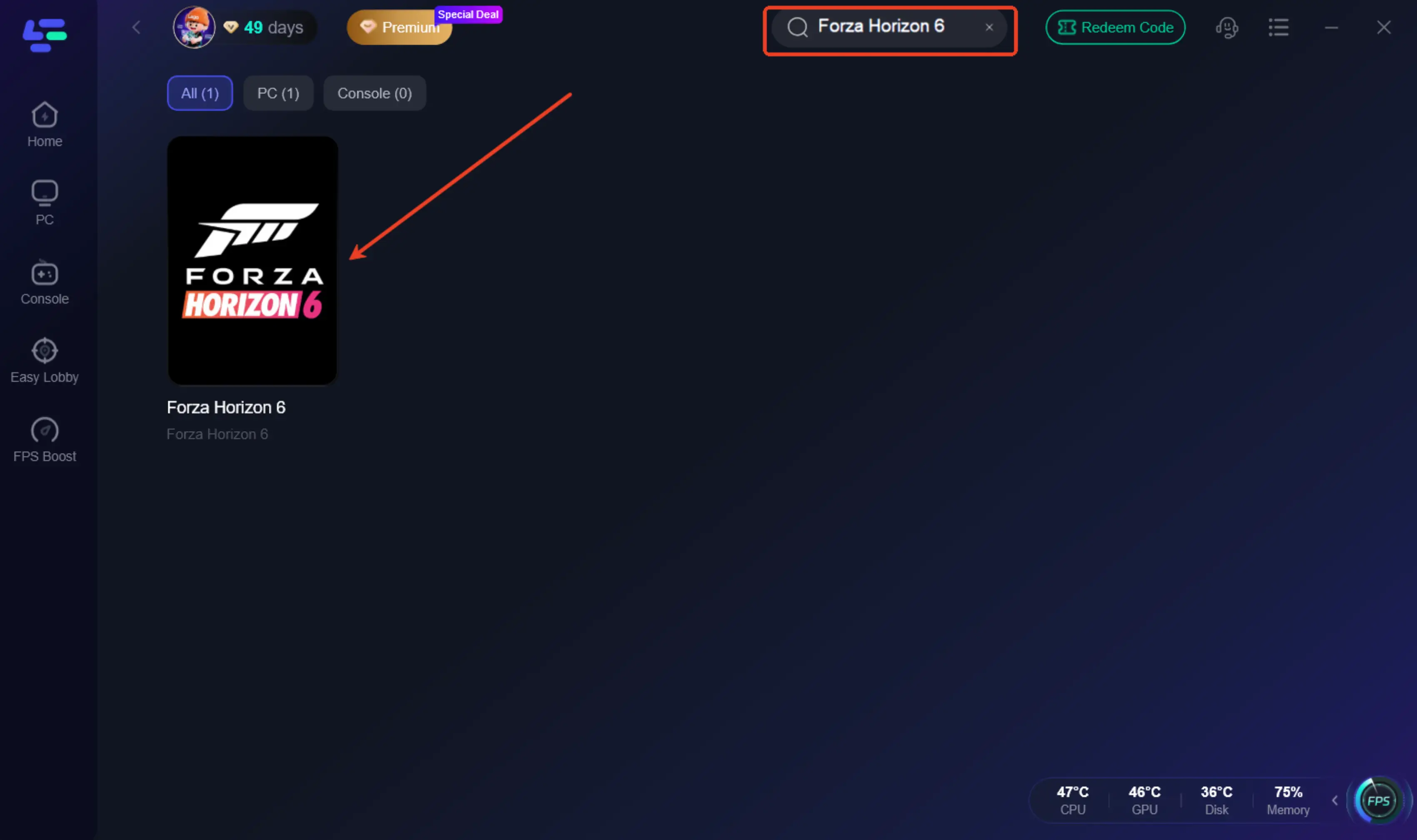
Step 2: Search for Forza Horizon 6.
Step 3: Choose the best route with low ping and low packet loss.
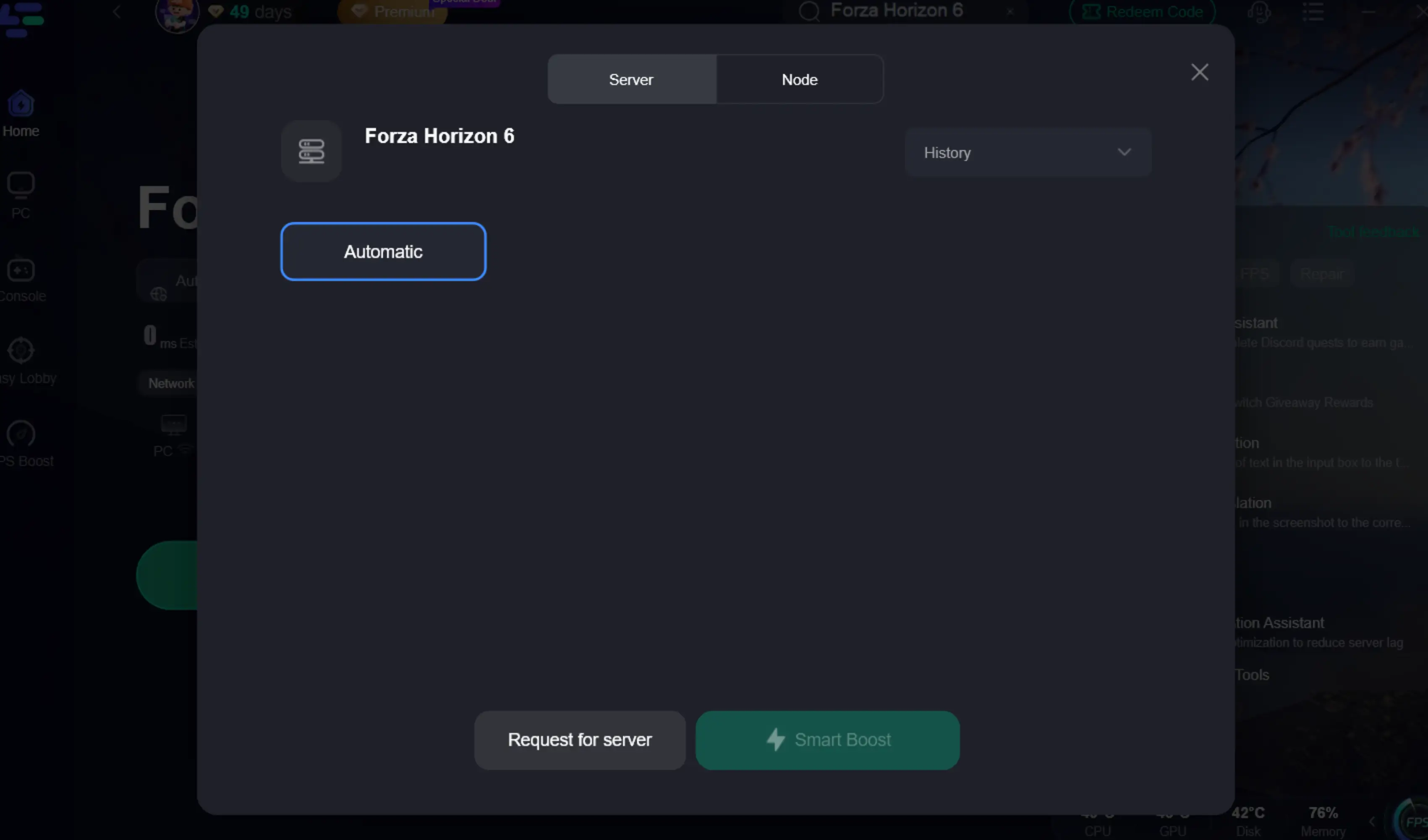
Step 4: Click Smart Boost.
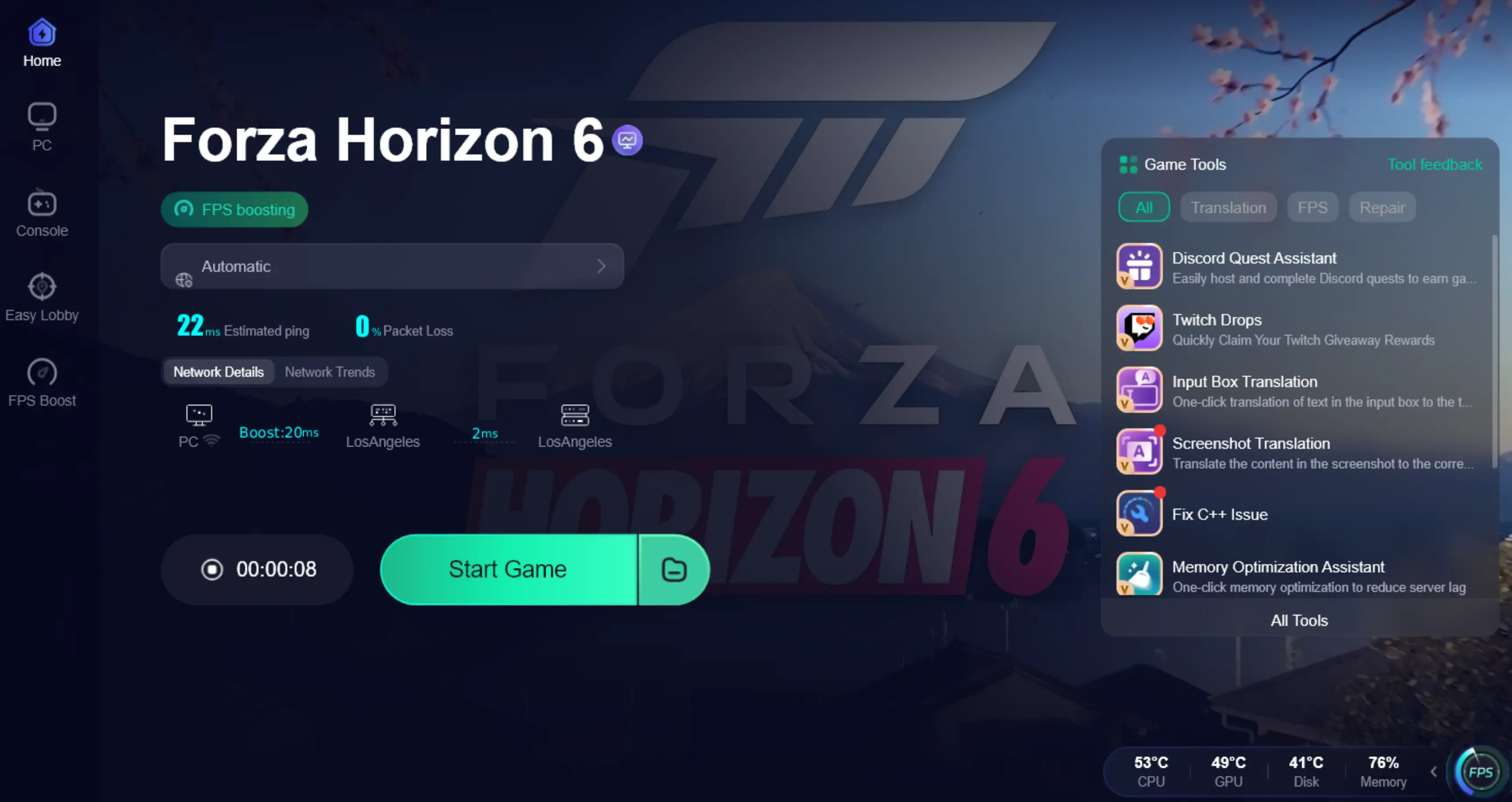
Step 5: Launch Forza Horizon 6.
Step 6: Join Horizon Life, convoy, or online race again.
Use LagoFast after the game is installed and launching. For 0x80070490 itself, fix Xbox app / Store / Gaming Services first.
Fix 1: Restart Your PC and Try Again
Start simple.
Close Xbox app.
Close Microsoft Store.
Restart your PC.
Open Xbox app again.
Try downloading or launching Forza Horizon 6.
This can clear stuck Store/Xbox sessions. If the error comes back, continue below.
Fix 2: Make Sure Xbox App and Microsoft Store Use the Same Account
This is one of the most common causes for Game Pass or Microsoft Store install errors.
Check both apps:
Open Xbox app.
Click your profile icon.
Confirm the account.
Open Microsoft Store.
Click your profile icon.
Make sure it is the same Microsoft account.
If they are different:
Sign out from both apps.
Restart your PC.
Sign in to Microsoft Store first.
Sign in to Xbox app with the same account.
Try Forza Horizon 6 again.
This matters especially if you own the game on one account but Game Pass is active on another.
Fix 3: Check Date, Time, Time Zone, and Region
Microsoft Store and Xbox services can fail if your system time or region is wrong.
Open Settings.
Go to Time & language.
Open Date & time. Turn on:
Set time automatically
Set time zone automatically
Click Sync now.
Go to Language & region.
Make sure your region matches your Microsoft account/store region.
Then restart Xbox app and try again.
Fix 4: Reset Microsoft Store Cache
If the Microsoft Store cache is broken, FH6 may fail to download or update.
Press Win + R.
Type: wsreset.exe
Press Enter.
Wait for the Microsoft Store window to open automatically.
Restart your PC.
Try installing Forza Horizon 6 again.
This is safe and often fixes Store-related 0x80070490 errors.
Fix 5: Repair and Reset the Xbox App
If the Xbox app itself is stuck, repair it.
Open Settings.
Go to Apps.
Open Installed apps.
Find Xbox.
Click Advanced options.
Click Repair.
Test again.
If it still fails:
Go back to the same page.
Click Reset.
Restart your PC.
Sign in again.
Try Forza Horizon 6.
Use Repair first. Use Reset only if Repair does not work.
Fix 6: Repair Microsoft Store
Do the same for Microsoft Store:
Open Settings.
Go to Apps.
Open Installed apps.
Find Microsoft Store.
Open Advanced options.
Click Repair.
Try again.
If needed, use Reset after Repair.
Fix 7: Reinstall Gaming Services
Forza Horizon 6 depends on Microsoft Gaming Services when installed through Xbox app or Game Pass. If Gaming Services is broken, the game may fail to install, update, or launch.
Right-click Start.
Open Windows Terminal / PowerShell as Administrator.
Run: get-appxpackage Microsoft.GamingServices | remove-AppxPackage -allusers
Then run: start ms-windows-store://pdp/?productid=9MWPM2CQNLHN
Microsoft Store will open the Gaming Services page.
Install it again.
Restart your PC.
Try Forza Horizon 6 again.
This is one of the strongest fixes for Xbox app install errors.
Fix 8: Check Windows Update
Error 0x80070490 can be tied to Windows update/system component problems. Microsoft’s Windows troubleshooting documentation describes this code as related to driver/update installation failures and corrupted update-related components.
Do this:
Open Settings.
Go to Windows Update.
Click Check for updates.
Install all pending updates.
Restart your PC.
Check again until no important updates remain.
Then try installing or launching FH6 again.
Fix 9: Run DISM and SFC to Repair Windows
If Windows system files are broken, Xbox app and Microsoft Store can keep failing.
Open Command Prompt as Administrator and run these one by one:
DISM /Online /Cleanup-Image /RestoreHealth
Wait until it finishes, then run:
sfc /scannow
After both commands finish:
Restart your PC.
Open Microsoft Store.
Open Xbox app.
Try Forza Horizon 6 again.
This fix is useful when Store, Xbox app, Windows Update, and Gaming Services all behave strangely.
Fix 10: Change the Install Drive
Some Forza install errors happen because the selected drive has permission issues or Store delivery problems.
Try installing FH6 on your C drive first if you have enough space.
Open Xbox app.
Go to Settings.
Open Install options.
Change default install drive to C:.
Try downloading Forza Horizon 6 again.
If you were installing to an external drive, secondary SSD, or old HDD, test the C drive before doing anything more complicated.
Fix 11: Make Sure the Install Drive Has Enough Space
Forza games are large. If your drive is almost full, the Xbox app may fail with confusing error codes.
Make sure you have:
enough space for the full game
extra space for unpacking
extra space for updates
no “compressed” or restricted install folder
A good rule:
Keep at least 20–30 GB more than the listed game size free.
Fix 12: Delete Stuck or Failed Install Data
If Forza Horizon 6 failed during pre-load or update, the Xbox app may keep trying to reuse broken files.
Try this:
Open Xbox app.
Cancel the FH6 download.
Restart your PC.
Open Settings → Apps → Installed apps.
If Forza Horizon 6 appears, uninstall it.
Restart again.
Start a clean install.
If the game was installed through Steam, verify files in Steam instead. This guide mainly targets Xbox app / Microsoft Store / Game Pass error 0x80070490.
Fix 13: Log Out and Reconnect Xbox Services
Sometimes the account token is broken.
Sign out of Xbox app.
Sign out of Microsoft Store.
Restart your PC.
Sign in to Microsoft Store first.
Sign in to Xbox app second.
Open your library.
Try installing or launching Forza Horizon 6.
This is especially useful if your subscription, ownership, or pre-order status is not being detected correctly.
Fix 14: Check Xbox Service Status
If Microsoft services are down, your PC may be fine.
Check Xbox status before reinstalling everything. If Store, account, purchase, or game services are having an outage, wait until Microsoft fixes it.
Error 0x80070490 can appear when the app cannot correctly validate or fetch required service data.
Final Answer
If Forza Horizon 6 error 0x80070490 appears during download, pre-load, install, update, or launch, the issue is usually with Microsoft Store, Xbox app, Gaming Services, Windows Update, or your Microsoft account session.
Boost Your Game with LagoFast for Epic Speed
Play harder, faster. LagoFast game booster eliminates stutter and lags on PC, mobile, or Mac—win every match!
Quickly Reduce Game Lag and Ping!
Boost FPS for Smoother Gameplay!