

For many dedicated Commanders, the thrill of defending Homebase is frequently dampened by technical hurdles that seem unique to the PvE side of the Fortnite ecosystem. While the Battle Royale mode receives constant engine updates and polish, Save the World (STW) often feels like it is running on borrowed time, leading many to ask: why is Fortnite save the world lagging so badly? Whether you are dealing with choppy husk animations, delayed building placement, or massive frame drops during a high-level Twine Peaks defense, these issues can turn a strategic mission into a frustrating ordeal.
This guide is designed for the serious PC gamer who wants to reclaim their smooth gameplay experience. We will dive deep into the root causes of performance degradation, provide actionable optimization steps, and introduce professional tools to ensure your connection to the servers remains rock-solid.

- ✅ Reduce Lag and High Ping
- ✅ Boost FPS in Real Time
- ✅ Get the Easiest Server in Fortnite
- ✅ End All Connection Login Issues.
- ✅ Support 2000+ Online Games.
- ✅ Multiplatform: PC, Mobile, Console
Part 1. Why is Fortnite save the world lagging so badly?
Part 2. Why is STW so laggy for me?
Part 3. Extreme lag on Save the world: Common Scenarios
Part 4. Fortnite save the world lag fix: Top Optimization Tips
Part 5. How to reduce lag on Fortnite save the world: Network & Hardware
Part 6. Best way to Fix Lags, Stutter & FPS Drops Save the world
Part 7. How to get 0 delay on Fortnite save the world
Part 8. How to Enhance Your Game Experience with LagoFast Game Booster
Part 1. Why is Fortnite save the world lagging so badly?
To understand the current state of STW performance, we have to look at the underlying architecture. Unlike the highly optimized Battle Royale, Save the World is a complex simulation involving hundreds of AI entities, intricate pathing calculations, and persistent building structures. As the game transitioned to Unreal Engine 5, the legacy code of STW began to show its age. One of the primary reasons why the game feels so unstable is the "husk pathing" lag. When you build complex trap tunnels, the server must constantly recalculate the shortest path for every single husk on the map. If the pathing is blocked or too convoluted, the server's tick rate drops, leading to what players perceive as "world lag"—where your character moves fine, but the enemies and projectiles teleport or freeze.
Furthermore, the sheer volume of particle effects from traps like Gas Traps or Ceiling Electric Fields can overwhelm even high-end GPUs. When combined with the global "Mini-Boss" modifiers and environmental effects, the engine often struggles to maintain a consistent frame time. This isn't just a hardware issue; it is a fundamental bottleneck in how the game handles data between the client and the server. Understanding that STW is more CPU and network-intensive than its PvP counterpart is the first step in diagnosing your specific performance problems.
Part 2. Why is STW so laggy for me?
If you find yourself wondering, "Why is STW so laggy for me while my friends seem fine?" the answer usually lies in a combination of regional server distance and local system bottlenecks. Save the World uses a different matchmaking logic than Battle Royale. Because the player pool is smaller, the game might occasionally put you into a session hosted on a sub-optimal server to reduce queue times. This results in high latency that manifests as delayed ability activation—a death sentence when you need to throw a Shockwave or deploy a T.E.D.D.Y. in a pinch.
On the client side, STW is notorious for its heavy reliance on single-core CPU performance. If you are running background applications like heavy browser tabs, recording software, or even certain RGB control suites, you are stripping away the cycles the game needs to process the AI logic. Additionally, shader compilation stutters are a frequent culprit. Every time a new event starts or a major patch is released, the game needs to re-cache shaders. If your storage drive is a traditional HDD or a slow SATA SSD, these micro-stutters will make the game feel unplayable, regardless of your average FPS.
Part 3. Extreme lag on Save the world: Common Scenarios
There are specific moments in a mission where extreme lag on Save the world becomes almost guaranteed. Recognizing these scenarios can help you prepare or adjust your playstyle to mitigate the impact.
- The "Trap Spam" Effect: In high-level missions like 160s or Frostnite, players often over-build to ensure success. However, having 200+ active traps firing simultaneously creates a massive amount of data that the server must sync with every player in the lobby. This often leads to "input delay," where your commands take a second or more to register.
- Storm Shield Defenses (SSD): During an SSD, the number of husks spawned can reach the engine's limit. If you have a lot of "drop traps" or "tire traps" placed high up, the physics calculations for the falling projectiles can cause the entire server to lag out.
- The "Join-in-Progress" Hitch: We have all experienced it—the game completely freezes for 2-3 seconds when a new player joins the session. This is due to the game loading the new player's entire inventory, hero loadout, and skin data into the active memory of the server and all connected clients.
To minimize these issues, veteran players often recommend "cleaning up" unnecessary structures and avoiding redundant trap placements that don't contribute significantly to the defense but do contribute to the entity count.
Part 4. Fortnite save the world lag fix: Top Optimization Tips
Implementing a reliable Fortnite save the world lag fix requires a two-pronged approach: maximizing your hardware efficiency and streamlining the game's settings. Start by switching your Rendering Mode to "Performance - Lower Graphical Fidelity." While this makes the game look more like a mobile title, it significantly reduces the load on your CPU and GPU, which is vital for maintaining stability during heavy husk waves.
Next, disable "Record Replays" in the game settings. Most players don't realize that the game is constantly writing data to your drive to save the match history. In STW, where missions can last 20-40 minutes, this constant write operation can cause significant stuttering. You should also turn off "Peripheral Lighting" and "NVIDIA Reflex Low Latency" if you are on an older system, as these can sometimes cause erratic frame delivery in the PvE environment. Finally, ensure your 3D Resolution is set to 100%, but lower your Shadows, Global Illumination, and Reflections to the lowest possible settings. These are the most resource-heavy features and offer very little tactical advantage in a zombie-defense scenario.
Part 5. How to reduce lag on Fortnite save the world: Network & Hardware
When you want to reduce lag on Fortnite save the world, you must look beyond the in-game menu. Network stability is the backbone of a smooth STW experience. If you are playing on Wi-Fi, you are inviting packet loss and jitter into your sessions. A wired Ethernet connection is non-negotiable for serious play. If running a cable isn't an option, consider a Powerline adapter as a more stable alternative to standard Wi-Fi.
On the hardware side, ensure your Windows Power Plan is set to "Ultimate Performance." This prevents your CPU from down-clocking during less intensive moments, which often causes a "hitch" when the action suddenly ramps up. Also, verify that your RAM is running at its rated XMP/DOCP speed in the BIOS. STW's engine is highly sensitive to memory bandwidth; slow RAM can lead to significant "stuttering" when moving between different zones of the map. Lastly, always keep your GPU drivers updated, but perform a "Clean Install" using DDU (Display Driver Uninstaller) every few months to remove old driver remnants that can cause compatibility issues with the ever-evolving Fortnite client.
Part 6. Best way to Fix Lags, Stutter & FPS Drops Save the world
The best way to Fix Lags, Stutter & FPS Drops Save the world is to follow a comprehensive system checklist. Beyond the basics, you should look into Windows Game Mode—ensure it is turned ON, as it prioritizes game processes. However, disable the Xbox Game Bar and Background Recording, as these are notorious for causing micro-stutters in Unreal Engine titles.
Another advanced tip is to manage your Shader Cache size in the NVIDIA Control Panel. Setting this to "10GB" or "Unlimited" allows the game to store more pre-compiled shaders, which drastically reduces the "first-time encounter" stutters when you see a new elemental husk or ability effect. For AMD users, enabling "Radeon Anti-Lag" can help synchronize the CPU and GPU work, reducing the time it takes for a frame to be displayed after it is processed. Also, consider "Undervolting" your GPU. This reduces heat output, preventing "Thermal Throttling," which is a common cause of sudden FPS drops during long gaming sessions in the summer months.
Part 7. How to get 0 delay on Fortnite save the world
Achieving a "0 delay" feel in a game as heavy as STW is difficult, but you can get remarkably close by optimizing your input chain. To learn how to get 0 delay on Fortnite save the world, you need to focus on "Input Lag." Start by using a high-polling rate mouse and keyboard (1000Hz or higher). In your Windows settings, disable "Enhance Pointer Precision" to ensure your muscle memory isn't fighting against artificial acceleration.
In-game, ensure you are playing in "Fullscreen" mode rather than "Windowed Fullscreen." Fullscreen mode gives the game direct control over the display output, bypassing the Windows Desktop Window Manager (DWM), which adds at least one frame of delay. If you have a G-Sync or FreeSync monitor, enable it along with V-Sync in the NVIDIA/AMD control panel (but keep V-Sync OFF in-game) and cap your FPS to 3 frames below your monitor's refresh rate. This combination provides the lowest possible input lag while maintaining a tear-free image, making your building and editing feel instantaneous.
Part 8. How to Enhance Your Game Experience with LagoFast Game Booster
While local optimizations are vital, they cannot fix a poor route to the game's servers. This is where a professional tool becomes necessary. LagoFast(LagoFast Game Booster - Get No Lag and Lower Ping) Game Booster is a specialized solution designed to tackle the "invisible" causes of lag—ISP throttling, congested nodes, and sub-optimal routing.
How to Use LagoFast Game Booster
Step 1: Click the Free Trial button to download and install LagoFast Free Trial.
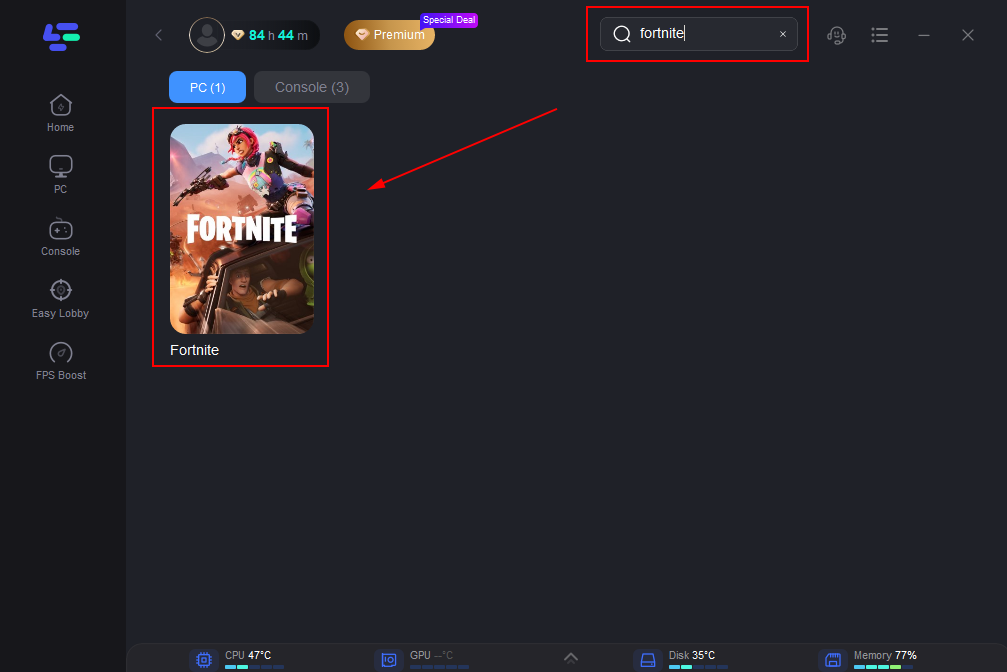
Step 2: Search for Fortnite: In the main dashboard, use the search bar at the top and type "Fortnite." Select the game from the results.
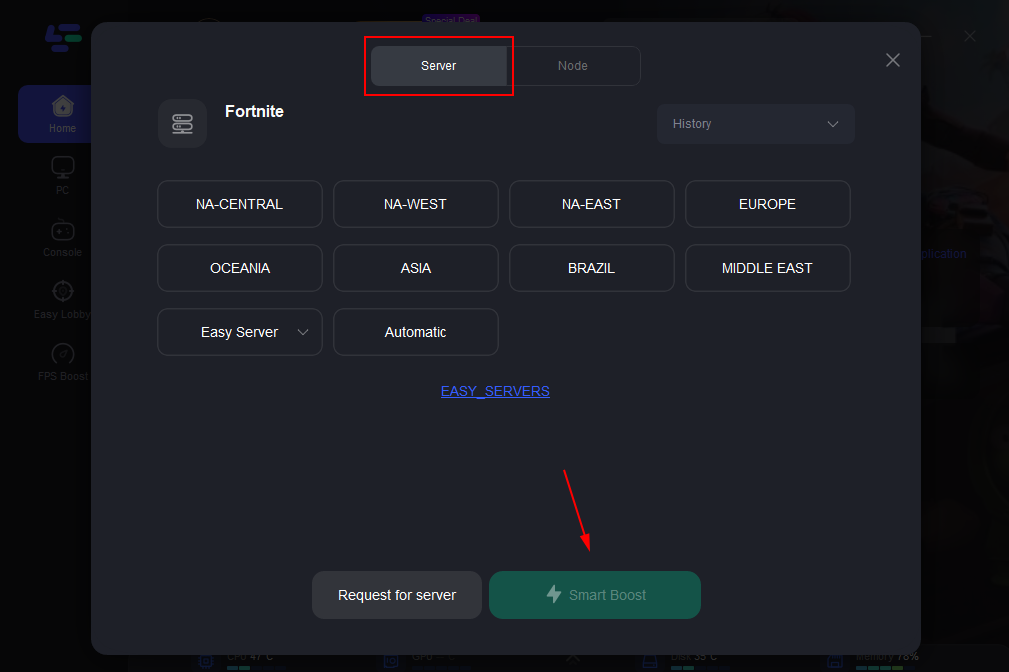
Step 3: Select Server and Node: Click on the "Server" button. Choose the region closest to you (e.g., NA-East, Europe). LagoFast will then show you a list of "Nodes." Pick the one with the lowest latency and 0% packet loss.
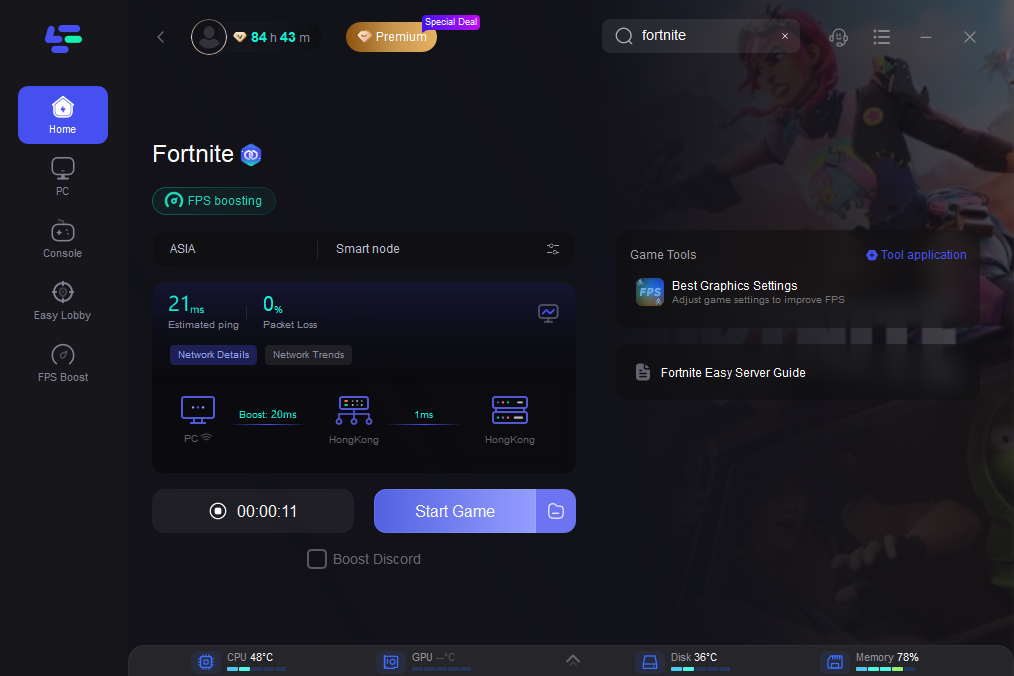
Step 4: Smart Boost: Click the "Boost" button. LagoFast will now establish a dedicated connection path. You can see your real-time ping and packet loss reduction on the dashboard.
Part 9. FAQs
1. Does Performance Mode really help in Save the World?
Yes, absolutely. Performance Mode significantly reduces the CPU overhead required for rendering. Since STW is very CPU-heavy due to AI and building logic, this mode often provides the most stable frame rates during high-intensity waves.
2. Why does my game freeze when someone joins?
This is a known engine limitation in STW. The game has to load the joining player's entire profile data. To minimize the impact, ensure the game is installed on an NVMe SSD, which speeds up the data retrieval process.
3. Can a high ping cause my FPS to drop?
Indirectly, yes. In STW, certain logic is tied to the server. If your connection is unstable, the client may "hitch" while waiting for data from the server, which looks like an FPS drop but is actually a network-induced stall.
4. Is LagoFast safe to use with Fortnite?
Yes. LagoFast does not modify game files or inject code into the game process. it simply optimizes your network routing and system settings, making it fully compliant with Epic Games' Terms of Service.
5. Why do my traps cause so much lag?
Each trap trigger creates an "event" that the server must process and sync. "Spamming" traps that have high fire rates or complex physics (like tires) multiplies this load. Using a more strategic, efficient trap layout can help maintain server performance.
Conclusion
Overcoming the technical hurdles of Fortnite Save the World requires a combination of smart in-game management and external optimization. By understanding that the game's "lag" is often a mix of legacy engine bottlenecks and network instability, you can take targeted steps to fix it. From switching to Performance Mode and optimizing your hardware to using a dedicated tool like LagoFast to secure a better server route, the path to a smooth 0-delay experience is within reach. Don't let technical issues stop you from reaching the end of the Twine Peaks storyline. Apply these fixes, optimize your connection, and get back to what matters most: saving the world, one husk at a time.

Boost Your Game with LagoFast for Epic Speed
Play harder, faster. LagoFast game booster eliminates stutter and lags on PC, mobile, or Mac—win every match!
Quickly Reduce Game Lag and Ping!
Boost FPS for Smoother Gameplay!